The Wisconsin Secretary of State business entity search helps users secure the entity information they seek. This tool queries the state database for corporate records that match a user’s search criteria. Once the user’s target entity is found, they can access a wealth of public information on screen.
Business Name Availability Check
State of Wisconsin

Business Entity Search
Step 1. Visit the Wisconsin Search Corporate Records Page
Access the Wisconsin Secretary of State business entity search tool. Prepare the criteria and any references you have before continuing.
Step 2. Examine the Options
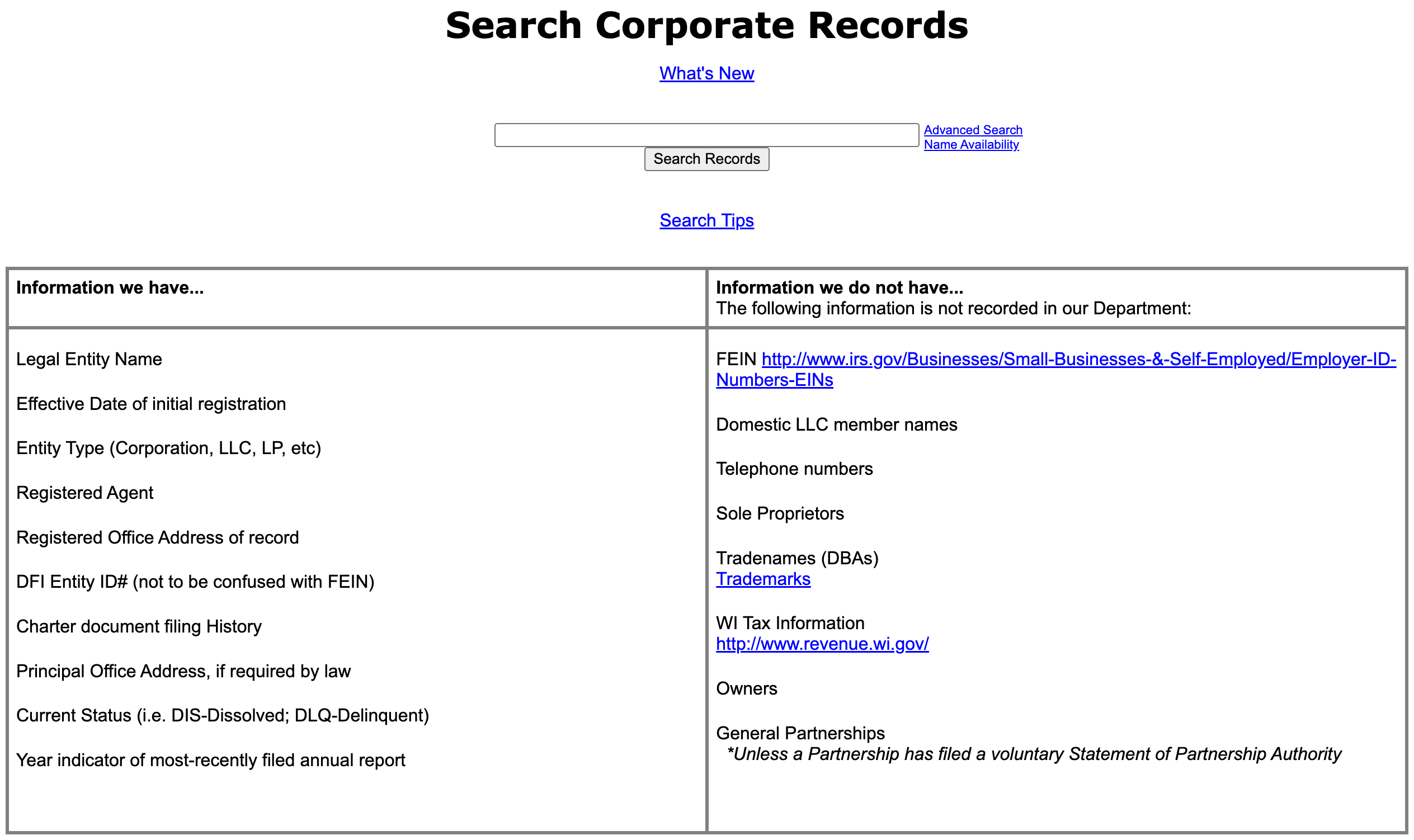
Notice the different types of queries this page provides. Consider our goal as running a corporate records search for an entity name.
- Search Corporate Records
- Advanced Search
- Name Availability
Step 3. Present Criteria for the Search
Begin by inputting as much of its legal name as known in the text box. If necessary, this search box also accepts keywords.
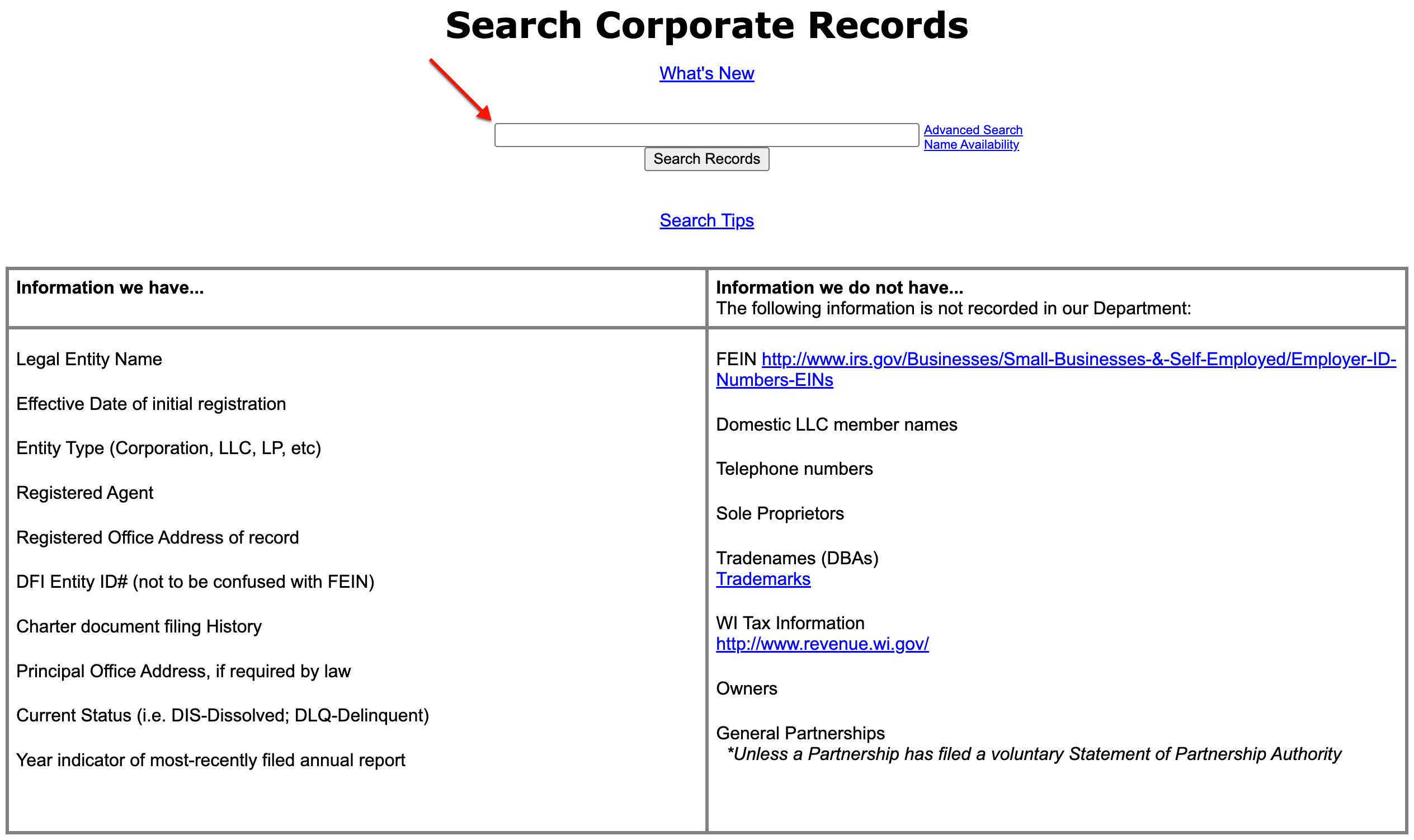
Step 4. Search Wisconsin Secretary of State Entity Records
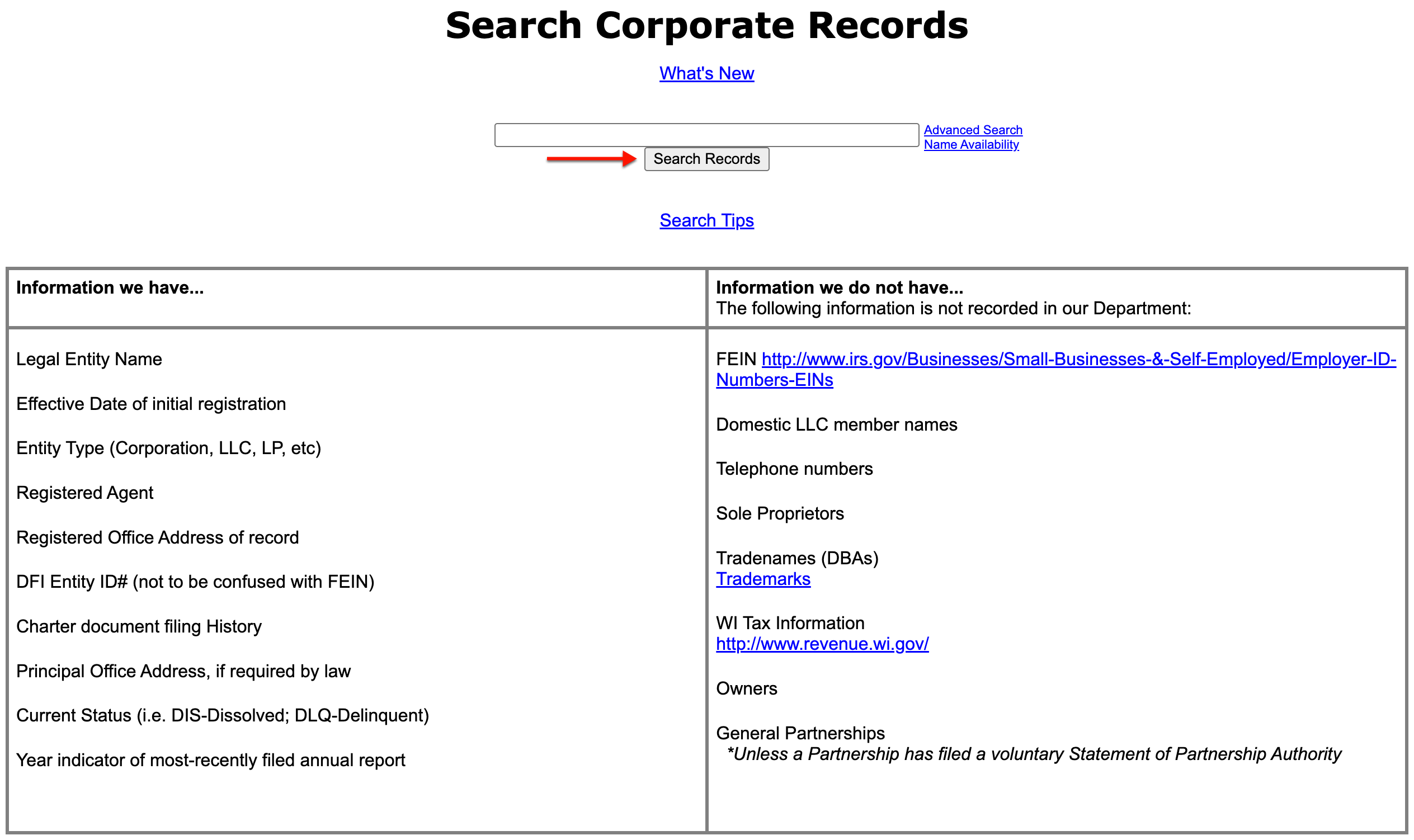
Find the “Search Records” button, then click on it. This initiates a basic search, so continue to Step 14. You may perform an advanced search by going to Step 5.
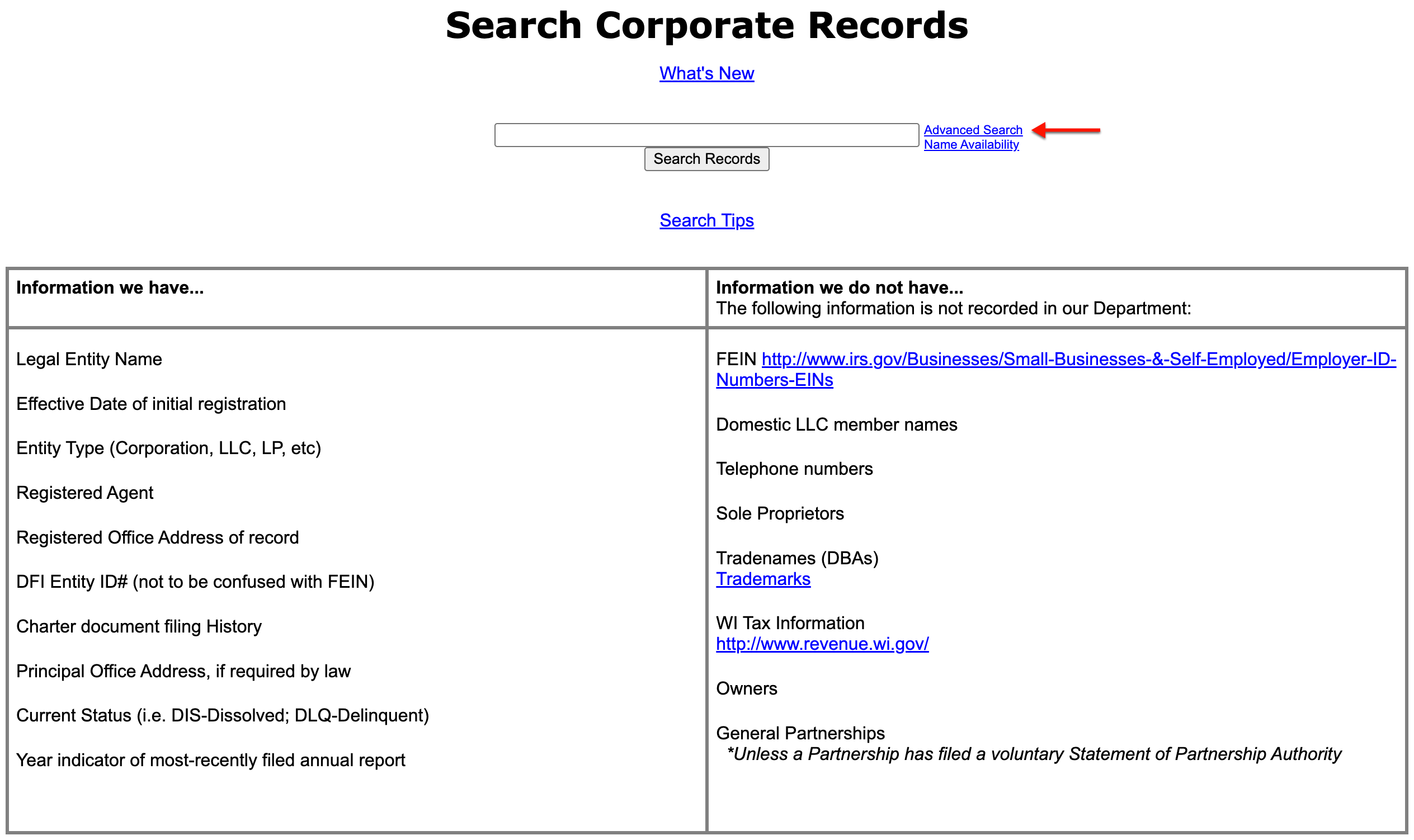
Step 5. Access Advanced Search Tools
Begin performing an advanced search by accessing the tool. Locate and select “Advanced Search.” This requires that additional information be available.
Step 6. Produce a Search Item for the Advanced Search
Type the search item (such as the business name or part of it) into the “Find Records” text box. Prepare to further define this entry.
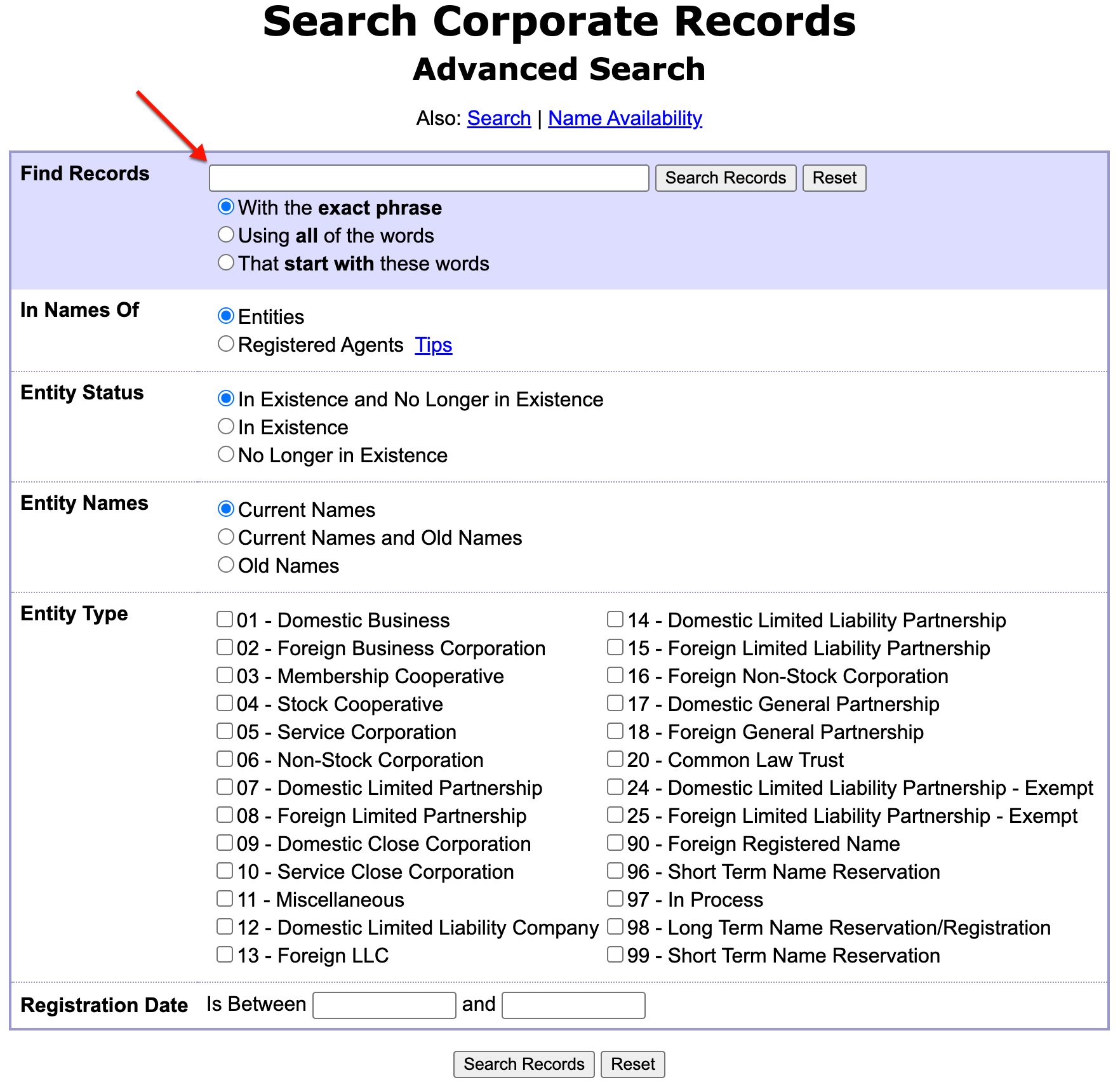
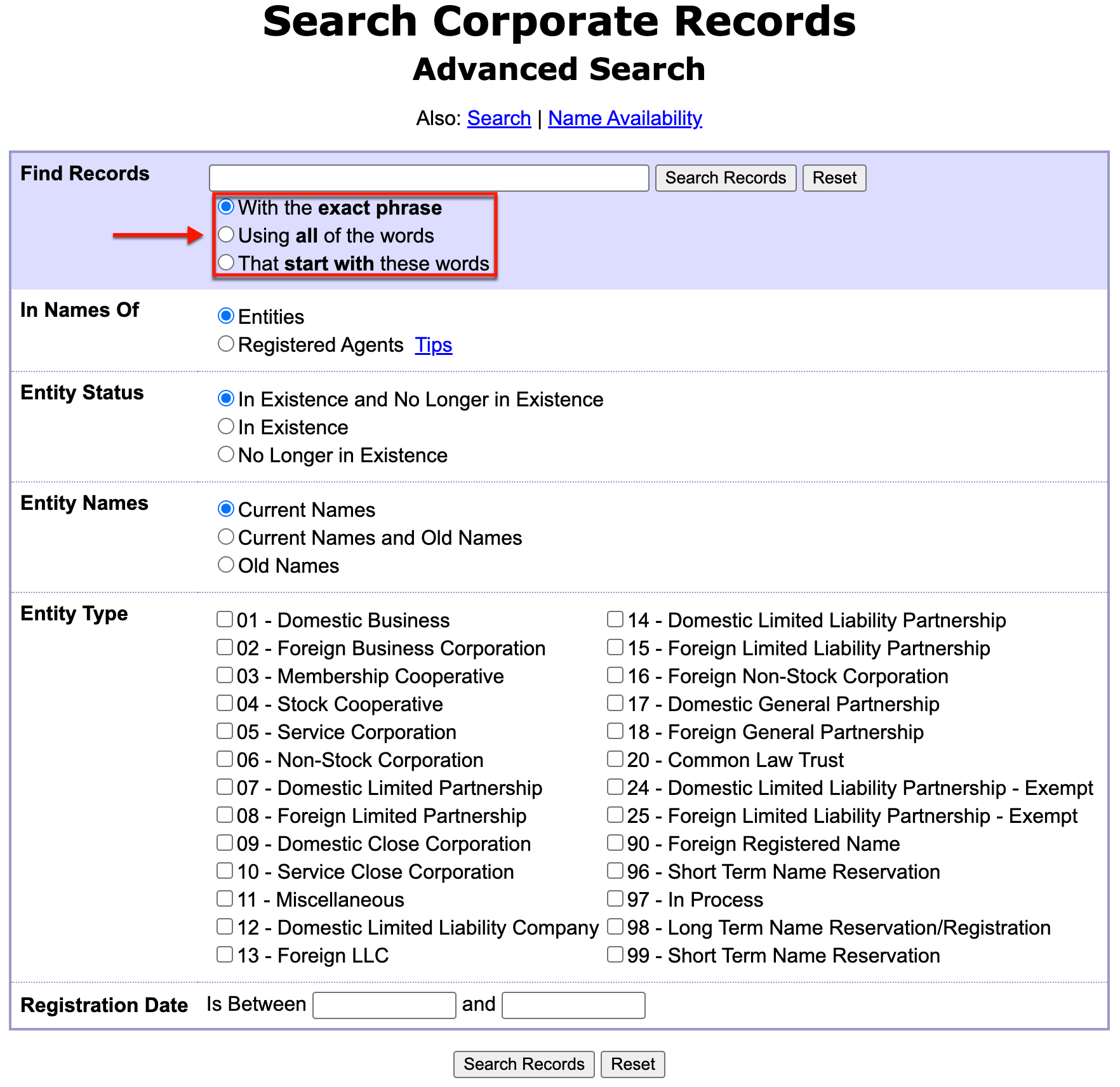
Step 7. Determine the Query’s Search Method
Use the radio buttons to set where in a record the query will find the search item. For example, for search items appearing exactly as typed, select the first radio button.
- With the Exact Phrase
- Using All of the Words
- That Start With These Words
Step 8. Identify the Type of Search
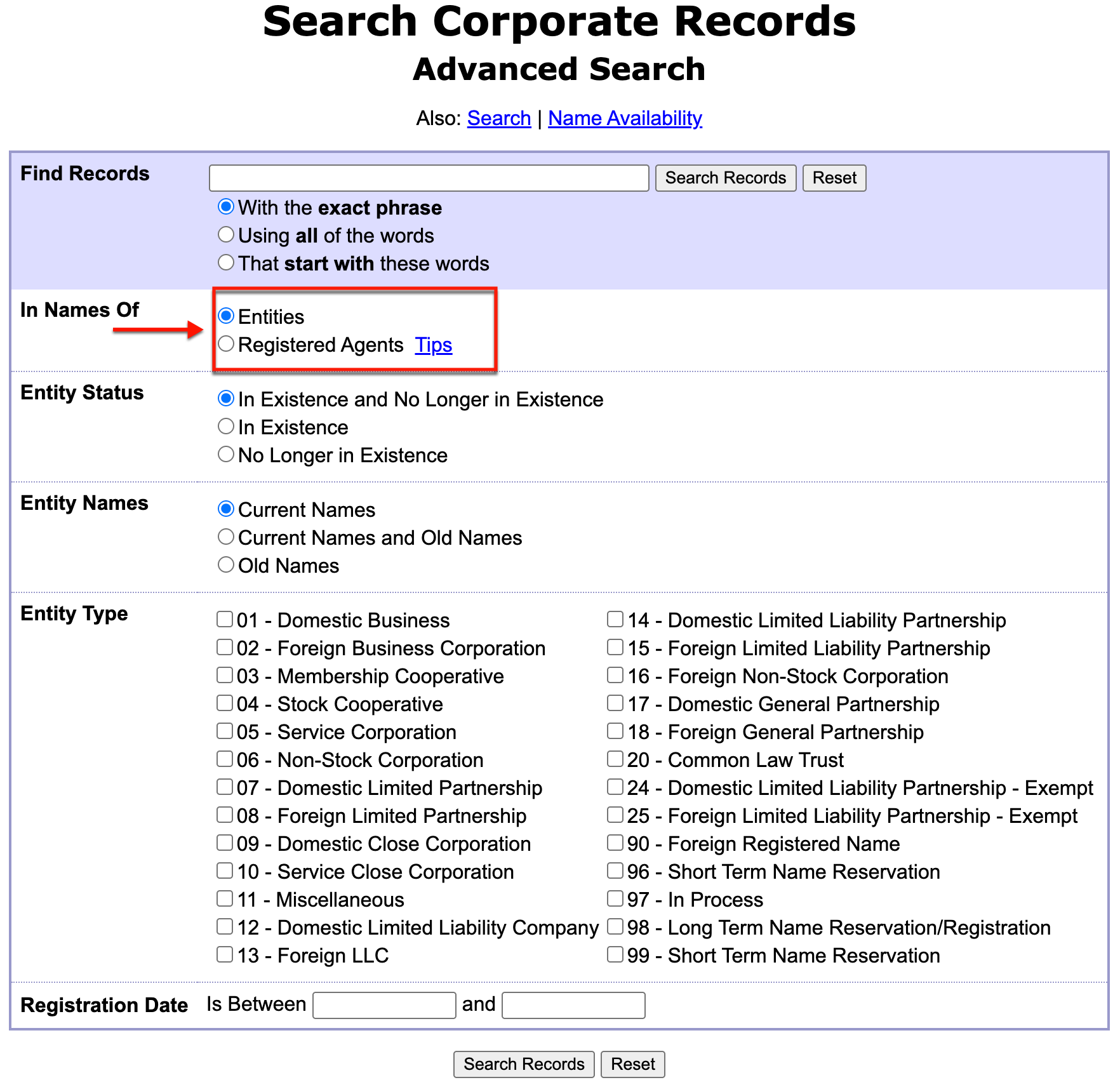
Use the “In Names Of” radio button to instruct the search tool to seek either an entity or a registered agent. Select “Entities” for our purpose.
- In Names Of
- Entities
- Registered Agents
Step 9. Require a Specific Entity Status
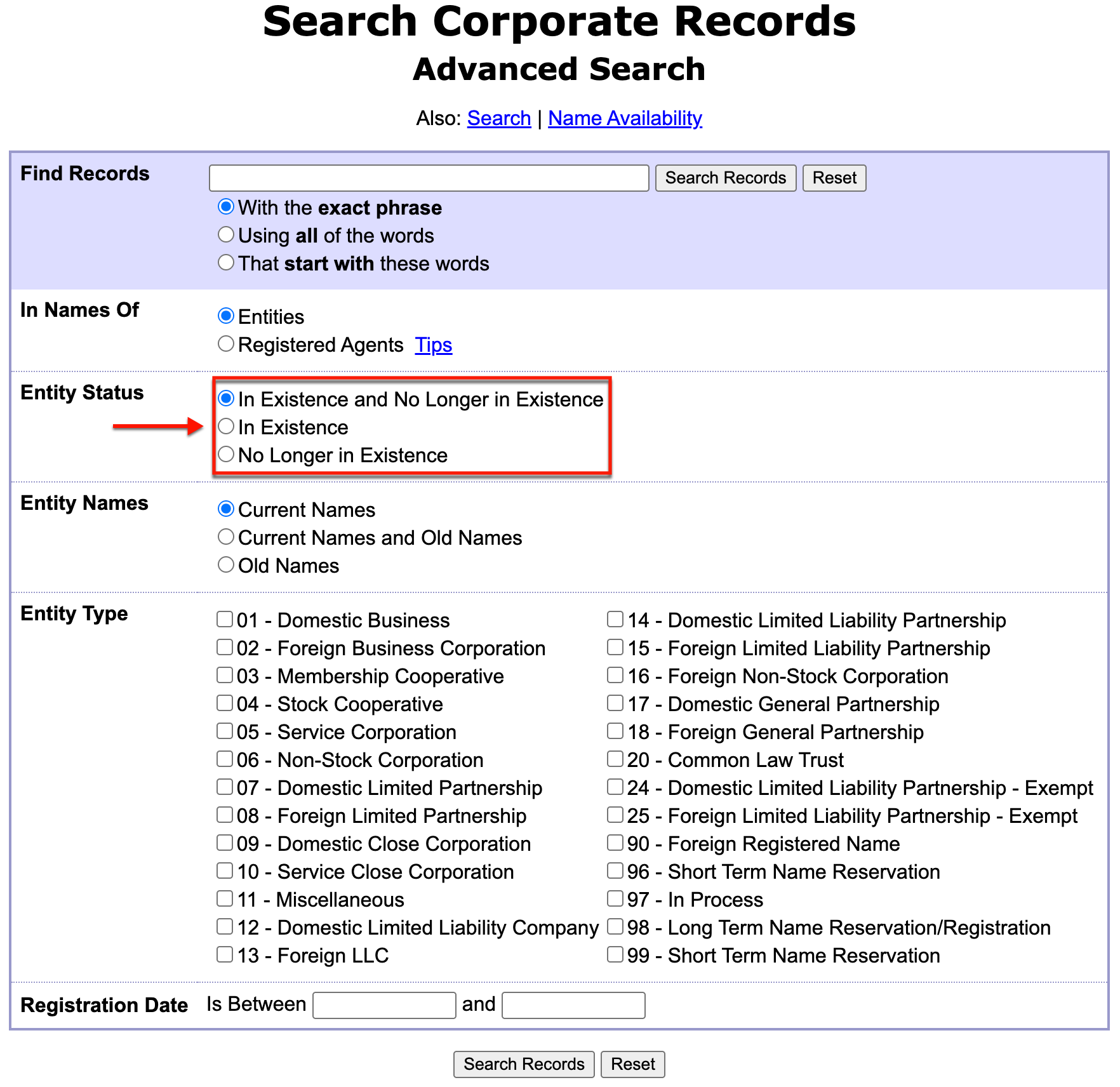
Use the “Entity Status” radio buttons to specify whether to include only active or inactive entities. If the status of the target is unknown, then include both.
- Entity Status
- In Existence and No Longer in Existence
- In Existence
- No Longer in Existence
Step 10. Filter by Name Status
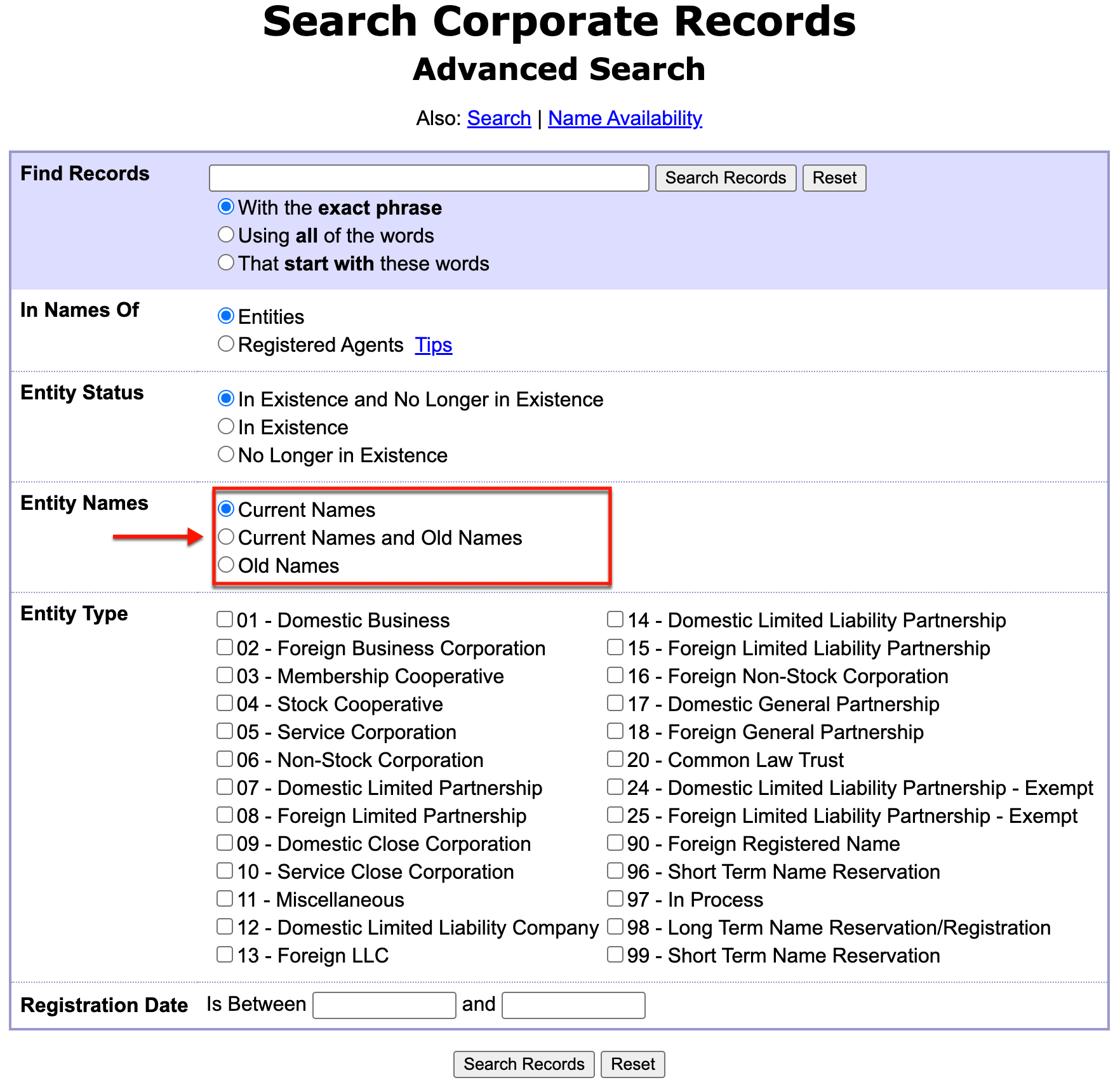
Set the tool to omit entities with certain types of names. For example, if the goal is to find only current names, select the first radio button from “Entity Names.”
- Enitity Names
- Current Names
- Current Name and Old Names
- Old Names
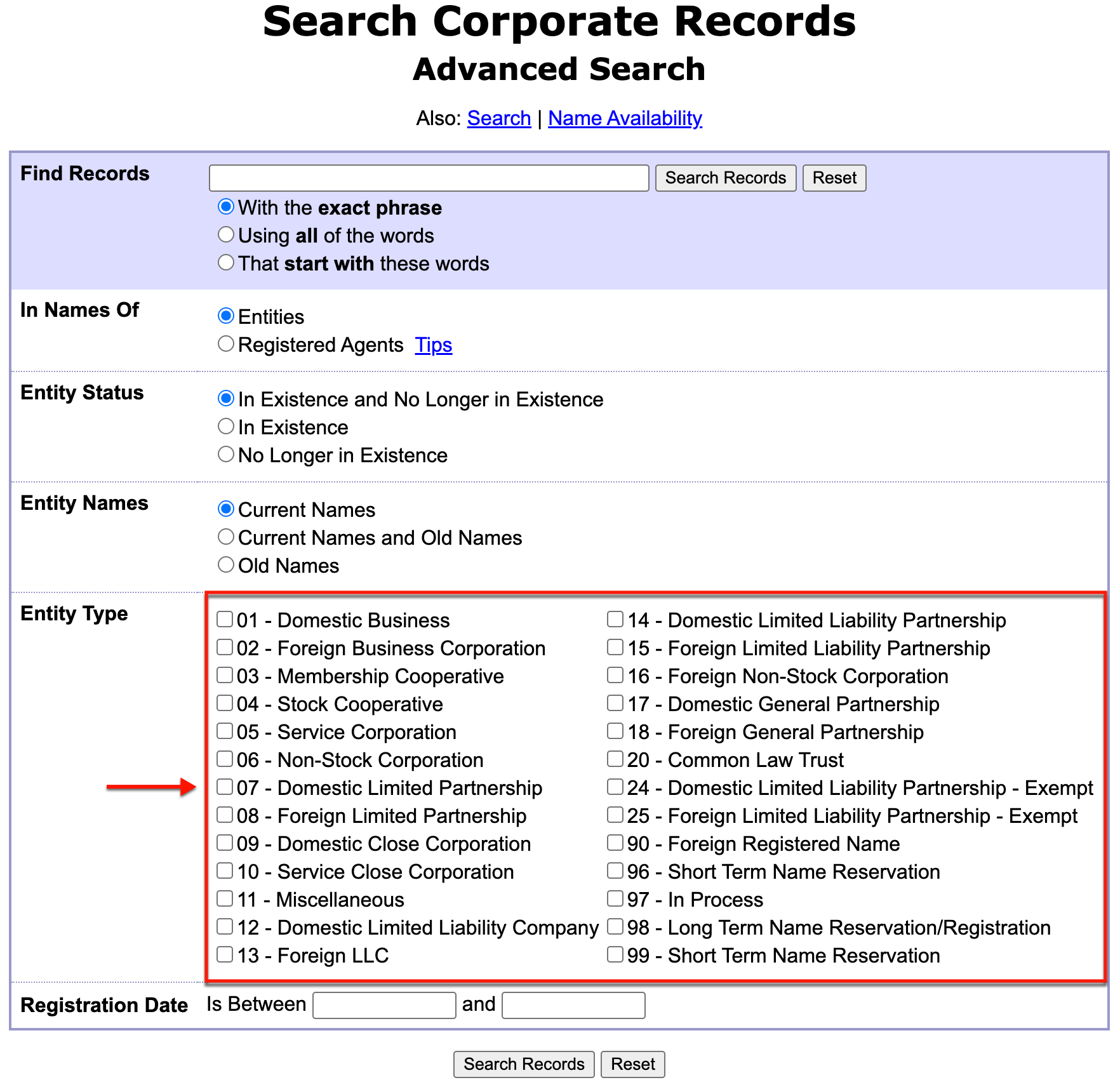
Step 11. Exclude Unwanted Entity Types
Identify the type of entity this query must find from the “Entity Type” list. After selecting its checkbox, the query will discount matches with the unselected entities.
- Entity Type
- 01- Domestic Business
- 02 – Foreign Business Corporation
- 03 – Membership Cooperative
- 04 – Stock Cooperative
- 05 – Service Corporation
- 06 – Non-Stock Corporation
- 07 – Domestic Limited Partnership
- 08 – Foreign Limited Partnership
- 09 – Domestic Close Partnership
- 10 – Service Close Corporation
- 11 – Miscellaneous
- 12 – Domestic Limited Liability Company
- 13 – Foreign LLC
- 14 – Domestic Limited Liability Partnership
- 15 – Foreign Limited Liability Partnership
- 16 – Foreign Non-Stock Corporation
- 17 – Domestic General Partnership
- 18 – Foreign General Partnership
- 20 – Common Law Trust
- 24 – Domestic Limited Liability Partnership – Exempt
- 25 – Foreign Limited Liability Partnership – Exempt
- 90 – Foreign Registered Name
- 96 – Short Term Name Reservation
- 97 – In Process
- 98 – Long Term Name Reservation
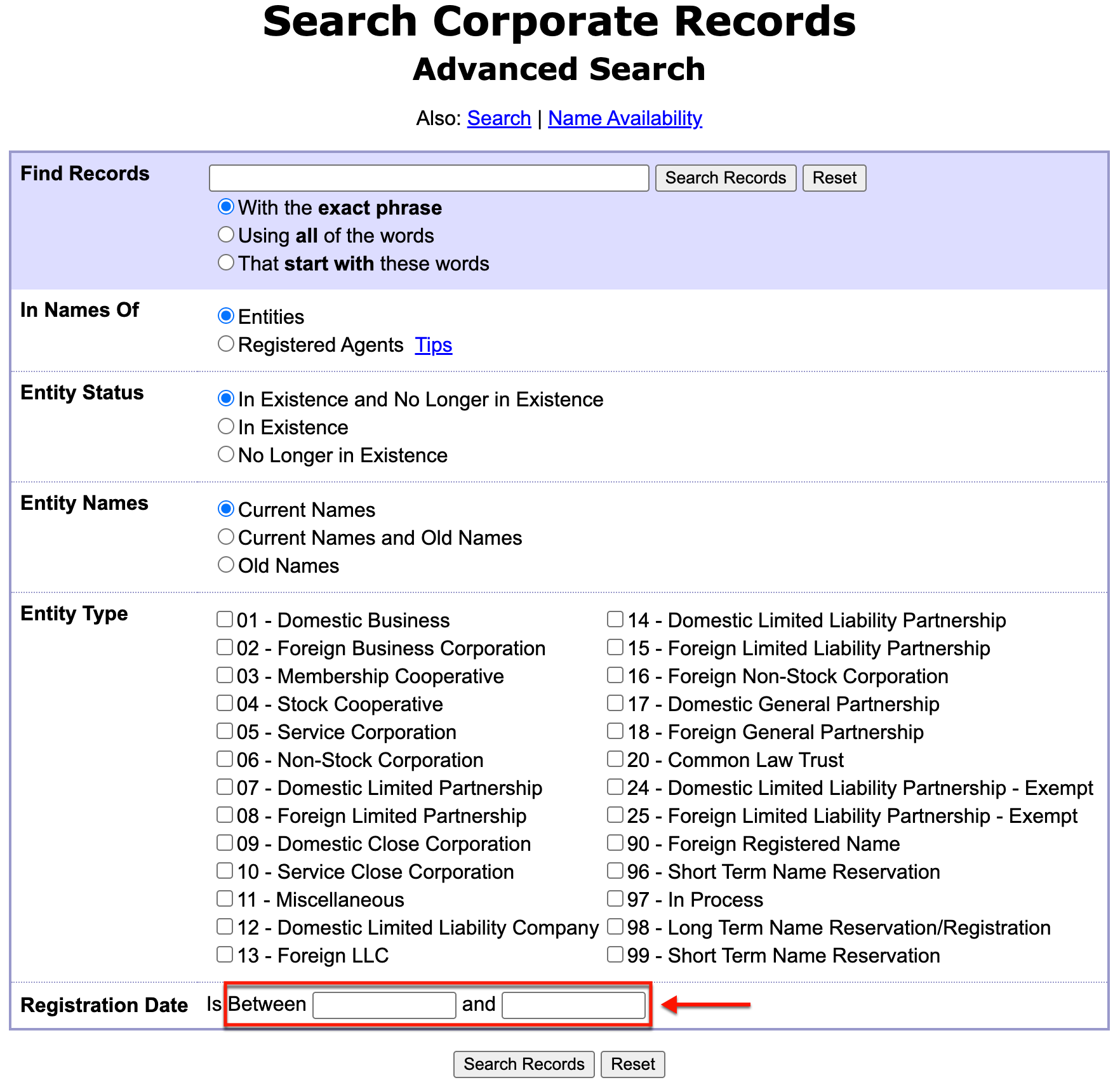
Step 12. Require Entities with a Specific Registration Date
If the registration date of the target entity is known, then use it as a filter. Present a date range around this date by filling in the “Registration Date” statement.
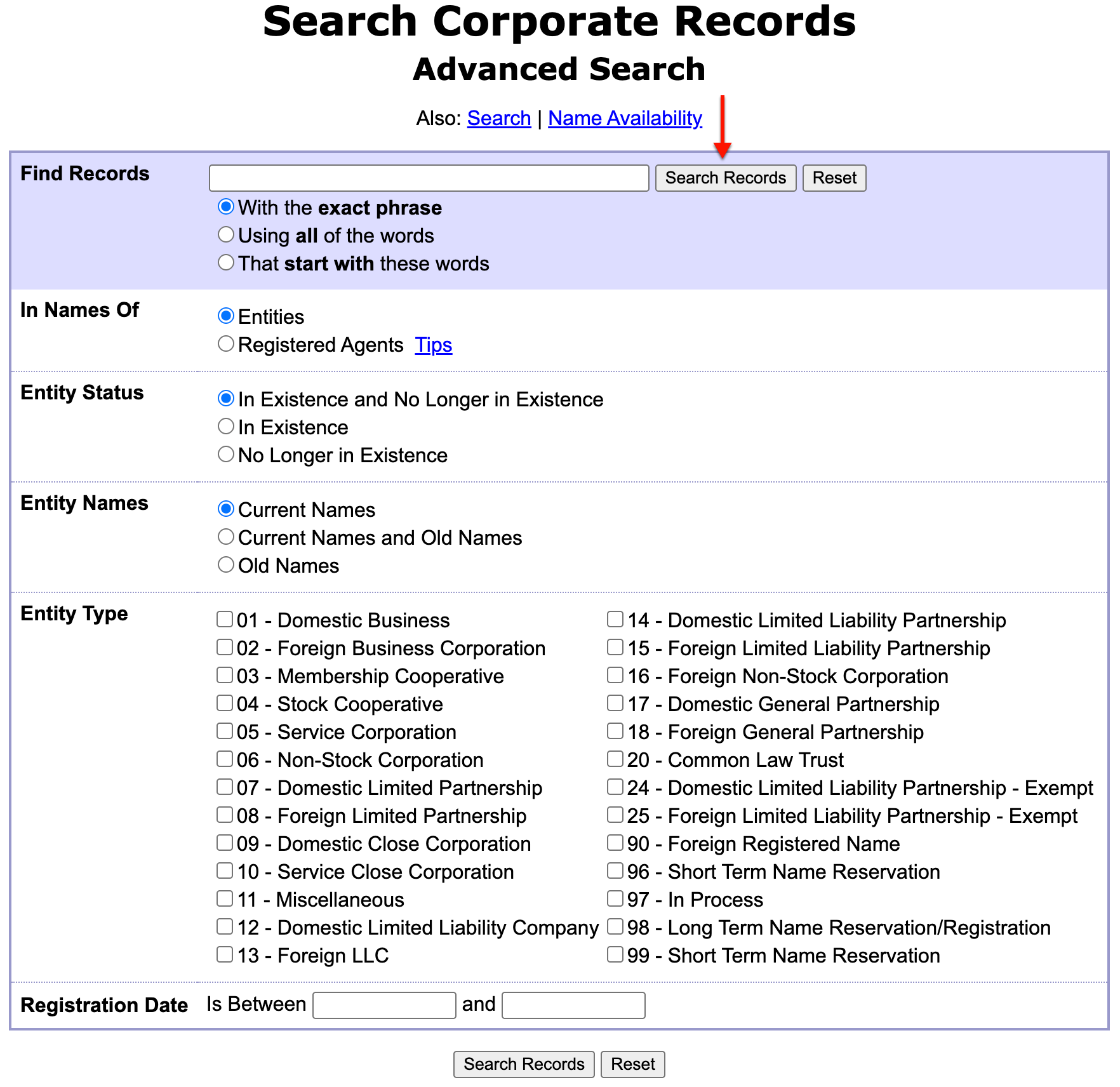
Step 13. Start the Wisconsin Database Query
Once the criteria have the support of the filter options above, continue to the search results. Select the “Search Records” button to access records meeting your criteria.
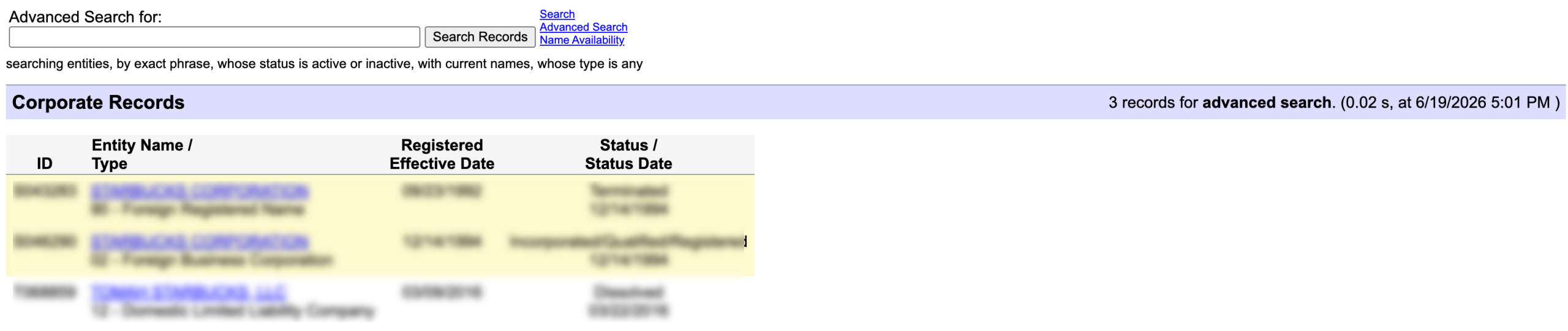
Step 14. Review Corporate Records Query Results
After submitting the query, the search tool returns matching state entity records. Review this information and scroll through these results for the target entity.
- ID
- Entity Name/Type
- Registered Effective Date
- Status/Status Date
Step 15. Access the Entity’s Wisconsin Record
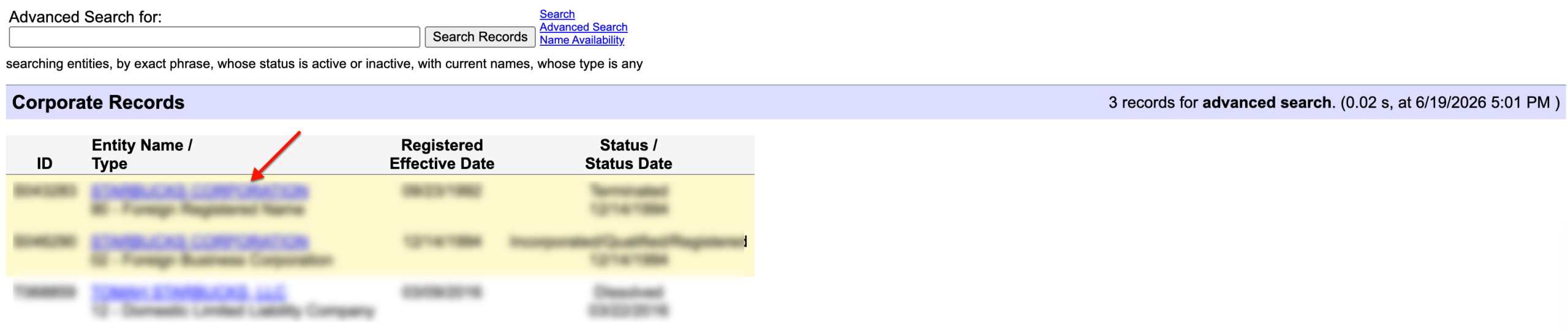
Each entity name in the second column (“Entity Name/Type”) links directly to that entity’s details. Find the target business, then select its name.
Step 16. Gather the Entity’s Information
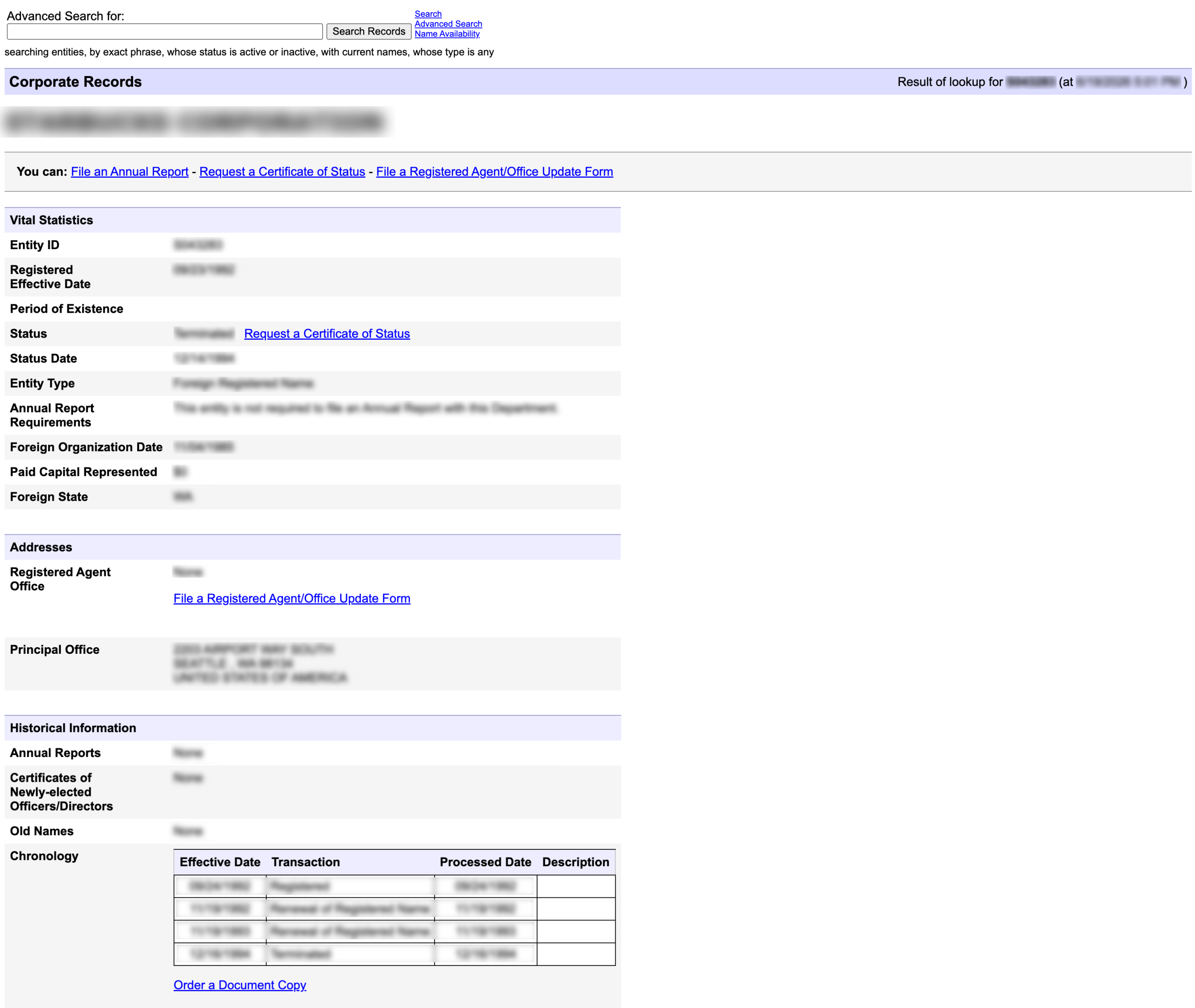
Examine the Wisconsin entity’s business details from its records page. Here, contact information, filing status, and other useful public information are available for research.
- Vital Statistics
- Registered Effective Date
- Period of Existence
- Status – Request a Certificate of Status (see image)
- Status Date
- Entity Type
- Annual Report Requirements
- Foreign Organization Data
- Paid Capital Represented
- Foreign State
- Addresses
- Registered Agent Office
- File a Registered Agent/Office Update
- Principal Office
- Historical Information
- Annual Reports
- Certificates of Newly-Elected Officers/Directors
- Old Names
- Chronology
- Effective Date
- Transaction
- Processed Date
- Description
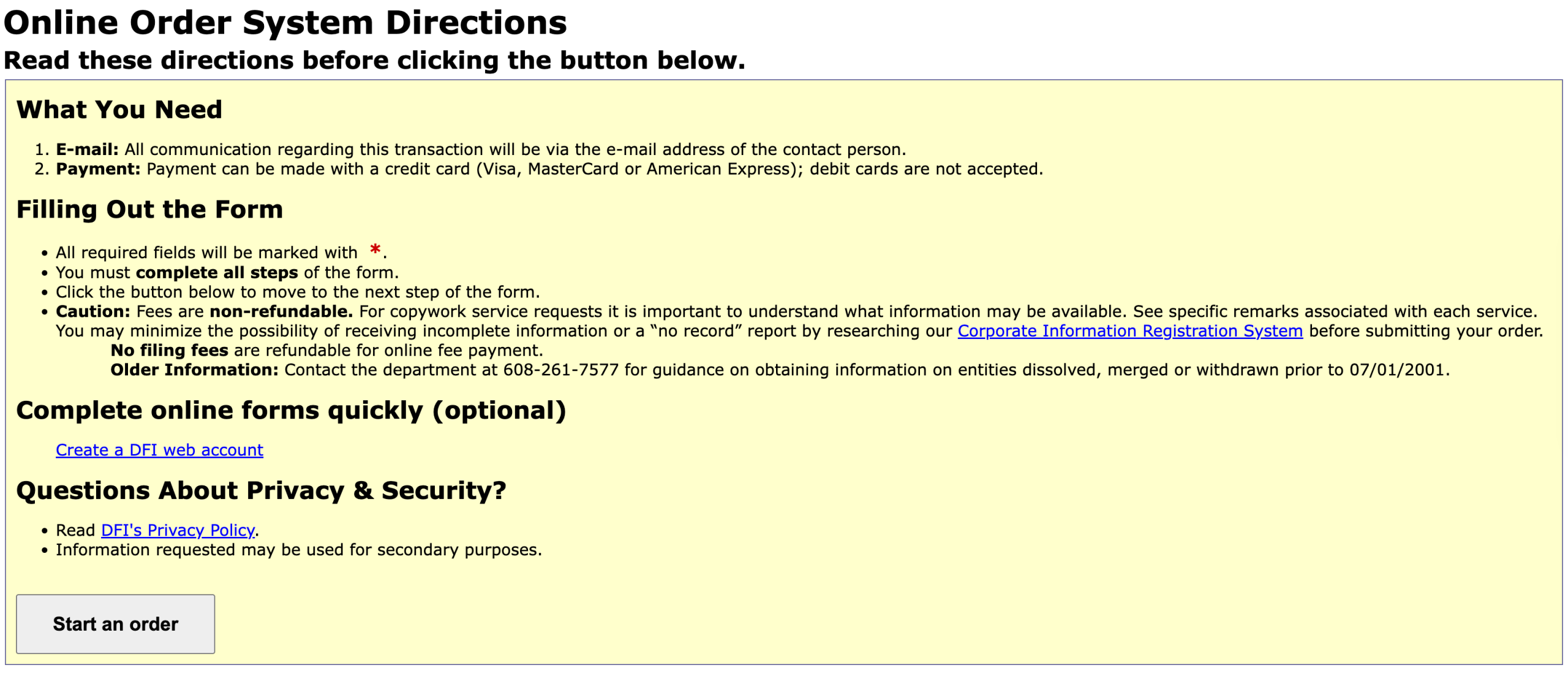
- Order a Document Copy (see image)