The Rhode Island Secretary of State business entity search is a query tool developed and maintained by the state government. Its primary purpose is to help visitors locate an entity’s information in a vast database of entities operating in the state while also acting as an indication of whether an entity name is available or in use.
Business Name Availability Check
State of Rhode Island

Business Entity Search
Step 1. Access the Rhode Island Corporate Search Tool
Go to Rhode Island’s historic corporate catalog search to access the business entity search tool. Organize your research to make the most of the search options.
Step 2. Assess the Search Options
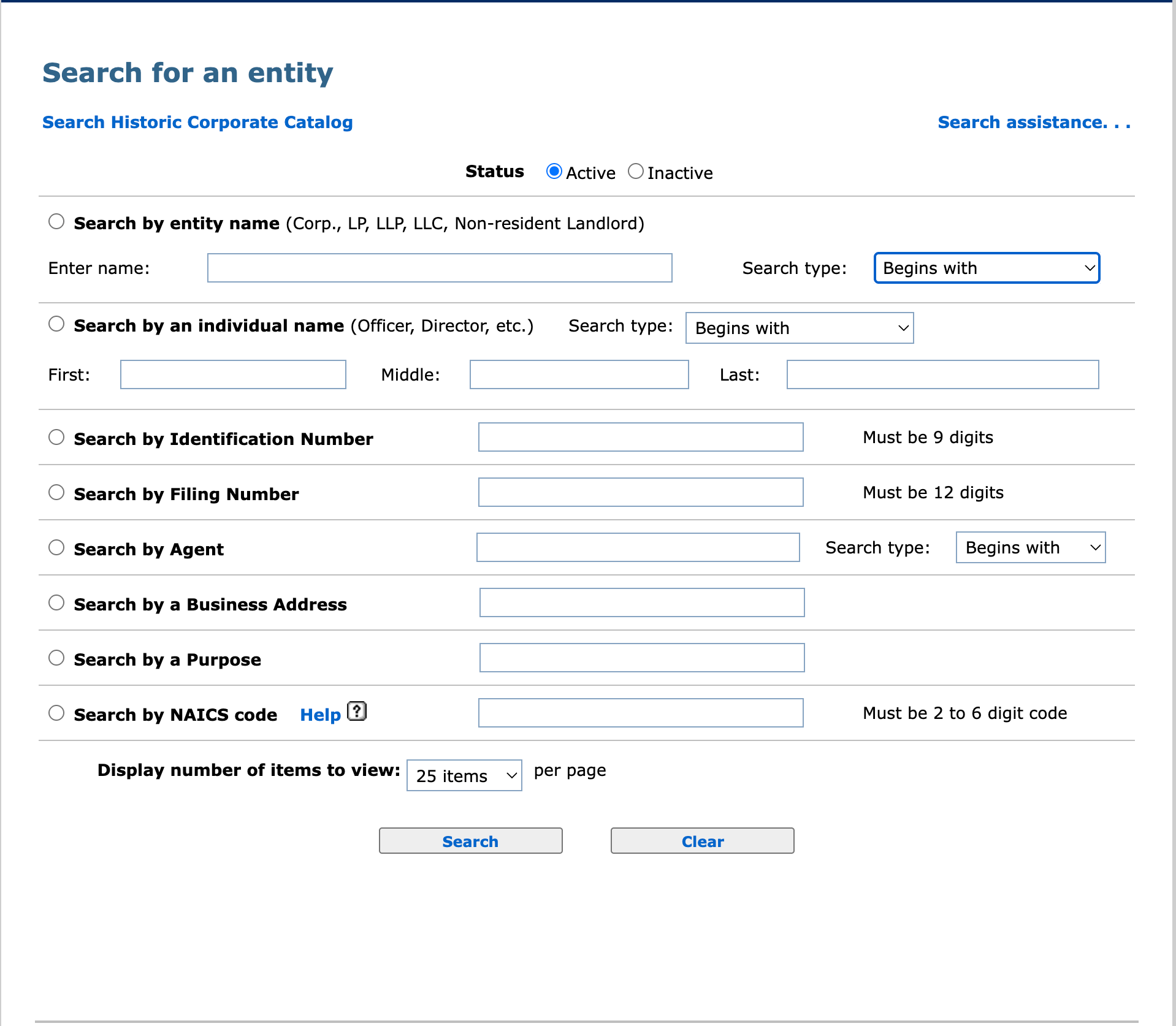
Go over the search options provided. Several sections allow for additional information to focus the query. We shall concentrate on seeking an entity by name.
- Status
- Active
- Inactive
- Search By Entity Name
- Enter Name
- Search Type
- Search by an Individual Name
- First
- Middle
- Last
- Search by identification Number
- Search by Filing Number
- Search by Agent
- Search Type
- Search By a Business Address
- Search by a Purpose
- Search by NAICS Code
- Display Number of Items to View
- Search
- Clear
Step 3. Set An Entity Status for the Target
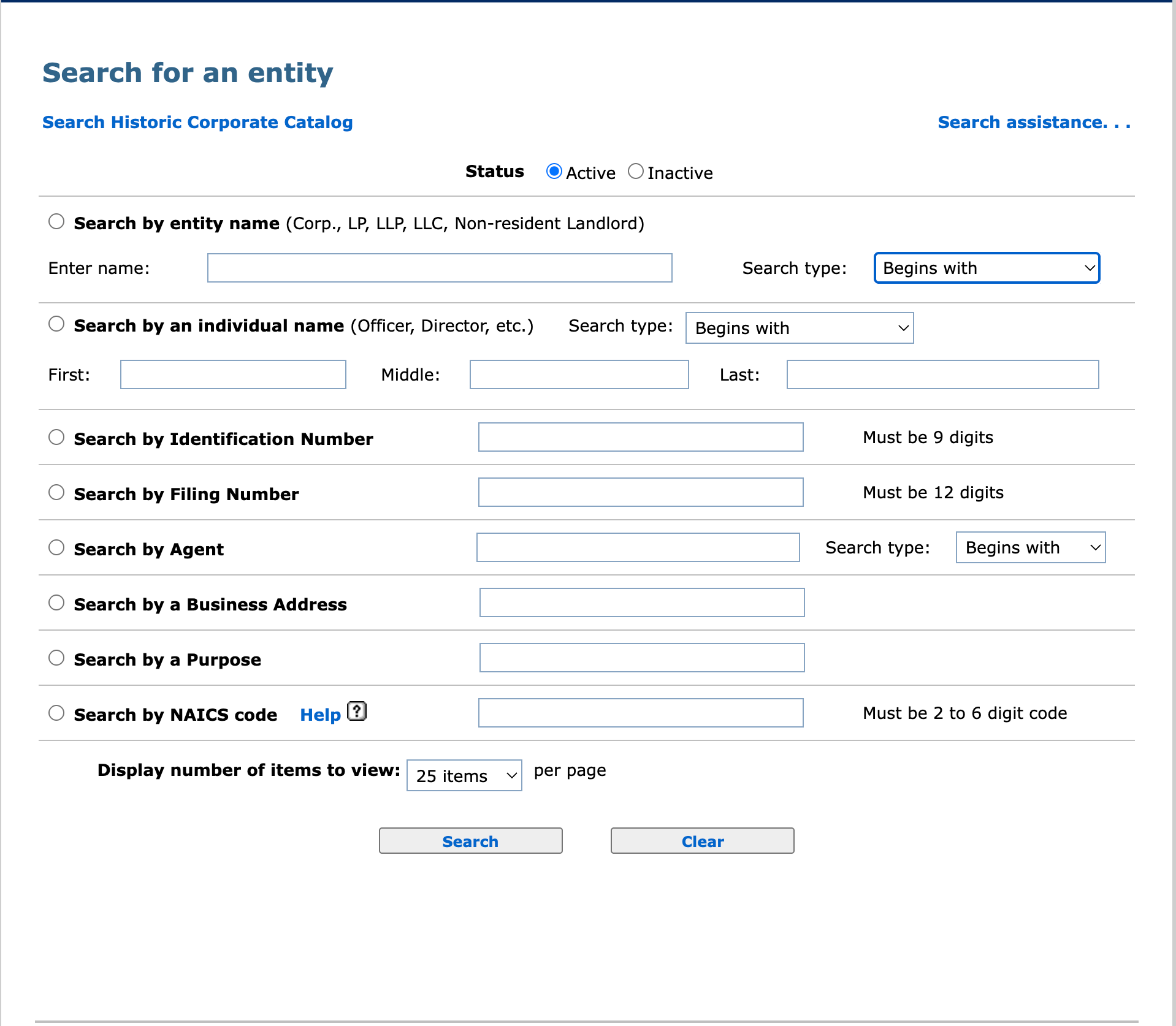
Begin by filtering search results to display only active or only inactive matching entities. Choose one of the first two radio buttons to focus the query.
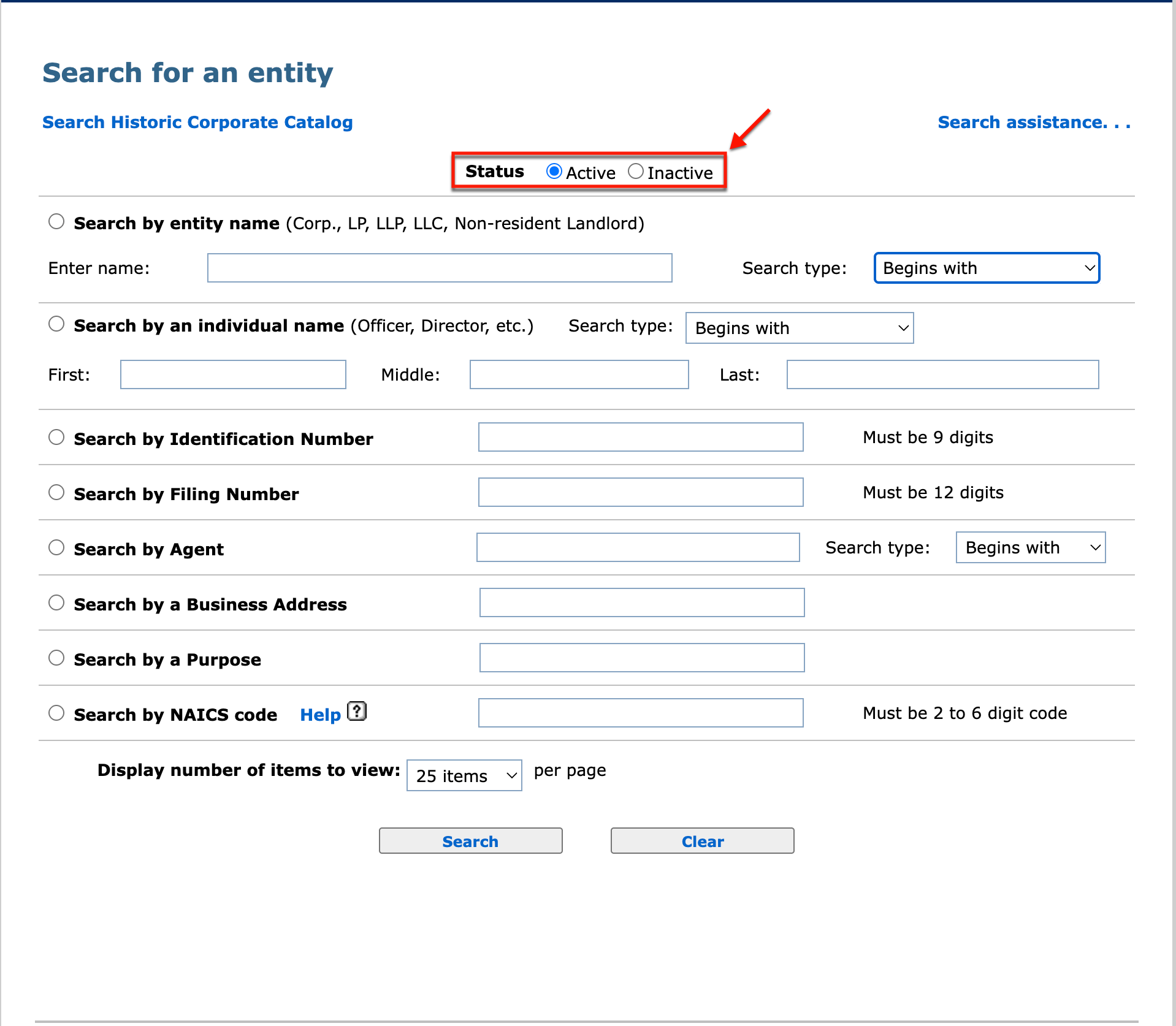
Step 4. Select the Name Search
As mentioned, several areas allow for different types of searches. Select the “Search by Entity Name” radio button to look for an entity in the state database using its name.
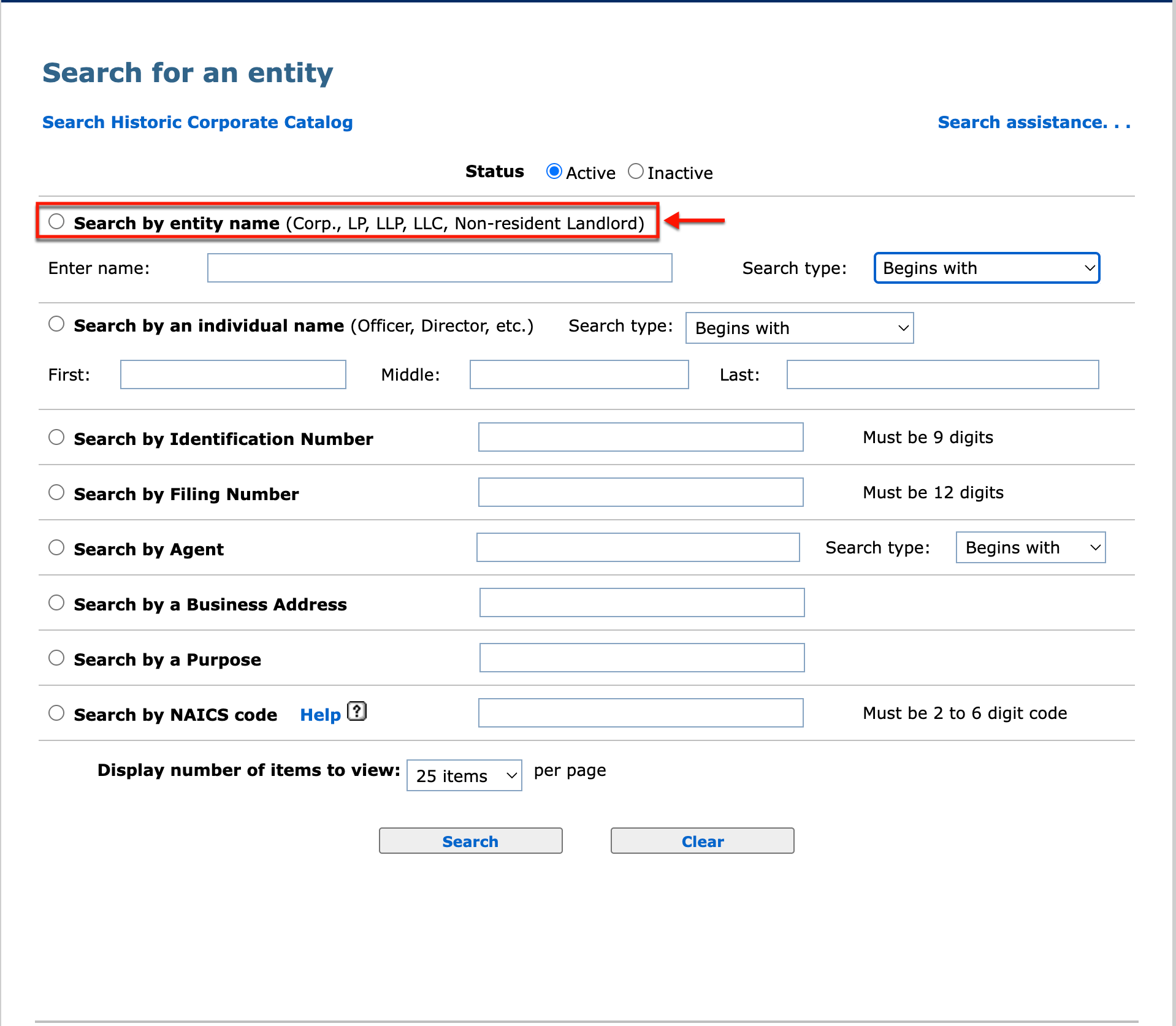
Step 5. Generate the Search Item
Use part or all of an entity’s name or a keyword as the search criteria. Provide this material to the text box “Enter Name.”
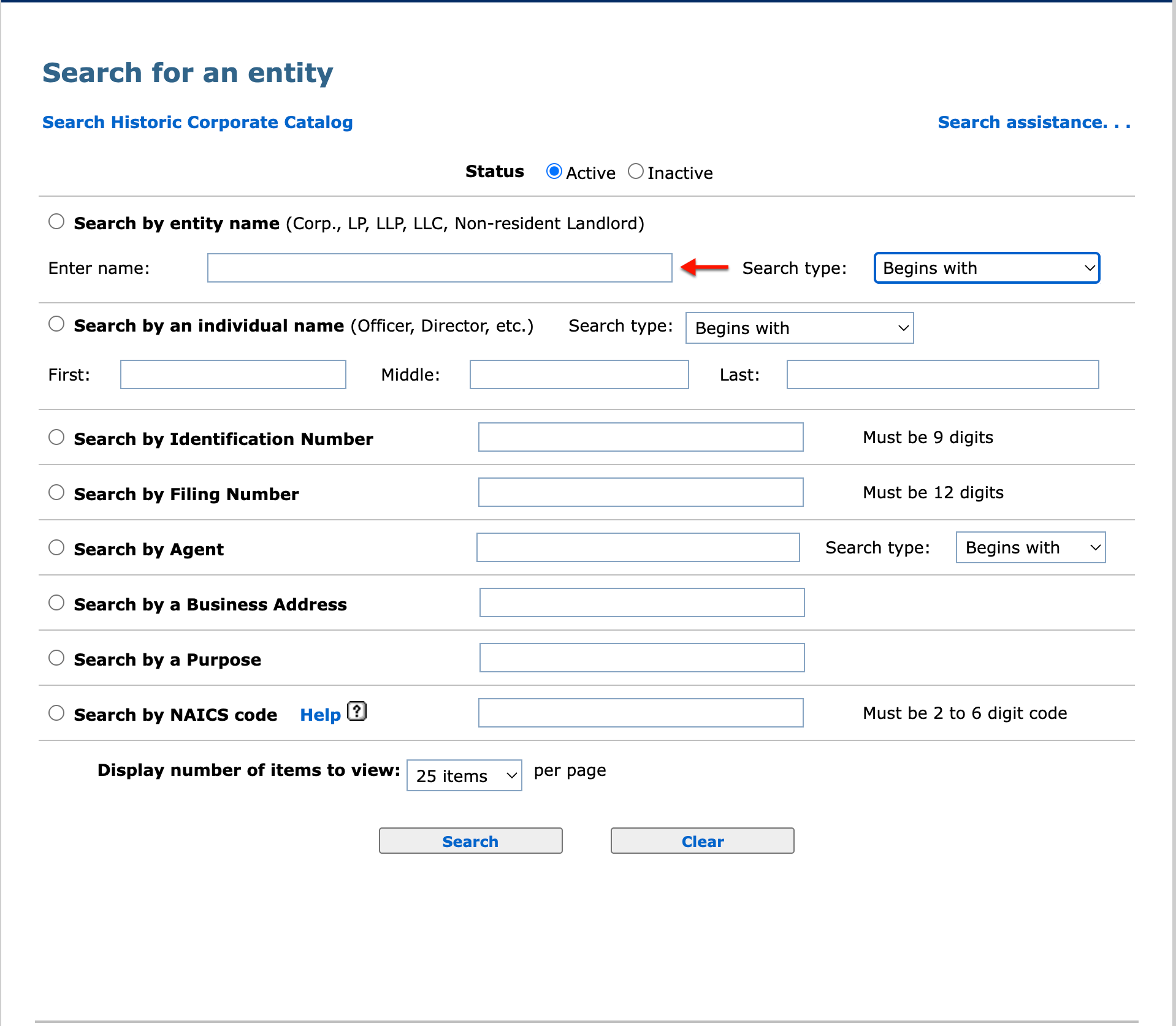
Step 6. Further Define the Search Item
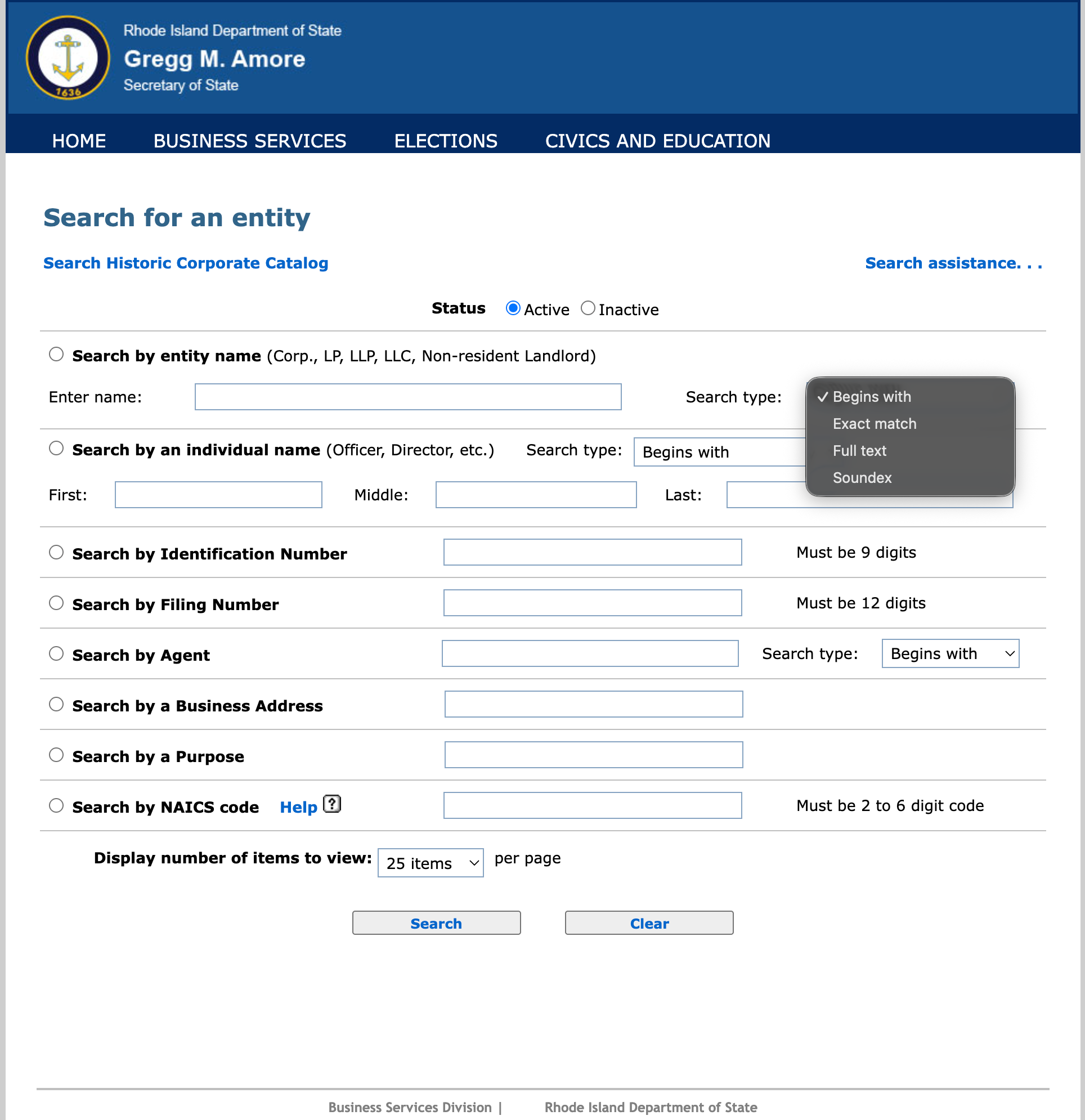
Notice the “Search Type” drop-down menu (see image). Choose an option instructing the query to seek records according to the criteria’s placement in the entity name.
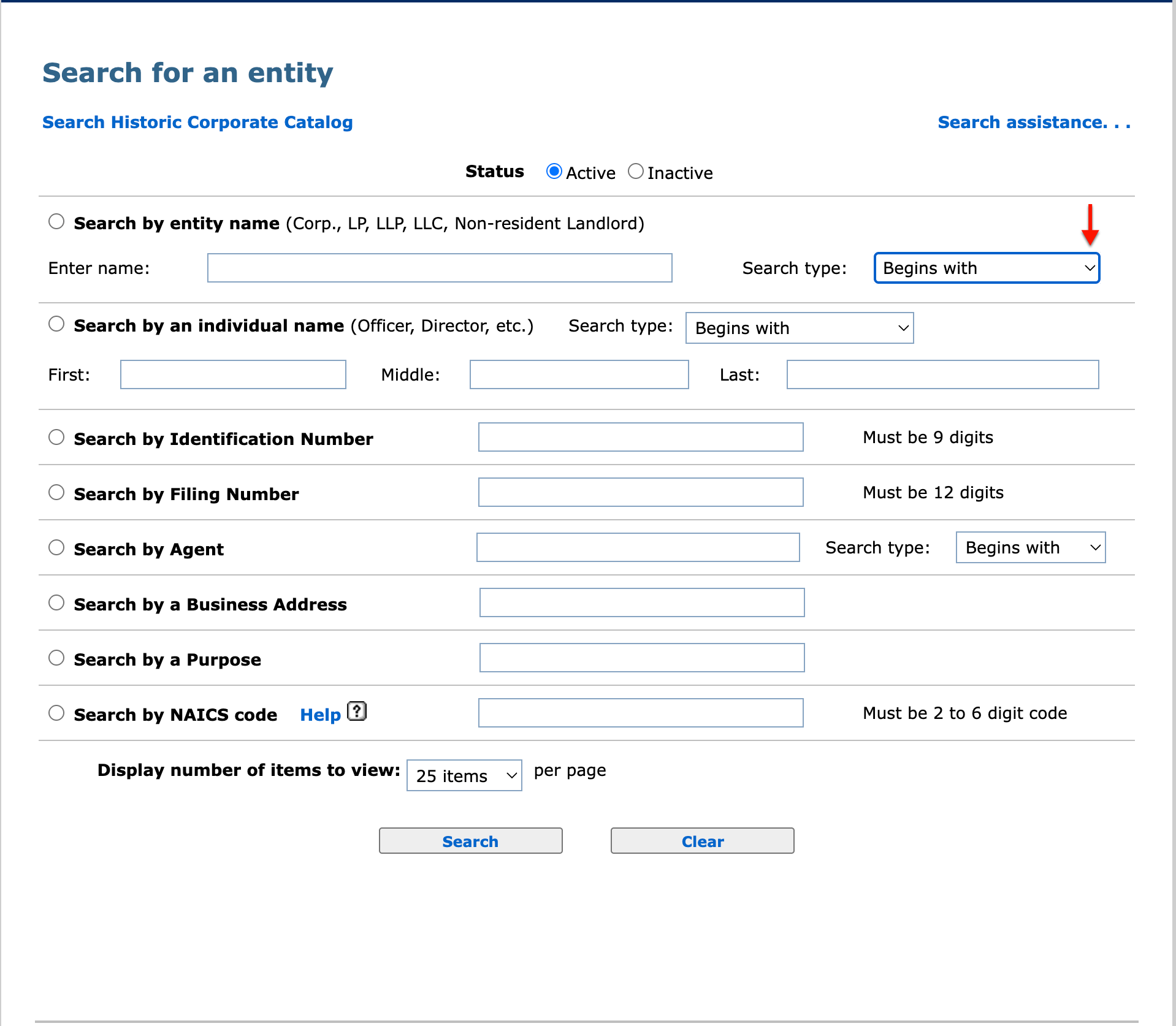
Step 7. Set the Results Display
Locate the drop-down menu “Display Number of Items to View.” Use this menu to determine how many results may appear on each page.
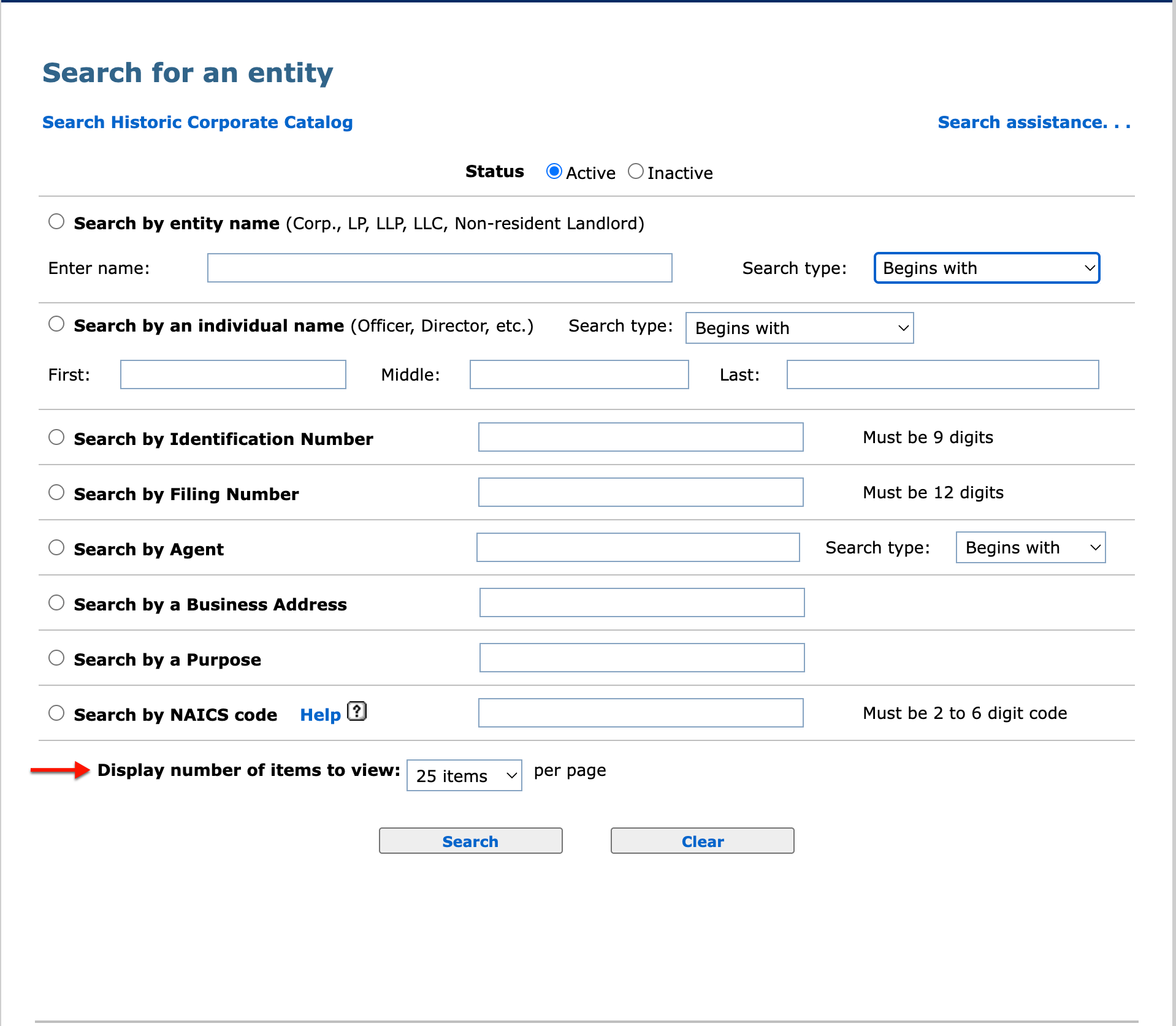
Step 8. Initiate the Rhode Island Business Entity Query
Choose the “search” button in order to view entities with content matching the criteria. That is, this directs the page to run the query.
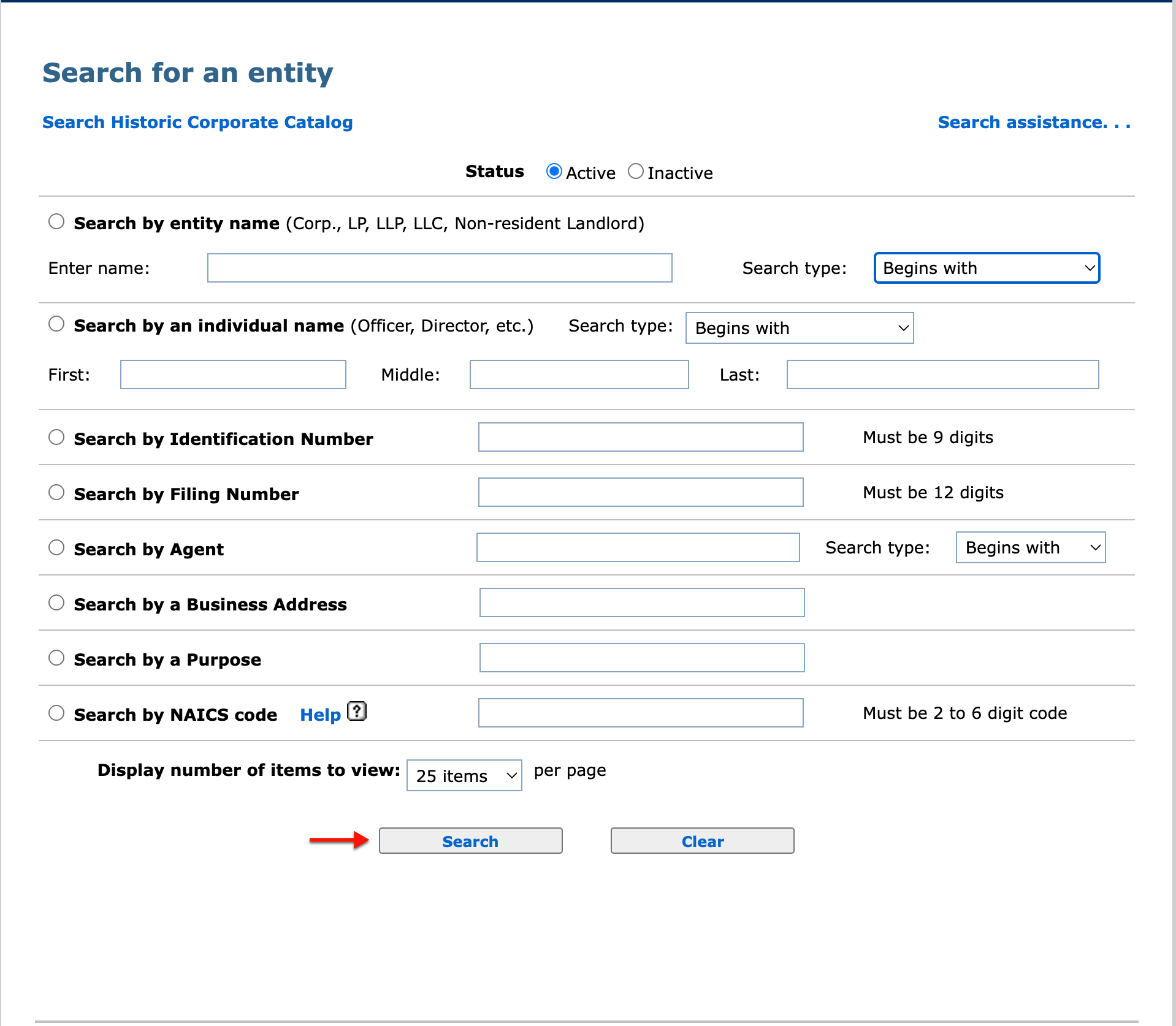
Step 9. Receive the Results for Review
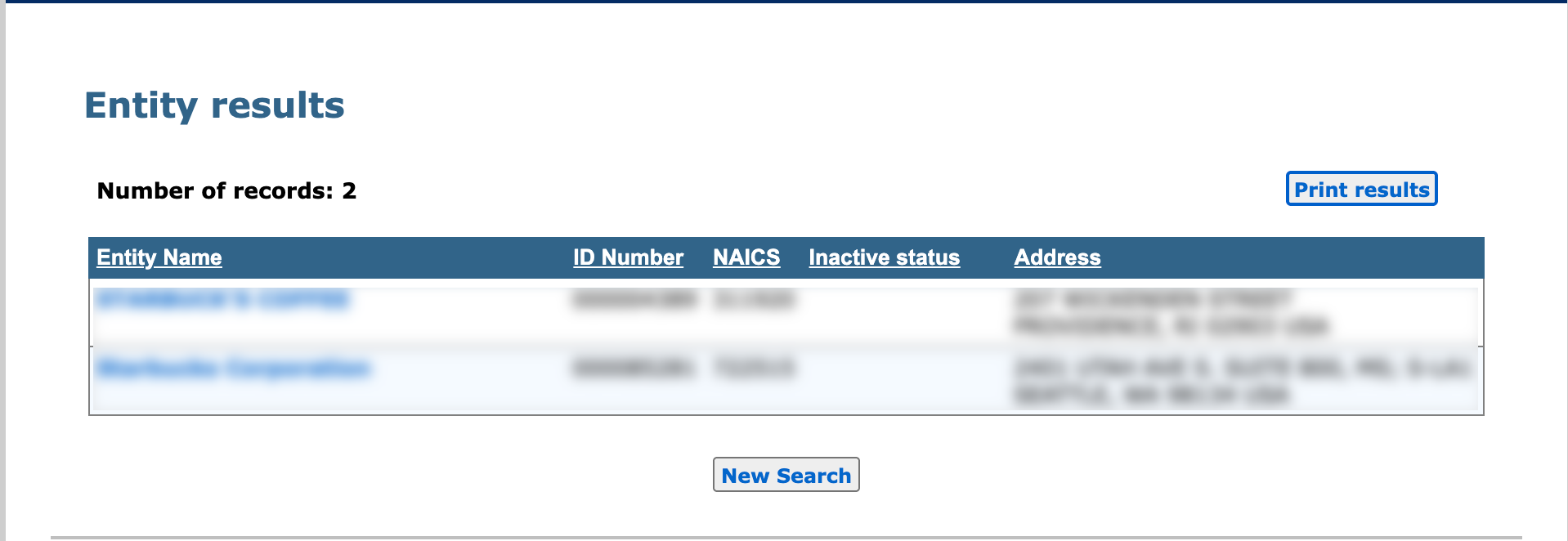
Review the table the query generates. By default, this information is sorted by name; however, clicking any column heading will adjust the sorting accordingly.
- Entity Name
- ID Number
- NAICS
- Inactive Status
- Address
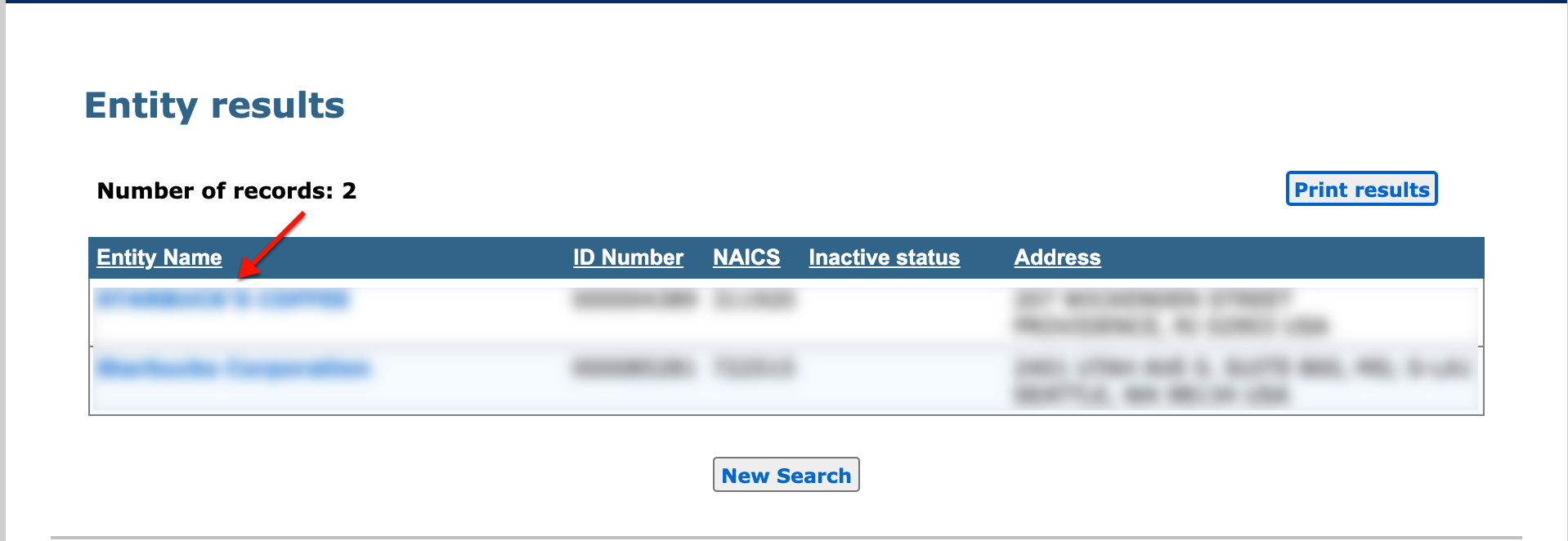
Step 10. Select a Rhode Island Entity
Click on the name of the entity to view its information with the state. On selection, this directs the browser to a details page.
Step 11. Look Over the State’s Entity Information
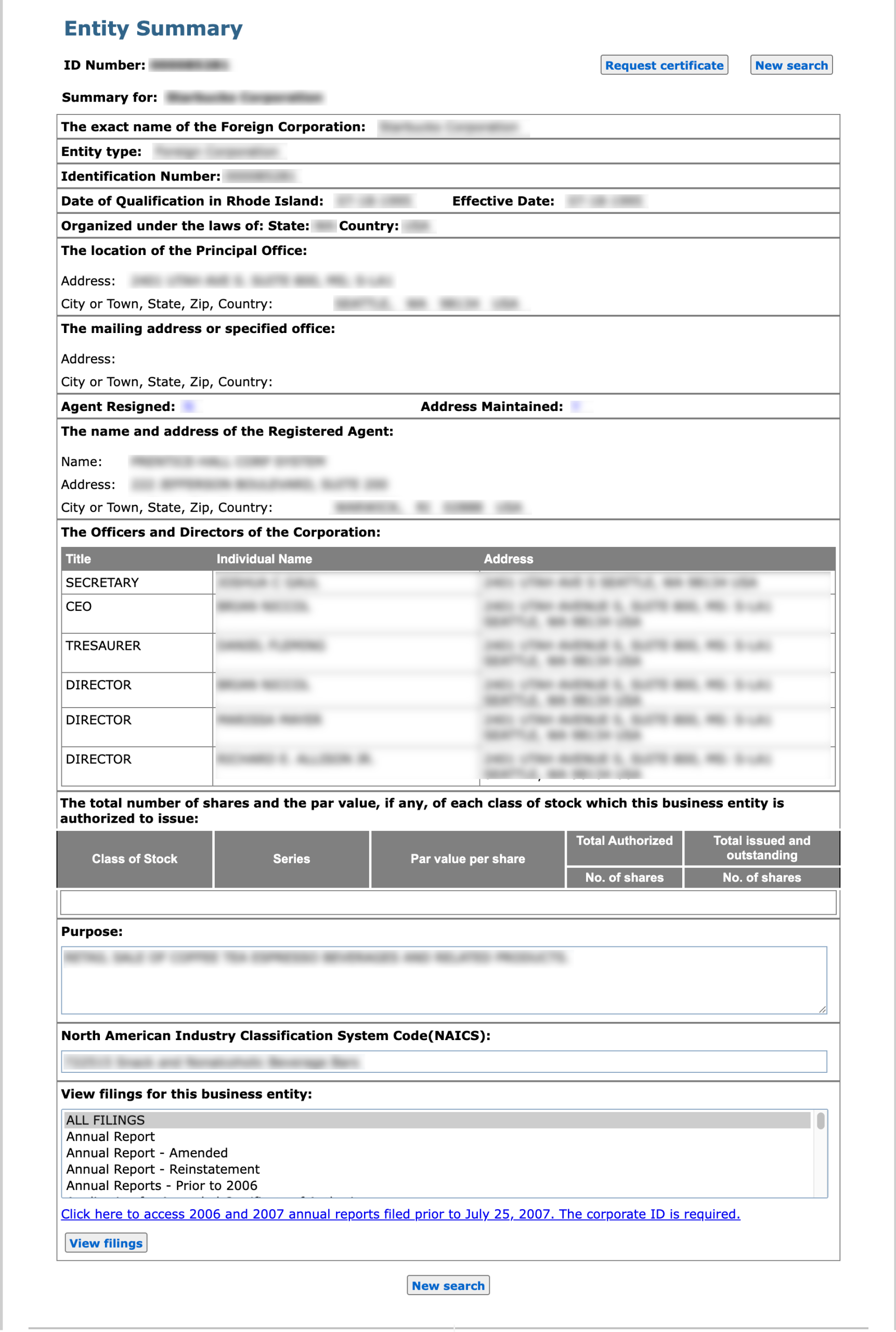
Look over the “Entity Summary” report to obtain the entity information. If desired, certificates and filings are available to view and purchase via a state login.
- ID Number
- Request Certificate
- New Search
- The exact name of the Foreign Corporation
- Entity Type
- Identification Number
- Date of Qualification In Rhode Island
- Effective Date
- Organized under the laws of
- State
- Country
- The Location of the Principal Office
- Address
- City or Town, State, Zip, Country
- The mailing address or specified office
- Address
- City or Town, State, Zip, Country
- Agent Resigned
- Address Maintained
- The Name and Address of the Registered Agent
- Name
- Address
- City or Town, State, Zip, Country
- The Officers and Directors of the Corporation
- Title
- Individual Name
- Address
- The total number of shares and the par value, if any, of each class of stock which this business entity is authorized to issue
- Class of Stock
- Series
- Per Value Per Share
- Total Authorized
- No. of Shares
- Total Issued and Outstanding
- No. of Shares
- Purpose
- North American Industry Classification System Code (NAICS)
- View Filings
Step 12. Access Rhode Island Files for this Entity
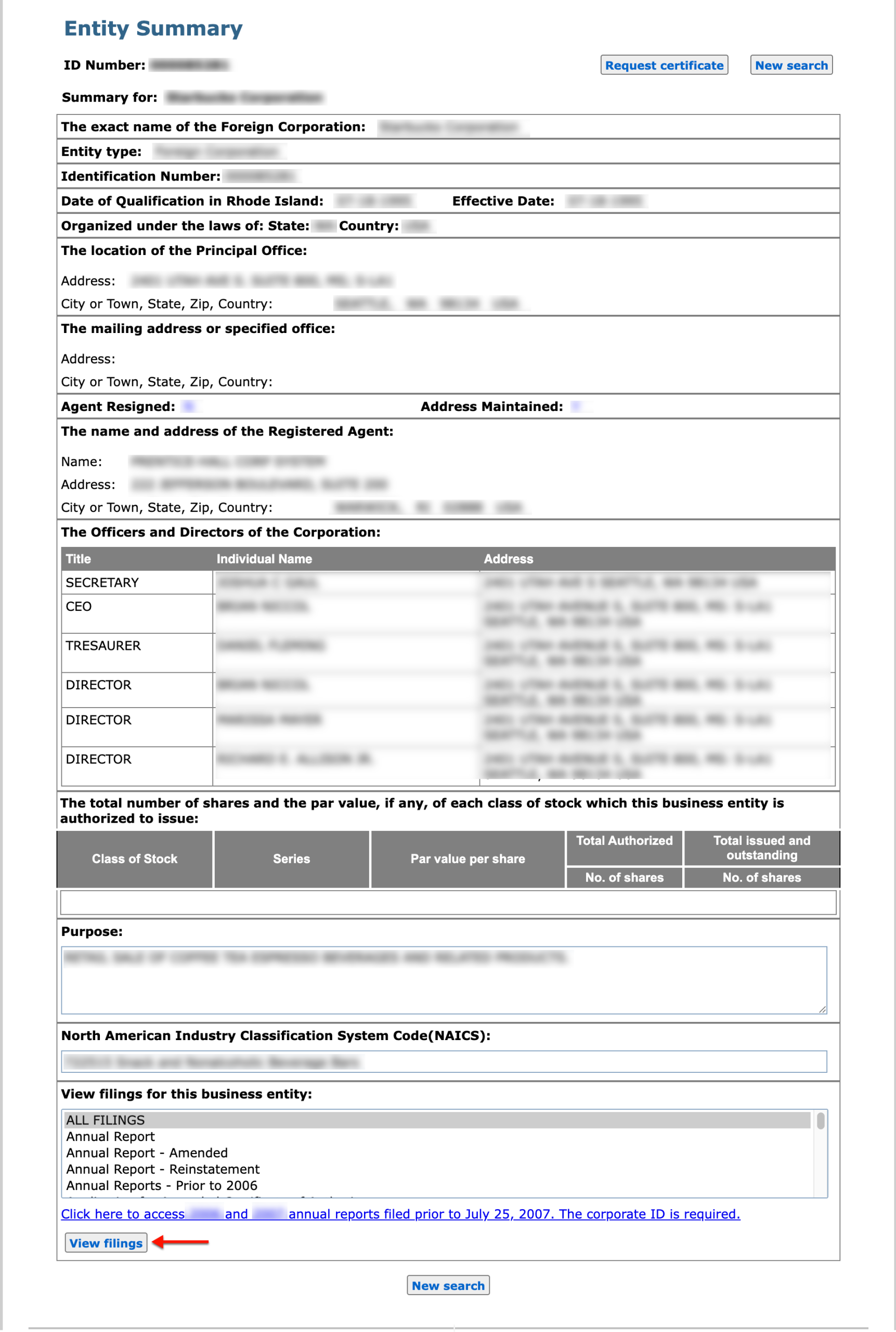
Locate the filings section, specifically the “View Filings” button. In order to view the entity’s filing information, select this button.
Step 13. Obtain the Rhode Island Entity Filing Information
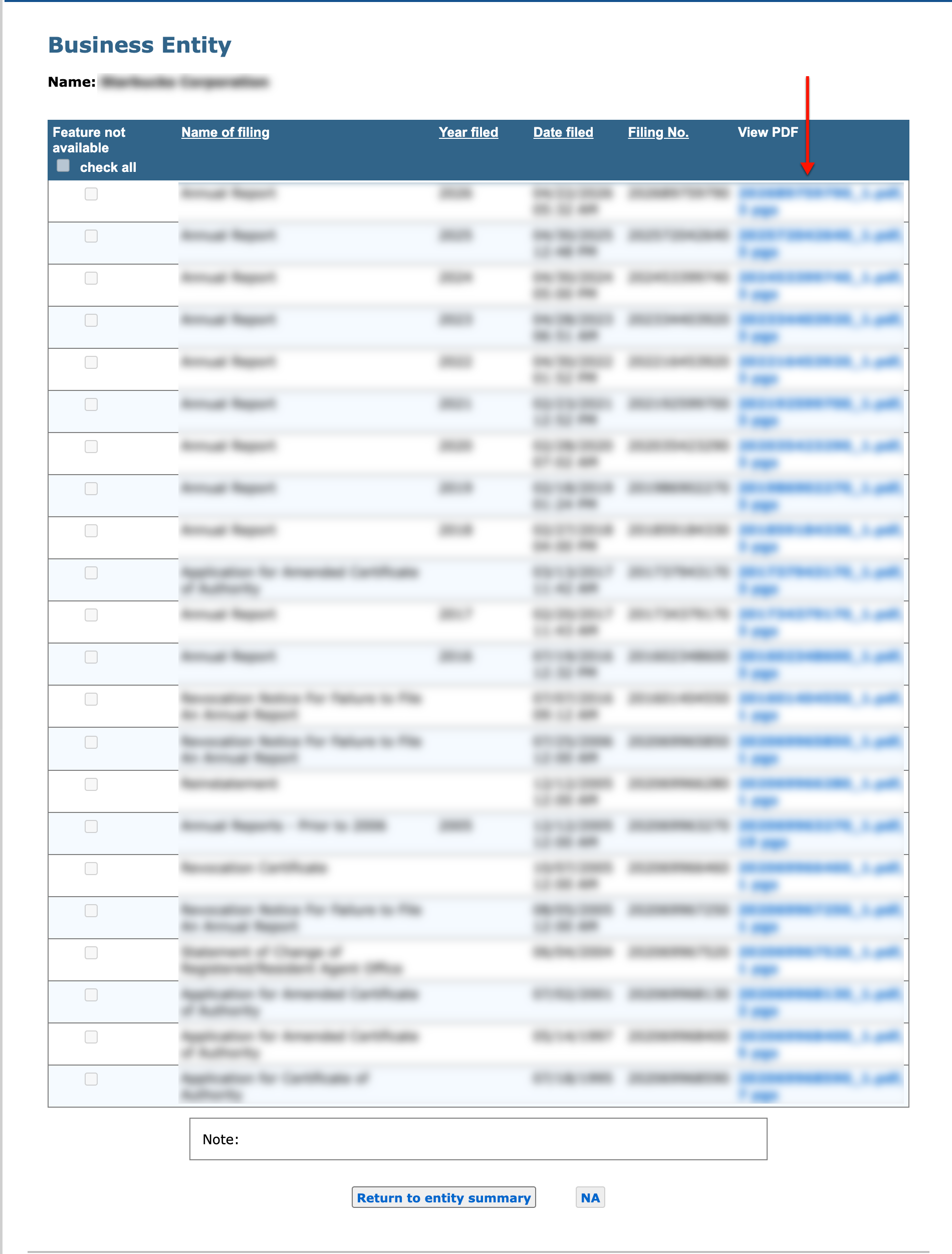
Read through the entity’s filing history. Whenever a public filing is scanned to file, you may view the paperwork by clicking the record’s PDF link in the final column.
- Check All
- Name of Filing
- Year Filed
- Date Filed
- Filing No.
- View PDF