The North Dakota Secretary of State business entity search tool is a reliable tool for users investigating an entity. That is, it allows visitors to locate an entity’s public information quickly. This can be an invaluable time-saver since the state maintains a (sizeable) database of all entities legitimately operating within its borders.
Business Name Availability Check
State of North Dakota

Business Entity Search
Step 1. Access the North Dakota Business Entity Tool
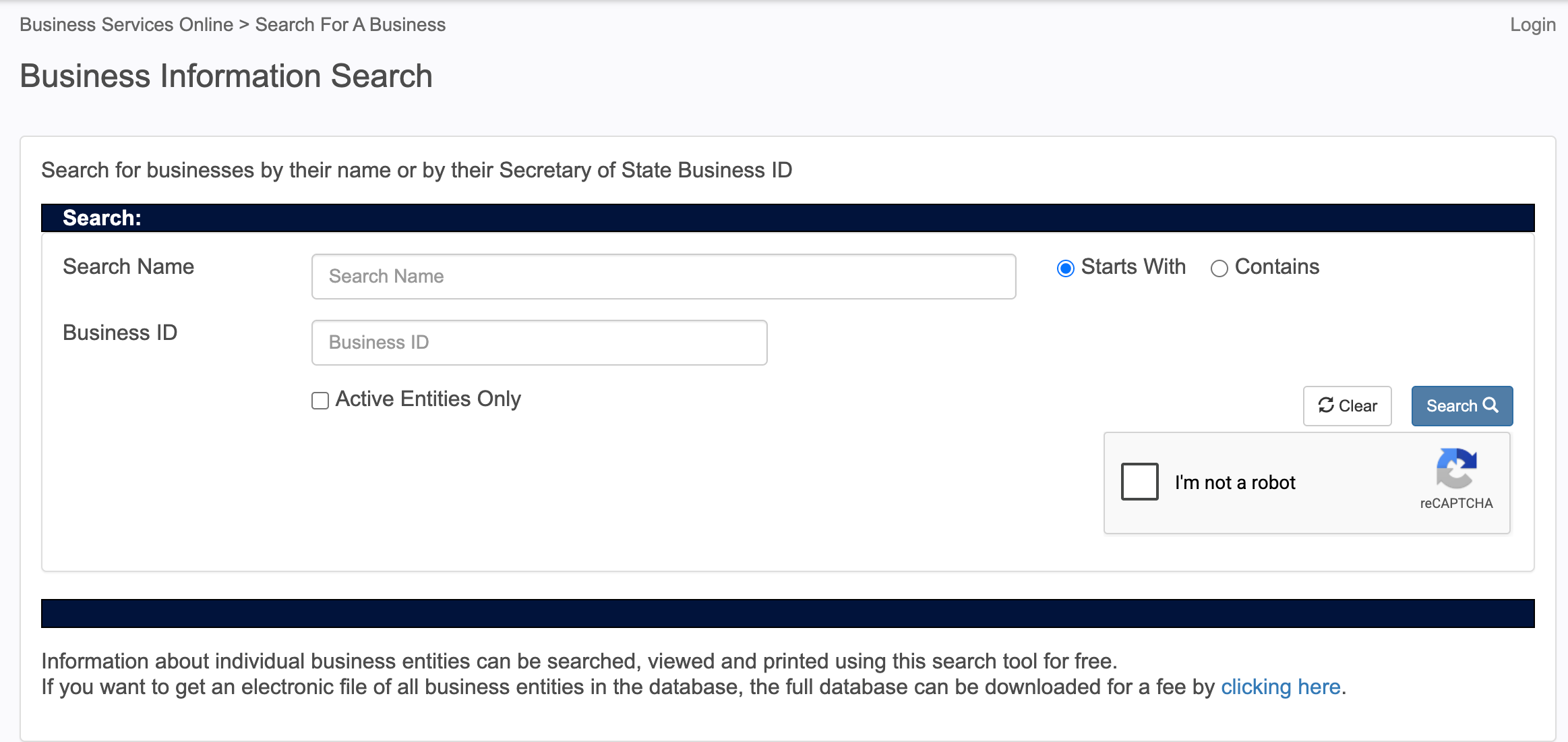
Visit the North Dakota Secretary of State’s business information search page. Look through the available fields and options before beginning.
Step 2. Supply the Query with an Item to Find
Begin by typing the phrase you wish to find in the “Search Name” box. Providing a general phrase (such as an industry type) will yield a larger number of results than an exact name.
Step 3. Instruct the Query on How To Search
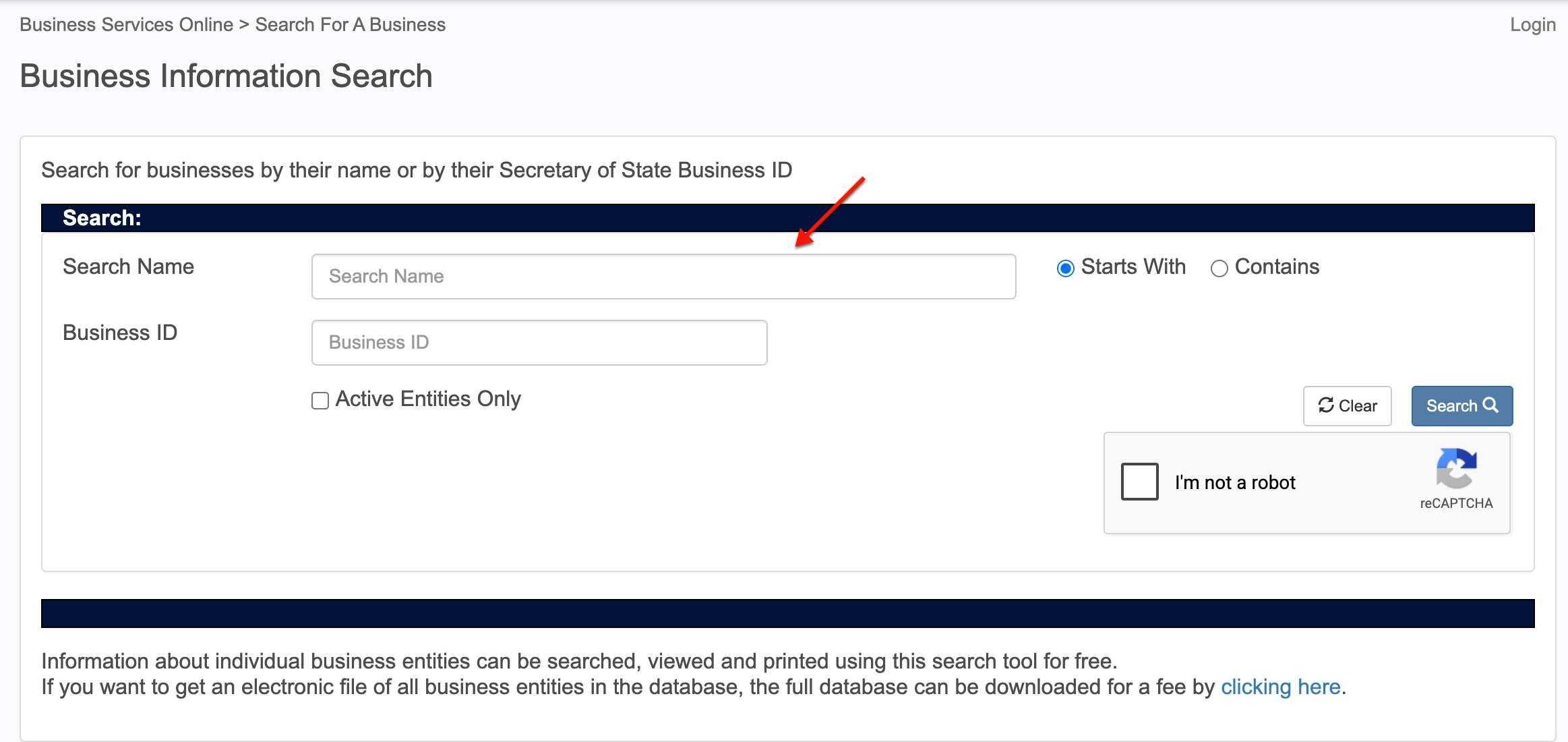
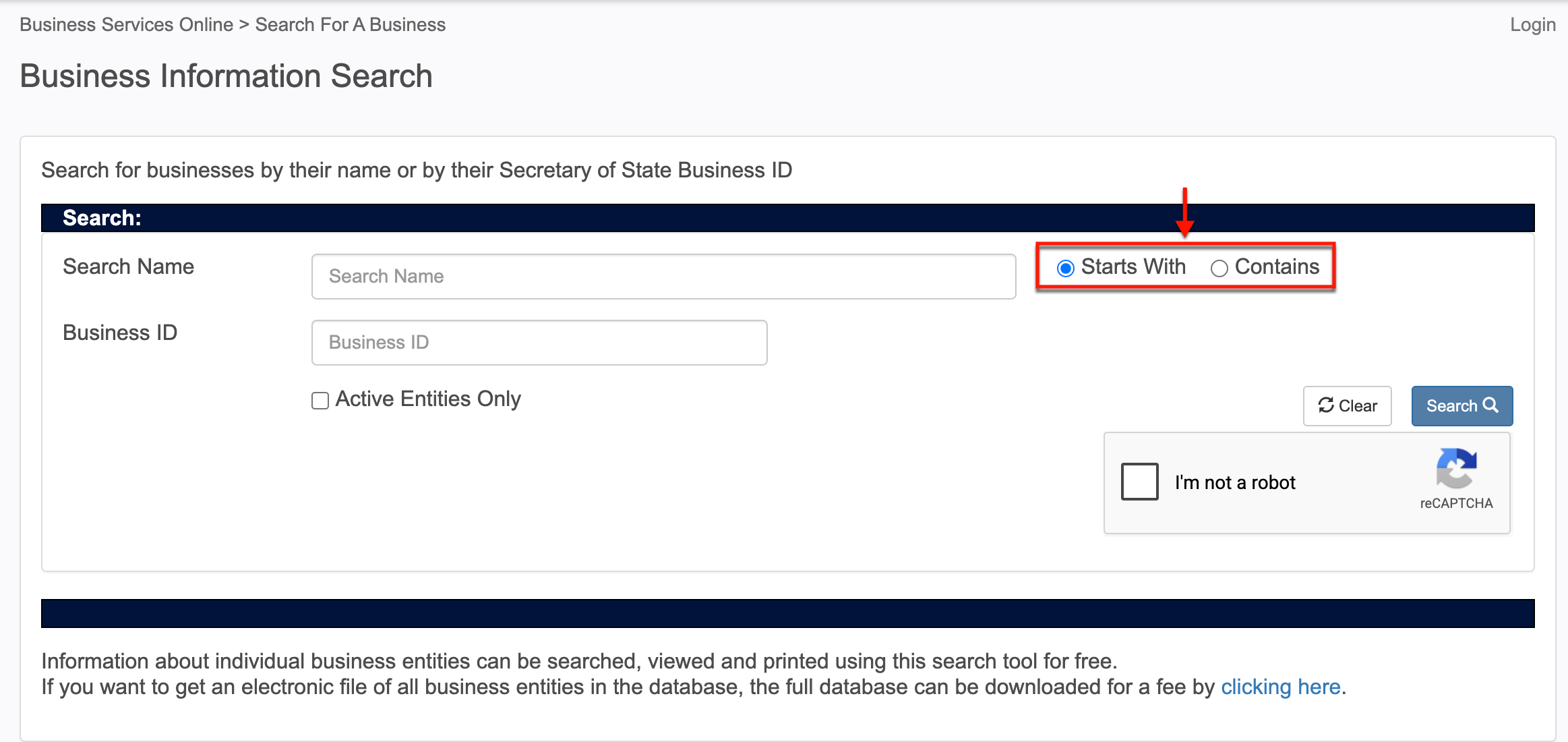
Notice the checkbox options allowing you to improve the query’s focus. If you used specific phrasing, check “Starts With.” Otherwise, select “Contains.”
Step 4. Report a Business ID
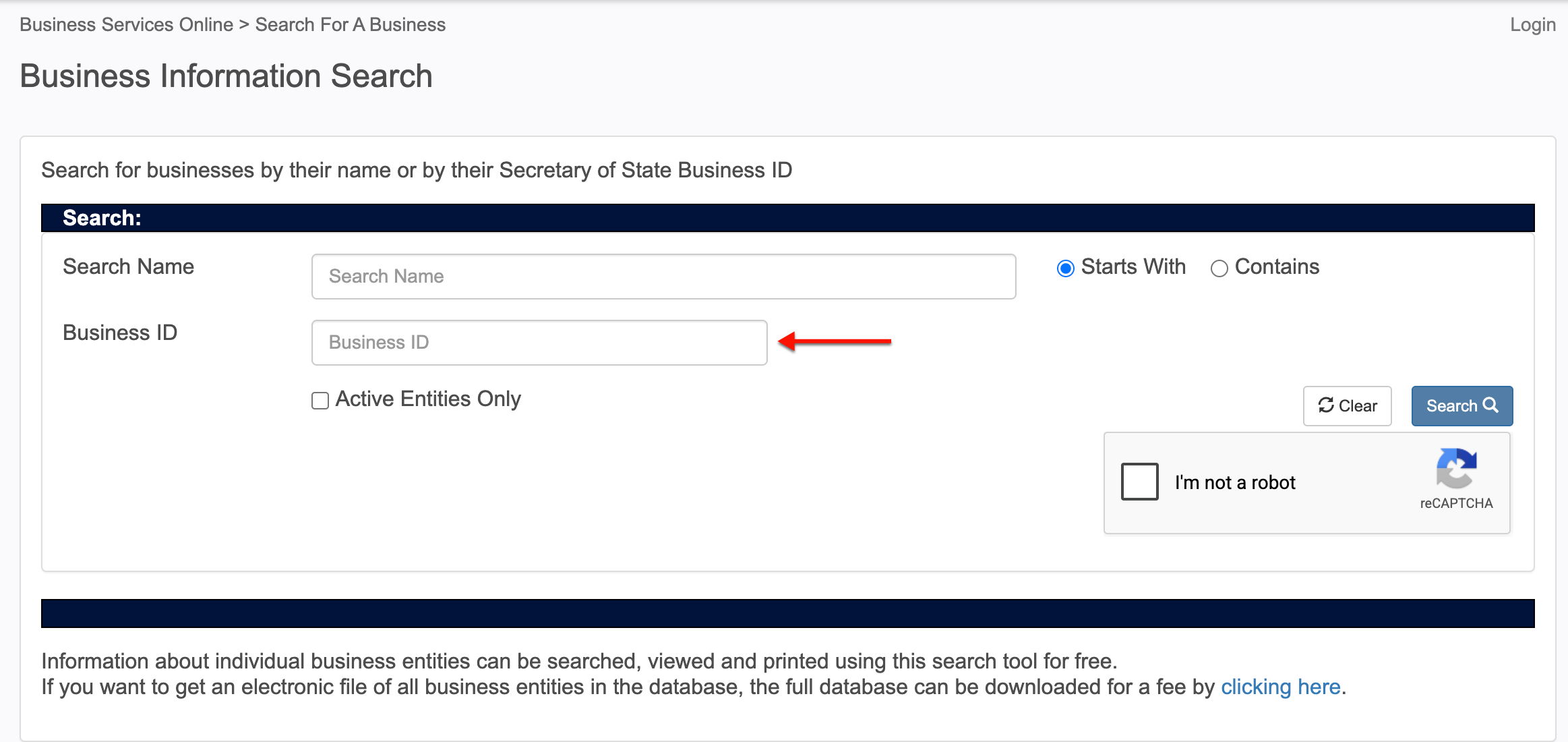
Supply the target entity’s business ID, or part of it (if known), to the Business ID box. Since query results are limited to 500 returns, it is best to provide specific information.
Step 5. Filter Entity Results
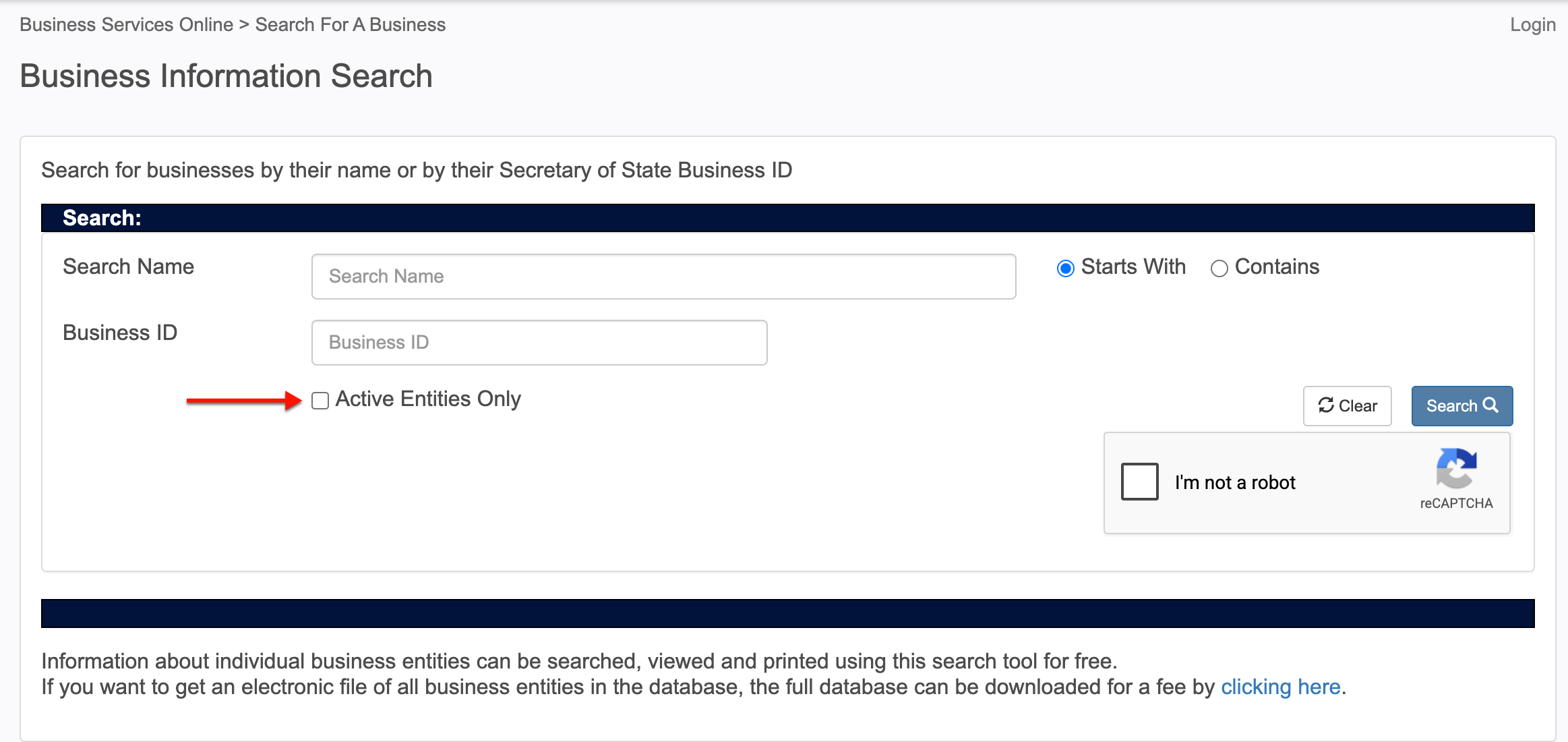
Determine whether results should include inactive entities. By default, inactive entities will return with active ones. Check the “Active Entities” box to filter out defunct entities.
Step 6. Prompt the North Dakota Query
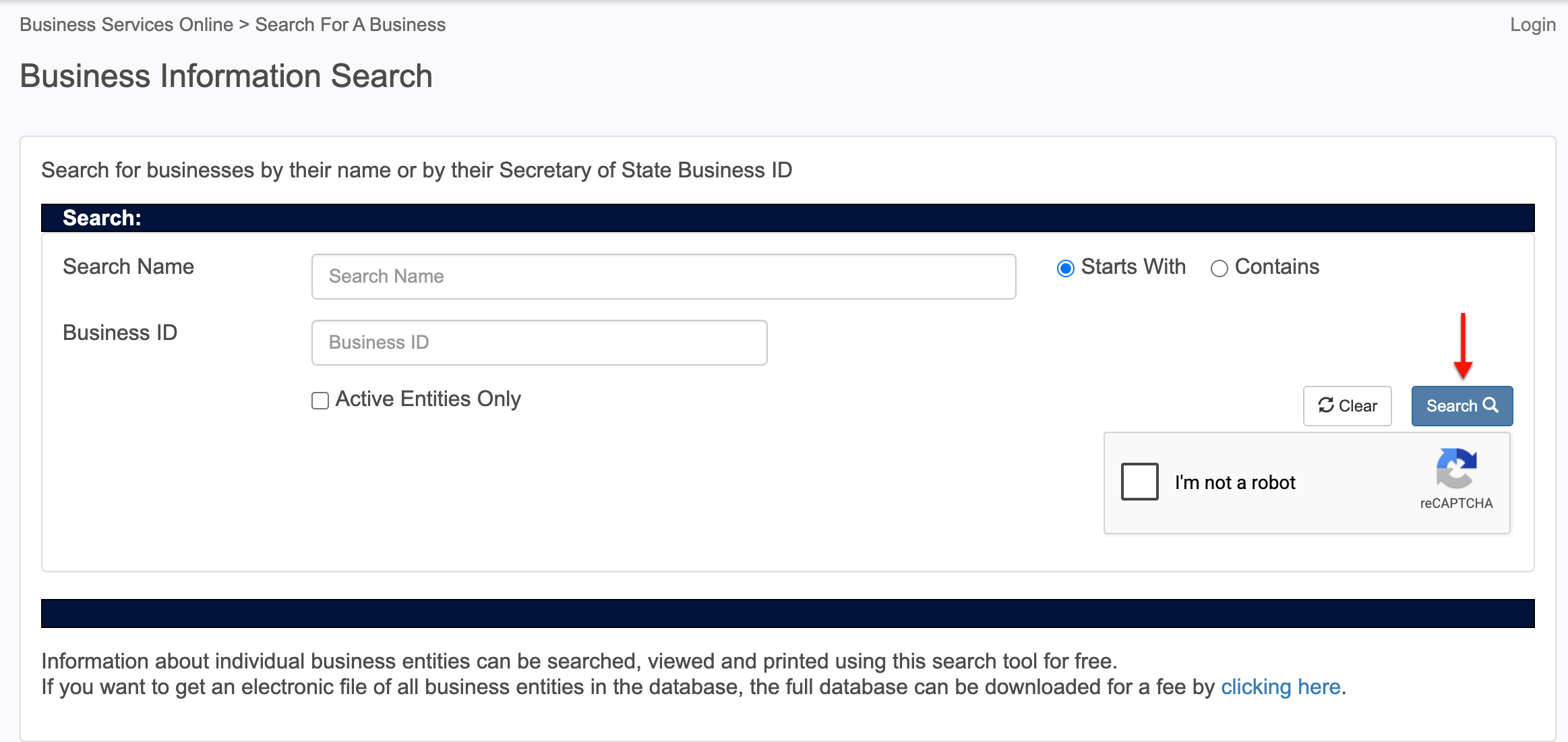
Select the “I’m not a robot” checkbox to deliberately confirm your status and intent. Then, click on the “Search” button.
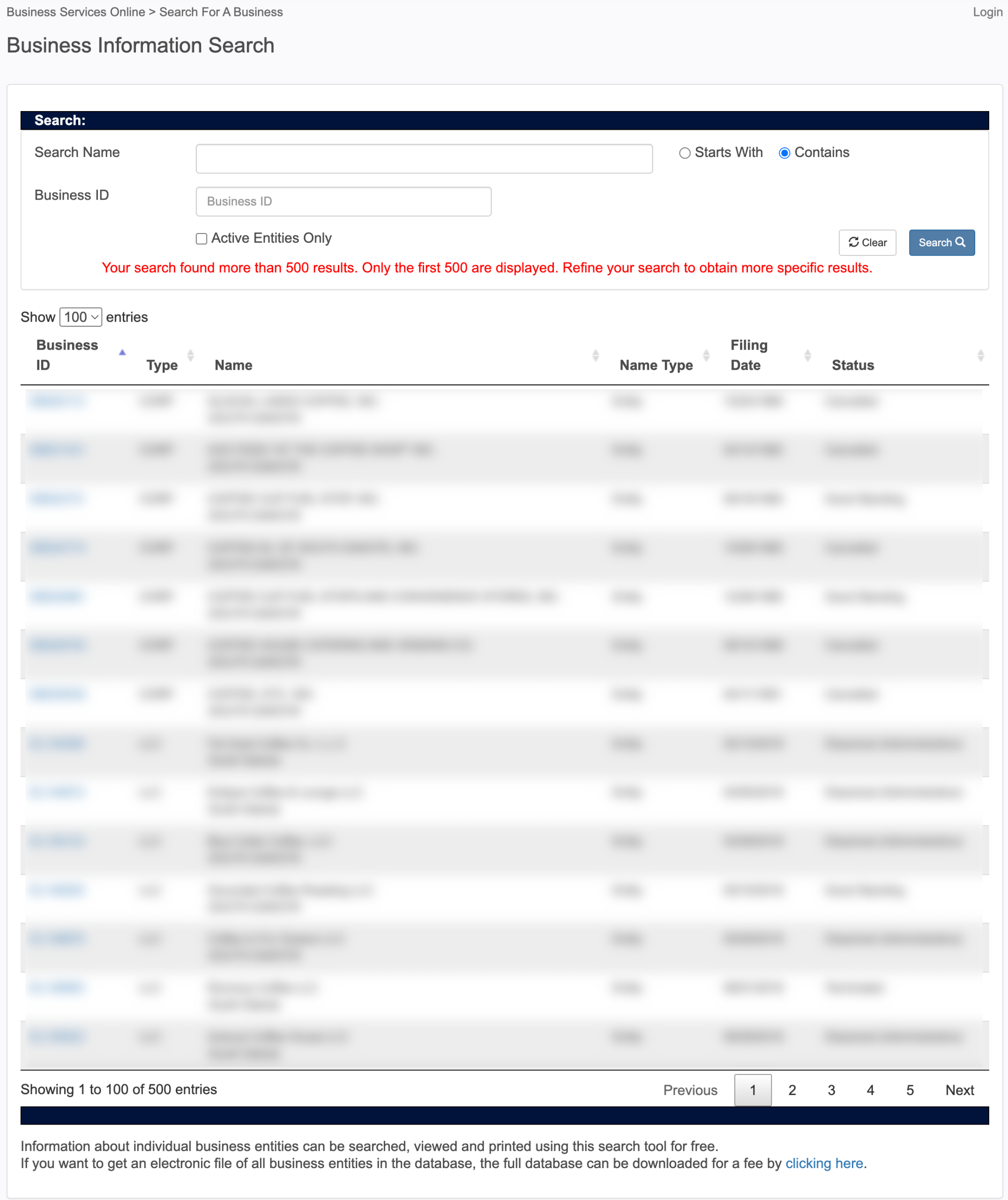
Step 7. Review Matching Entities On File
Browse through the results until you find a record of interest. Review the material in the sortable columns as a means to confirm an entity is your target.
- Business ID
- Type
- Name
- Name Type
- Filing Date
- Status
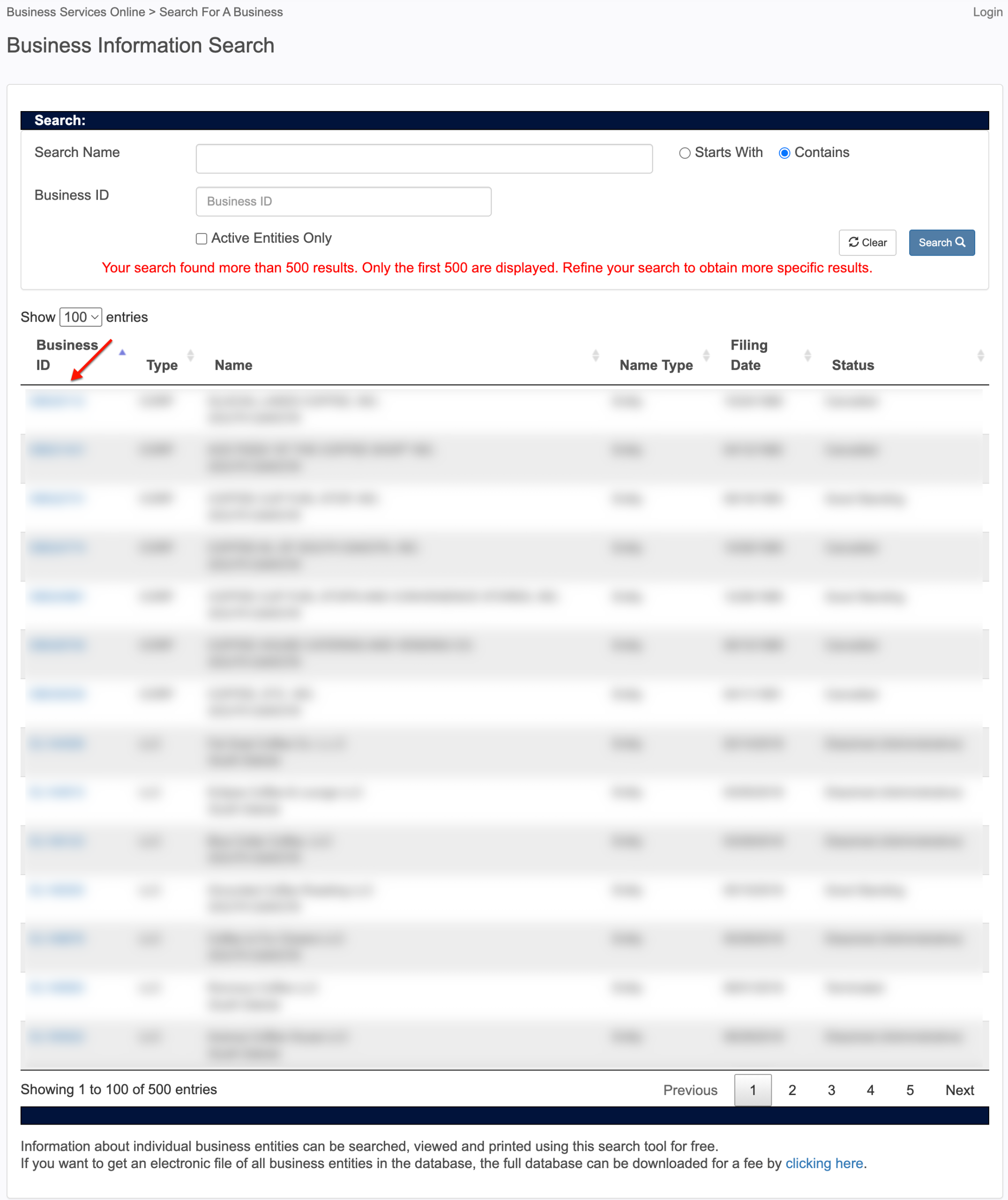
Step 8. Select A North Dakota Entity
To view more information about the entity, locate its ID number in the first column. Click on this number.
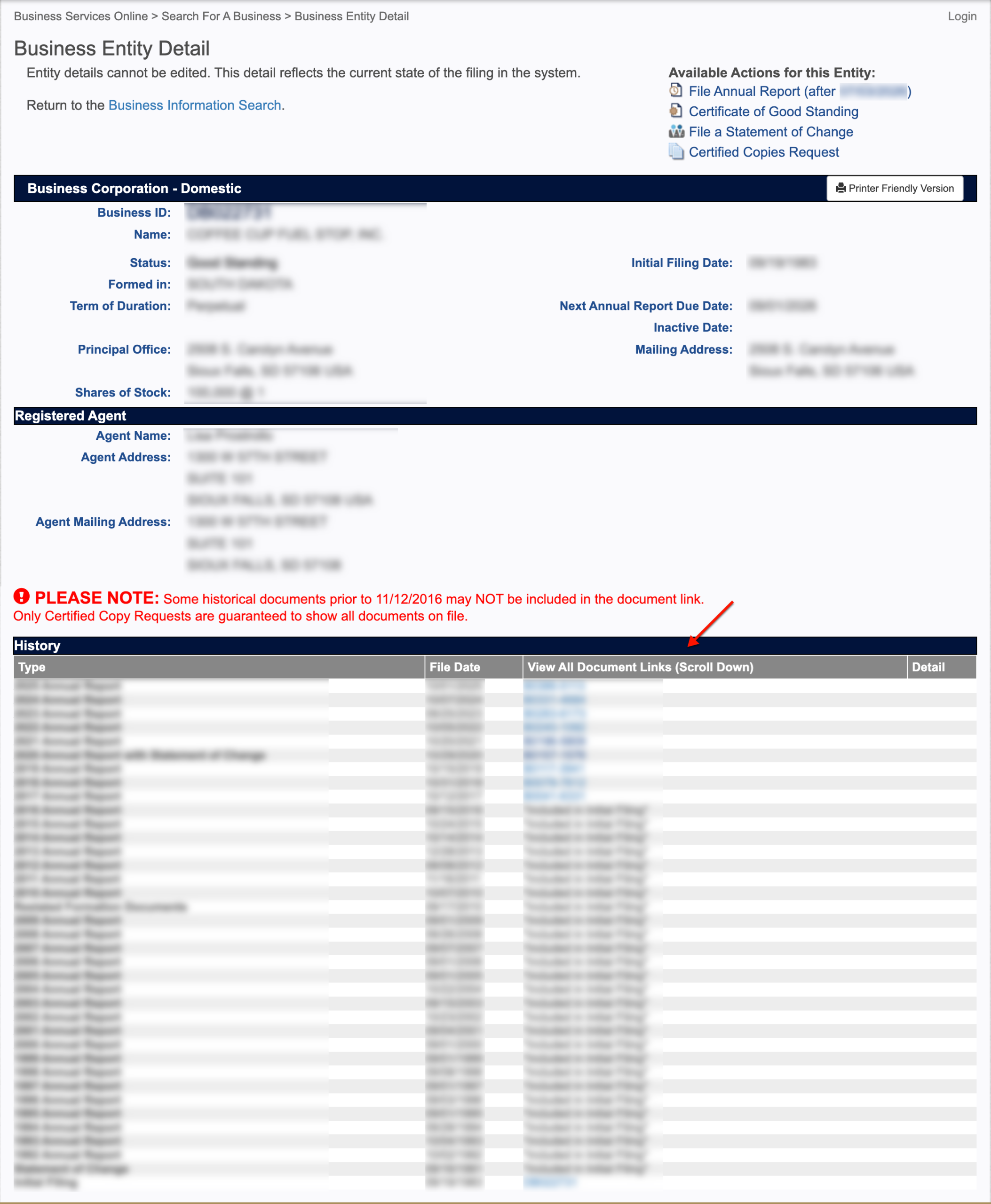
Step 9. Review The Entity Descriptions
Examine each section in the details page reports. Notice that in addition to current descriptions on file, the page also presents a filing history.
- Business Corporation -Domestic
- Business ID
- Name
- Status
- Formed In
- Term of Duration
- Principal Office
- Shares of Stock
- Initial Filing Date
- Next Annual Report Date
- Inactive Date
- Mailing Address
- Registered Agent
- Agent Name
- Agent Address
- Agent Mailing Address
- History
- Type
- File Date
- View All Documents Link
- Detail
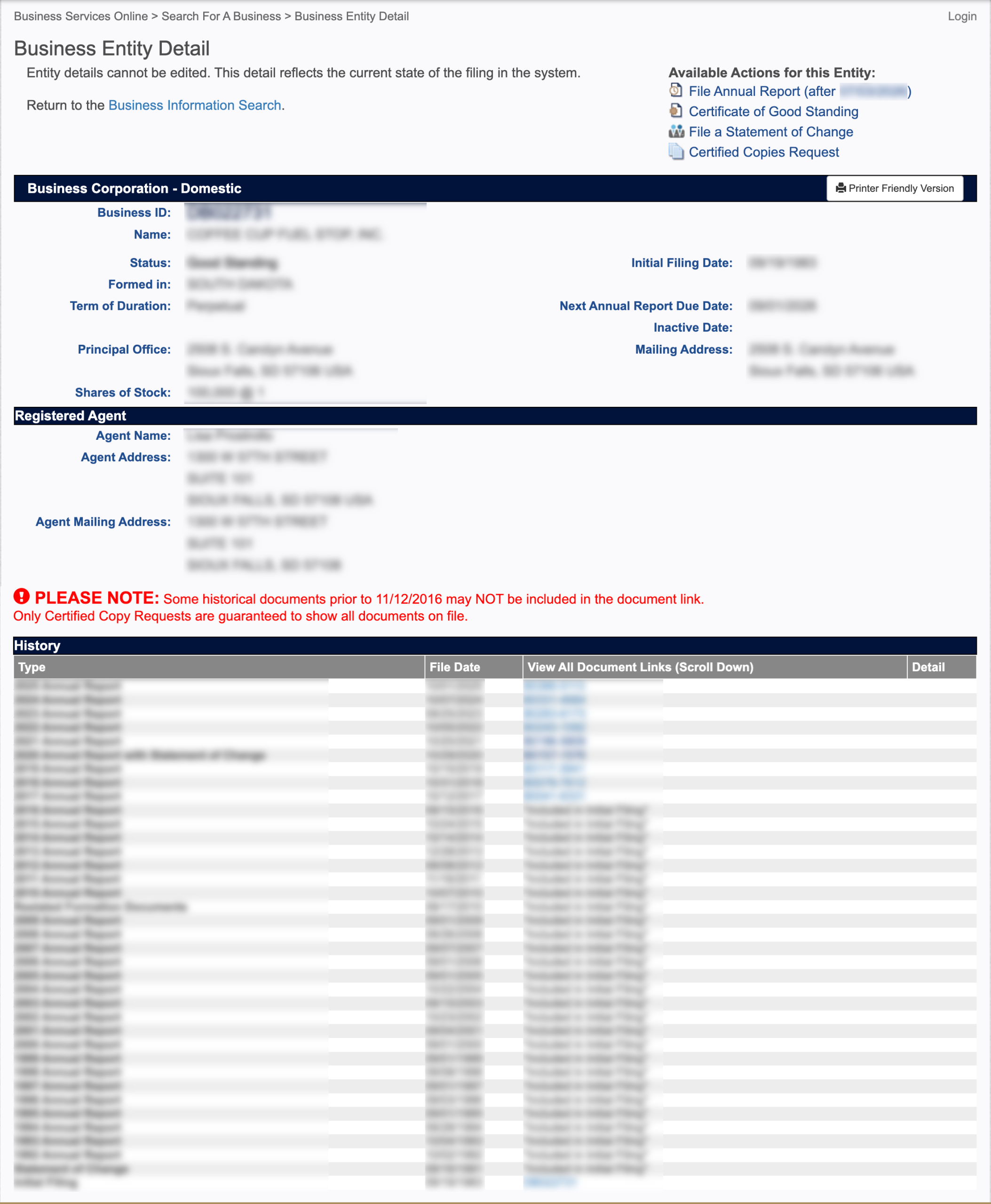
Step 10. View North Dakota Filings
Locate the third column in the “History” table. Some records show a link in the “View All Documents” column. If available, select this link to download that paperwork’s PDF.