The New Hampshire Secretary of State Quickstart business search page helps users locate an entity of interest in the state’s database, then access its information. Whenever a business (profit or nonprofit) operates legally in New Hampshire, it must register with the state. This query aids visitors in quickly navigating through this database to the desired information.
Business Name Availability Check
State of New Hampshire

Business Entity Search
1. Open the New Hampshire Business Search Page
Access the business entity search page that the New Hampshire Secretary of State provides. Prepare the information you will feed the query, double-checking for accuracy.
Step 2. Establish the Search Method
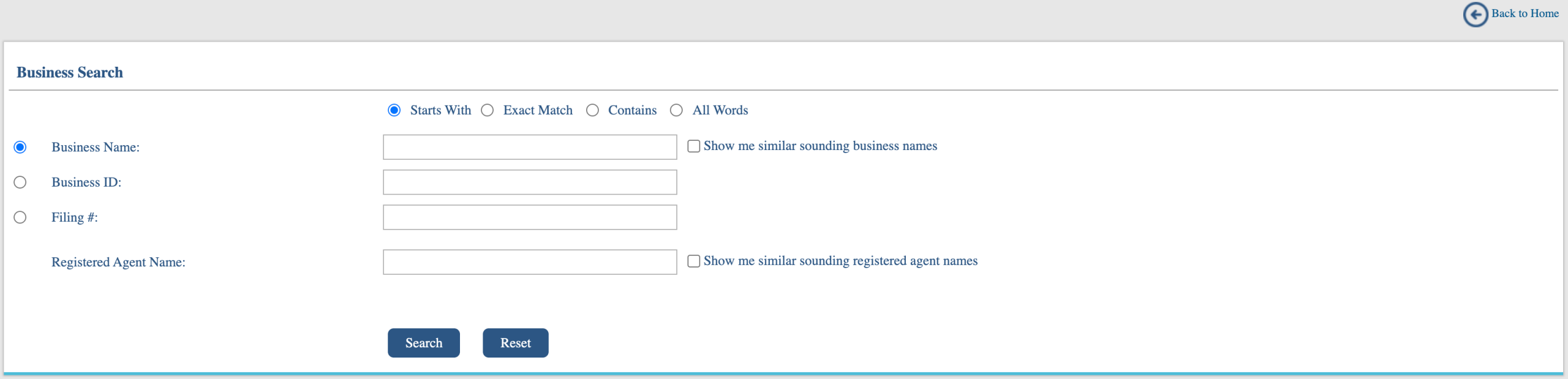
Read through the available options for a search. Use the radio buttons running along the top, to indicate where the search item appears in the target. Select one radio button.
- Starts With
- Exact Match
- Contains
- All Words
Step 3. Categorize the Search Item
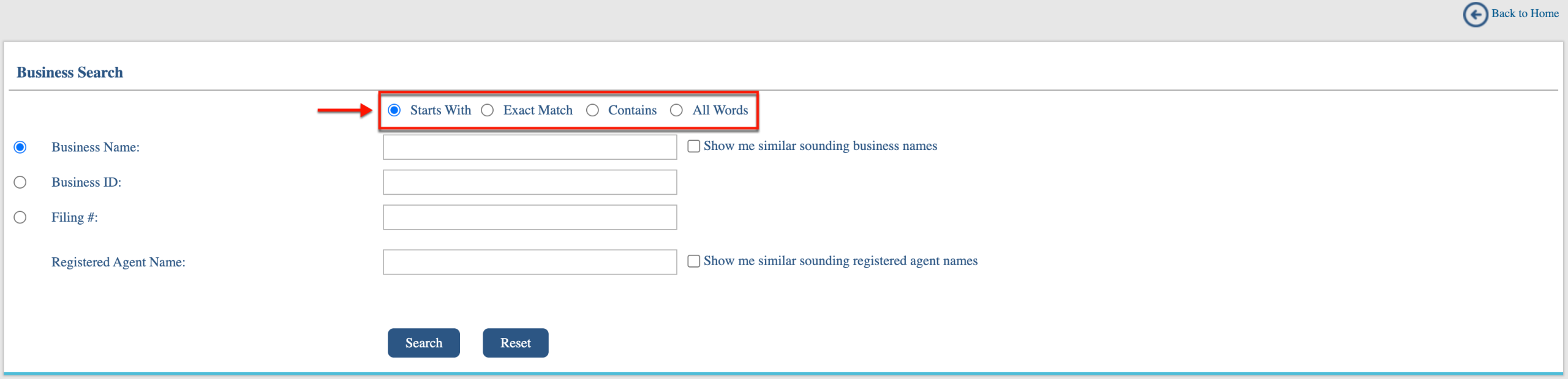
To conduct a search properly, it is best to classify what we are looking for. Since we are looking for an entity name, choose “Business Name” from the radio buttons on the side.
- Business Name
- Business ID
- Filing #
- Registered Agent Name
Step 4. Distribute the Search Criteria
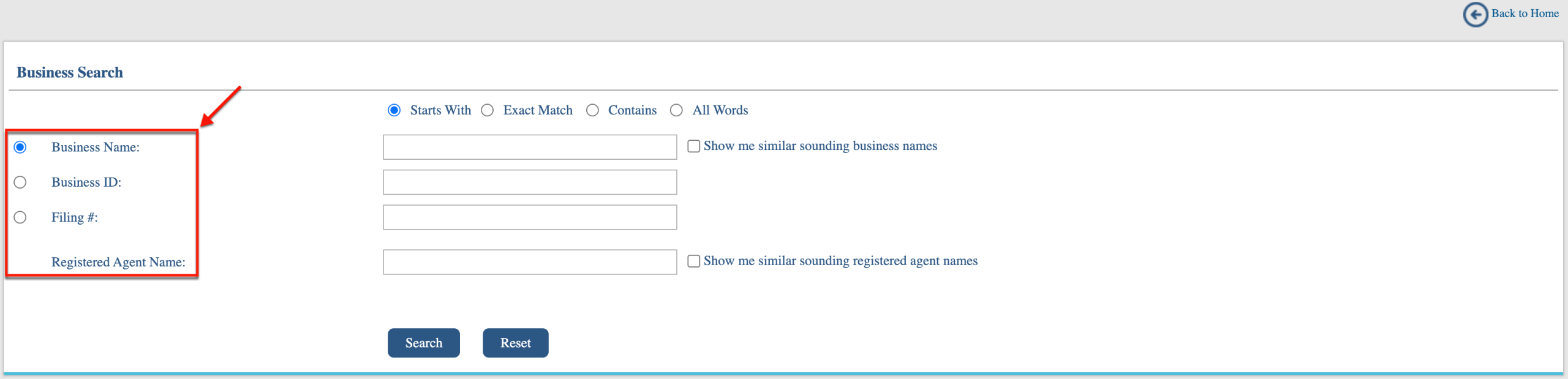
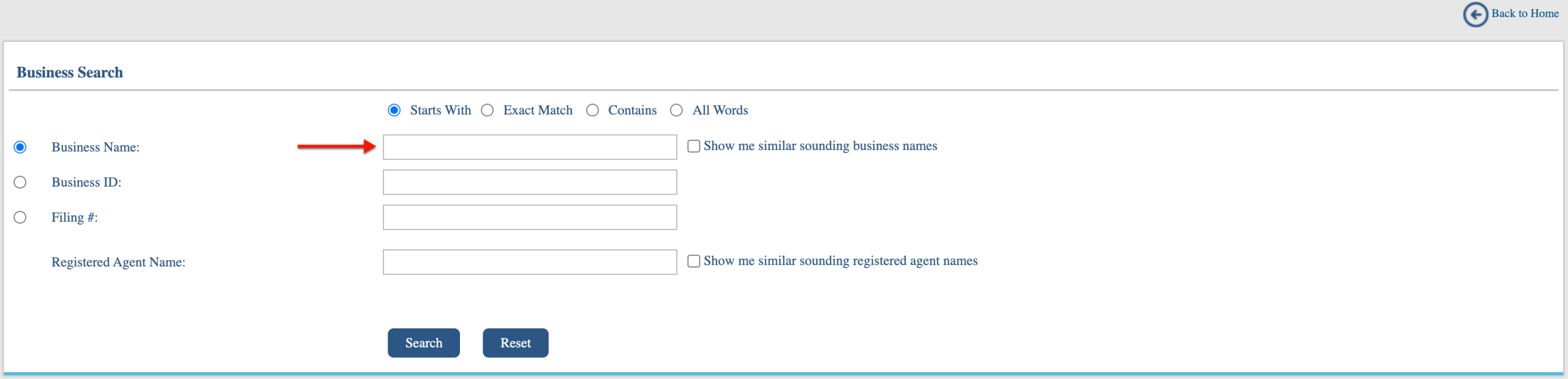
Notice that each classification has a corresponding text box. Find the first text box, on the same line as “Business Name” and input the search criteria as its content.
Step 5. Indicate the Search Item Accuracy
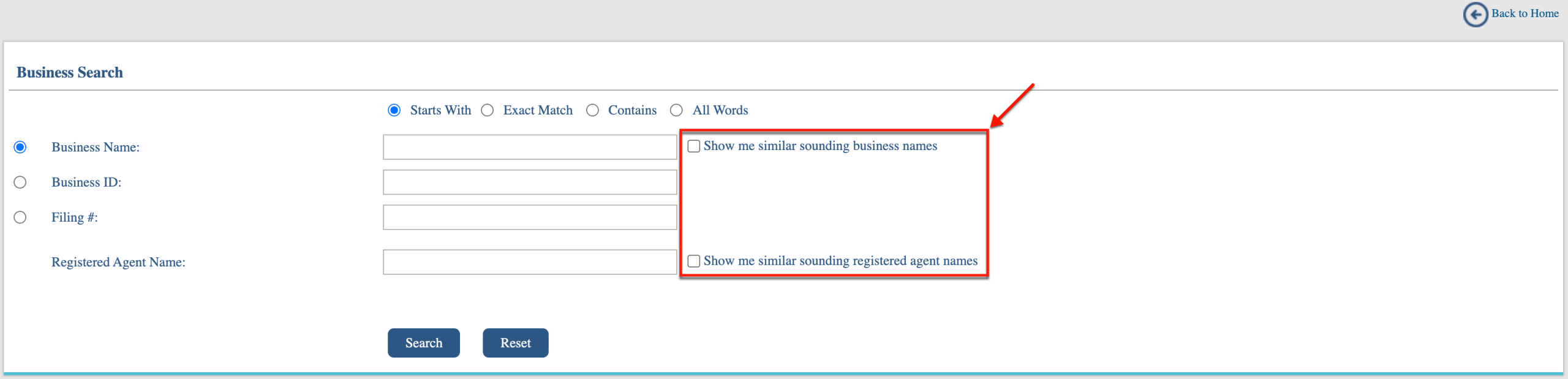
Notice the checkboxes appearing beside the “Business Name” and “Registered Agent Name” boxes. Check the first checkbox if spelling the business name phonetically.
- Show Me Similar Sounding Business Names
- Show Me Similar Sounding Registered Agent Names
Step 6. Start the Query on the Search Item
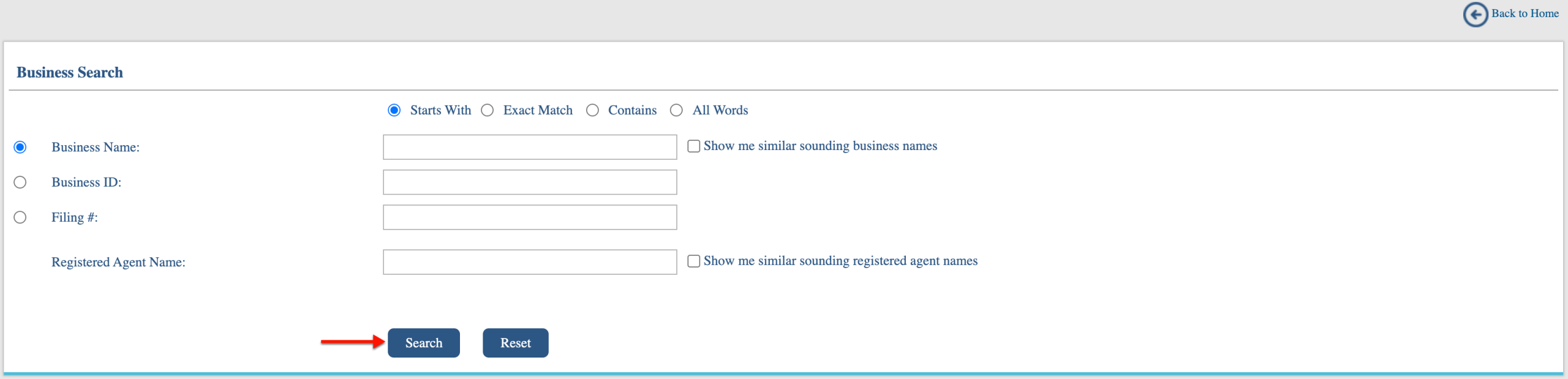
Initiate the search tool by selecting the button labeled “Search.” This directs the query to display all matching results to your search item.
Step 7. Look Over Matching Results
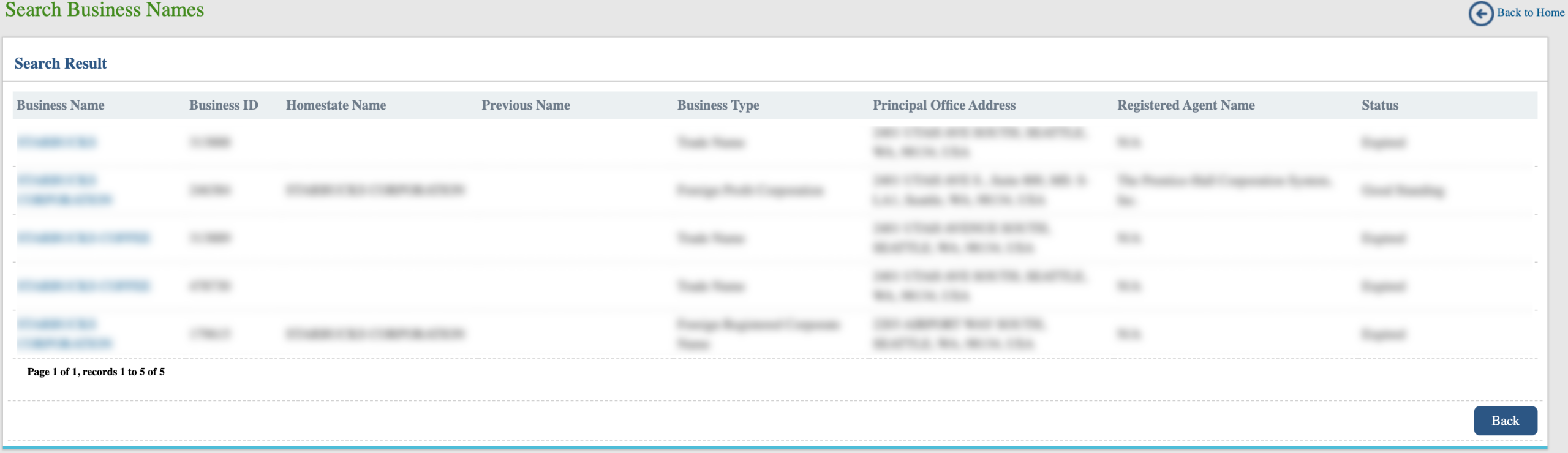
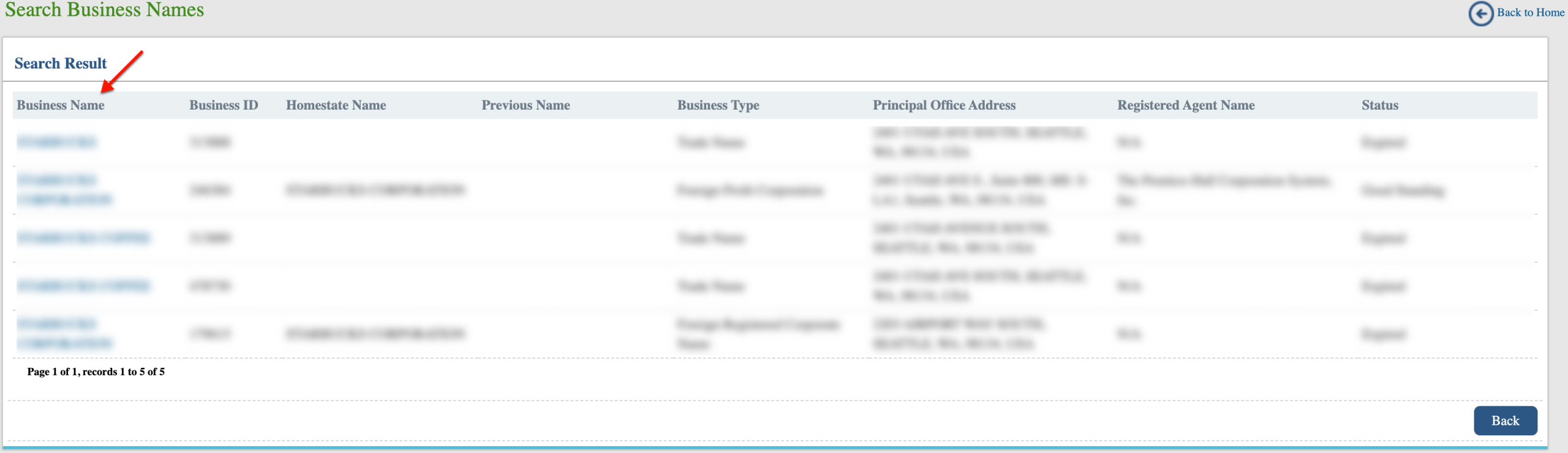
Scan the matching records, paying attention to the information in each column. Only one entity’s records are displayed on a single row.
- Business Name
- Business ID
- Homestate Name
- Previous Name
- Business Type
- Principal Office Address
- Registered Agent Name
- Status
Step 8. Choose An Entity To Examine
Direct your attention to the first column of the record you intend to investigate. Select the name of the entity from this column to open its information page.
Step 9. Read Through Business Information
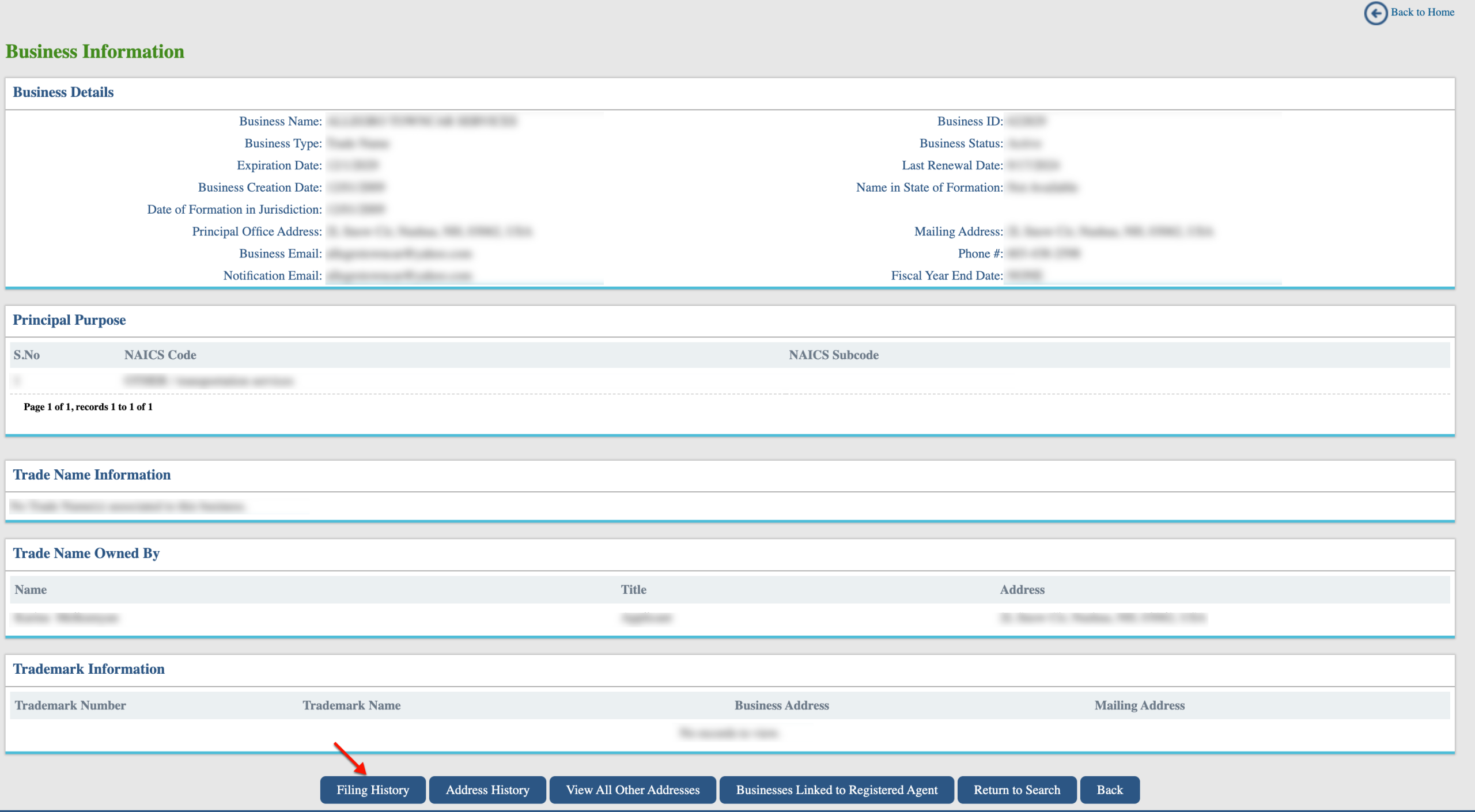
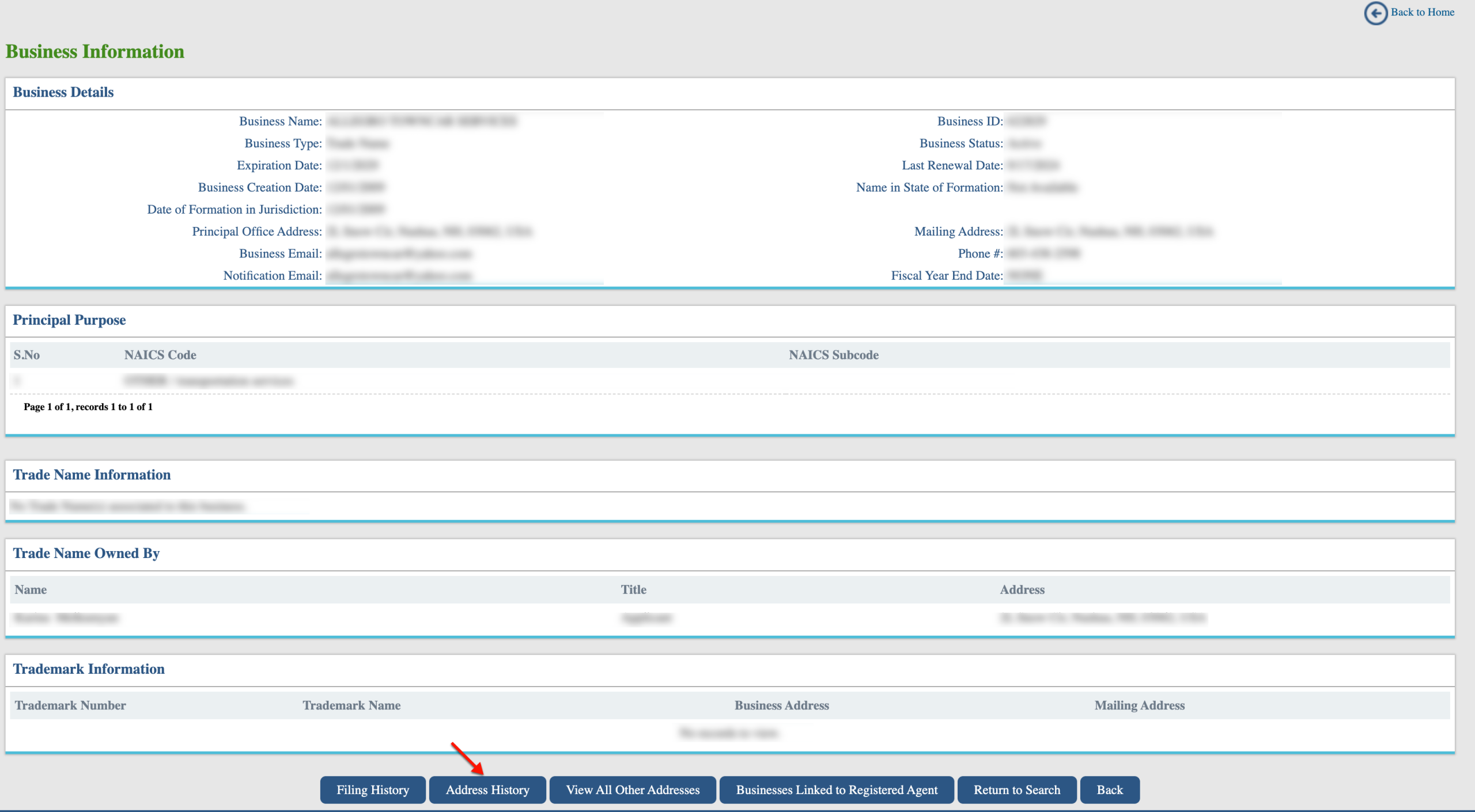
Review the public information the state has for the entity of interest. Notice that several buttons along the bottom of this page will lead to more information. Select Filing History.
- Business Details
- Business Name
- Business Type
- Expiration Date
- Business Creation Date
- Date of Formation in Jurisdiction
- Principal Office Address
- Business Email
- Notification Email
- Business ID
- Business Status
- Last Renewal Date
- Name in State of Formation
- Mailing Address
- Phone #
- Fiscal Year End Date
- Principal Purpose
- S No.
- NAICS Code
- NAICS Subcode
- Trade Name Information
- Trade Name Owned By
- Name
- Title
- Address
- Trademark Information
- Trademark Number
- Trademark Name
- Business Address
- Mailing Address
- Filing History
- Address History
- View All Other Addresses
- Businesses Linked to Registered Agent
- Return to Search
- Back
Step 10. Research Filing History
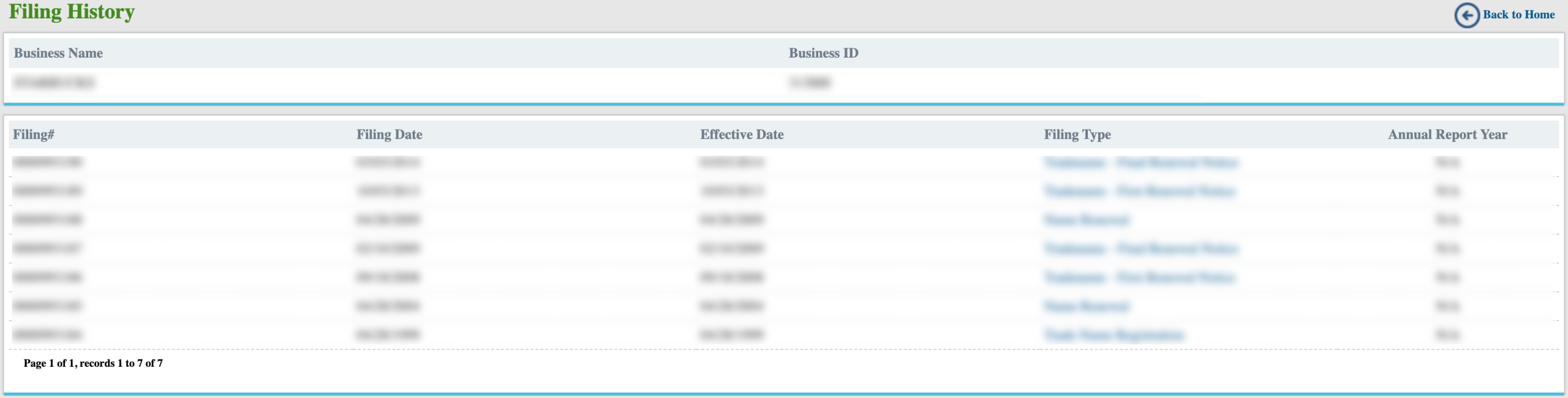
Notice the entity’s name in the top right. Scroll through its filing history in the table. You may identify a specific filing using its number, dates, and type.
- Business Name
- Business ID
- Filing #
- Filing Date
- Effective Date
- Filing Type
- Annual Report Year
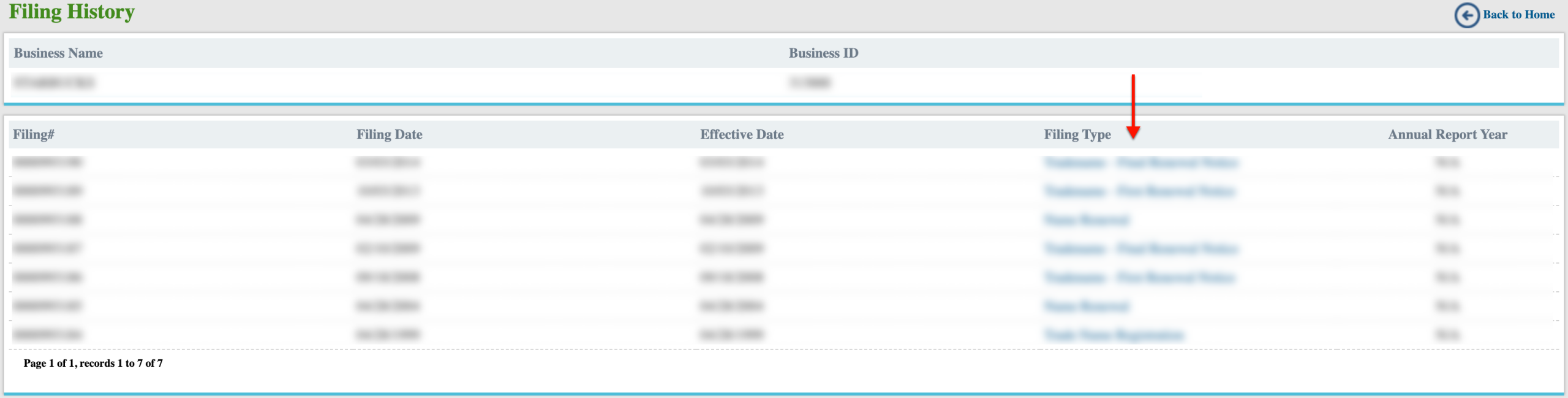
Step 11. View Specific Filings
In some cases, a filing is available as a downloadable PDF. Obtain this downloadable by selecting that record’s filing type. Return to the information page to continue.
Step 12. Uncover Previous Addresses
From the entity’s information page, select “Address History” in order to investigate the past addresses associated with the entity.
Step 13. Review Address History
Review the table below the entity’s name on this page to view previous principal office addresses. Return to the information page when done using the “Back” button.
- Business Name
- Business ID
- Filing #
- Previous Principal Office Address
- Previous Mailing Address
- Effective Date

Step 14. Access Other Entity Addresses
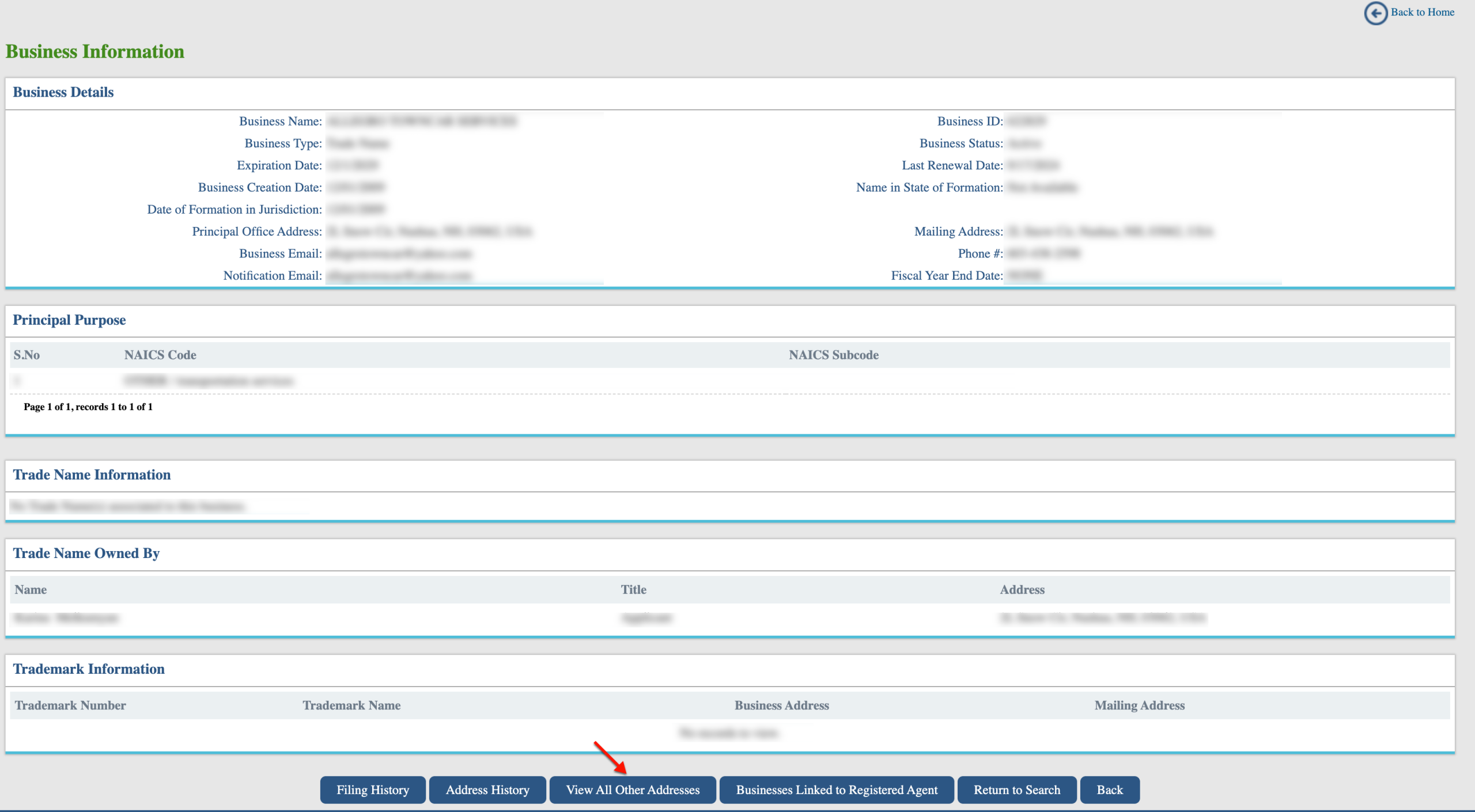
Select “View All Other Addresses” from the entity information page. As with previous pages, this directs the browser to a new table.
Step 15. Examine Other Addresses
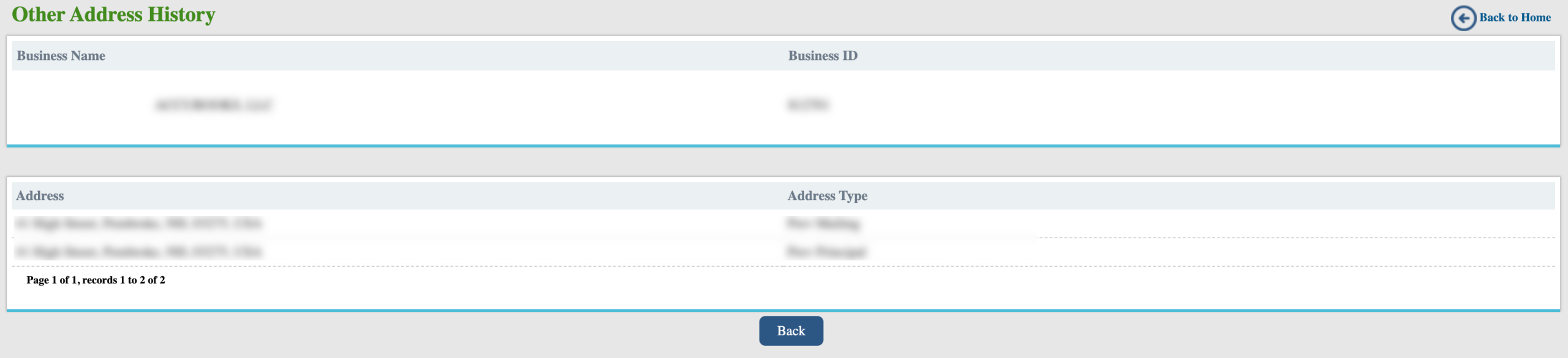
Confirm the entity information at the top of the page. Review other entity addresses in the table (e.g., branches, warehouses). Then, return to the entity’s information page.
- Business Name
- Business ID
- Address
- Address Type
Step 16. Obtain Registered Agent Information
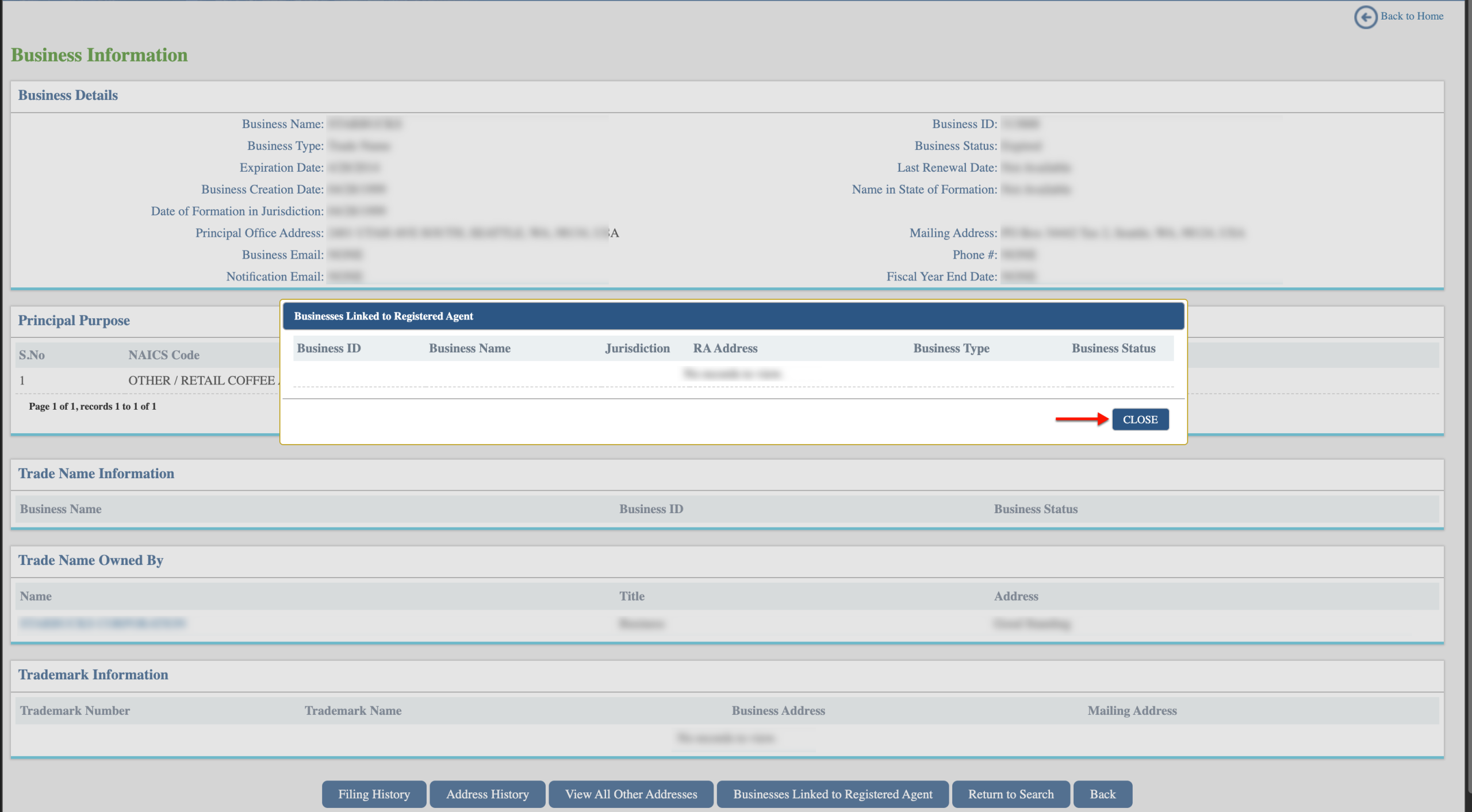
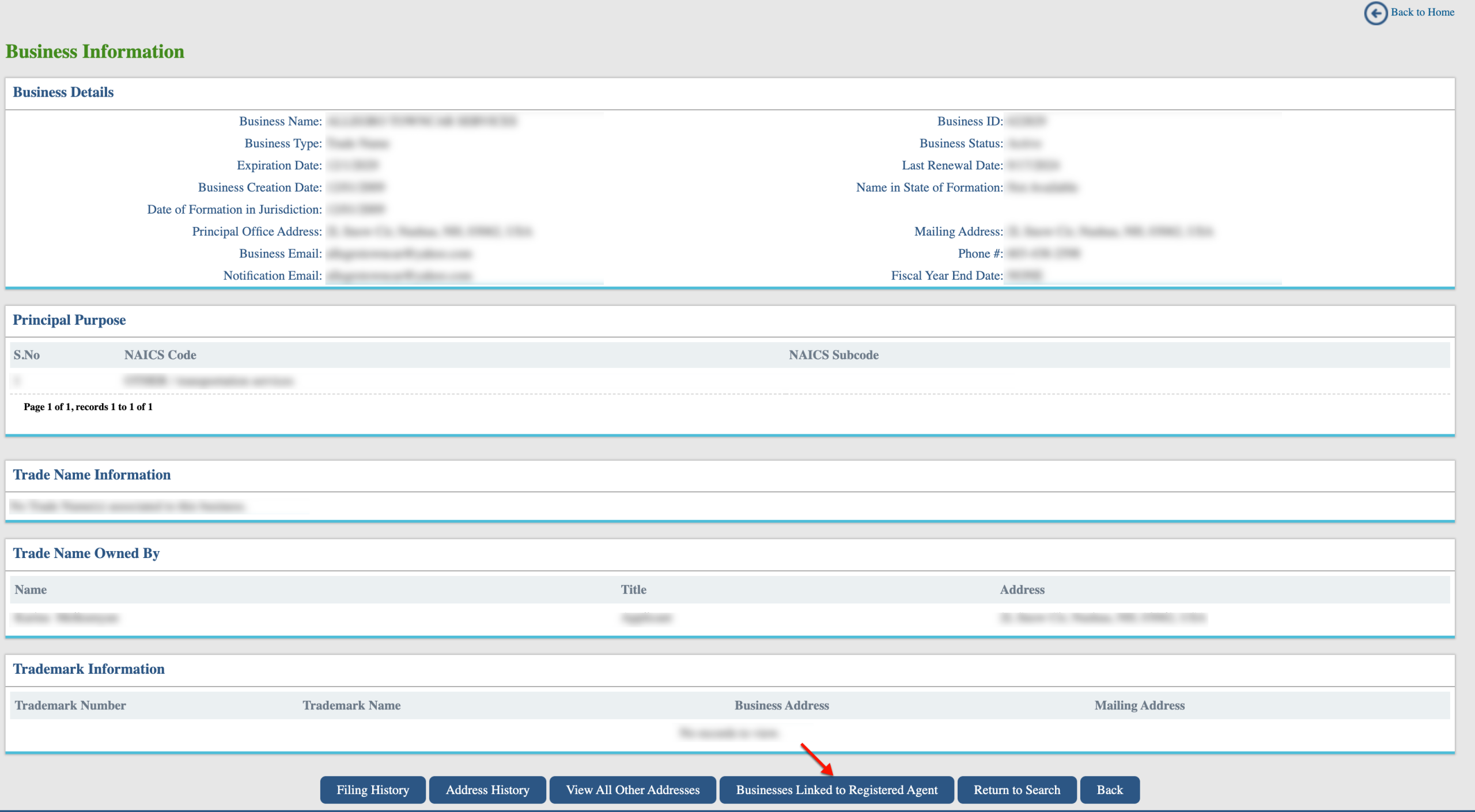
Direct your attention to the “Businesses Linked to Registered Agent” button. Select this button to obtain the registered agent’s information.
Step 17. Investigate Other Businesses of The Registered Agent
Each business linked to the entity’s registered agent is displayed in a table. Review this table for relevant information. To return to the entity information page, select “Return.”
- Business ID
- Business Name
- Jurisdicition
- RA Address
- Business Type
- Business Status