The Massachusetts Secretary of State business entity search page enables its users to search through its database for a specific business. In addition to its name, other public information (e.g., governing parties) is available for review. Users only need to submit a search item and may conduct multiple searches as needed.
Business Name Availability Check
State of Massachusetts

Business Entity Search
Step 1. Access the Business Entity Search Courtesy of the Commonwealth
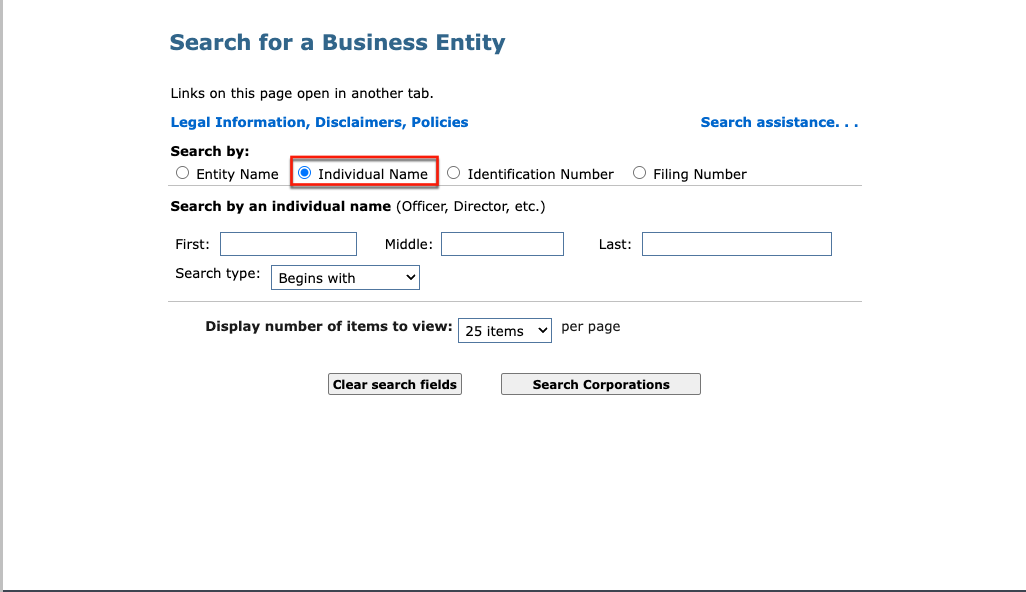
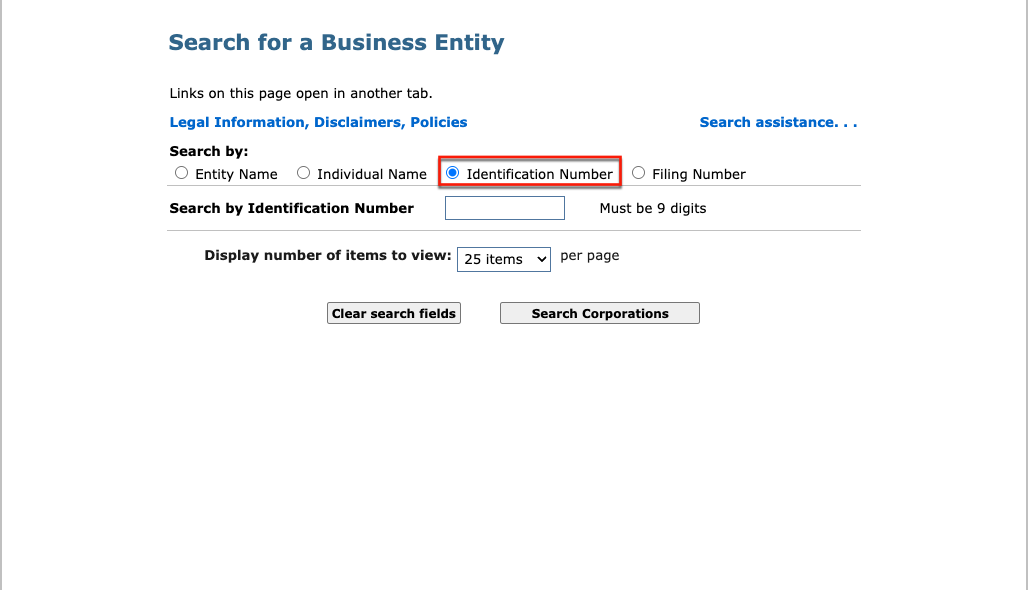
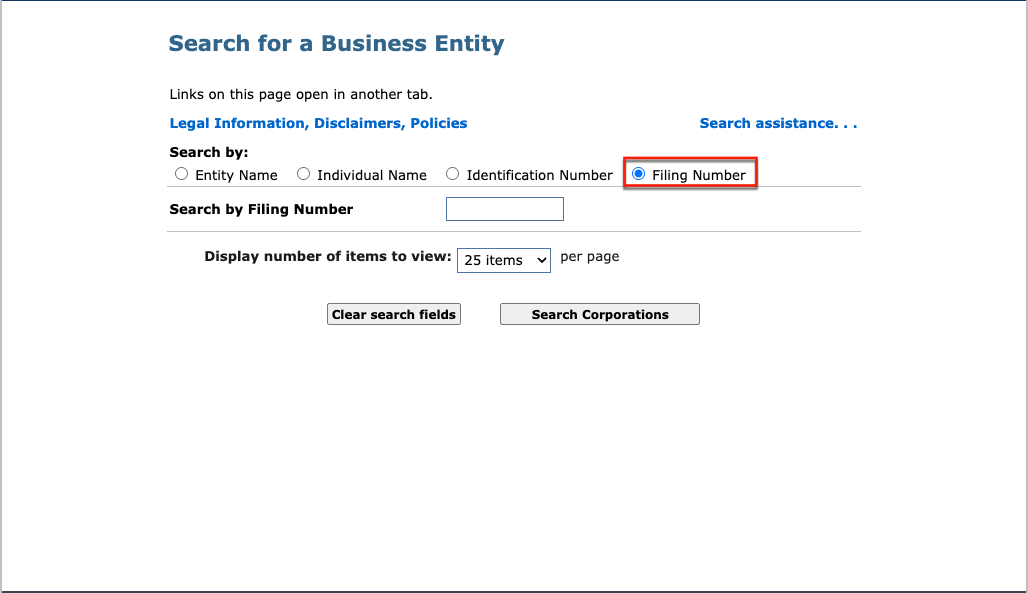
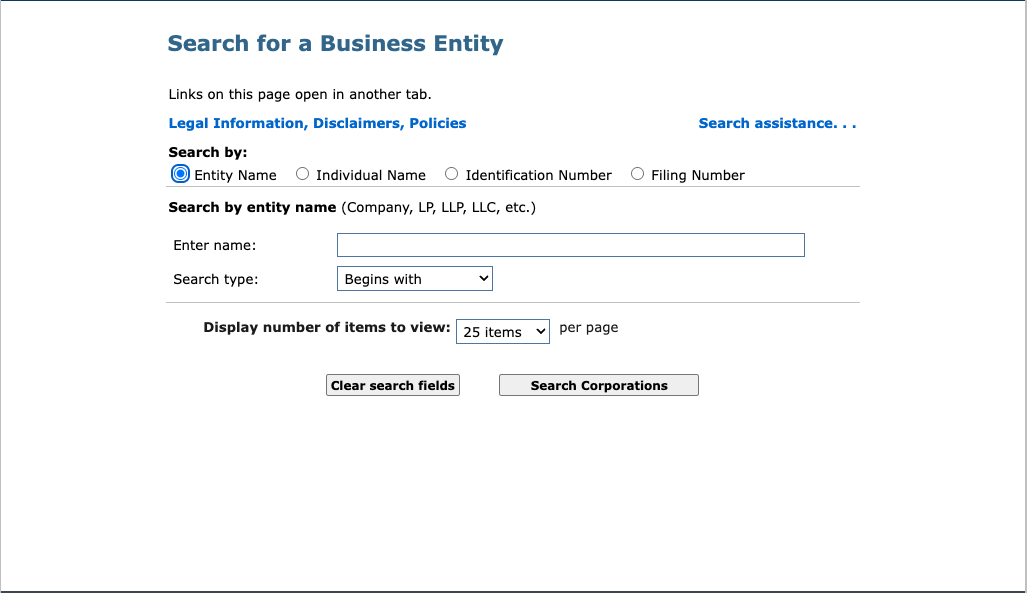
Once the business entity search page opens, review the areas displayed. Here, several items are available to aid your search.
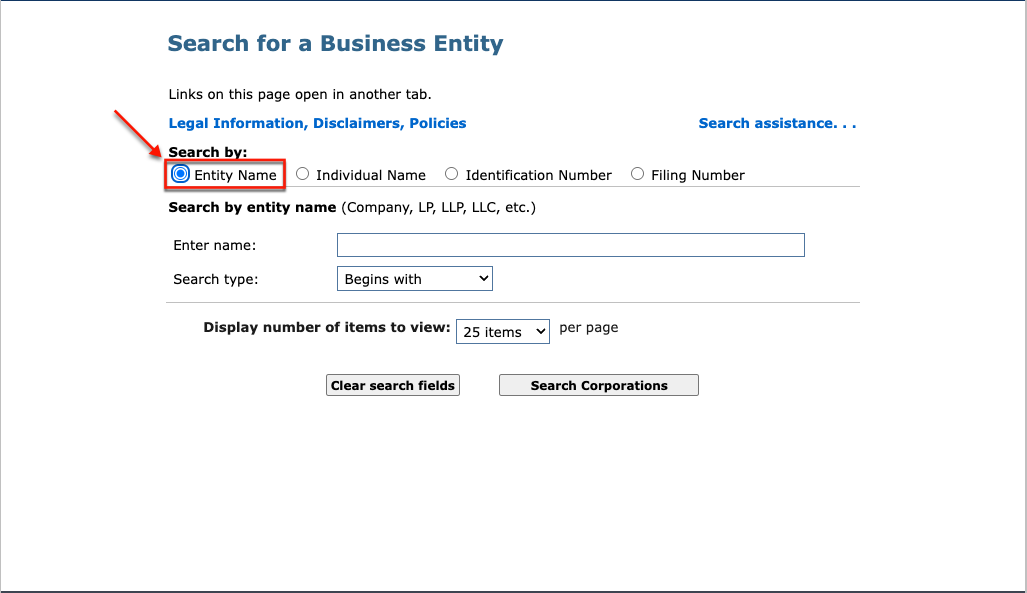
Step 3. Submit the Query’s Search Item
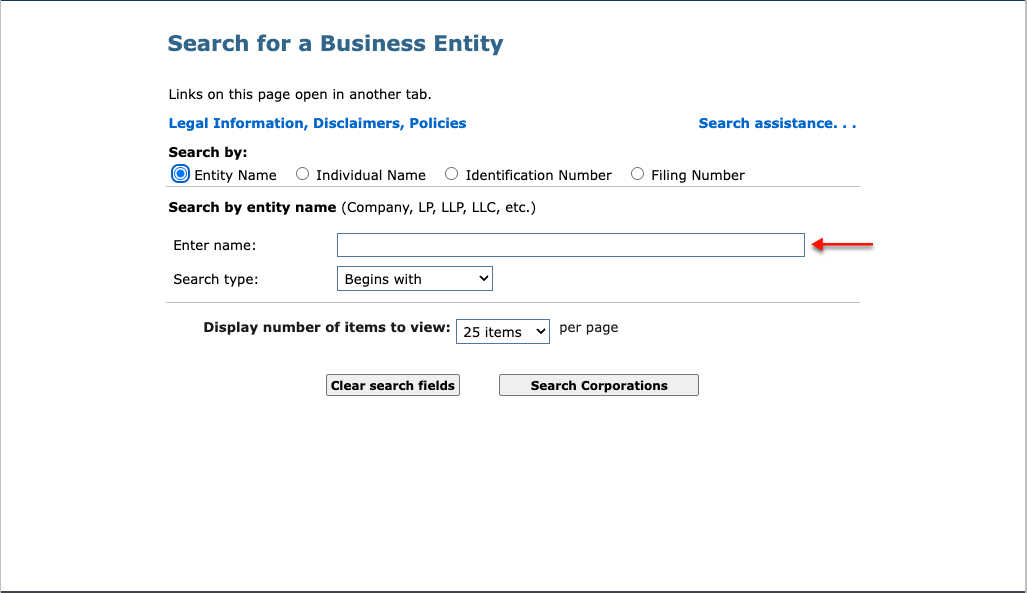
Produce the name of an entity (or part of one) in the text box after selecting the entity name for our example. Then continue to define your query.
Step 4. Set the Type of Search To Initiate
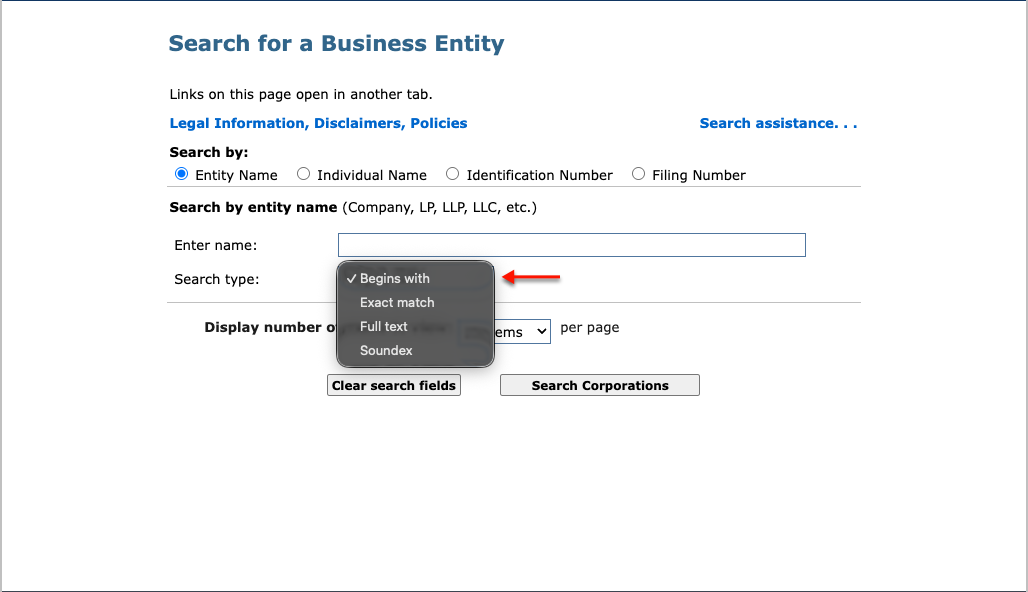
In order to search for an entity by name, the search type must be set. Use the drop-down menu to satisfy this requirement by selecting how the search item relates to the target.
- Begins With
- Exact Match
- Full Text
- Soundex
Step 5. Organize the Results Table
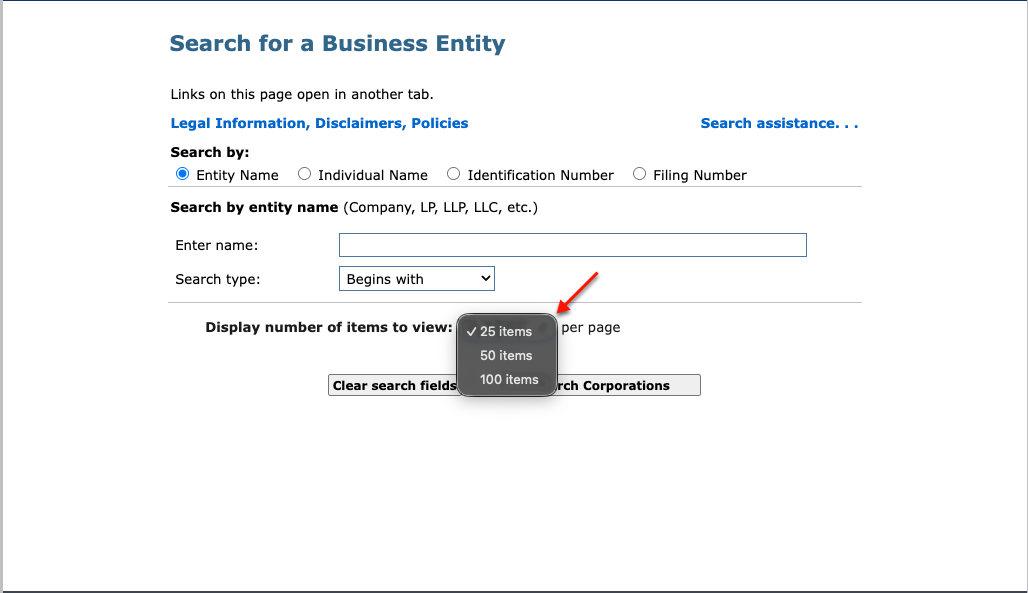
Control how many results appear with the drop-down menu. This is especially helpful when searching for a general phrase or part of a name.
- 25 Items
- 50 Items
- 100 Items
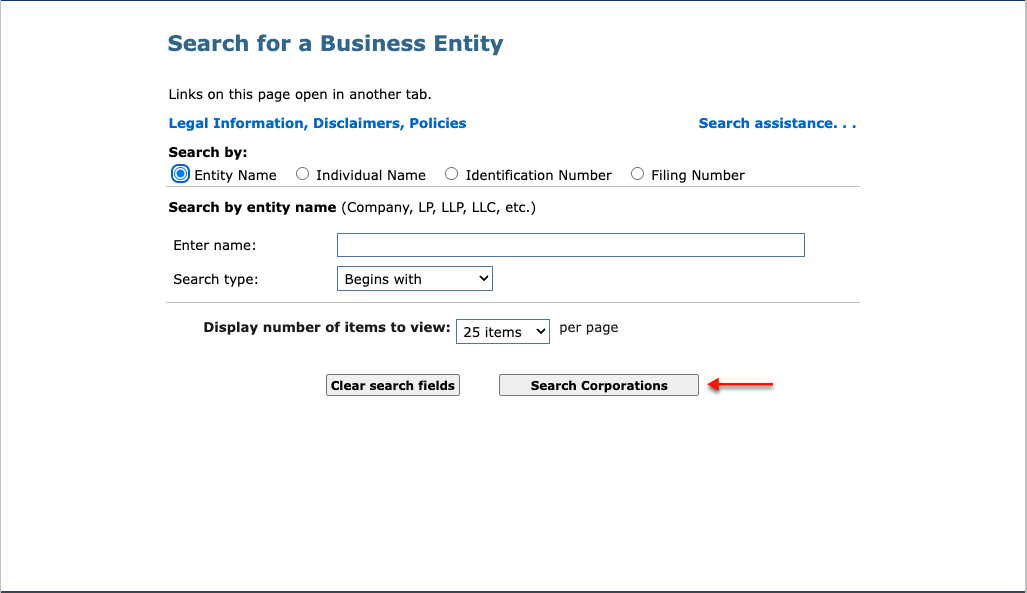
Step 6. Start the Query to Find the Search Item
To start the query, select the “Search Corporations” button. If necessary, you may return at any time to perform a new search.
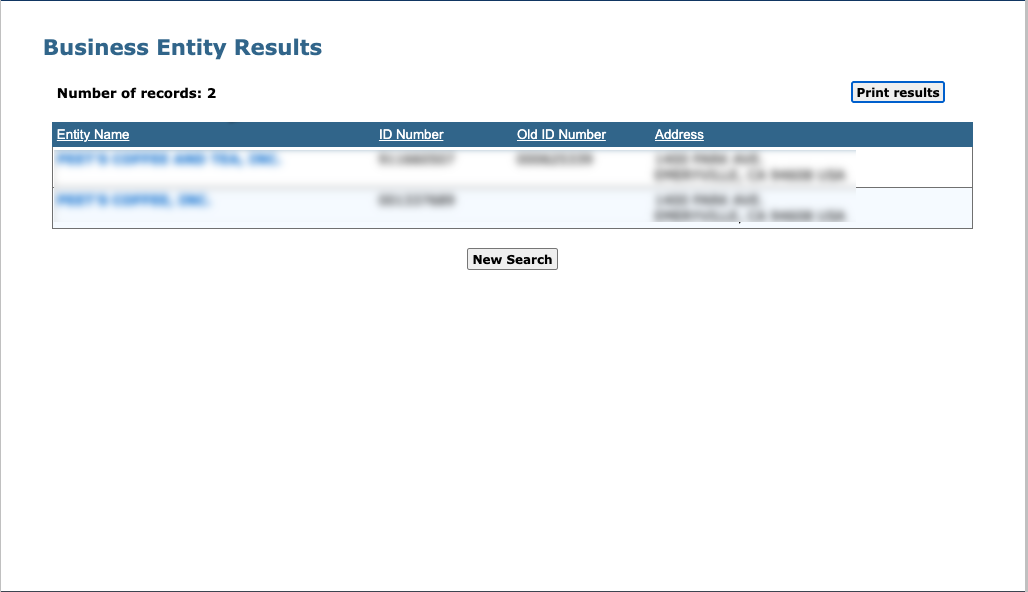
Step 7. Review The Query Results
Scan the table results for the business or entity matching your criteria. These columns can be sorted by clicking their headings.
- Entity Name
- ID Number
- Old ID Number
- Address
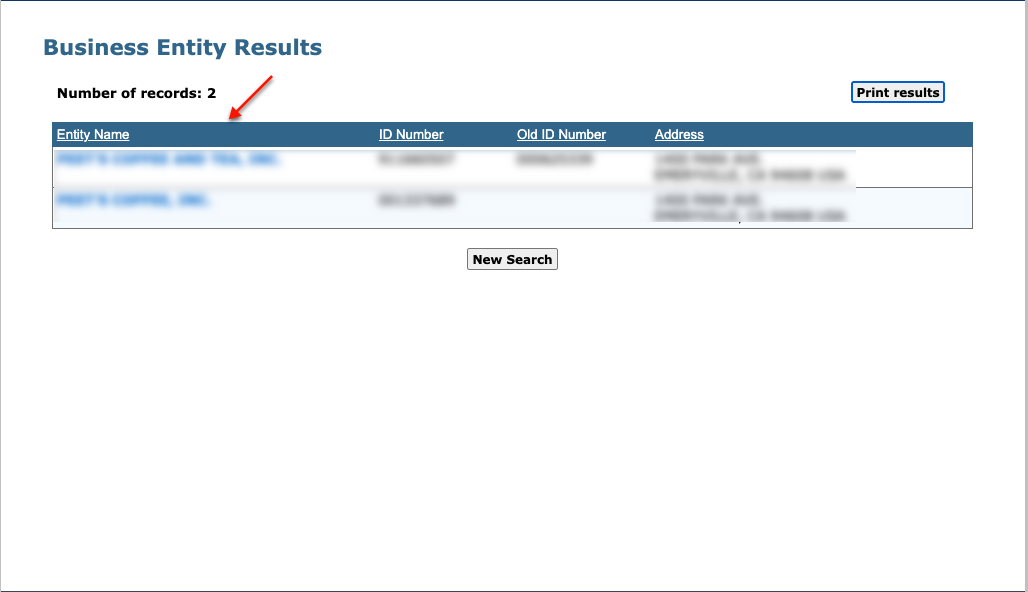
Step 8. Pick an Entity To Examine
Settle upon a business to investigate and locate its name in the first column. Select this name to continue.
Step 9. Assess Entity Summary Information
Read the summary page describing the business entity. Notice that each section presents distinct information on file with the state.
- ID Number
- Summary For
- The Exact Name of the Foreign Corporation
- Entity Type
- Identification Number
- Old ID Number
- Date of Registration in Massachusetts
- Date of Reinstatement
- Date of Involuntary Revocation
- Last Date Certain
- Organized under the Laws of State
- Country
- On(date)
- Current Fiscal Month/Day
- Previous Fiscal Month/Day
- The Location of the Principal Office
- Address
- City or Town, State, Zip Code, Country
- The location of the Massachusetts Office, if any
- Address
- City or Town, State, Zip Code, Country
- Name and Address of the Registered Agent
- Name
- Address
- City or town, State, Zip Code, Country
- The Officers and Directors of the Corporation
- TItle
- Individual Name
- Address
- Business Entity Stock Is Publicly Traded
- Total Number of Shares and the Par Value, if Any, of Each Class of Stock Which this Business Entity is Authorized to Issue
- Class of Stock
- Par Value Per Share
- Total Authorized
- No. Of Shares
- Total Par Value
- Total Issued and Outstanding
- No. Of Shares
- Consent
- Confidential Data
- Merger Allowed
- Manufacturing
- View Filings for this Business Entity
- View Filings
- New Search
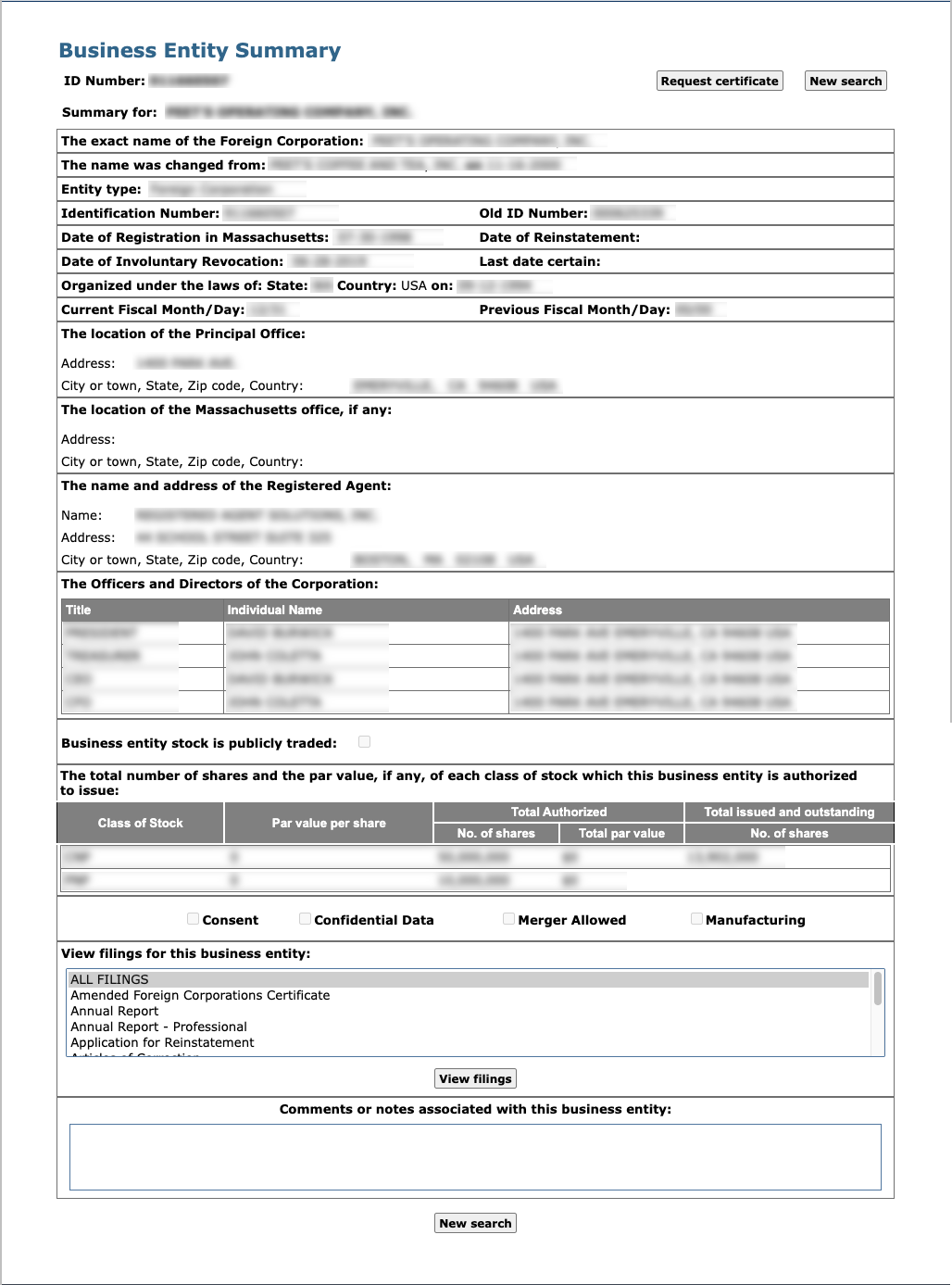
Step 10. Query Business Entity Filings
Scroll to the bottom of the summary and select the type of filing you wish to investigate. We will use the default selection “All Filings” in our example.
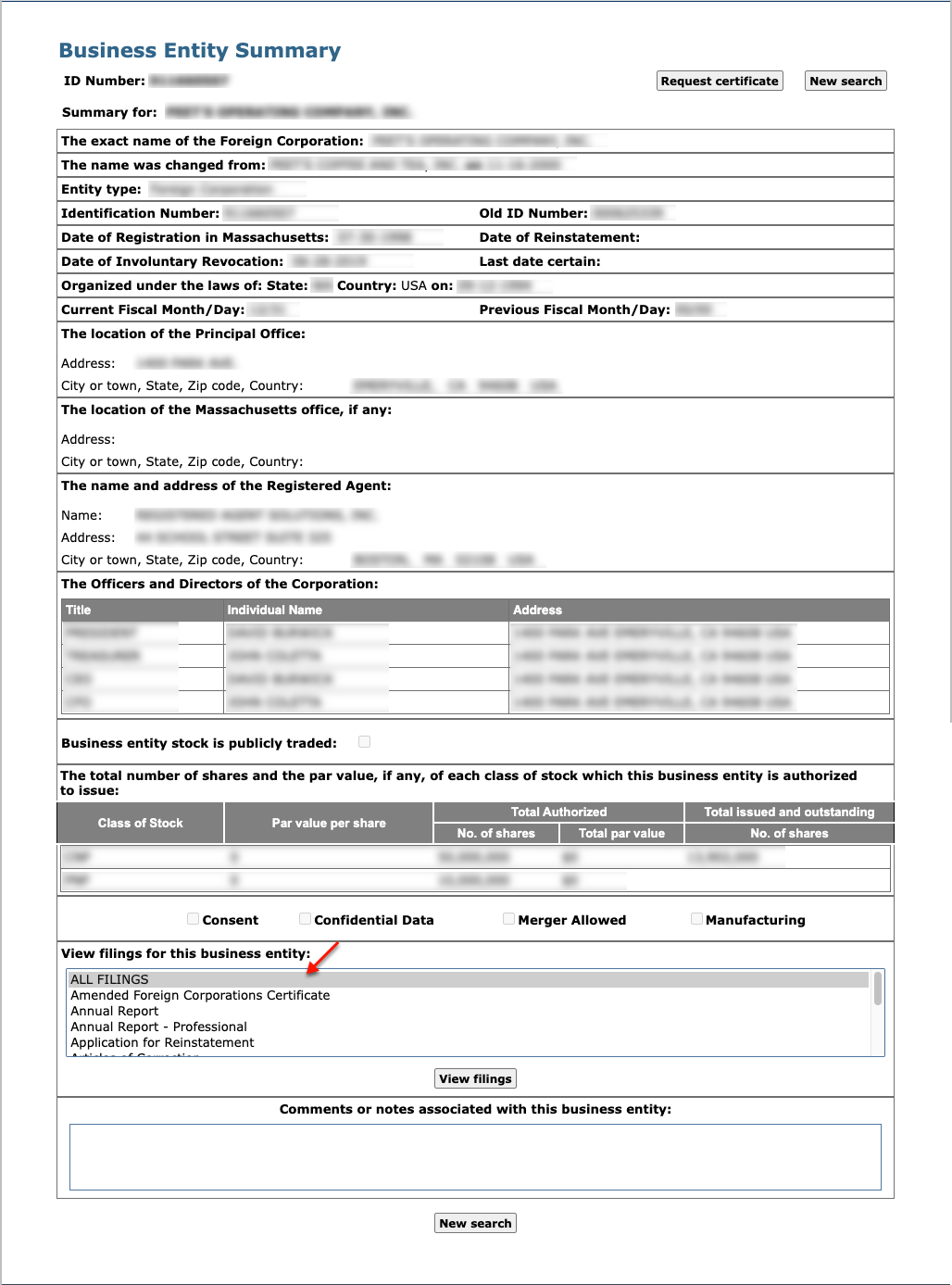
Step 11. View Past Filings
In order to connect to the filing summary, select “View Filings.” This immediately runs a new query for the documents on file for the entity on display.
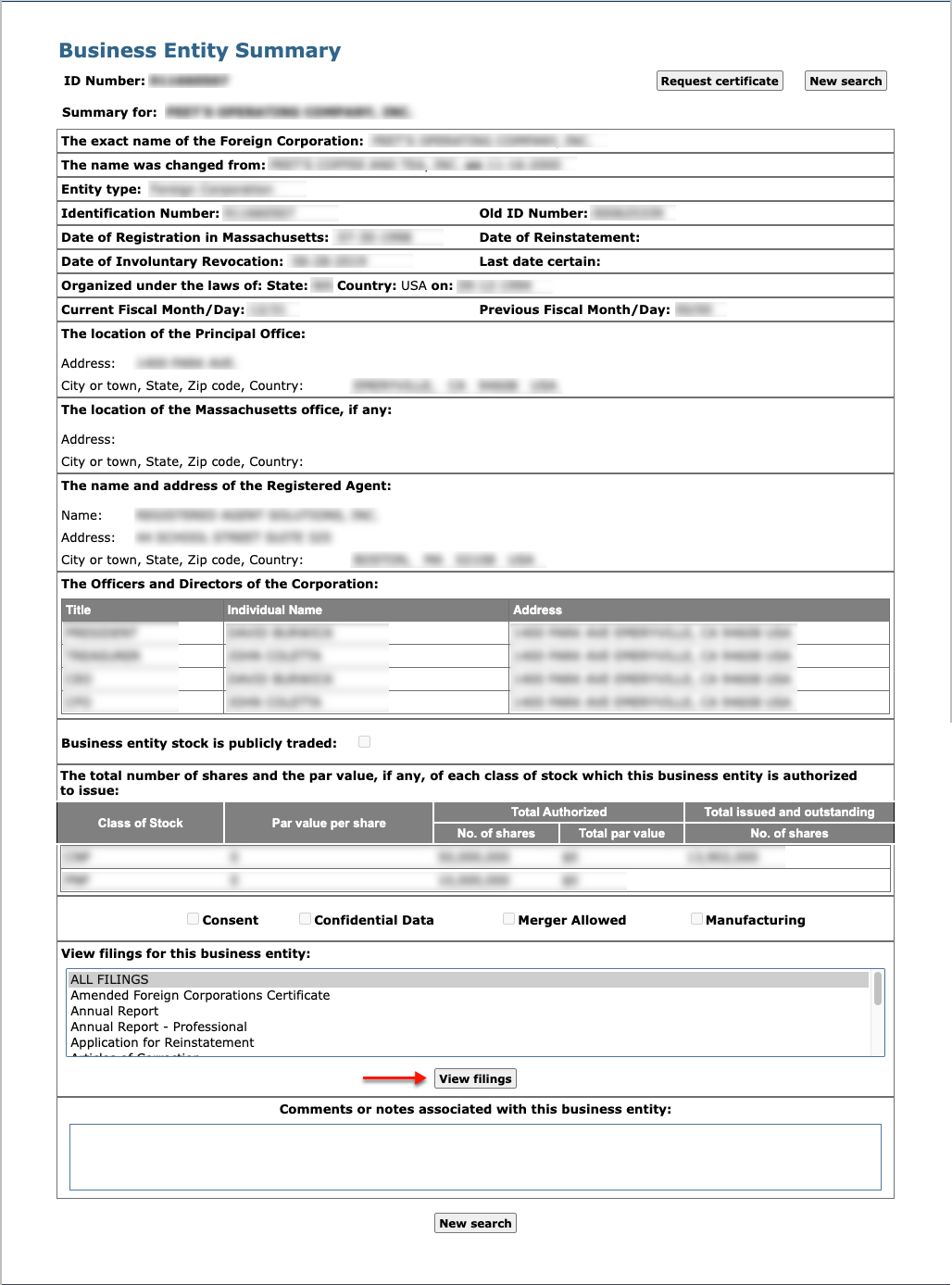
Step 12. Select Downloadables
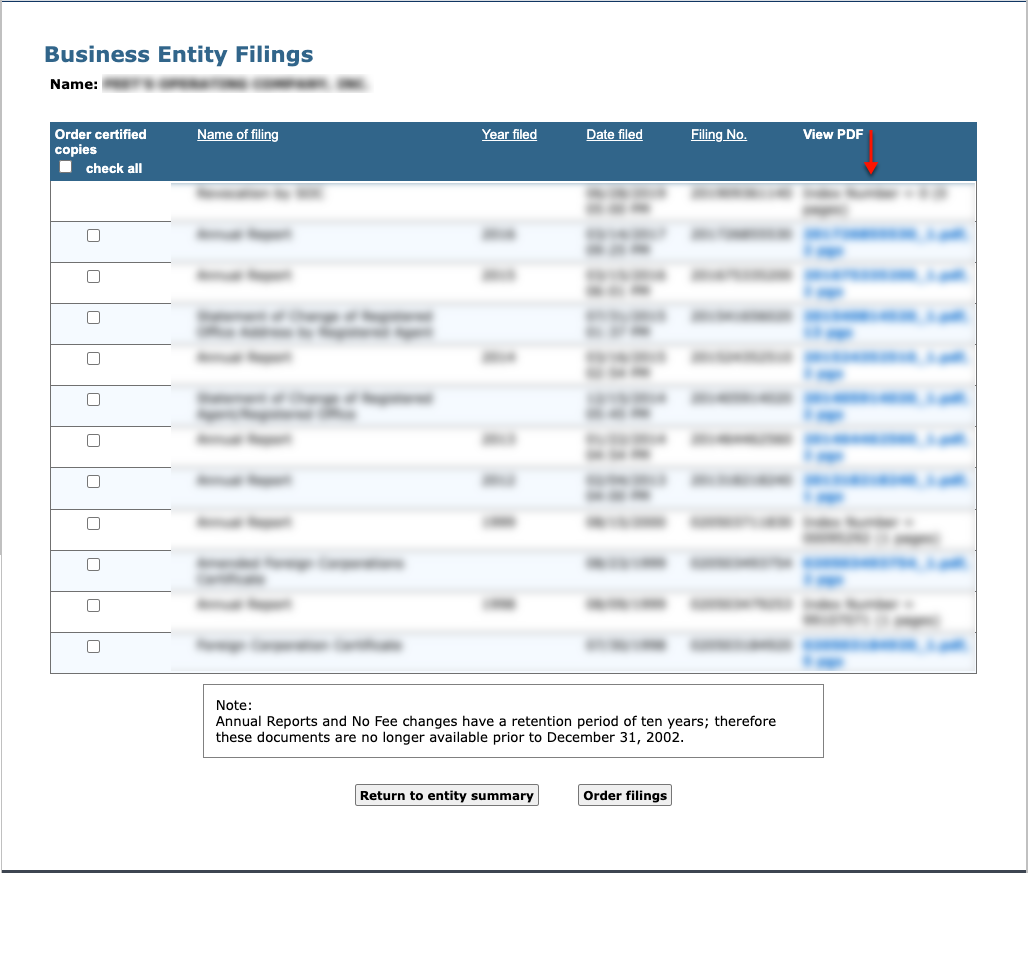
Use the second column to find the filing of interest. You may either select a checkbox to order a certified copy or download the PDF from the final column.
- Order Certified Copies
- Check All
- Name of Filing
- Year Filed
- Date Filed
- Filing No.
- View PDF