The Maryland Secretary of State provides the Business Express entity search tool for public use. This tool is for users who require information regarding a specific entity, or simply as a step in seeing if an entity name is available. The state provides general information describing the entity as well as past filings (such as annual reports) on screen, free of charge.
Business Name Availability Check
State of Maryland

Business Entity Search
Step 1. Go To Maryland’s Business Express Entity Search Tool
Access the business entity search tool courtesy of the Secretary of State. This provides an easy-to-use query on the state’s database of entities and their filings.
Step 2. Present the Search Item
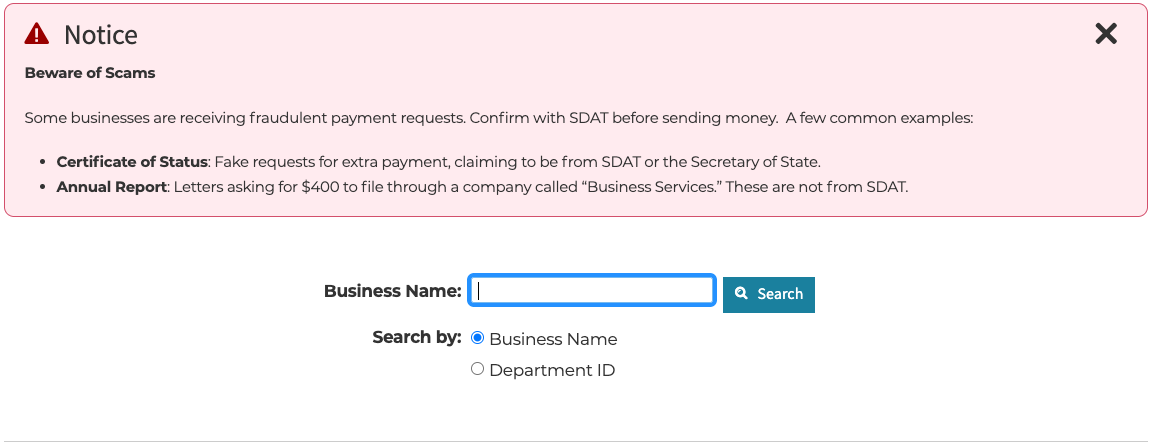
Direct your attention to the text box on display. Supply either a phrase or a number to the contents. Your entry is the item the tool will search for in the Maryland database.
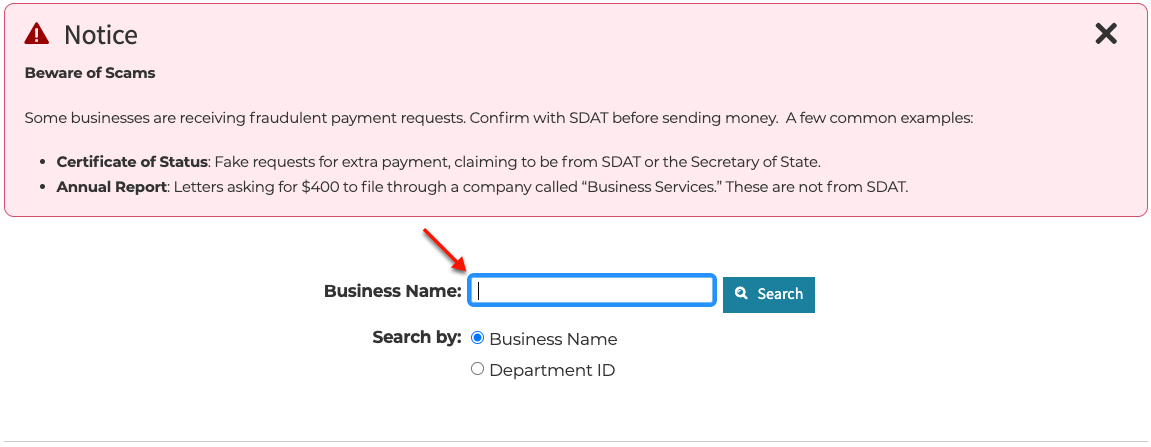
Step 3. Define the Search Item
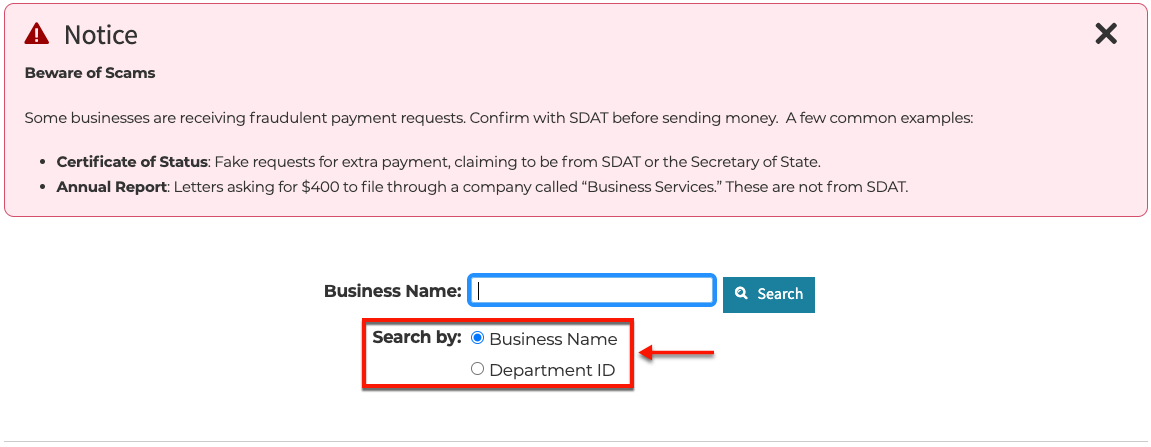
Select the radio button choice to set how the query tool will search for the item above. For our example, set the search to find a “Business Name,” thus setting a name search.
-
- Business Name
- Department ID
Step 4. Proceed With the Search
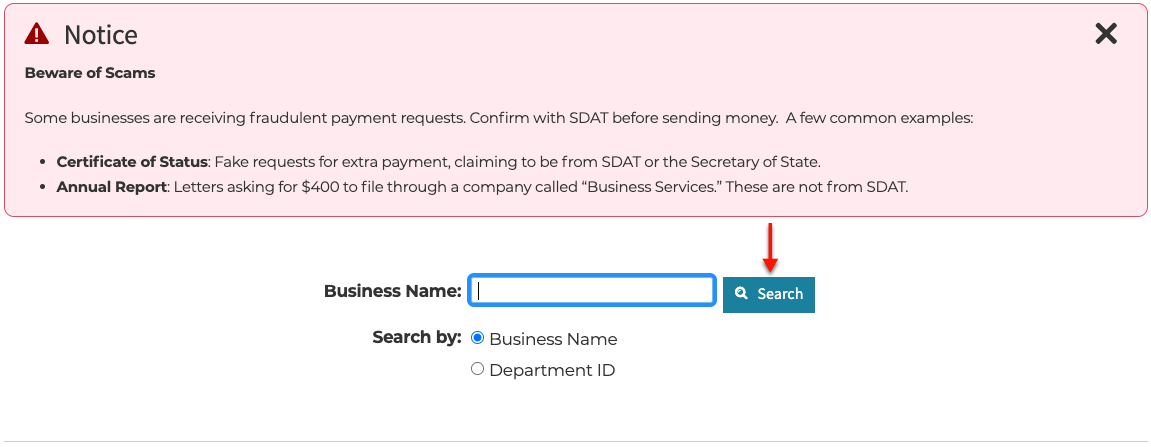
Next, select the button to the right of the search box. Upon clicking on this button, the tool queries the business database on the search term.
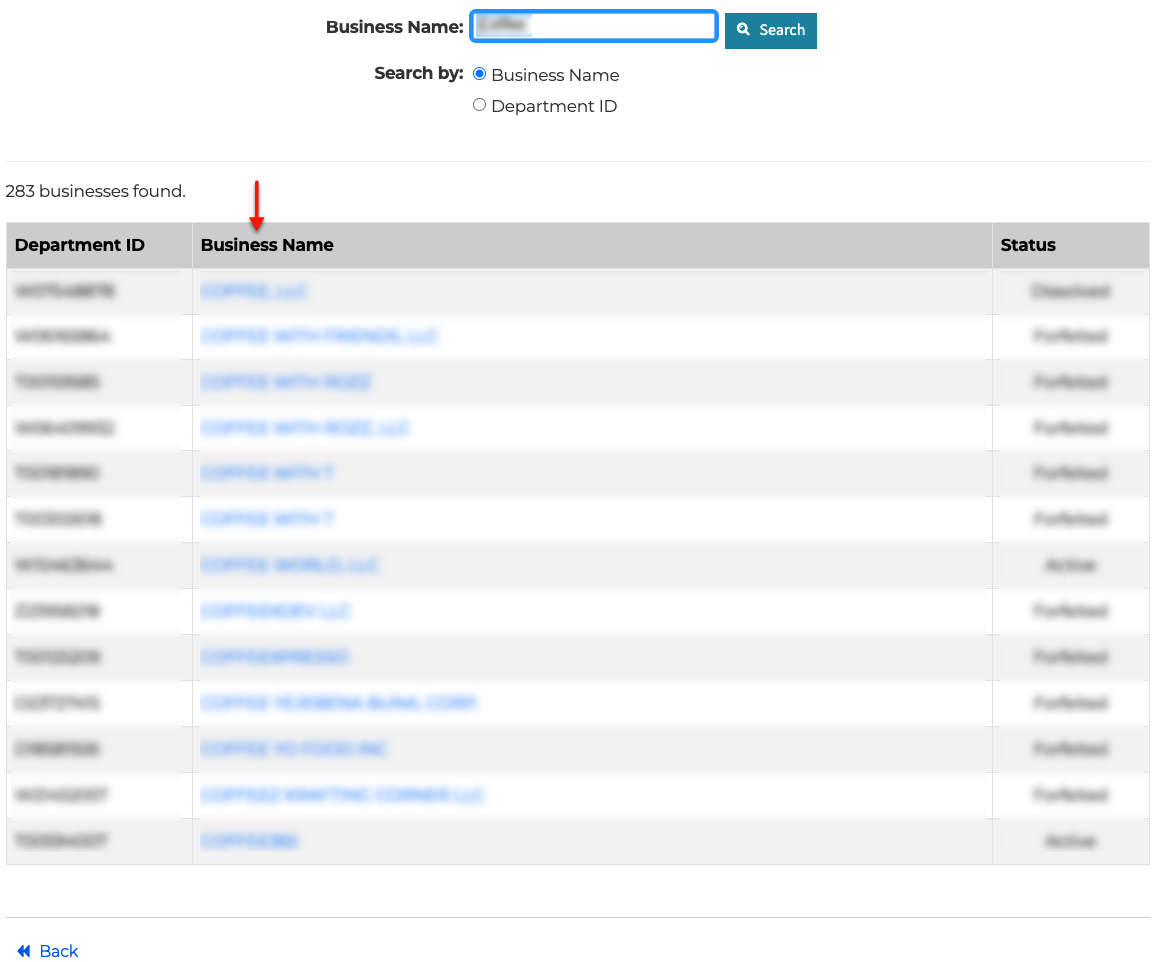
Step 5. Look Through Matching Results
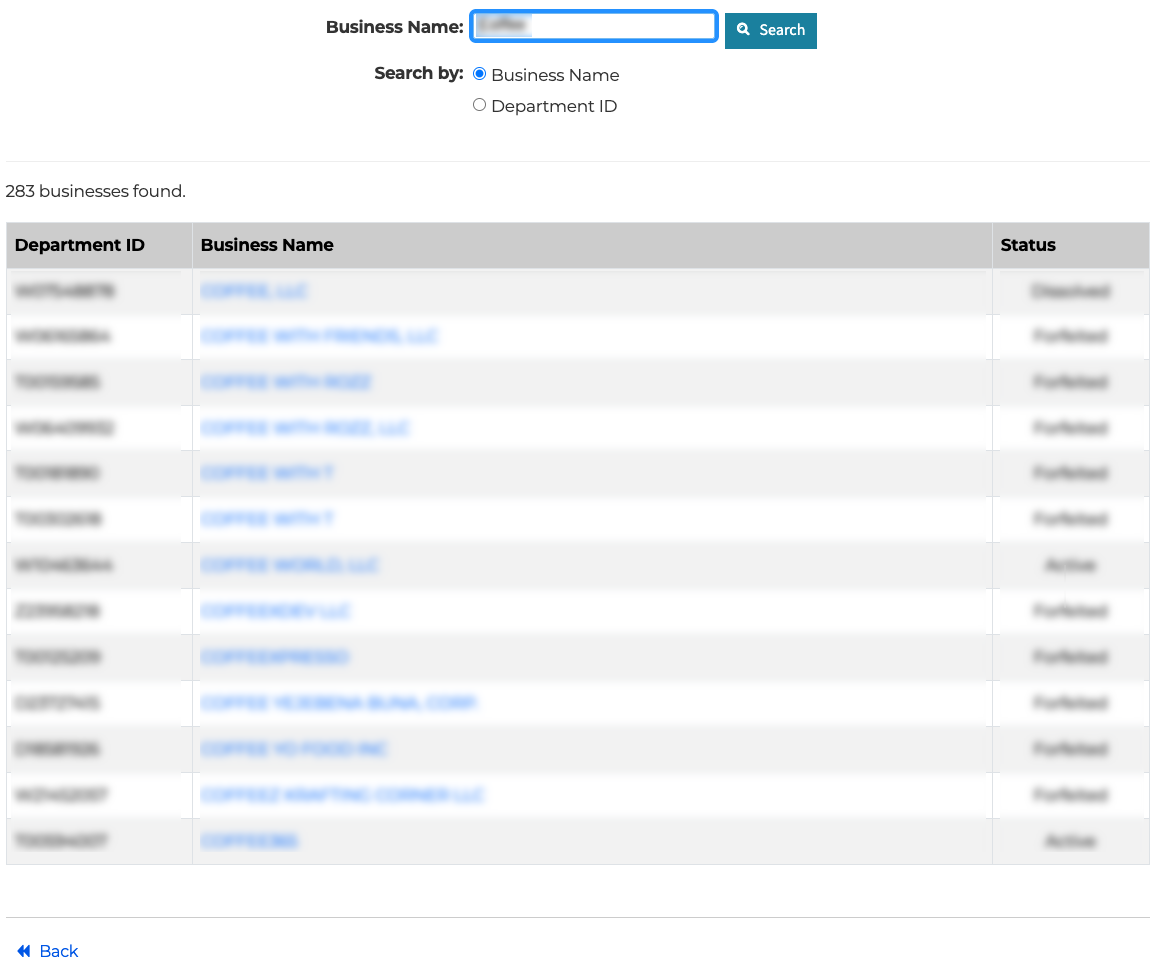
Scroll through the second column until you find the target entity. If there are no matching results, return to step 2 and furnish a less specific phrase; otherwise, continue to the next step.
- Department ID
- Business Name
- Status
Step 6. Access the Business Entity Information of Interest
Once you find the name of the business in the second column, select it. The browser then opens that entity’s general information page.
Step 7. Review the Maryland Entity’s General Information
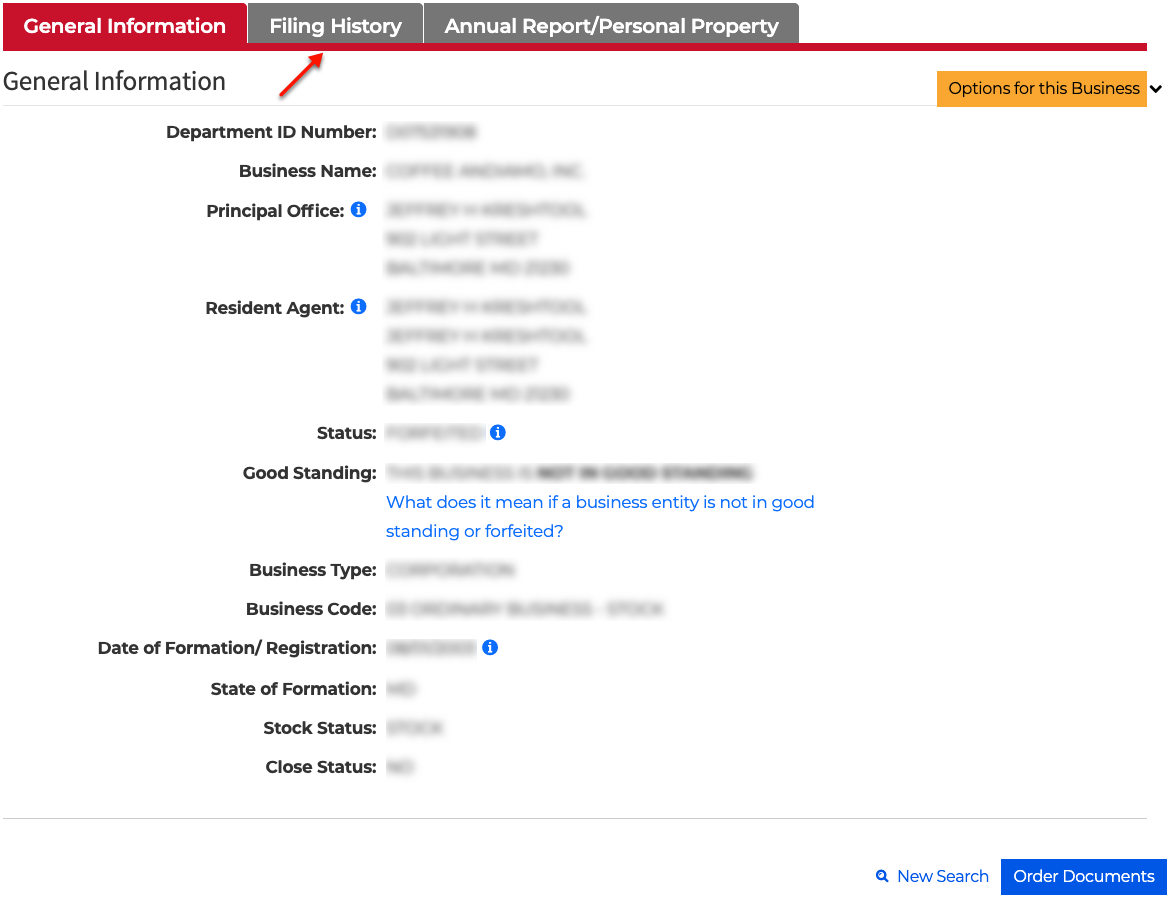
Examine the default tab (“General Information”) before moving to the next two. Confirm this is the business you seek. Once ready, select “Filing History.”
- Department ID Number
- Business Name
- Principal Office
- Resident Agent
- Satus
- Good Standing
- Business Type
- Business Code
- Date of Formation/Registration
- State of Formation
- Stock Status
- Close Status
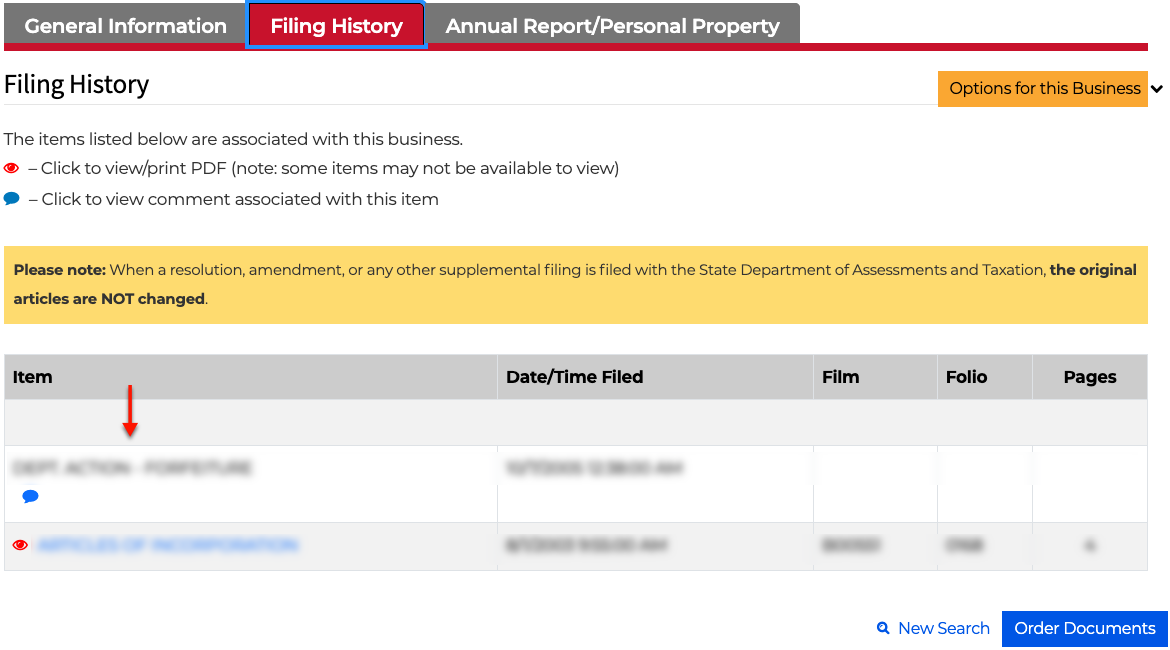
Step 8. Go Through the Filing History
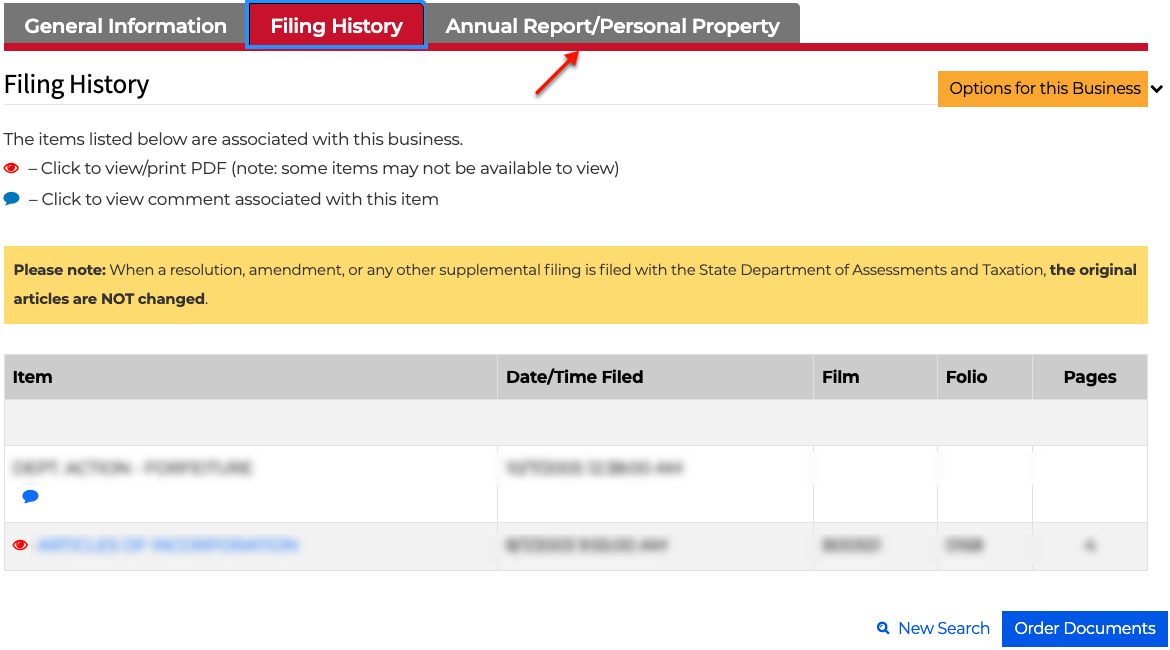
Look through the documents in the “Item” column of the table. Some are viewable on screen or downloadable upon selection. Visit the “Annual Reports/Personal Property” tab next.
- Item (see image)
- Date/Time Filed
- Film
- Folio
- Pages
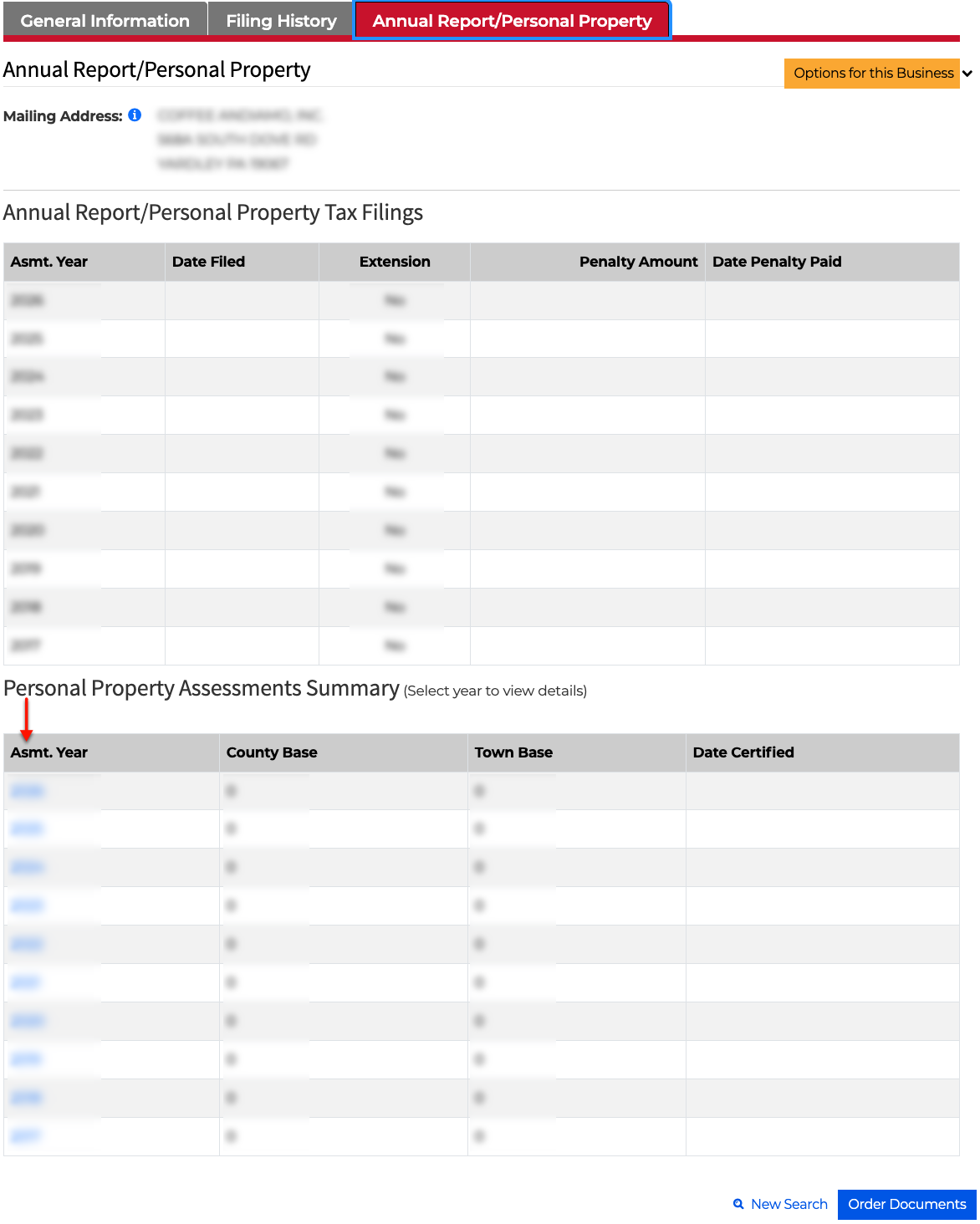
Step 9. Examine Annual Reports and Personal Property.
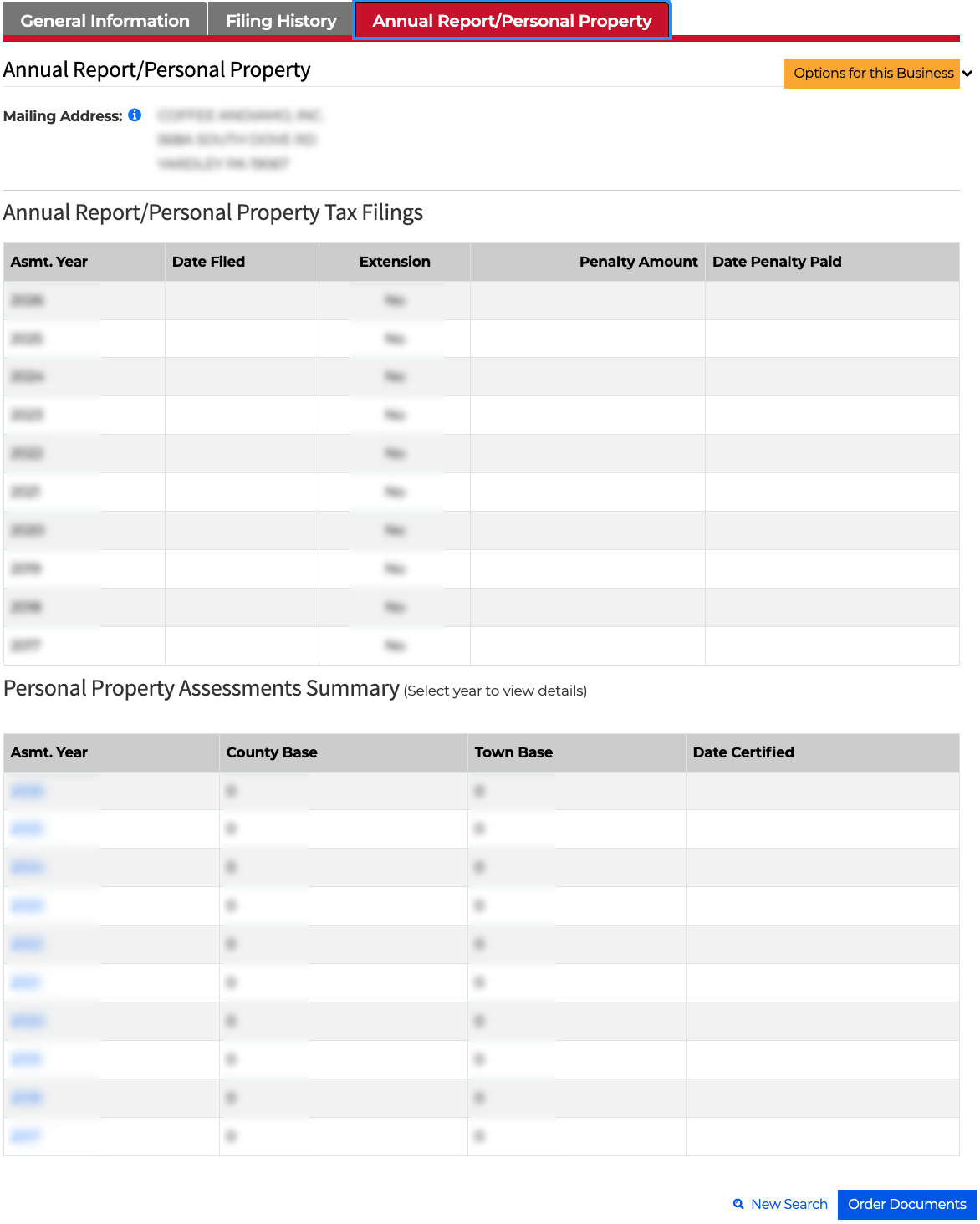
Scan the tables for personal property assessments and tax information. Select a year from the summary table (see image) for more information.
- Annual Report/Personal Property Tax Filings
- Asmt Year
- Date Filed
- Extension
- Penalty Amount
- Date Penalty Paid
- Personal Property Assessments Summary
- Asmt Year
- County Base
- Town Base
- Date Certified
Step 10. Take a Closer Look at the Entity’s Personal Property
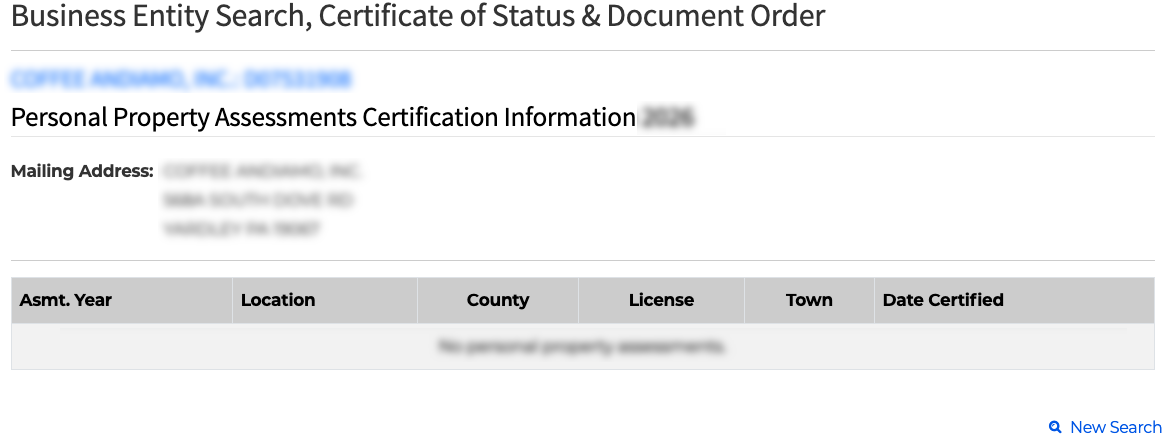
Review the “Personal Property Assessment Summary” that appears upon selecting the year. Notice the entity’s mailing address for the year in question is on display.
- Mailing Address
- Asmt Year
- Location
- County
- License
- Town
- Date Certified