The Kansas Secretary of State business entity search taps into the state’s database of profit and nonprofit business entities. Visitors access the page upon verifying their intent and status, and then use a query to access entity information. This information is public, and the query tool is free, therefore allowing users multiple searches to find the right information.
Business Name Availability Check
State of Kansas

Business Entity Search
Step 1. Access the Kansas Business Entity Search
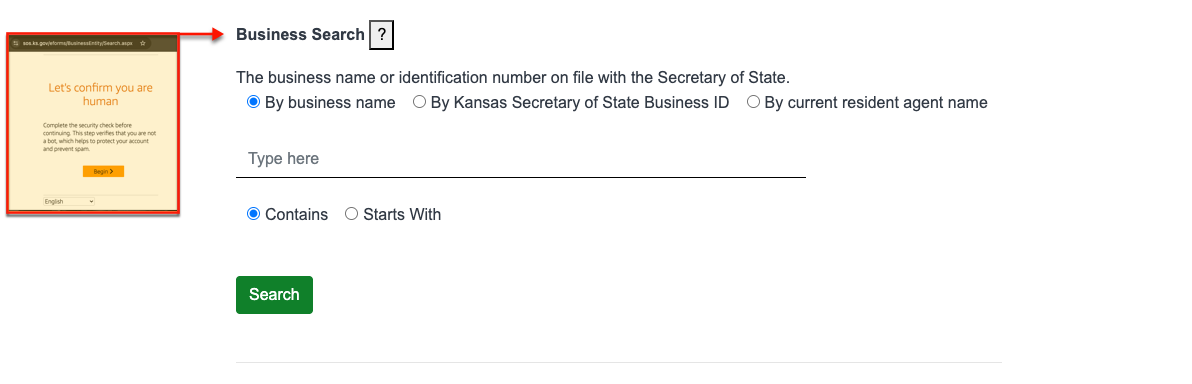
Visit the Kansas Secretary of State’s business entity search page. Select your language, then click “Begin” to engage the security check in order to proceed to the search tool.
Step 2. Review the Entity Search Page
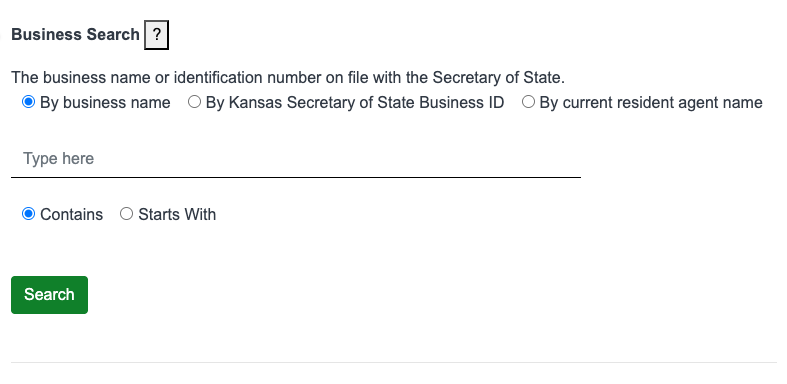
Look through each section’s requirements. When you are ready, prepare the information that the query must find.
Step 3. Identify the Type of Search To Run
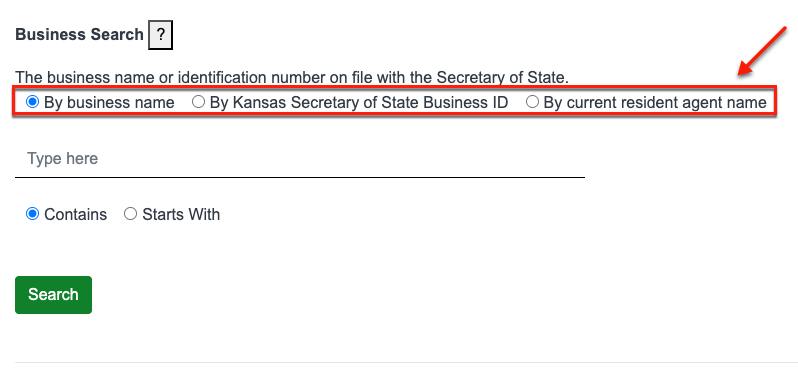
Select one of the first three radio buttons to let the query know exactly what you are looking for in the database. Then proceed to the area below.
- By Business Name
- By Kansas Secretary of State Business ID
- By Current Resident Agent Name
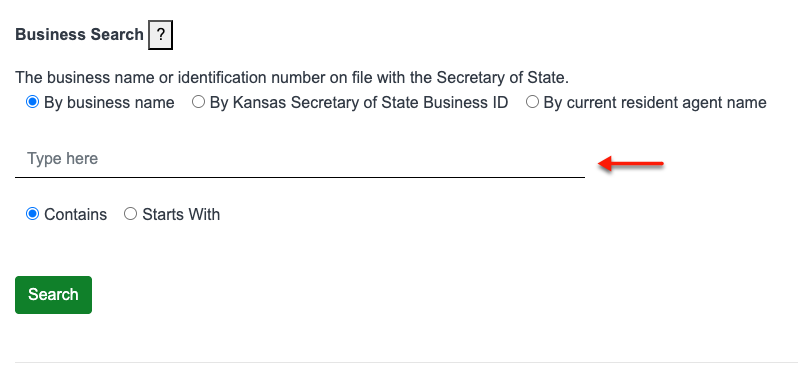
Step 4. Input the Appropriate Query Item
Replace the words “Type here” in the search area with your search term. Make sure this is appropriate for the radio button selection above.
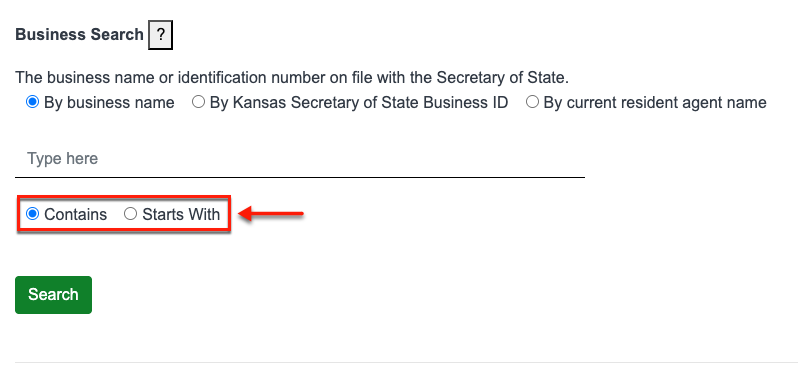
Step 5. Indicate the Search Method
Next, choose one of the final two radio buttons in order to tell the query how the search item relates to the target.
- Contains
- Starts With
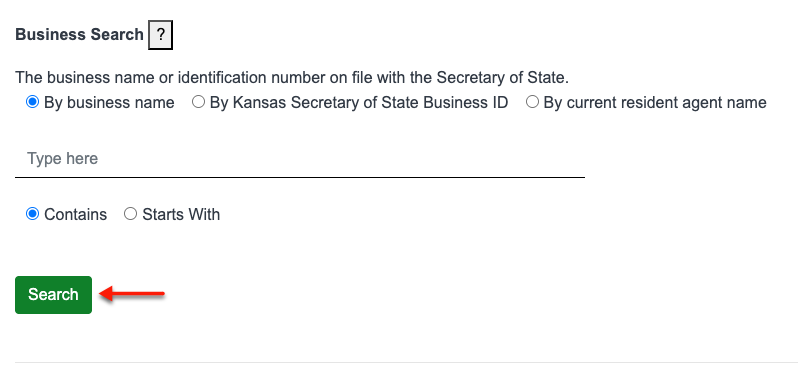
Step 6. Make a Query Submission
Find the green search button, then select it to continue. This prompts the search tool to engage the query on the database.
Step 7. Go Over the Matching Results
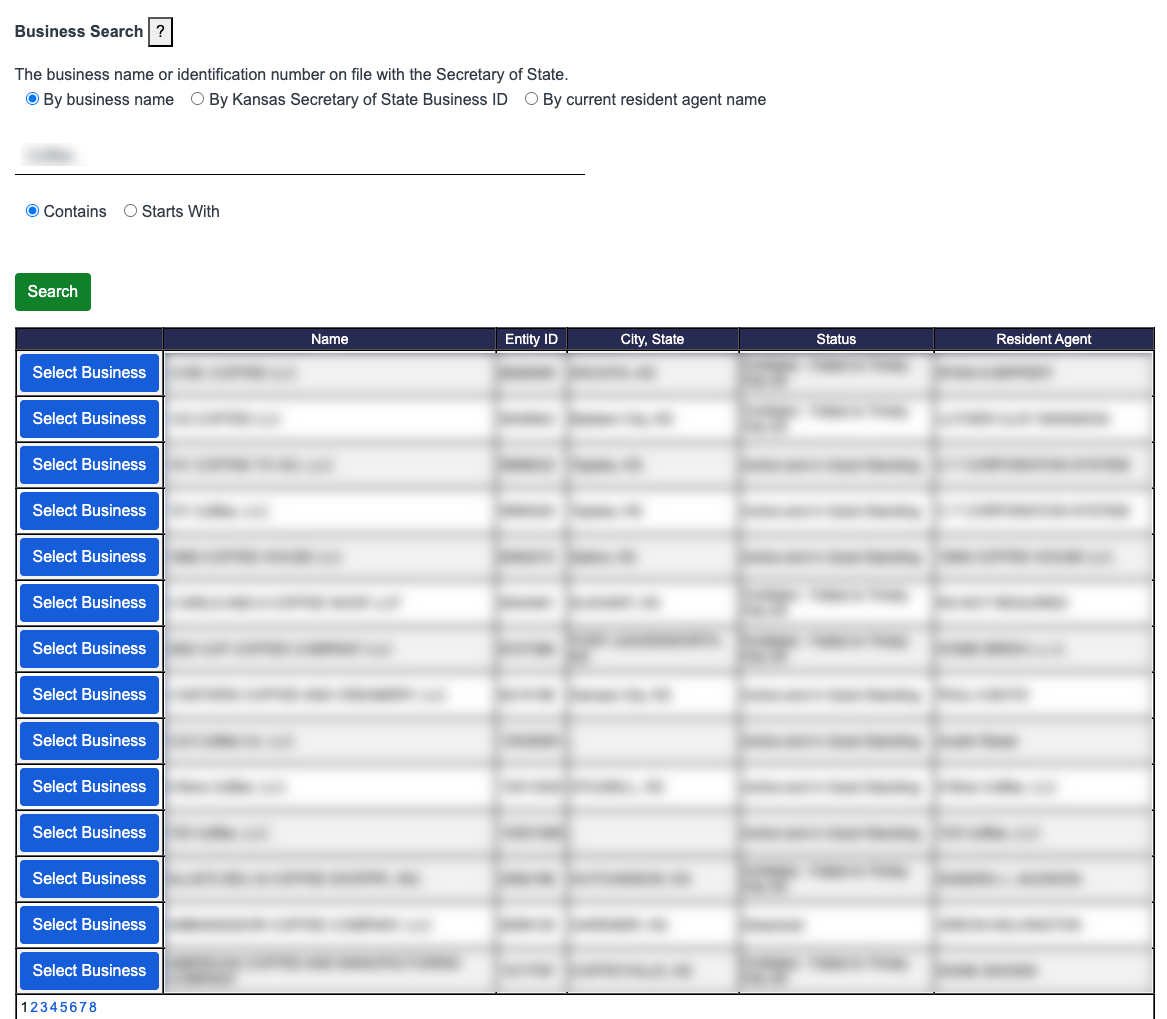
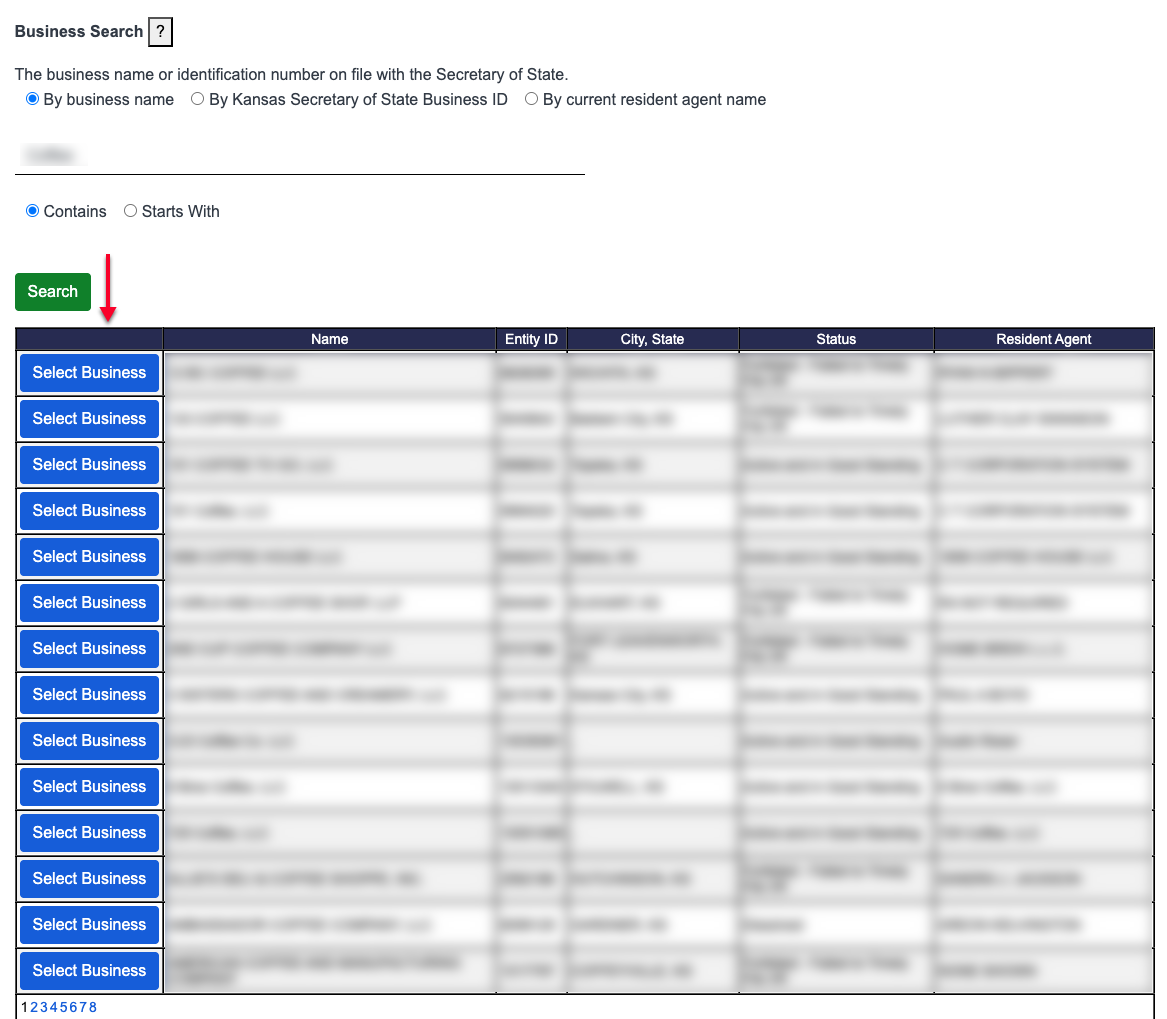
Scroll through the “Name” column until you find the entity you seek. Use the remaining columns of information to find the entity the query targets.
- Select Business
- Name
- Entity ID
- City, State
- Status
- Resident Agent
Step 8. Pick The Entity You Want to Investigate
Once you wish to investigate an entity, locate the “Select Business” button on that row. Click on this records button to access entity information.
Step 9. Obtain General Information
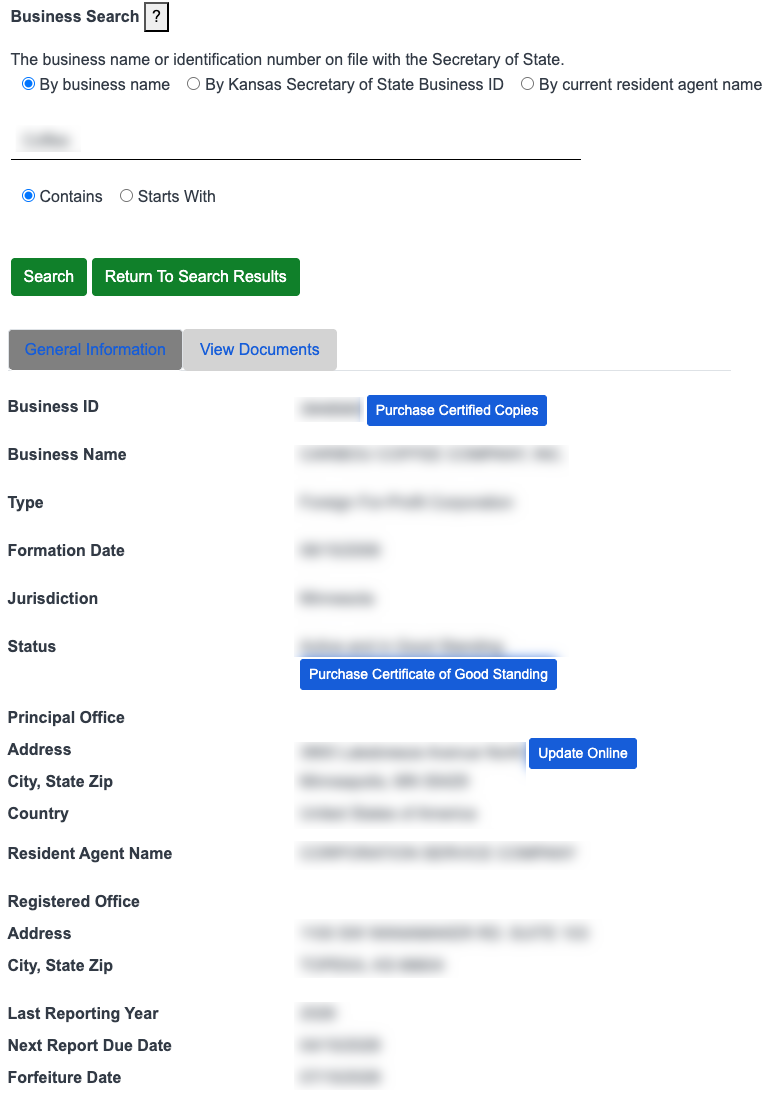
Look through the public entity information that this page summarizes. Notice that purchases for online certificates can be purchased for download where available.
- General Information
- Business ID
- Business Name
- Type
- Formation Date
- Jurisdiction
- Status
- Principal Office
- Address
- City, State Zip
- Registered Agent Name
- Registered Office Address
- City, State Zip
- Last Reporting Year
- Next Report Due Date
- Forfeiture Date
- View Documents
Step 10. Proceed to More Information
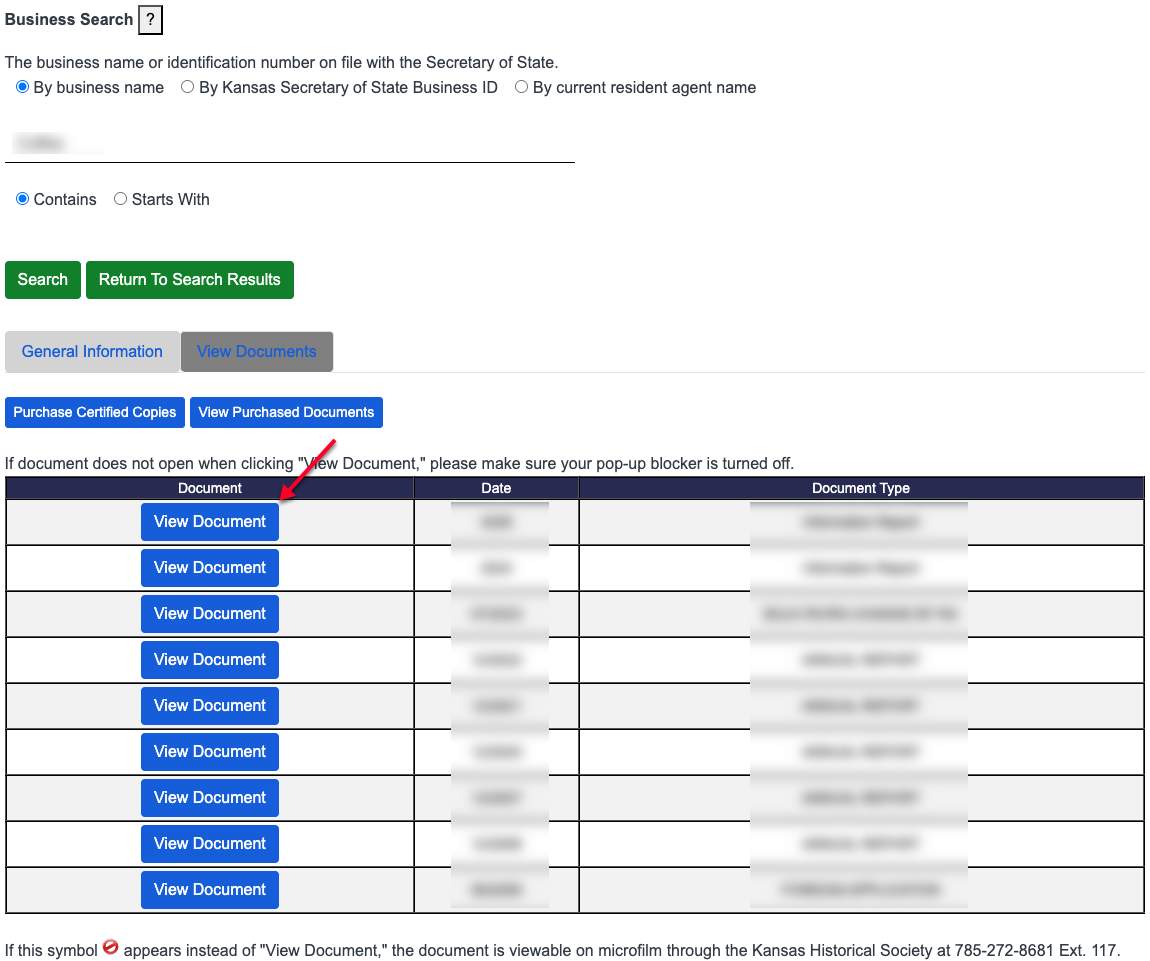
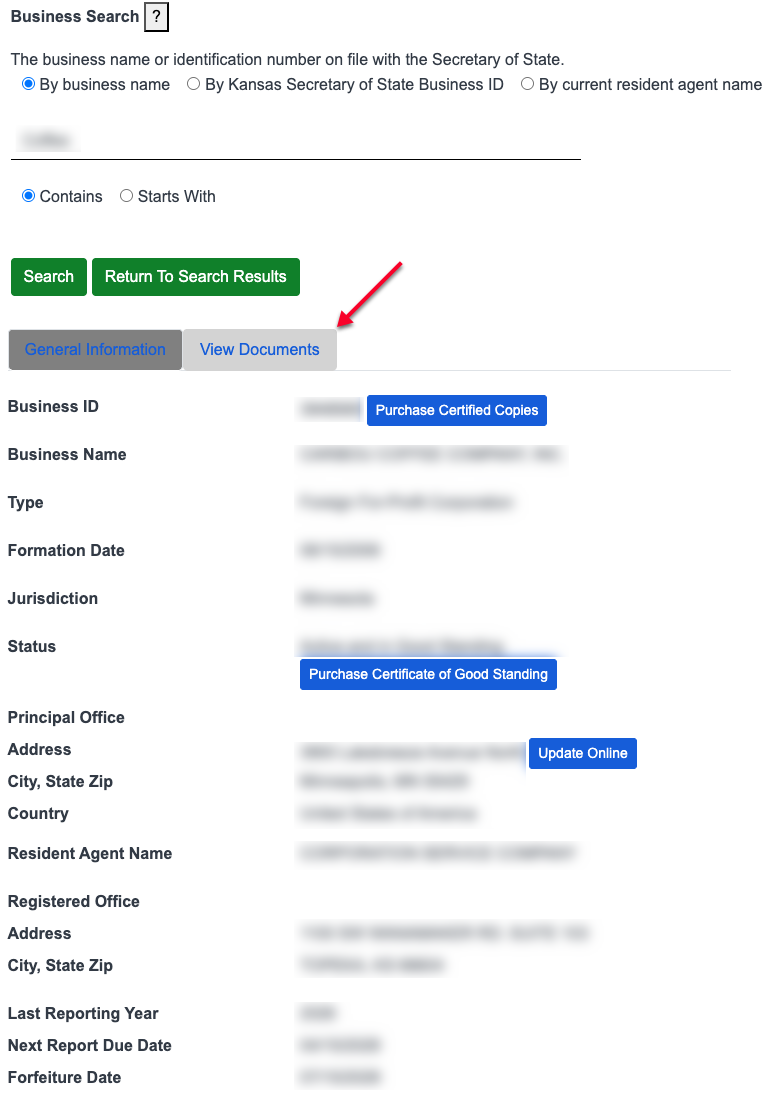
In order to see scans of documents and filings, select the “View Documents” tab. This directs the browser to a new page, but you may return to this page or initiate a new search if necessary.
Step 11. Select A Document To View
Review the document’s table. The second and third columns report a document’s “Date” and “Document Type.” To view a record’s filing, select that record’s “View Document” button.
- Document
- Date
- Document