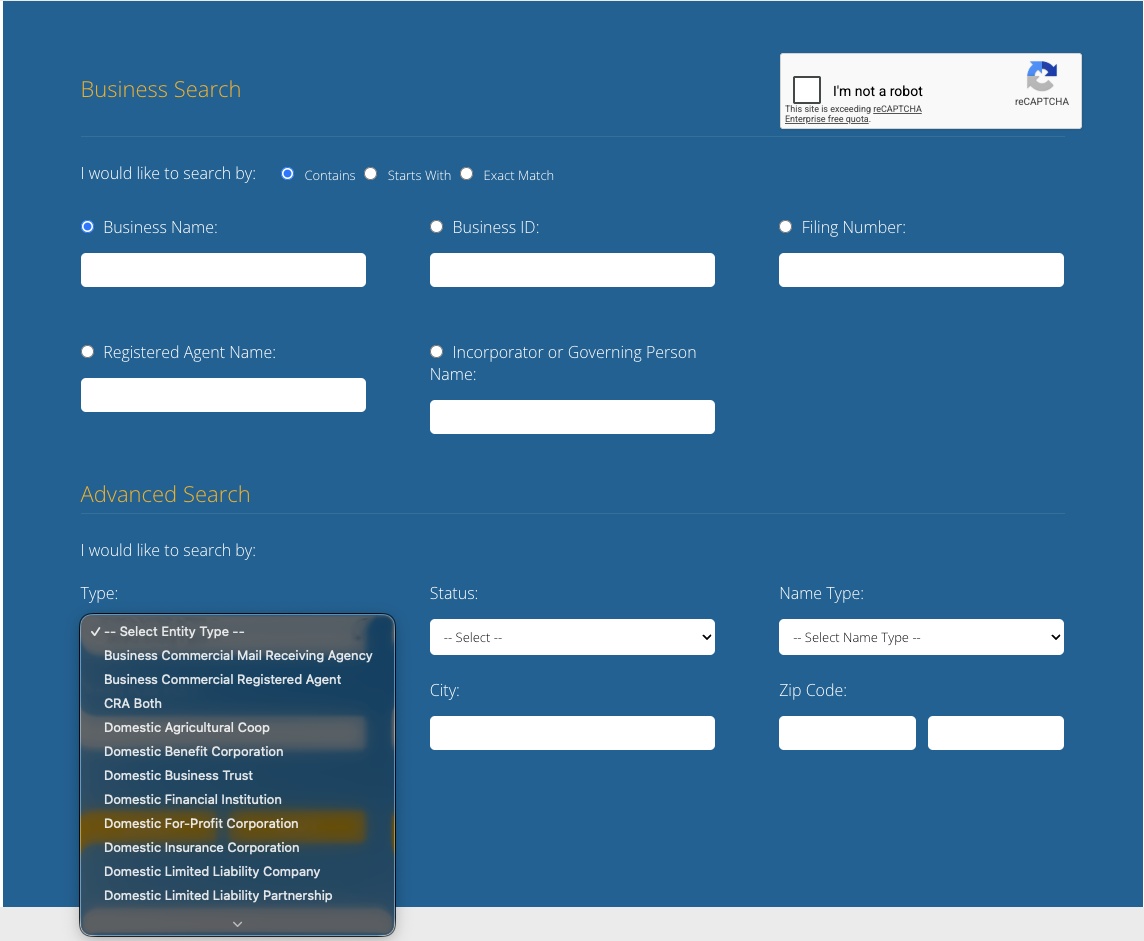
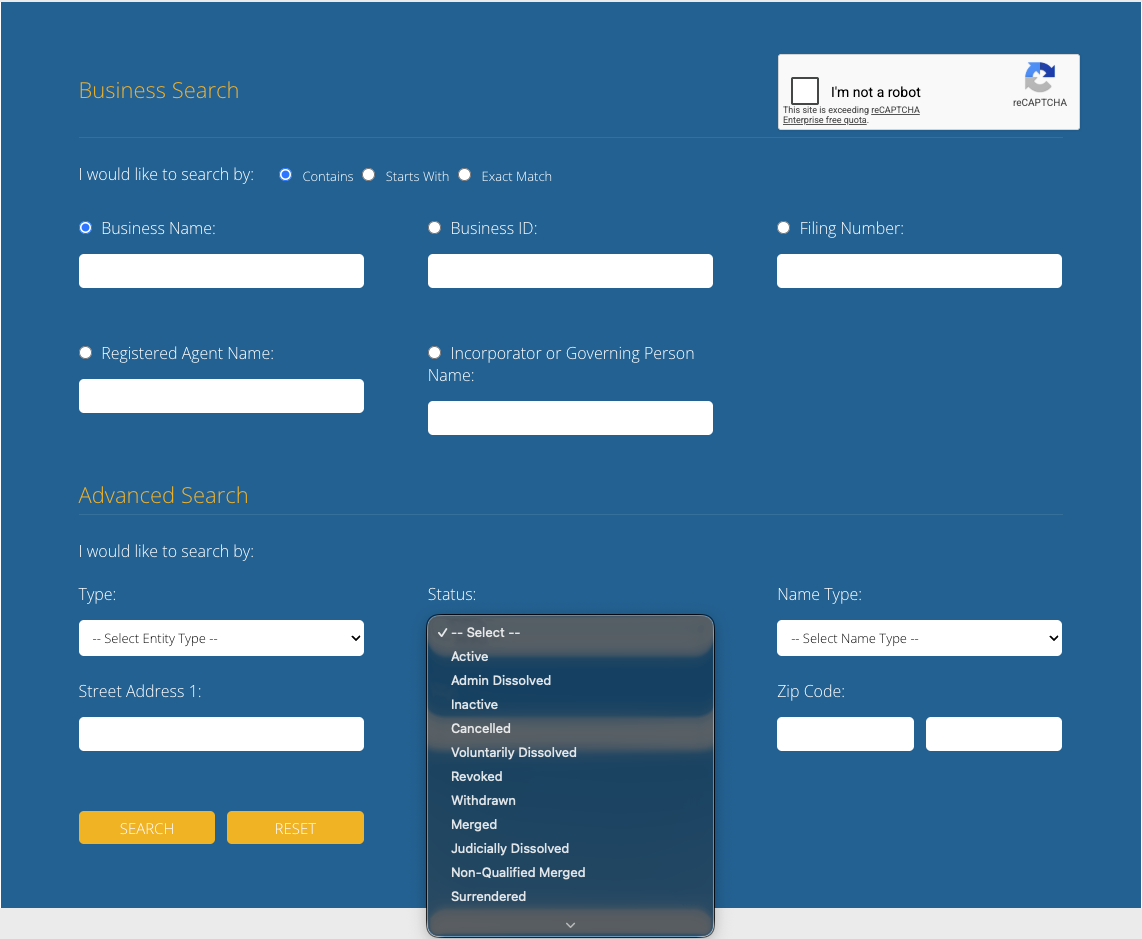
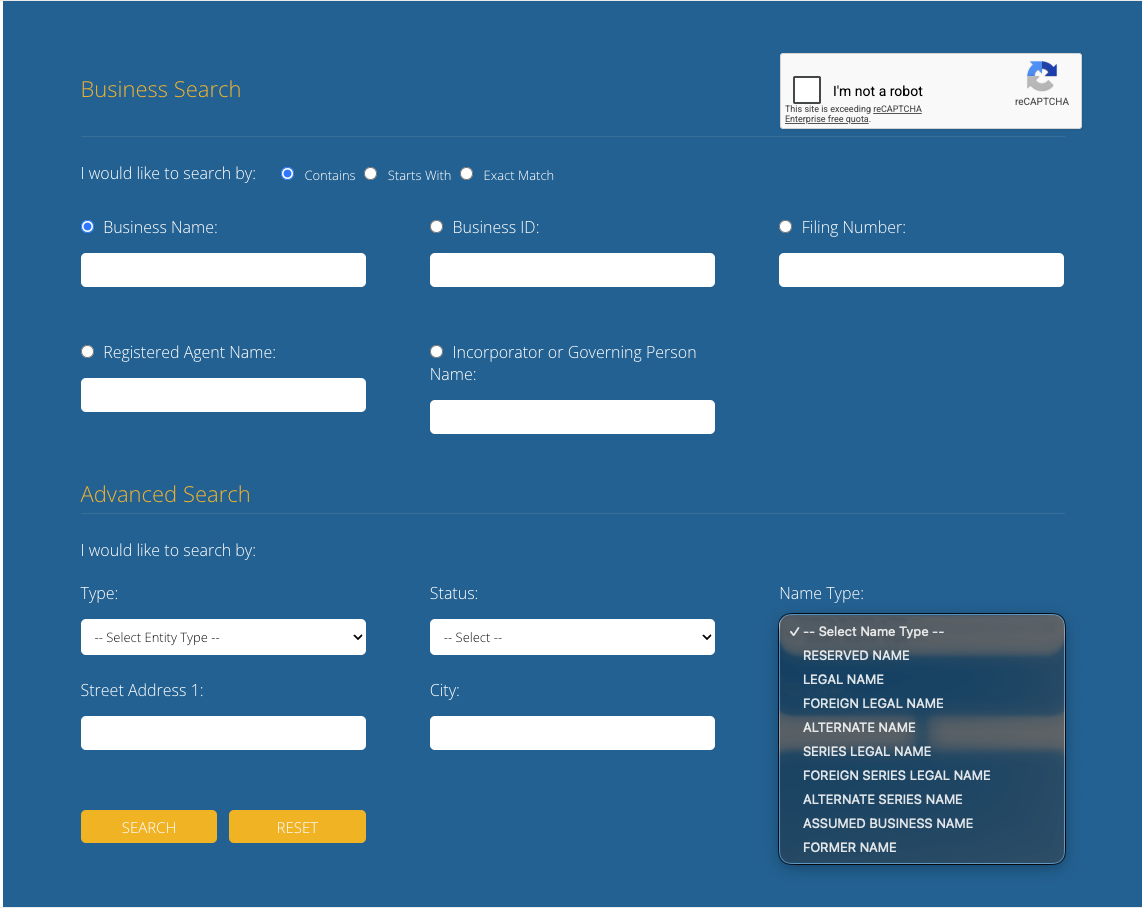
The Indiana Secretary of State allows INBiz business entity search users to search a database of businesses legally operating in the state for public information. Visitors submit search criteria to a search query in order to find and access such information. Public information is free however, some documentation will require payment.
Business Name Availability Check
State of Indiana

Business Entity Search
Step 1. Visit the Indiana InBiz Business Entity Search Page
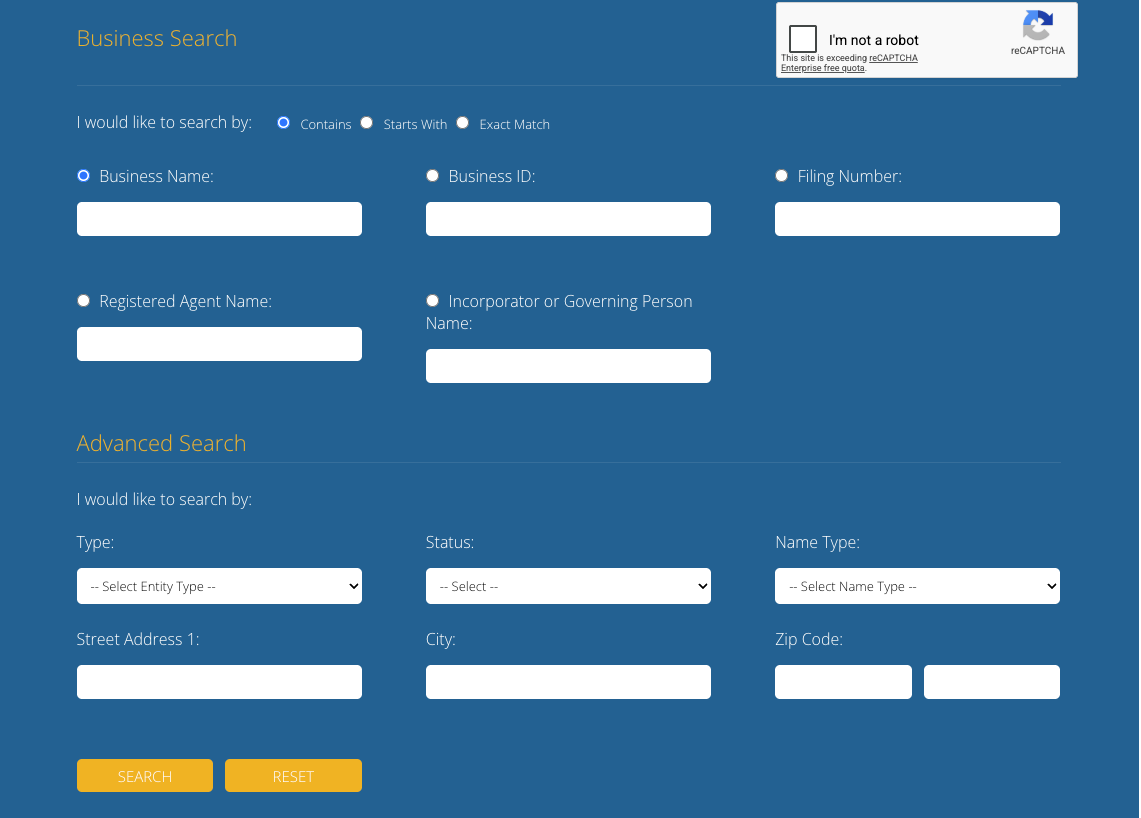
Open the InBiz page to access the query tool. Upon opening this page, users are treated to several search options.
Step 2. Indicate How The Search Should Operate
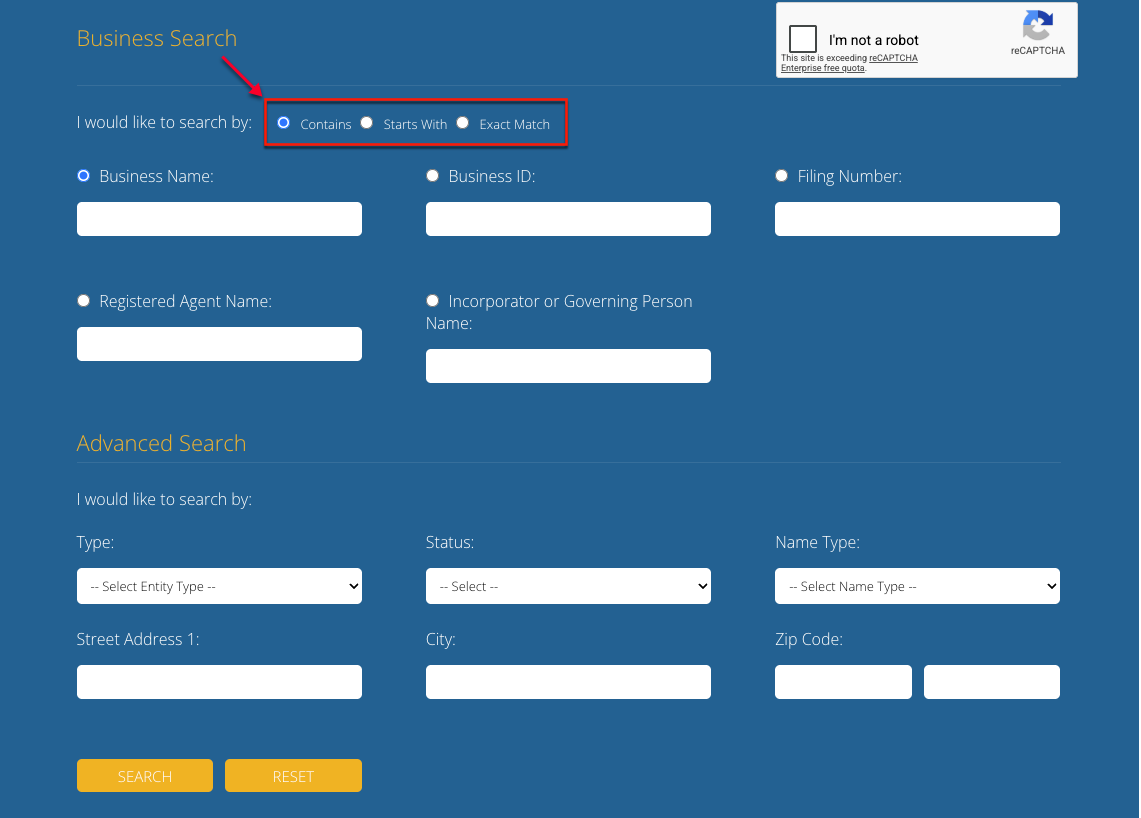
Select one radio button from the first set following the words “I would like to search by.” Thus, setting whether you seek an “exact match” to the search item or otherwise.
- Contains
- Starts With
- Exact Match
Step 3. Define and Set the Search Item
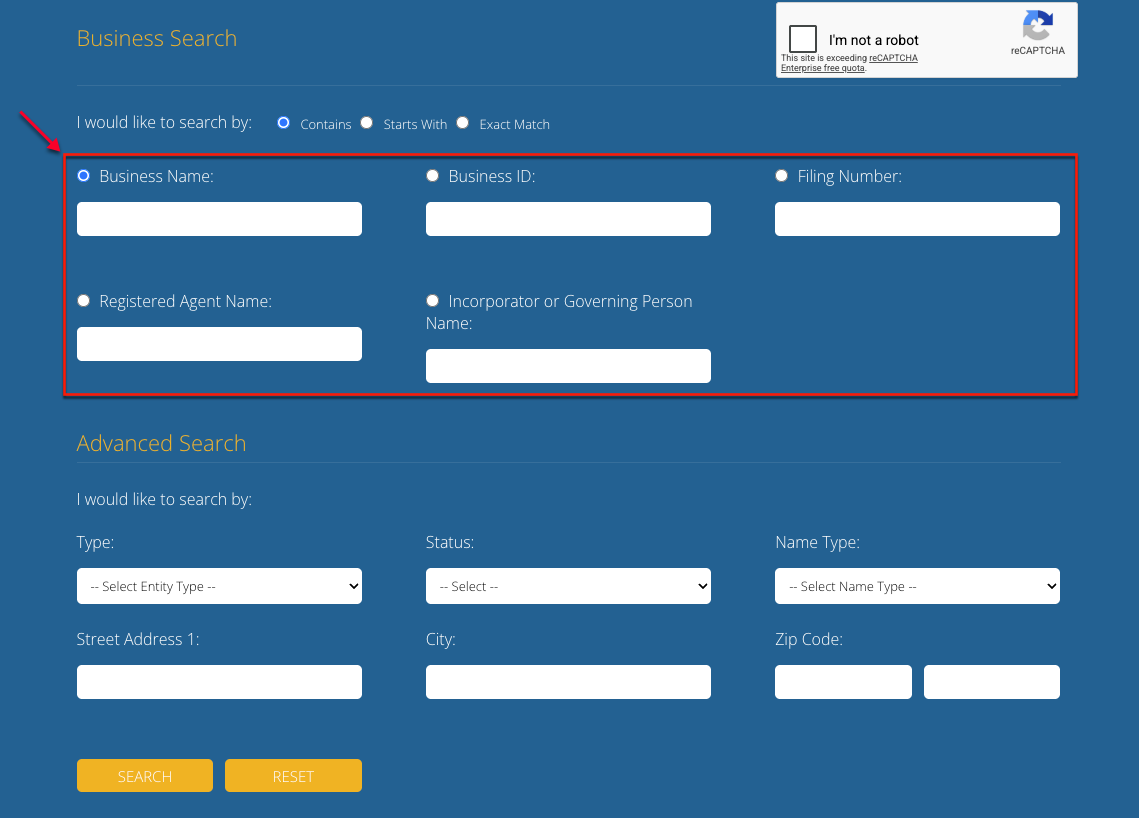
Notice the radio buttons and textboxes in the next area. Choose the radio button that best defines the criteria. For instance, choose “Business Name” if seeking a specific company.
- Business Name
- Business ID
- Filing Number
- Registered Agent Name
- Incorporator or Governing Name
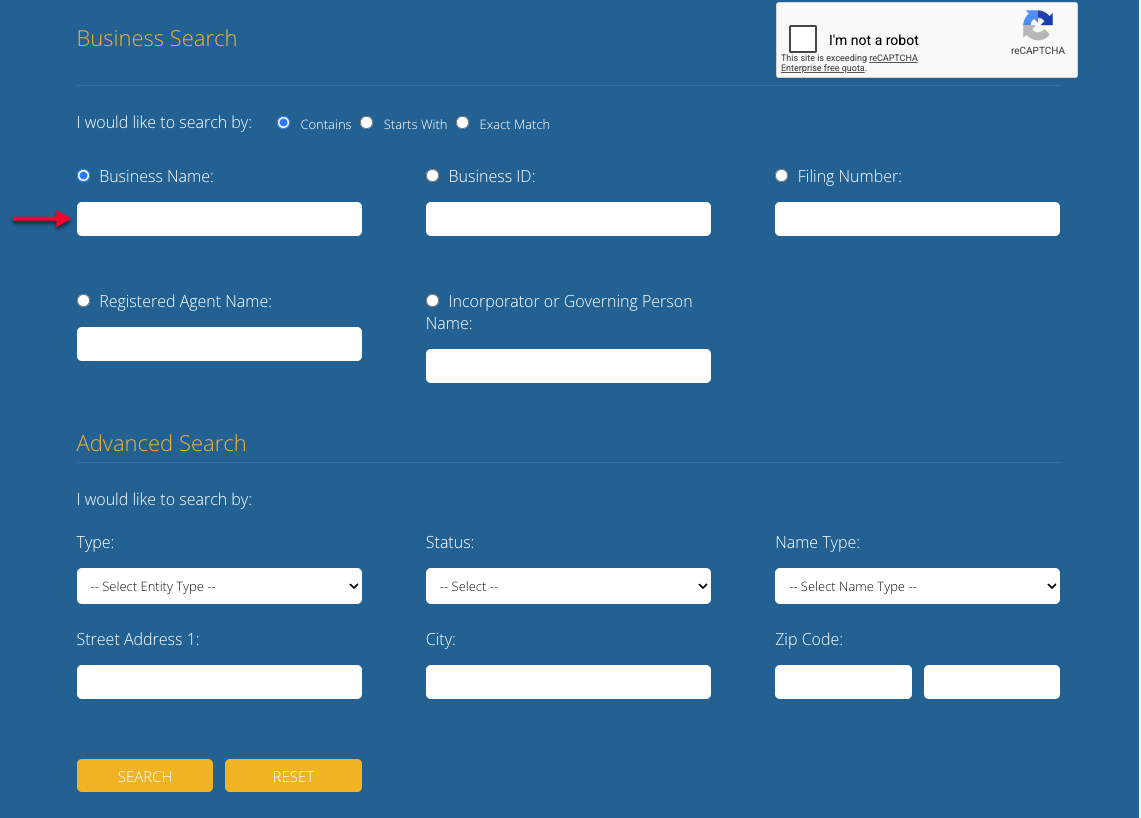
Step 4. Produce Criteria
Report the search item in the appropriate textbox for the radio button. For a basic search, proceed to Step 7; for advanced options, continue to Step 5.
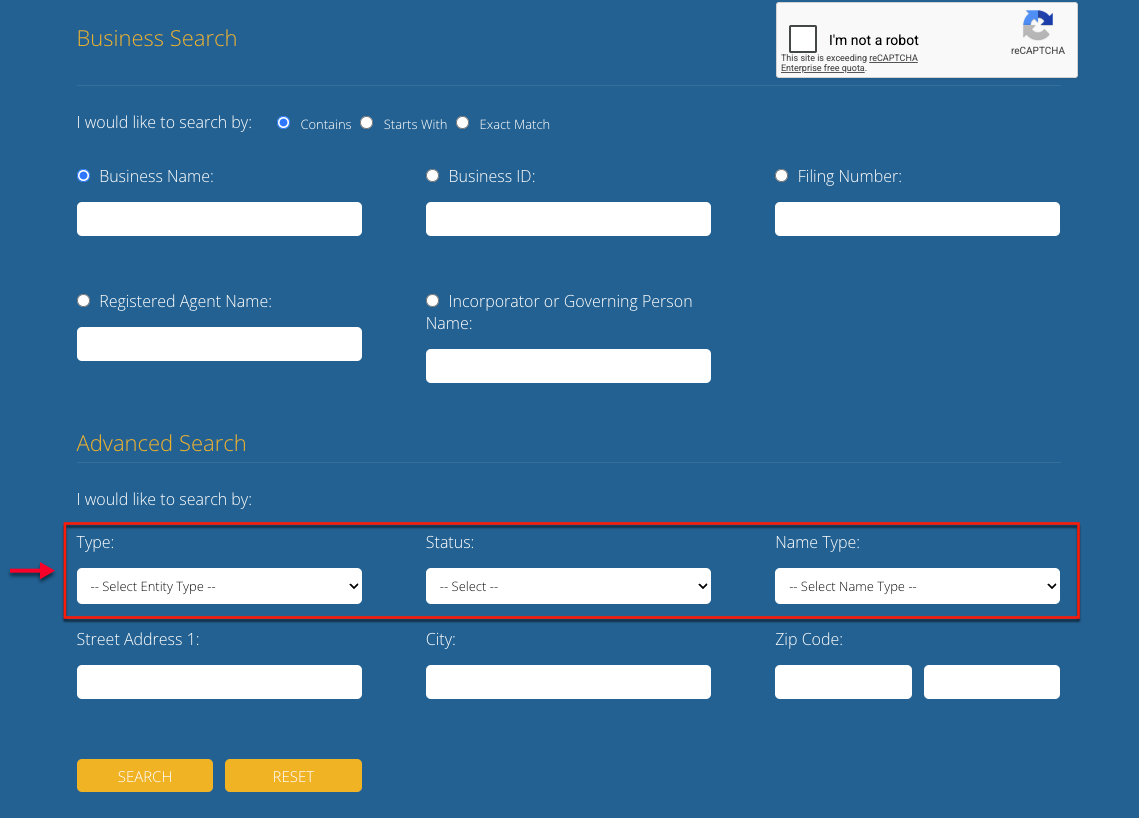
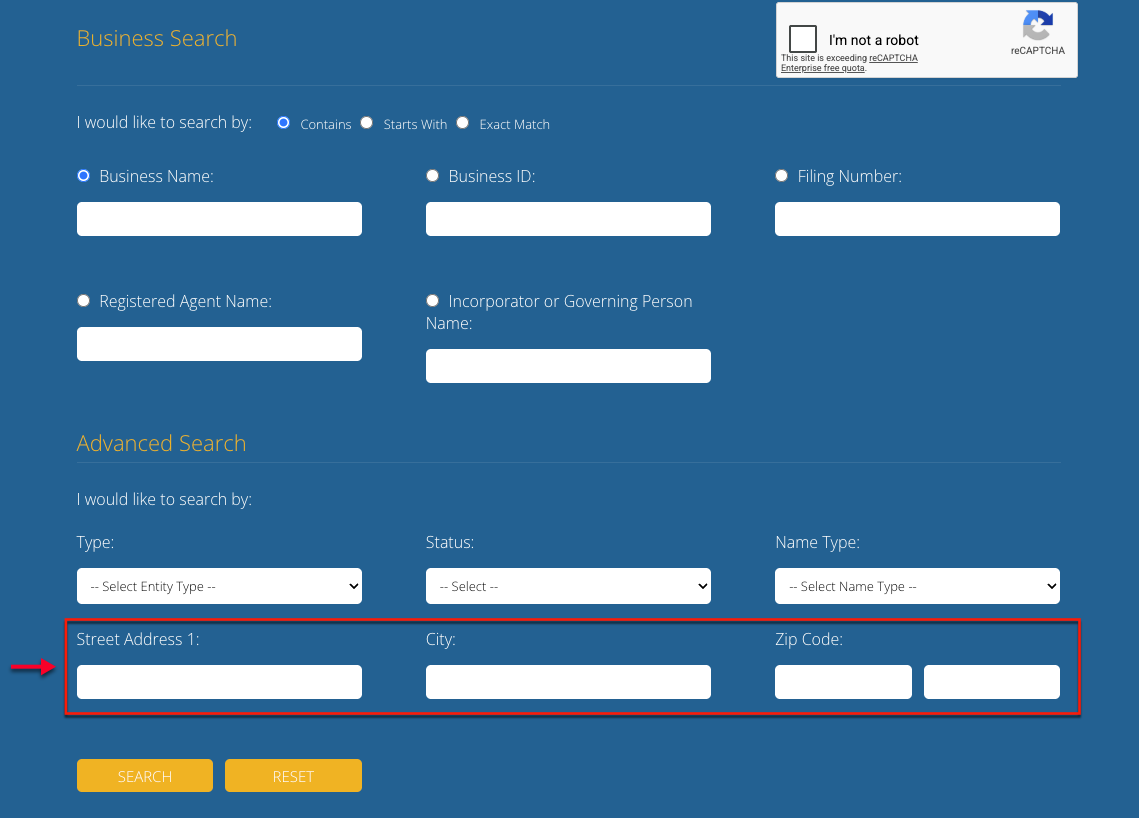
Step 6. Optional: Include or Search for a Street Address
Use the final area in order to find businesses at a specific address or strengthen a search by providing one. Keep in mind, in most cases, this significantly reduces the number of matches.
- Street Address 1
- City
- Zip Code
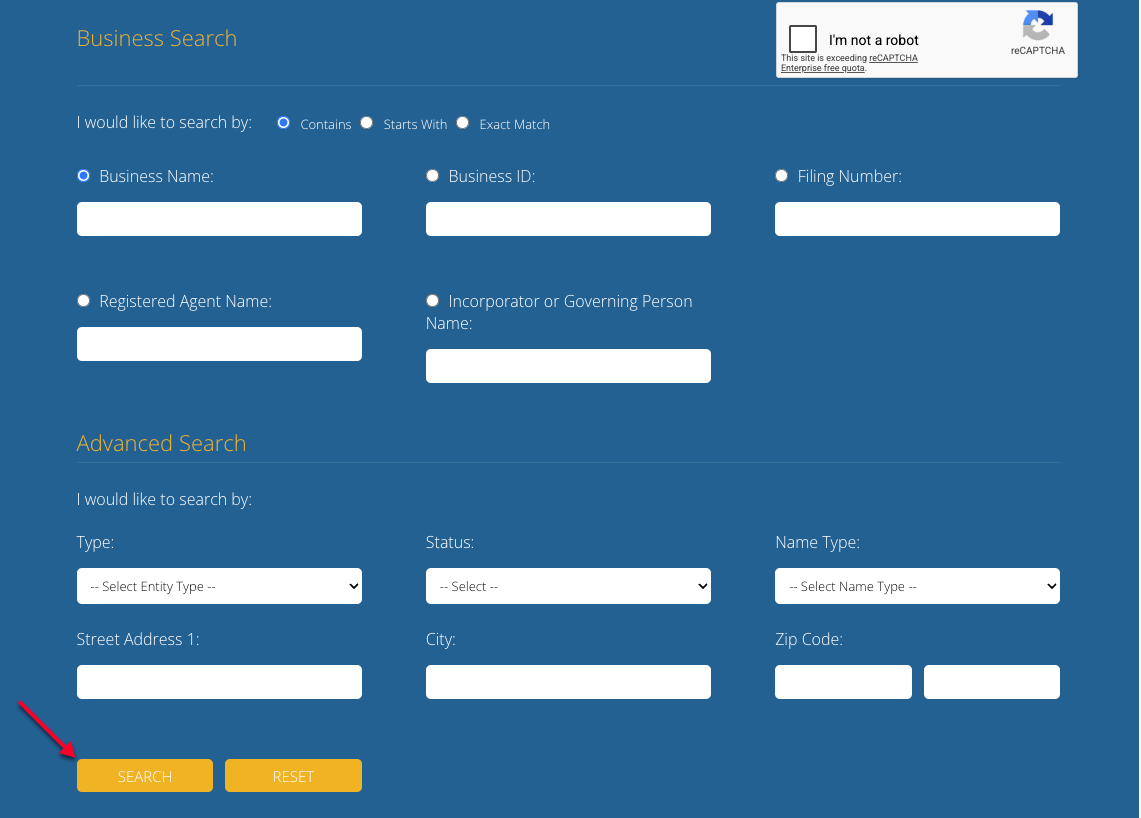
Step 7. Submit the Query to the Database
To run the query, select the yellow search button in the lower left-hand corner. Keep in mind, you may return to this page to run additional queries as necessary.
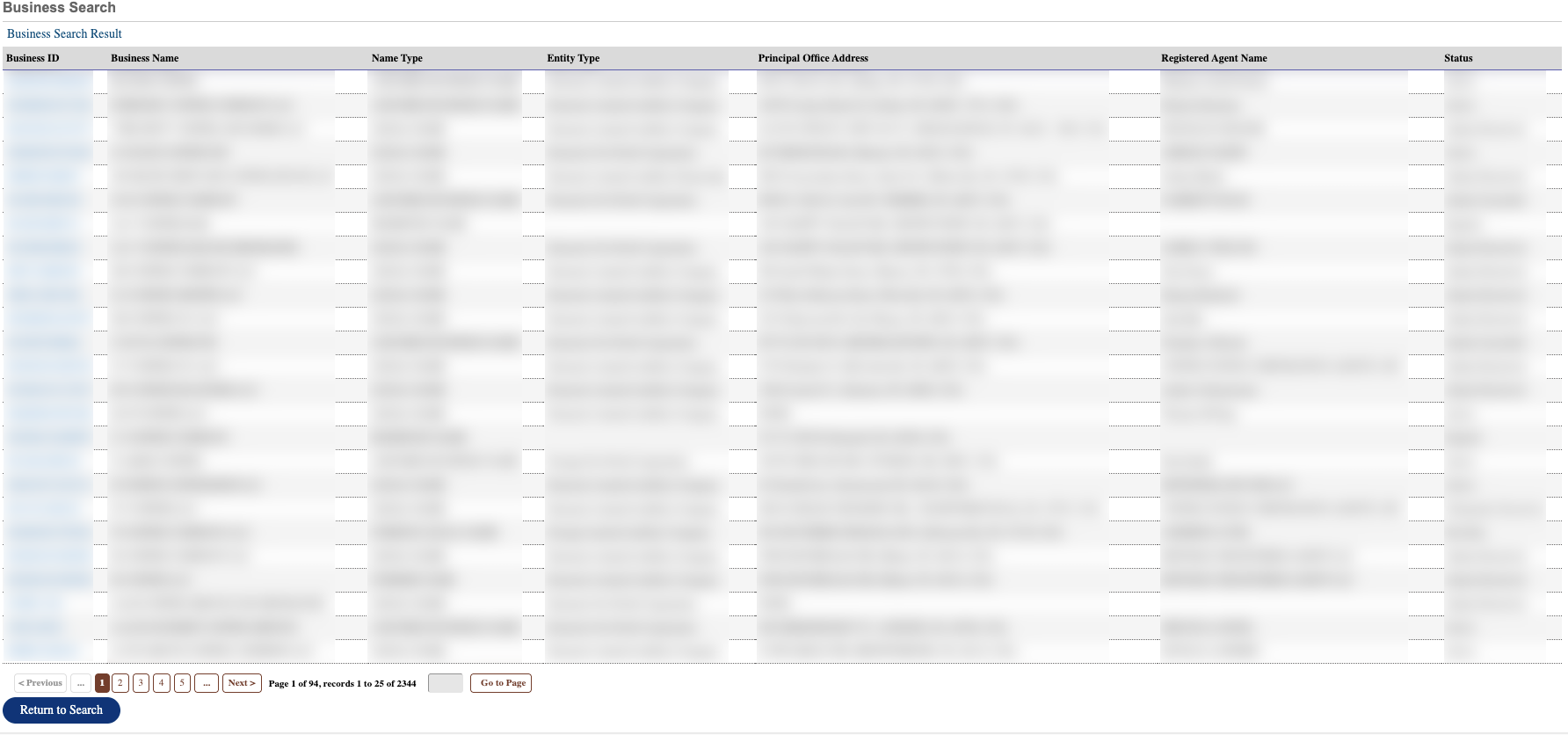
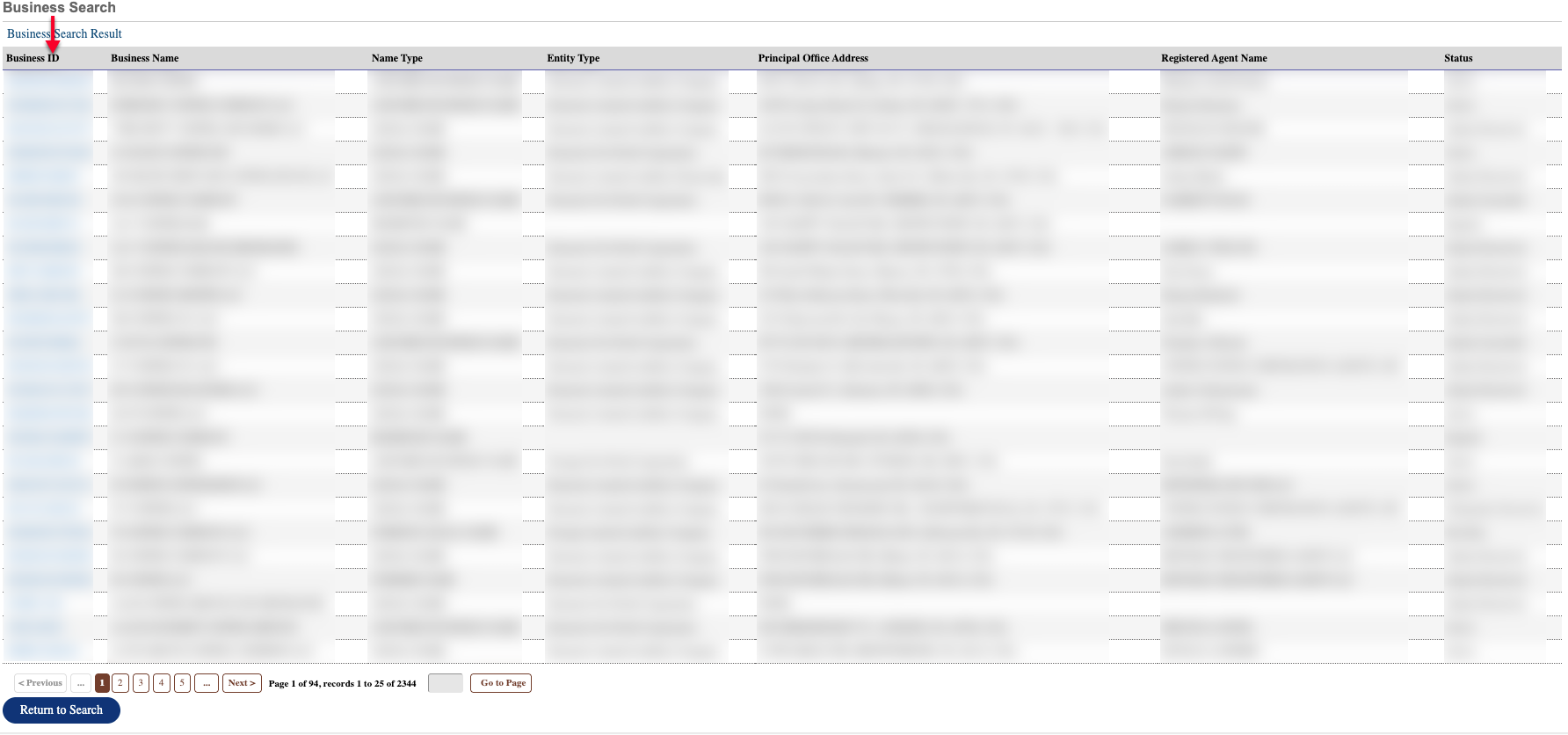
Step 8. View the Results Table
Browse through the matches for the search criteria. Each “Business ID” entry directs the browser to that entity’s details, while the remaining columns provide additional information.
- Business ID
- Business Name
- Name Type
- Entity Type
- Principal Office Address
- Registered Agent Name
- Status
Step 9. Select the Indiana Foreign or Domestic Entity
Locate the business ID for the record of interest. Select this ID by clicking it.
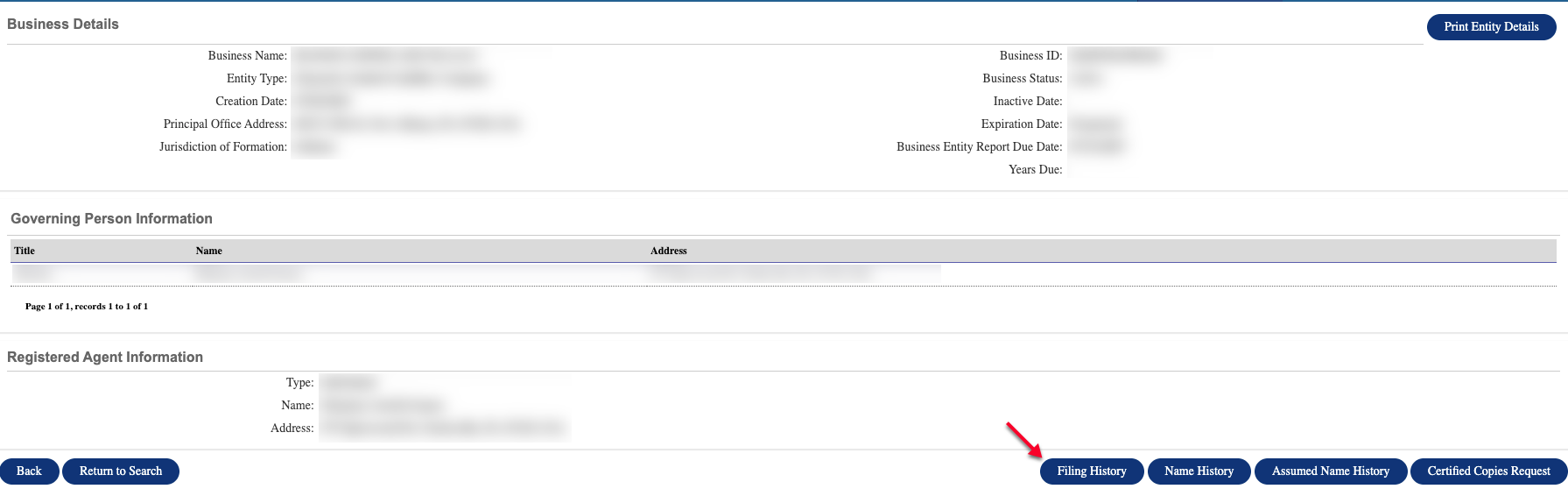
Step 10. Obtain the Business Details
Look over the details page for the entity. In addition to the basic information currently on file, this page presents entity history. Begin by selecting “Filing History.”
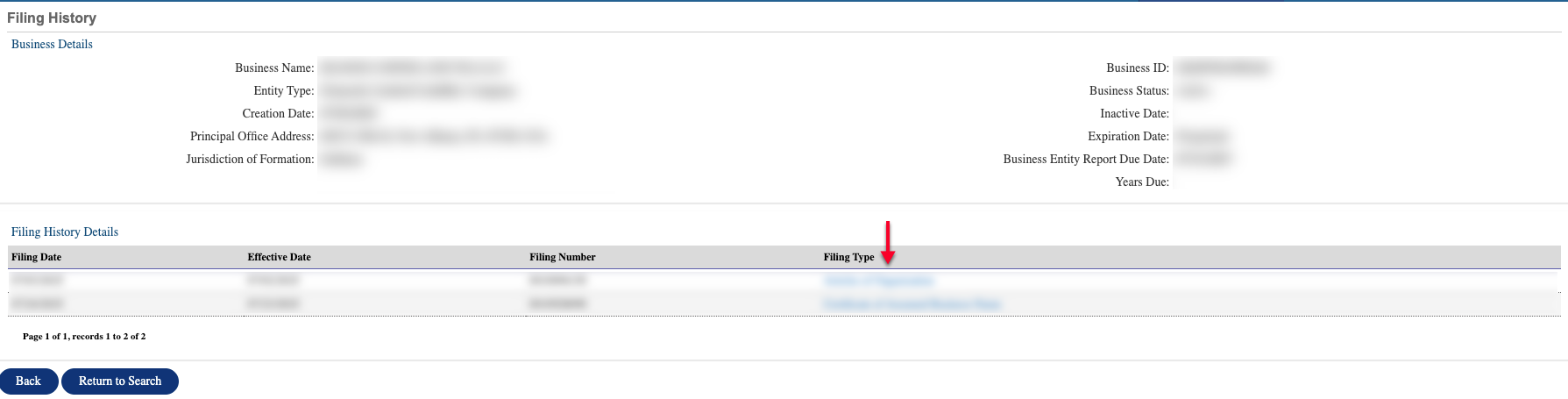
Step 11. Examining Past Entity Filings
Notice the filing history details appear in a table with several columns. If available, select the link in the “Filing Type” column to view scanned records.
- Filing Date
- Effective Date
- Filing Number
- Filing Type
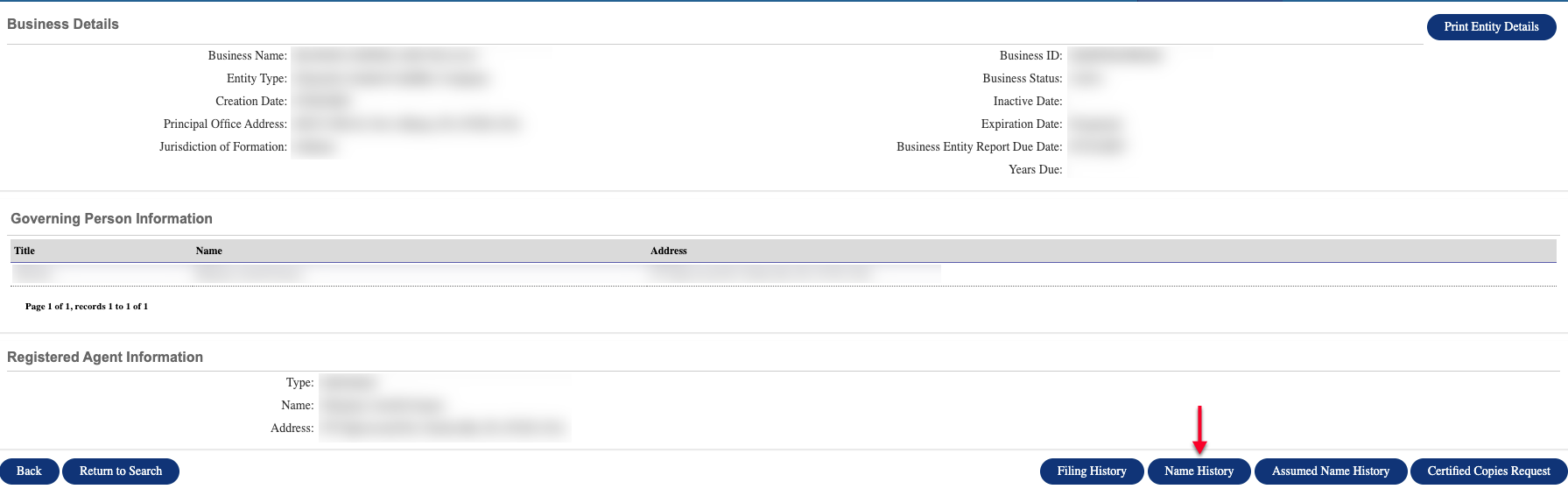
Step 12. Finding Previous Entity Names
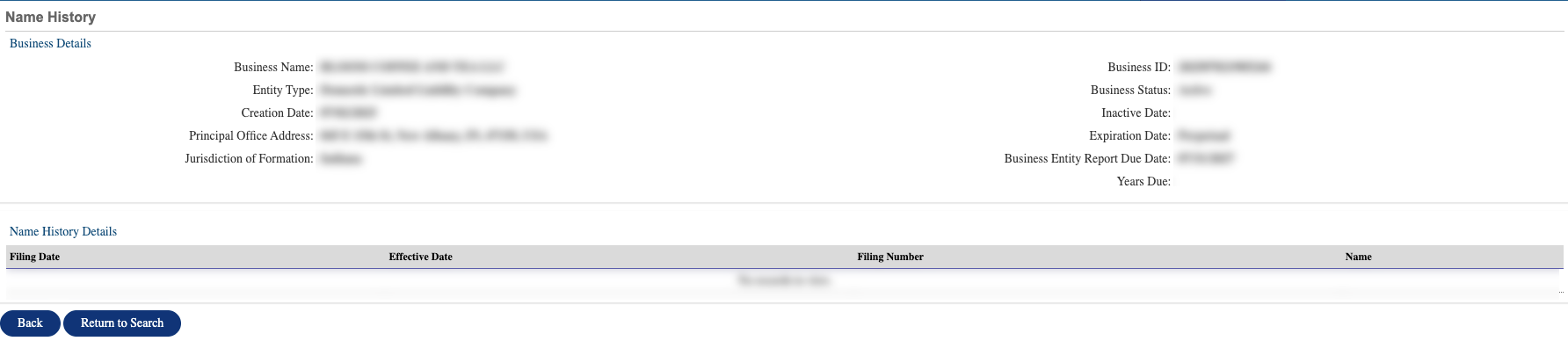
Select “Name History” from the details page in order to discover if the entity has a past under a different name. Note this only represents previous names on file with the state.
Step 13. Looking Over Past Names
Several columns of information detail the names (if any) that the entity previously held. Select “Back” to continue.
- Filing Date
- Effective Date
- Filing Number
- Name
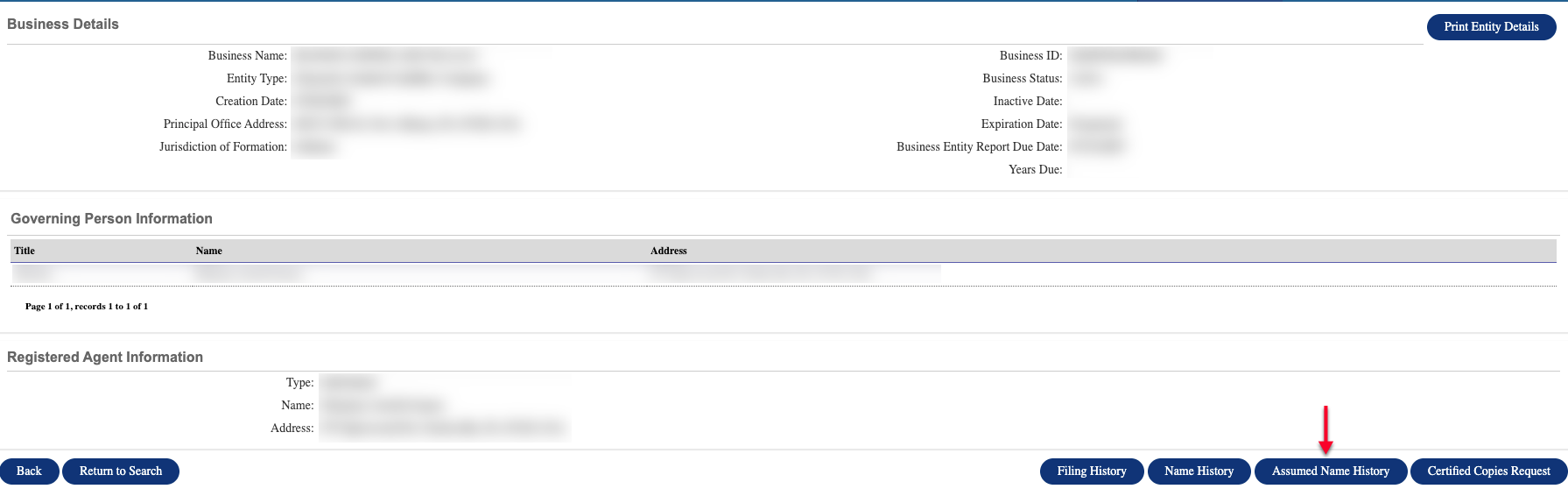
Step 14. Discover Assumed Names
To find out if the entity operates(ed) under a different name while retaining its own, click on “Assumed Name History.” This can be especially useful with foreign entities.
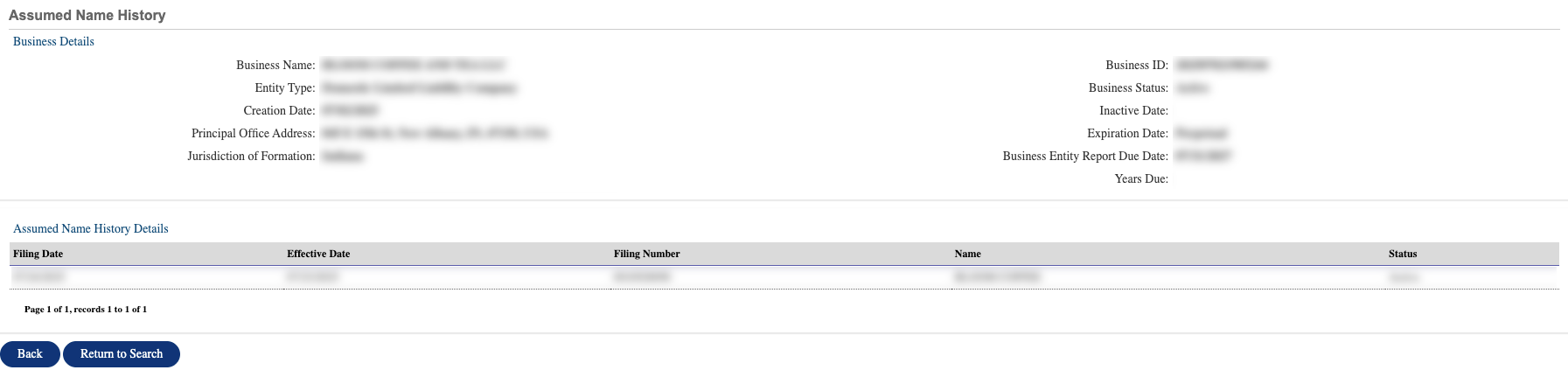
Step 15. Reviewing Assumed Names
Direct the details for the entity’s assumed names in the new table. Each record reports a filing date and with its actions. Return to the menu by selecting “Back.”
- Filing Date
- Effective Date
- Filing Number
- Name
- Status
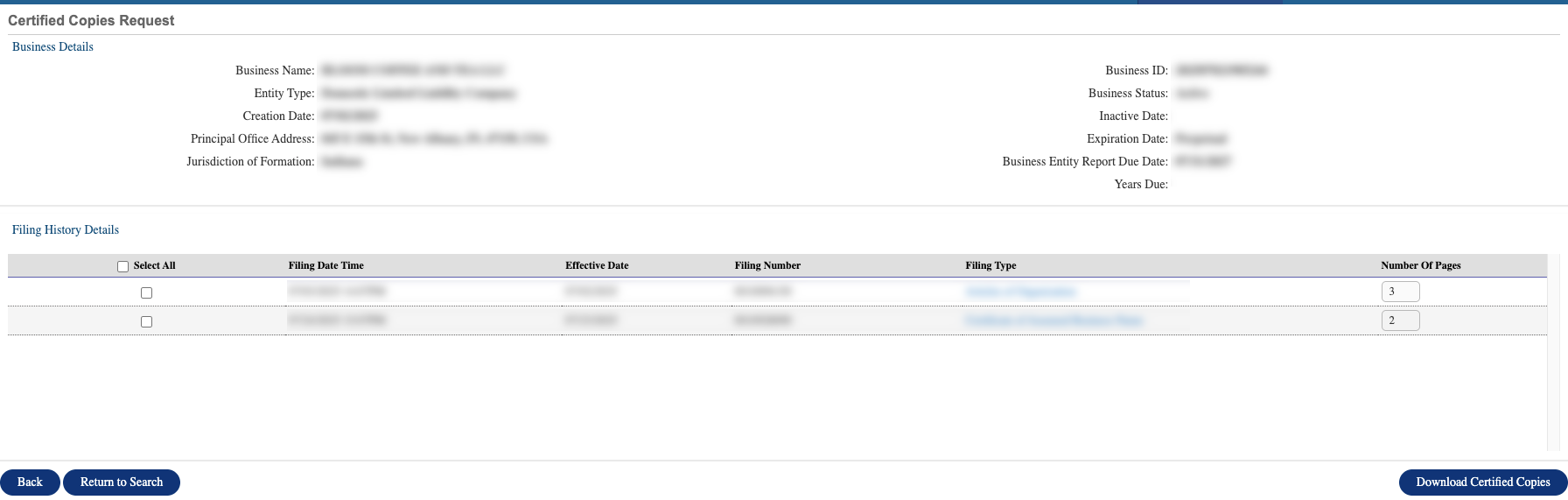
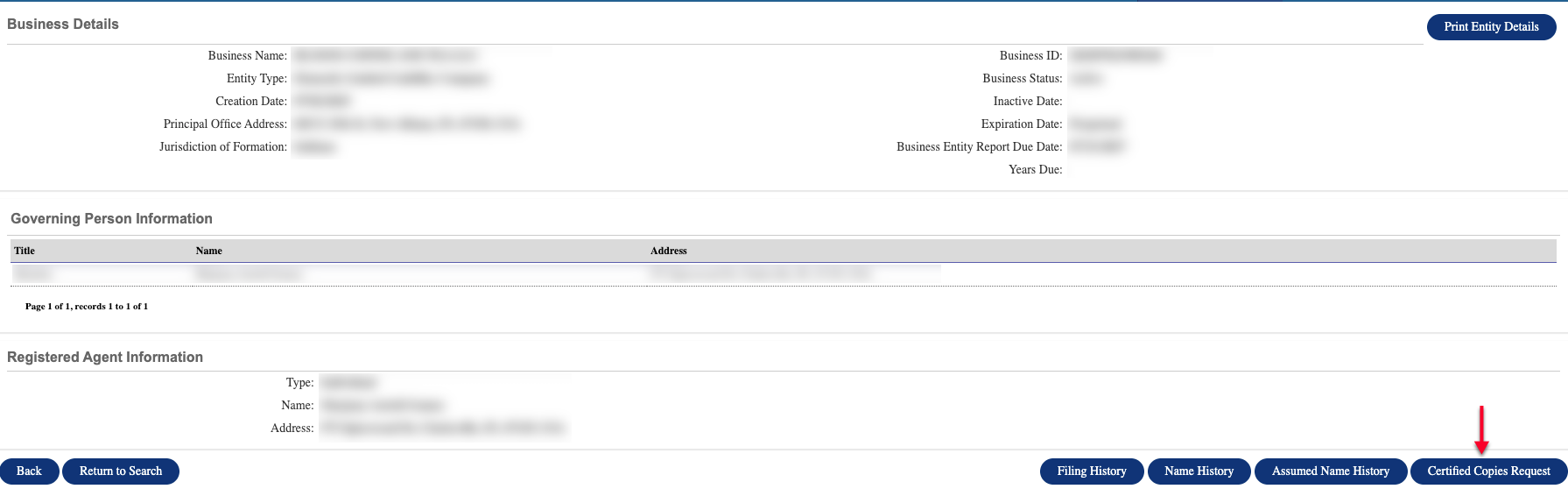
Step 16. Request Certified Copies
Certified copies from the state, if scanned, are available for viewing on screen as well as downloading. Access such copies by selecting the final menu button.
Step 17. Viewing Certified Copies.
The table allows for multiple downloads by selecting the checkbox from the first column. To view an individual file, select its filing type.
- Filing Date Time
- Effective Date
- Filing Number
- Filing Type
- Number of Pages