The Illinois Secretary of State business entity search tool, through the Department of Business Services’ Business Express service, allows users to search a database for businesses legally operating in the state, specifically corporations, partnerships (GP and LLPs), and limited liability companies. This query only accesses public information and shows only information currently on file.
Business Name Availability Check
State of Illinois

Business Entity Search
Step 1. Go to the Illinois Department of Business Services Database Tool
Access the search tool for the state’s business services database. As a public database, this will provide the most recent information on file.
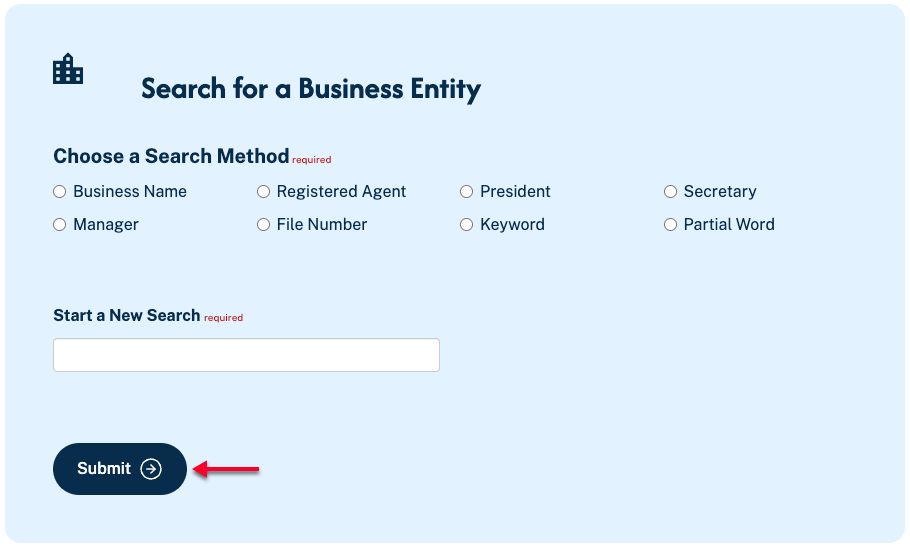
Step 2. Indicate the Search Method
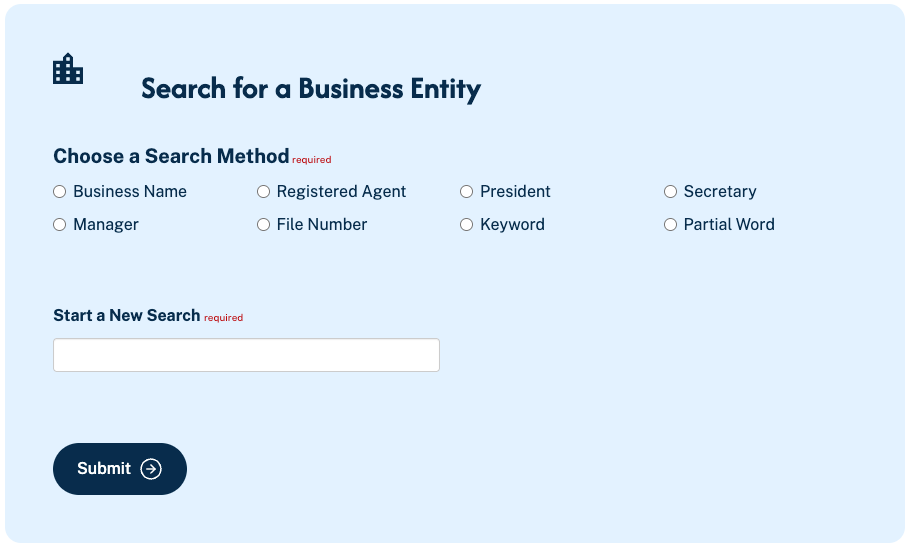
Describe the search item that is the criterion for your search. Choose one of the radio buttons from the search method section to set this definition.
- Business Name
- Registered Agent
- President
- Secretary
- Manager
- File Number
- Keyword
- Partial Word
Step 3. Produce the Appropriate Search Material
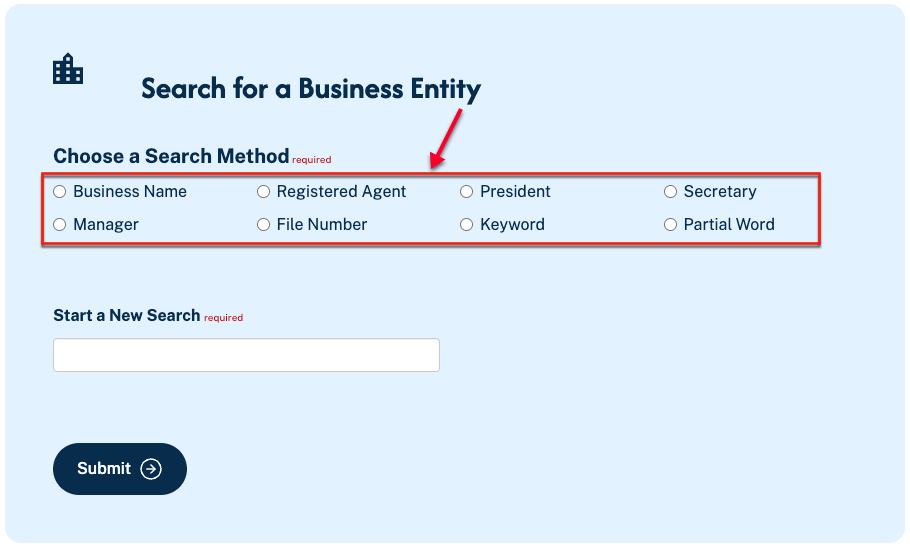
Input the name, file number, keyword, or partial word as the search criteria in the “Start a New Search” textbox. For a wide range of results, use a partial word, name, or keyword.
Step 4. Run the Database Query
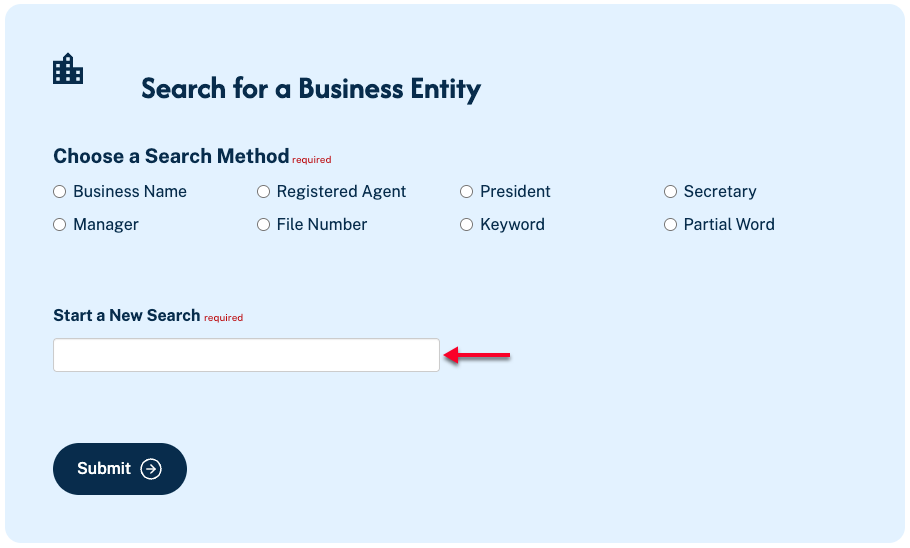
In order to initiate this search, select “Submit.” This generates matching records in a table beneath this tool area.
Step 5. Complete the Security Requirement
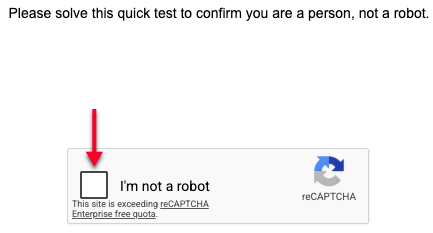
Help the state safeguard its database by showing you are a human agent. Complete the “reCaptcha” requirement to obtain the table results.
Step 6. Select the Entity Record From the Table
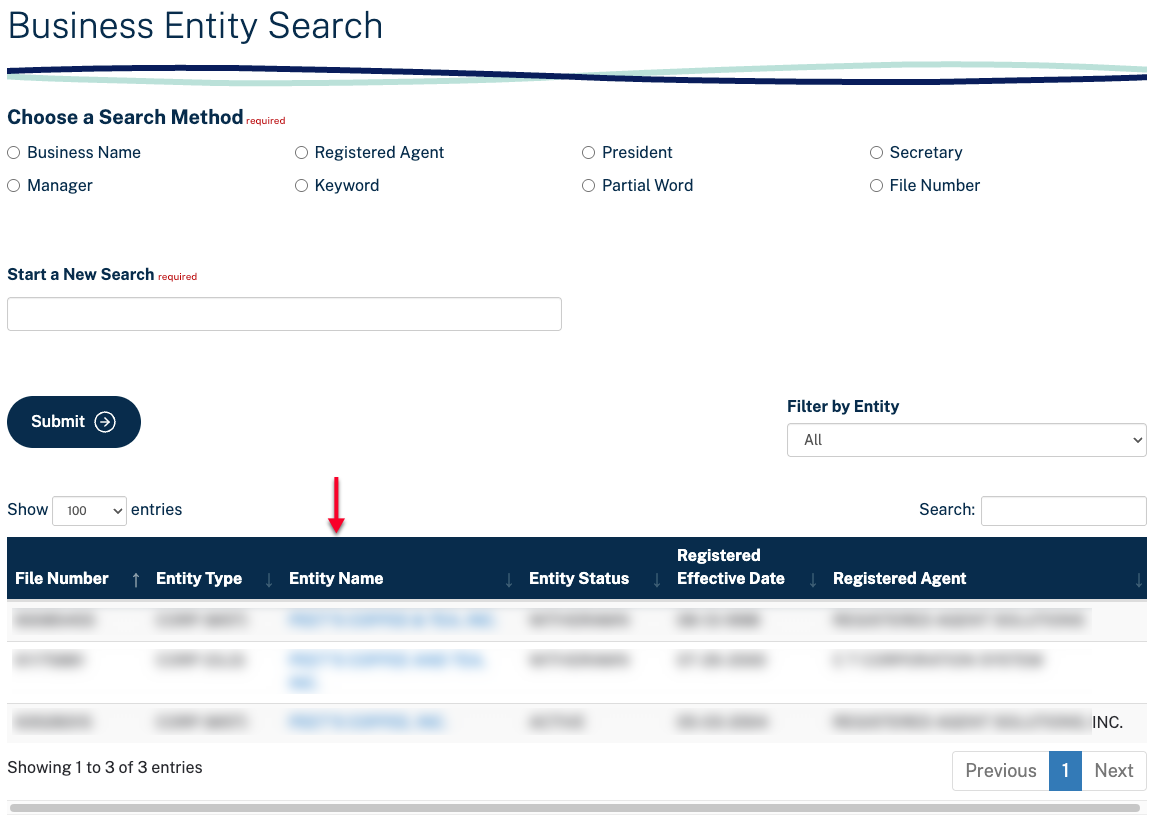
Once the security check is complete, a table appears below the search tool. Each column may be sorted using the arrow. Select the record you wish to view from the “Entity Name” column.
- File Number
- Entity Type
- Entity Name
- Entity Status
- Registered Effective Date
- Registered Agent
Step 7. Review the Illinois Entity
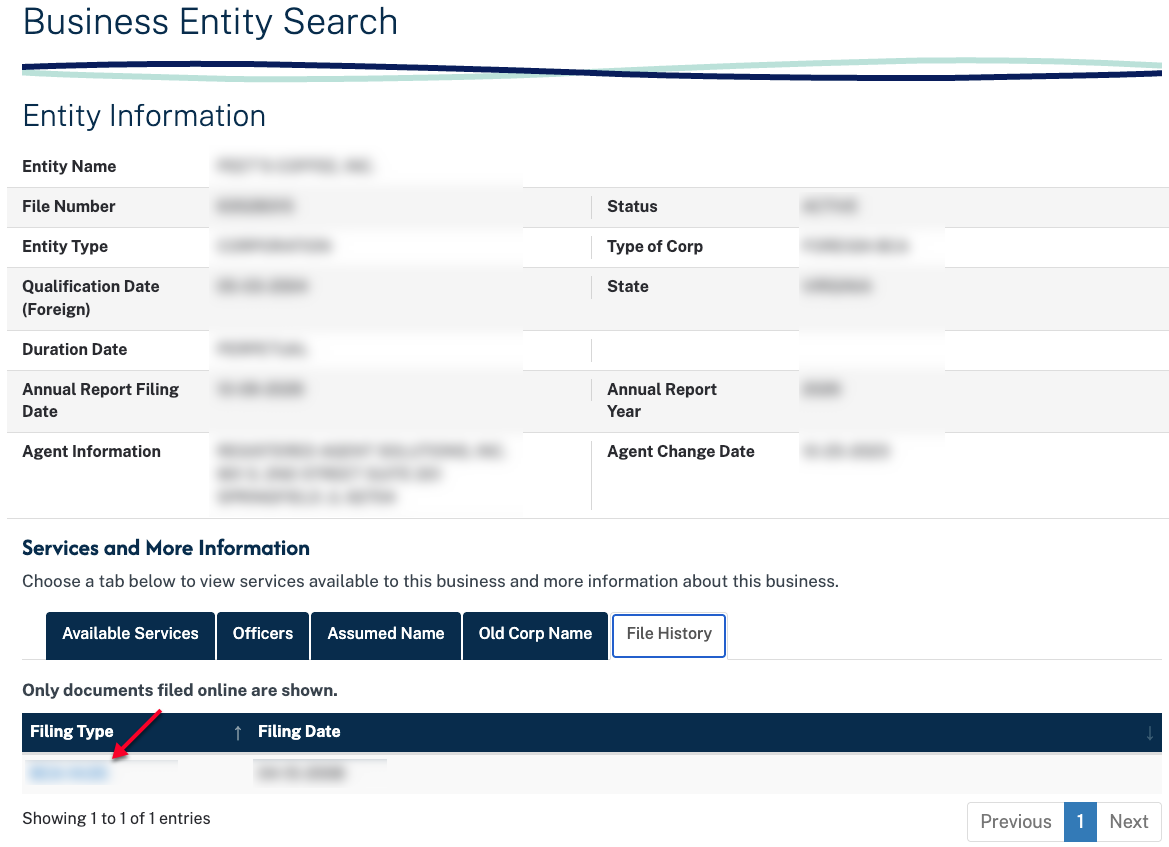
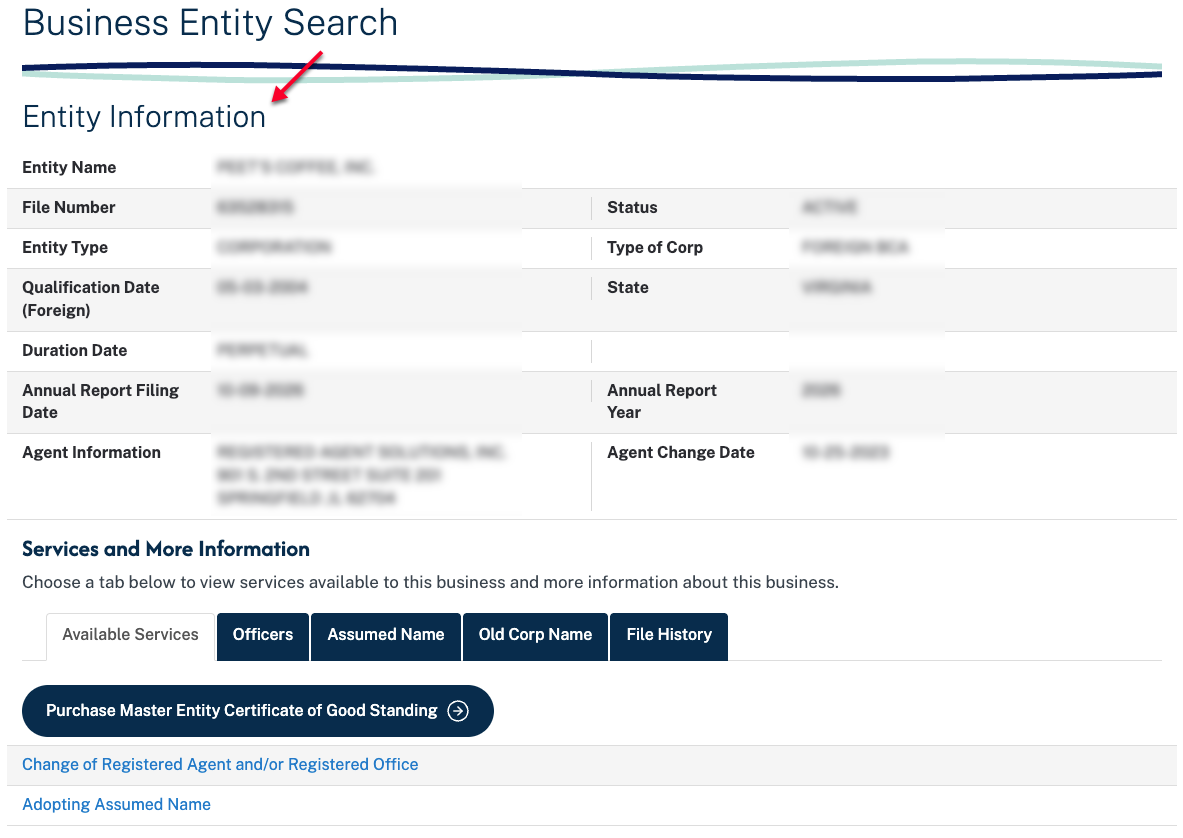
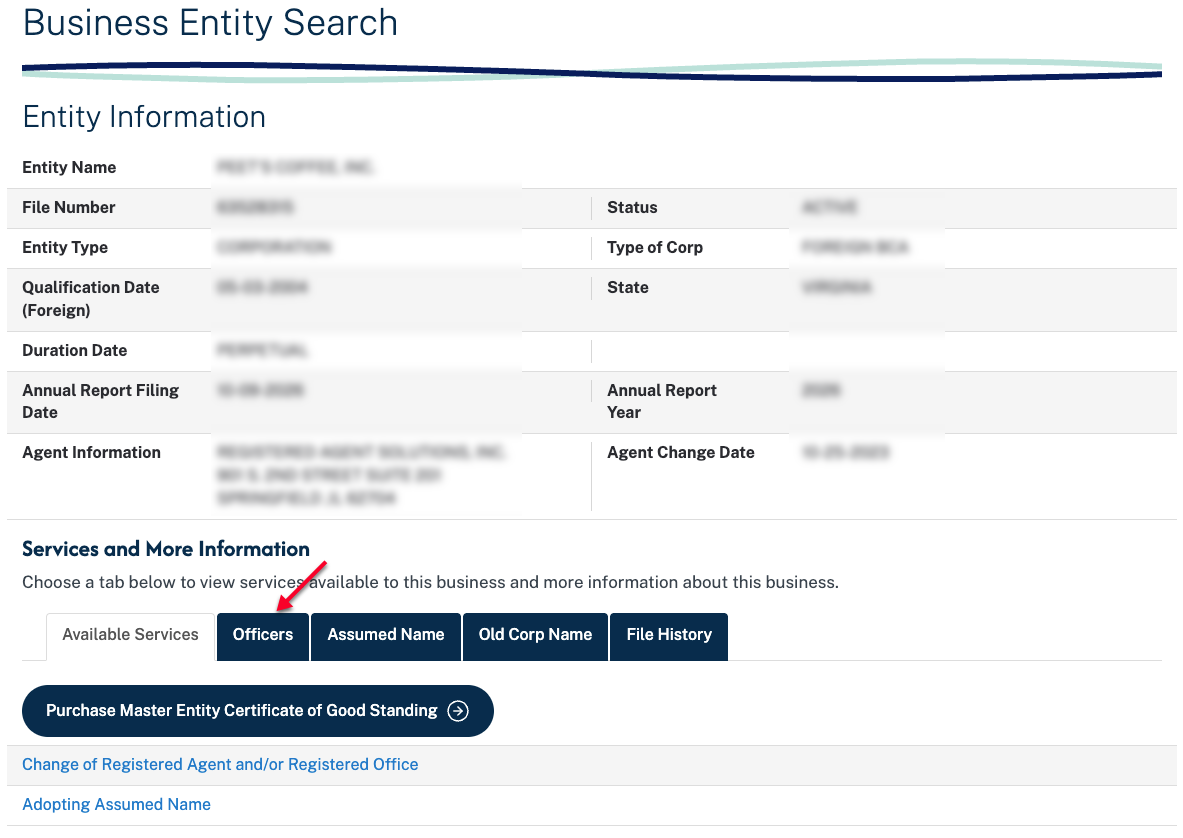
Read through the “Entity Information” area to see basic public information regarding the business. When ready, direct your attention to the lower half of the page.
- Entity Name
- File Number
- Status
- Entity Type
- Type of Corp
- Qualification Date (Foreign)
- State
- Duration Date
- Annual Report Filing Date
- Annual Report Year
- Agent Information
- Agent Change Date
Step 8. View Additional Information
Review the tabs dividing the final area. While the default tab offers a list of services, the following tabs allow you to view specific information. Begin by selecting “Officers.”
- Available Services
- Officers
- Assumed Name
- Old Corp Name
- File History
Step 9. Accessing an Entity’s Officer Roster
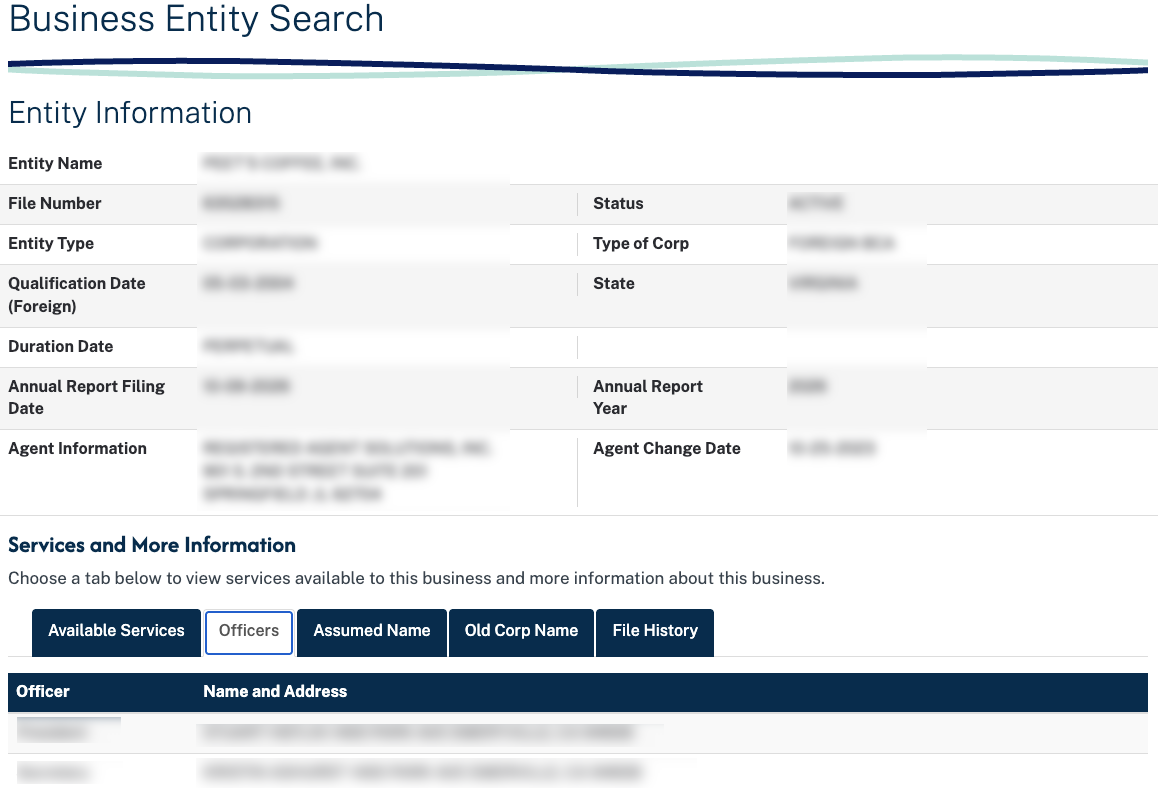
Upon selecting the “Officers” tab, the title, name, and address of each officer is on display via a table. Continue by clicking on “Assumed Name.”
- Officer
- Name and Address
Step 10. Discovering Other Names for the Entity
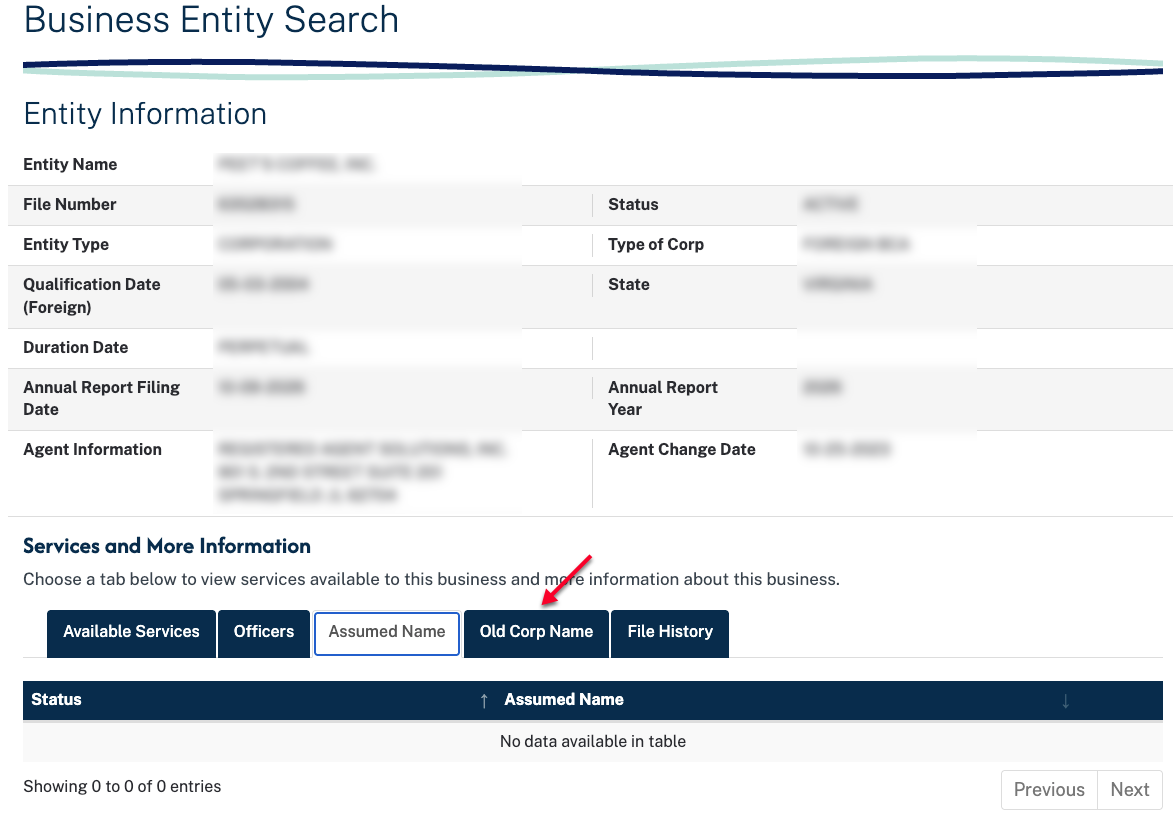
The assumed names area will display the status of each assumed name under which the company has done business. Proceed to the next area by clicking “Old Corp Name.”
- Status
- Assumed Name
Step 11. Reviewing Past Names of the Entity
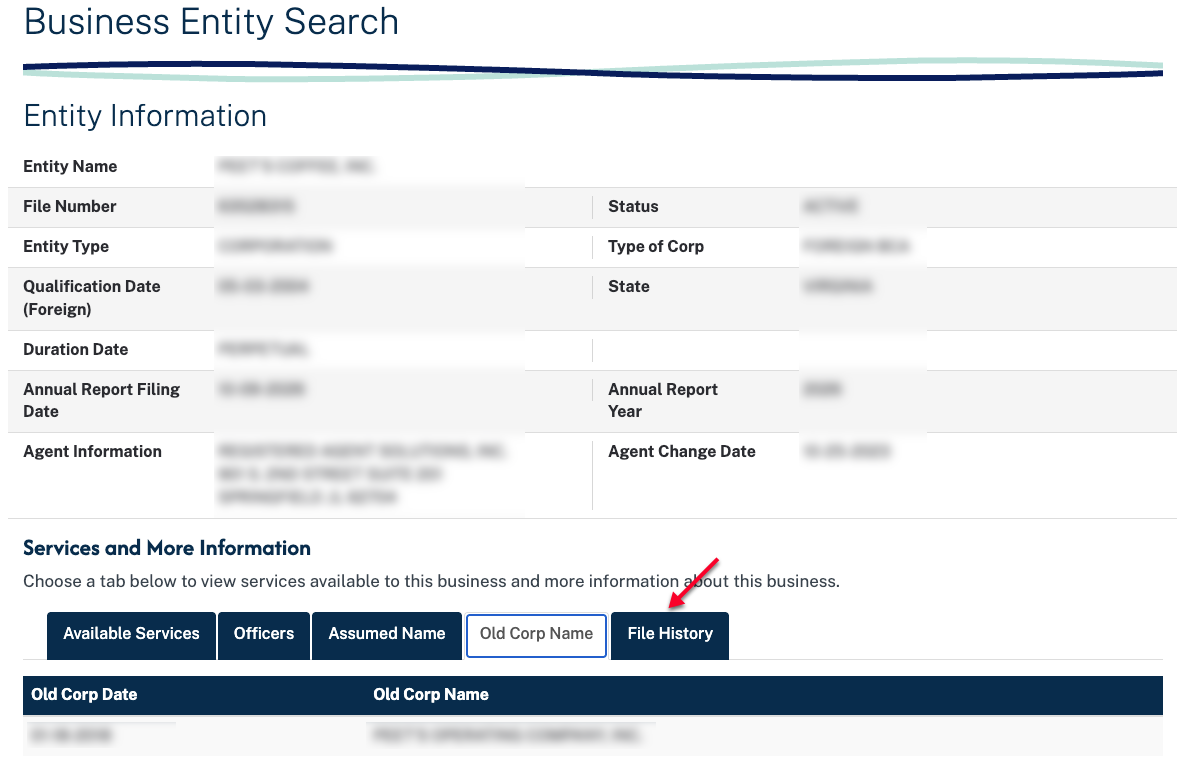
If the business being reviewed has operated under a different name, it will appear in a table that displays the date and the previous name. To investigate past filings, select “File History.”
- Old Corp Date
- Old Corp Name
Step 12. Examine Past Filings
Actions and paperwork for the entity on file with the state can be viewed in the “File History” table. If a scan is available, you can view it in your browser by selecting it from “Filing Type.”
- Filing Type
- Filing