The Idaho Secretary of State business entity search is a valuable tool when researching entities or a name’s availability. Users implement this tool to locate a specific entity’s record in the database, then review the information the state has on file for that entity. This is considered public information and is viewable onscreen.
Business Name Availability Check
State of Idaho

Business Entity Search
Step 1. Open The Business Search Tool From the Idaho Secretary of State
Visit the Idaho Secretary of State business search tool. This is a fee service that enables two types of searches.
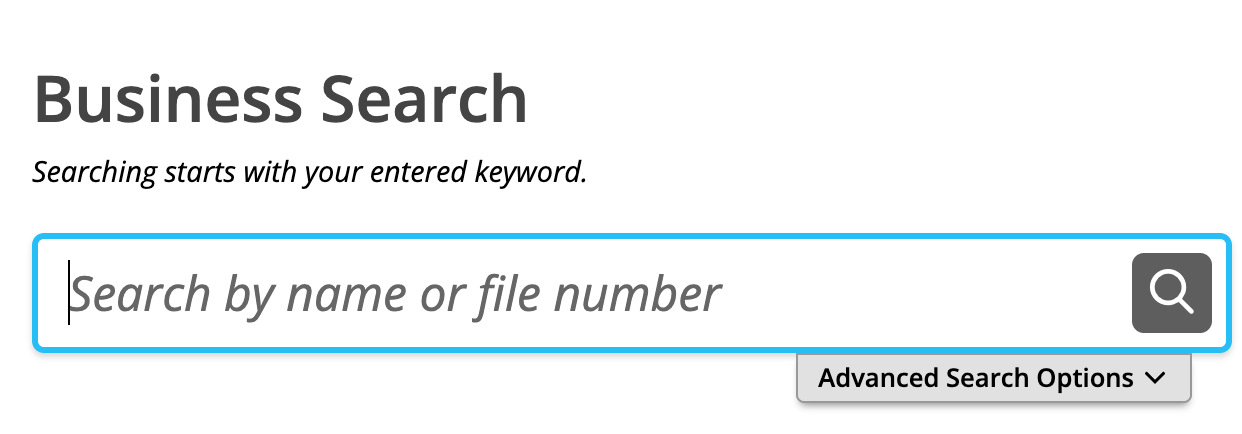
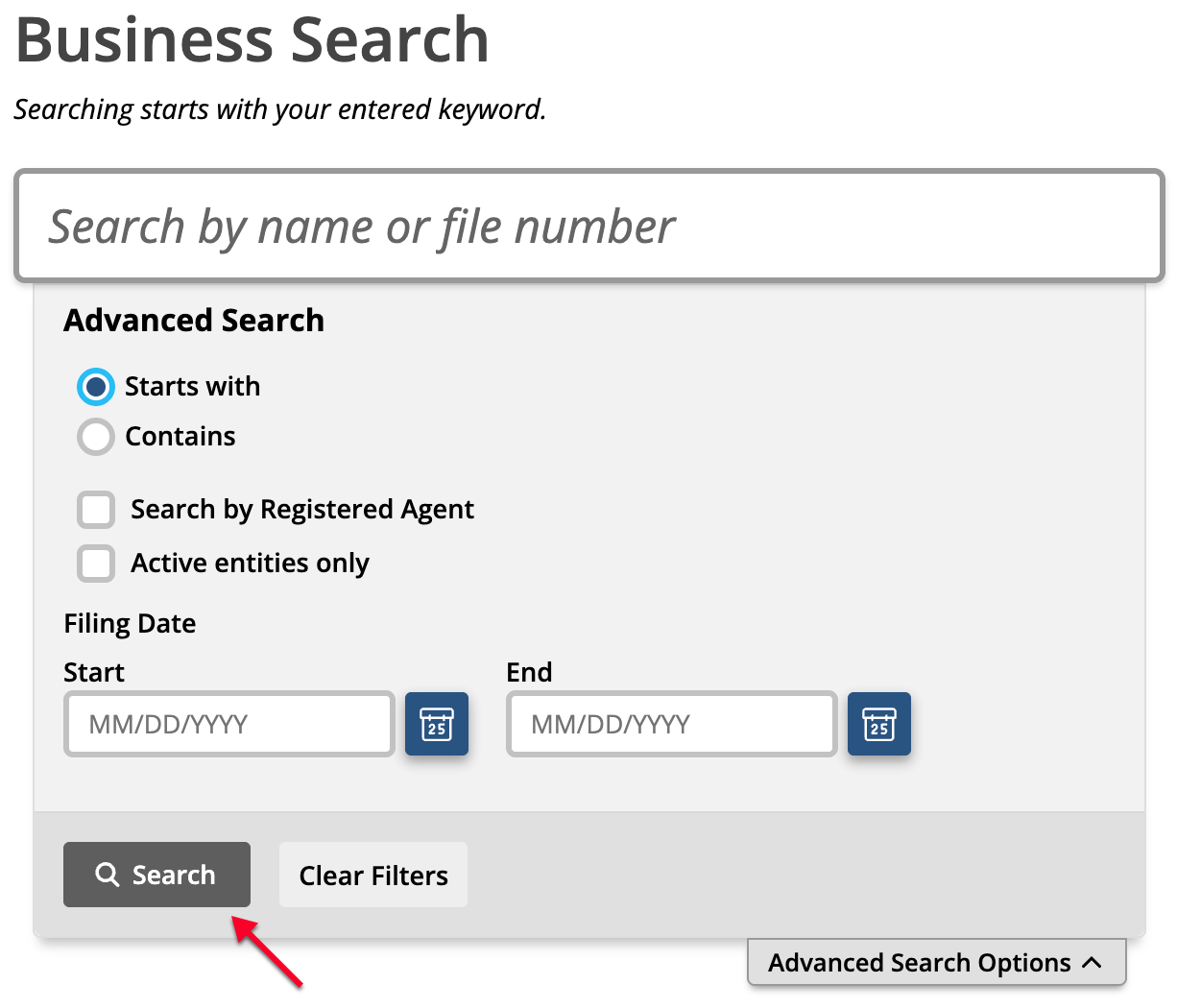
Step 2. Perform a Basic Search with Simple Criteria
Begin by supplying the word or phrase the search tool should find in the text box. If possible, submit the name of the entity to this area.
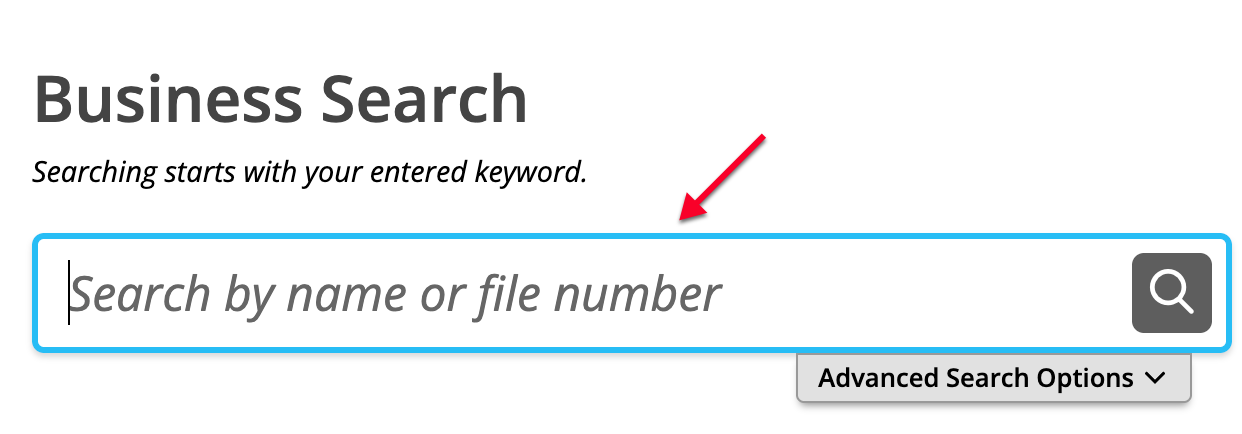
Step 3. Use the Basic Search Feature
Click the magnifying glass in order to run the search. Every entity record containing a match for the search phrase will be displayed at once. Continue to Step 9 or attach advanced options in Step 4.
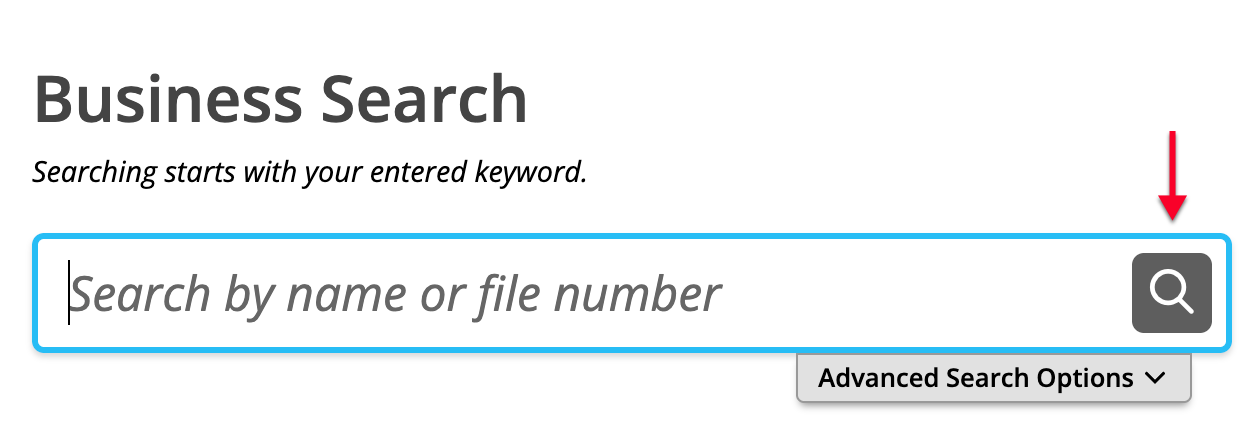
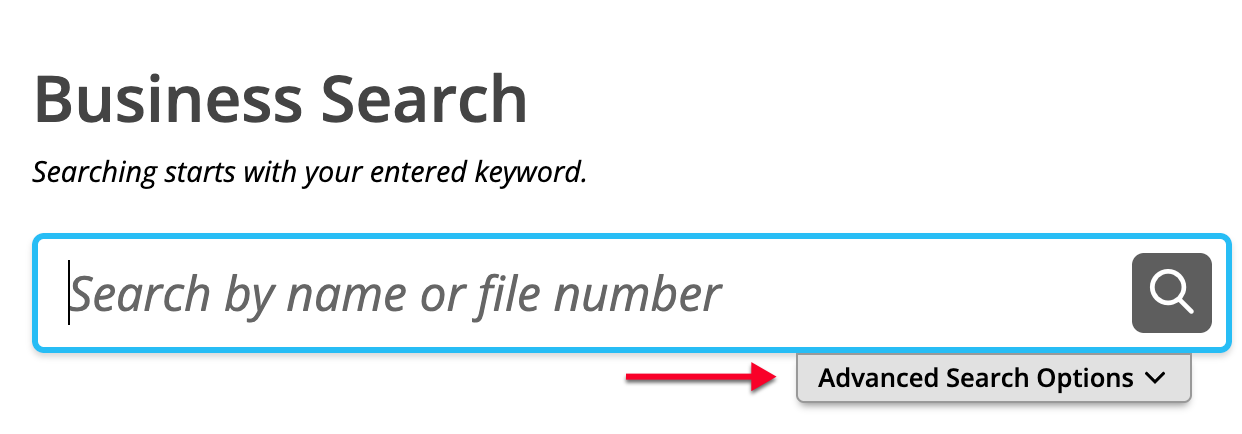
Step 4. Utilize the Advanced Search Function
Narrow the number of results returned from the query with more specific parameters. Select “Advanced Search Options” to do so.
Step 5. Set the Criteria Type
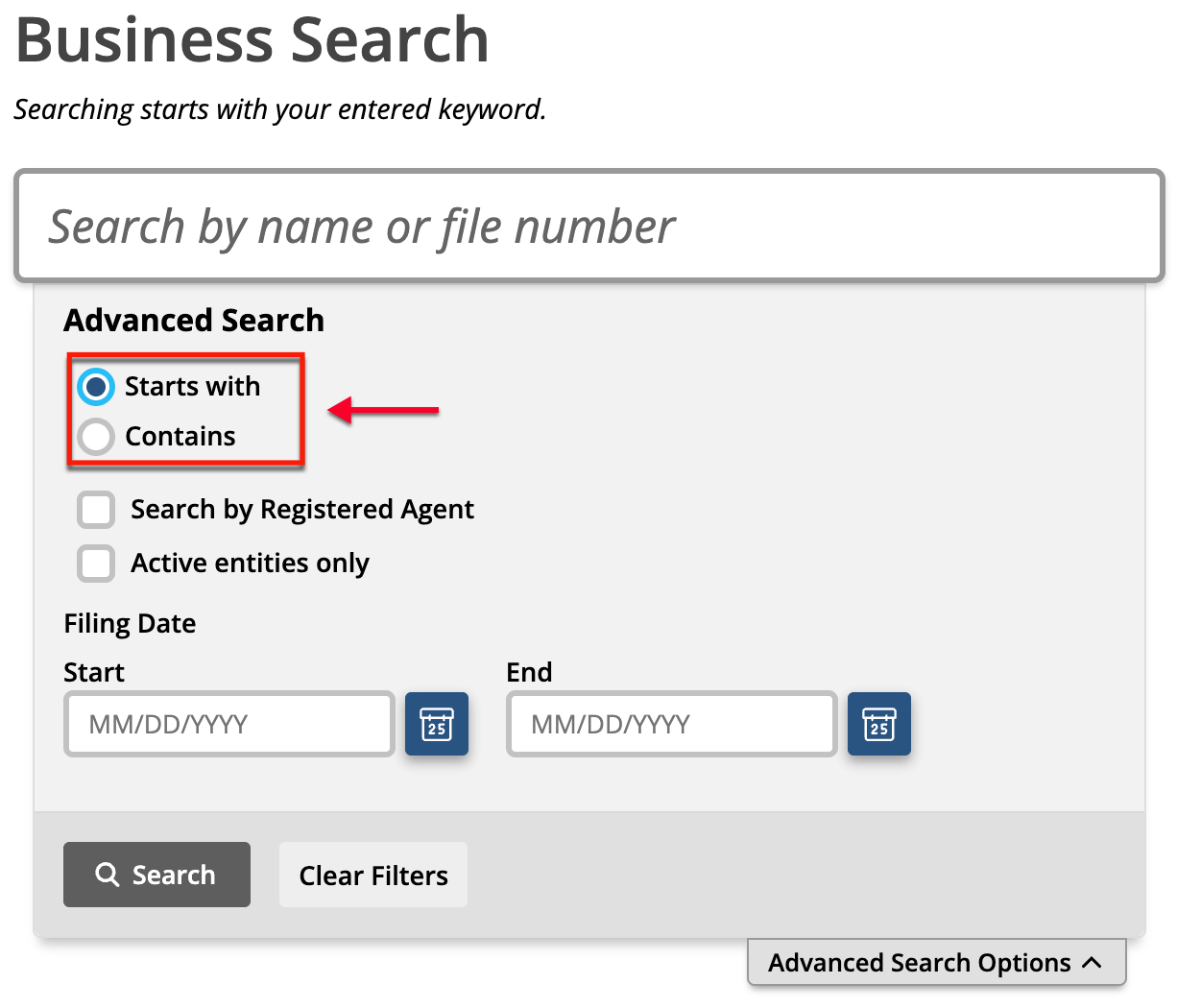
Indicate if the phrase the tool must find occurs at the beginning of the entity name or if the entity name contains it. Select the appropriate radio button for this task.
- Starts With
- Contains
Step 6. Focus the Search
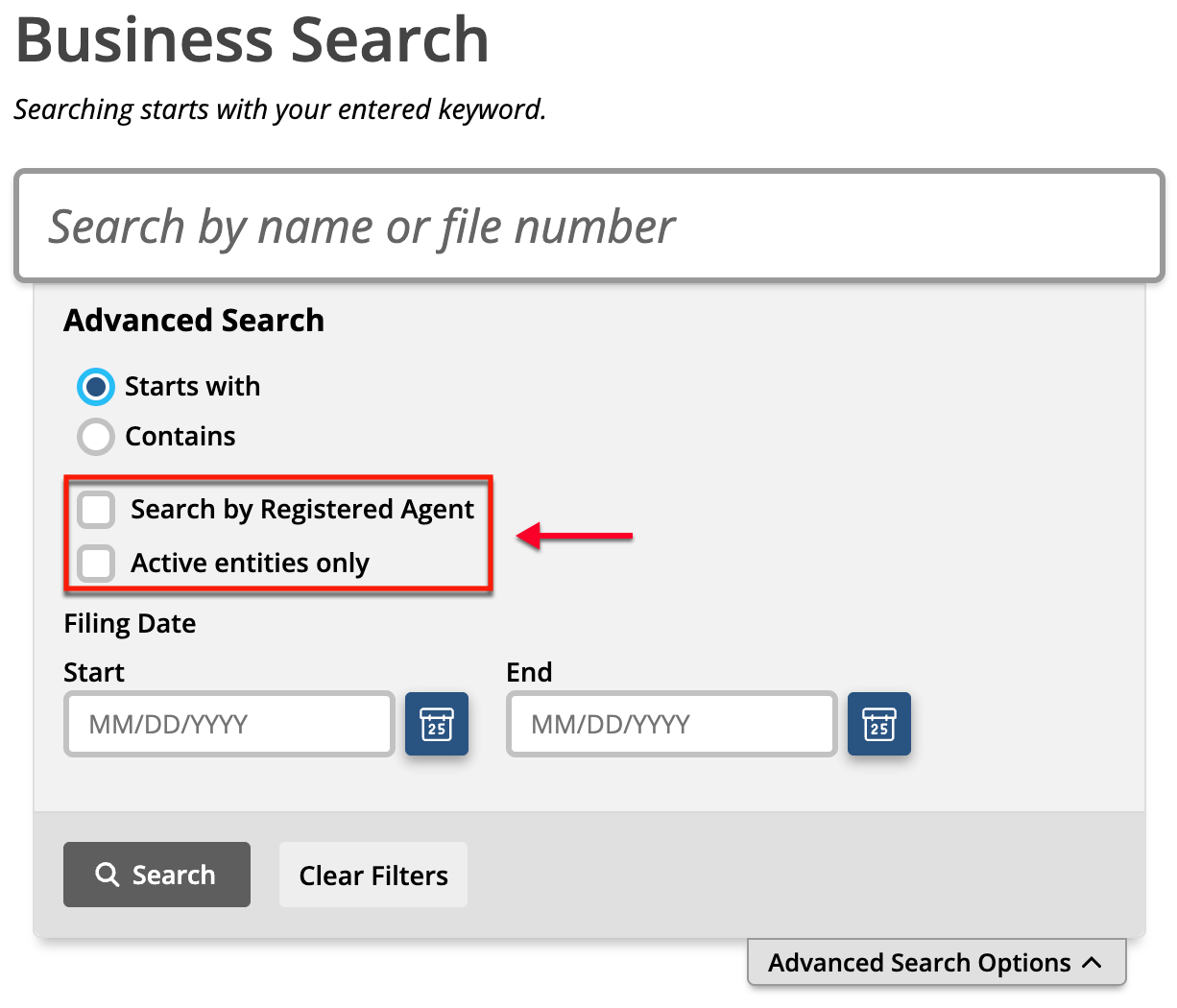
Select one of the next two checkboxes. This describes whether the search item is a “Registered Agent” or an “Active Entity.” You may leave both unchecked if neither applies.
- Search by Registered Agent
- Active Entities Only
Step 7. Provide the Date Range
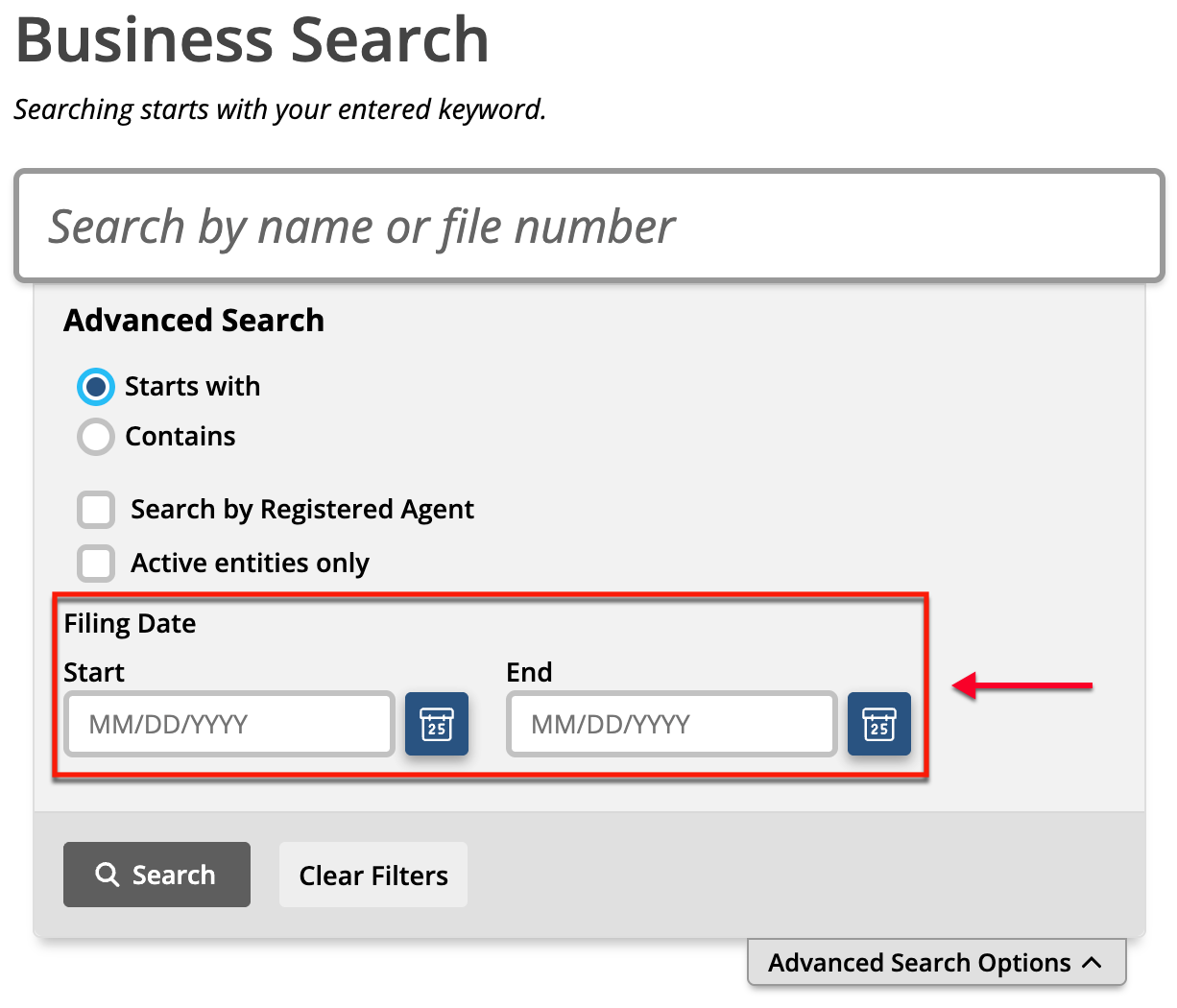
Defining a specific date range for your search often enables the tool to target more effectively. Thus, supply the first and last dates of the range around your entity’s formation or paperwork.
- Filing Date
- Start
- End
Step 8. Initiate the Advanced Search
Prompt the tool to search the database using the “Search” button. This will immediately send the query through and then display the results below the search tool.
Step 9. Finding the Entity Name
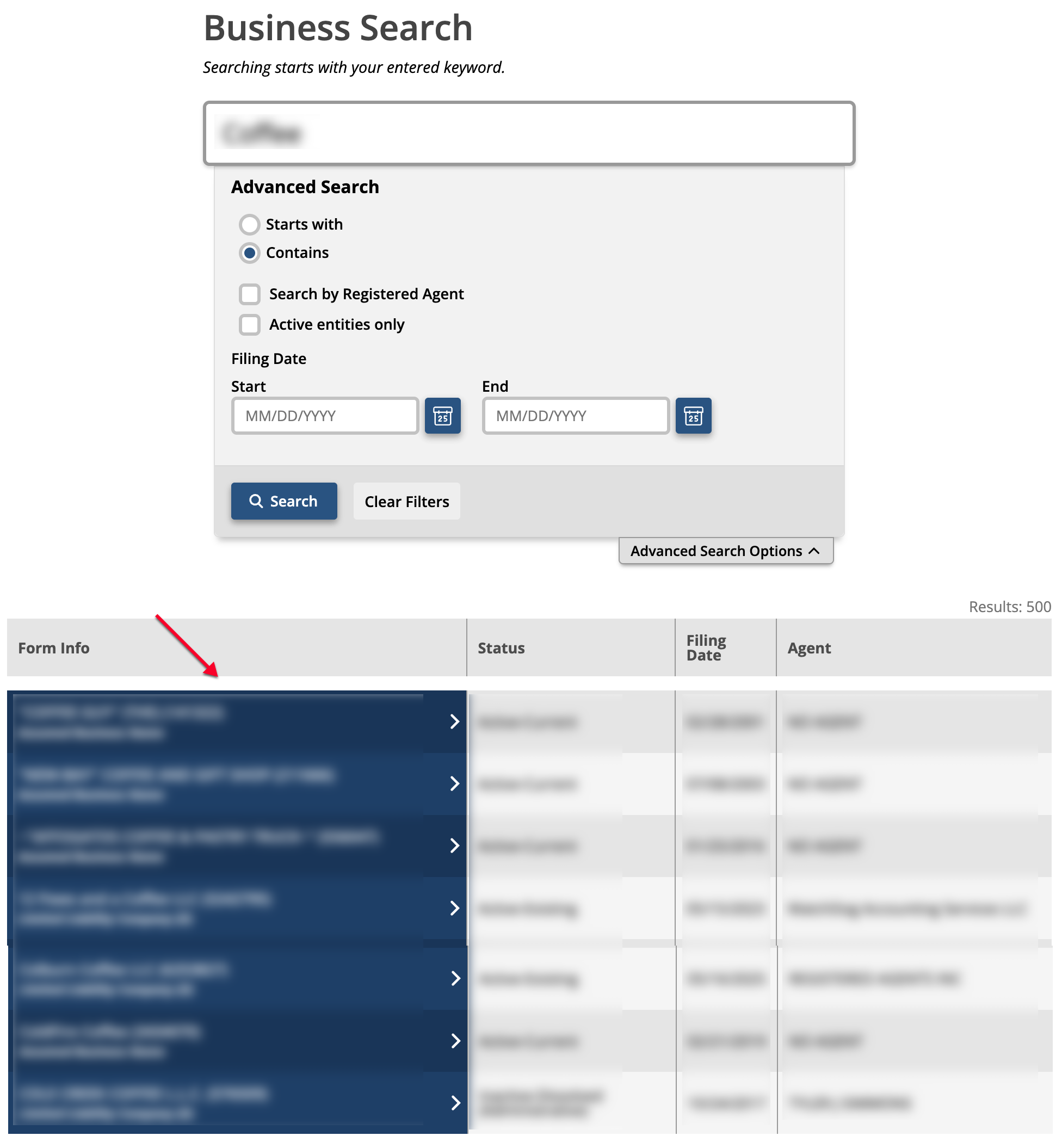
Locate the entity name in the “Form Info” column while verifying its identity using the remaining three. Once you see the business name, select it from the first column.
- Form Info
- Status
- Filing Date
- Agent
Step 10. Review the Idaho Entity’s Details
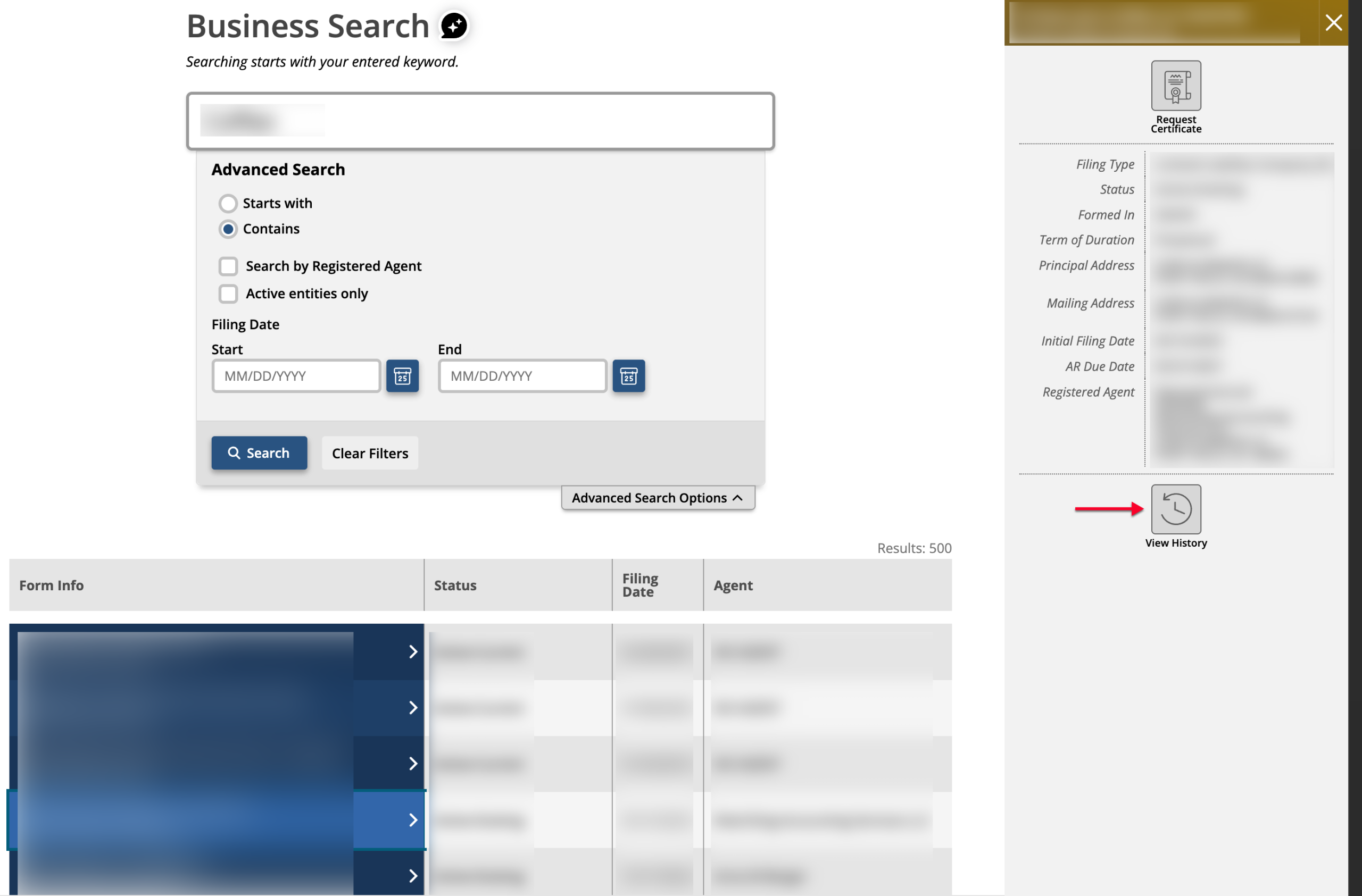
Direct the focus to the right half of the page where the entity’s information appears. Additionally, select “View History” to investigate the entity’s background.
- Request Certificate
- Filing Type
- Status
- Formed In
- Term of Duration
- Principal Address
- Initial Filing Date
- AR Due Date
- Registered Agent
- View History
Step 11. Investigating the Entity’s History
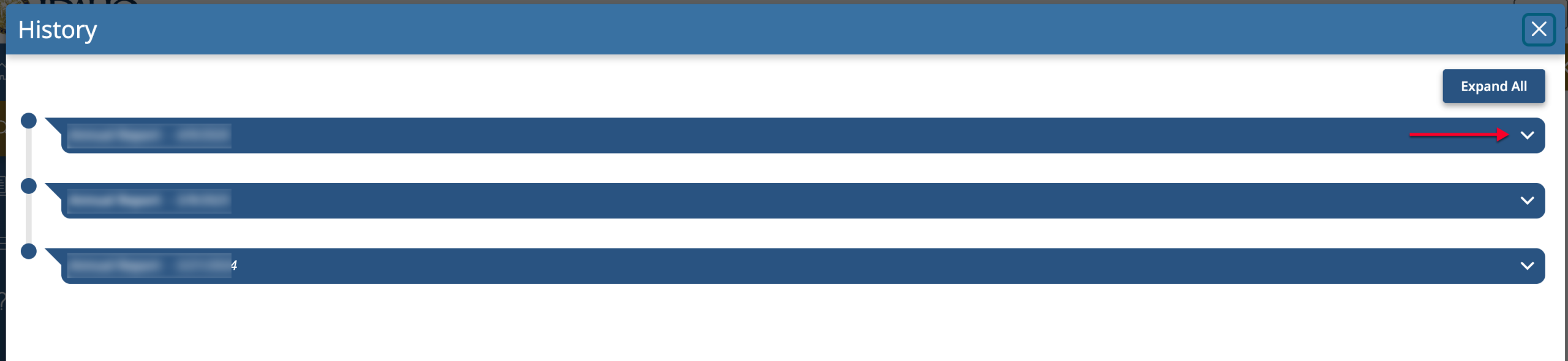
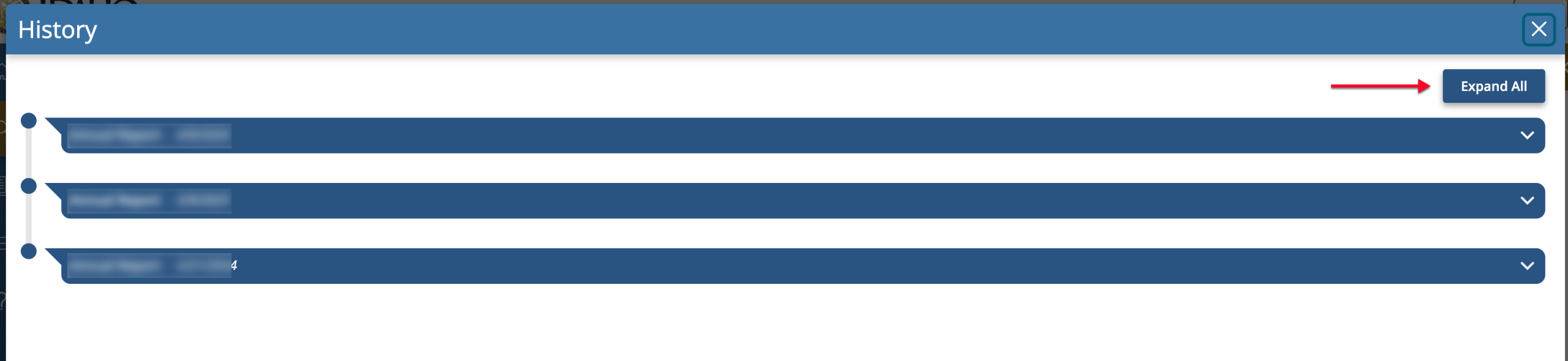
Look for the filing action and date that you require in the title bars. Once you have located it, you may select the down arrow to view that record.
Step 12. Viewing the All Entries
Note that an additional review feature is available. To open all the available onscreen public filing records for the entity at once, select the “Expand All” button.
Step 13. Accessing Documents
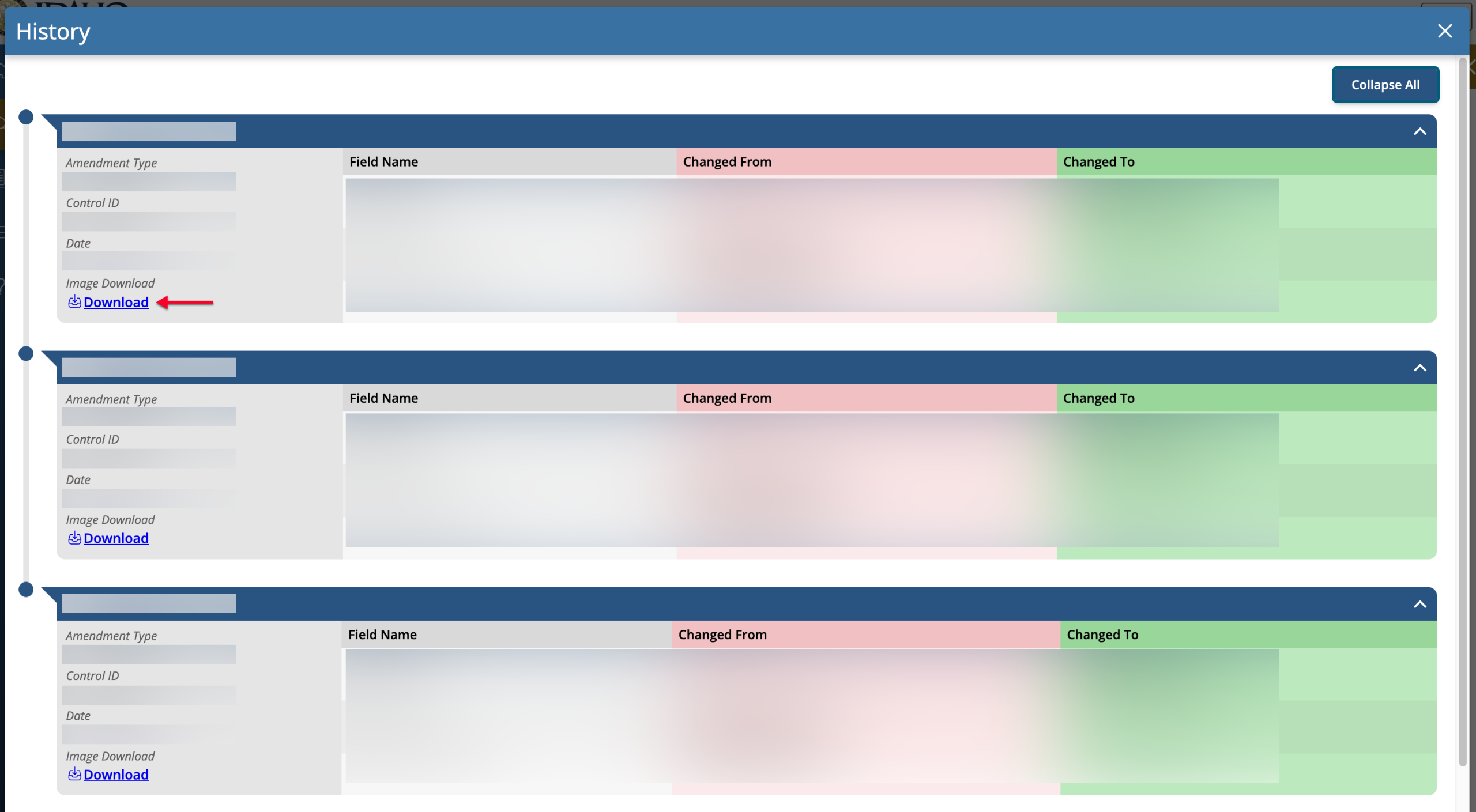
Several pieces of information are in each record, defining that paperwork. In addition to this description, viewable documents can be opened using the “Download” button.