The Connecticut Secretary of State’s business records search tool provides the means for visitors to access a business’s public information. Users find this information by supplying either specific or general search criteria to the query, then reviewing the results. Users may run multiple queries and also filter the results when necessary.
Business Name Availability Check
State of Connecticut

Business Entity Search
Step 1. Go to the Connecticut Business Records Search Page
Open the business search records page maintained by the Connecticut Secretary of State. This page allows you to search a database using one of two search methods.
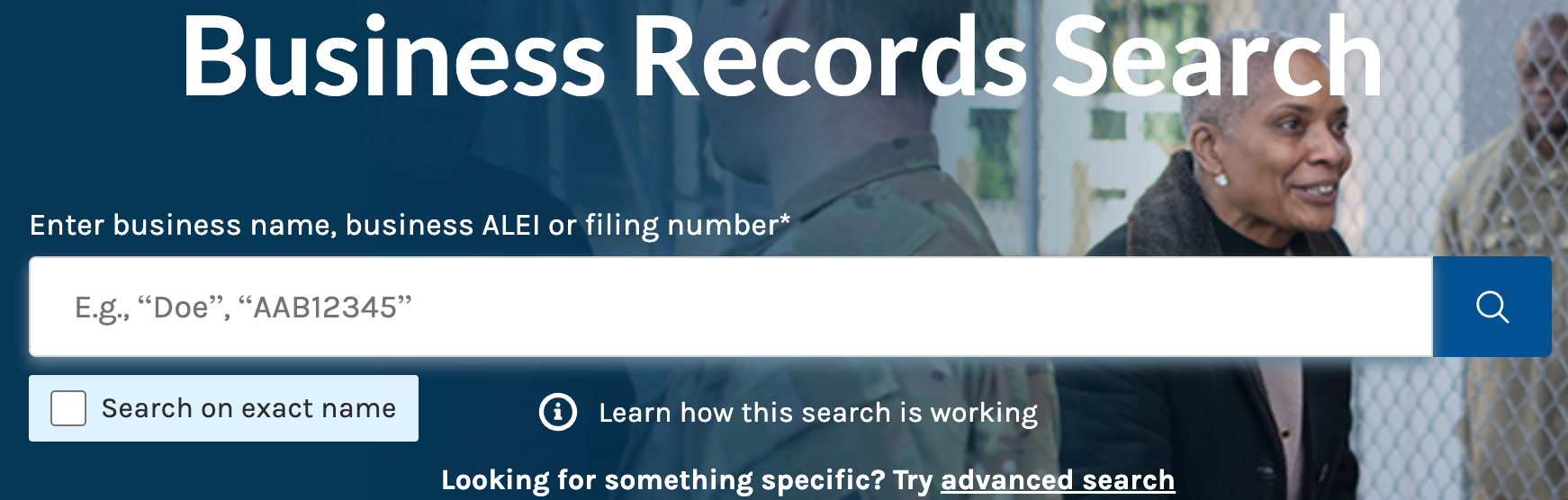
Step 2. Input Criteria for a Simple Search
Type in the phrase or an exact term into the search box. Generally, this area is useful for quickly finding a name or filing number. Notice that you may indicate if you seek an exact phrase.
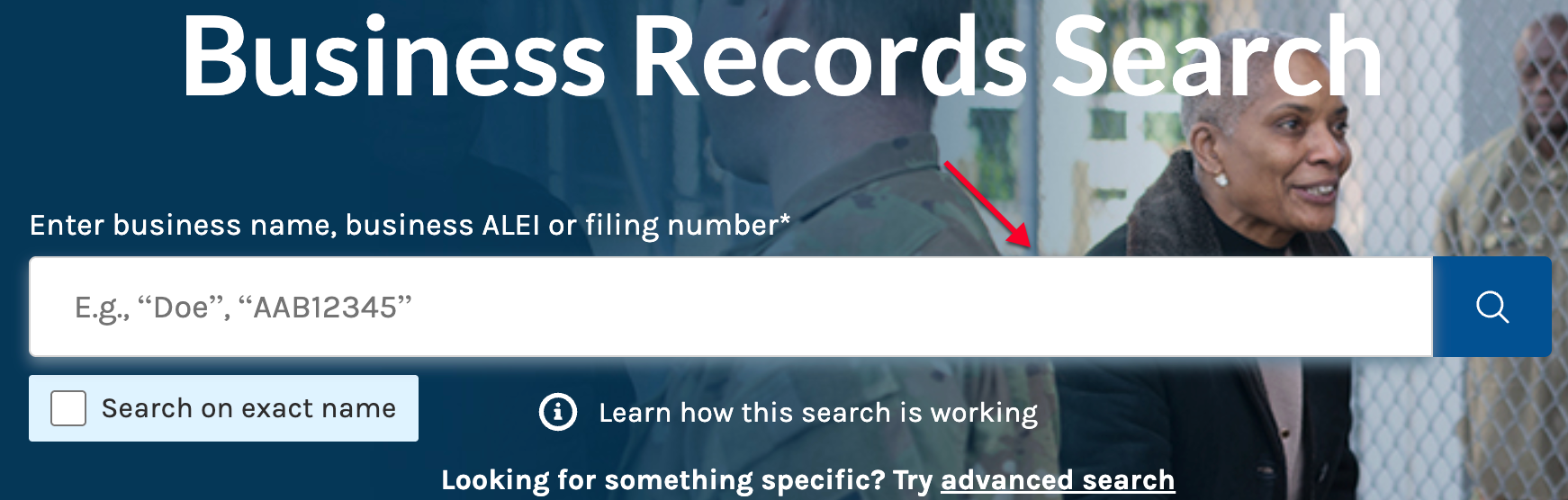
Step 3. Run the Simple Search
Double-check the information in the box. Use the magnifying glass to submit the criteria to the business search tool by clicking it, then proceed to Step 8.
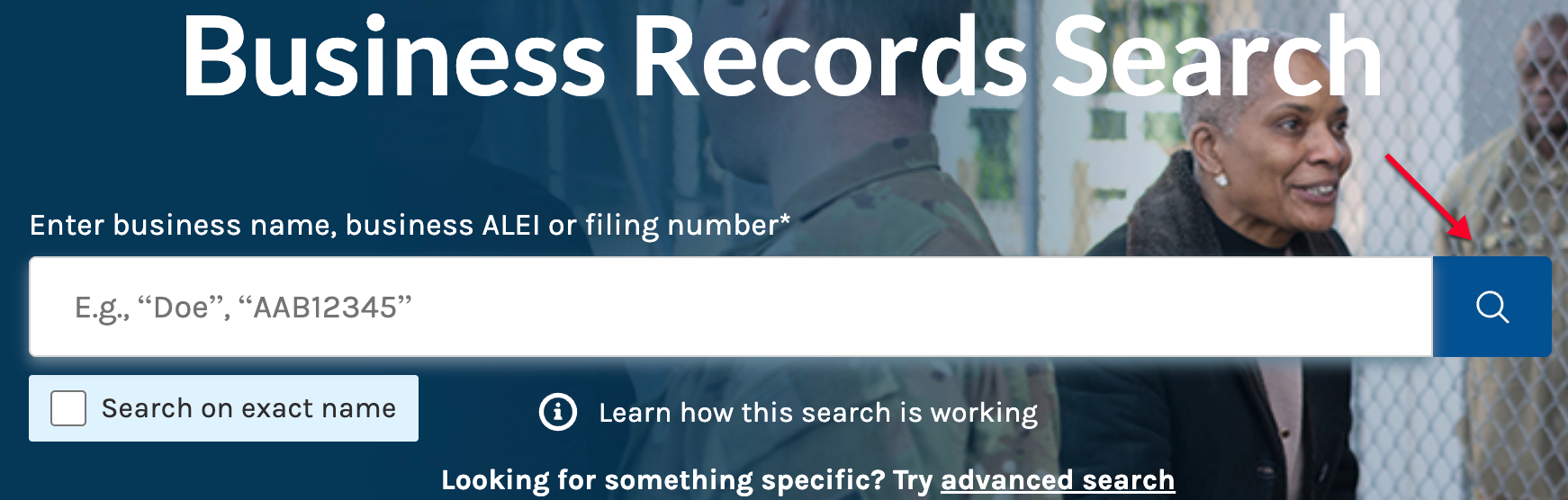
Step 4. Use the Advanced Search
Select “Advanced Search” in order to define the search phrase. This option is useful whenever seeking specific information.
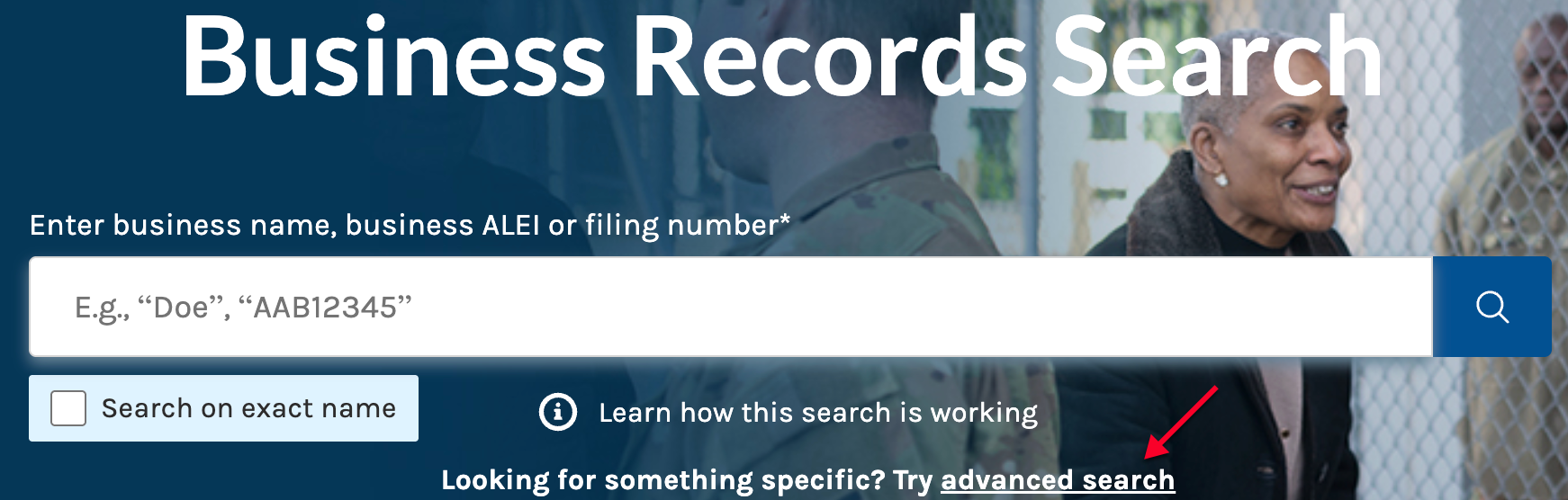
Step 5. Classify the Criteria
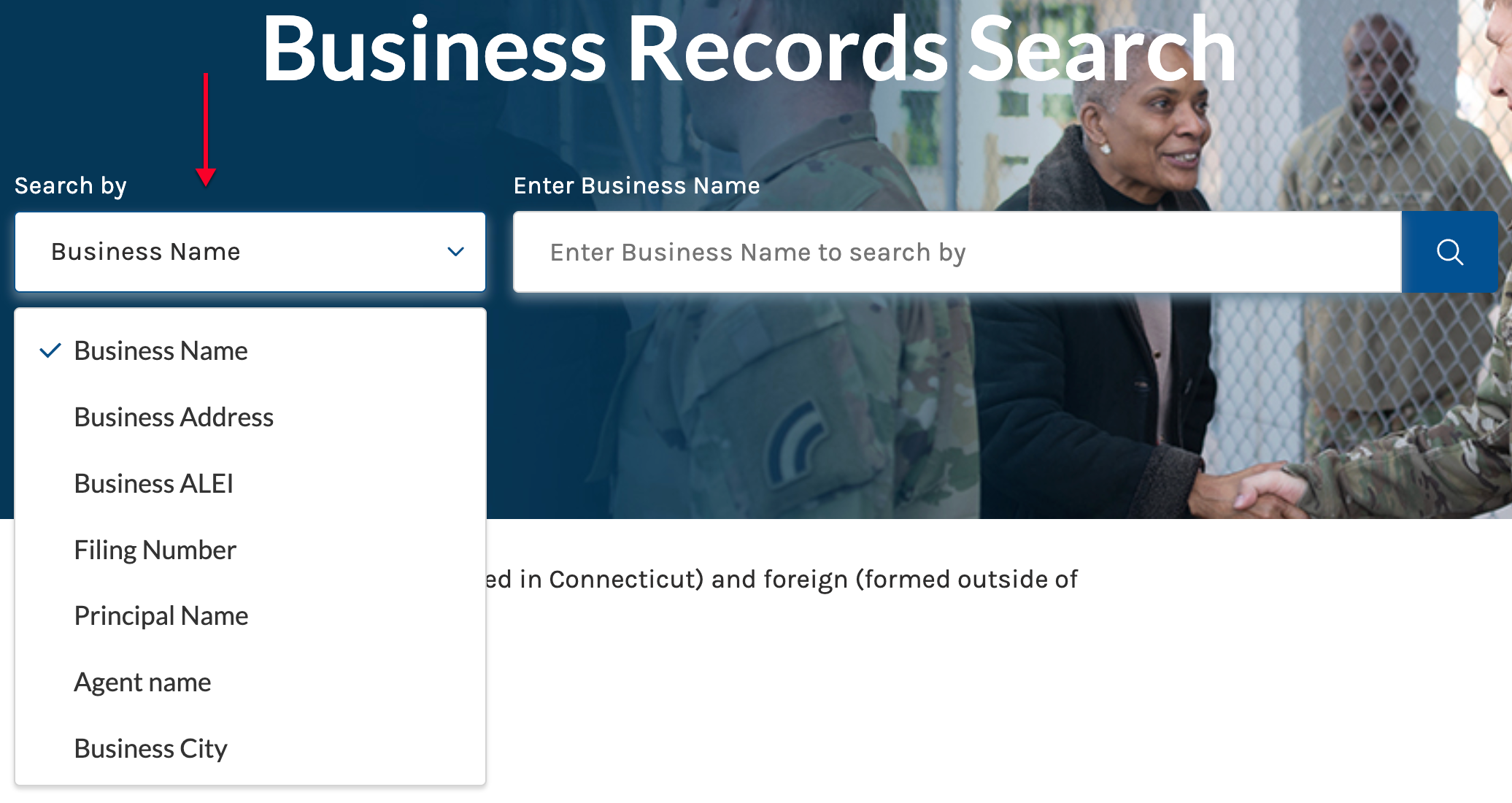
Notice that the advanced search gives access to a drop-down menu. Use this drop-down menu to properly categorize the search criteria.
Step 6. Submit the Appropriate Criteria
After defining the search criteria, enter it in the search box. While the search will initiate regardless, it is best to make sure the criteria match the classification.

Step 7. Initiate an Advanced Search
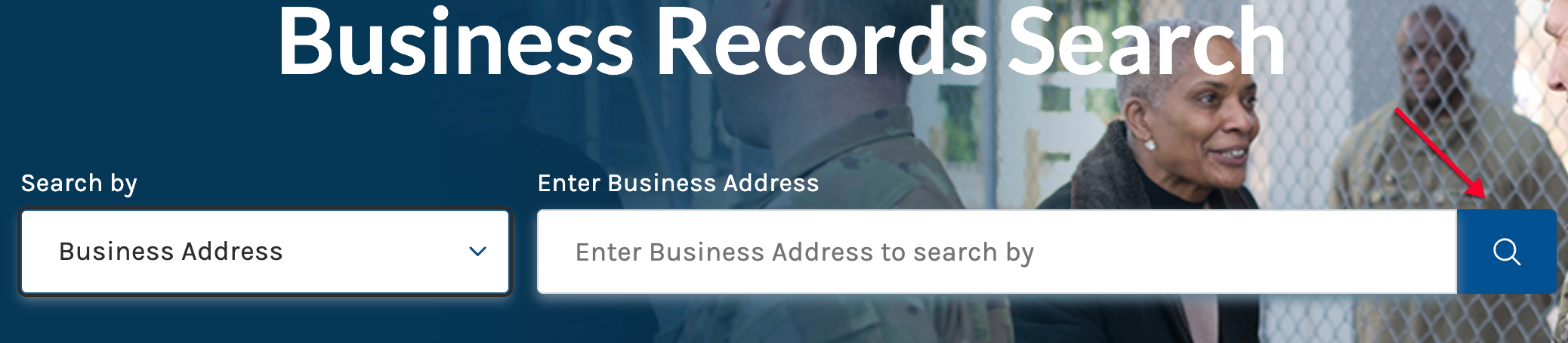
Locate the magnifying glass on the right. Click on this with your pointer to proceed.
Step 8. Look Through And Filter The Results
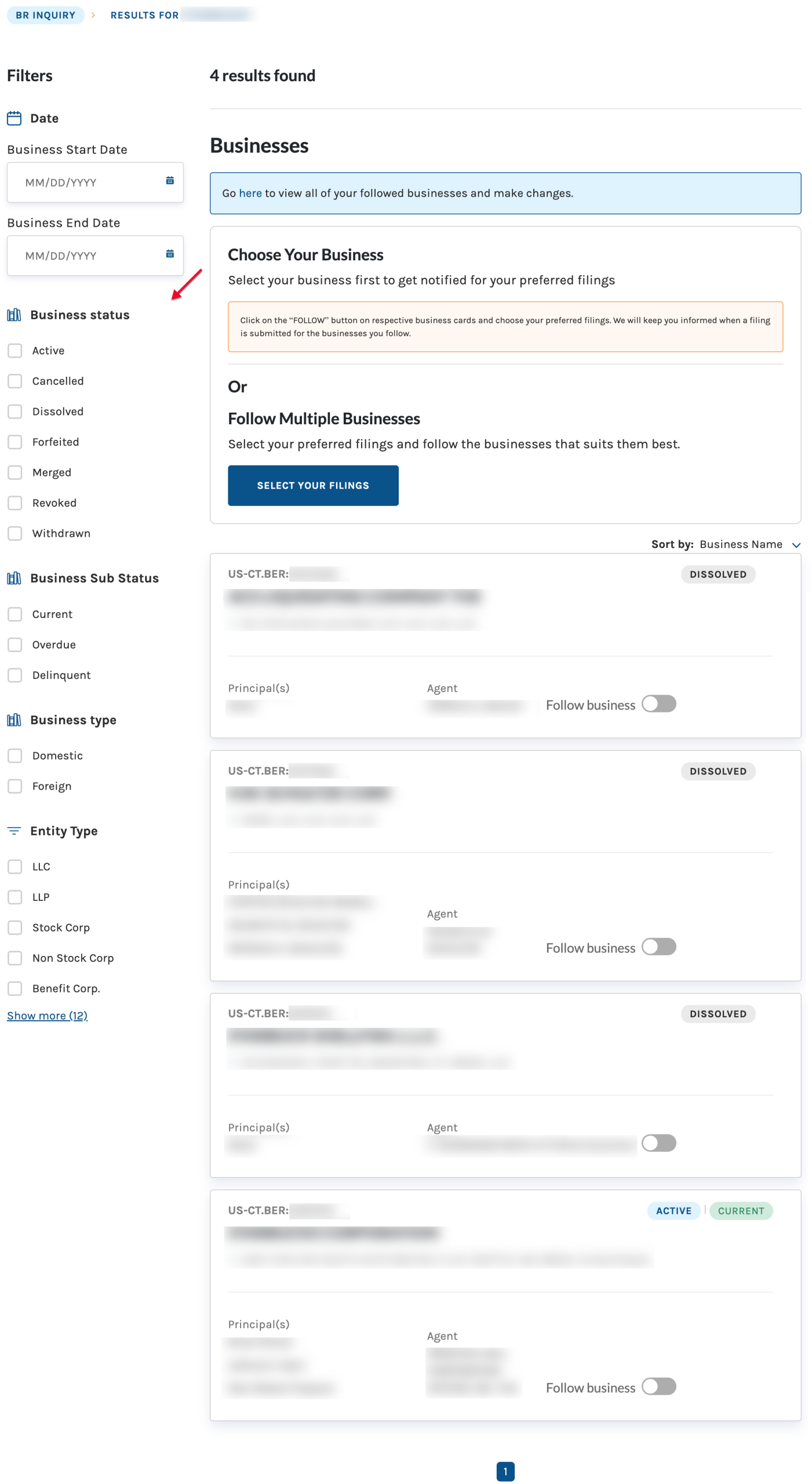
All results that satisfy the criteria display on one page, with a checkbox menu on the left. If desired, place a check in every box that applies to the entity.
- Date (see image)
- Business Start Date
- Business End Date
- Business Status (see image)
- Active
- Cancelled
- Dissolved
- Forfeited
- Merged
- Revoked
- Withdrawn
- Business Sub Status (see image)
- Current
- Overdue
- Delinquent
- Business Type (see image)
- Domestic
- Foreign
- Entity Type (see image)
- LLC
- LLP
- Stock Corp
- Non Stock Corp
- Benefit Corp.
- Show More
Step 9. Select from the Remaining Results
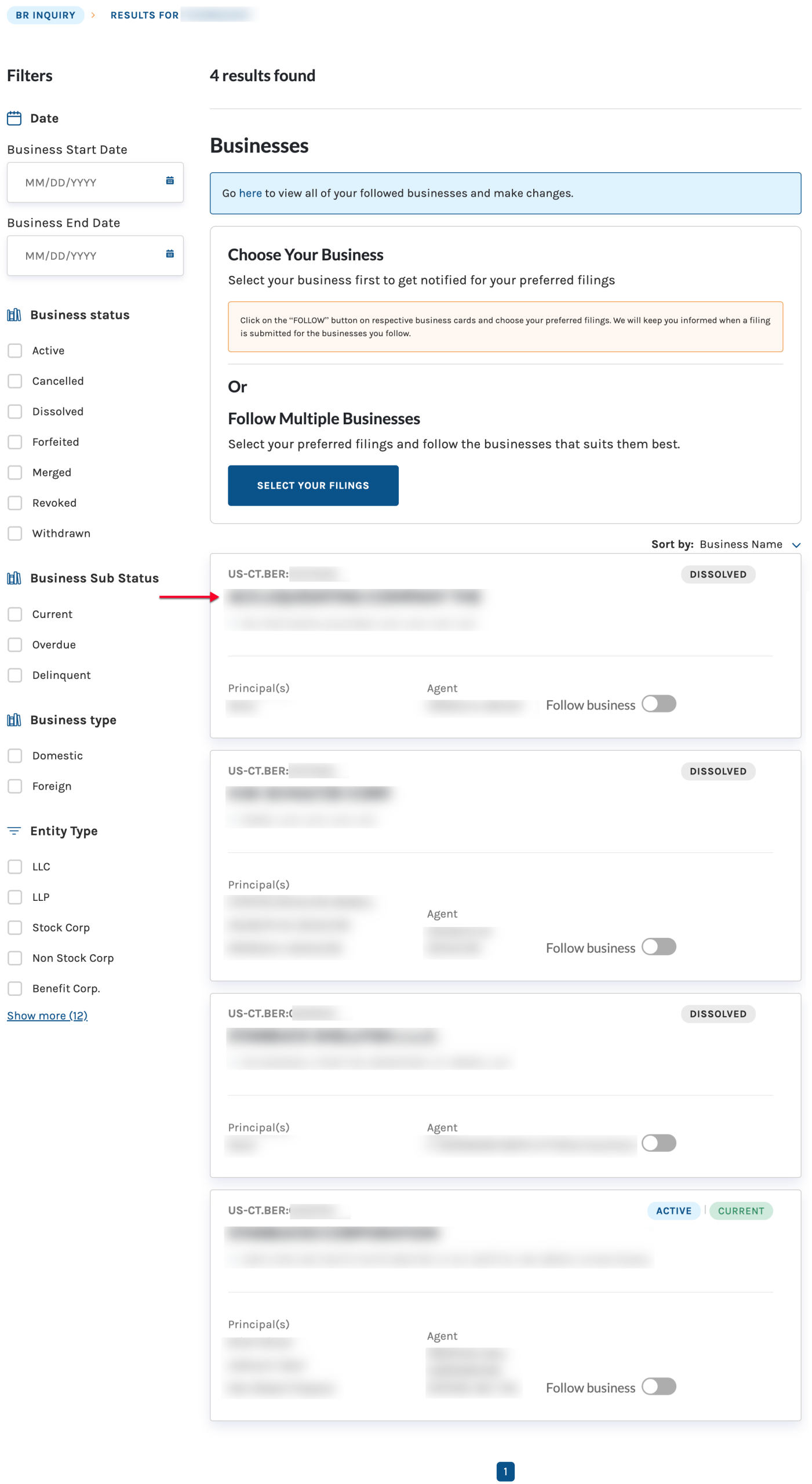
Look over the details for each entity. In order to view the entity’s summary information, locate it in the results. Select its name.
- ID
- Name
- Principals
Step 10. Look Over the Details
Research the first section appearing on the page. The entity’s basic information is available at the top of the page, presenting each detail under its own heading.
- Business Name
- Business ALEI
- Business Status
- Date Formed
- Citizenship/Place of Formation
- Business Type
- Business Address
- Mailing Address
- Requires Annual Filing
- Last Report Filed
- Annual Report Due
- NAICS Sub Code
- Public Substatus
- NAICS Code
- Principal Details
- Principal Name
- Principal Title
- Principal Business Address
- Principal Residence Address
- Agent Details
- Agent Name
- Agent Business Address
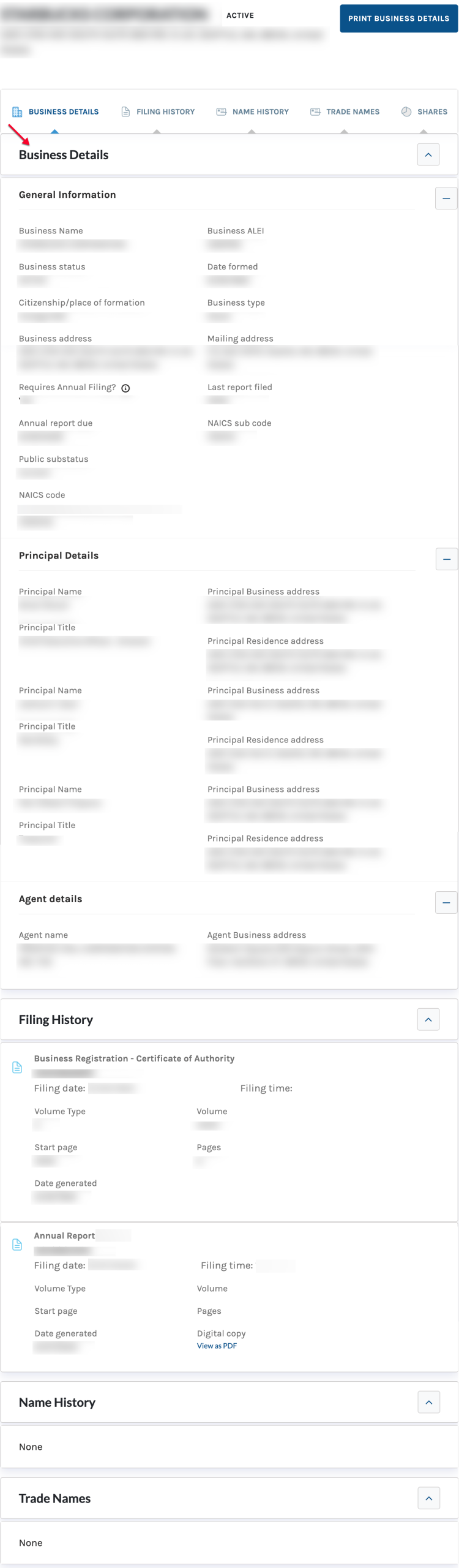
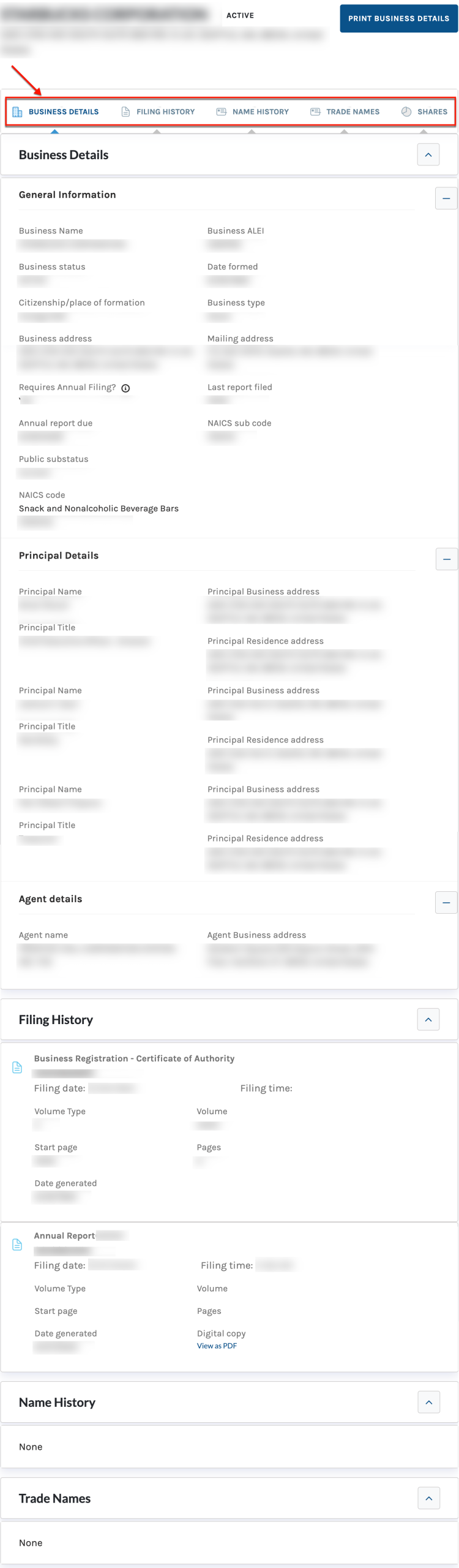
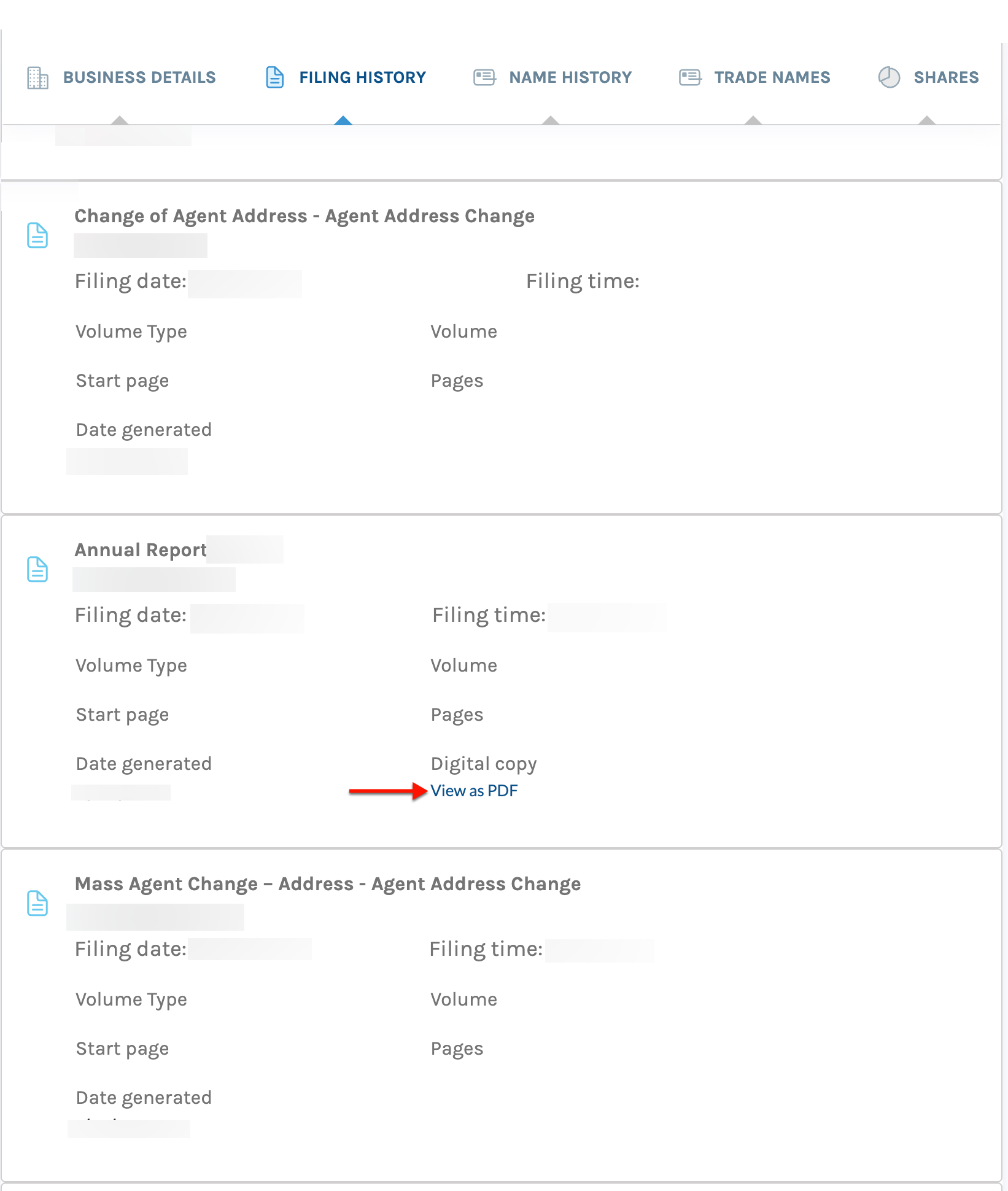
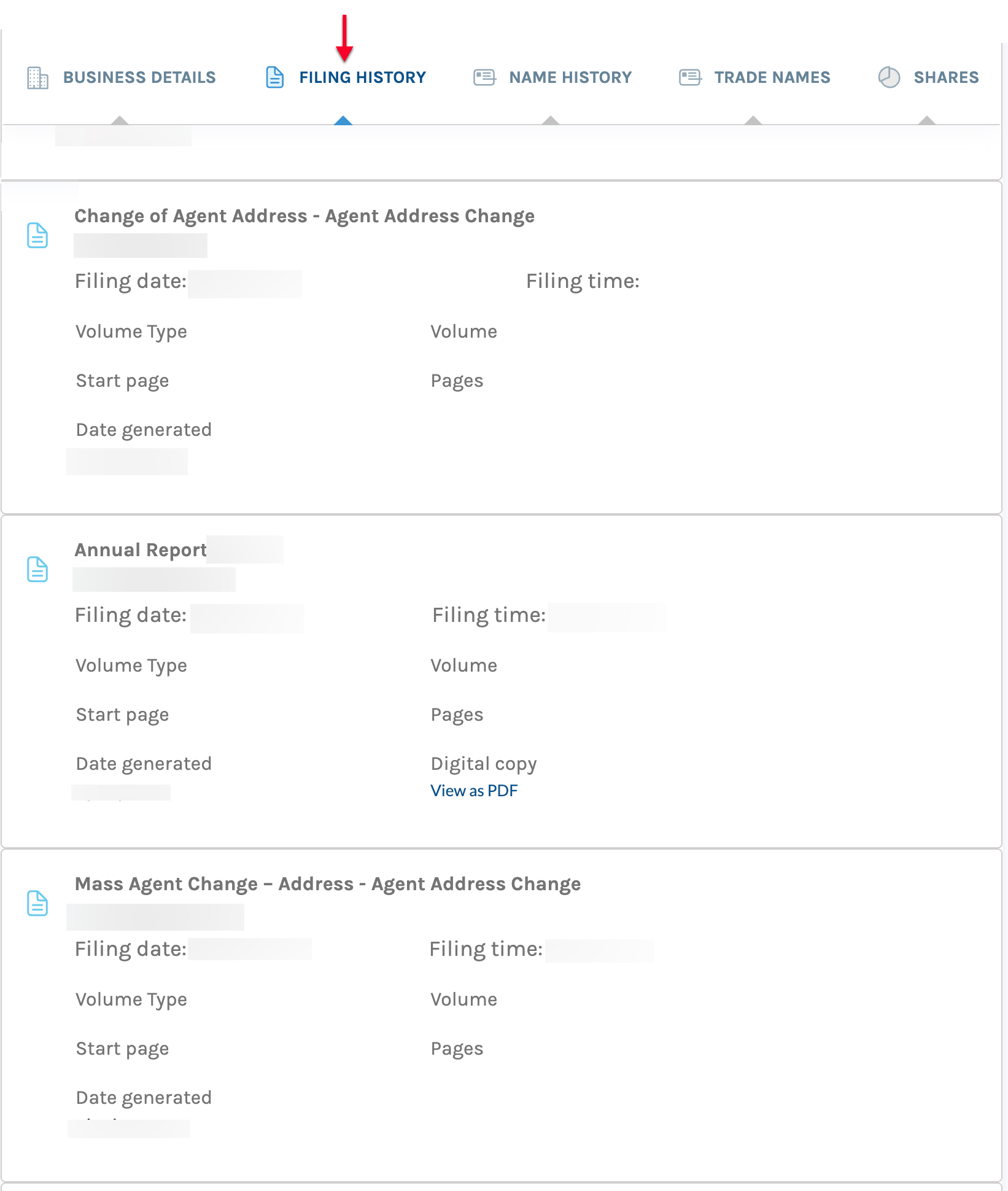
Step 12. Obtaining an Onscreen Filing
Notice that a PDF link accompanies some filing details in the filing history section of the page. Select this link to view the filing onscreen.