The Alabama Secretary of State provides a searchable business entity database by name, number, officer/agent/incorporator, and reservation ID. It provides realtime data of records currently listed with the Secretary of State. There is no fee to use, and the directory does not require an account to access.
Business Name Availability Check
State of Alabama

Business Entity Search
Step 1. Visit the Alabama Business Records – Homepage
Locate the tool area on the Secretary of State’s business entity name search page. Our goal is to find a business name using a word; however, note the alternate search options the state provides.
- Entity Name
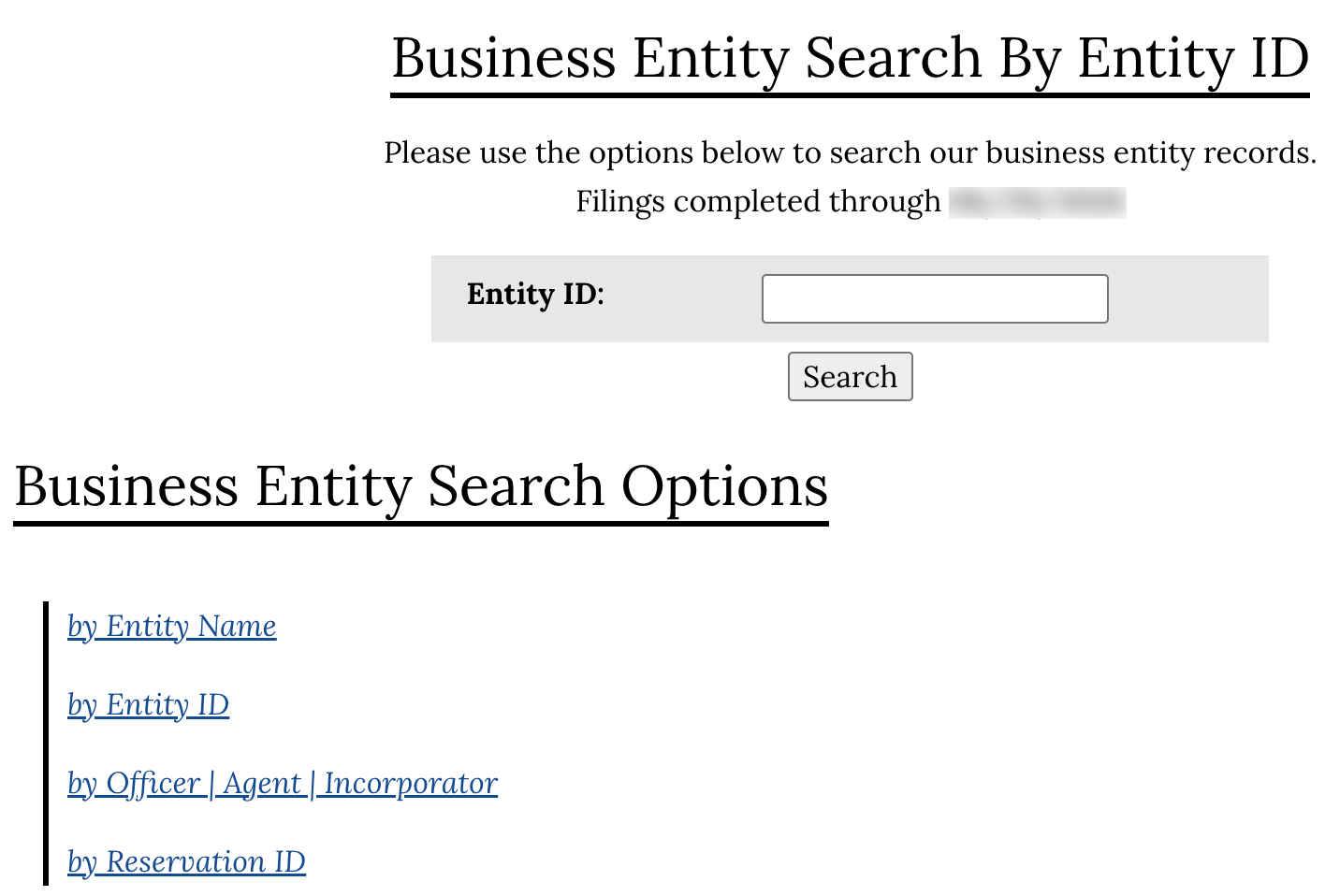
- Entity ID (see image)
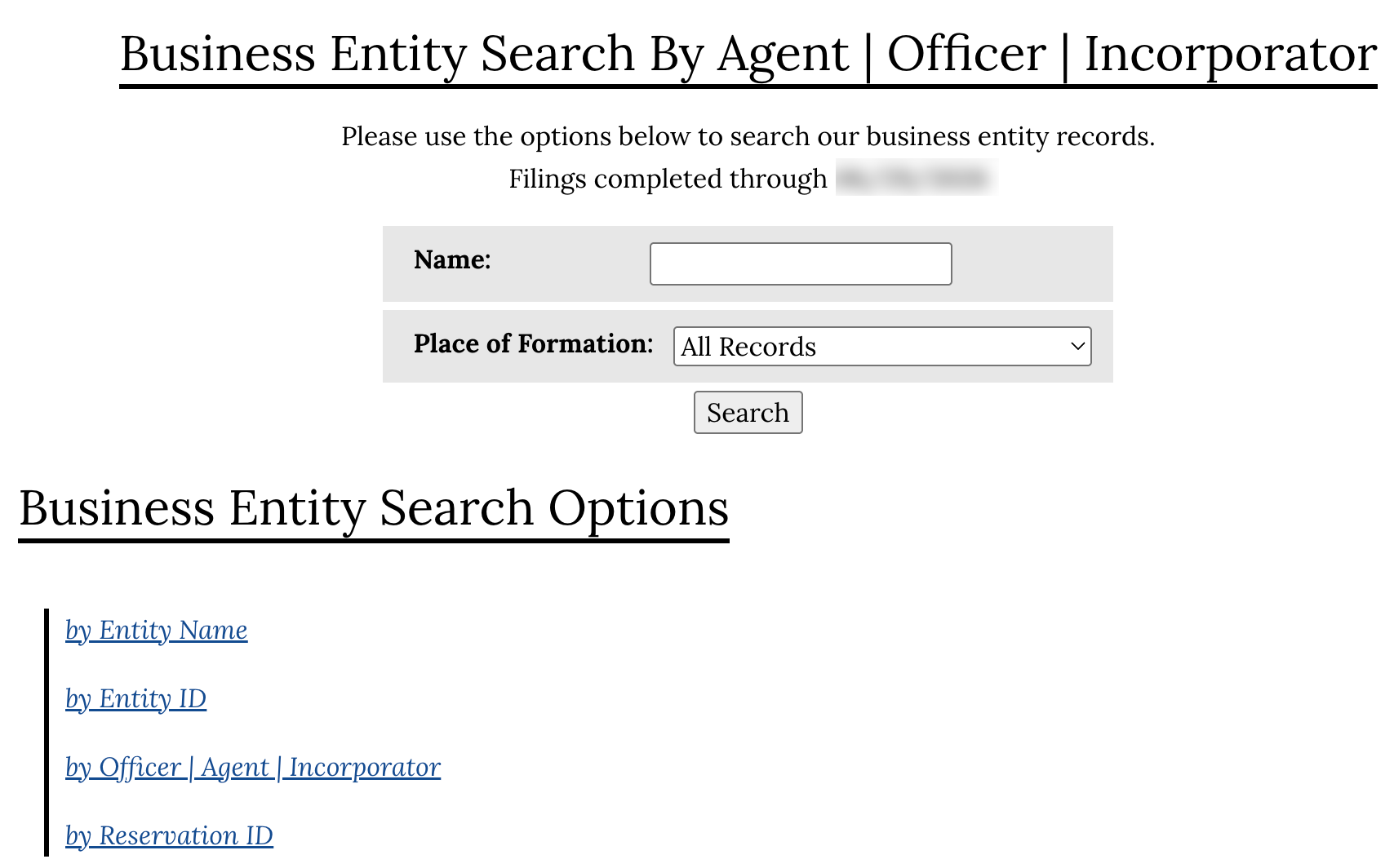
- Officer | Agent | Incorporator (see image)
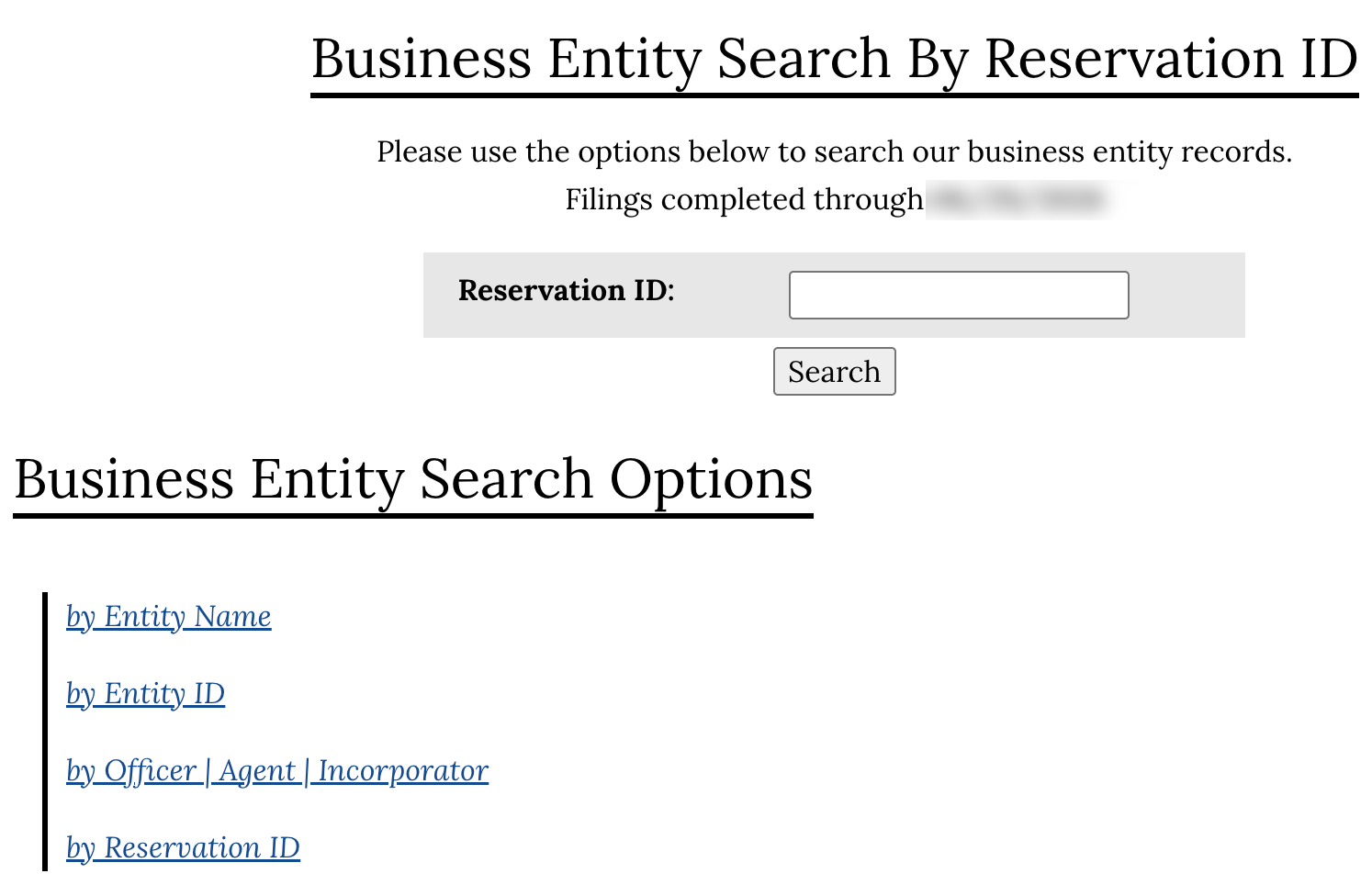
- Reservation | Registration by ID (see image)
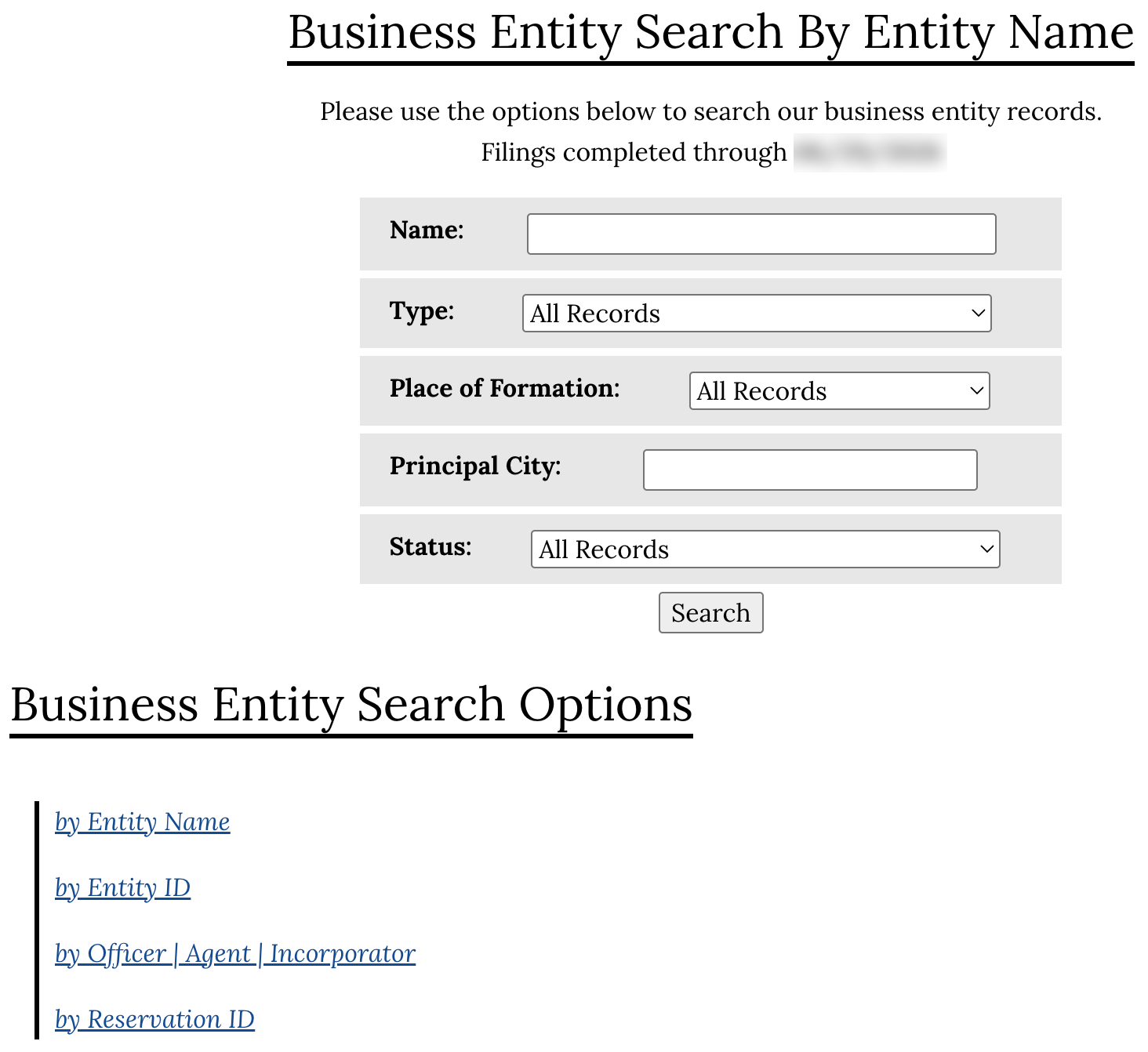
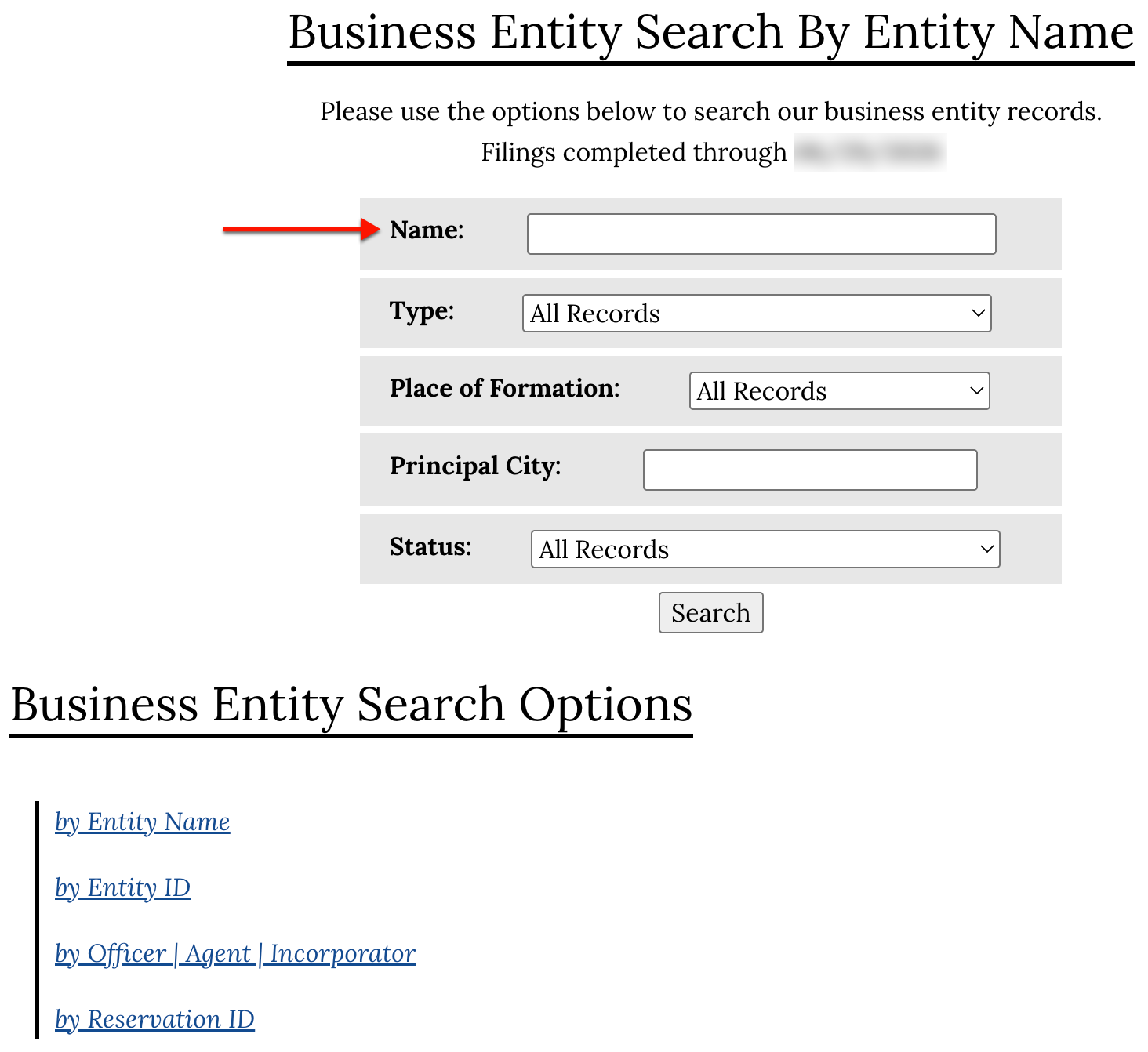
Step 2. Look for a Specific Business Name
Make sure you are in the entity name search option. Go to the “Name” text box then produce something to search for. Ideally, this will be at least part of the name or a strong keyword.
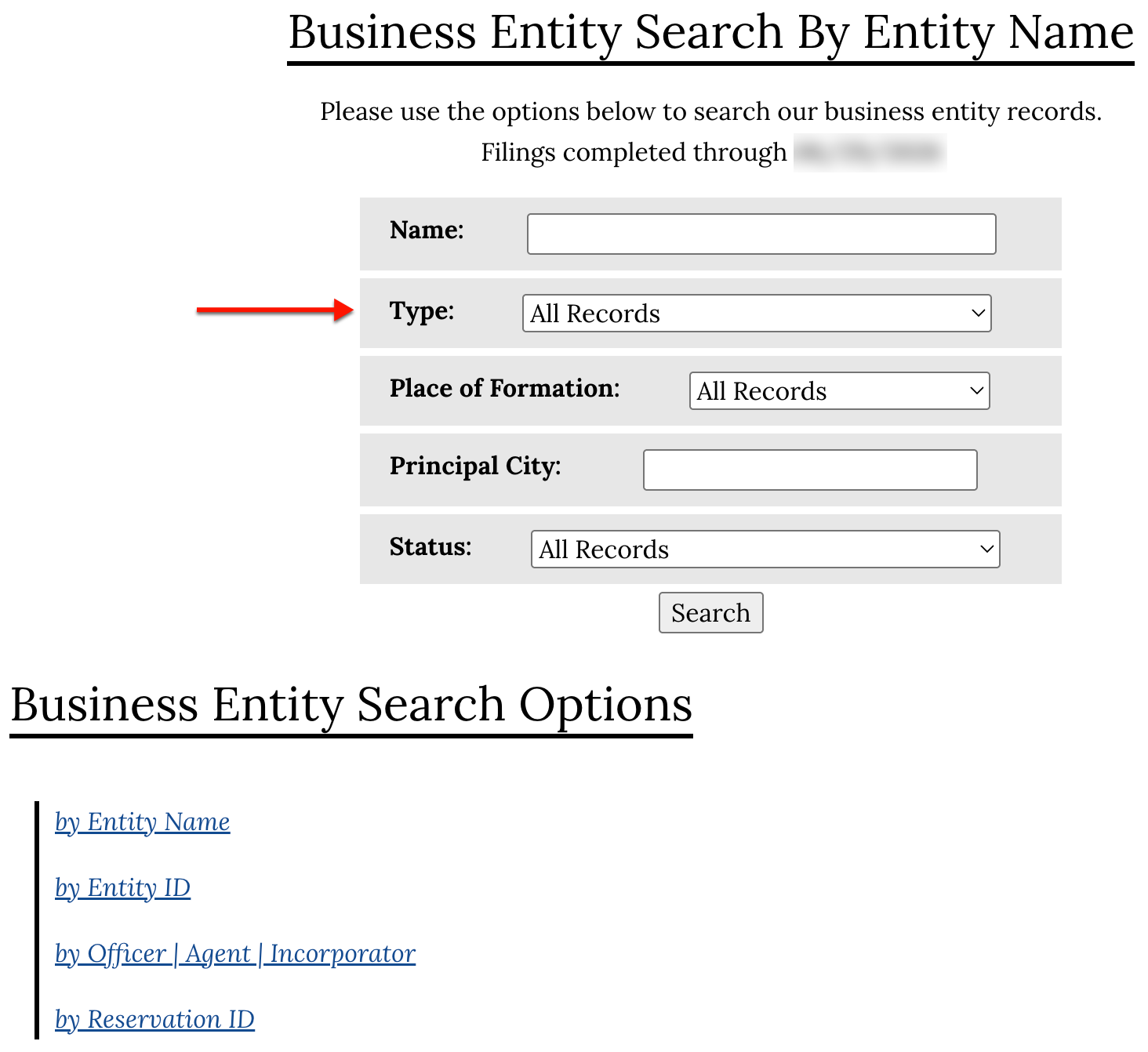
Step 3. Define the Entity Type
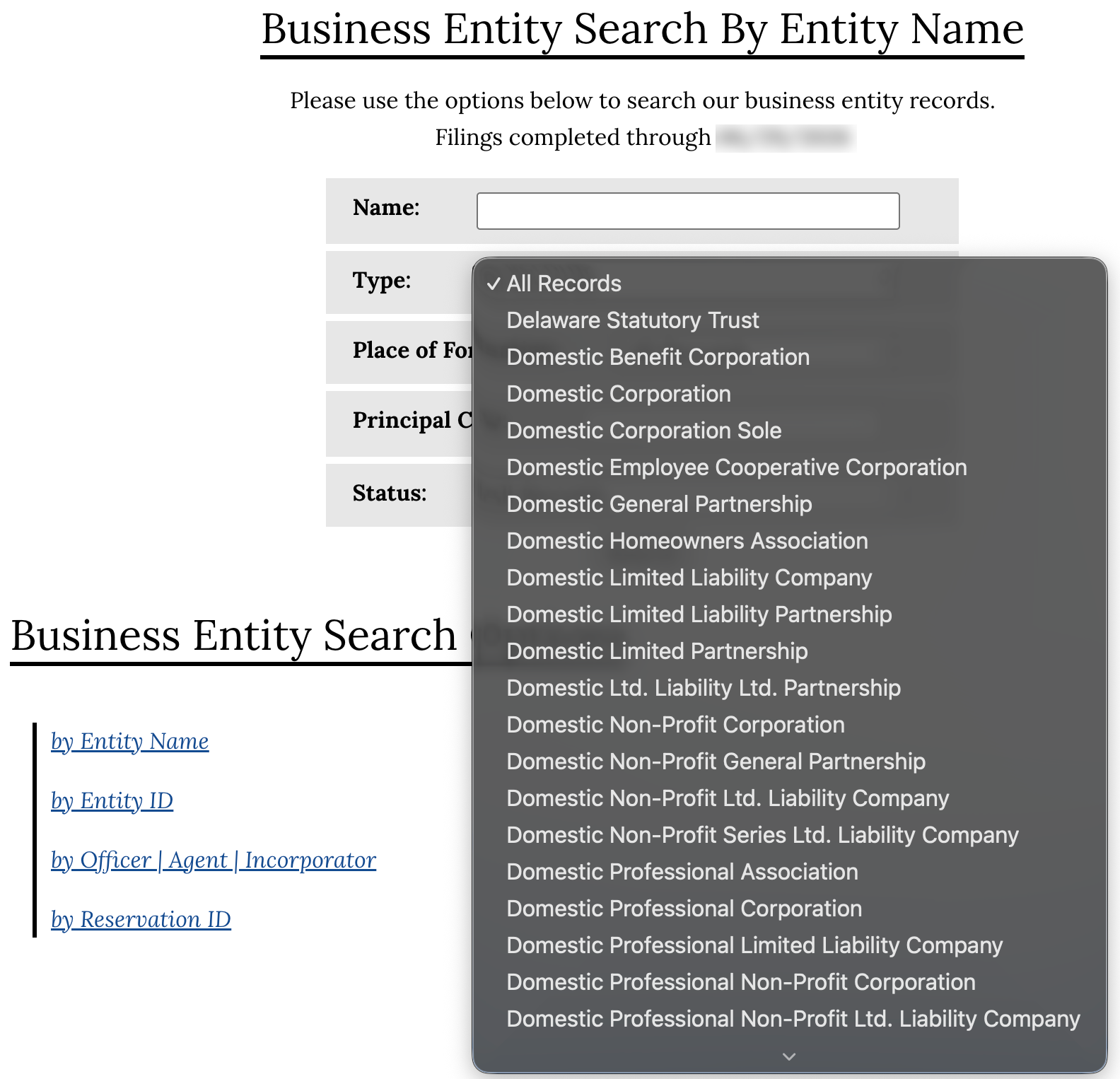
Select an entity type from the “Type” menu (see image). Consider this an instruction to ignore all other entities. For instance, select “Domestic Corporation” to see only Alabama corporations.
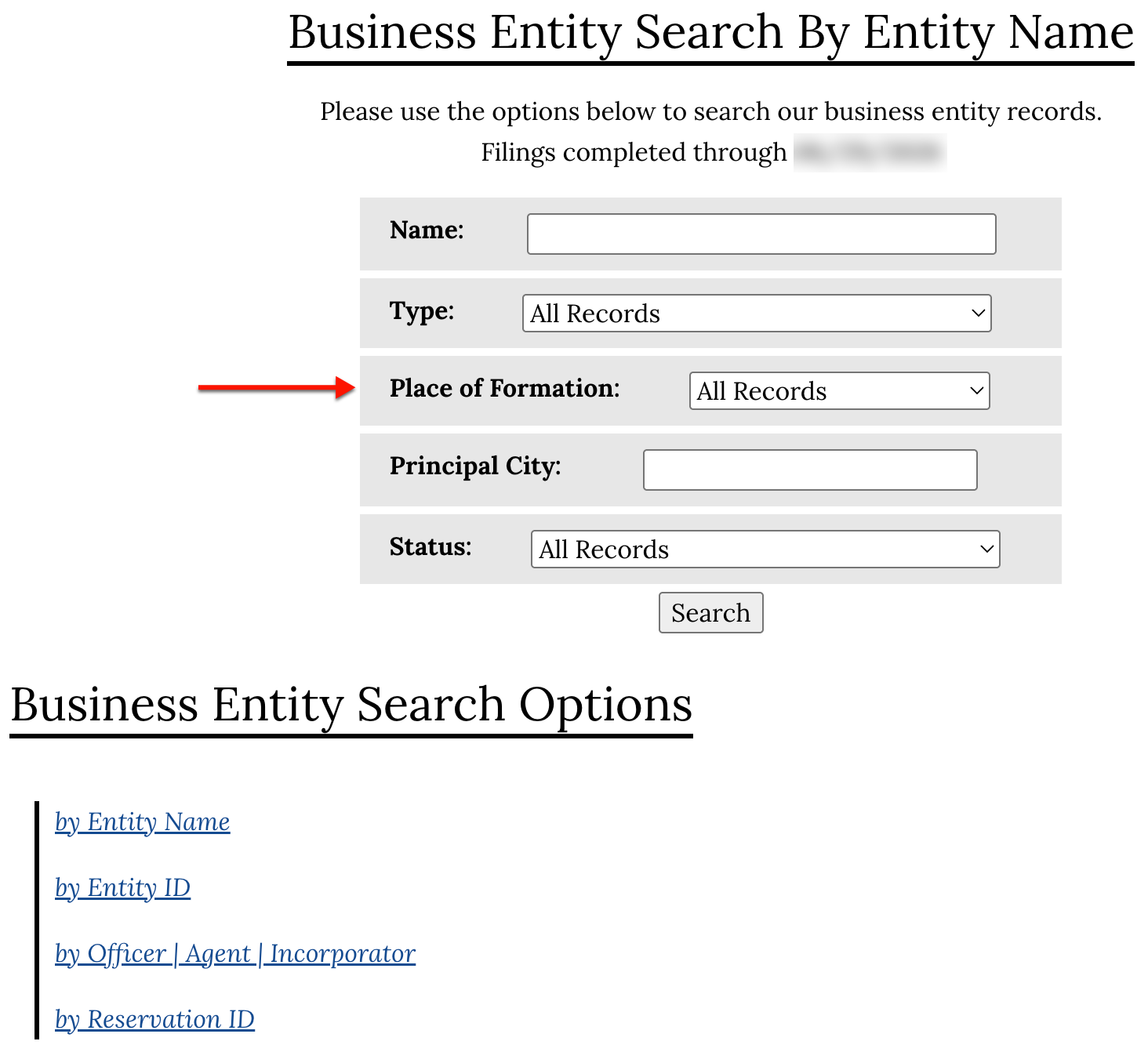
Step 4. Assign a Place of Origin
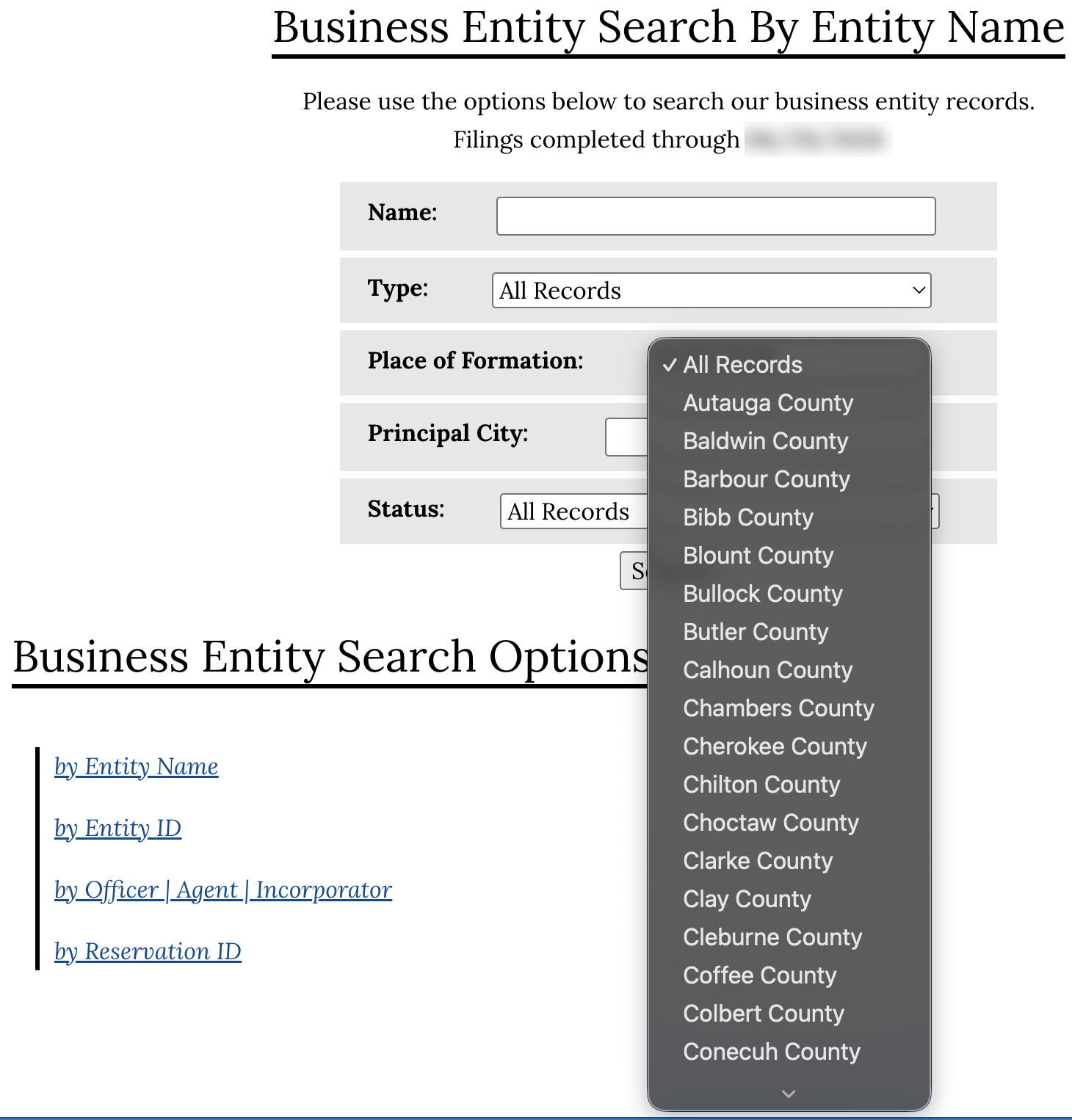
Define where the target entity is formed through the “Place of Formation” menu. Notice, in our example (see image), Alabama counties make up this list.
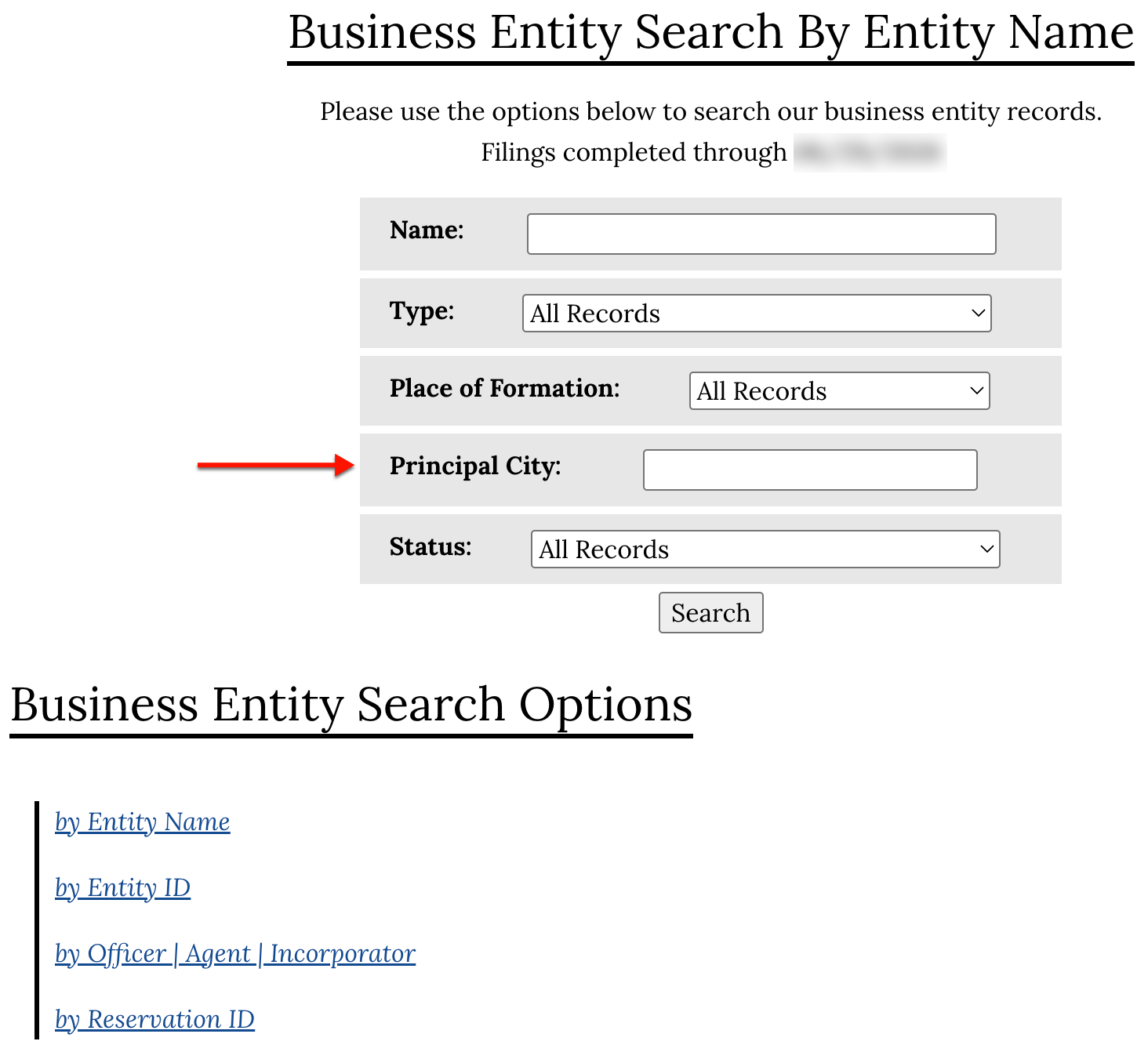
Step 5. Identify the Entity’s City
If the location of the target entity’s principal office is known, then supply the appropriate city in the “Principal City” box. This is an especially useful filter for narrowing results.
Step 6. Attach the Entity’s Status
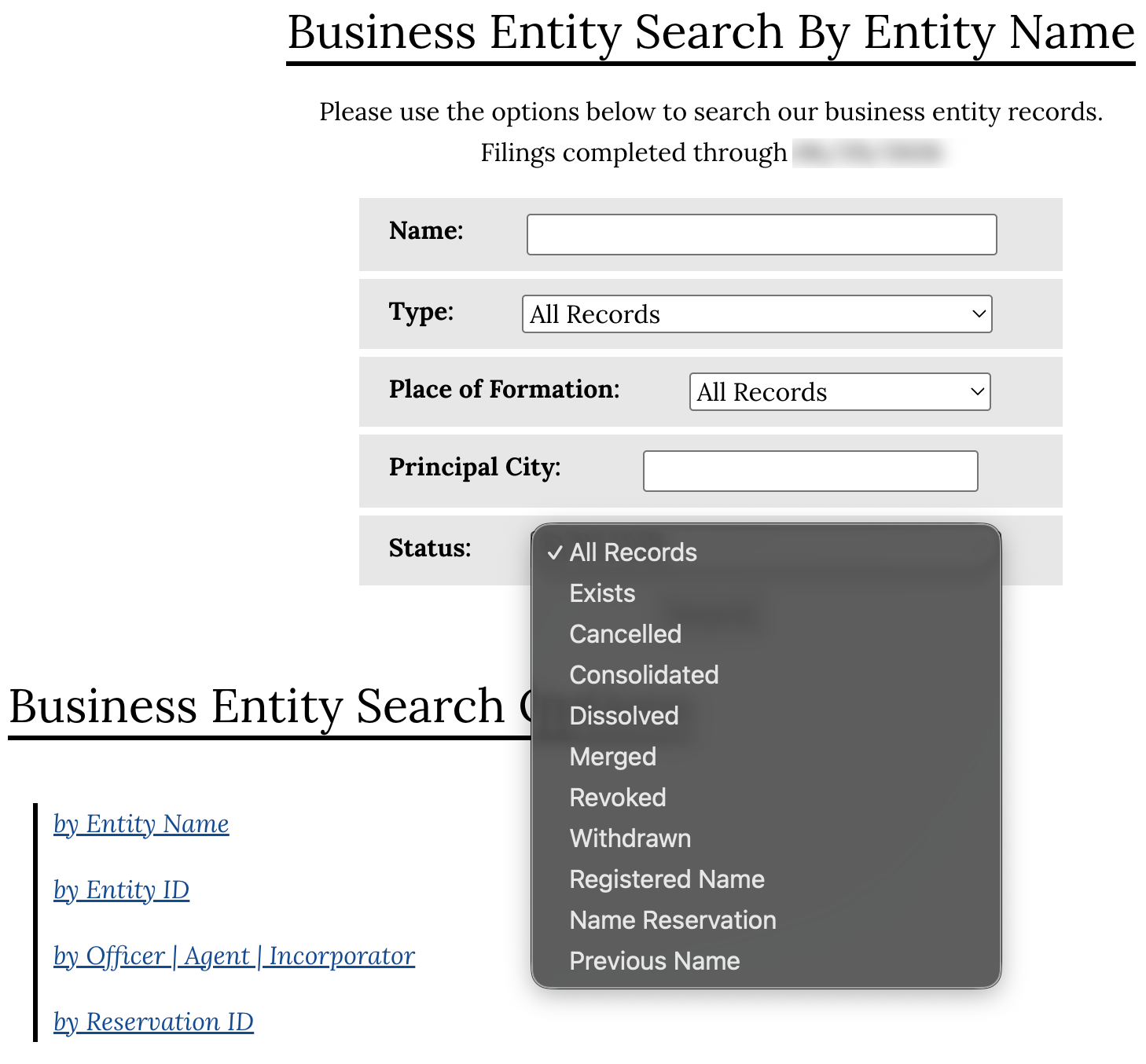
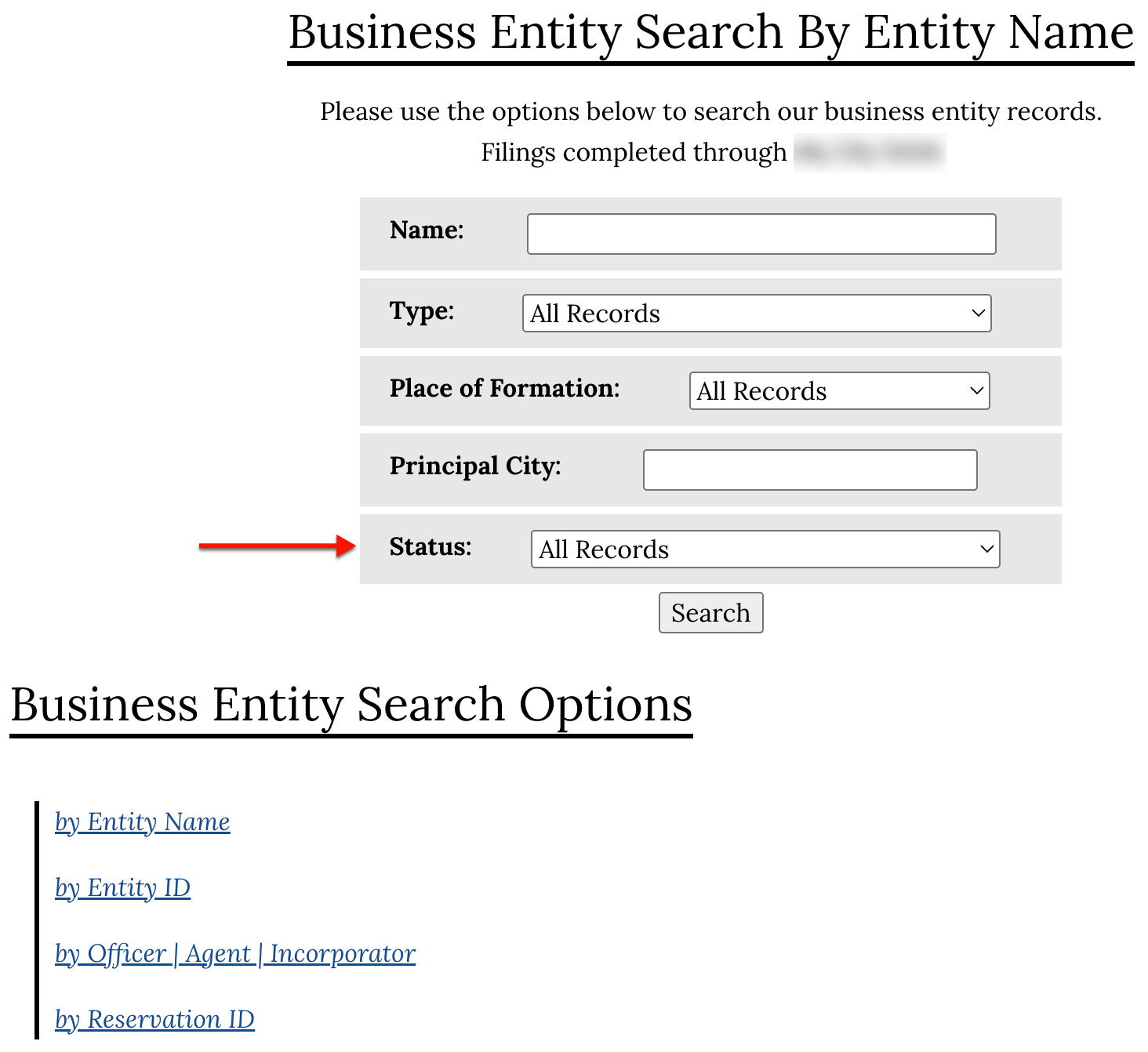
Use the final dropdown menu to require that the query show only entities with a predefined status. Make this selection to exclude all other entities from the menu (see image).
Step 7. Begin the Search
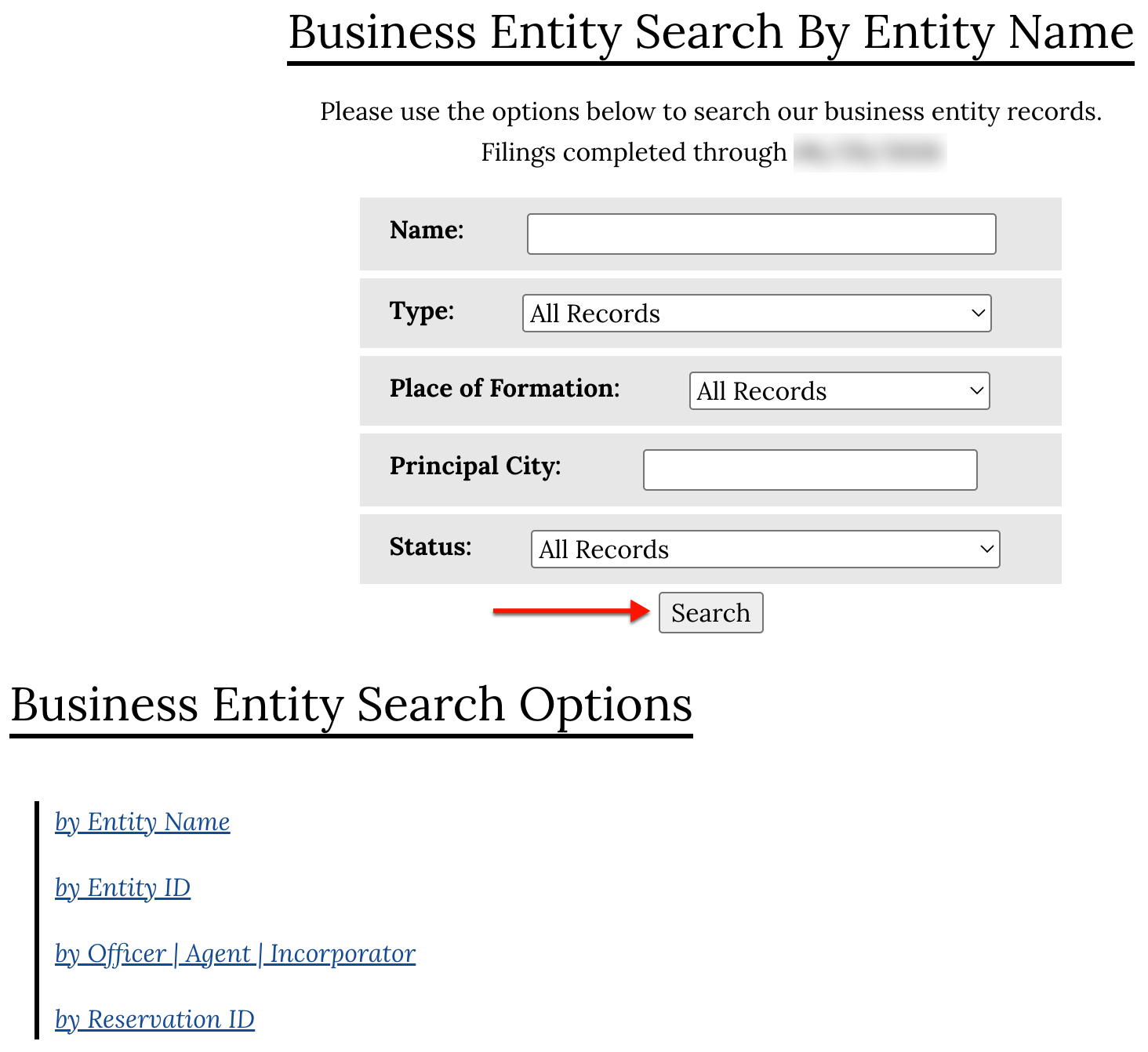
In order to engage the query, select “Search.” Upon selection, the query scans the state records for your search criteria and then displays the results according to your filter requirements.
Step 8. Reviewing the results
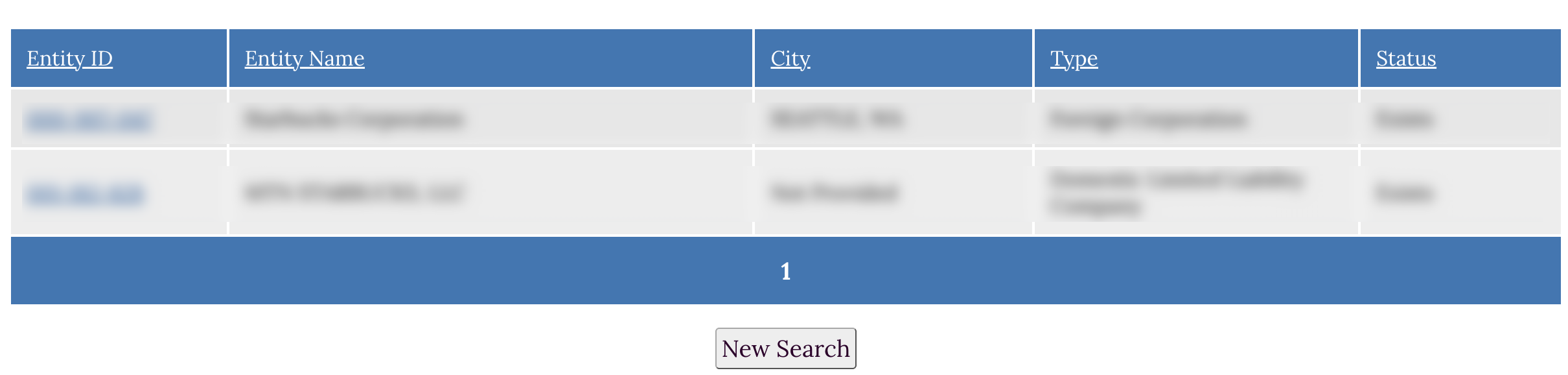
After entering the entity name and clicking the “Search” button, a list of the matching entity names will appear. Review the table contents for the target entity.
- Entity ID
- Entity Name
- City
- Type
- Status
Step 9. Choose an Entity to Examine
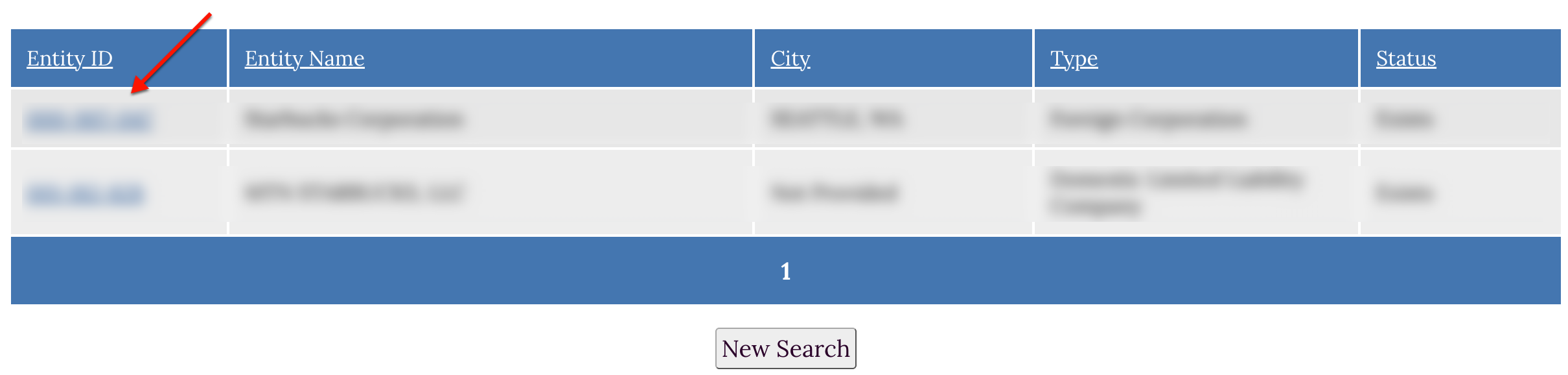
Once you identify the target entity in the results table, look for its “Entity ID.” Select the entity of interest from this column.
Step 10. Review the Business Records Details
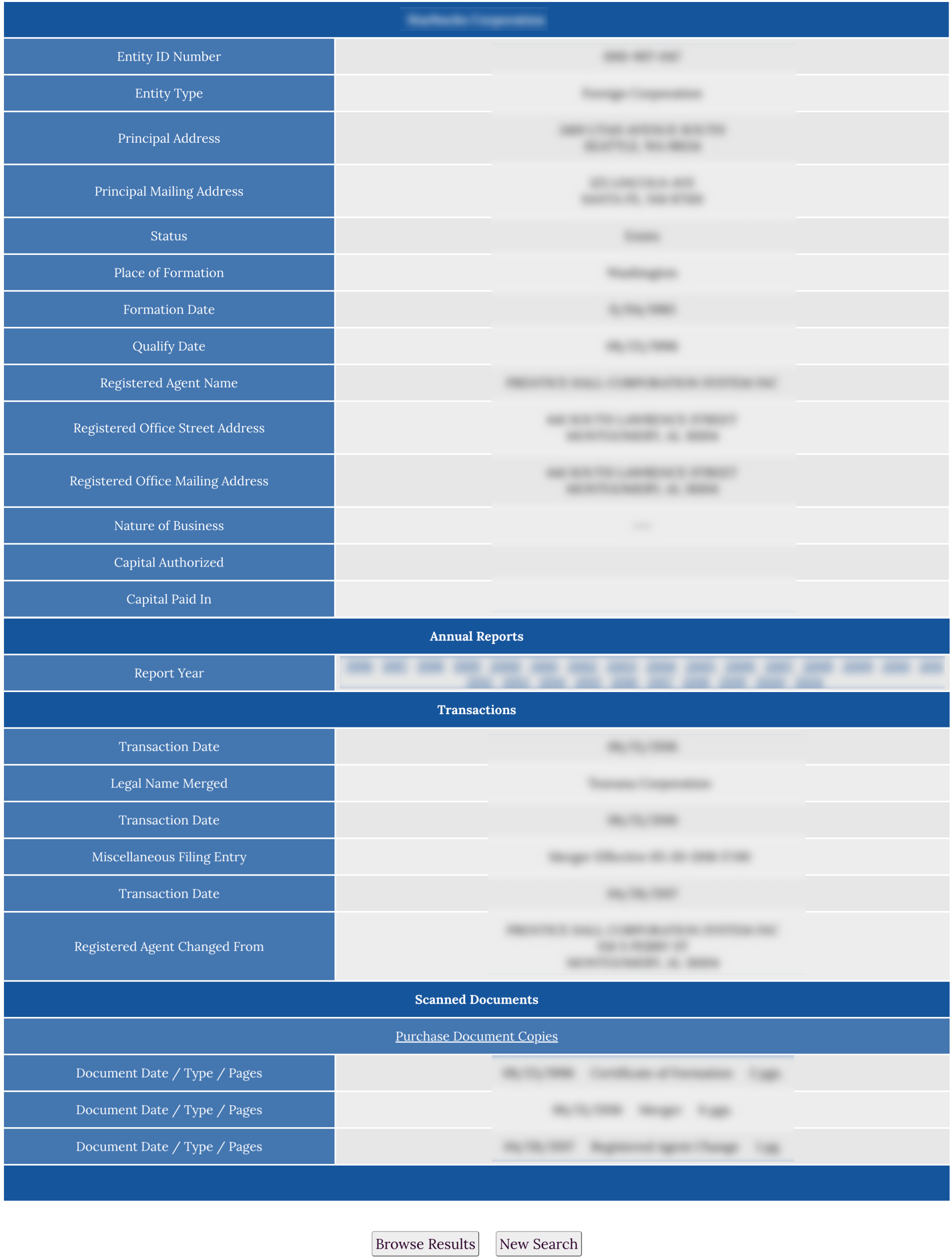
After clicking the entity number, the full record on file with the Secretary of State will be available to view, including:
- Entity ID Number;
- Entity Type;
- Principal Address;
- Status;
- Place of Formation;
- Formation Date;
- Qualify Date (if any);
- Registered Agent Name;
- Registered Office Street Address;
- Registered Office Mailing Address;
- Nature of Business (if any);
- Capital Authorized (if any);
- Capital Paid In (if any);
- Annual Reports – by Year (see sample);
- Transactions; and
- Scanned Documents