The Washington Secretary of State business entity search is a free query tool the state provides for users to research entity records. Such records contain the public information the state may dispense regarding a business entity and are available onscreen for free. Additionally, visitors can run the query as often as necessary to find the record information they seek.
Business Name Availability Check
State of Washington

Business Entity Search
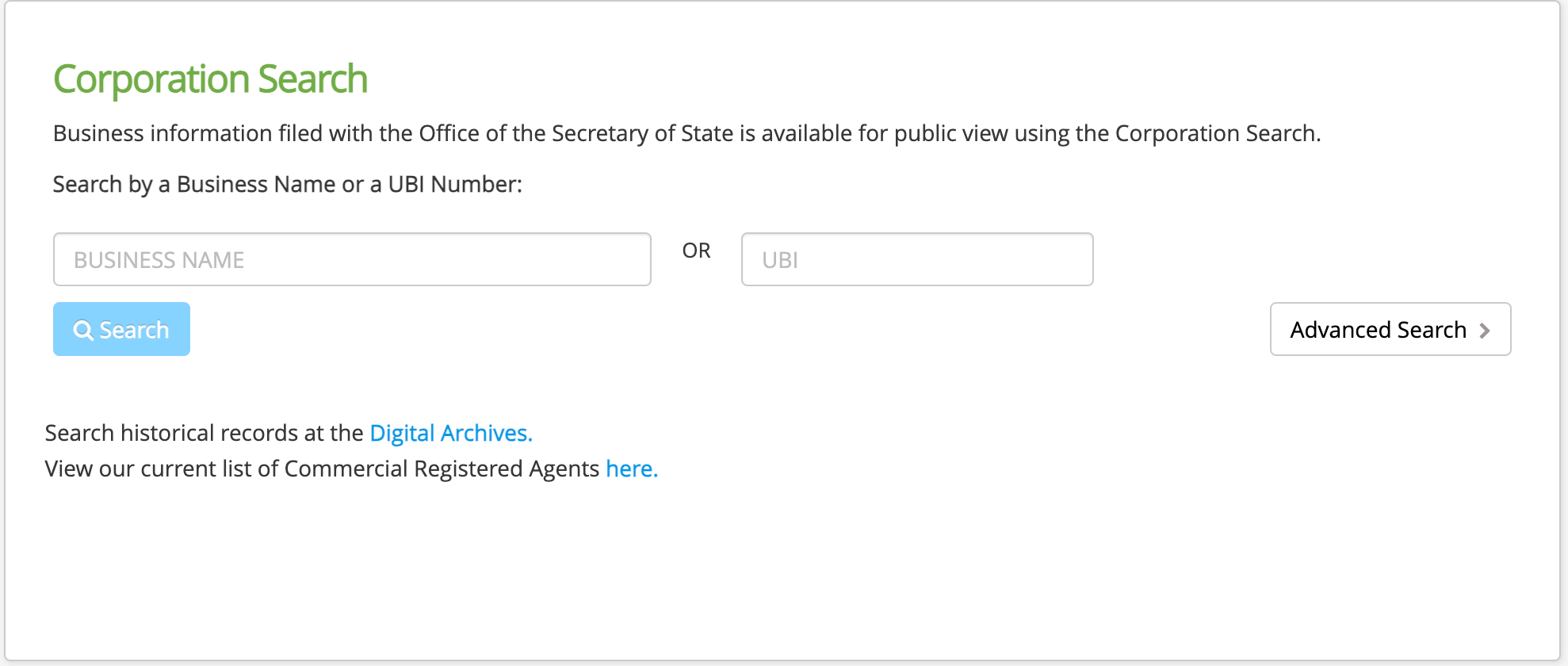
Step 1. Go to the Washington Corporation Search Page
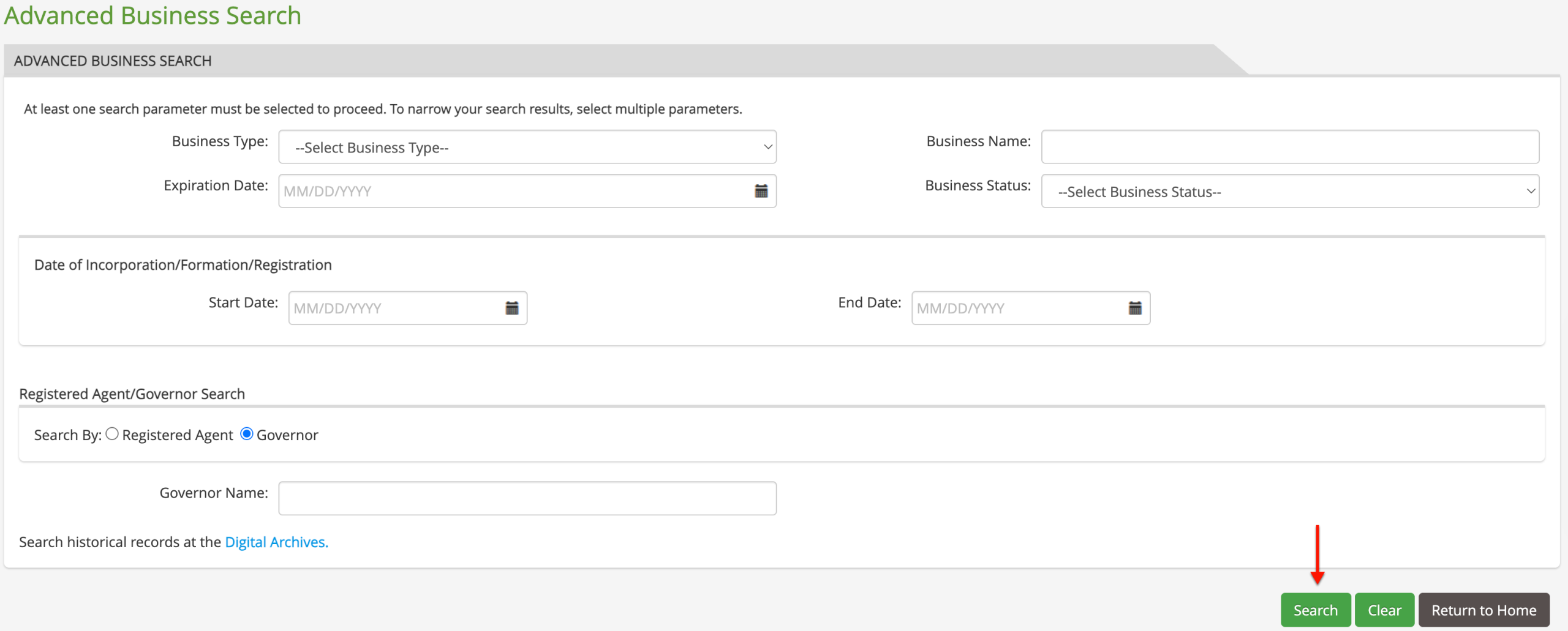
Find the business entity search page on the corporation search page. From here, you may search for a business name with or without filters.
Step 2. Search for a Business Name or Phrase
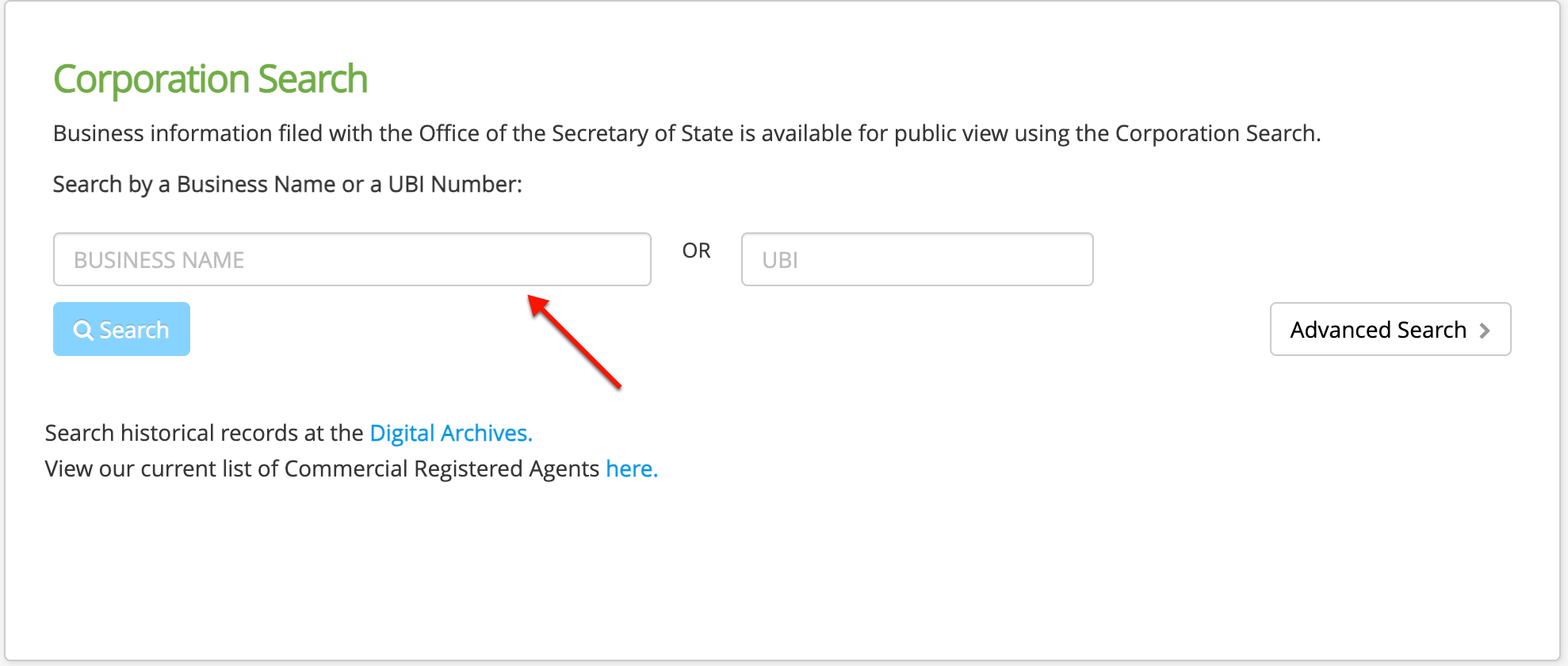
Enter the name of a business in the first text box. If a full name is unknown, then use part of one or keywords. However, general phrasing may generate too many results.
Step 3. Conduct a Basic Corporation Search
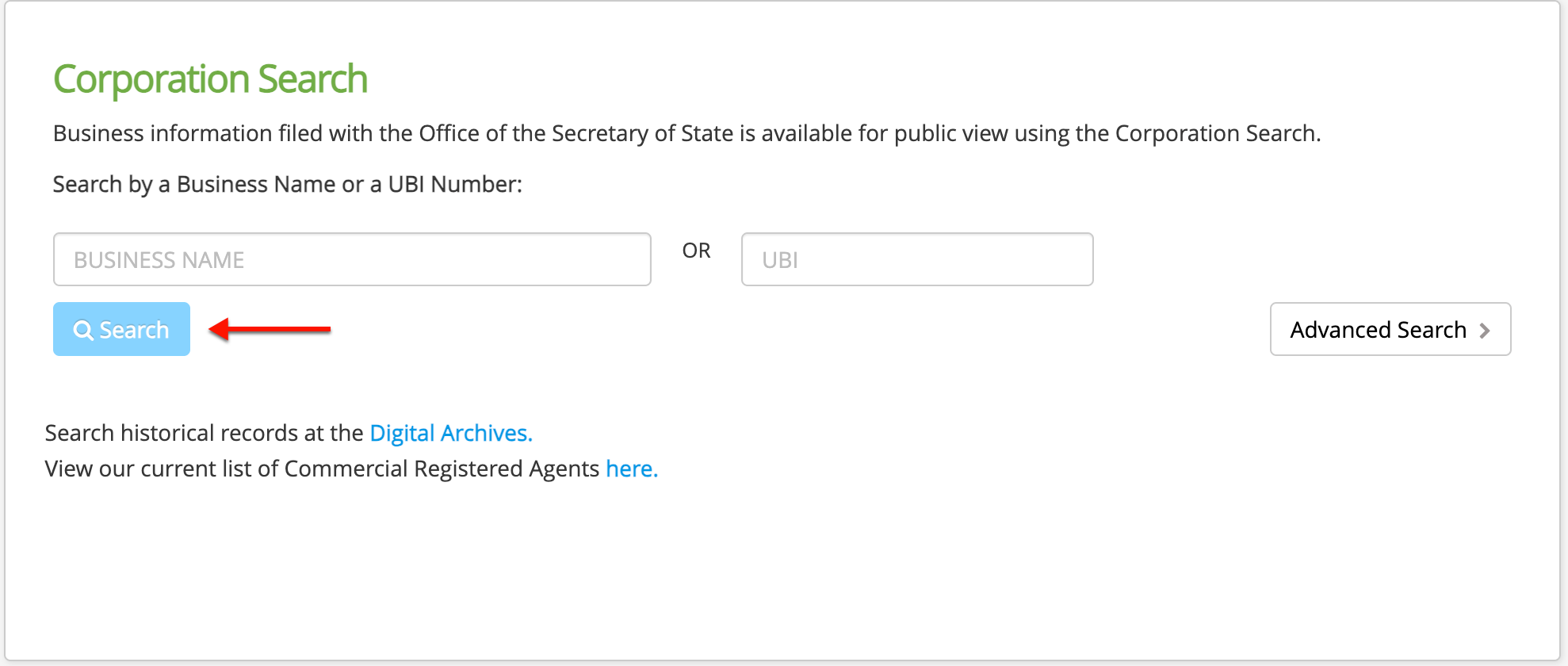
To run a search with only one criterion, locate the “Search” button and select it then go to Step 14. However, to run an advanced search, proceed to the next step.
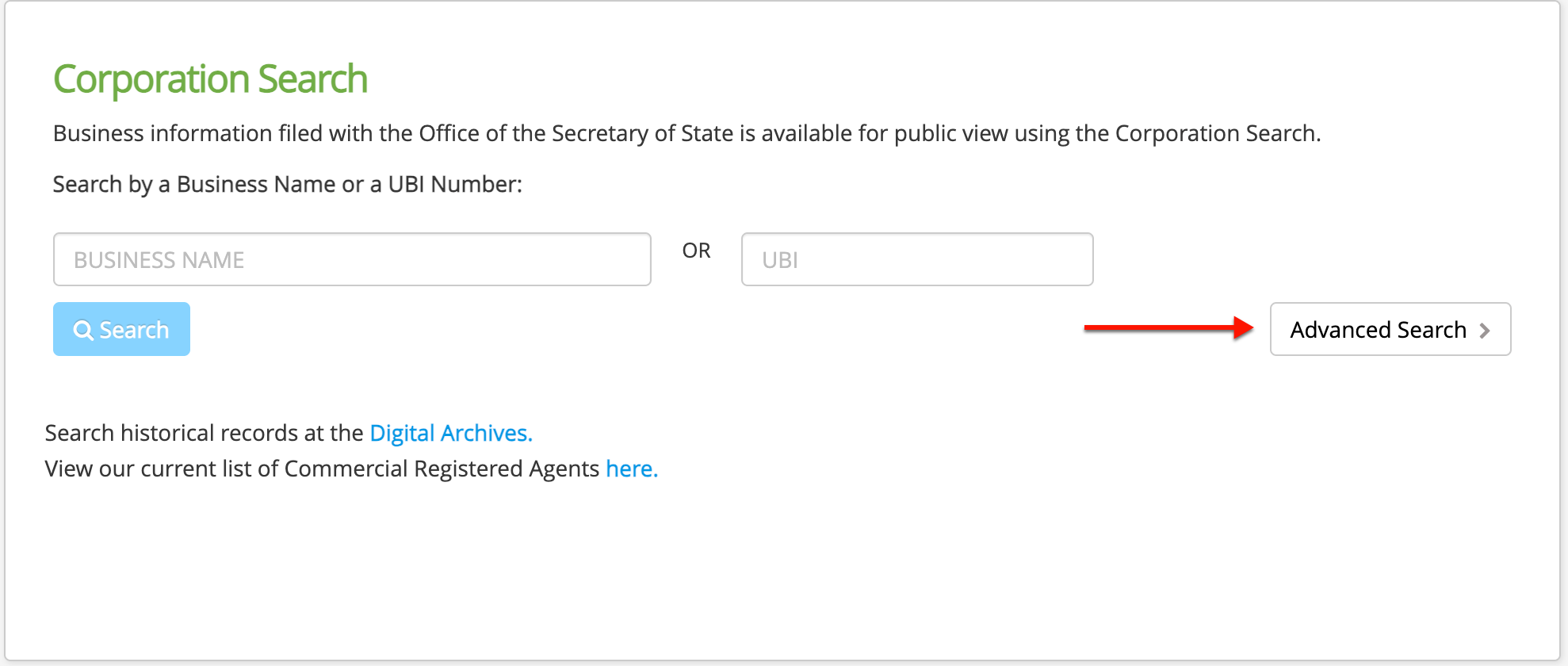
Step 4. Enable Advanced Criteria Requirements
Step 5. Assess Filter Options
Look through the sections making up the advanced search screen. Notice that at least one filter or requirement must accompany the search phrase to continue.
- Business Type
- Business Name
- Expiration Date
- Business Status
- Date of Incorporation/Formation/Registration
- Start Date
- End Date
- Registered Agent/Governor Search
- Registered Agent Name
- Agent Address
- Country
- Address 1
- Address 2
- Zip
- City
- State
- Search
- Clear
- Return to Home
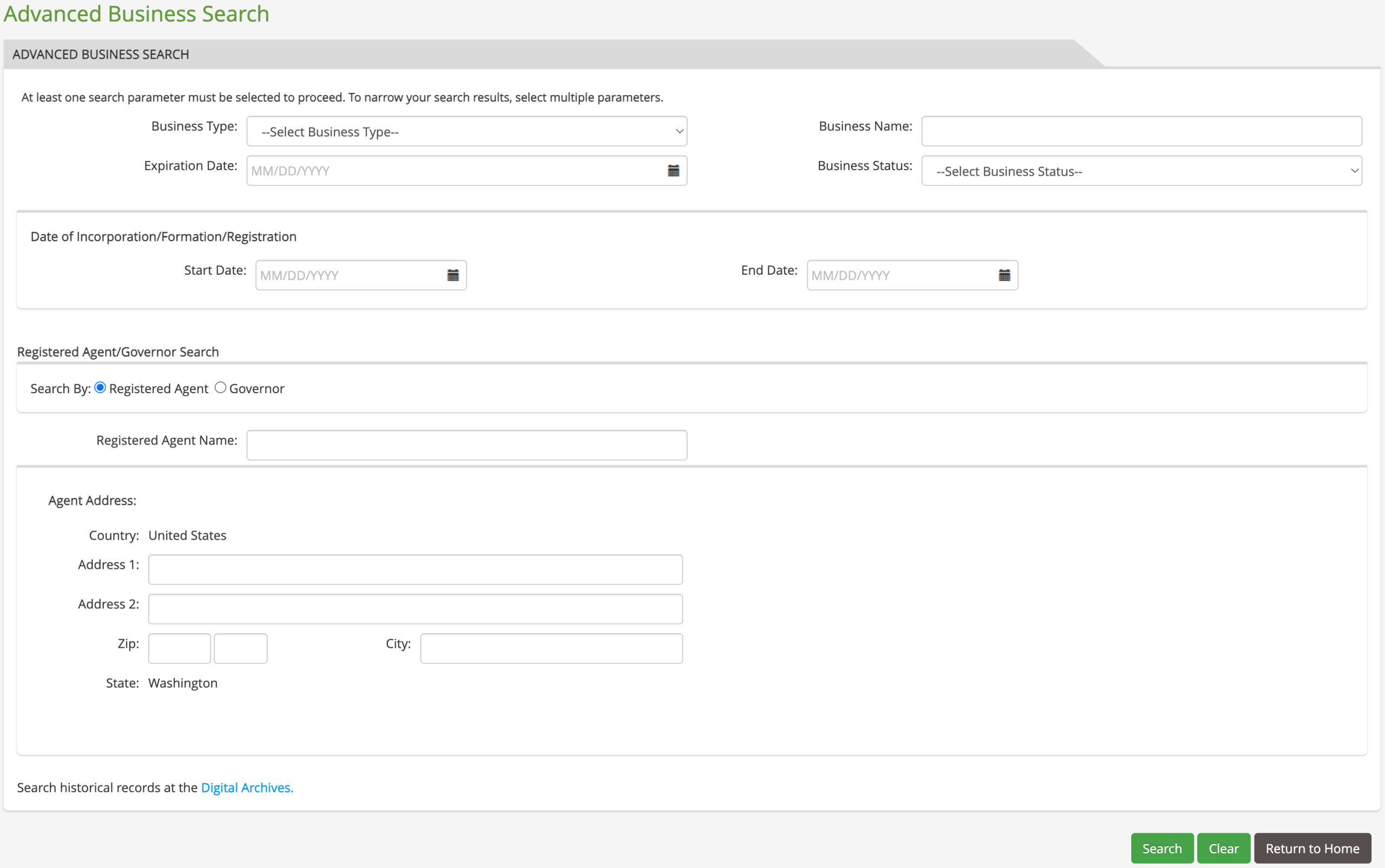
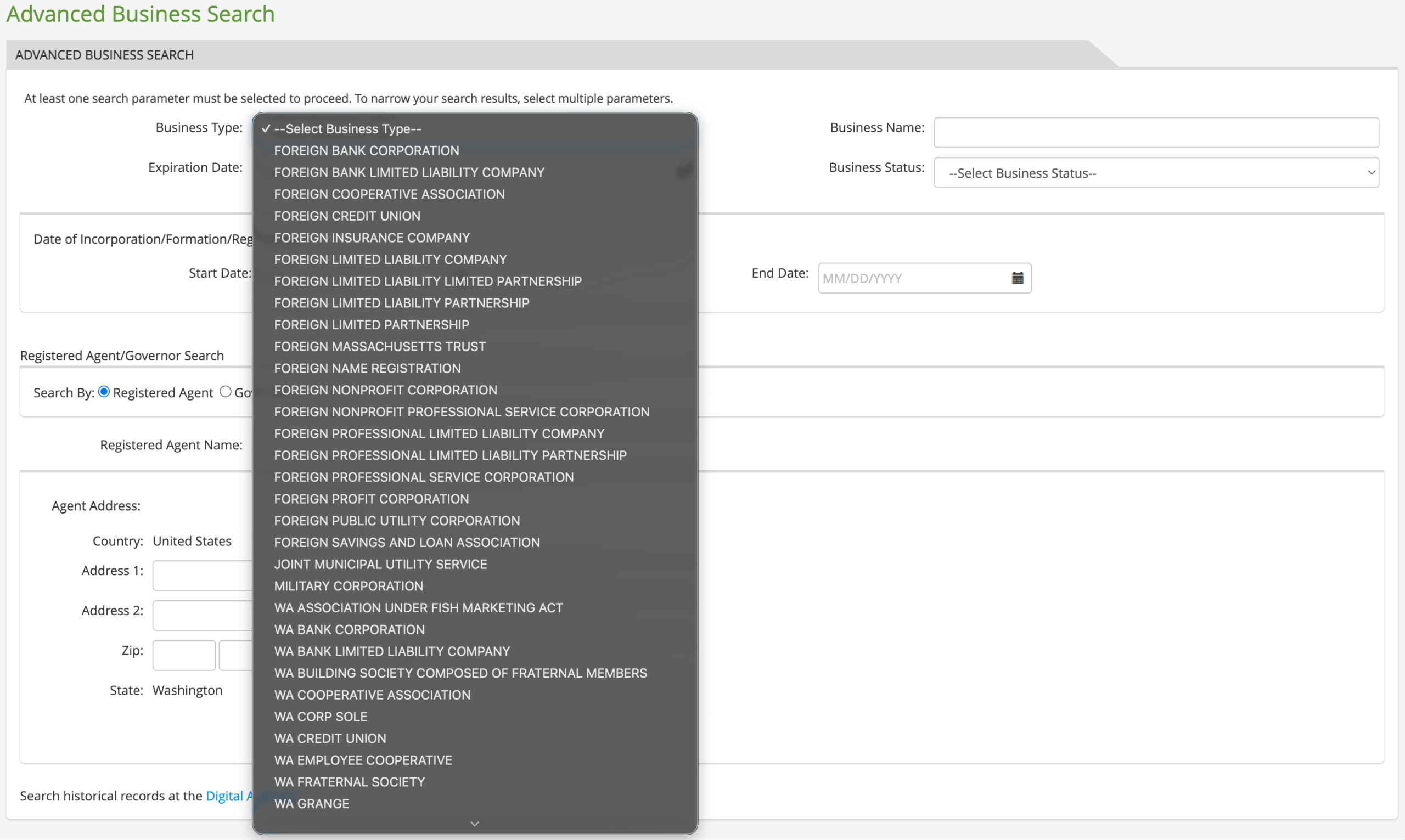
Step 6. Select the Business Type
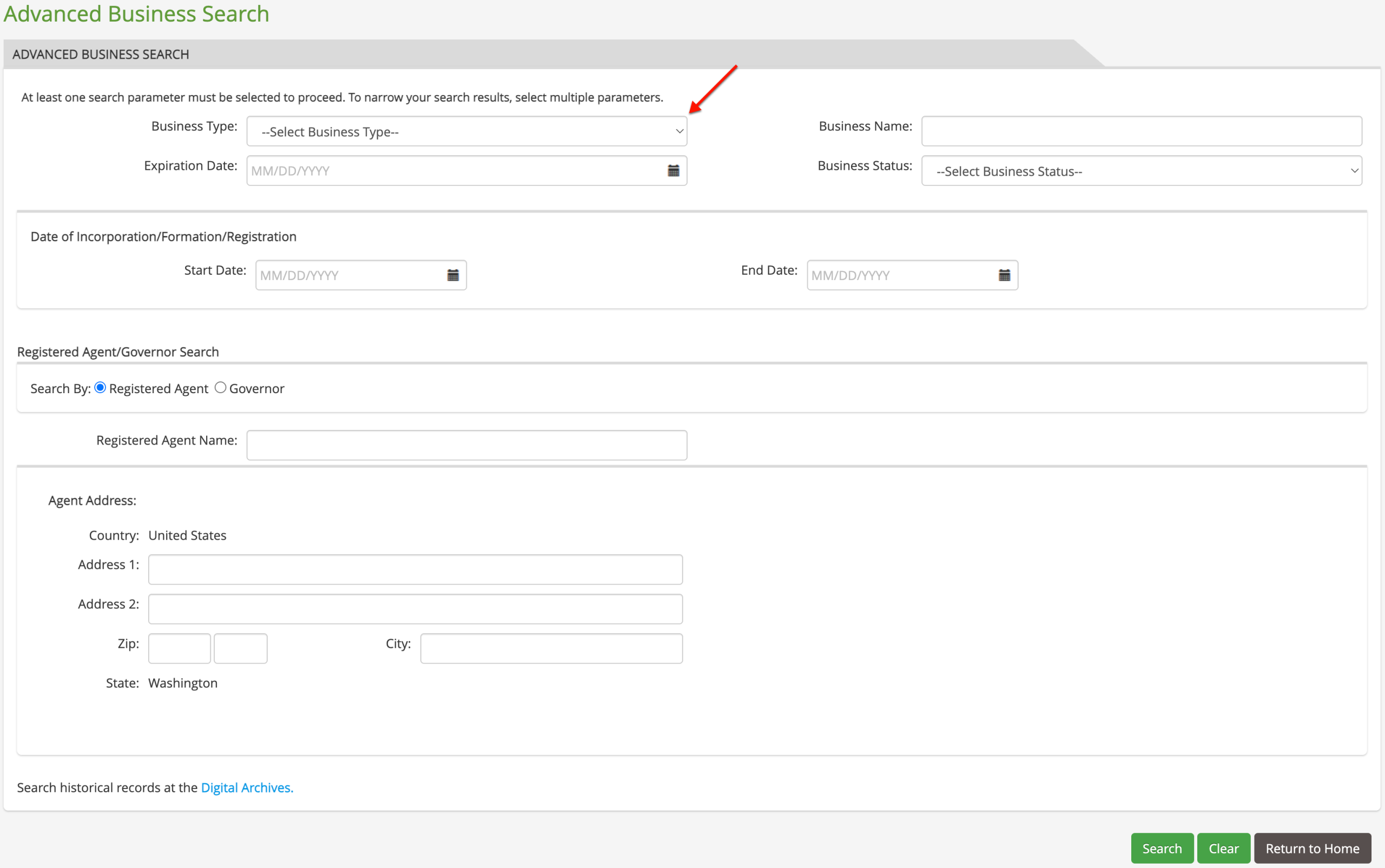
Focus the query to find a specific type of entity while ignoring others. Select the entity type you want to find from the “Business Type” drop-down (see image) for this feature.
Step 7. Seek a Business Name
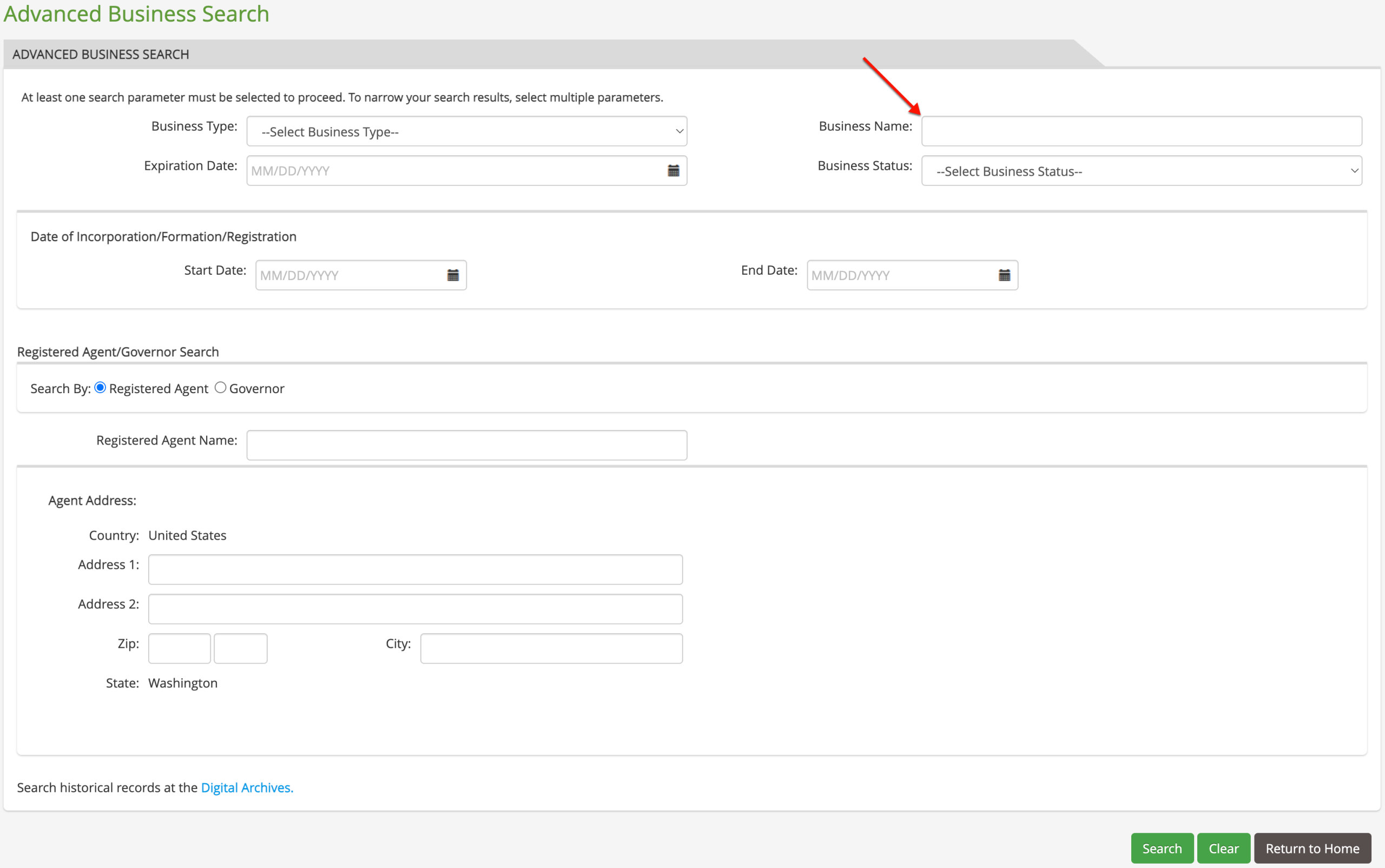
Find the “Business Name” field, then supply it with the name of the business you seek. While simply inputting a keyword is acceptable, a specific name keeps results focused.
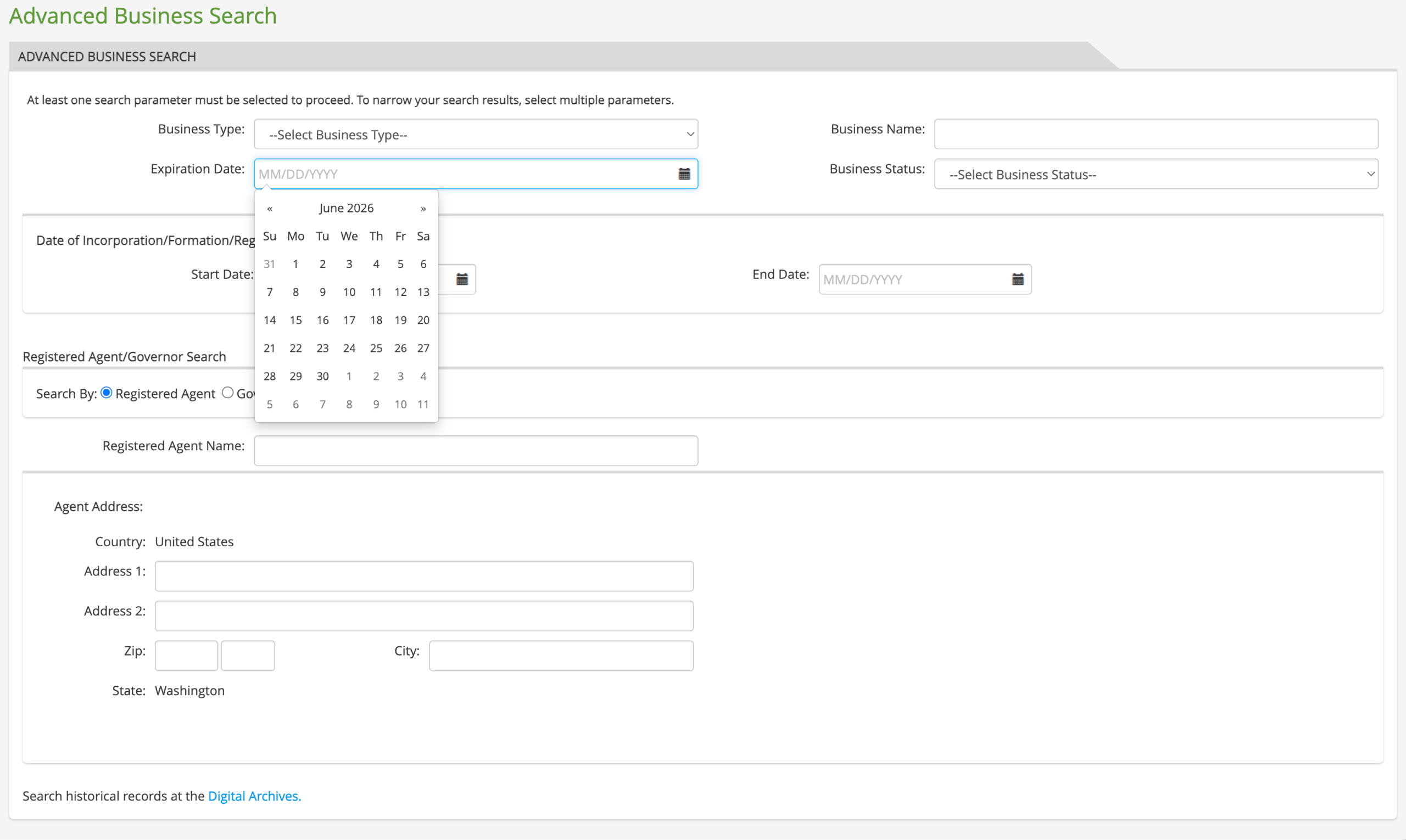
Step 8. Attach an Expiration Date
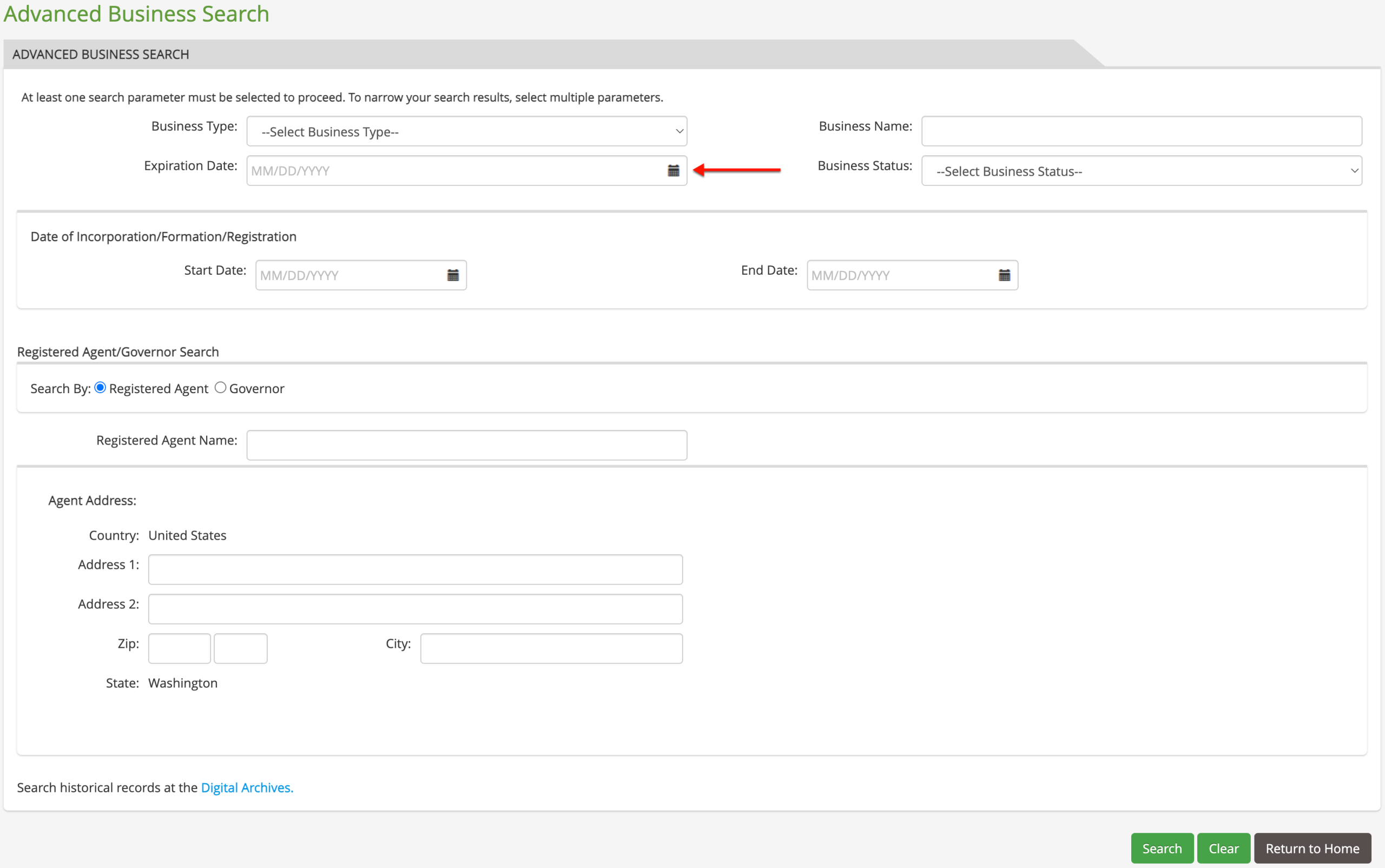
Narrow the number of matching records returned by attaching an “Expiration Date” requirement to the target entity. Choose this date from the calendar tool (see example).
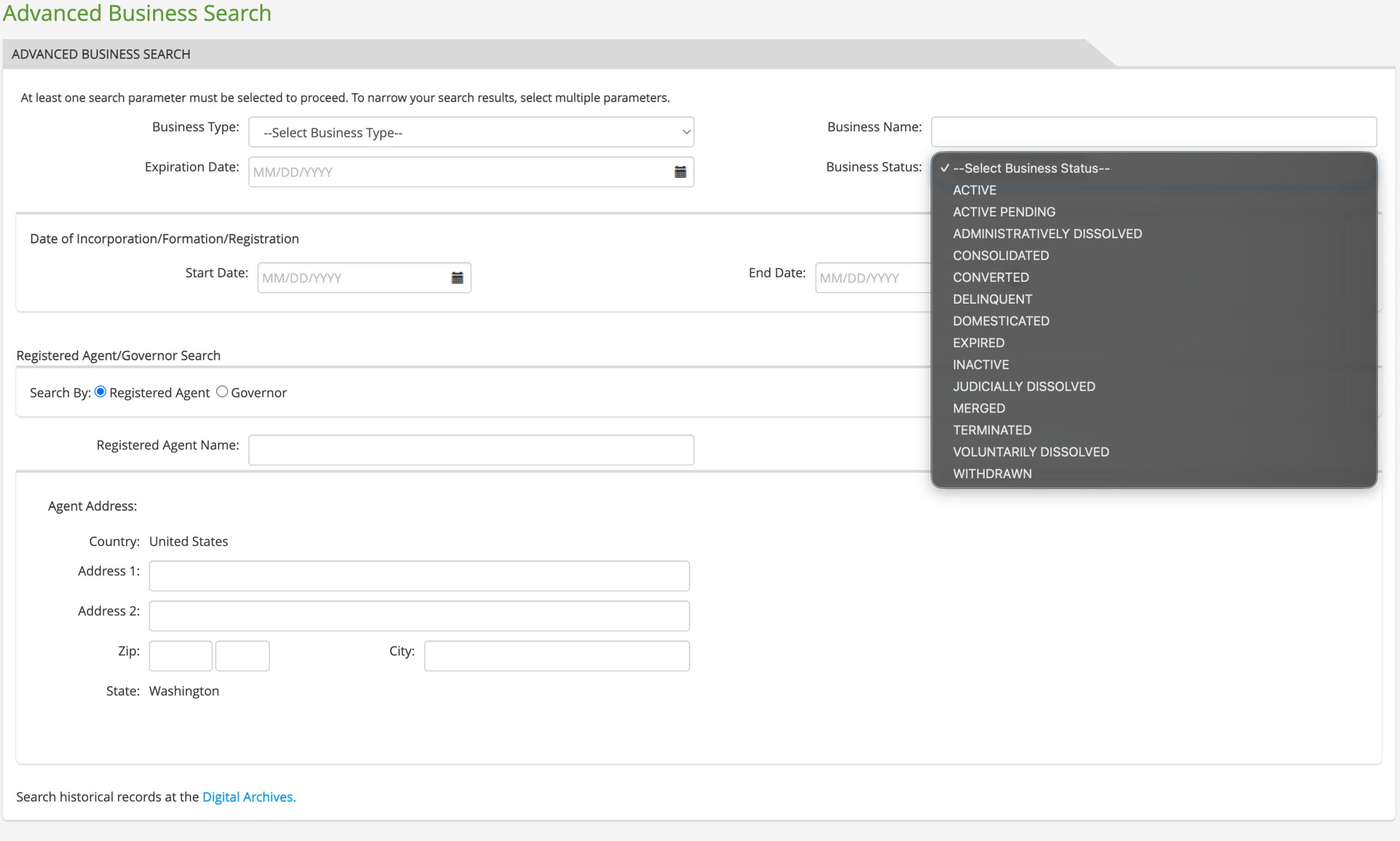
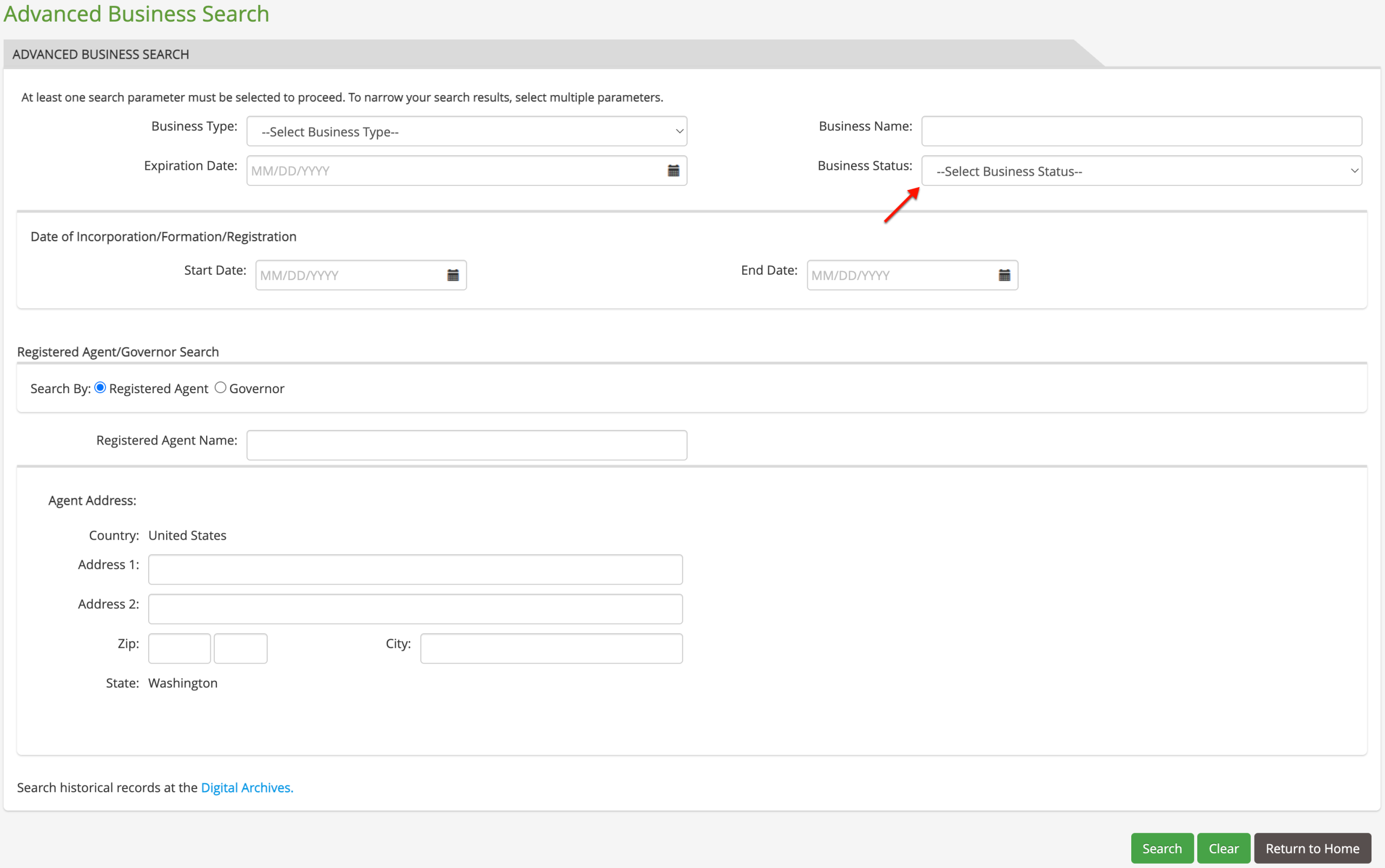
Step 9. Filter by Business Status
Refer to your notes. If the status of the target business is known, then use it to filter out entities with a different status (see image).
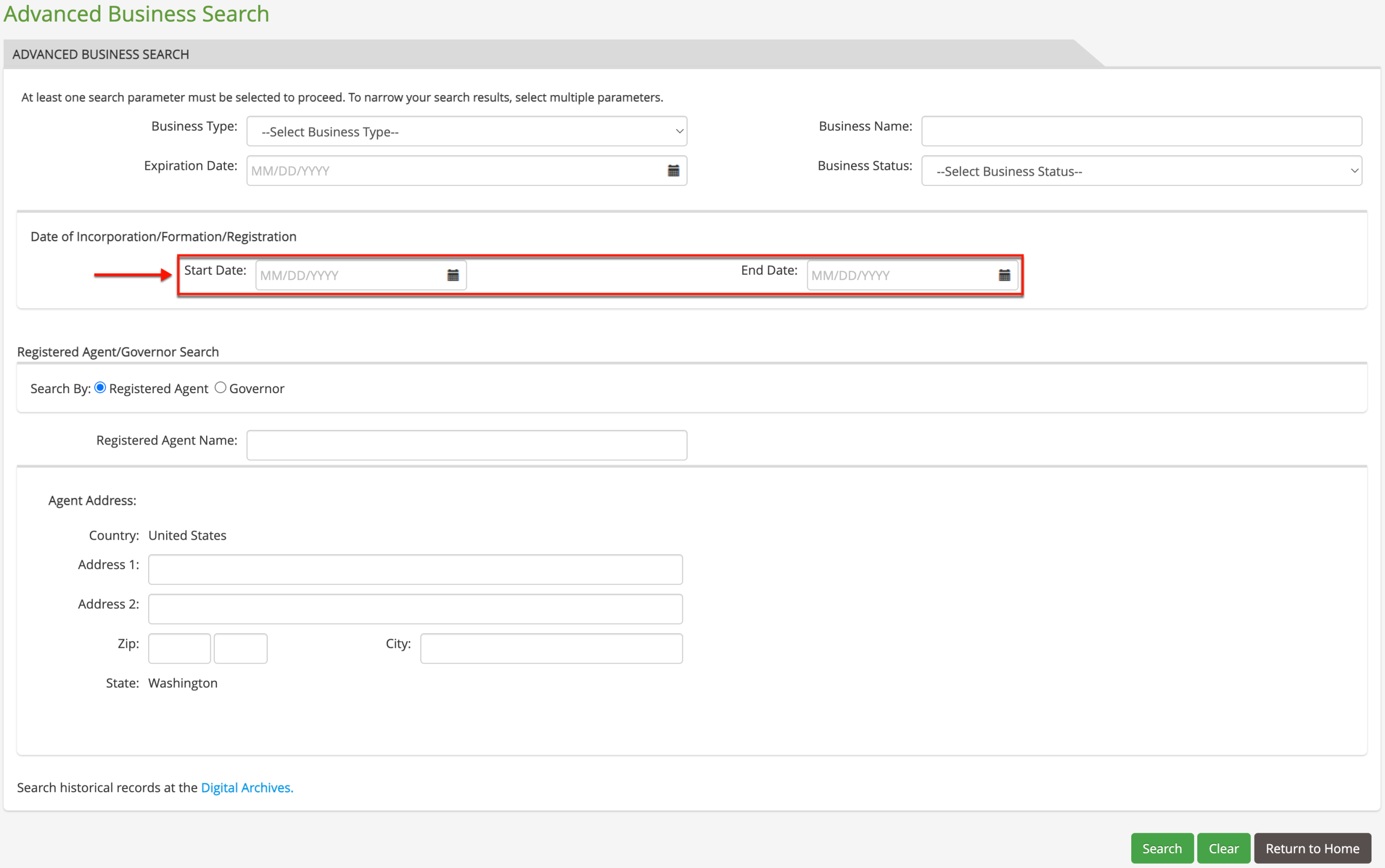
Step 10. Require Specific Date For the Entity’s Origin
Locate the “Date of Incorporation/Formation/Registration” calendar tool. Use this to narrow results by attaching the target business’s formal (on-file) date of origin. This requires that only entities with this origin date appear in results.
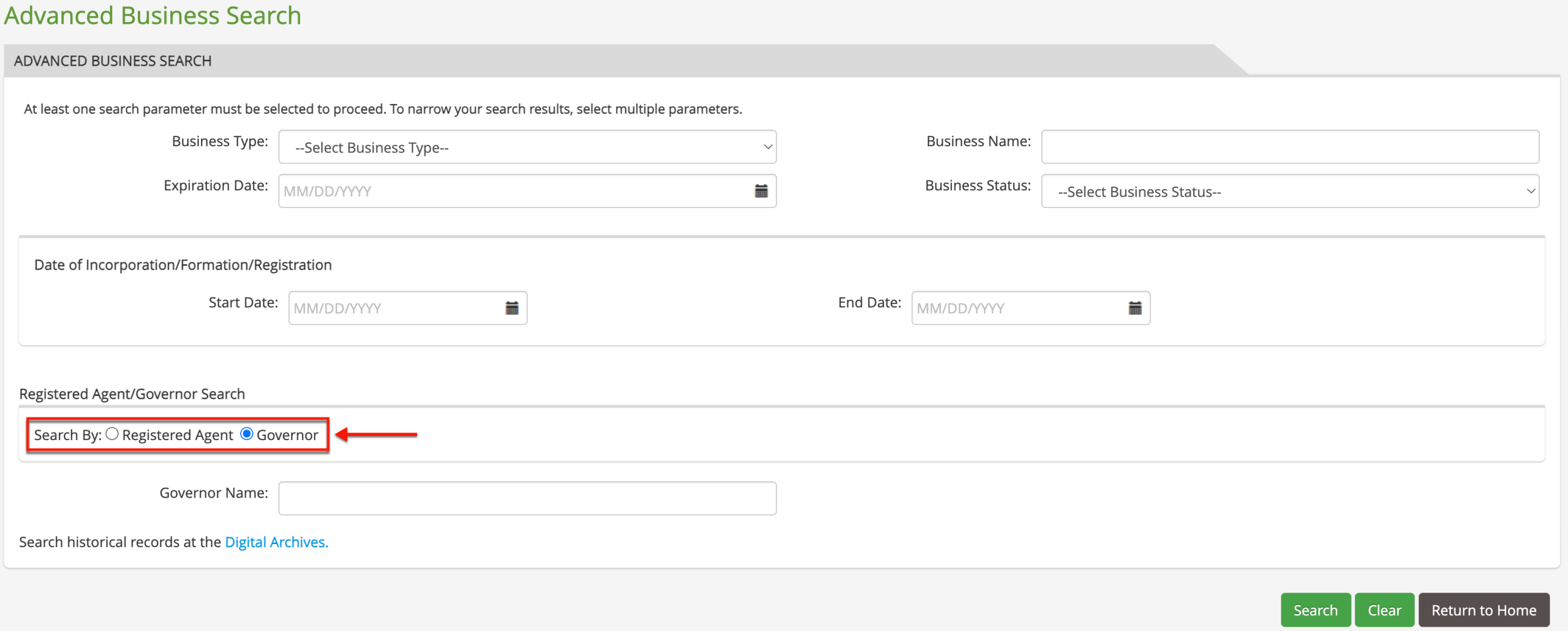
Step 11. Filter by Registered Agent or Governor
Optionally, require entities with a specific registered agent or governor in the results. Select the appropriate radio button for this task. For our purpose, select “Governor.”
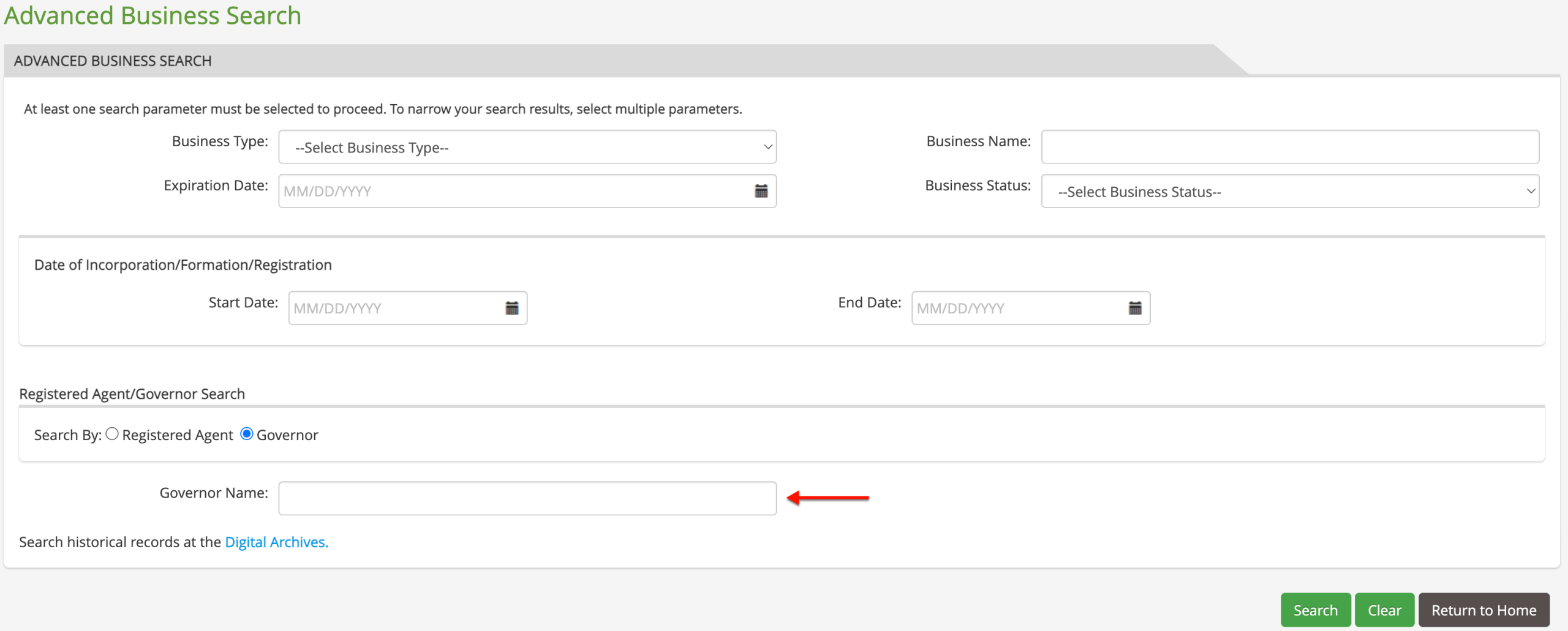
Step 12. Provide Governor Identity
Type in the full name of the owner, governing member, or officer of the target business in the textbox provided. This sets the query to discount entities that do not have this individual in a significant position.
Step 13. Run the Search with Advanced Parameters
Complete this area by initiating the search. Find and click on the “Search” button to continue.
Step 14. Look Over Business Search Results
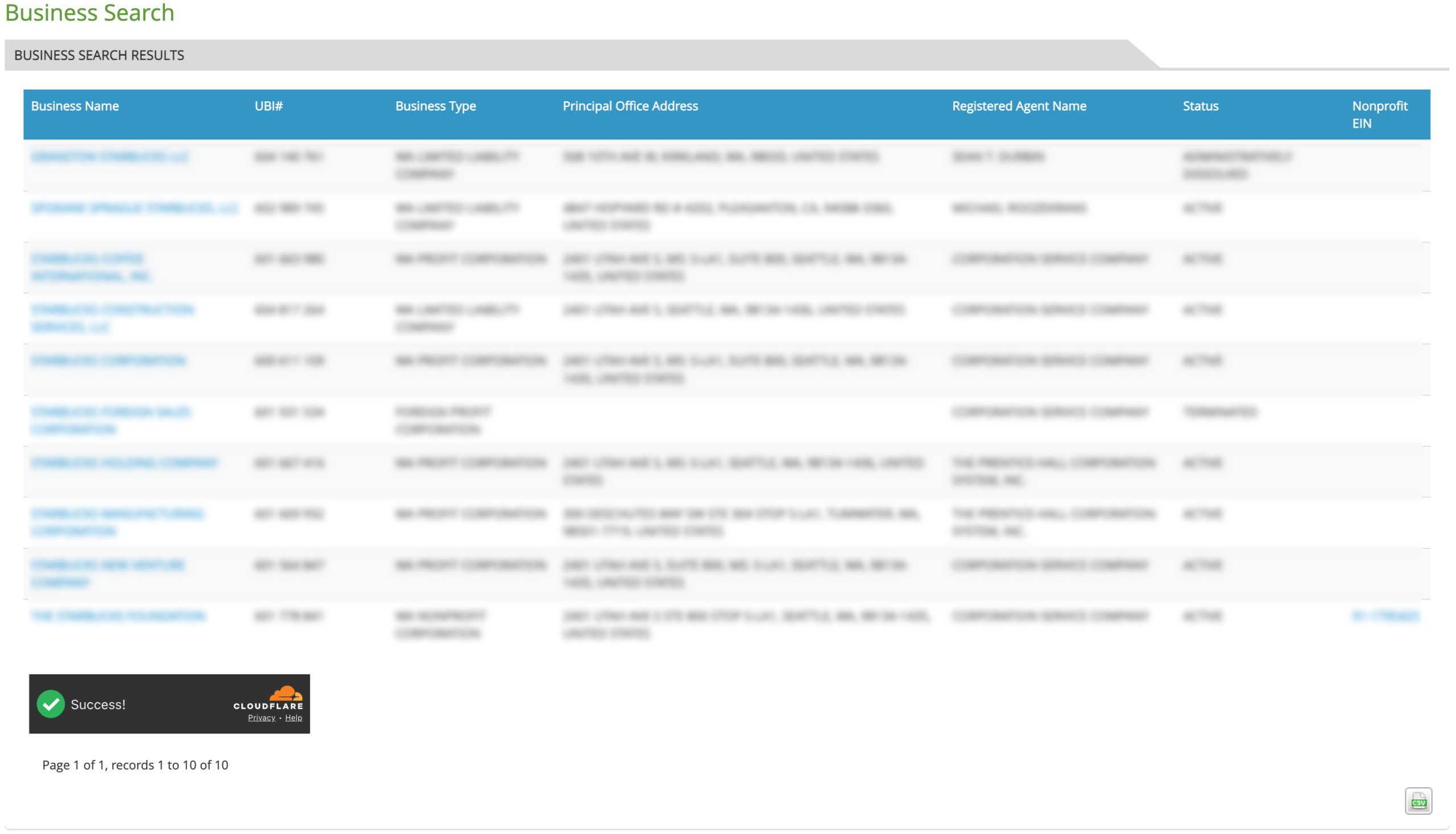
Now that the “Business Search Results” table is on screen, take a moment to scroll through its content. Look for the business name of interest in the first column.
- Business Name
- UBI#
- Business Type
- Principal Office Address
- Registered Agent Name
- Status
- Nonprofit EIN
Step 15. Examine a Specific Entity
Zero in on the business you want to learn about. Locate this name in the first column and click on it to access that entity’s page.
Step 16. Review the Business Information Sections
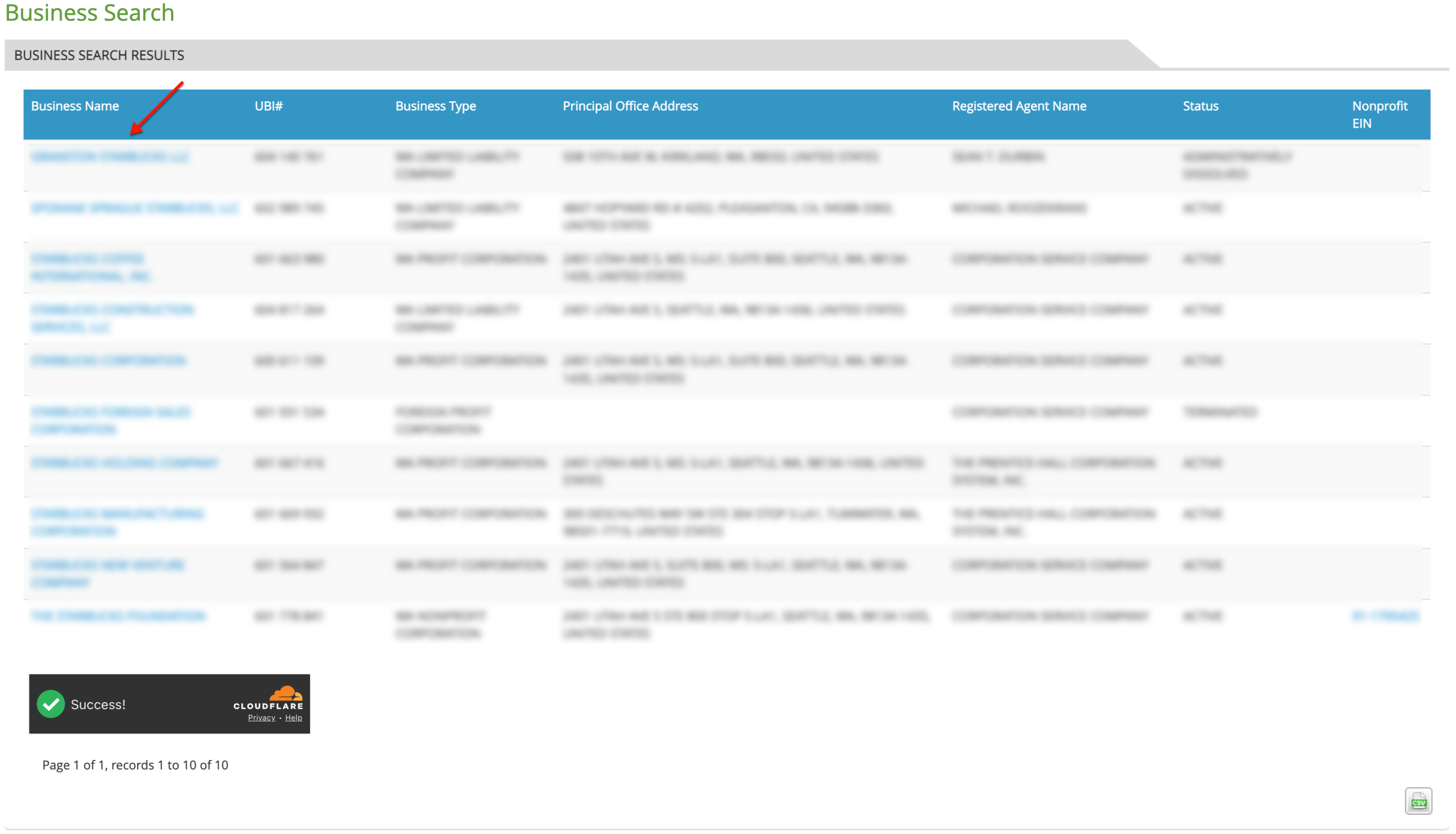
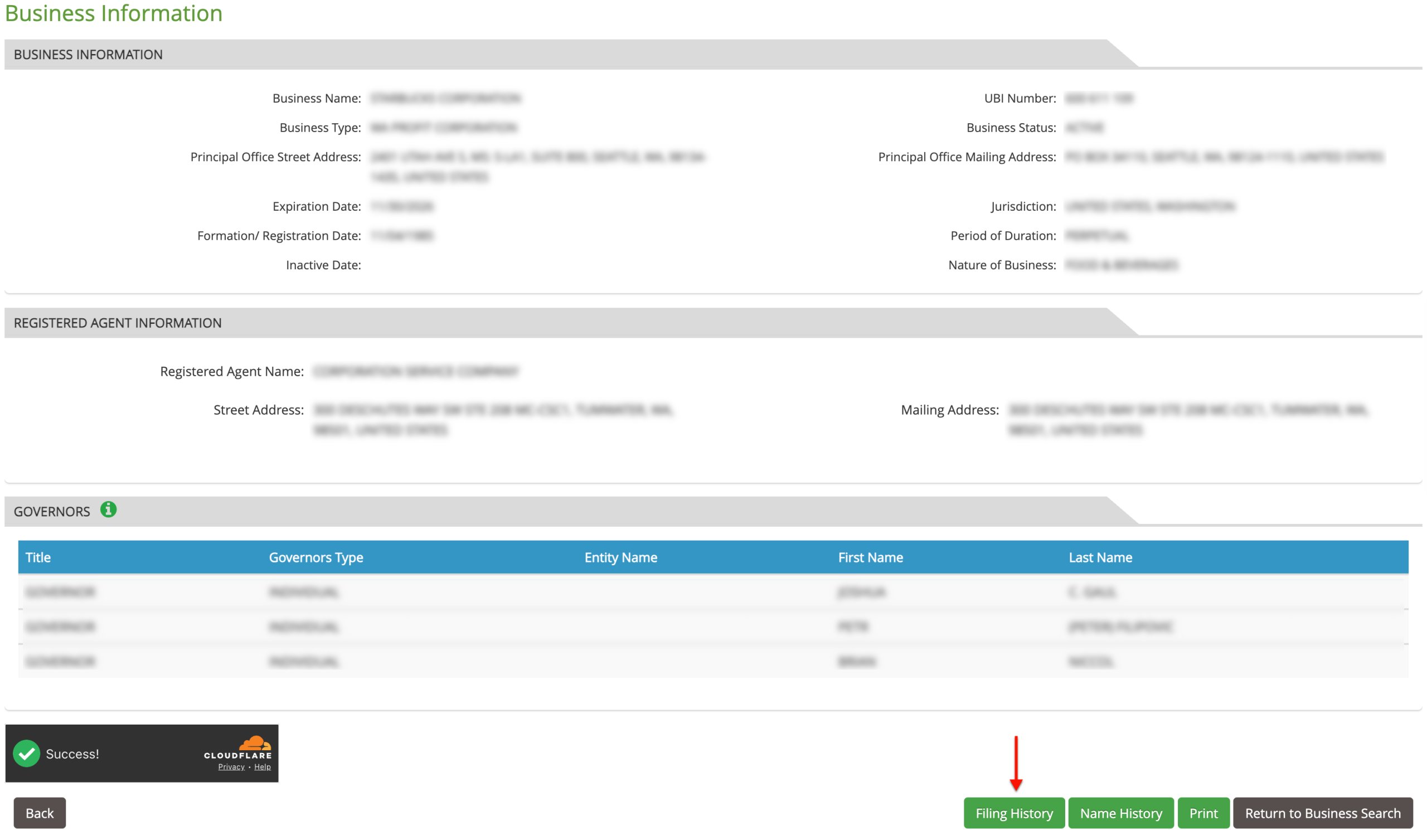
The Washington “Business Information” page presents several sections of information. Research each one for information.
- Business Information
- Business Name
- UBI Number
- Business Type
- Business Status
- Principal Office Street Address
- Principal Office Mailing Address
- Expiration Date
- Jurisdiction
- Formation/Registration Date
- Inactive Date
- Nature of Business
- Registered Agent Information
- Registered Agent Name
- Street Address
- Mailing Address
- Governors
- Title
- Governors Type
- Entity Name
- First Name
- Last Name
- Filing History
- Name History
- Return to Business Search
Step 17. Look Through Filing History
Access the state filings from the entity. Click on “Filing History” in order to see a summary of this paperwork as it appears in the records and view it onscreen.
Step 18. View Document Filings
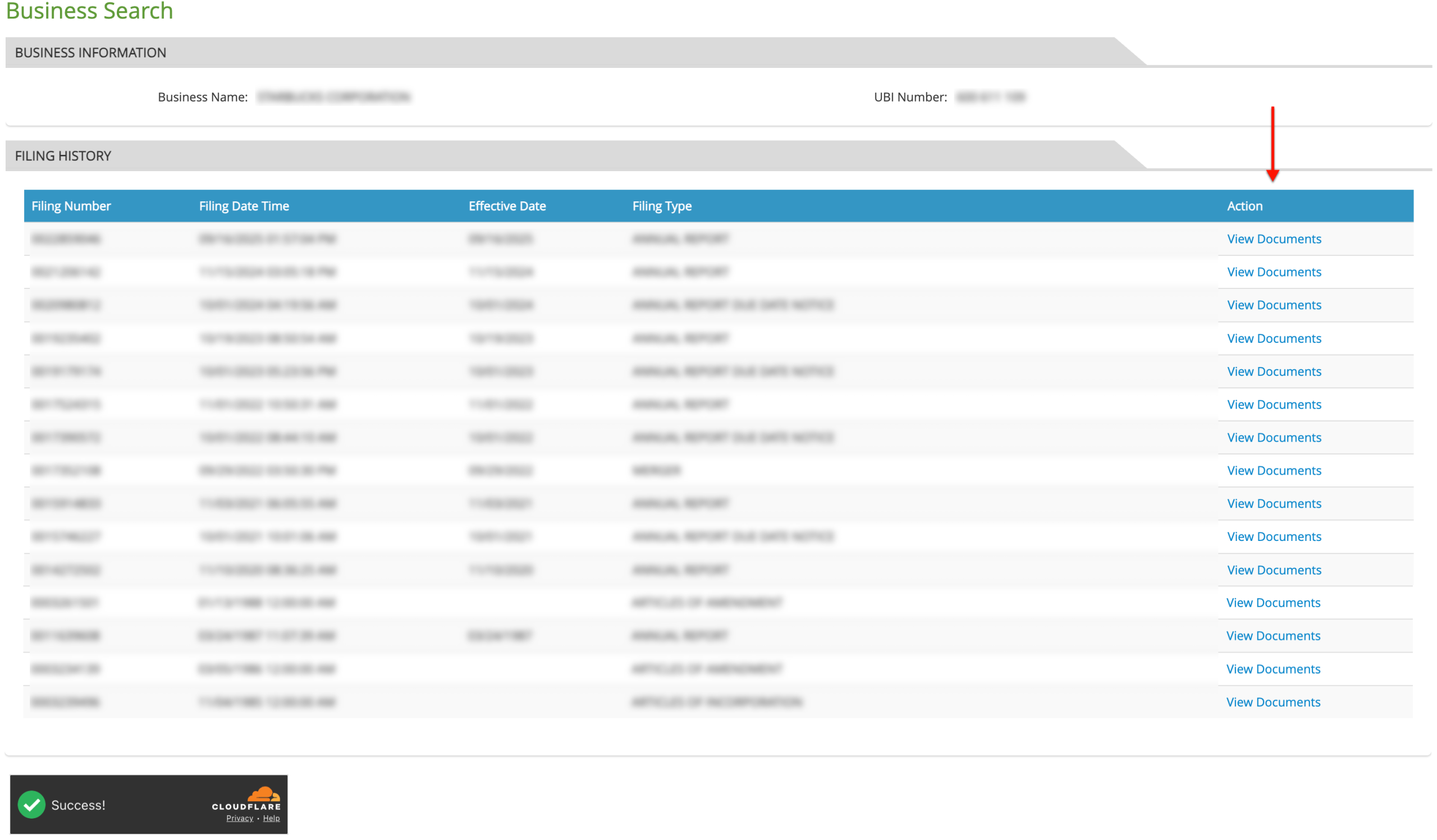
Review the document records the entity has on file with the state. To view the paperwork, select “View Documents” from the last column. Select “Back” to return.
- Business Information
- Business Name
- UBI Number
- Filing History
- Filing Number
- Filing Date Time
- Effective Date
- Filing Type
- Action
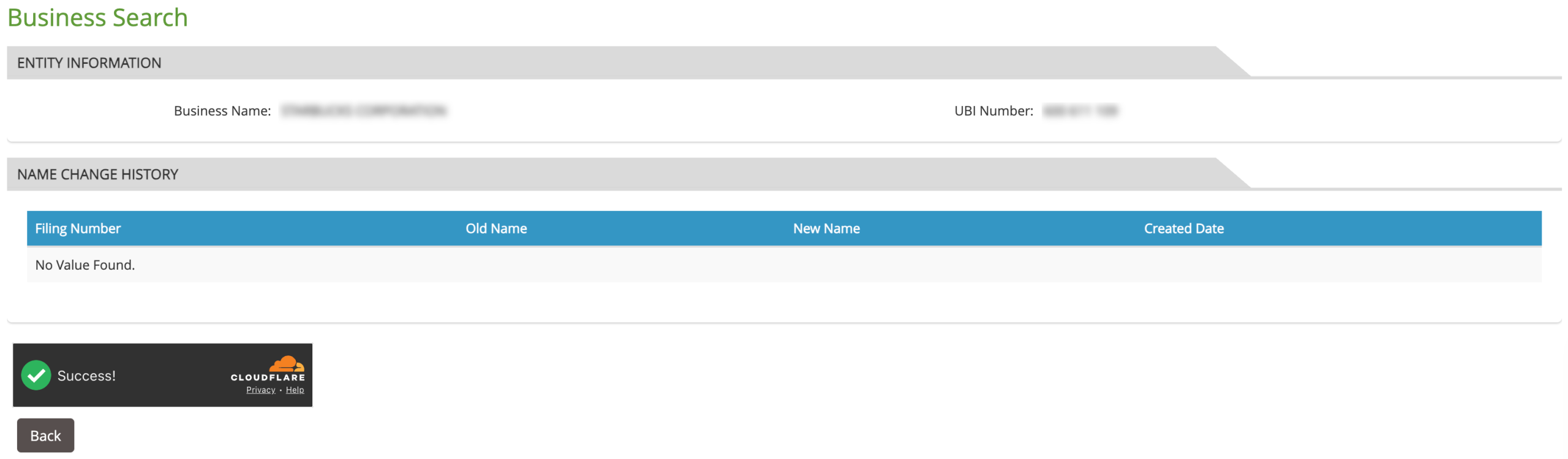
Step 19. Discover the Entity’s Name History
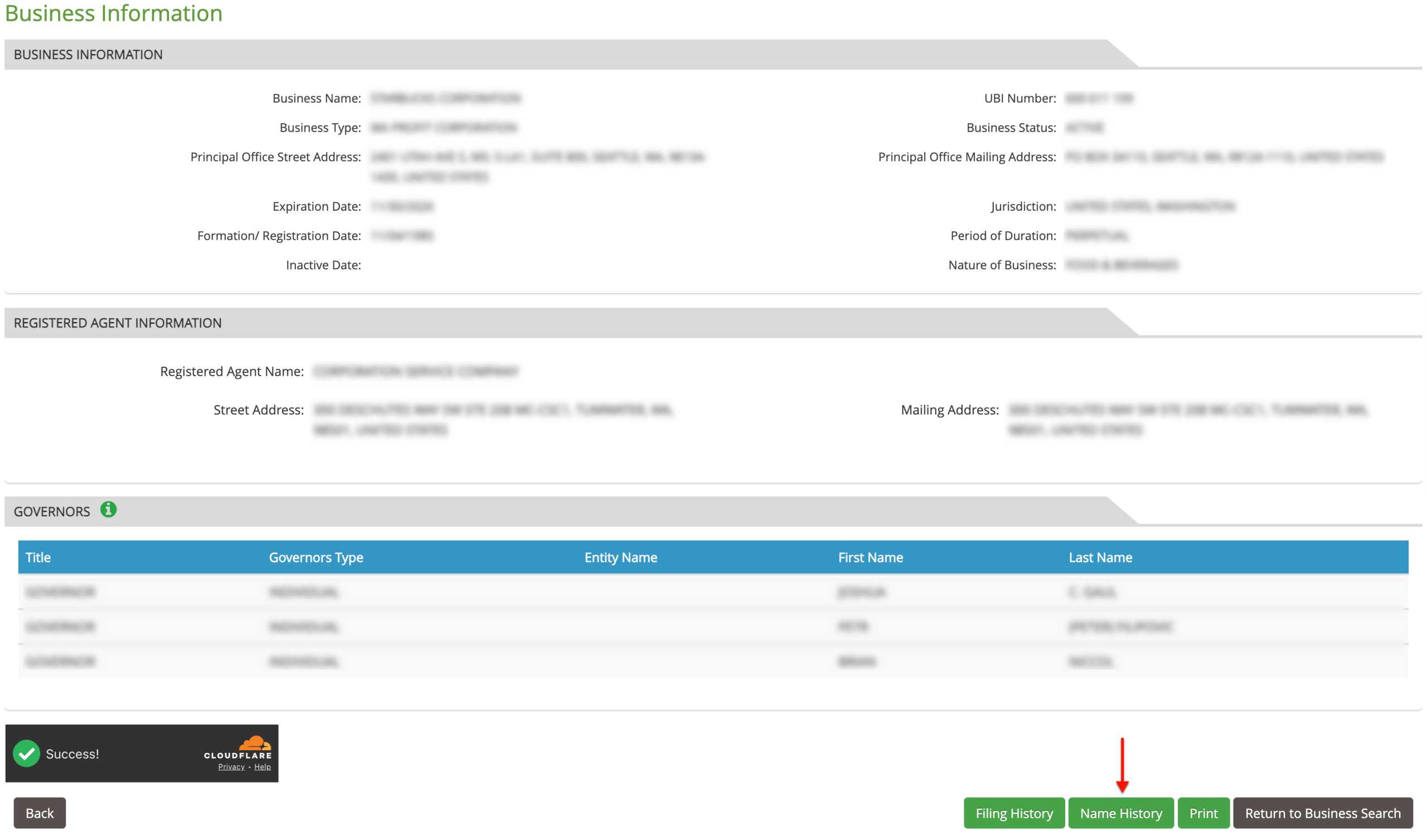
From the information page, select the button “Name History” to access the state’s paperwork on the entity’s name actions. This also directs the browser to a table.
Step 20. Examine Past Name Changes
Each name change action by the entity is presented with the filing number and creation date. Naturally, this also includes the exact legal previous names.
- Entity Information
- Business Name
- UBI Number
- Name Change History
- Filing Number
- Old Name
- New name
- Created Date