The Utah Secretary of State Division of Corporations and Commercial Code business entity search tool directly accesses the Secretary of State’s entity database to help users find an entity’s information. A visitor can use a name or similar criteria and this query to zero in on an entity’s record. Additionally, several filters are available to control the number of resulting records.
Business Name Availability Check
State of Utah

Business Entity Search
Step 1. Open the Utah Business Entity Search Page
Access an entity’s business details with the search tool available. This is a free service, and it will allow multiple searches at the user’s discretion
Step 2. Evaluate Available Options
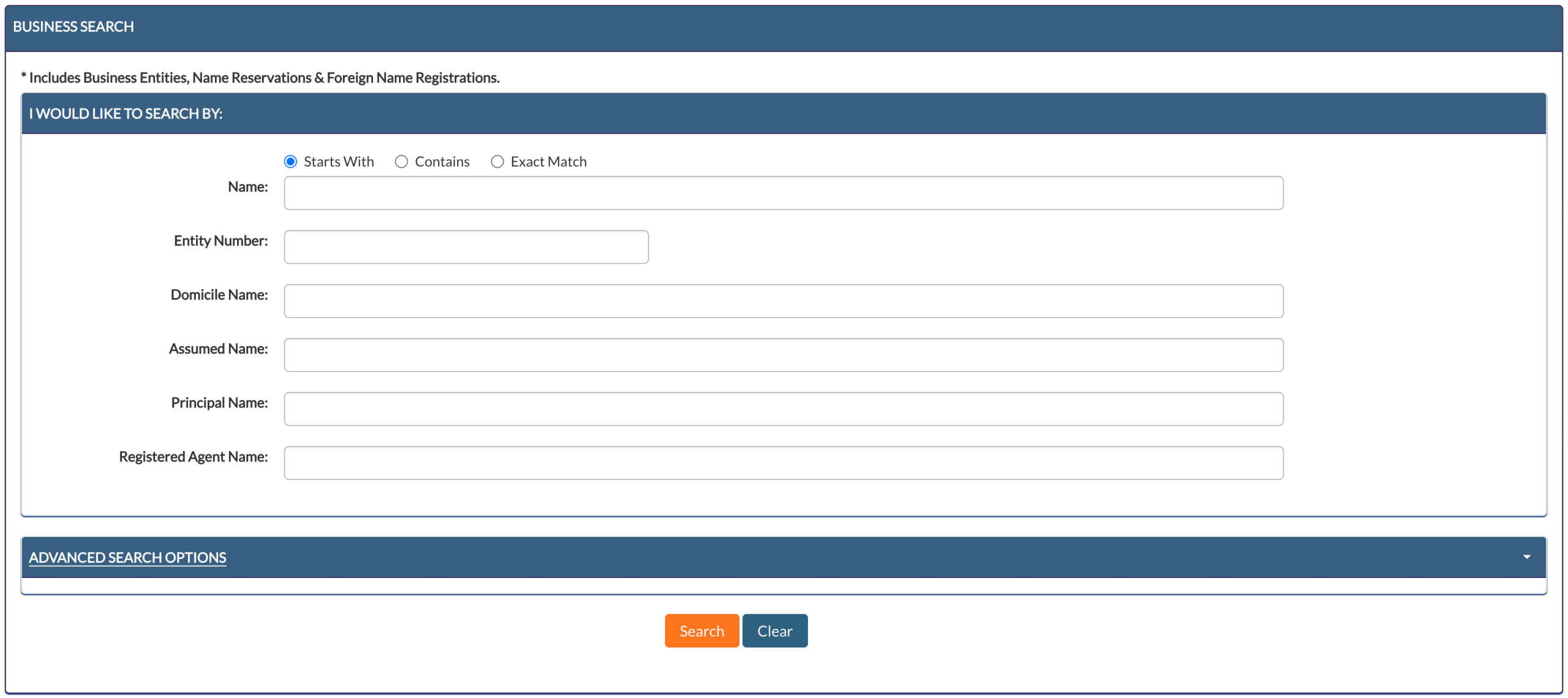
Look over the available search features that the Utah Secretary of State provides. From here, you may perform a basic search as well as an advanced search for an entity name.
- I Would Like To Search By
- Starts With
- Contains
- Exact Match
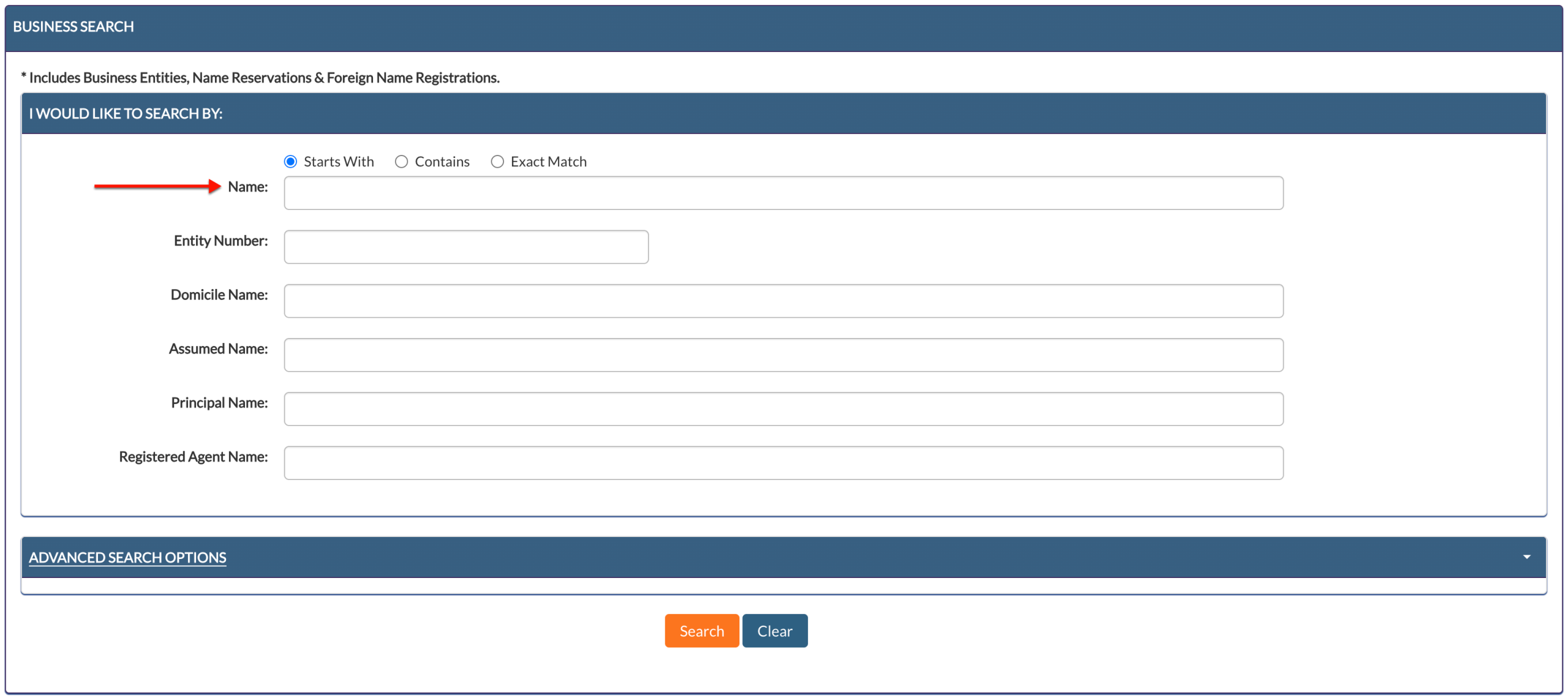
- Name
- Entity Number
- Domicile Name
- Assumed Name
- Principal Name
- Registered Agent Name
- Advanced Search Options
- Search
- Clear
Step 3. Report The Search Method
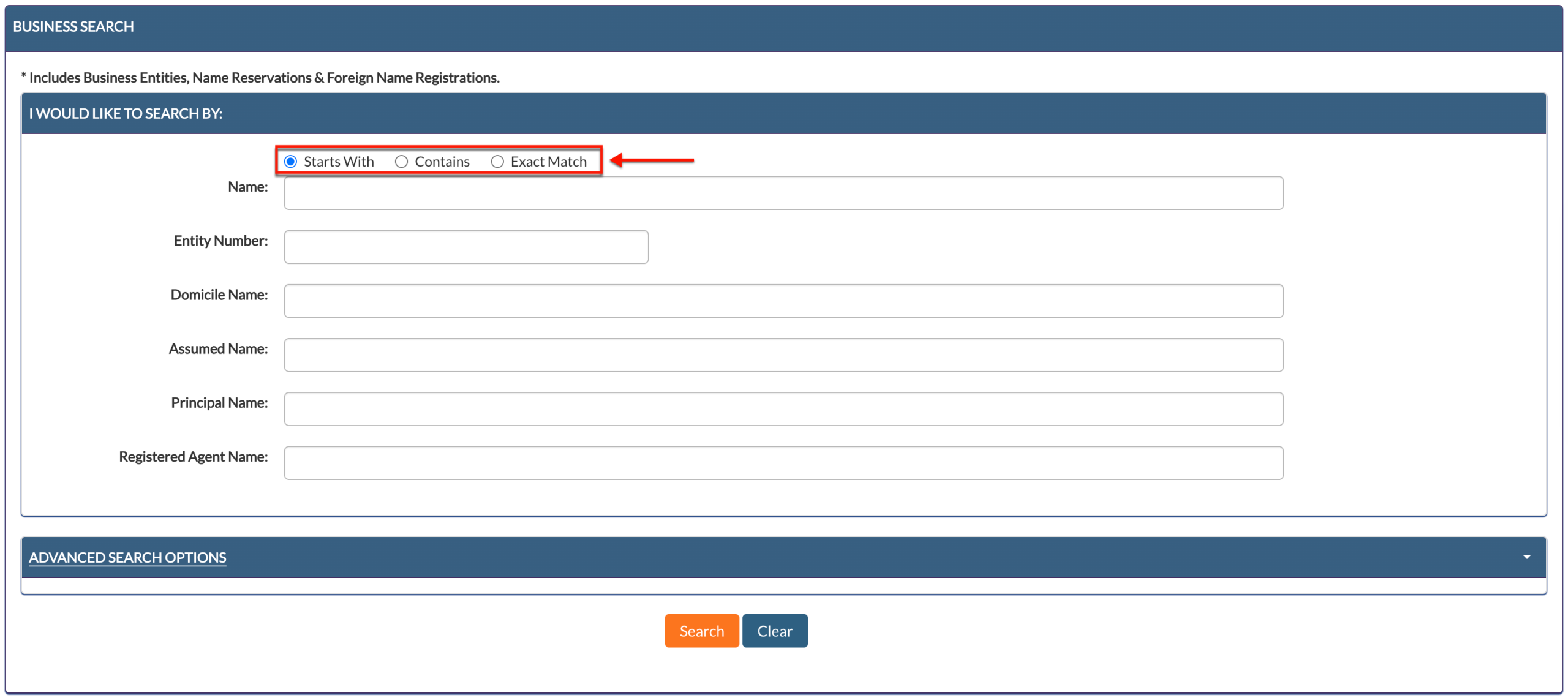
Notice the set of radio buttons introducing the page. Select one in order to determine how the search engine should conduct the name query.
Step 4. Determine the Search Criteria
Decide upon the word or phrase the query must find. Since we are searching by name, input the entity name into the “Name” text box. Note that keywords are also acceptable.
Step 5. Initiate a Basic Search for the Utah Entity
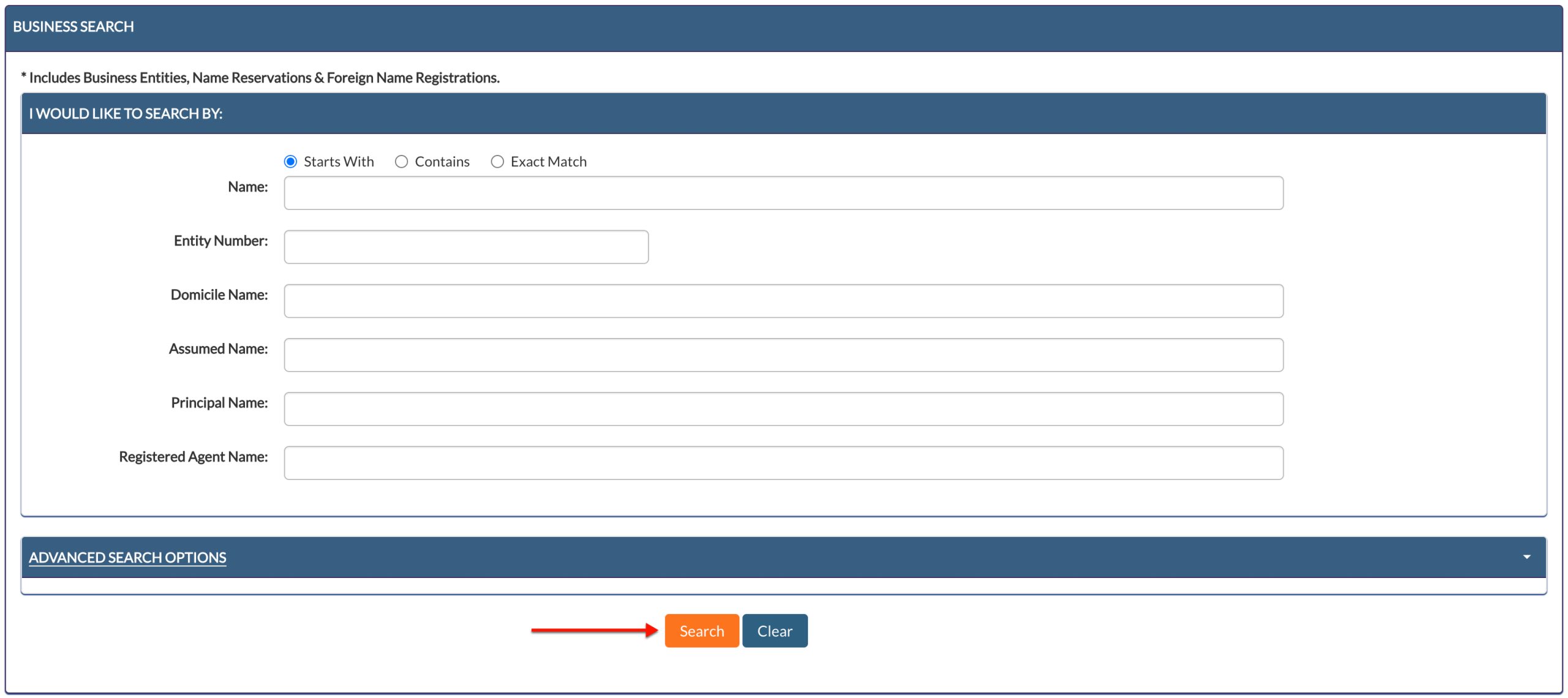
When you are ready, you may initiate a basic search using the “Search” button. Then proceed to Step 18. Otherwise, you may use the advanced search in Step 6.
Step 6. Use the Advanced Search Feature
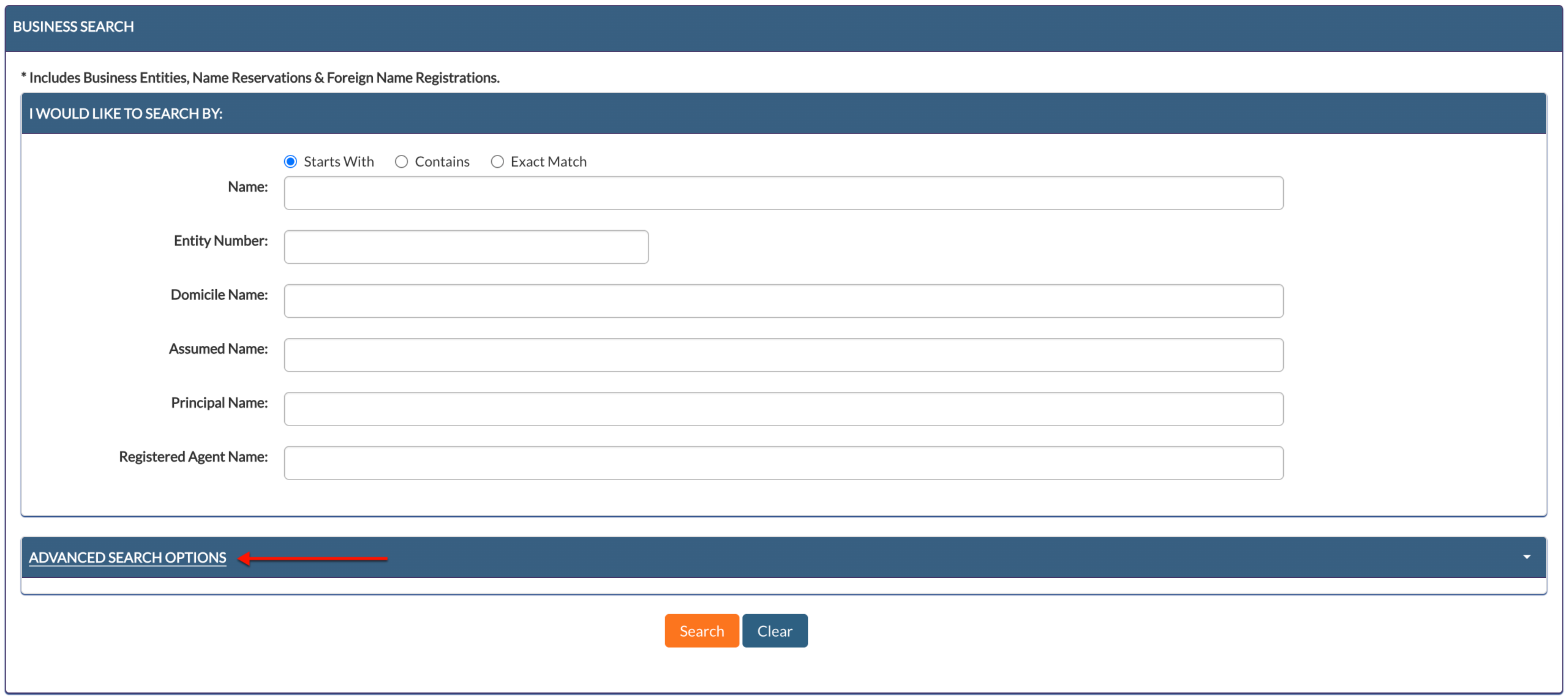
In order to set additional requirements on the criteria, select the “Advanced Search Options” tab. This will open a new area for the query.
Step 7. Examine the Advanced Search Tool
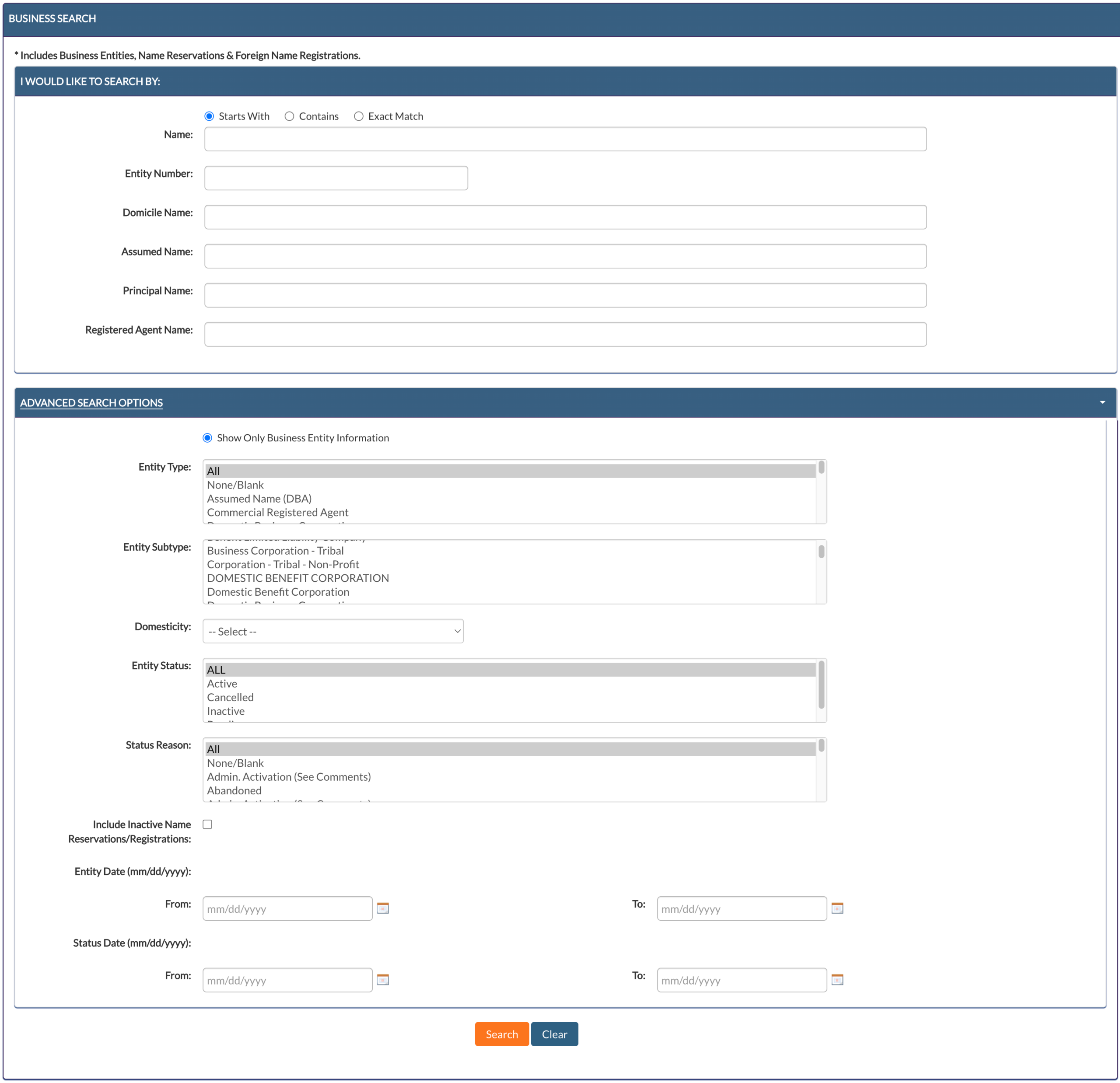
Review the additional criteria options. Notice that each item is directly applicable to the search item.
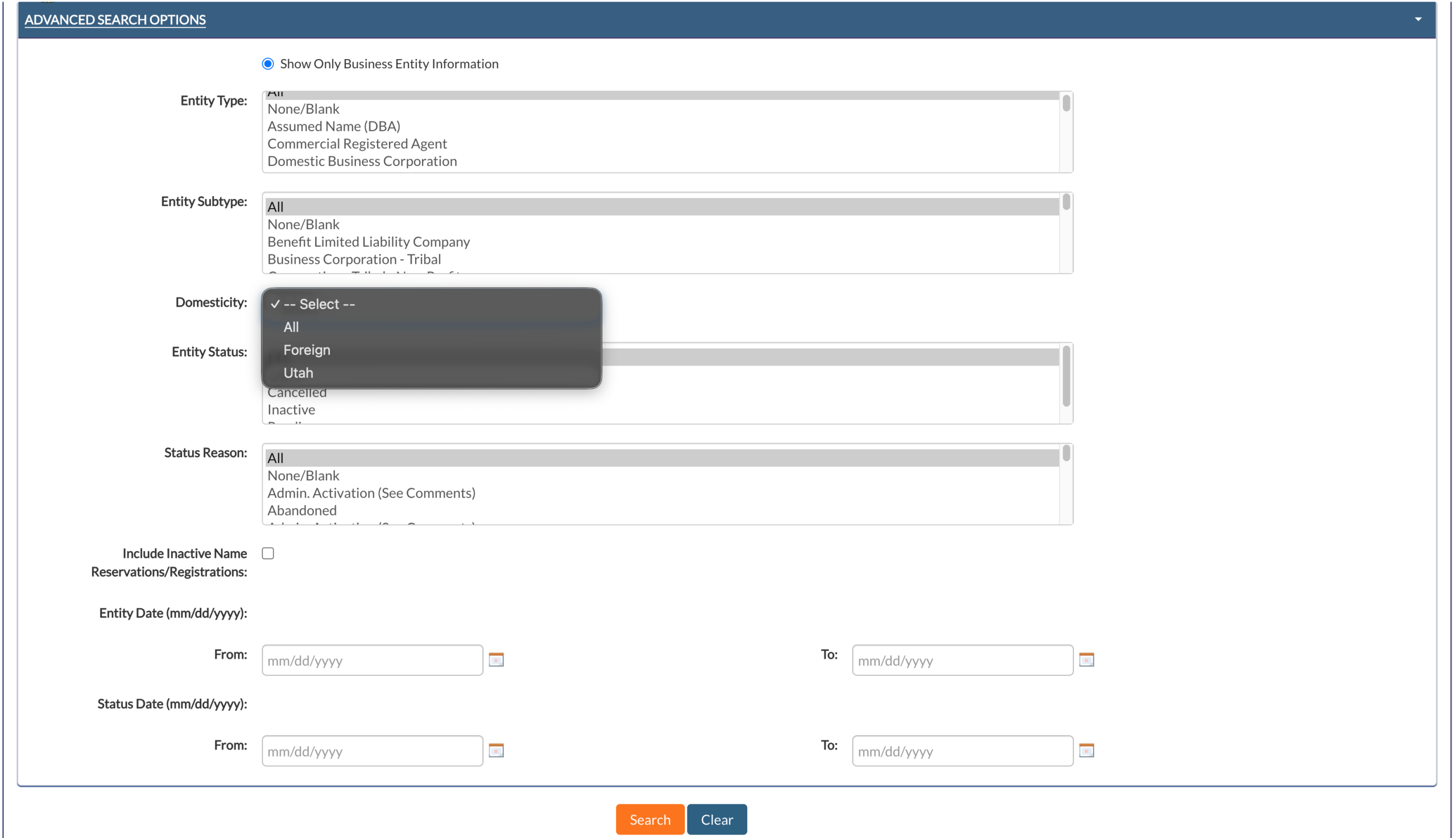
- Advanced Search Options
- Show Only Business Entity Information
- Entity Type
- Entity Subtype
- Domesticity (see image)
- Entity Status
- Status Reason
- Include Inactive Name Reservations/Registrations
- Entity Date
- From
- To
- Status Date
- From
- To
- Search
- Clear
Step 8. Filter by Entities
Select the first radio button to show records with entity information on file with the state while excluding those without. Leave this unmarked to include all records (e.g., name reservations).
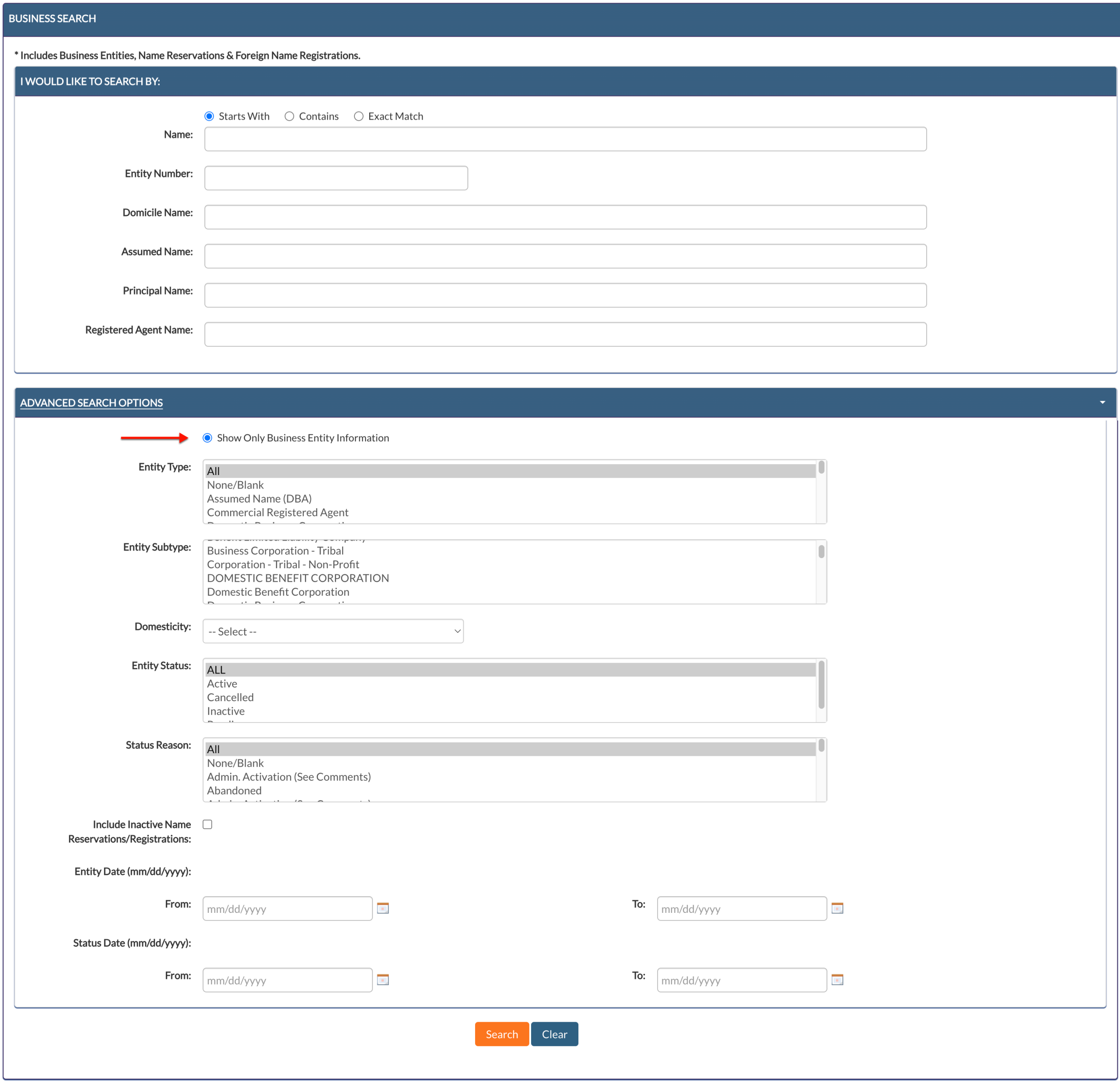
Step 9. Attach an Entity Type
Use the menu to describe the type of entity associated with the target you seek. Notice the default selection is “All,” thus leaving the results unaffected by this description.

Step 10. Include an Entity Subtype Filter
If possible, attach an additional entity description (e.g., Domestic For-Profit Corporation) to significantly focus the query. For this, select the entity subtype from the listing menu.

Step 11. Discuss the Utah Entity’s Formal Location
Locate the “Domesticity” drop-down menu. Attach the target entity’s standing with the state by selecting it from this menu (see image).
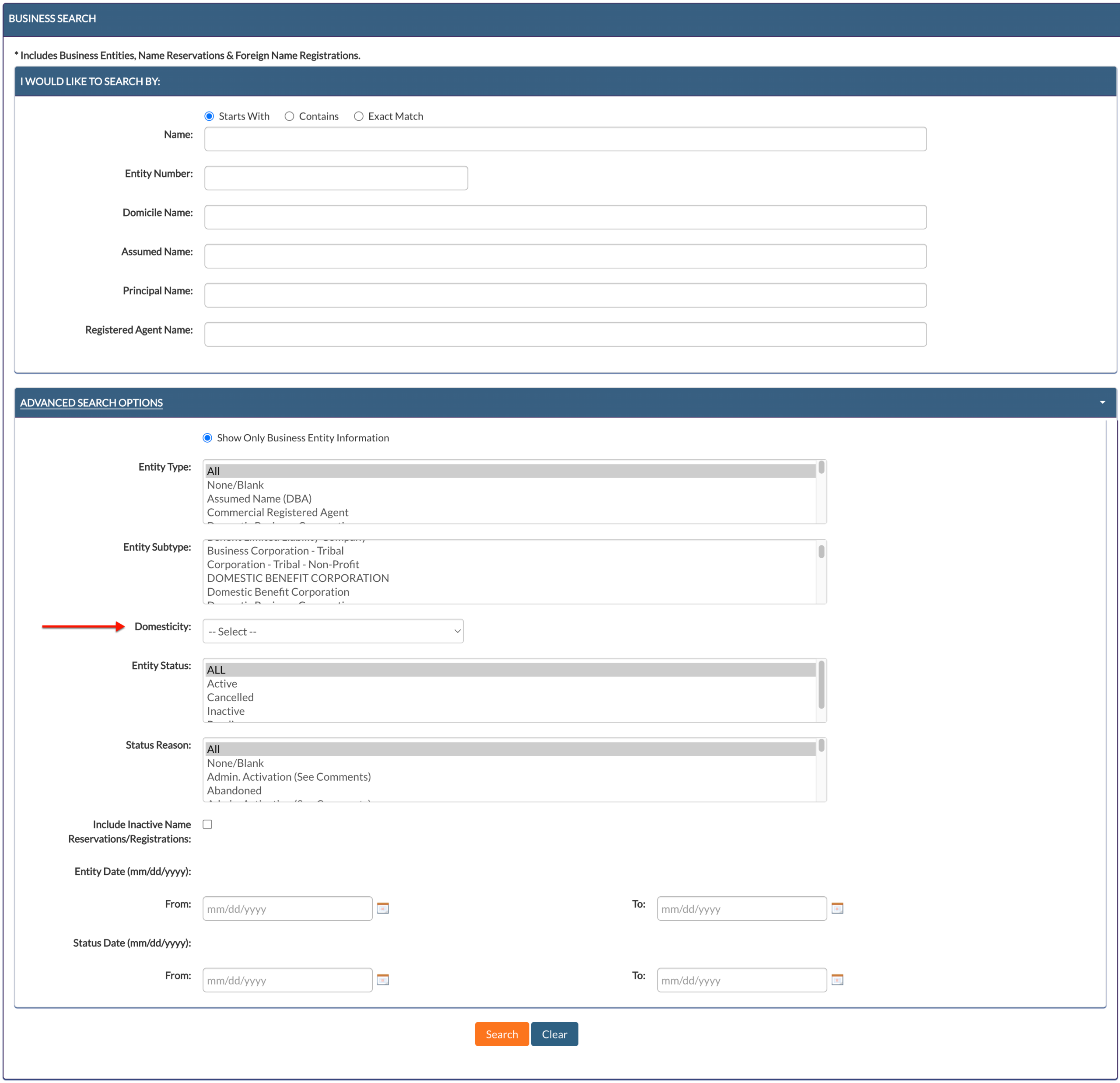
Step 12. Use the Entity’s Status as a Filter
Improve the query’s focus by requesting that entities with only the status you choose display in the results. Select this status from the “Status” list. However, if unknown, select “All.”
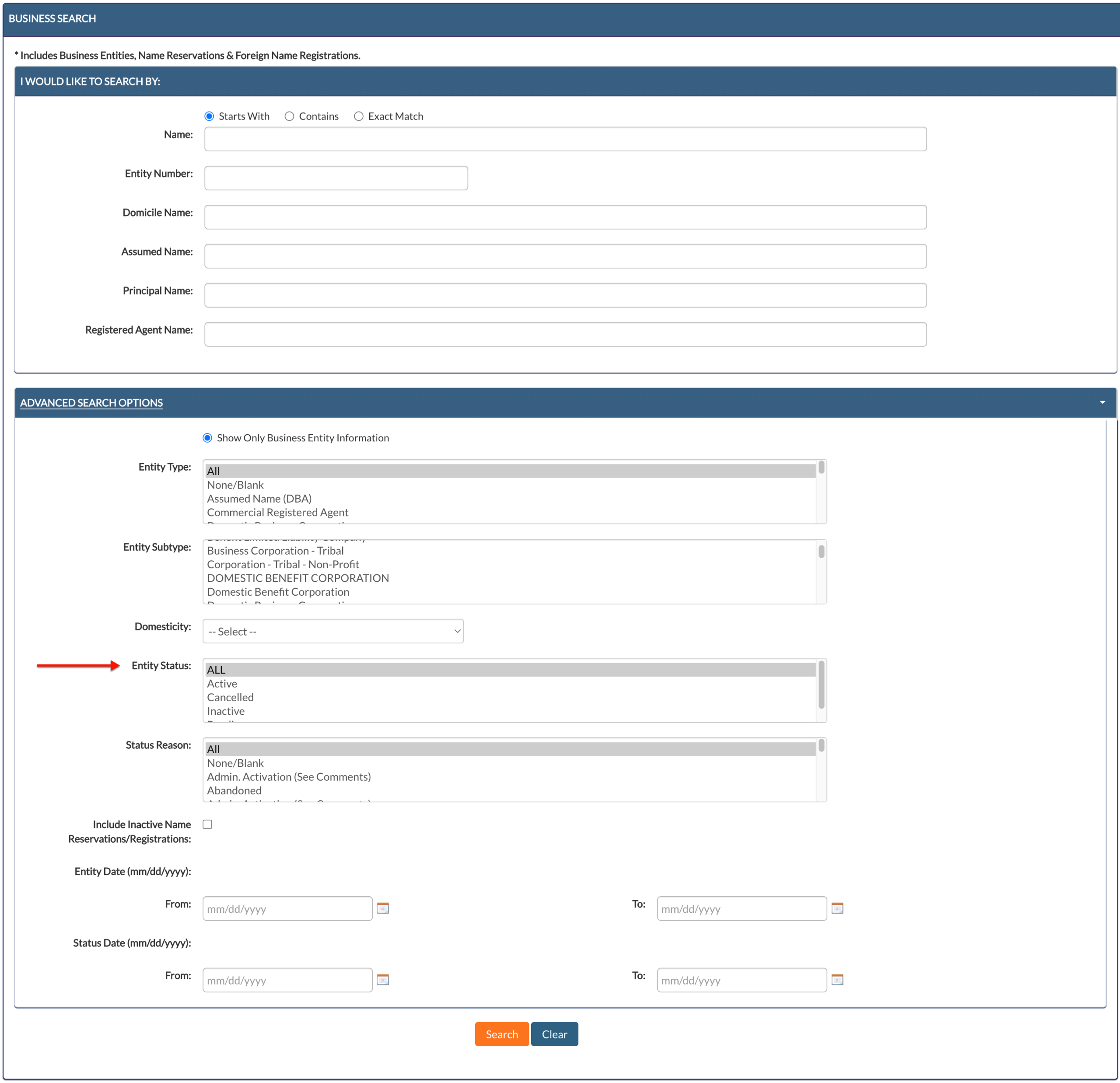
Step 13. Explain the Entity’s Status
Instruct the query to exclude records with an unwanted reason for the entity’s current status. Select the only allowable reason for a current status from the “Status Reason” list.
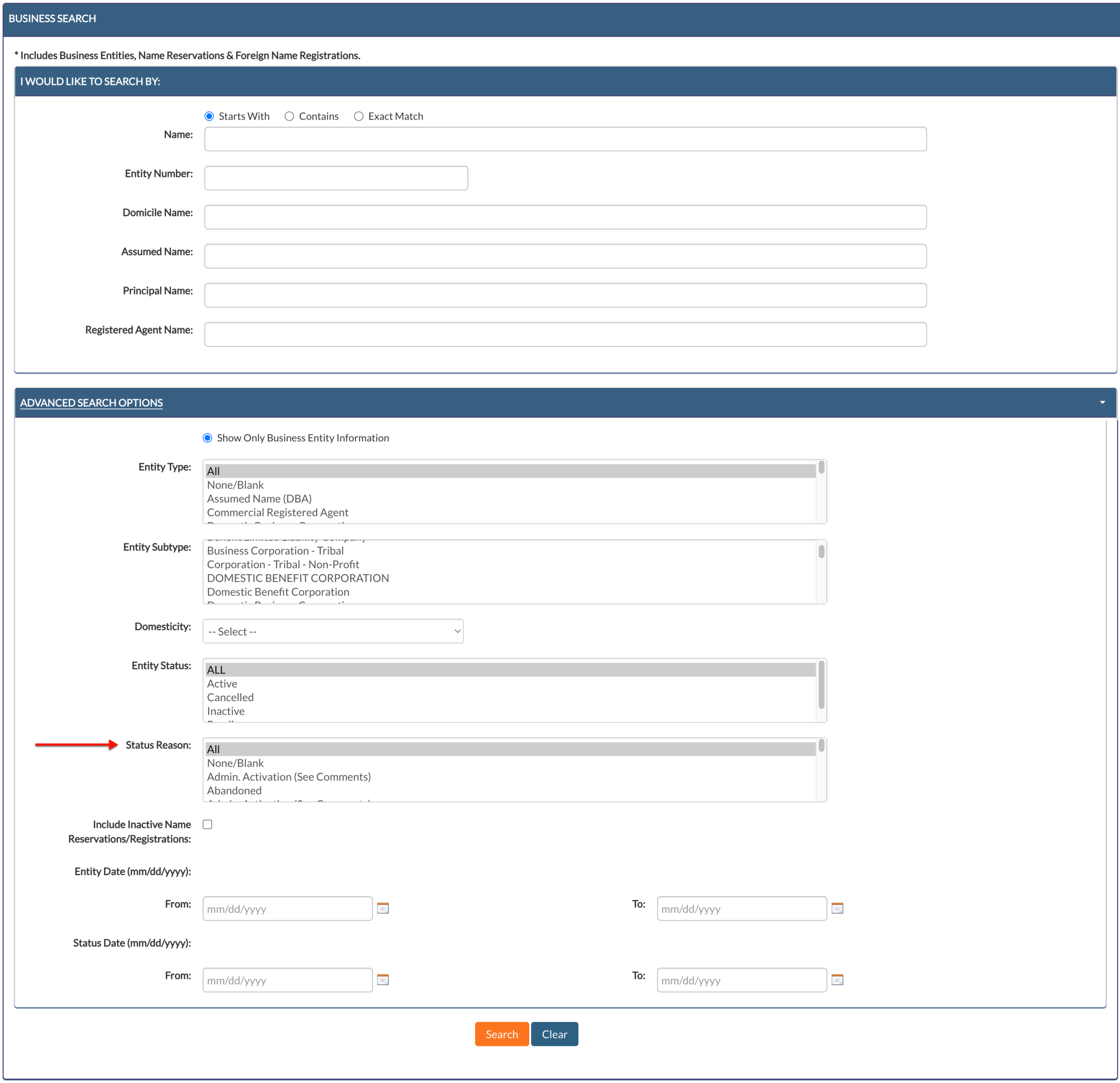
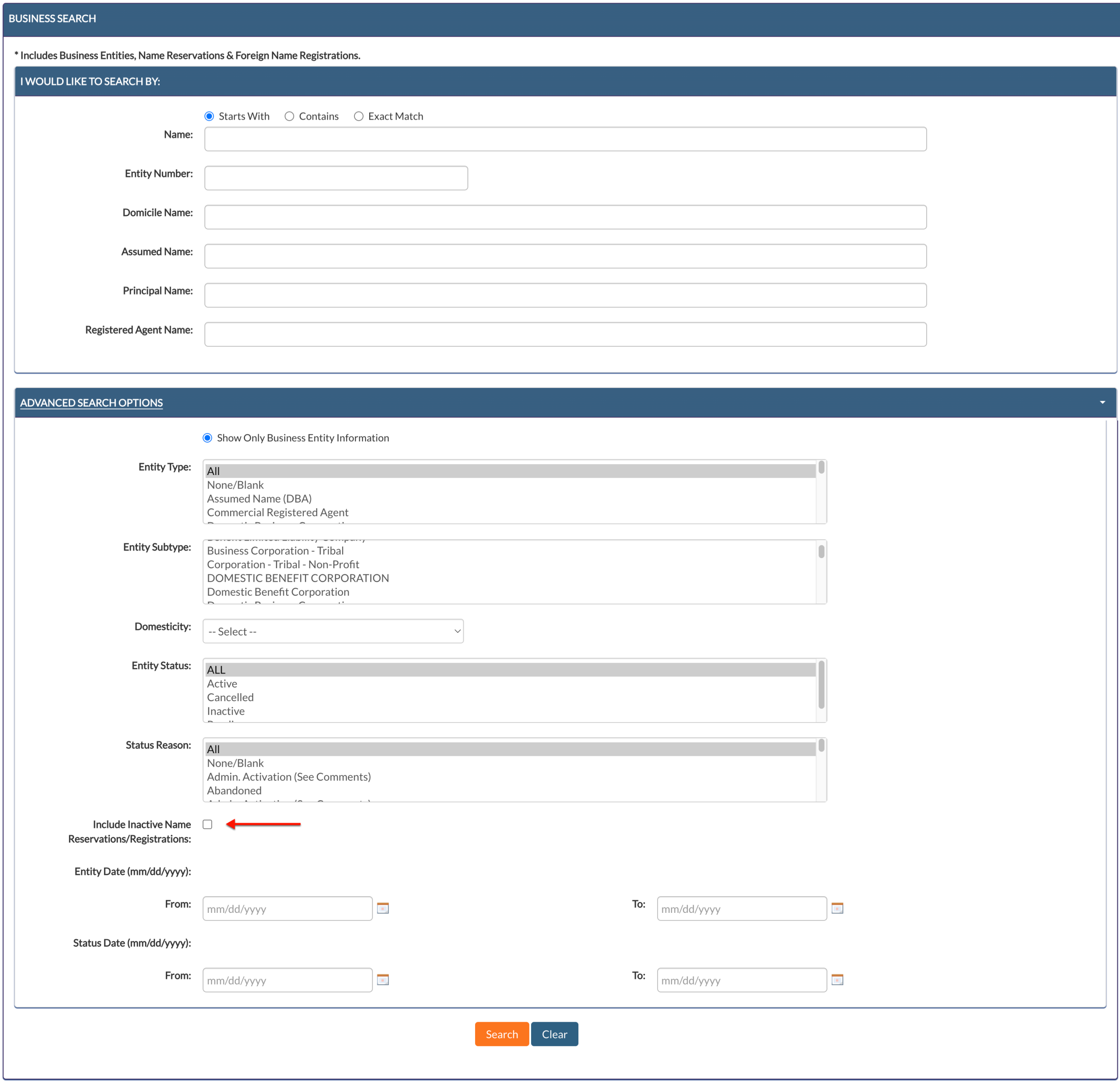
Step 14. Attach a Name Status Filter
In cases where you want to maximize results, instruct the query to include all name reservations regardless of status. Mark the appropriate checkbox for this effect.
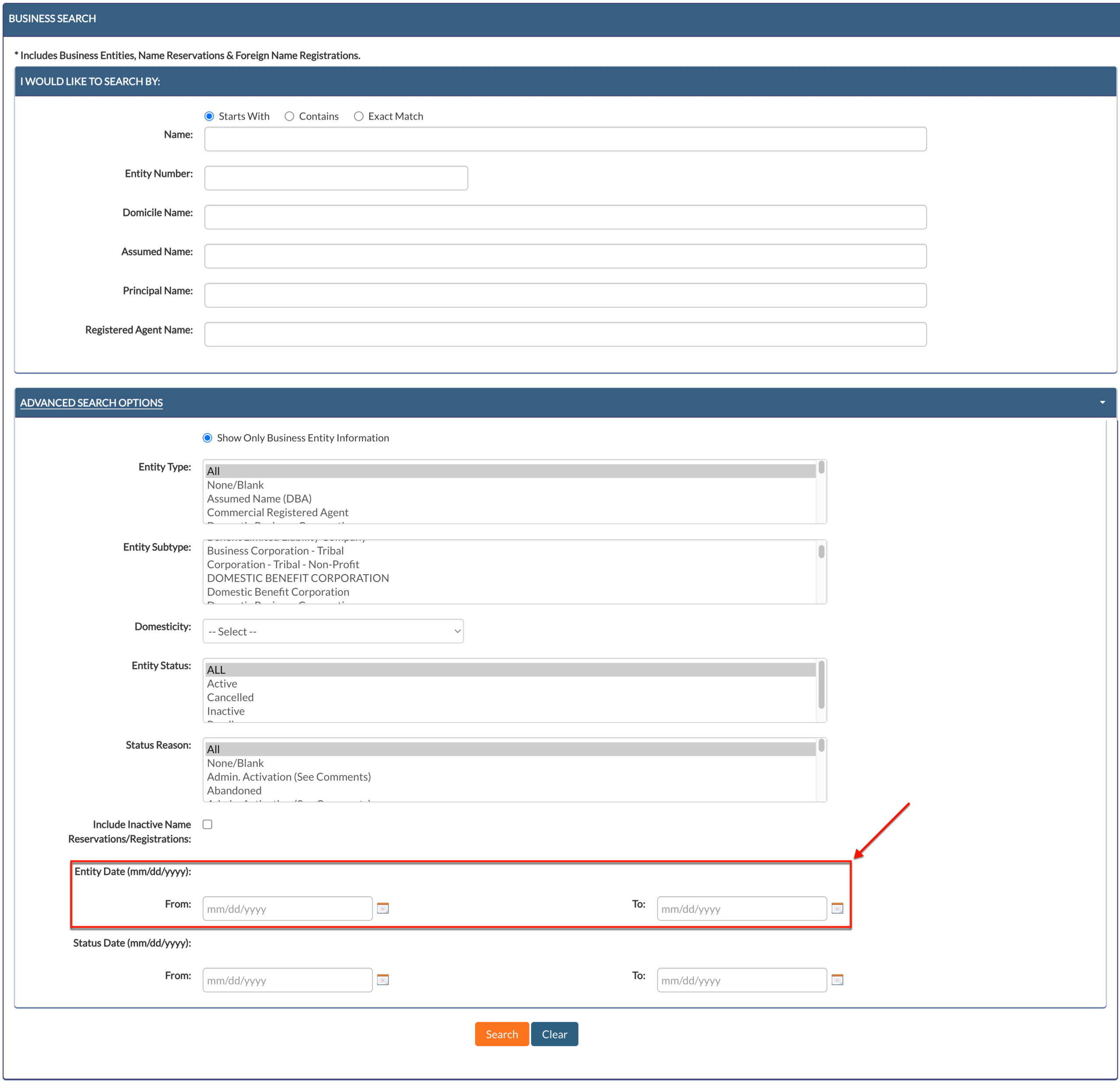
Step 15. Filter Results by the Date
Use the “Entity Date” section to require that only entities formed on a certain date qualify as results. Note that a date range yields more results than a specific date.
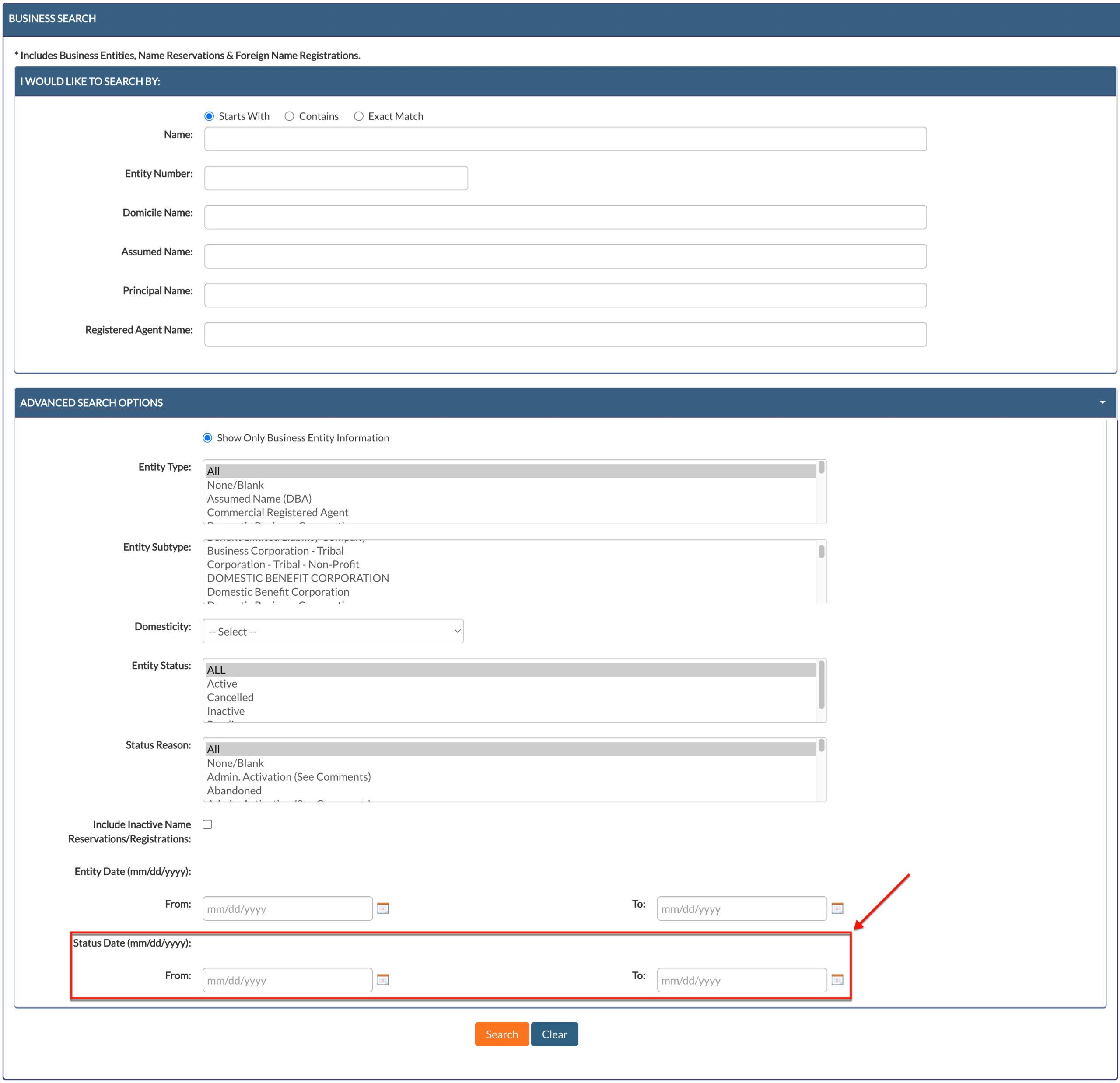
Step 16. Place a Date Range on the Entity’s status
Require the query to only display results containing entities that gained their formal status on or around a certain date. Tend to the next date tool with the first and last date of this date range.
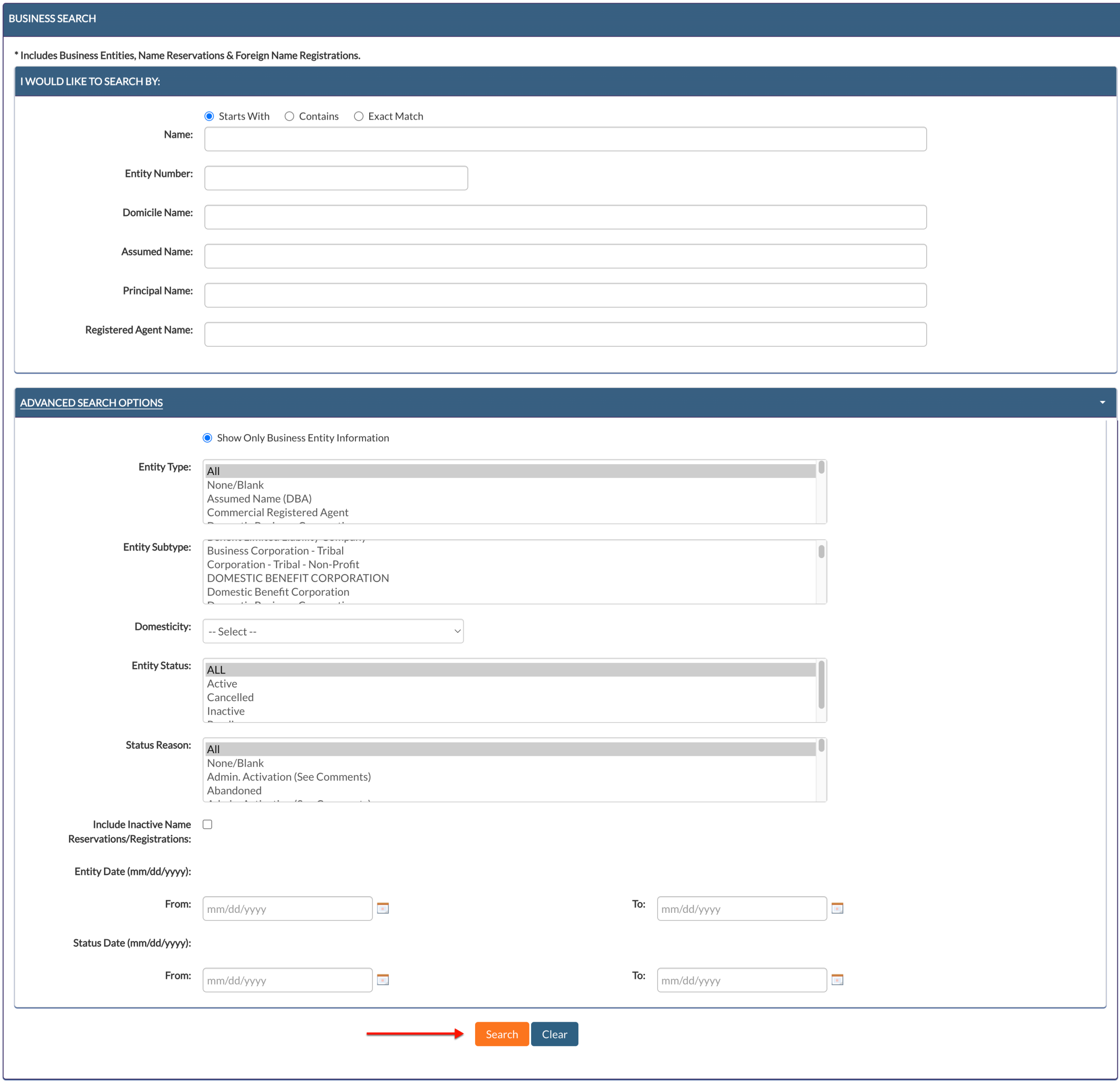
Step 17. Prompt the Advanced Search
Locate the lightly colored “Search” button below the “Advanced Search Options” area. Click on this button to initiate the Utah query tool search.
Step 18. Scan Utah Records for the Target Entity
Locate the entity name in the matching records and confirm its relevance. As a convenience, you may sort the columns by clicking their heading.
- Name
- Other Name
- Filing Date/Time
- Status
- Status Details
- File Date
- Type
- Subtype
- Entity Number
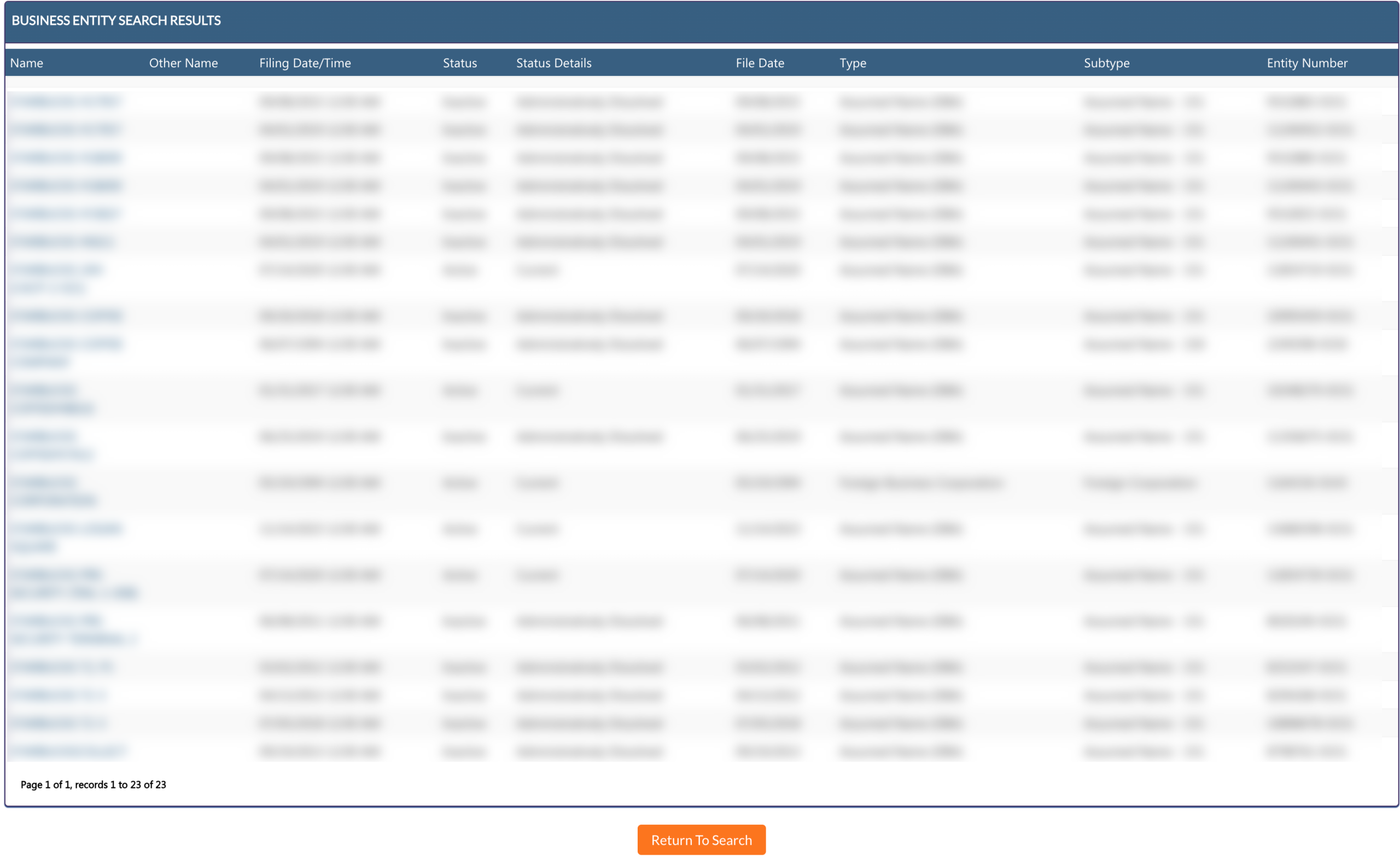
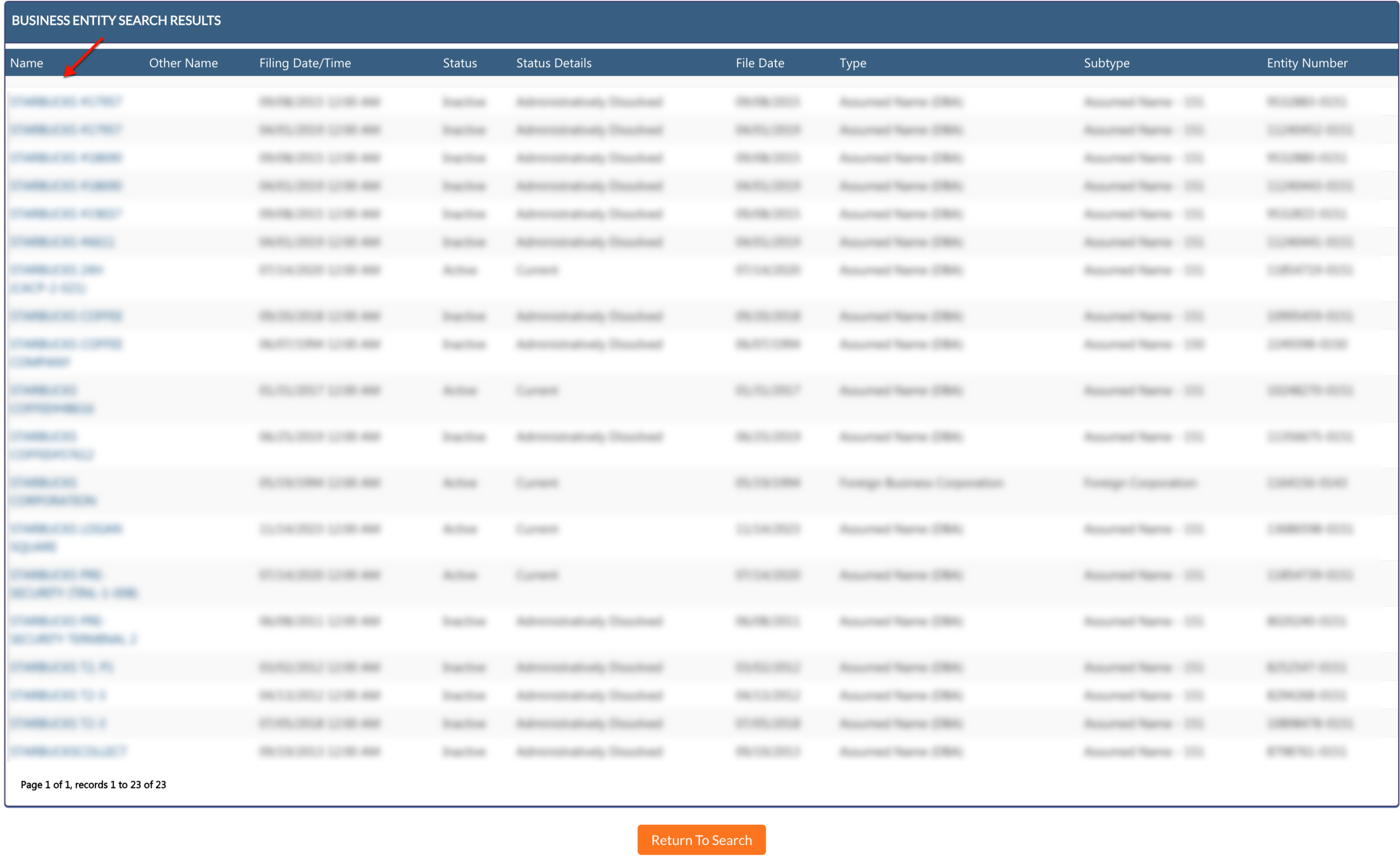
Step 19. Choose an Entity of Interest to Investigate
Notice that each name in a record is a link. Click on a name of interest in order to view that entity’s information.
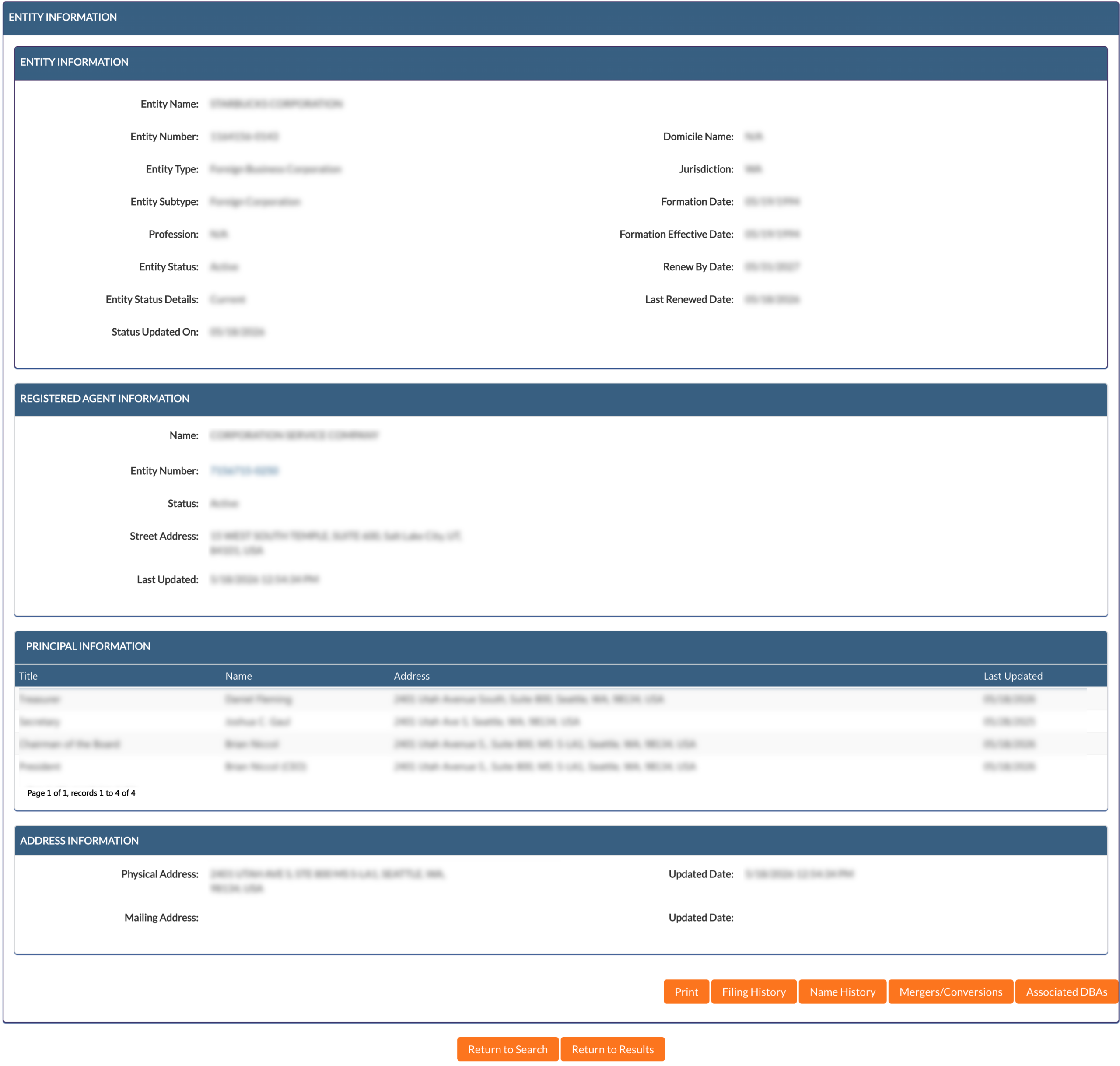
Step 20. Obtain the Utah Entity’s Information
Read through the general information on display at the onset of the “Entity Information” section. Continue through the page to learn more about the entity.
- Entity Information
- Entity Name
- Entity Number
- Entity Type
- Entity Subtype
- Profession
- Entity Status
- Entity Status Details
- Status Updated On
- Domicile Name
- Jurisdiction
- Formation Date
- Formation Effective Date
- Renew By Date
- Last Renewed Date
- Registered Agent Information
- Name
- Entity Number
- Status
- Street Address
- Last Updated
- Principal Information
- Title
- Name
- Address
- Last Updated
- Address Information
- Physical Address
- Mailing Address
- Filing History
- Name History
- Mergers/Conversions
- Associated DBAs
- Return to Search
- Return to Results
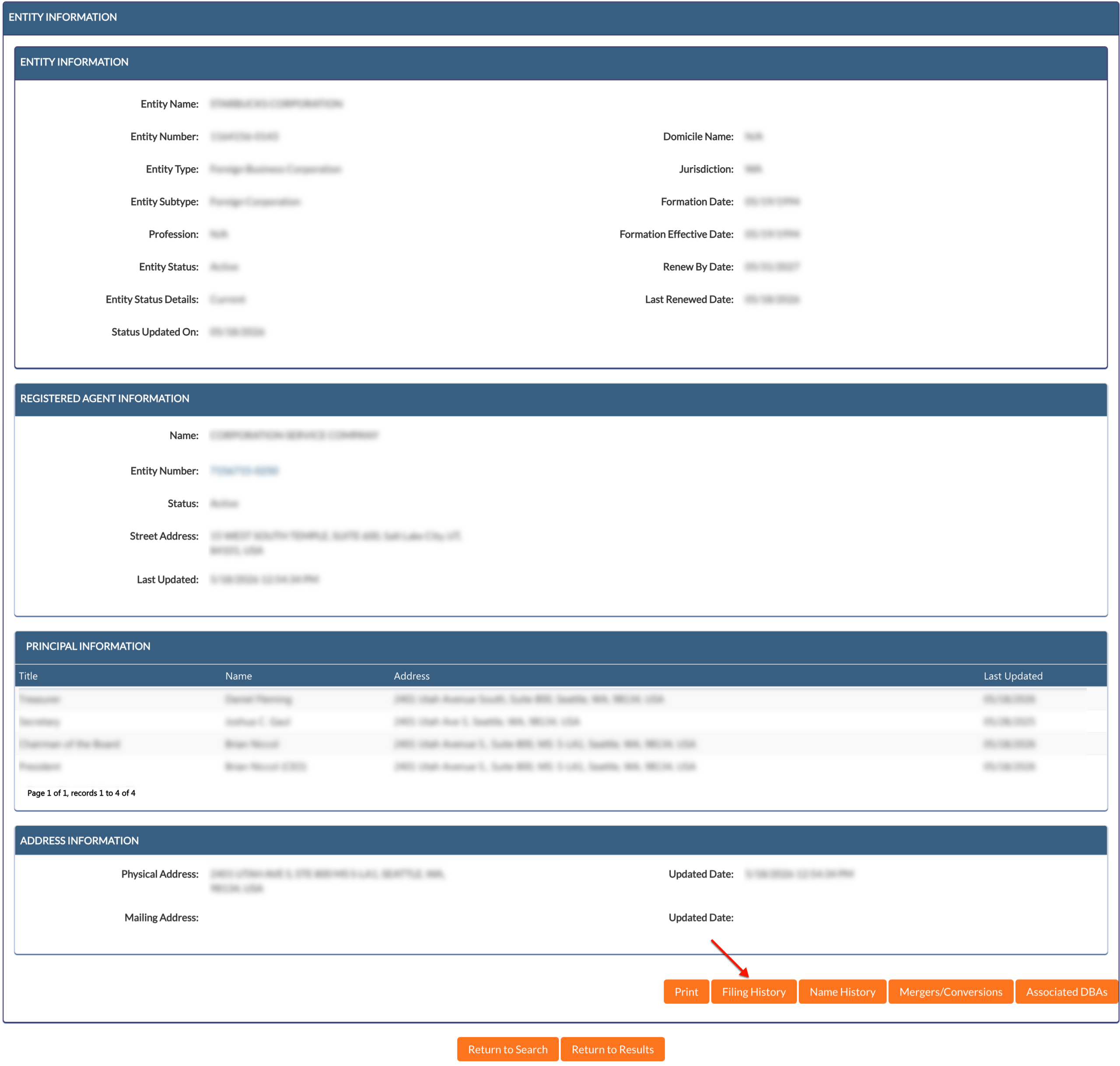
Step 21. Access Entity Filings with the State of Utah
Look for the “Filing History” button at the bottom of the page. Click on this in order to investigate past entity filings.
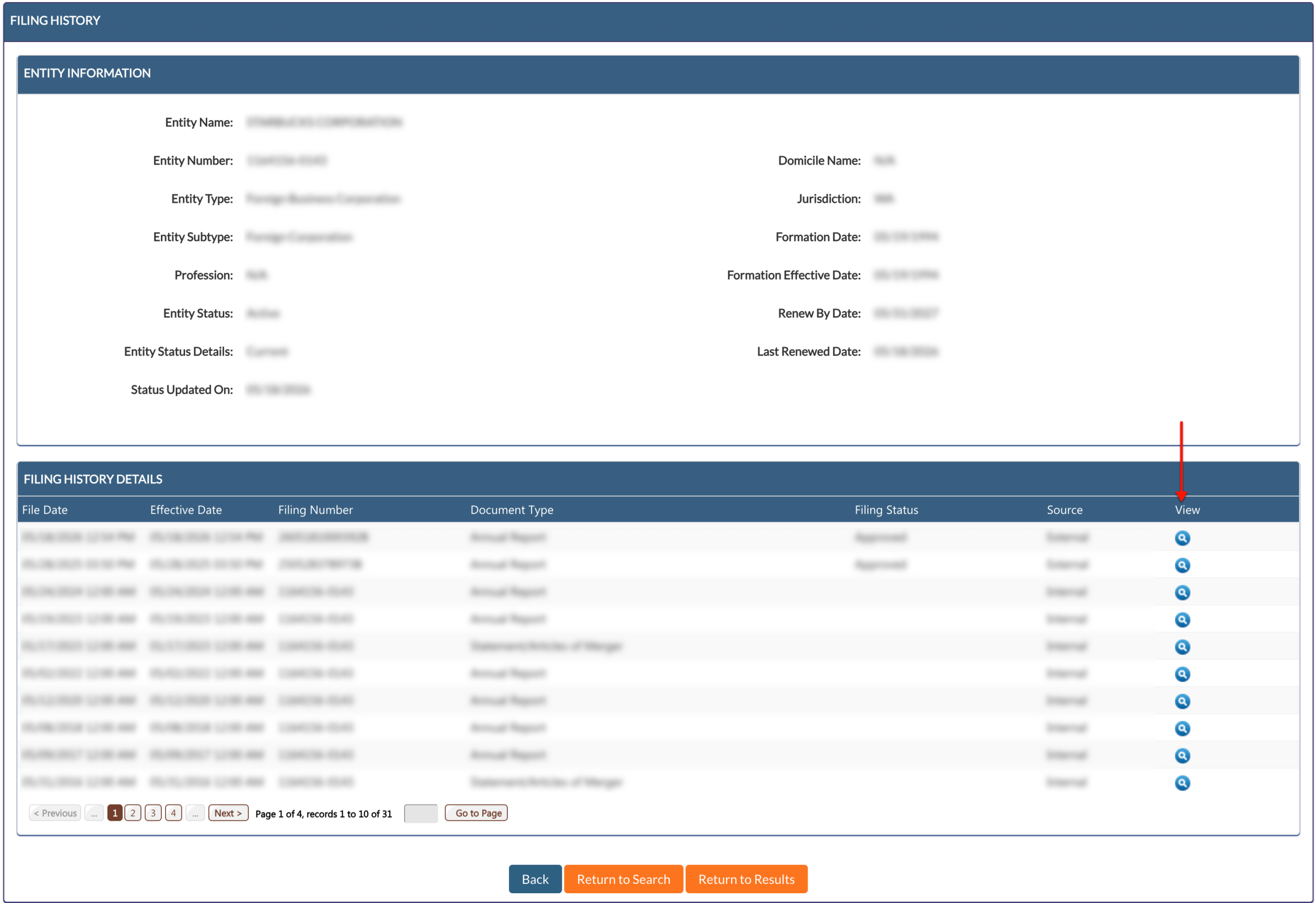
Step 22. Review Entity Paperwork
Direct your attention to the table in the second half of the “Filing History” page. Select the magnifying glass at the end of the record to view a scan of that paperwork.
- Entity Information
- Entity Name
- Entity Number
- Entity Type
- Entity SubType
- Profession
- Entity Status
- Entity Status Details
- Status Updated On
- Filing History Details
- File Date
- Effective Date
- Filing Number
- Document Type
- Filing Status
- Source
- View
- Back
- Return to Search
- Return to Results
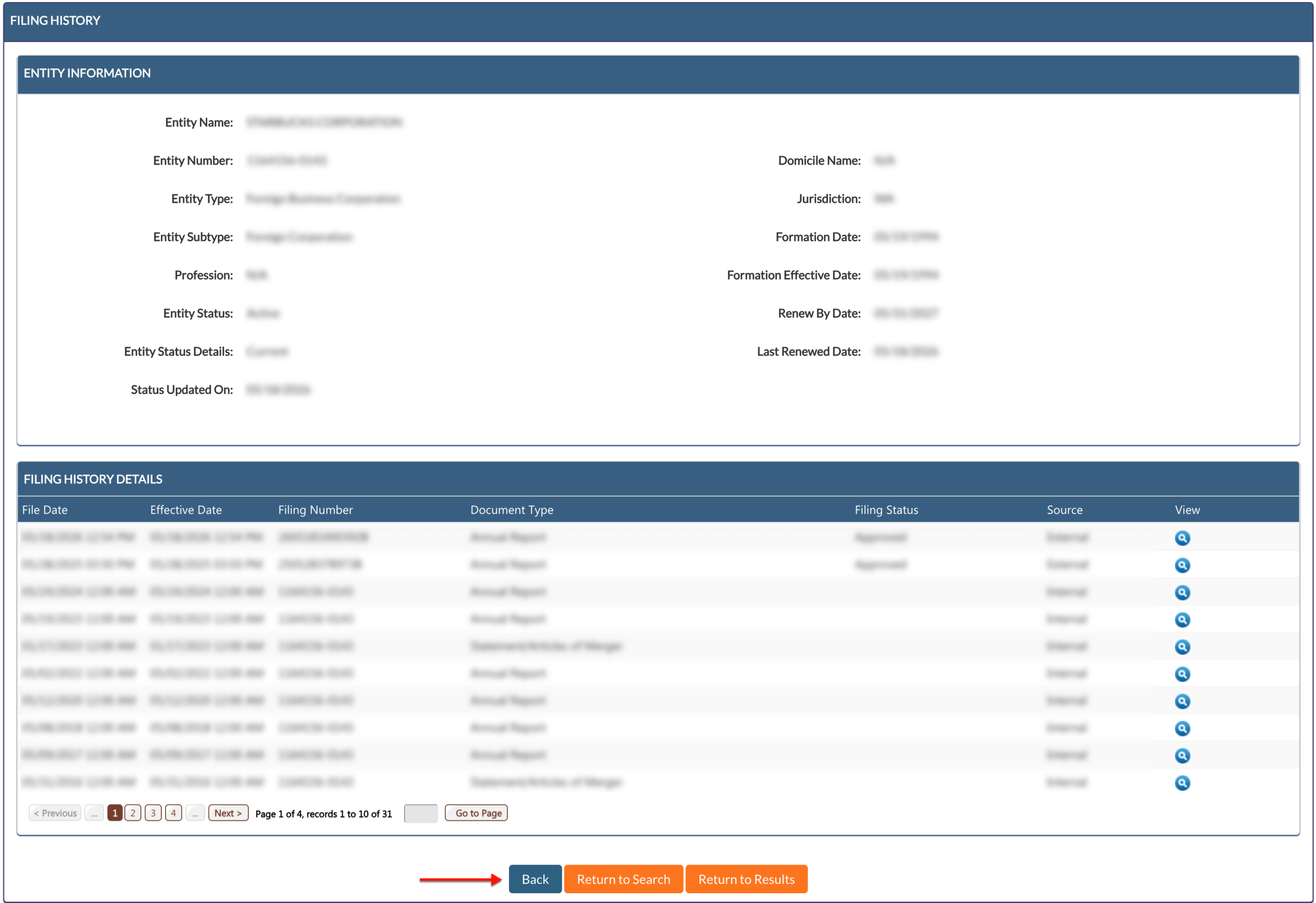
Step 23. Return to the Information Page
After reviewing the table and, if appropriate, downloading PDF scans of filings of interest, return to the main page. To do this, select the “Back” button.
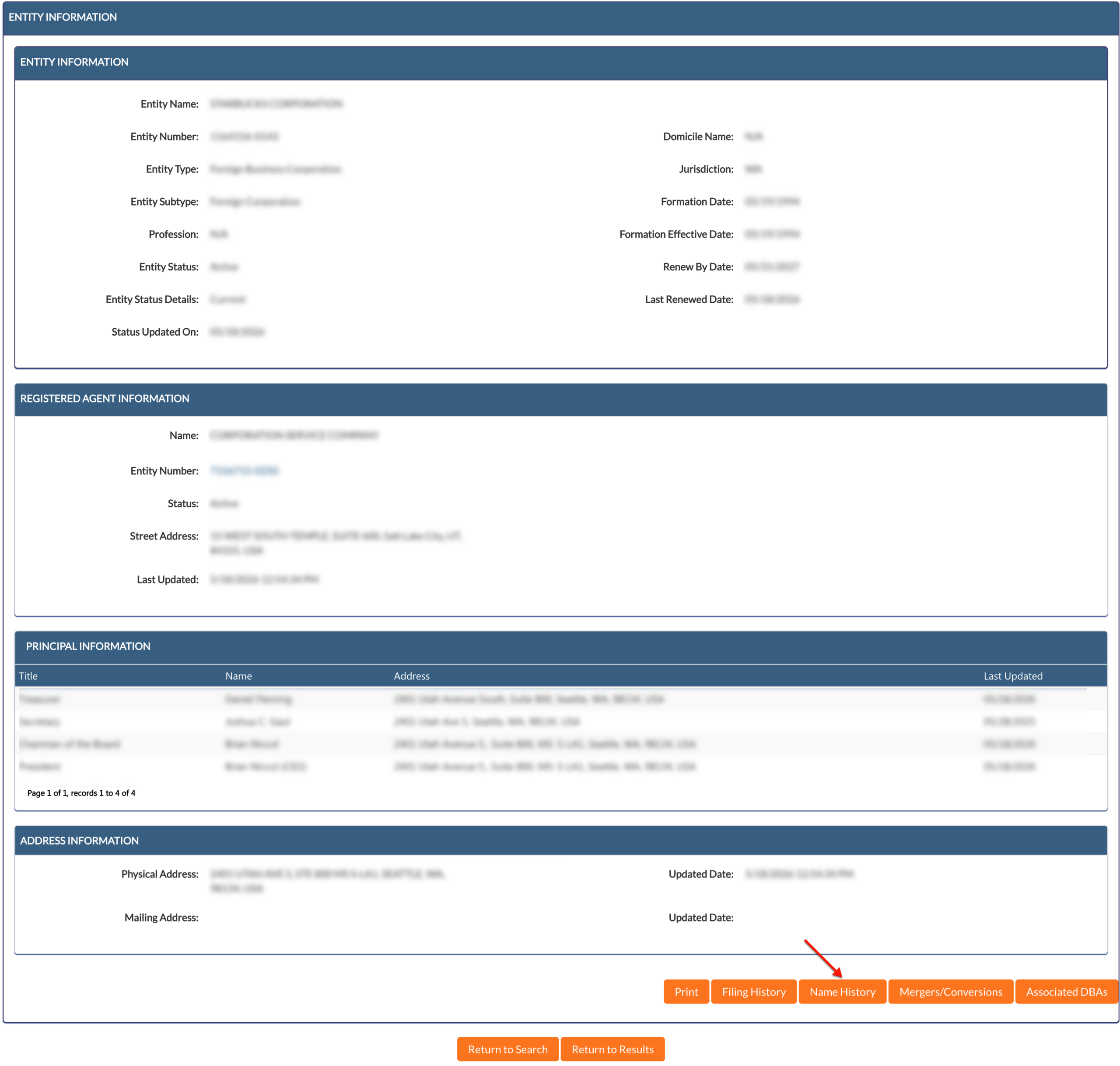
Step 24. Obtain Name History Information
Once you are on the details page, look for the “Name History” button. To view a table specifically listing past name-related filings, click this button.
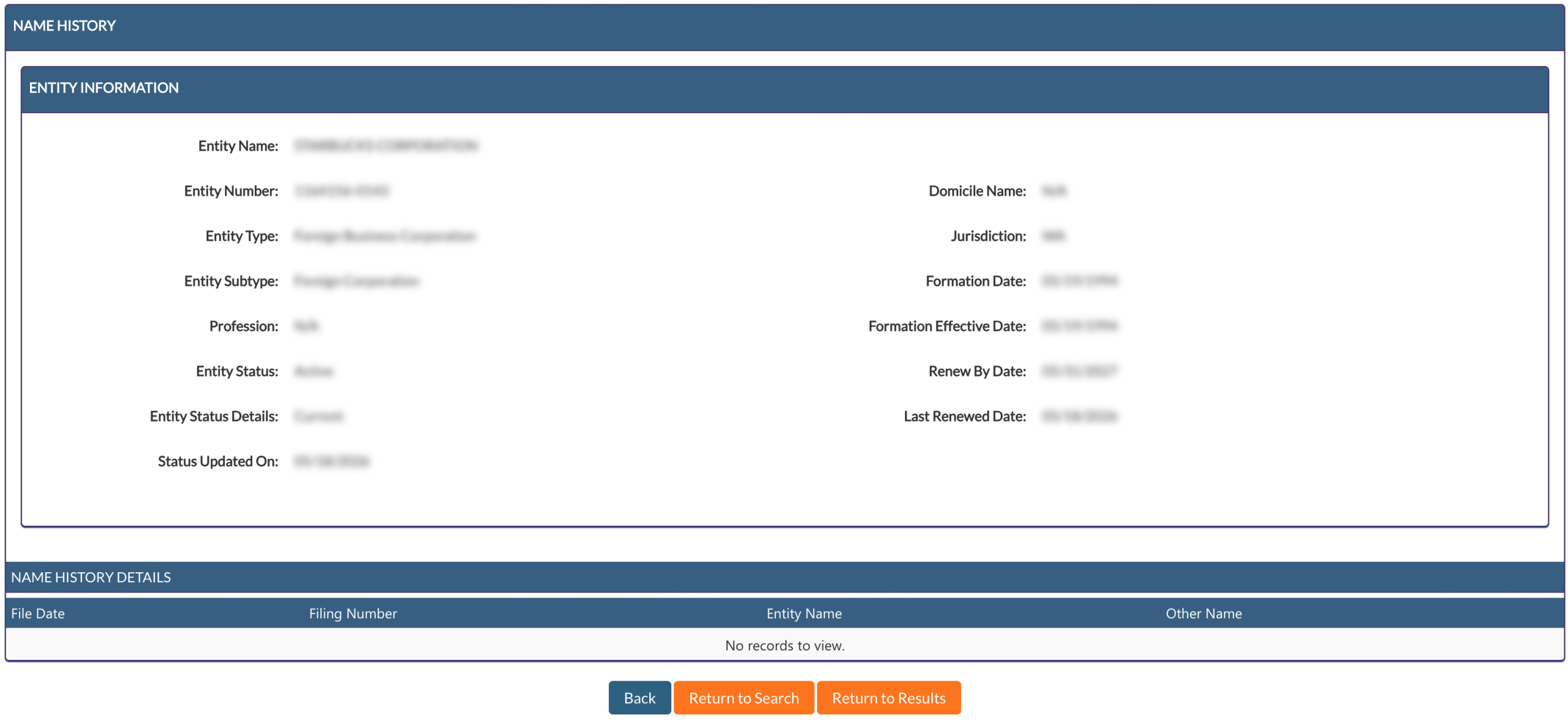
Step 25. Examine Past Entity Names
As with the previous page, the “Name History” section recaps basic entity details and presents a table. Look through this table for the entity’s name filings, then click “Back.”
- Entity Information
- Entity Name
- Entity Number
- Entity Type
- Entity SubType
- Profession
- Entity Status
- Entity Status Details
- Status Updated On
- Name History Details
- File Date
- Filing Number
- Entity Name
- Other Name
- Back
- Return to Search
- Return to Results
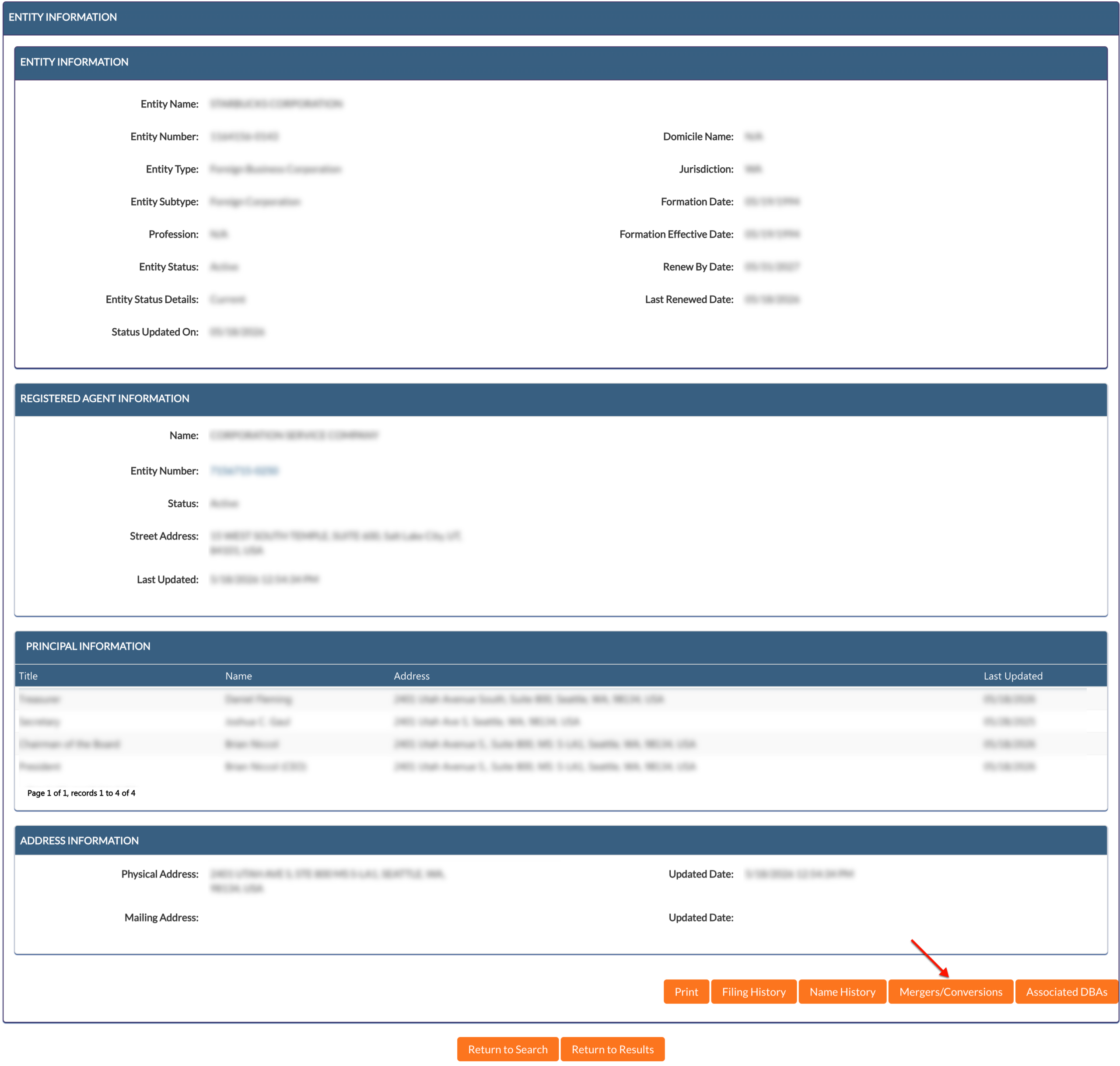
Step 26. Obtain Merger/Conversion History
Utah includes a history of entity mergers and conversions that is viewable from this page. Locate and select the “Merger/Conversion” table to continue.
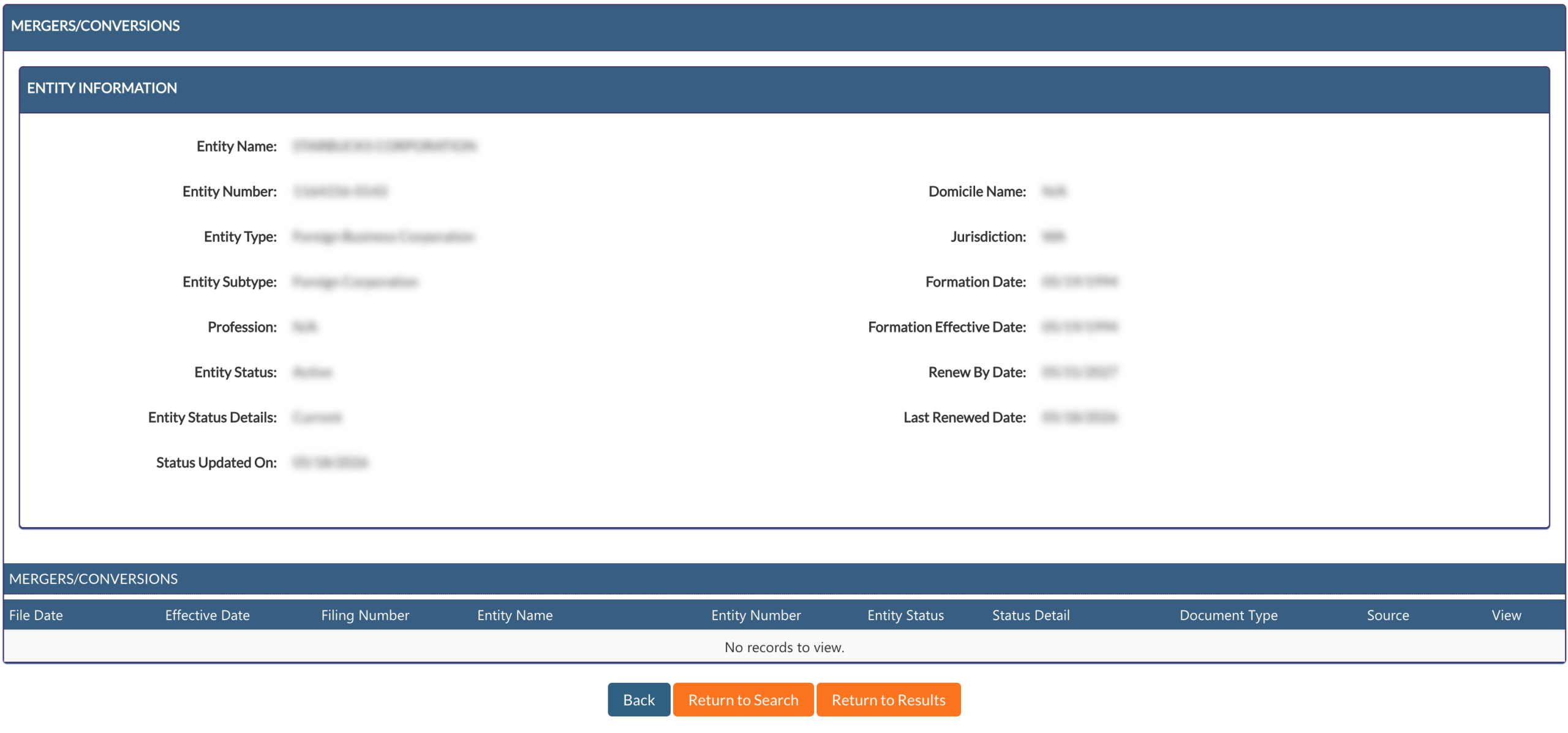
Step 27. Review the Merger/Conversion Table
Locate the “Mergers/Conversions” table. Presentations of the filing date and number for any such actions is displayed with supporting information. Return to the details page to continue.
- Entity Information
- Entity Name
- Entity Number
- Entity Type
- Entity SubType
- Profession
- Entity Status
- Entity Status Details
- Status Updated On
- Mergers/Conversions
- File Date
- Effective Date
- Filing Number
- Entity Name
- Entity Number
- Entity Status
- Status Detail
- Document Type
- Source
- View
- Back
- Return to Search
- Return to Results
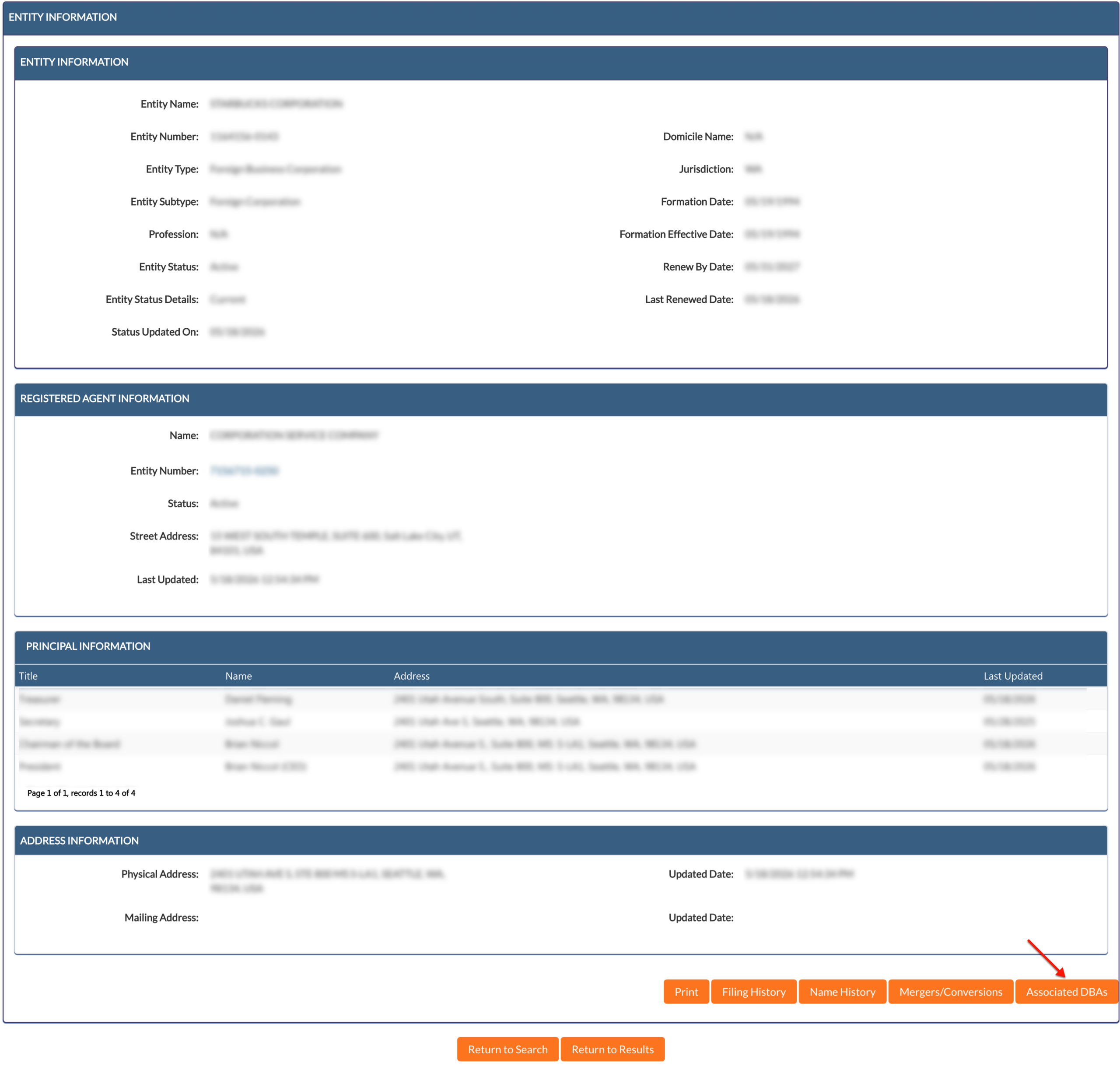
Step 28. Investigate Other Entity Identities
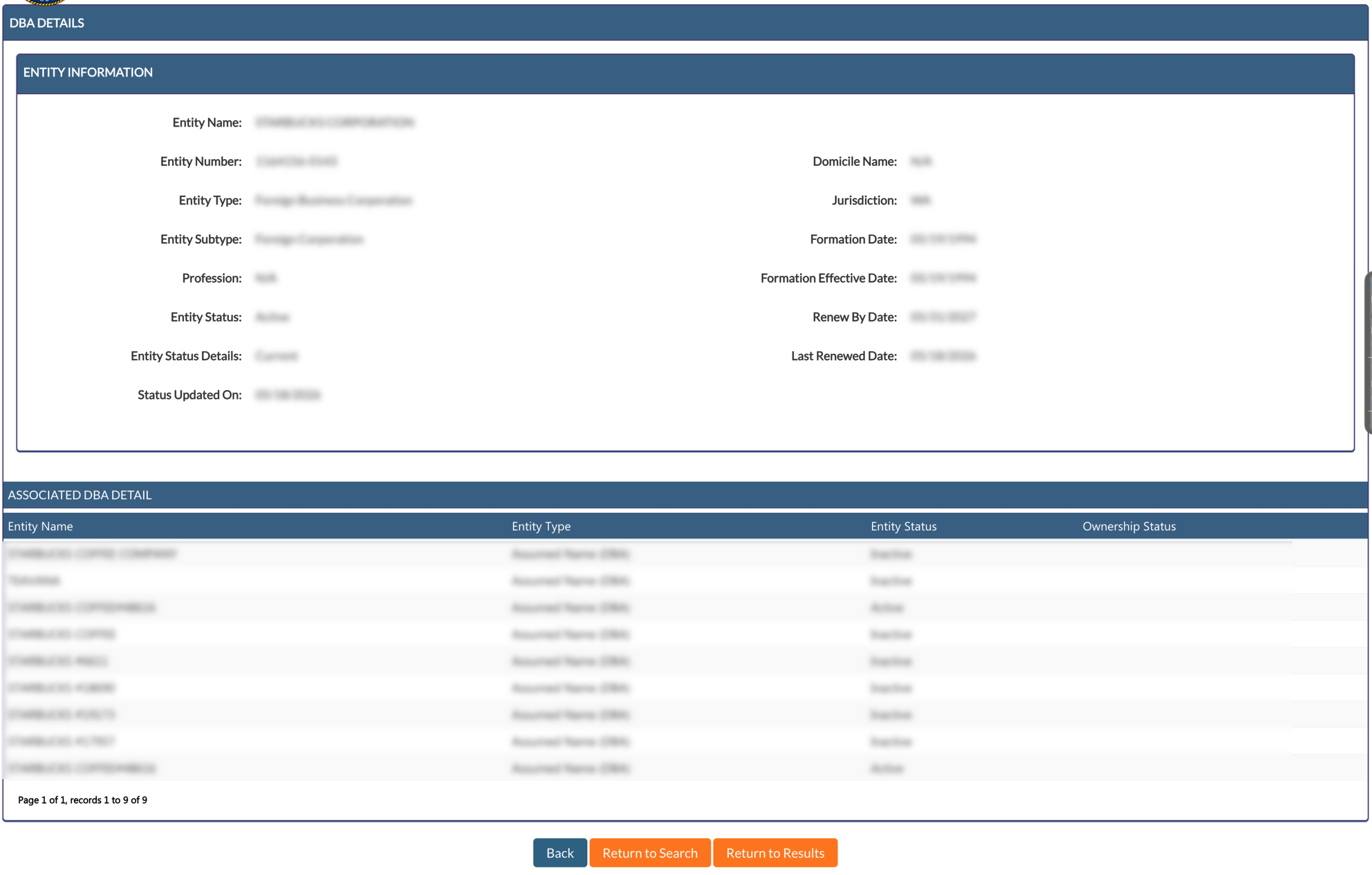
In order to view other names the entity operates (or operated) under, select the “Associated DBAs” button. This directs the browser to access and present a table of this information.
Step 29. Investigate Assumed Names
Focus on the table’s associated DBA (Doing Business As) information in the lower half of the page. Find assumed names in the first column and supporting information in the remaining ones.
- Entity Information
- Entity Name
- Entity Number
- Entity Type
- Entity SubType
- Profession
- Entity Status
- Entity Status Details
- Status Updated On
- Associated DBA Detail
- Entity Name
- Entity Type
- Entity Status
- Ownership Status
- Back
- Return to Search
- Return to Results