The South Dakota Secretary of State business entity search tool helps users find an entity operating in the state using a name or keyword. The state keeps an extensive database of every such profit (or not-for-profit) entity, thus making this an invaluable tool. South Dakota allows multiple searches for public information as well as investigating a name’s availability.
Business Name Availability Check
State of South Dakota

Business Entity Search
Step 1. Open the South Dakota Business Information Search Page
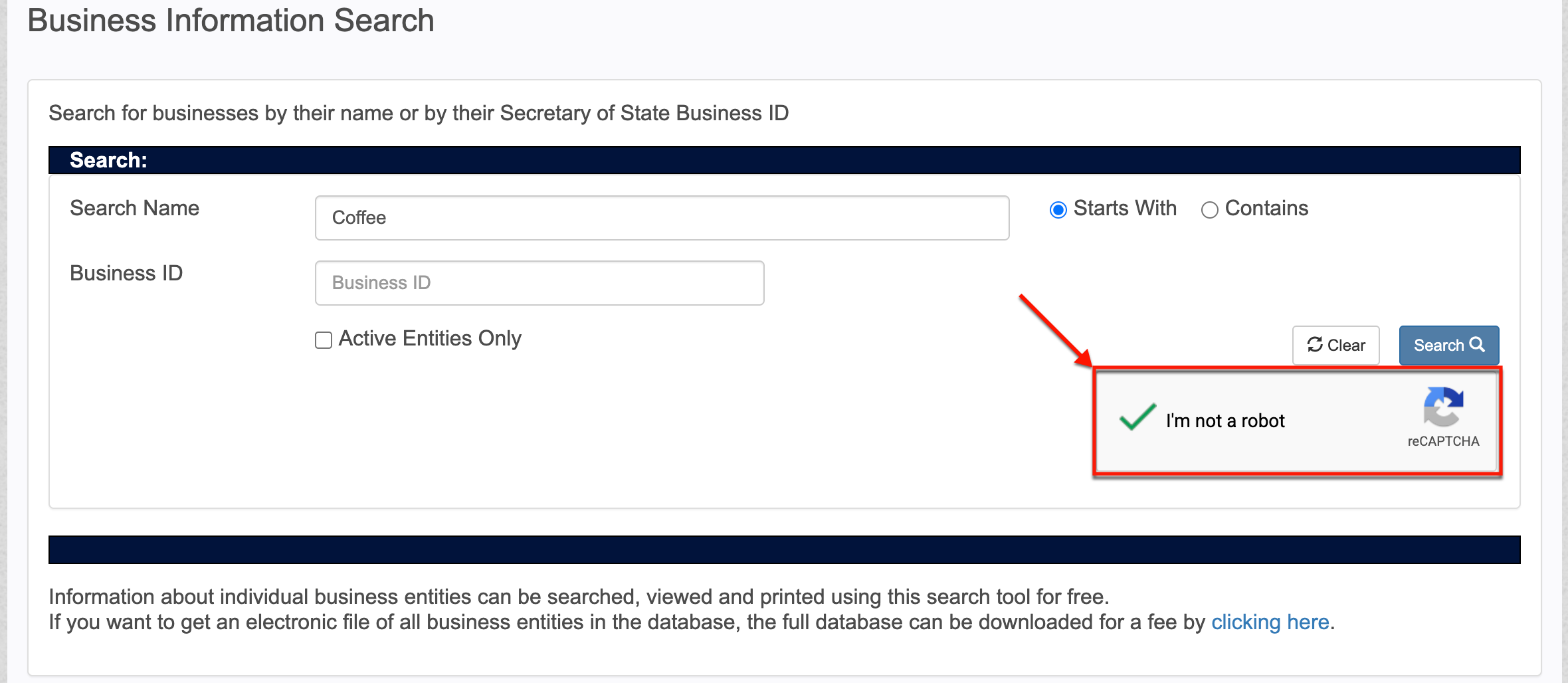
Access the tool using the search page maintained by South Dakota. Bear in mind that you must verify your status by satisfying the reCAPTCHA requirements (see image).
Step 2. Produce the Phrase for the Query to Target
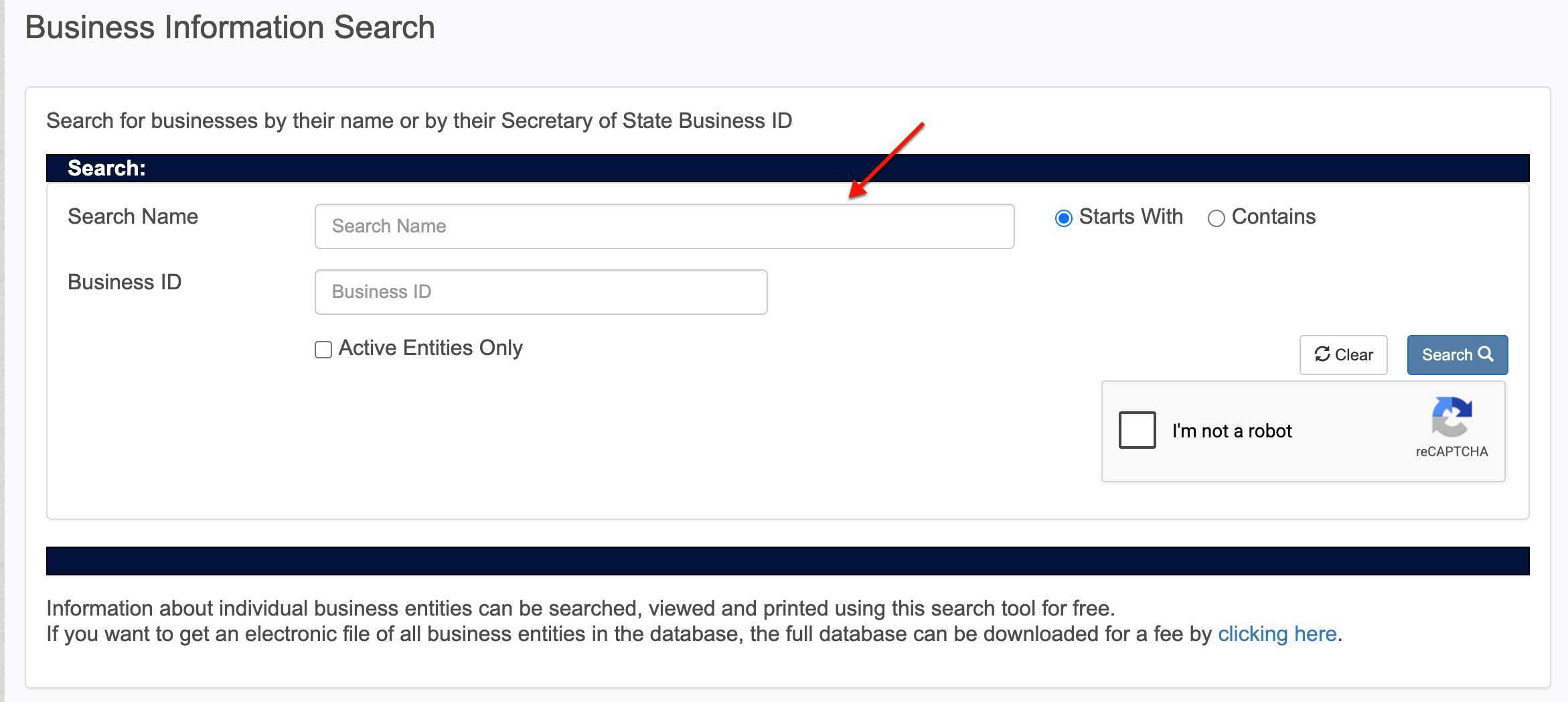
Locate the “Search Name” text box and enter the name of an entity. If the exact name is unknown, you may use a keyword or part of the name.
- Search Name
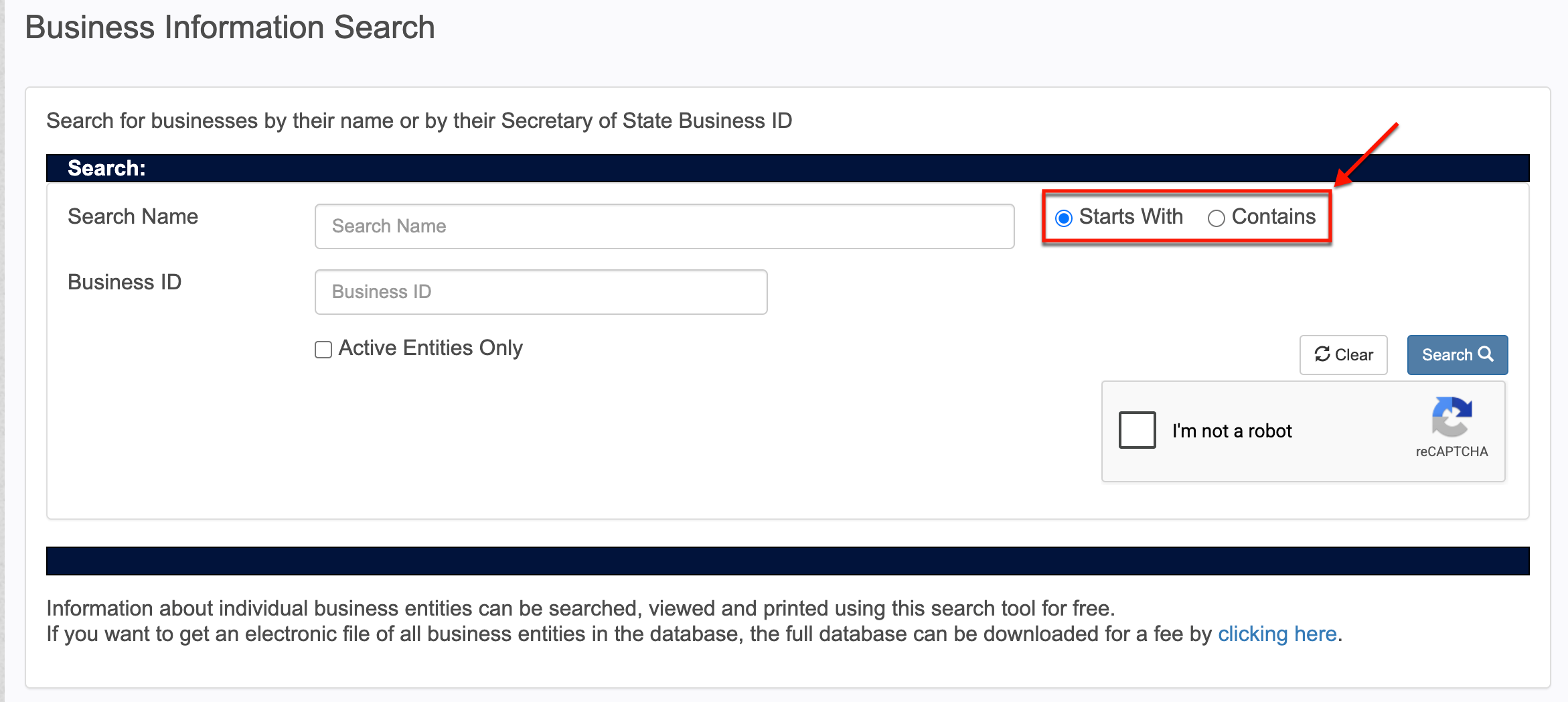
- Starts With
- Contains
- Business ID
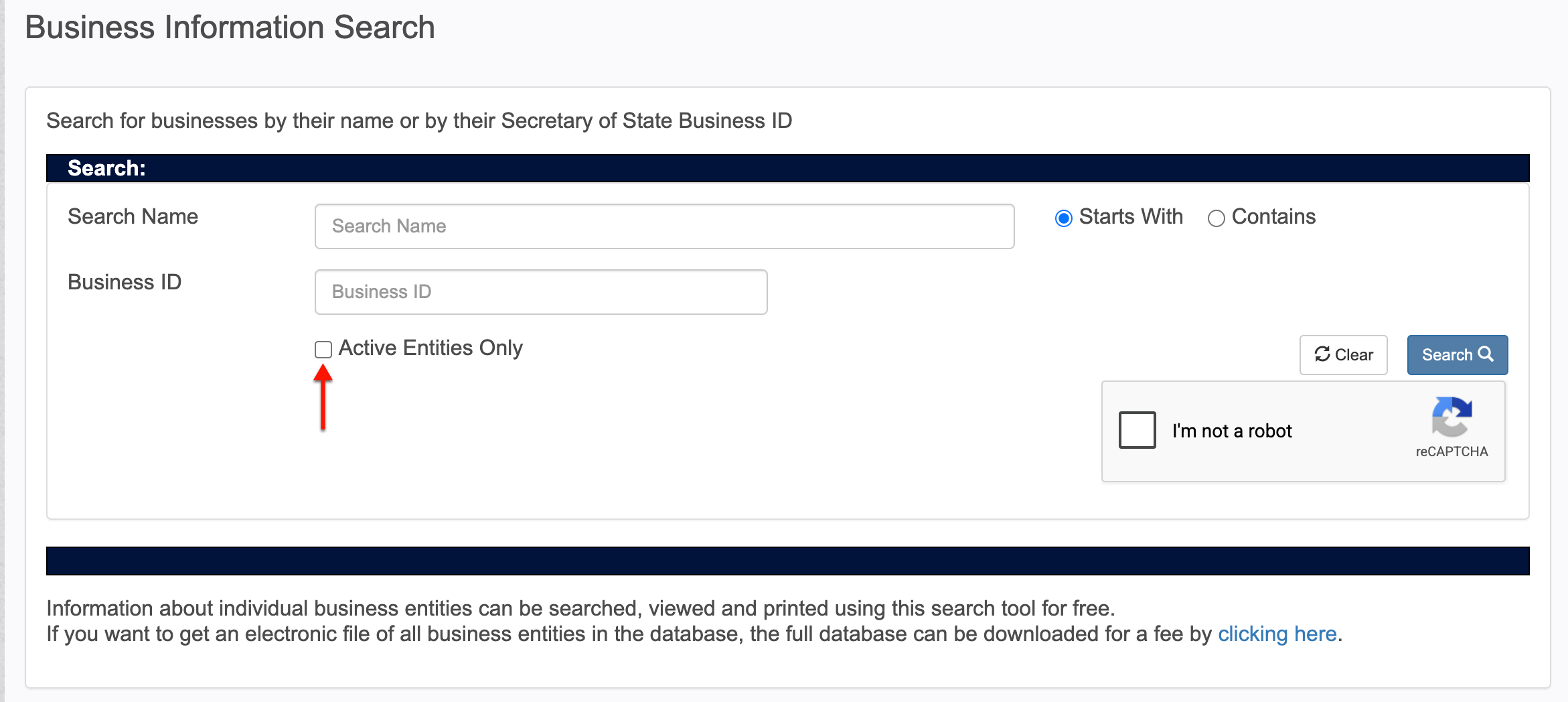
- Active Entities Only
- Clear
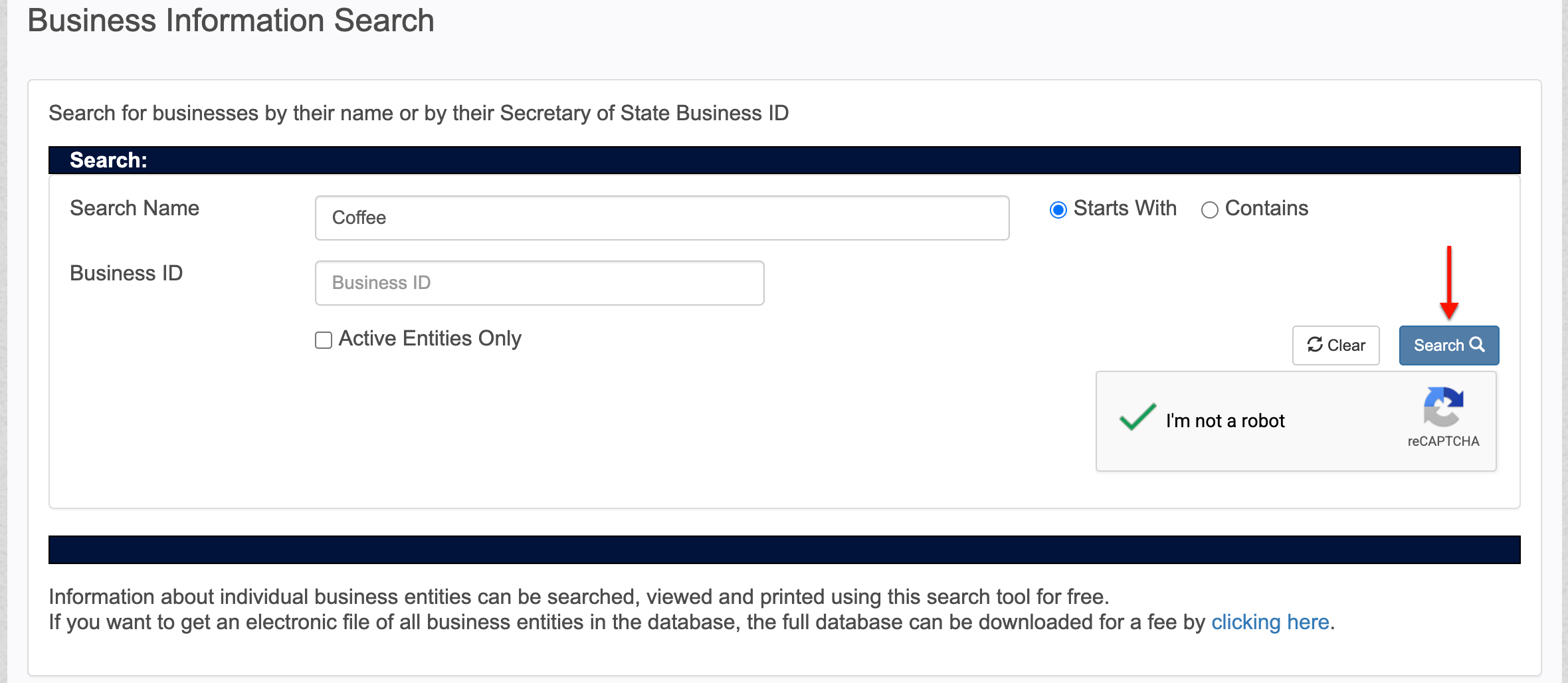
- Search
- reCAPTCHA
Step 3. Establish a Method to Search By
Report if the sought entity’s name begins with the search phrase or contains it by selecting one of the radio buttons. If using the full name, then select “Starts With.”
Step 4. Request A Status Filter
Take a moment to evaluate if the entity you are looking for is an active or inactive entity. If it is currently active (on file), then select the checkbox in order to focus the query.
Step 5. Initiate the South Dakota Query Tool
If you have not satisfied the reCAPTCHA requirements, you must do so now. After meeting the query and security requirements, click “Search” to initiate the query.
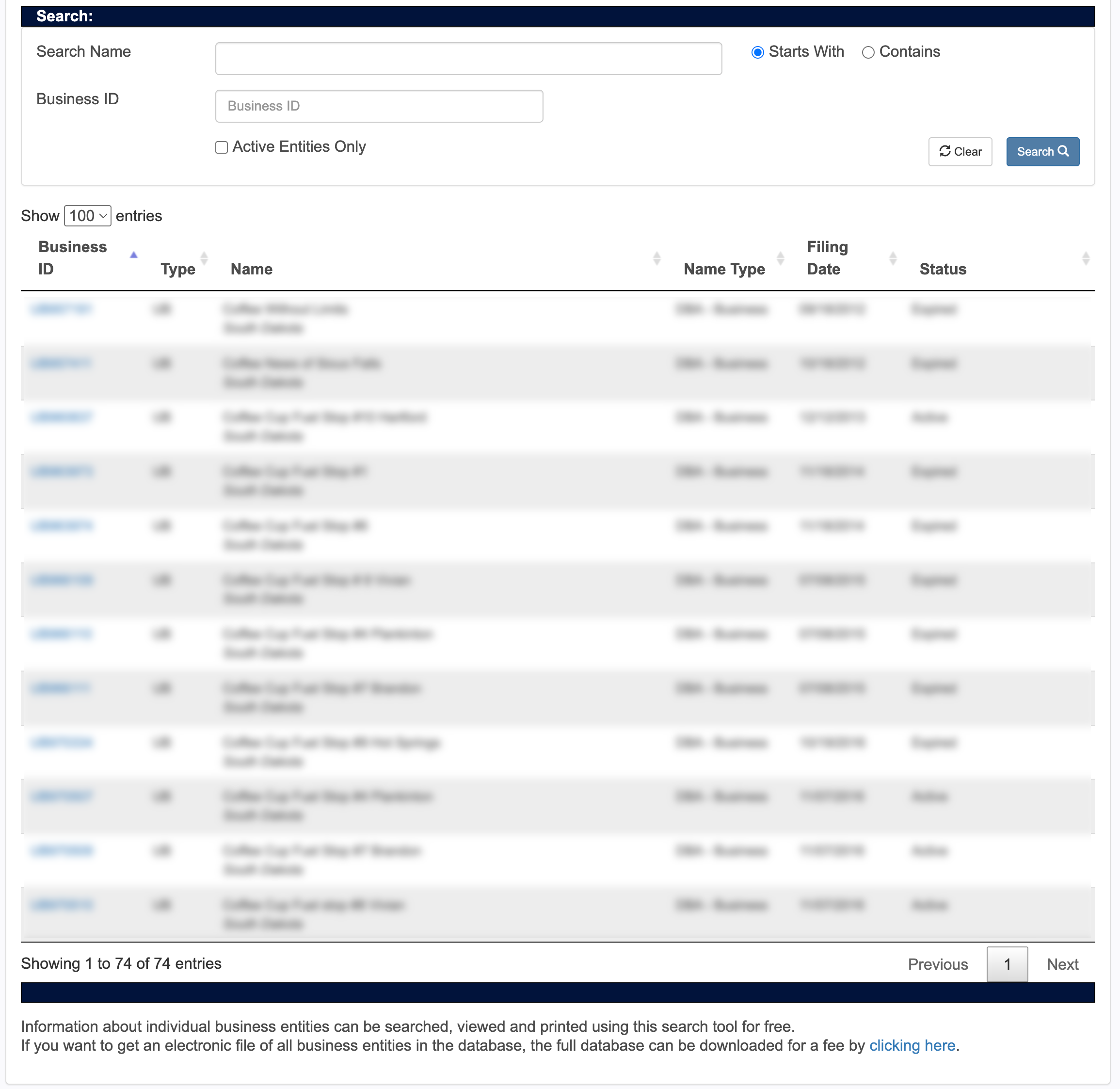
Step 6. Seek the Target in the Returned Results
Scroll through the query results table. Notice that several pieces of information are immediately available for review, each in a column that may be sorted.
- Business ID
- Type
- Name
- Name Type
- Filing Date
- Status
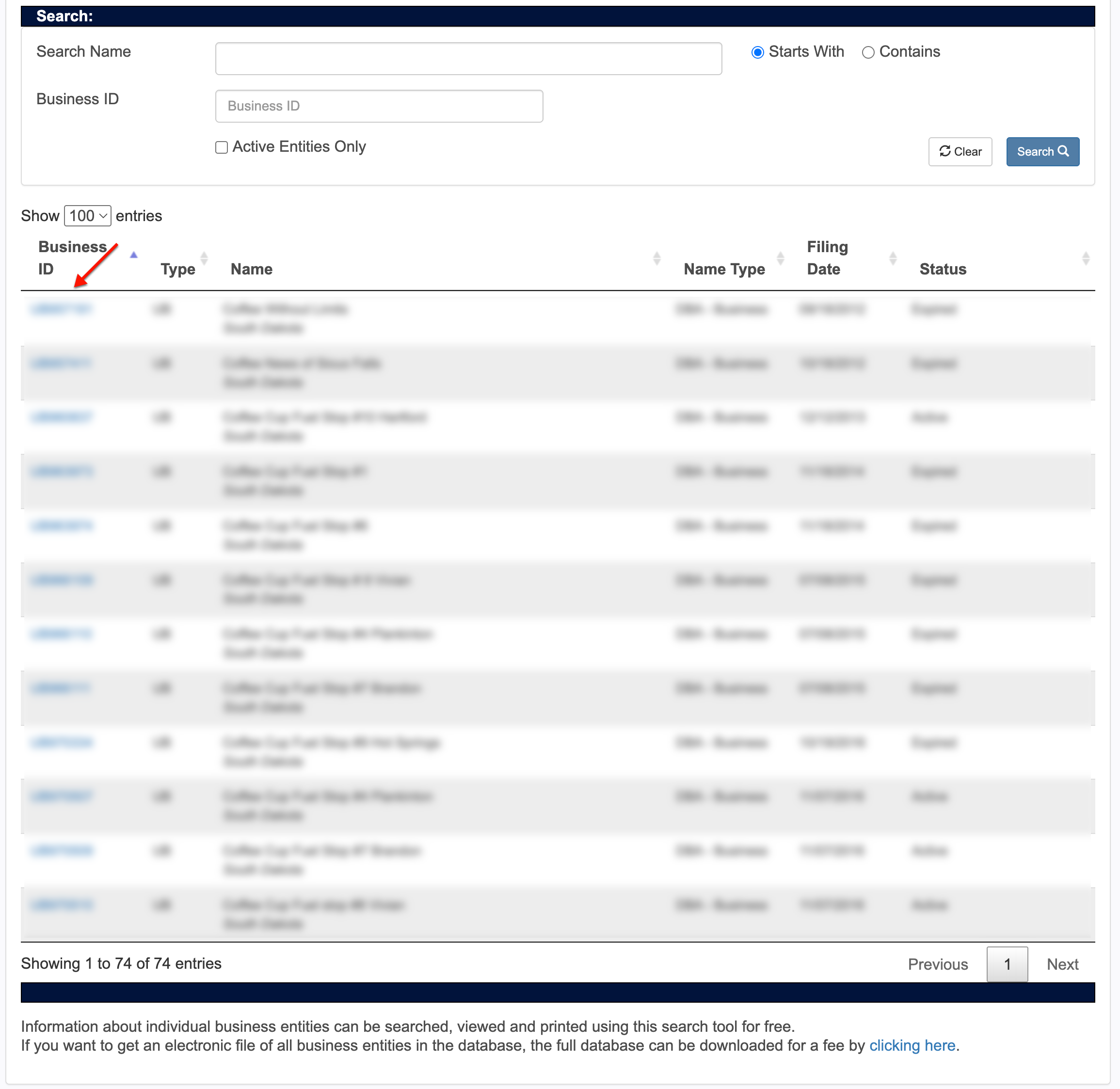
Step 7. Choose An Entity to Look Into
Select an entity’s Business ID number once you determine you wish to investigate it further. You may return to the table results or the search tool at any time.
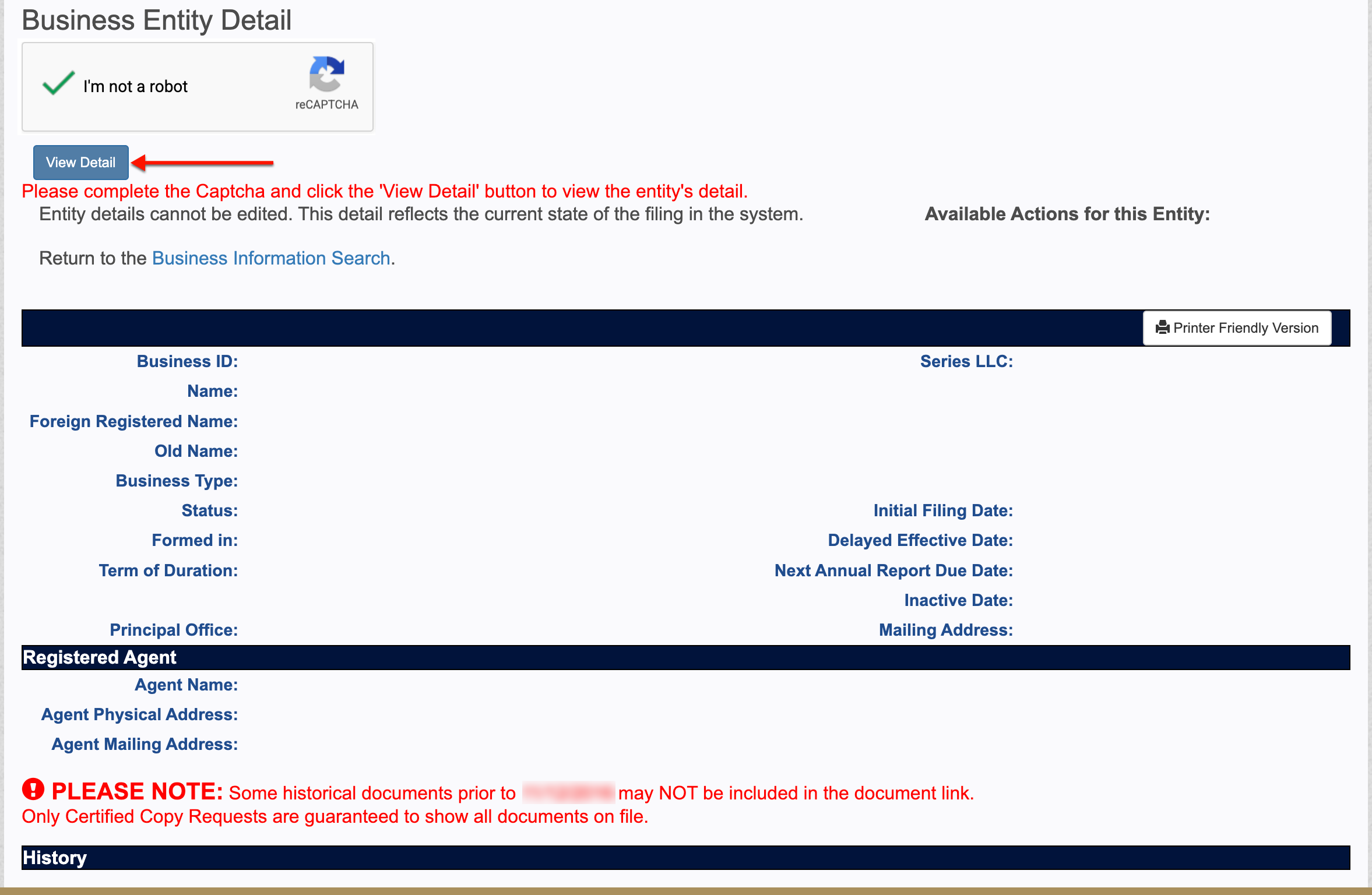
Step 8. Research the South Dakota Entity
Notice that a preview of the entity’s information is on display. However, to view it, you must satisfy the reCAPTCHA requirements (see image), then select “View Detail.”
- reCAPTCHA
- View Detail
- Business ID
- Name
- Foreign Registered Name
- Old Name
- Business Type
- Status
- Formed In
- Term of Duration
- Principal Office
- Series LLC
- Initial Filing Date
- Delayed Effective Date
- Next Annual Report Due Date
- Inactive Date
- Mailing Address
- Registered Agent
- Agent Name
- Agent Physical Address
- Agent Mailing Address
- History
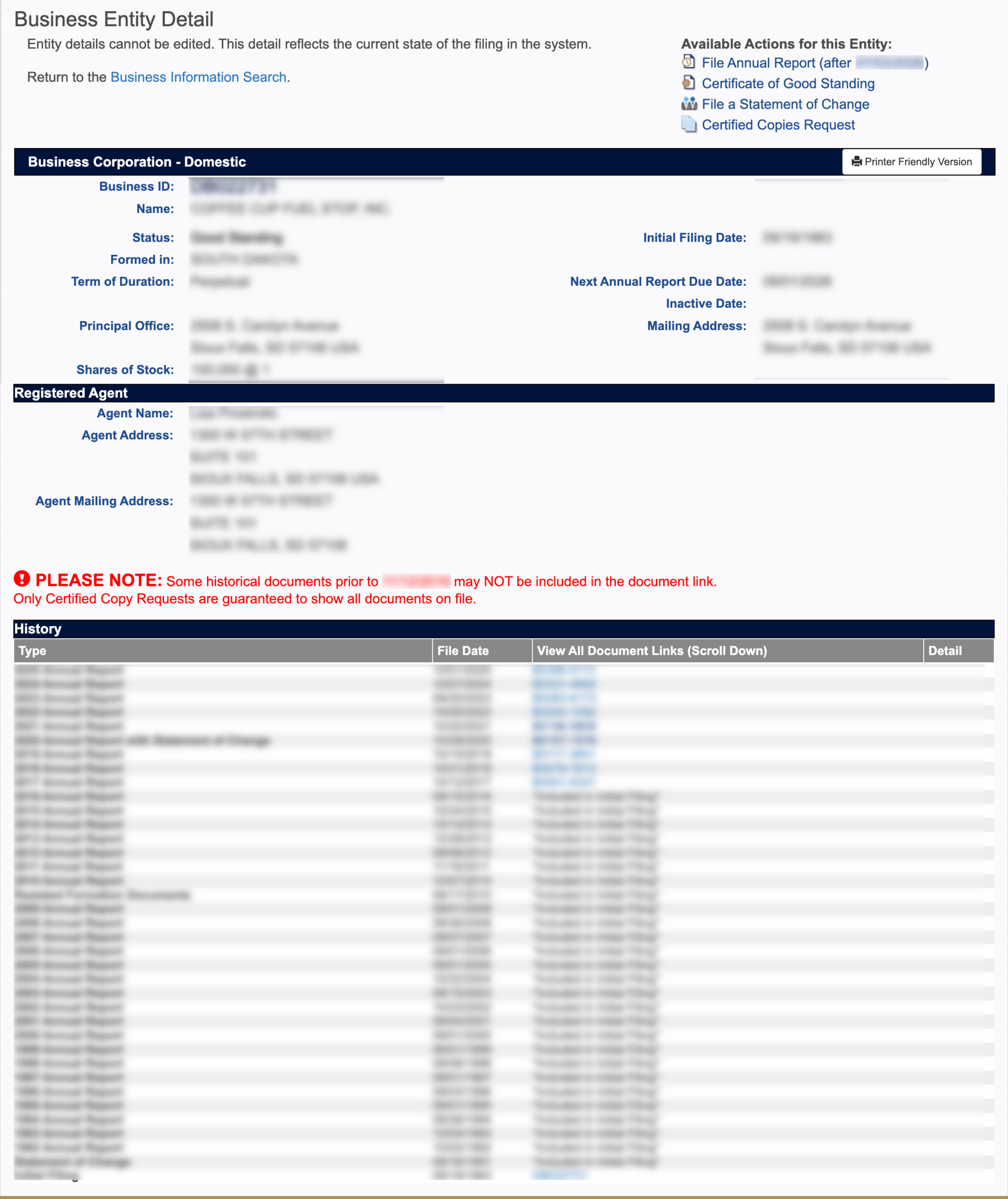
Step 9. Select an Entity Filing for Review
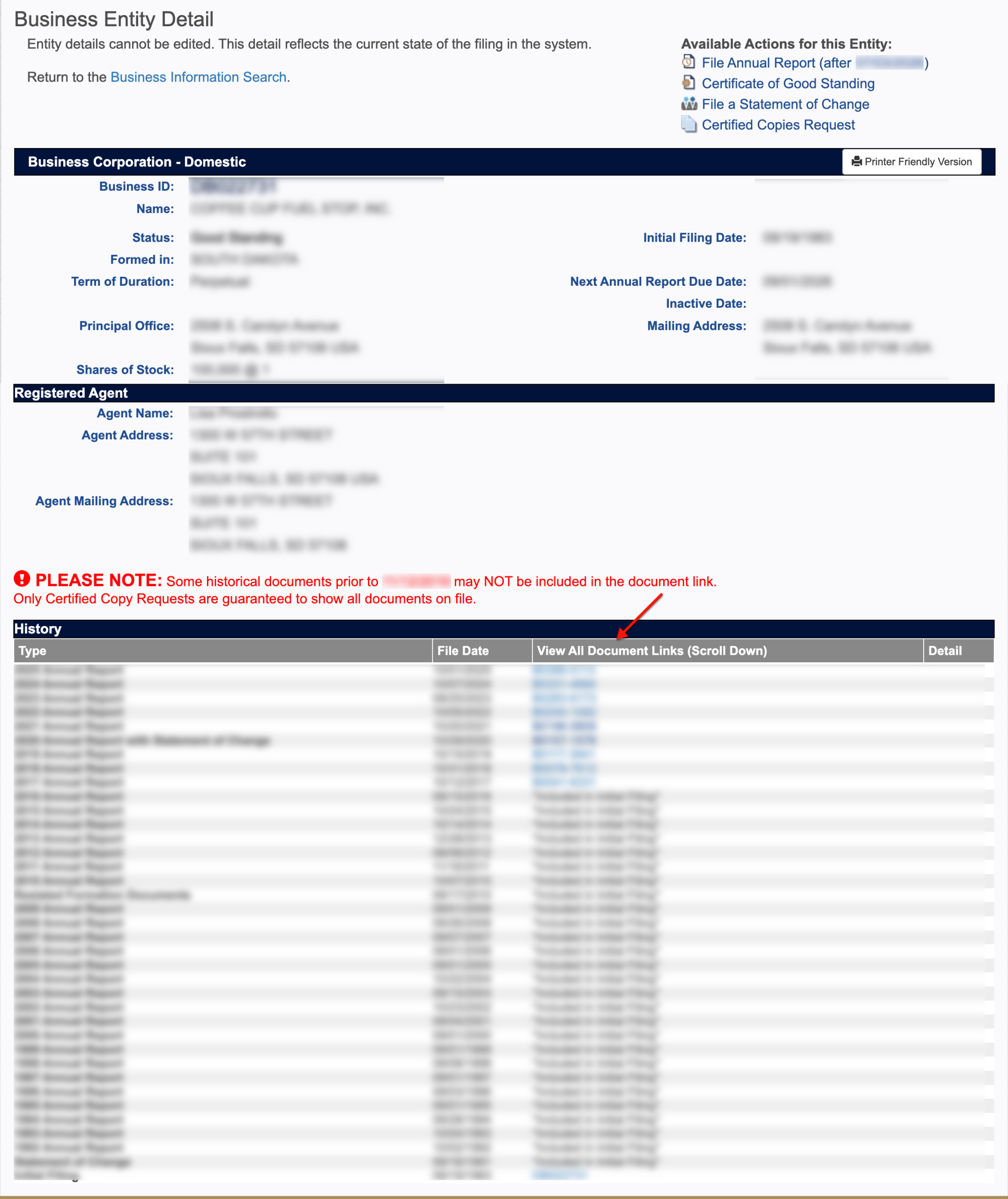
Completing the reCAPTCHA opens the record information. Notice this includes material on the registered agent as well as the entity. Examine this page, especially the filing history section.
- History
- Type
- File Date
- View All Document Links (Scroll Down)
- Detail
Step 10. Review the South Dakota Entity’s Filing History
Examine the entity filings that the table lists. Select, then view a filing scan from the “View All Document Links” column (if available).
- History
- Type
- File Date
- View All Document Links (Scroll Down)
- Detail