The Pennsylvania Secretary of State business entity search is designed to aid visitors in looking up entity information as well as checking for name availability. Users choose between a basic quick search and an advanced search based on their needs and resources. Once they locate a record, they may investigate an entity’s structure and history.
Business Name Availability Check
State of Pennsylvania

Business Entity Search
Step 1. Access the Pennsylvania Business Search Tool
Go to the business entity search page run by the State of Pennsylvania. From this page, Pennsylvania allows you to search its entity database for information.
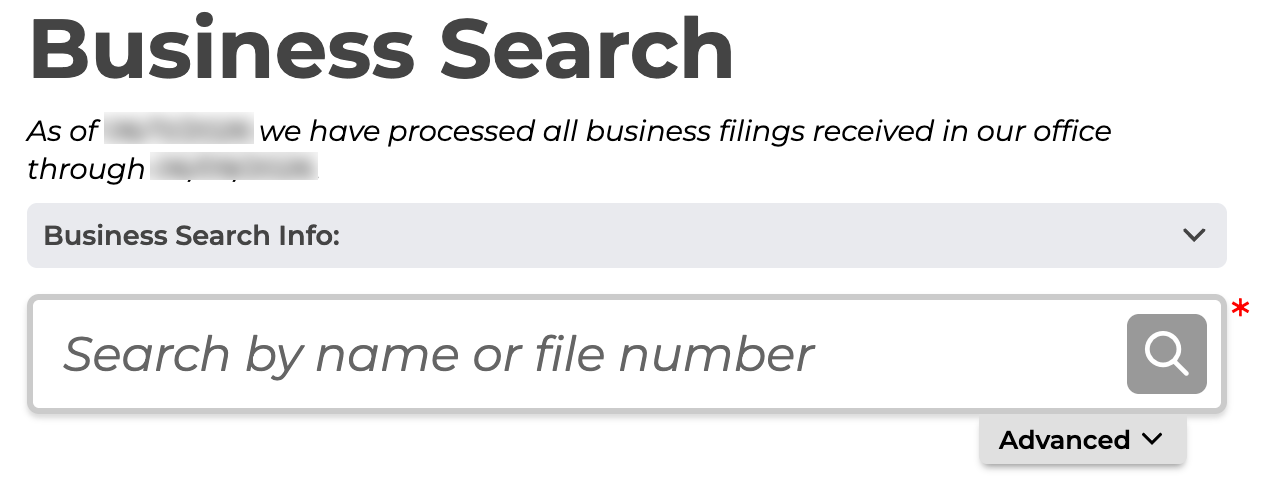
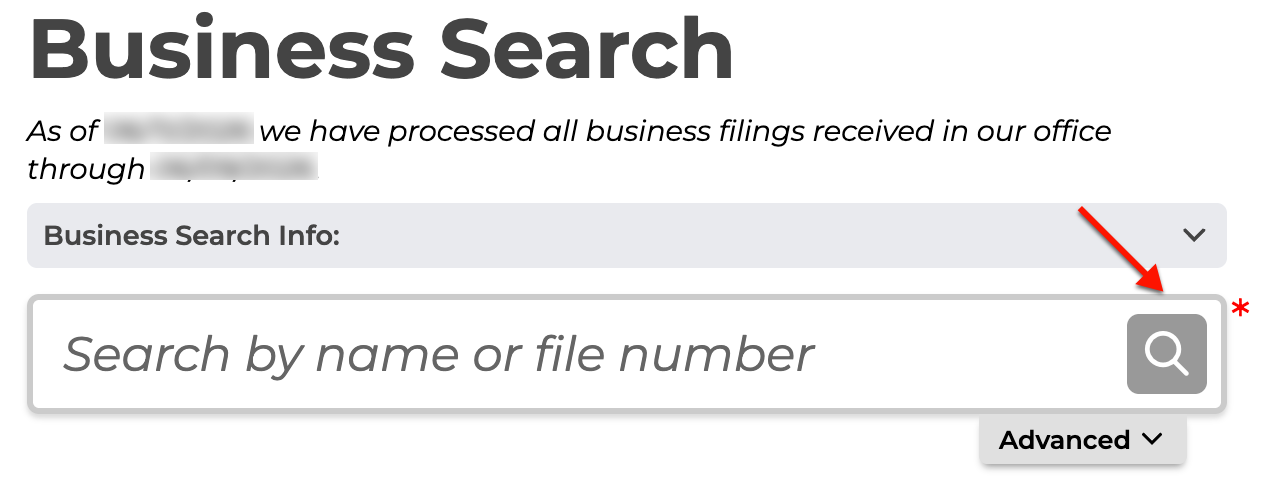
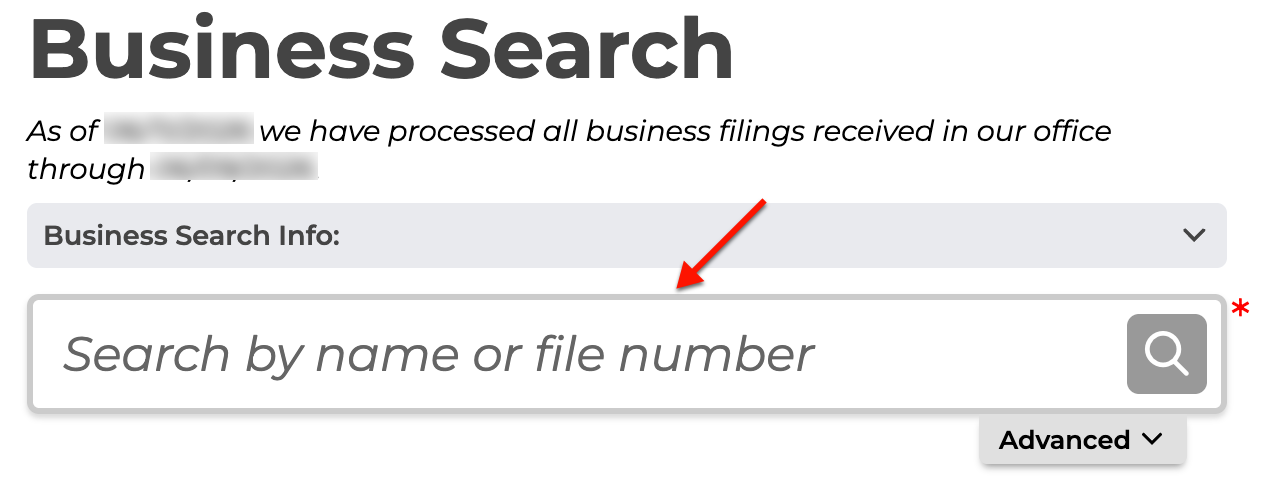
Step 2. Run a Basic Search
Report the name, word, phrase, or number associated with the entity of interest in the search box, then continue to Step 9. However, to run an advanced search, proceed to Step 3.
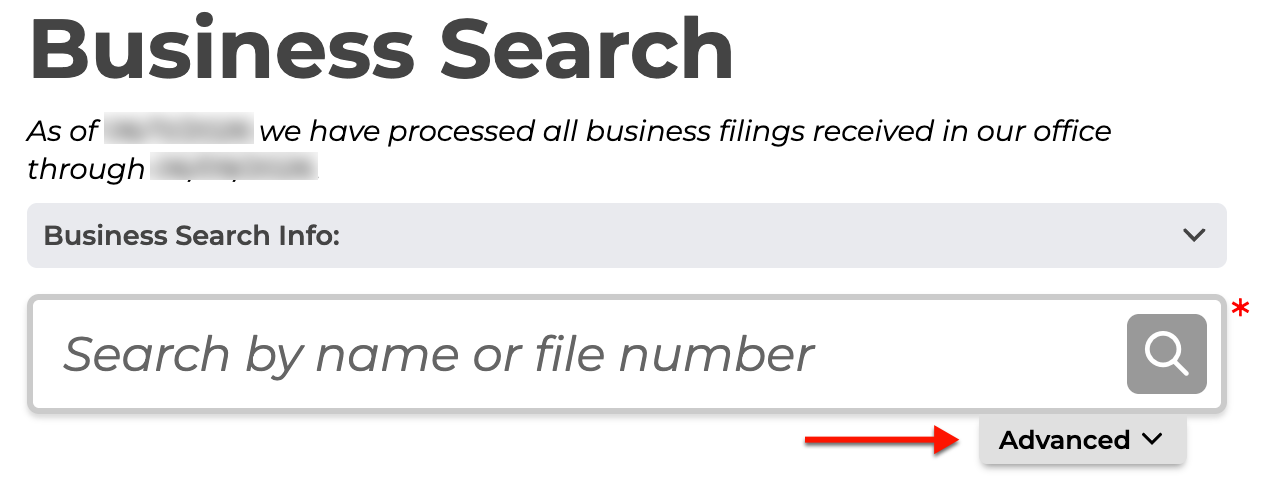
Step 3. Conduct an Optional Advanced Search
In order to attach specific filters or additional criteria to the search, select the “Advanced” tab. This opens a new area below the search box.
Step 4. Look Through Advanced Options
Prepare the information you are referencing while looking over the advanced options for this search. Use any or all of the filters available for the search phrase.
- Search Filter
- Contains
- Starts With
- Filing Type
- Status
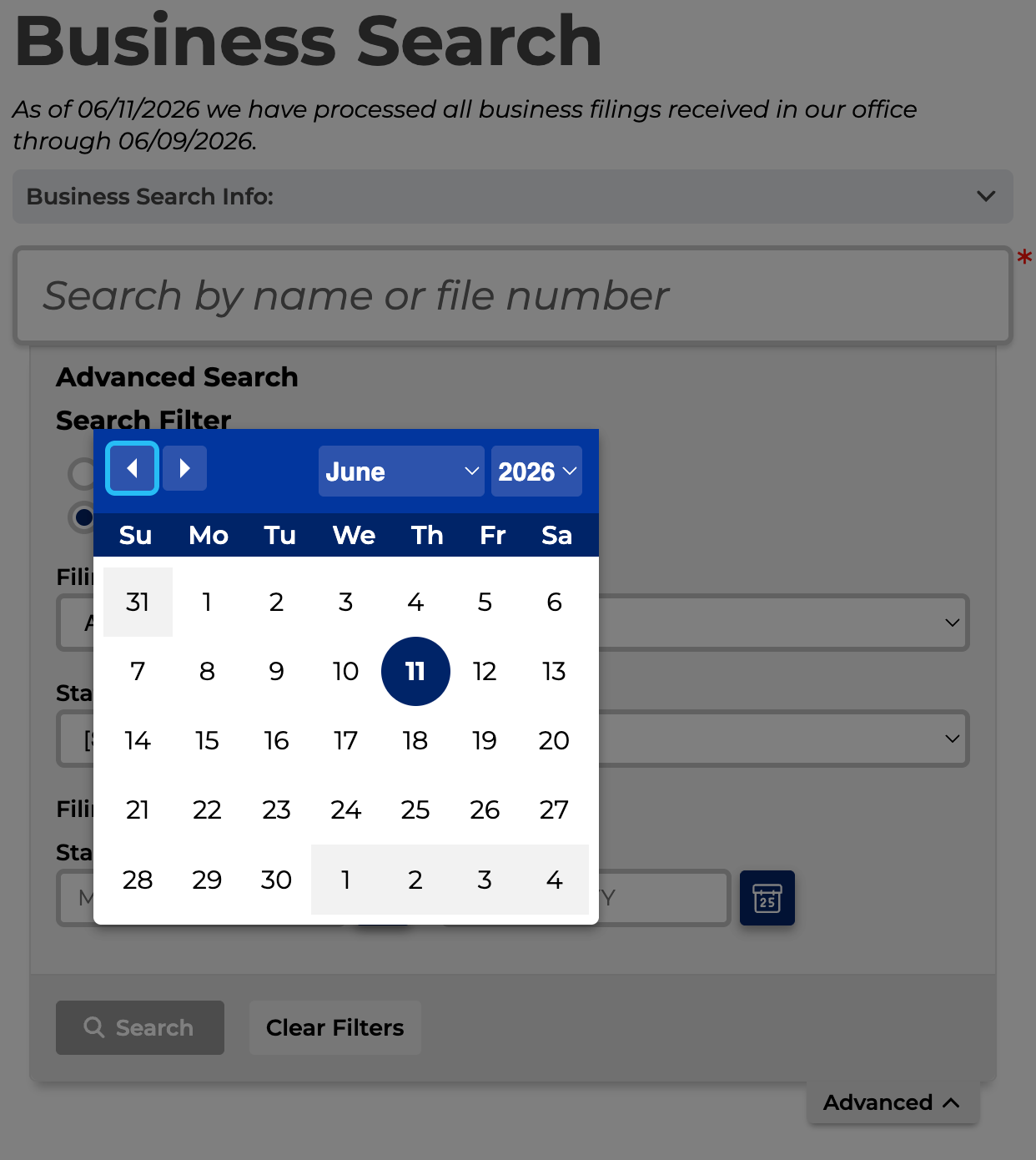
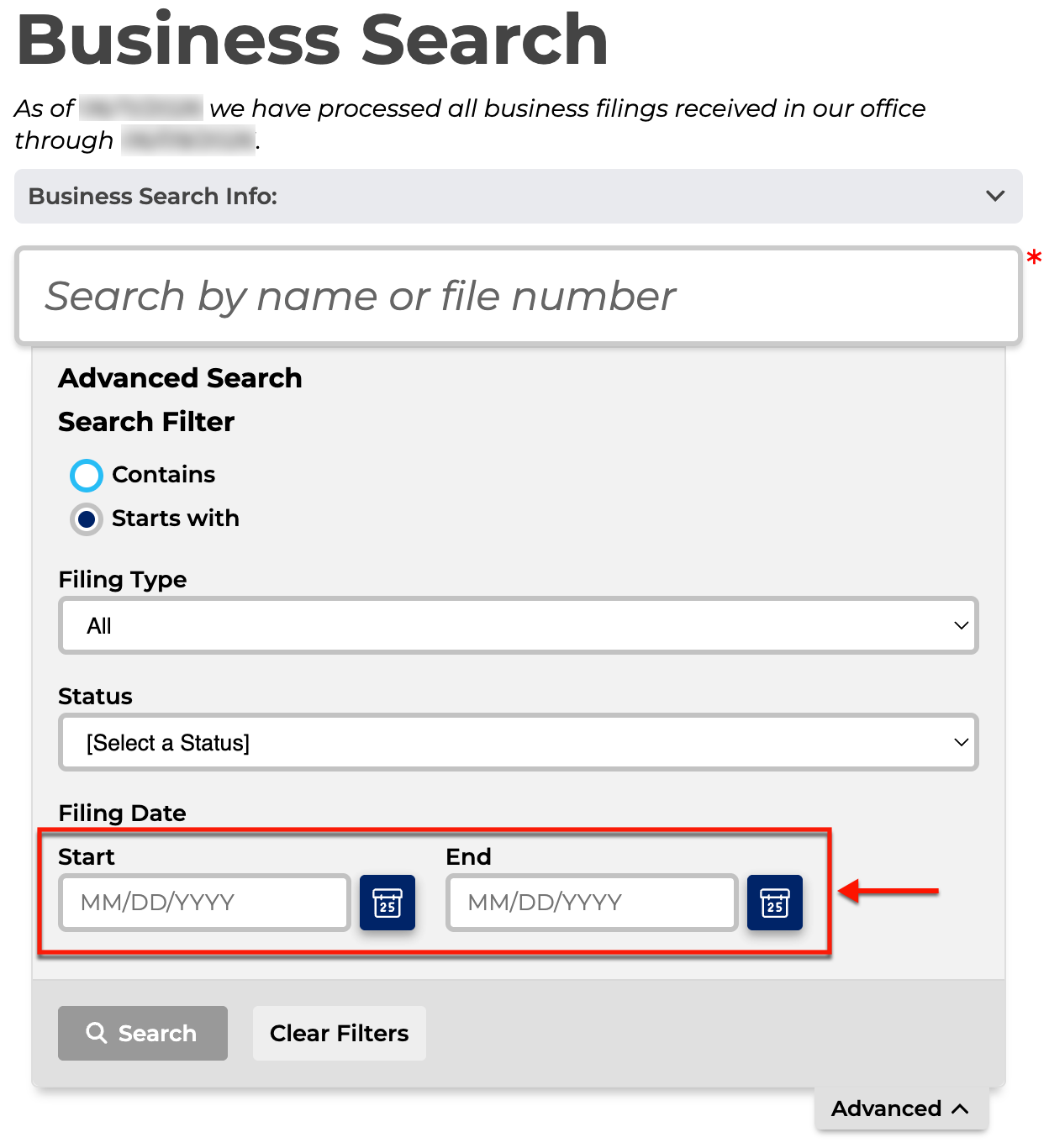
- Filing Date
- Start
- End
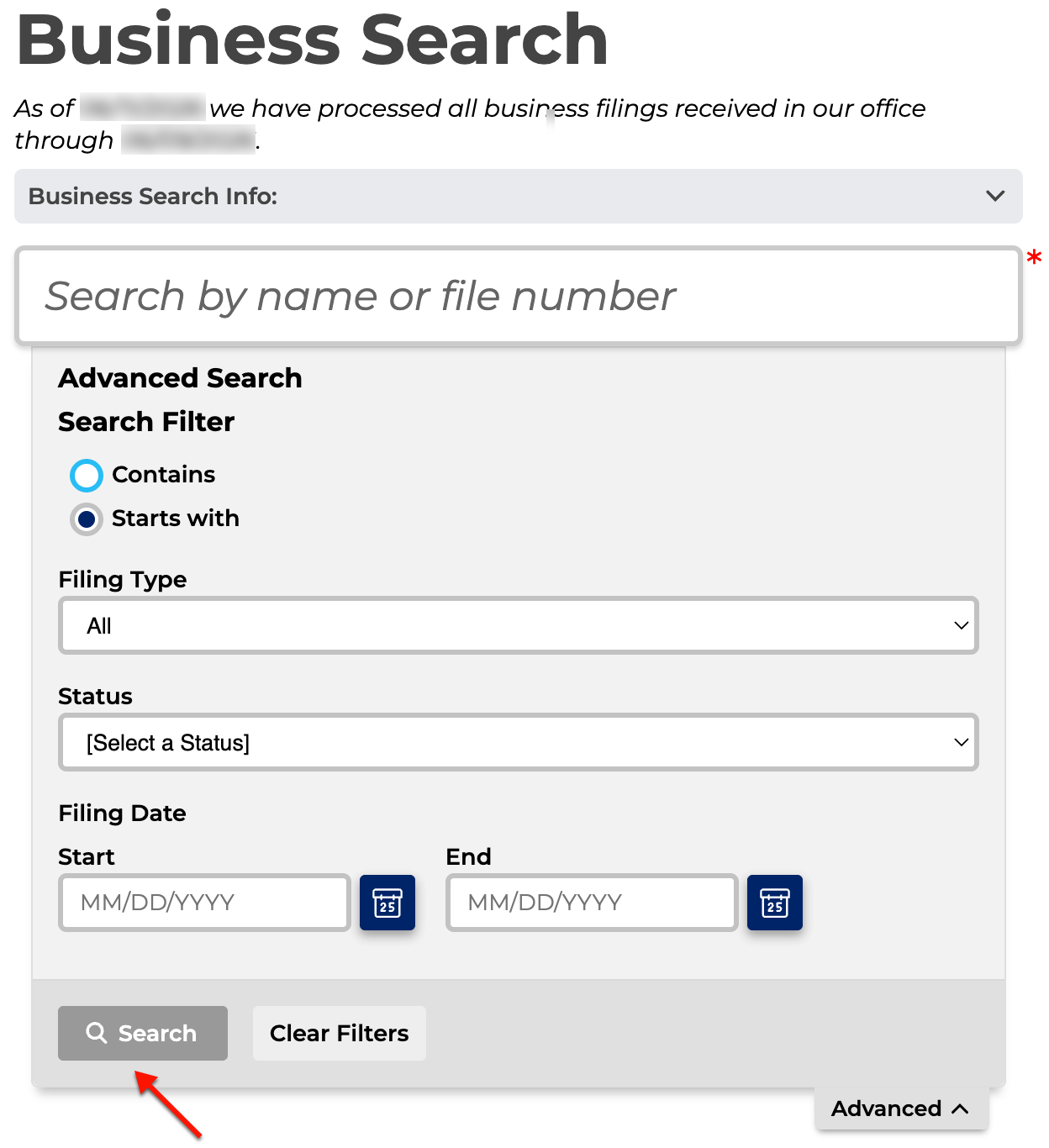
- Search
- Clear Filters
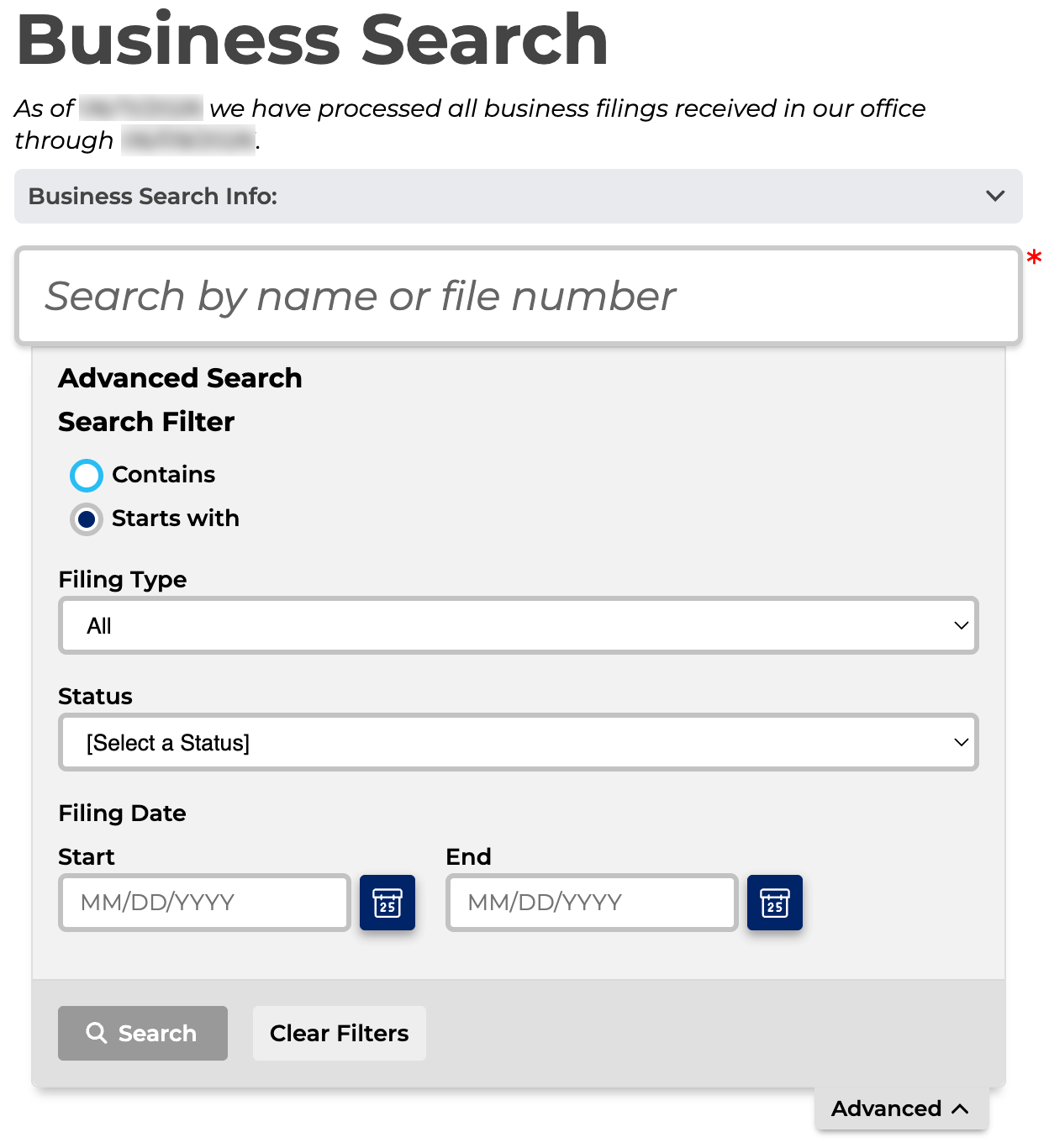
Step 5. Apply a Filter to the Results
Notice the first two radio buttons apply directly to the target. Indicate if the search item can appear anywhere in the results or only at the beginning.
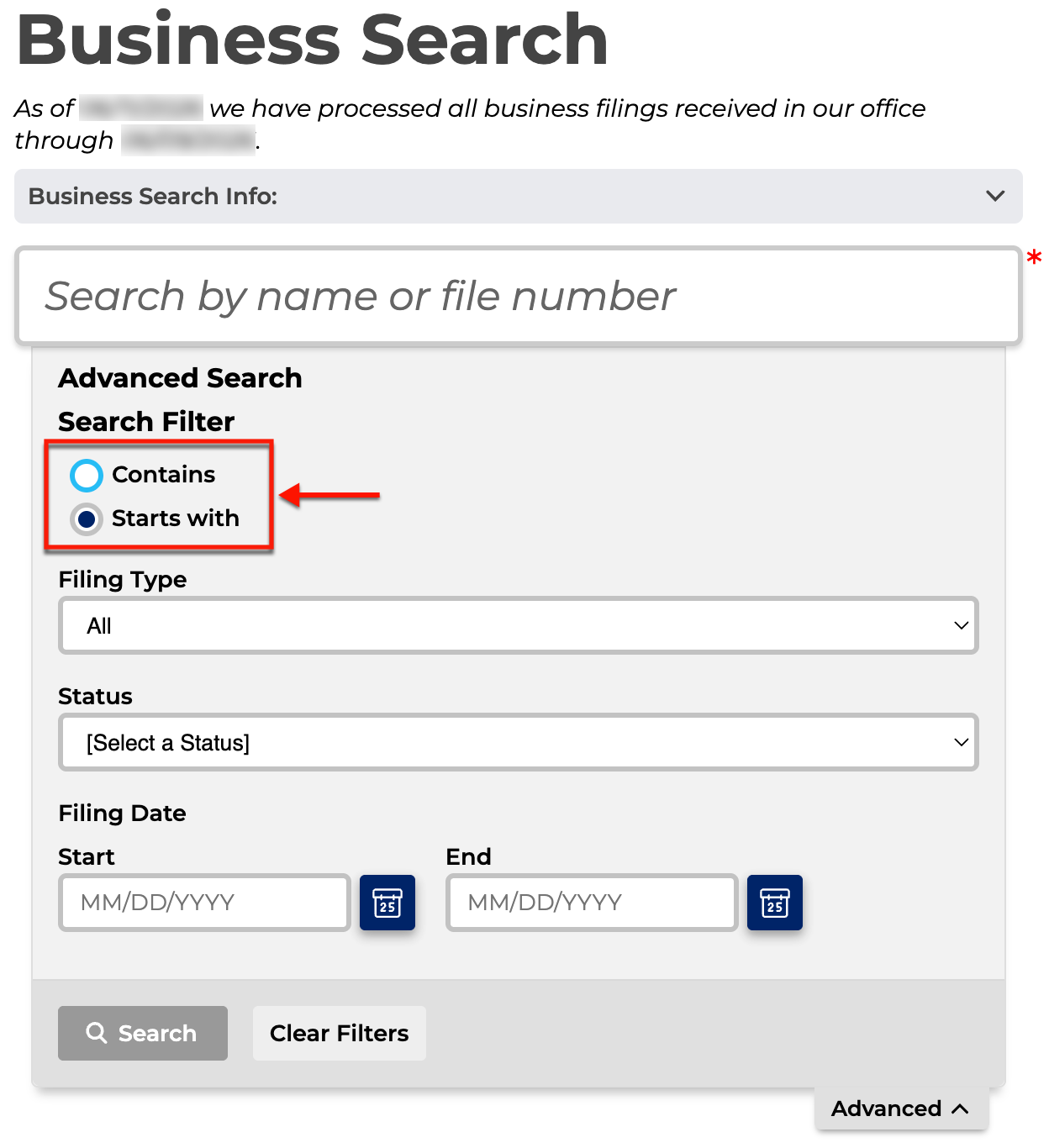
Step 6. Describe the Entity Type
Using the first drop-down menu (see image), set the query to only display certain types of entities, such as corporations or LLCs. While not mandatory, this often produces tighter results.
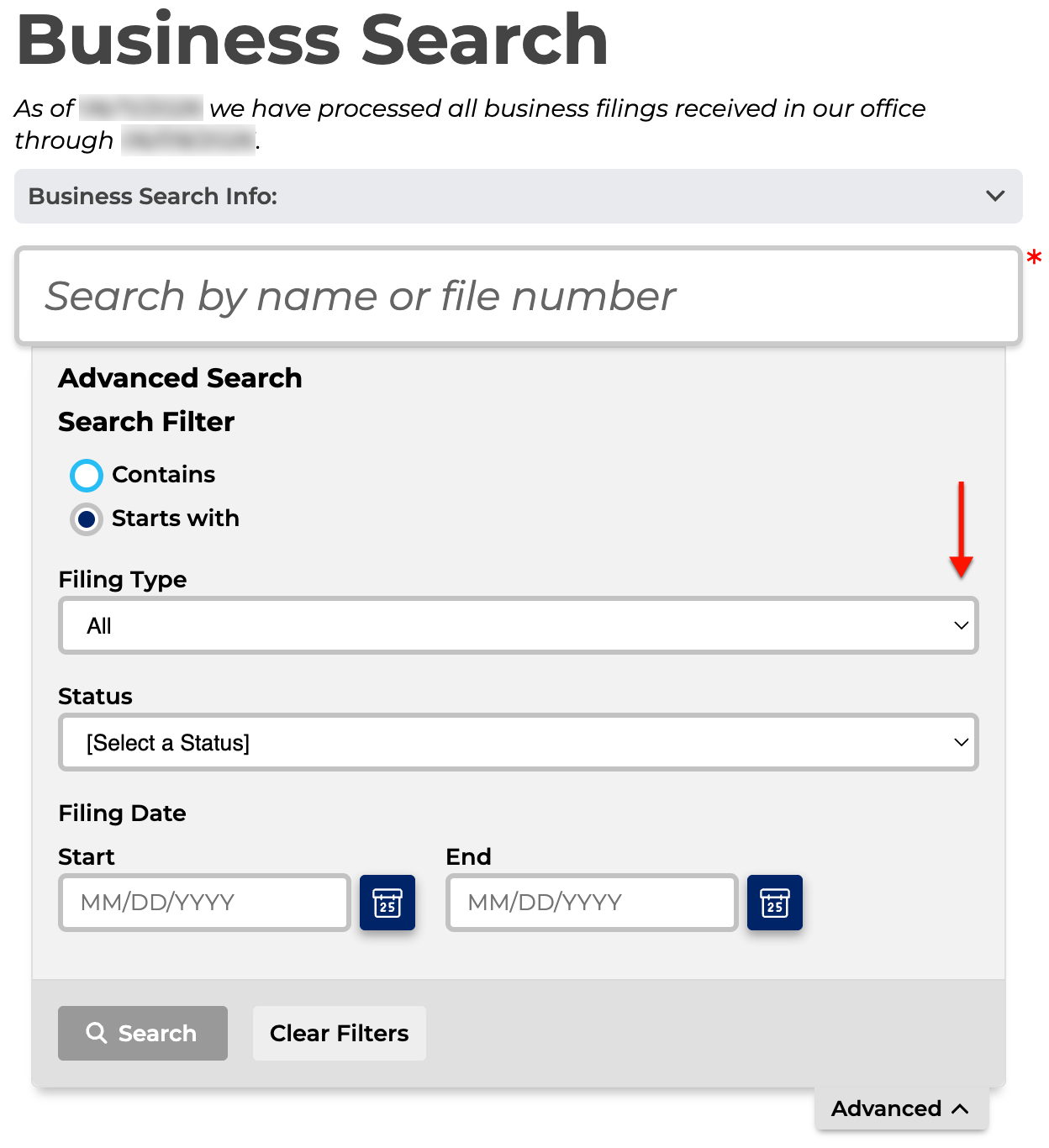
Step 7. Filter the Results By Entity Status
Direct your attention to the “Status” field. Use the menu here (see image) to return entities with a specific status with the state (e.g., active, in active, pending merger, abandoned).
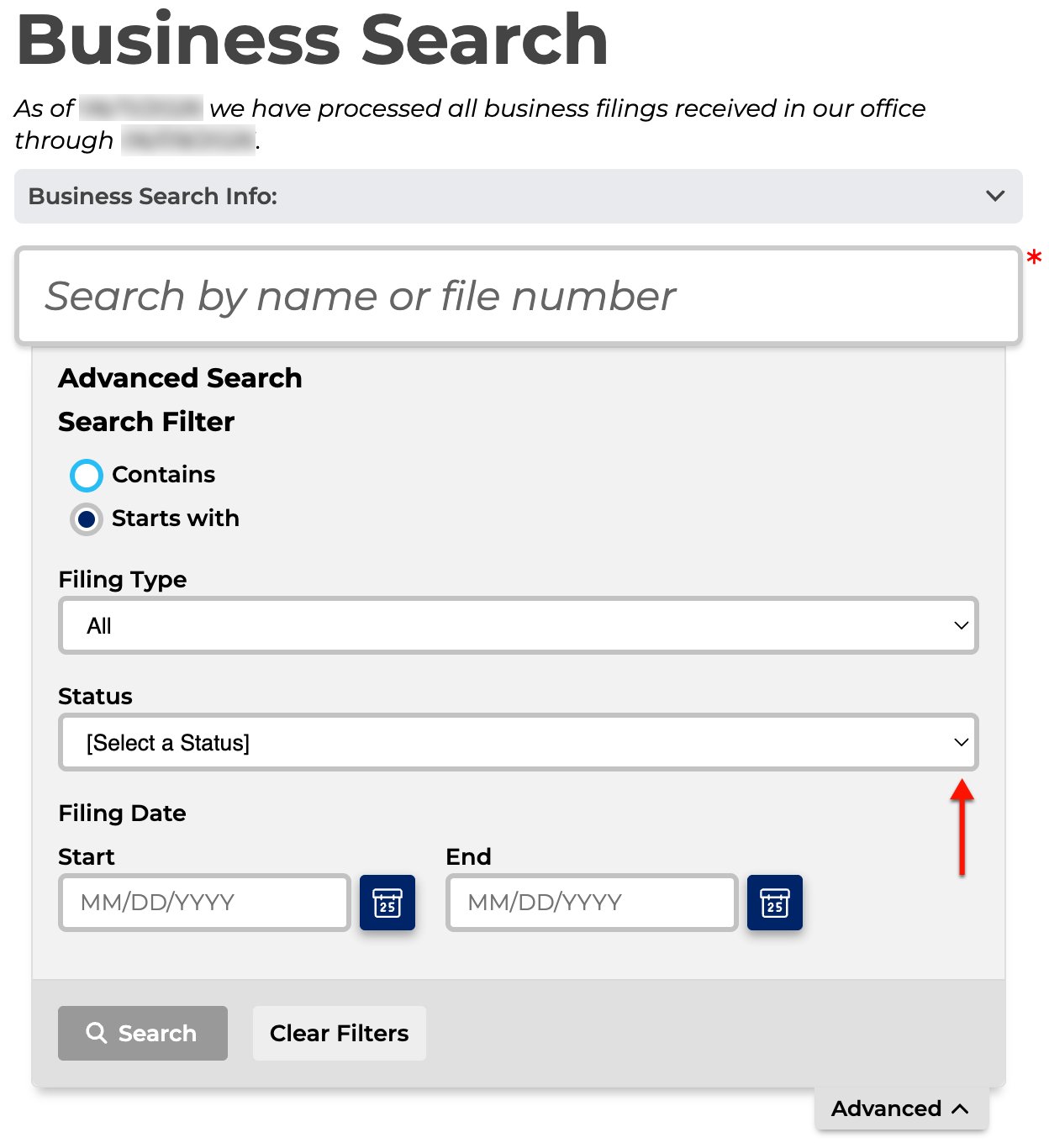
Step 8. Apply a Date Filter
Continue to the final area, containing two fields. Filter out any entities before or after a certain date by supplying a range using the available tool (see image).
Step 9. Engage the Tool
In order to submit the query, click on the search magnifying glass in a basic search (see image). Otherwise, to initiate an advanced search, select the “Search” button.
Step 10. Scroll Through Matching Records
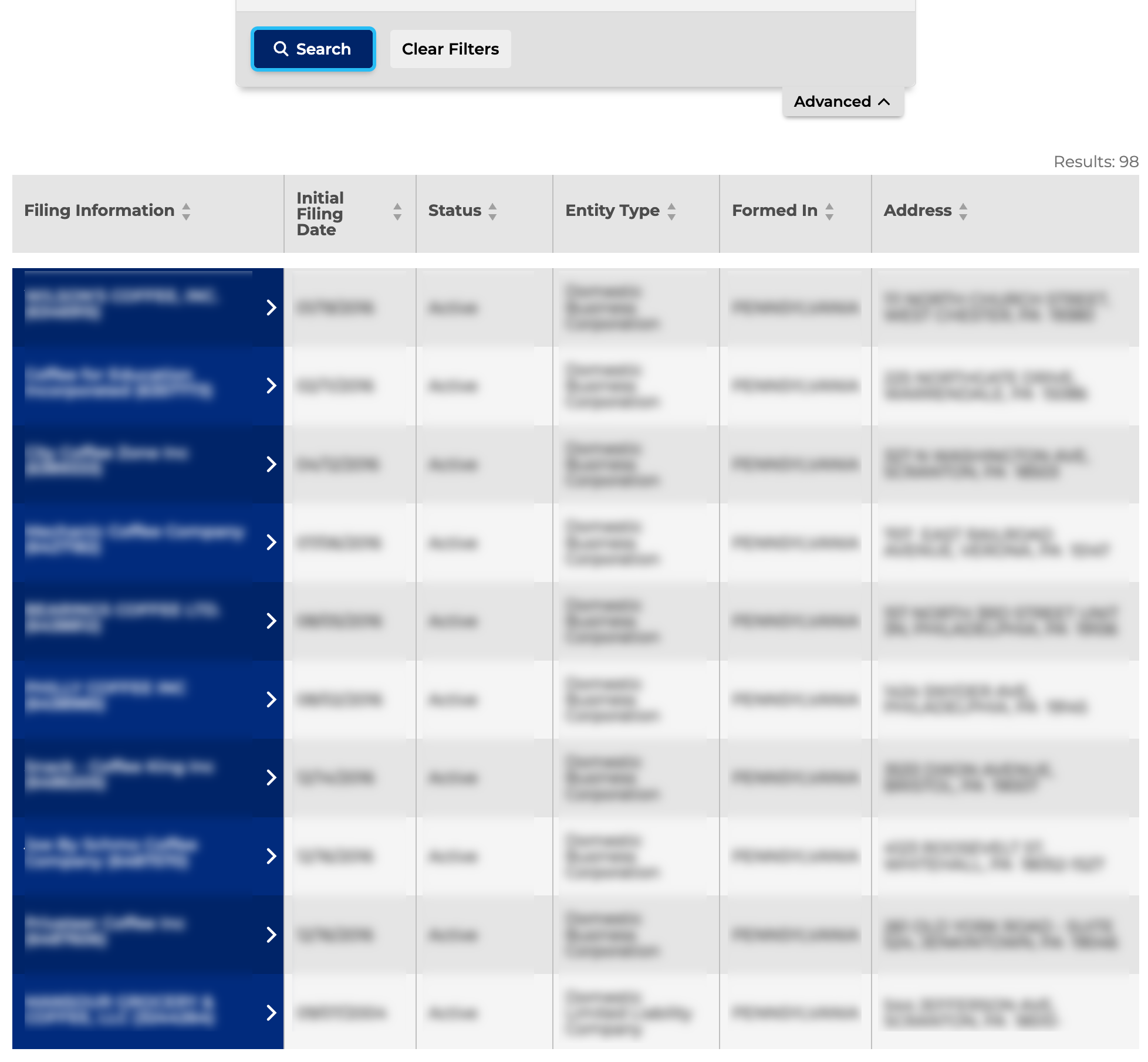
Scan the names in the first column for the entity. Use the columns that accompany this entry to confirm your choice as an entity of interest.
- Filing Information
- Initial Filing Date
- Status
- Entity Type
- Formed In
- Address
Step 11. Choose an Entity From the Results
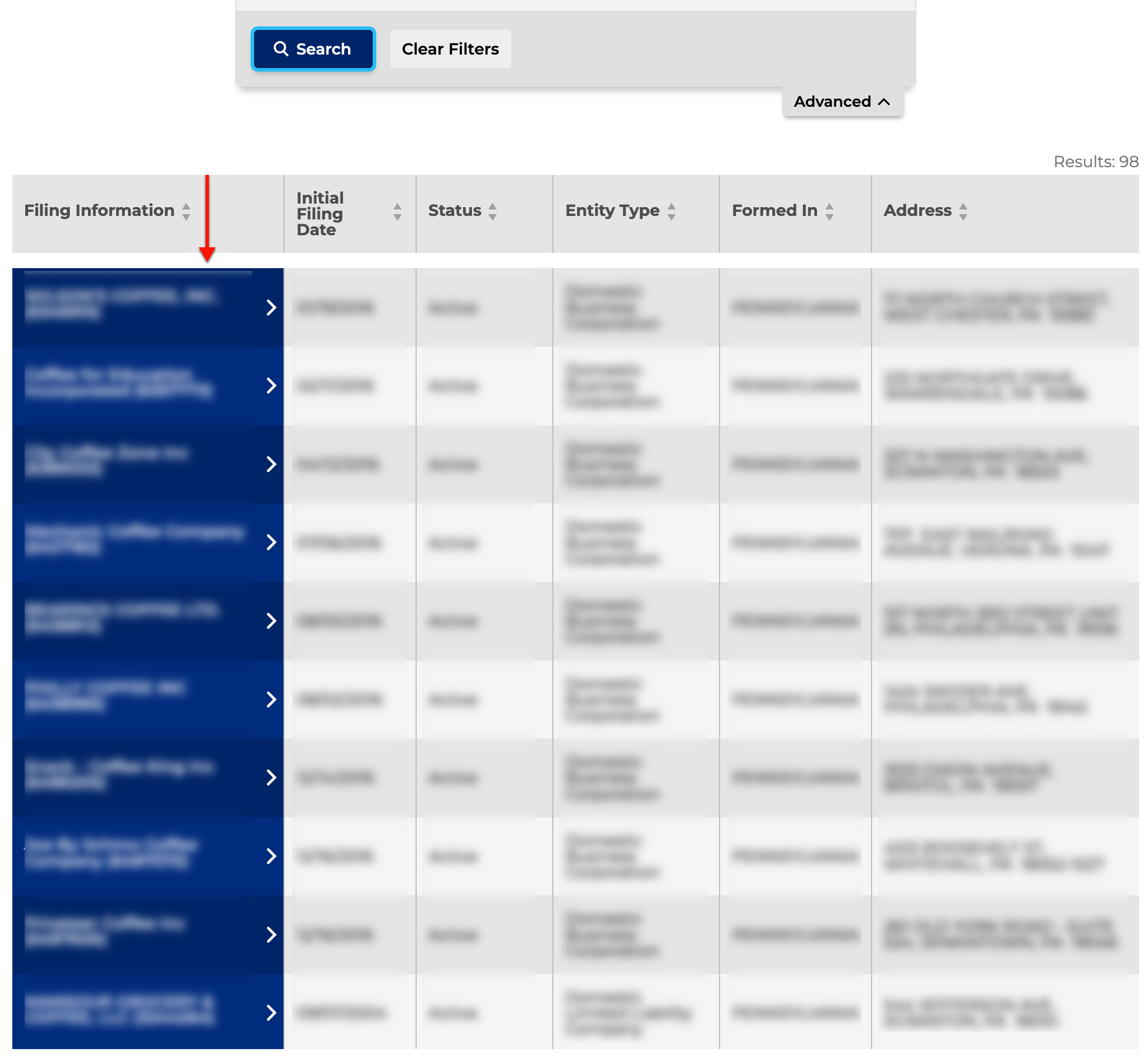
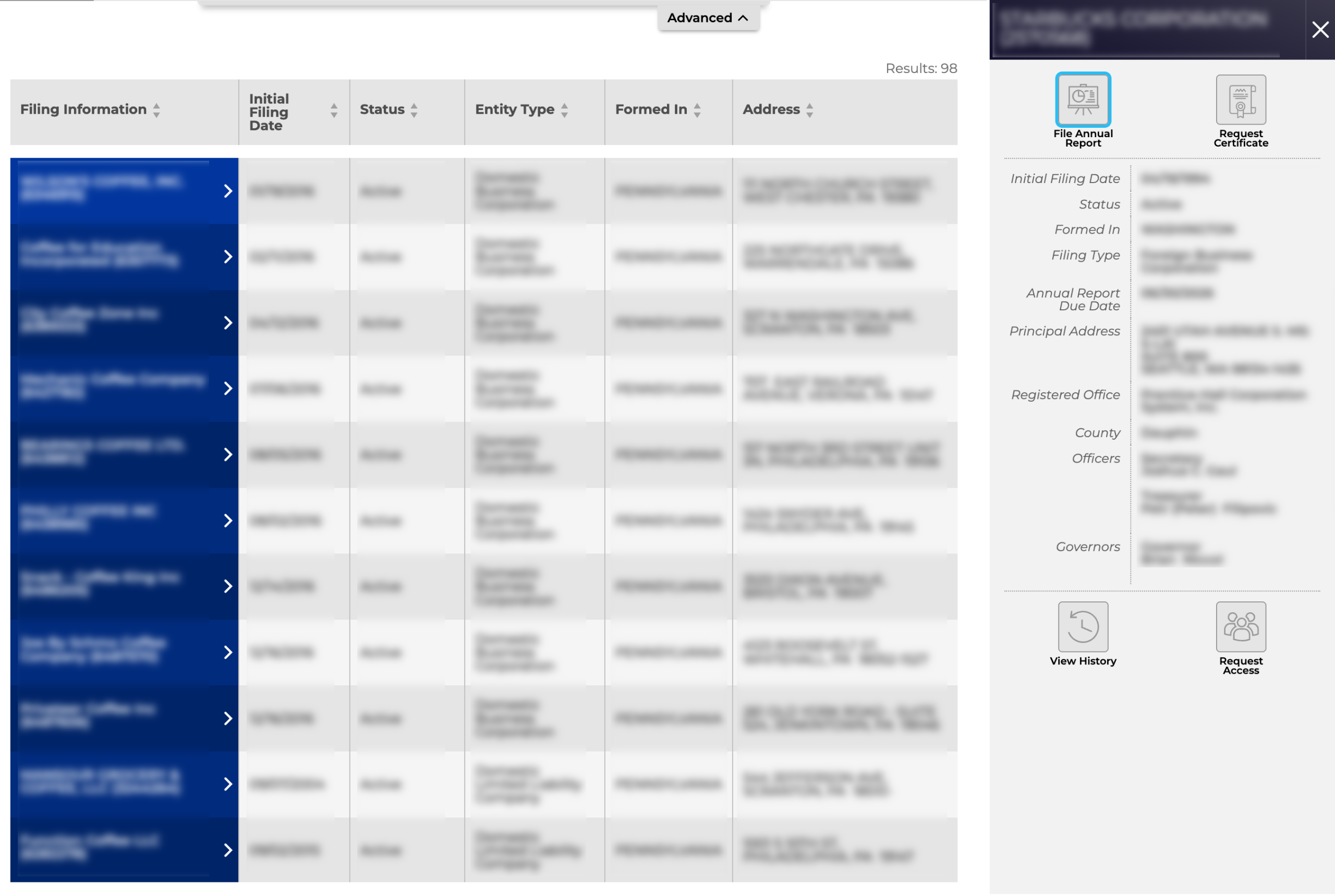
Click on the name of the entity you want to investigate. Once you make this selection, the entity’s details appear in a side panel.
Step 12. Examine Public Information on the Entity
Review the details on file with the state in the side panel. Notice that several entity actions are available to the entity. Additionally, you may view a summary of entity filings.
Step 13. View the Entity’s Filing Summaries
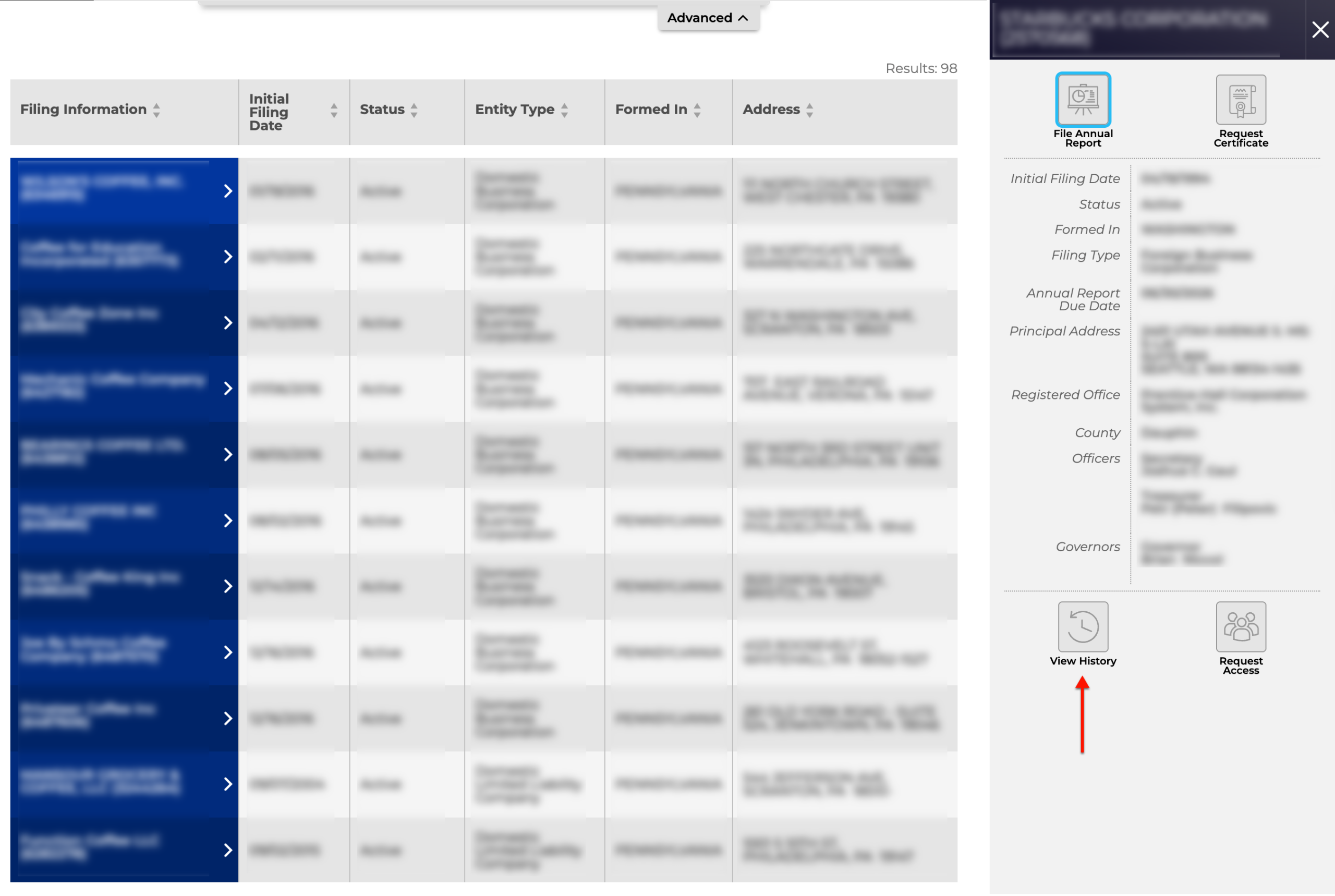
To see entity filings with the state, locate the lower-left icon in the details window. Select “View History” to proceed.
- File Annual Report
- Request Certificate
- Initial Filing Date
- Status
- Formed In
- Filing Type
- Annual Report Due Date
- Principal Address
- Registered Office
- County
- Officers
- Governors
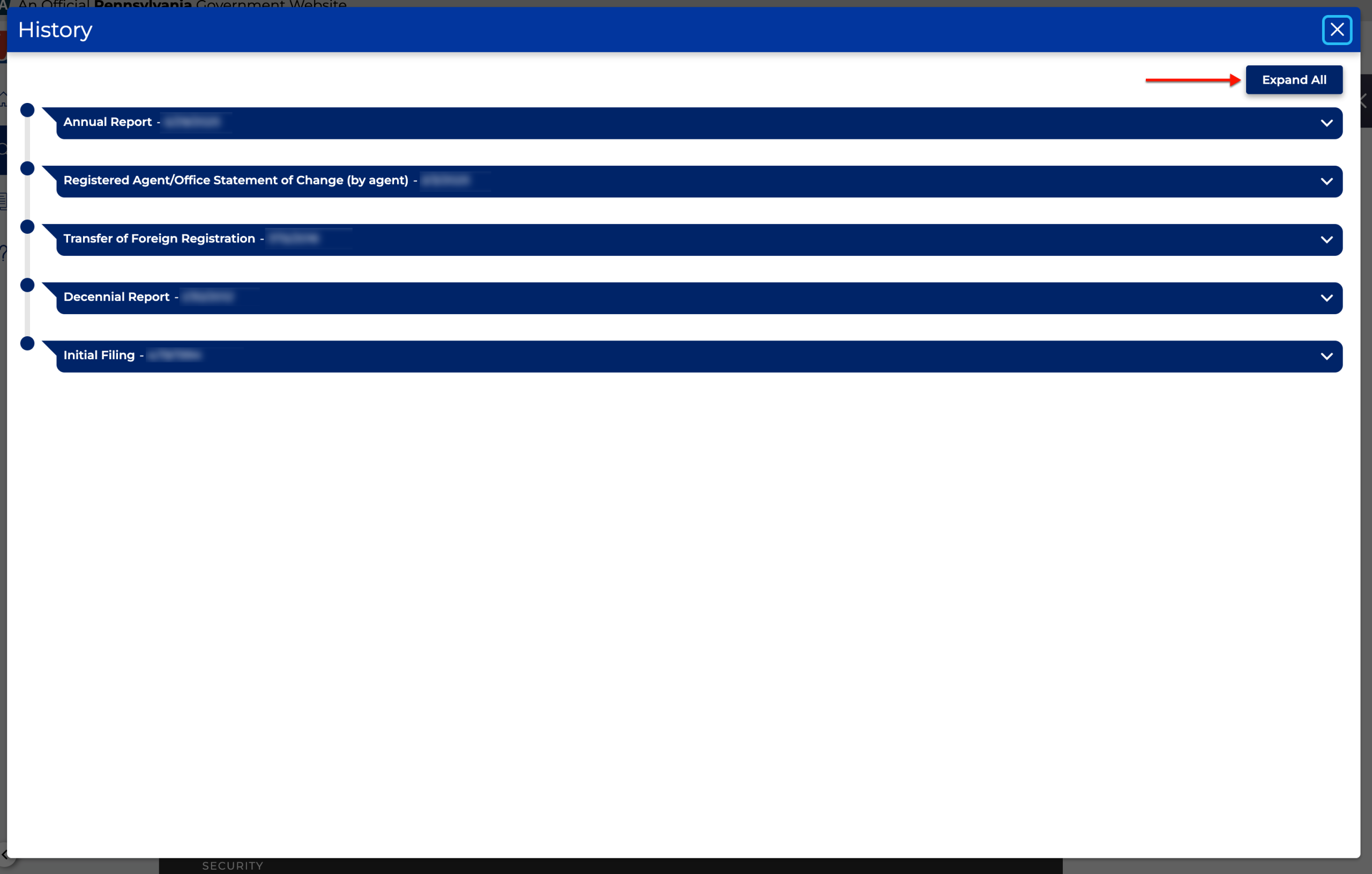
Step 14. Viewing Pennsylvania Filing Information
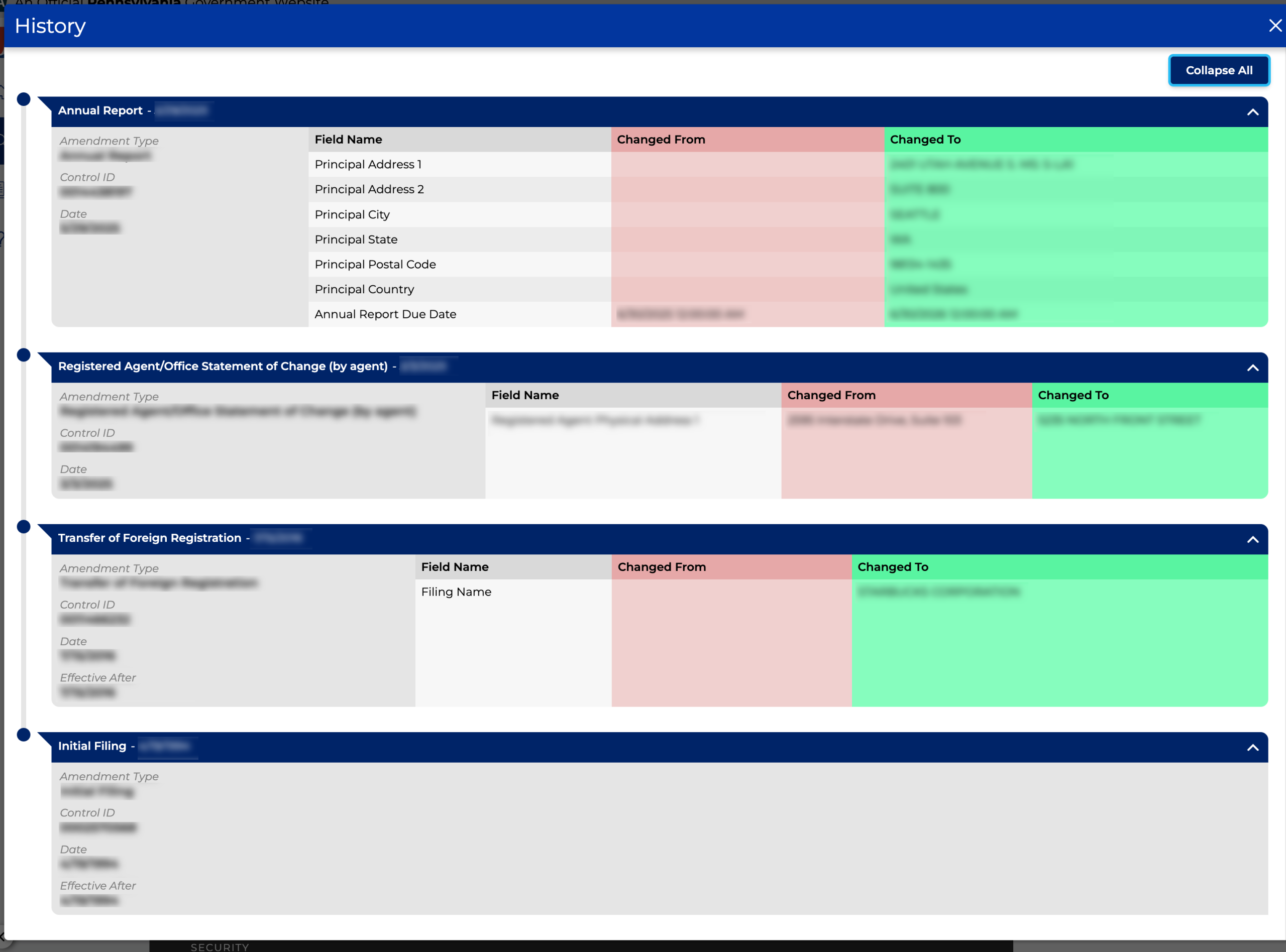
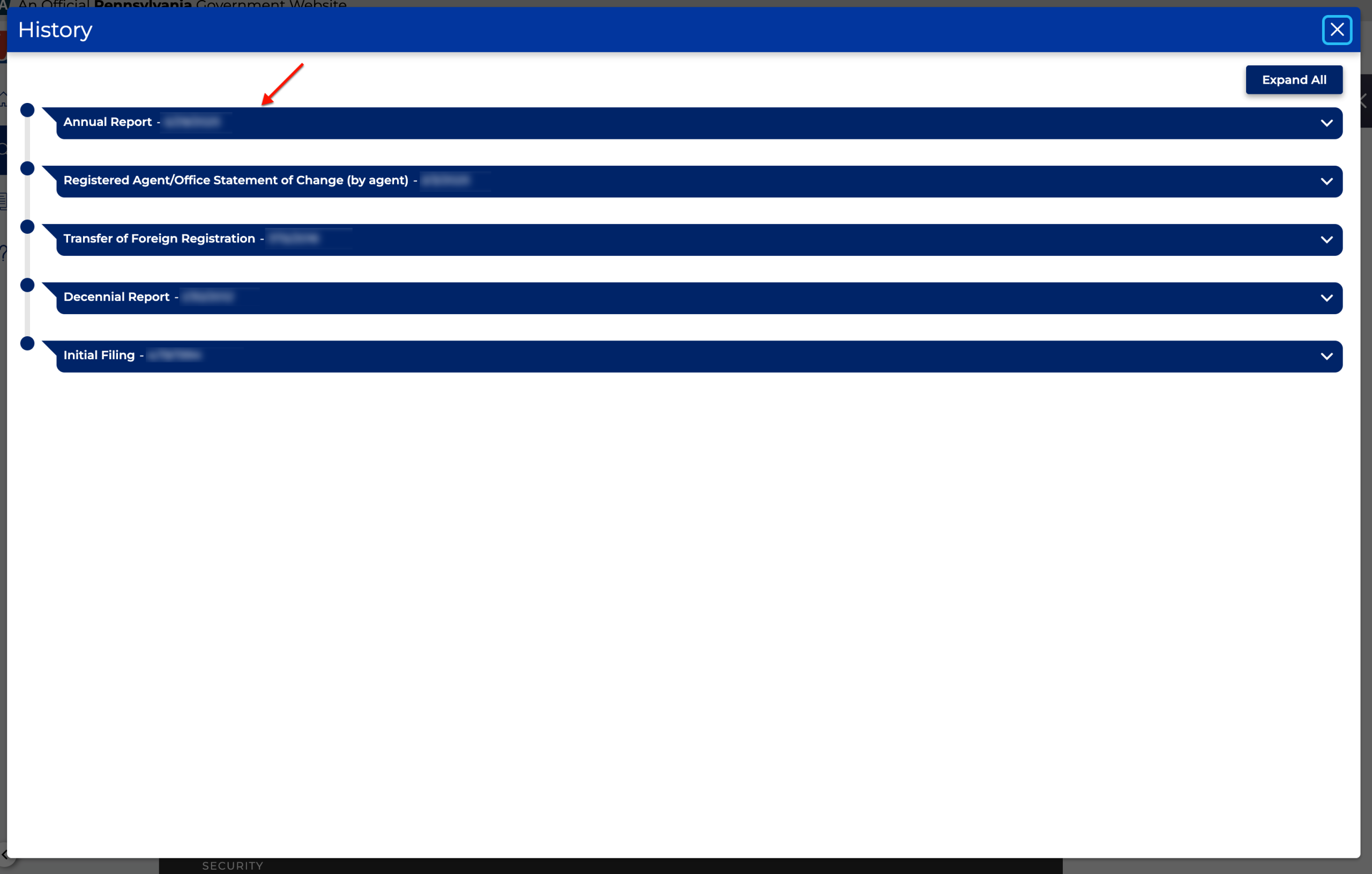
Click on “Expand All” (see image) to open all records at once. However, to view each one separately, click the row of your choice.
Step 15. Reviewing a Record
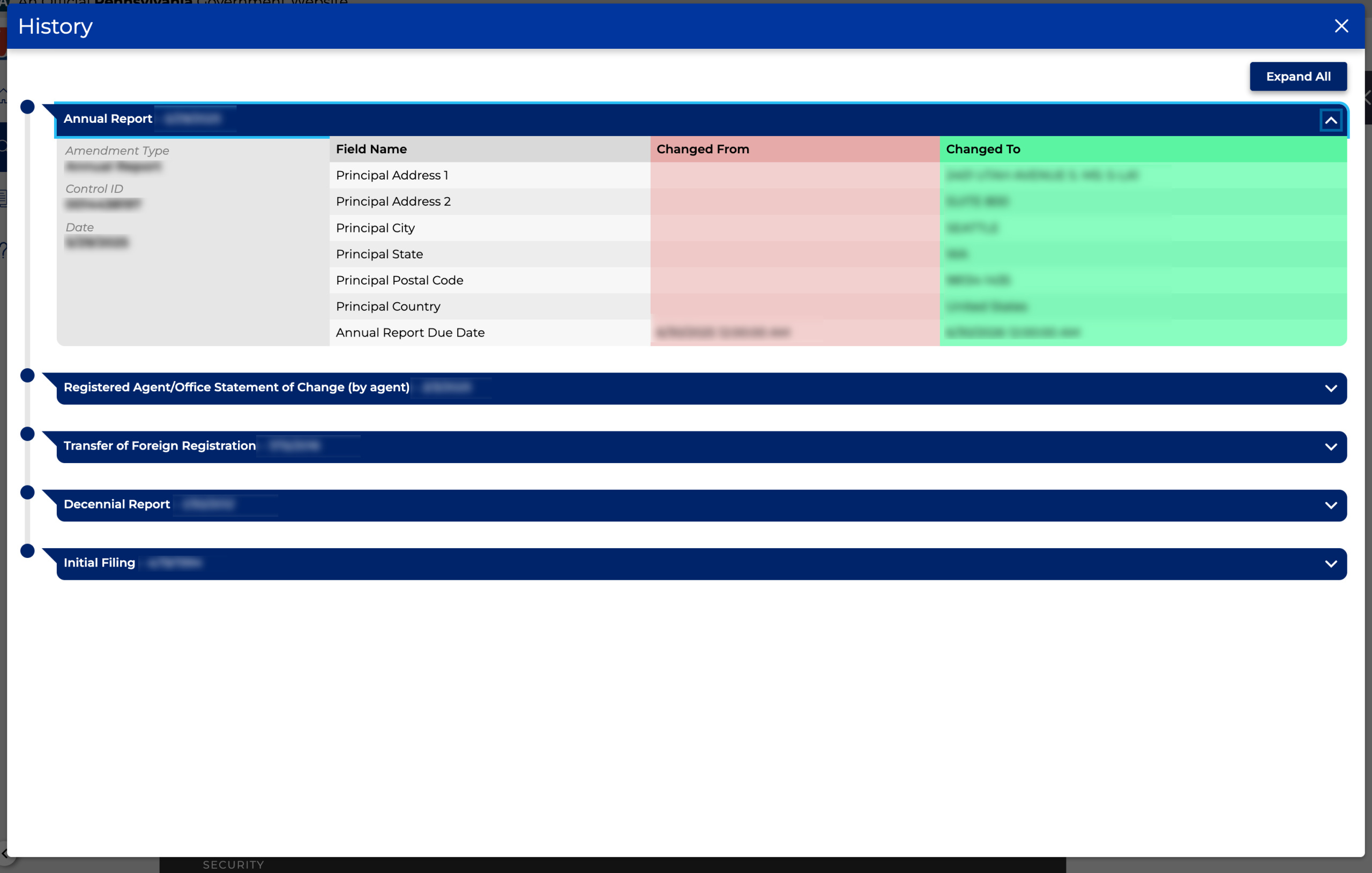
Notice the date and filing number introduce each record before an action summary. As mentioned, you may review one record at a time or all at once (see image).
- Annual Report
- Amendment Type
- Control ID
- Date
- Field Name
- Changed From
- Changed To