The Ohio Secretary of State’s business entity search page is available to the public whenever users need information about business entities. This also serves as an initial step in researching whether a business name is available. However, regardless of the user’s purpose, it is important to keep in mind that the database information only reflects documents on file at the time of the search.
Business Name Availability Check
State of Ohio

Business Entity Search
Step 1. Open the Ohio Search By Business Name Page
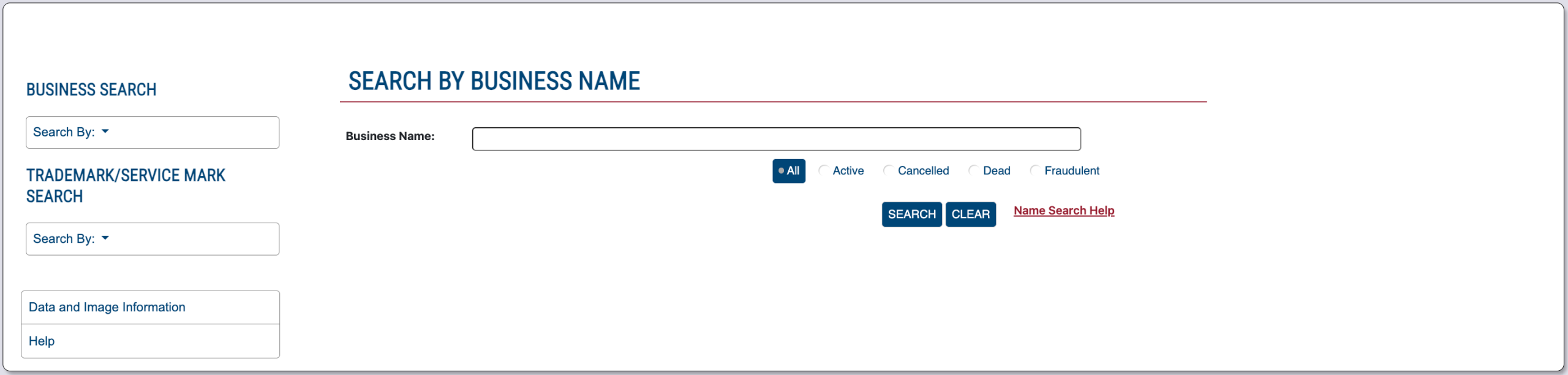
Open, then look over the Ohio business entity search tool. This is a free tool provided courtesy of the Ohio Secretary of State.
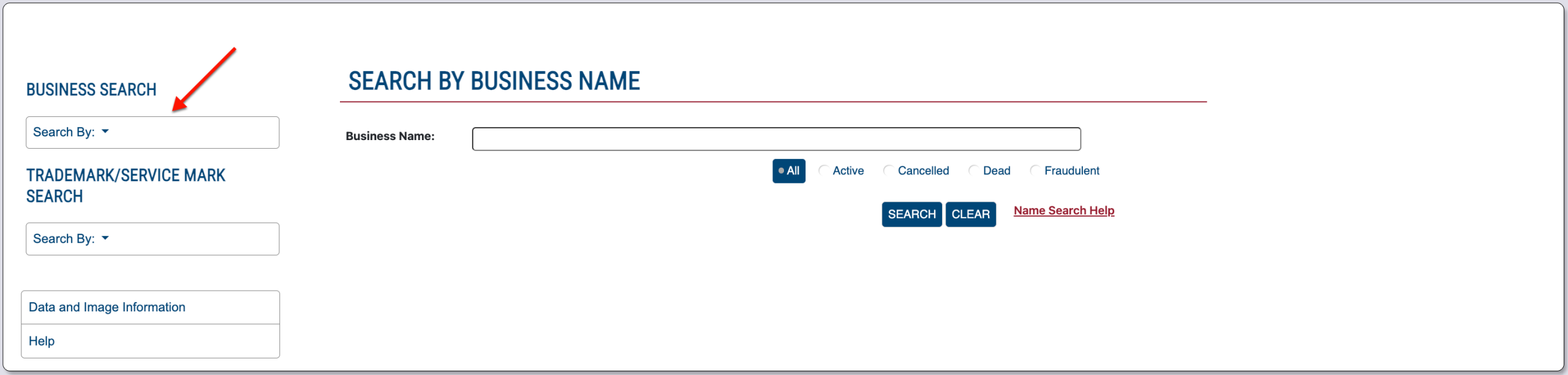
Step 2. Establish the Scope of the Search
Indicate if the query must find a specific match for the search phrase or if you are looking for a definitive target. Use the first drop-down menu (see image) on the left for this task.
- Business Search
- Trademark/Service Mark Search
- Business Name
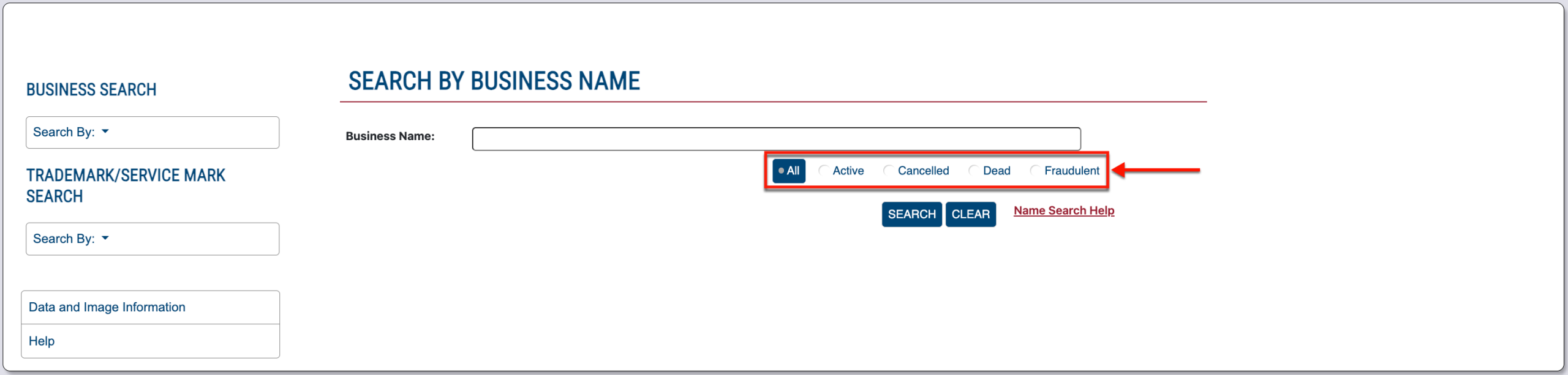
- All
- Active
- Cancelled
- Dead
- Fraudulent
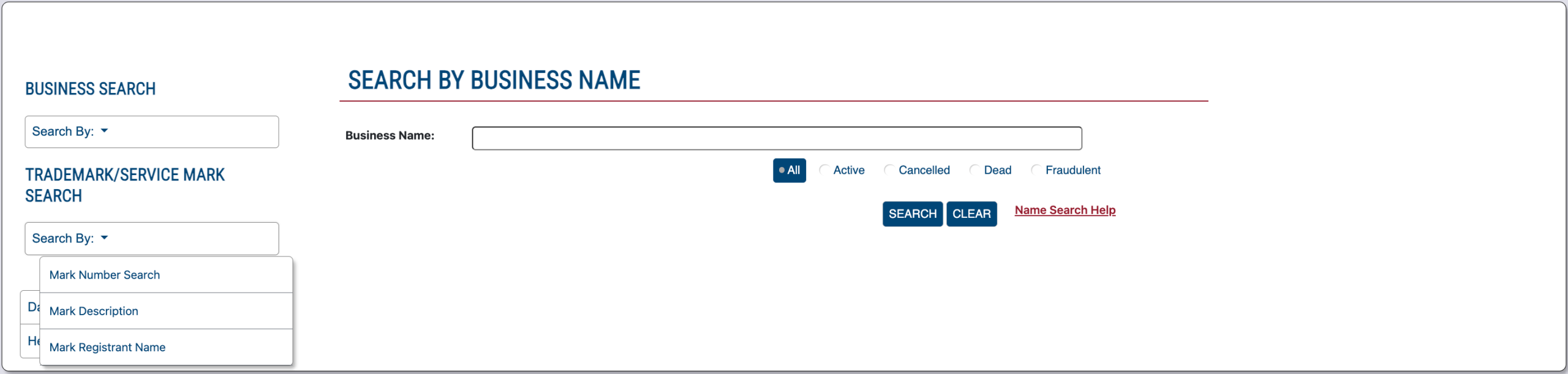
Step 3. Attach a Trademark
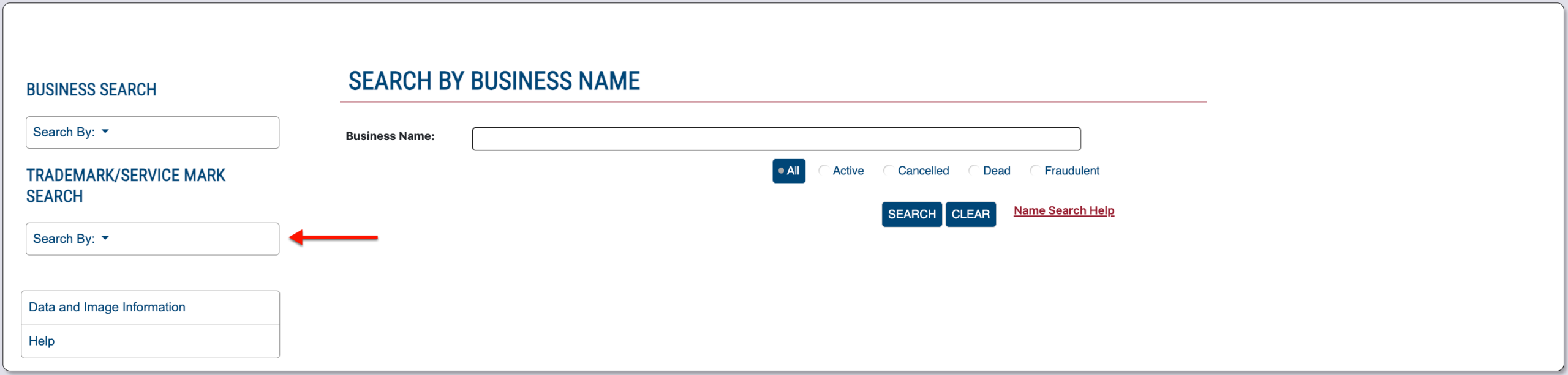
If searching for an entity holding a trademark, locate the next dropdown (see image). In this case, select the item best describing what you are looking for.
Step 4. Present the Search Information
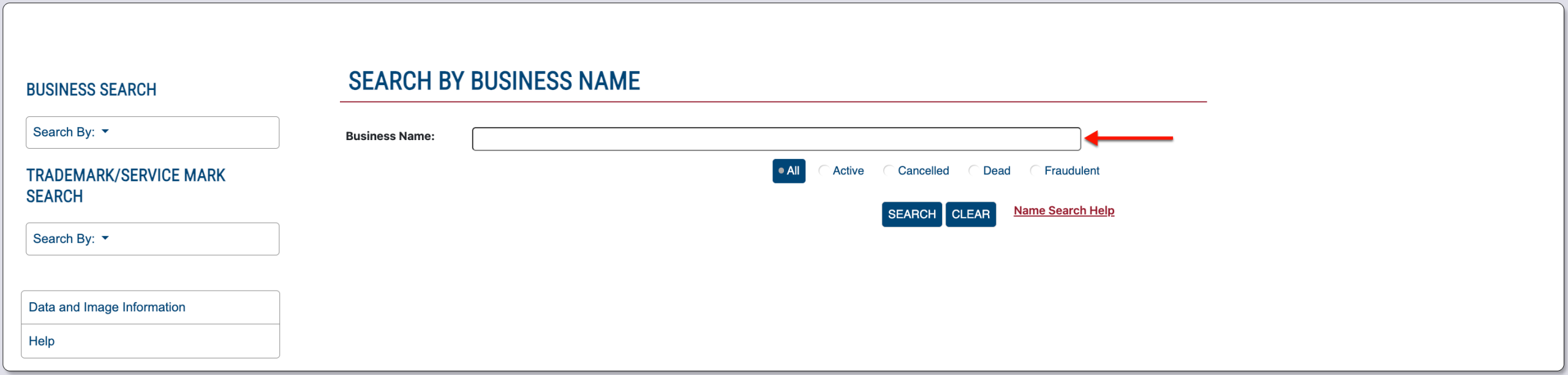
We shall look for an entity name. Therefore, supply the partial or full name of the target entity in the textbox. Keywords are also acceptable but yield many more results.
Step 5. Attach an Entity Status
It is often useful to specify the target entity’s standing with the state. For this, select the radio button that best defines this from the menu beneath the search box.
Step 6. Engage the Search Tool
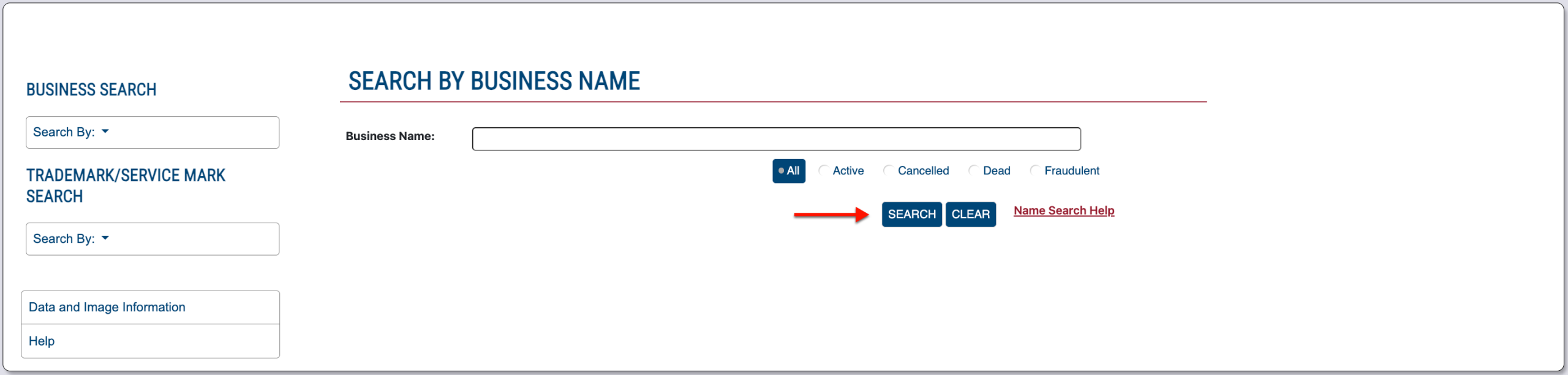
Click the “Search” button to continue to the next page. Upon selection, the tool searches the database for the criteria according to the requirements above.
Step 7. Review Matching Ohio Entity Records
Direct your attention below the search area, where a table of query results appears. Notice the entity’s ID and name introduce each record, which also provides a preview of the information.
- Entity #
- Name
- Type
- Filing Date
- Exp Date Status
- Location
- County
- State
- View Report
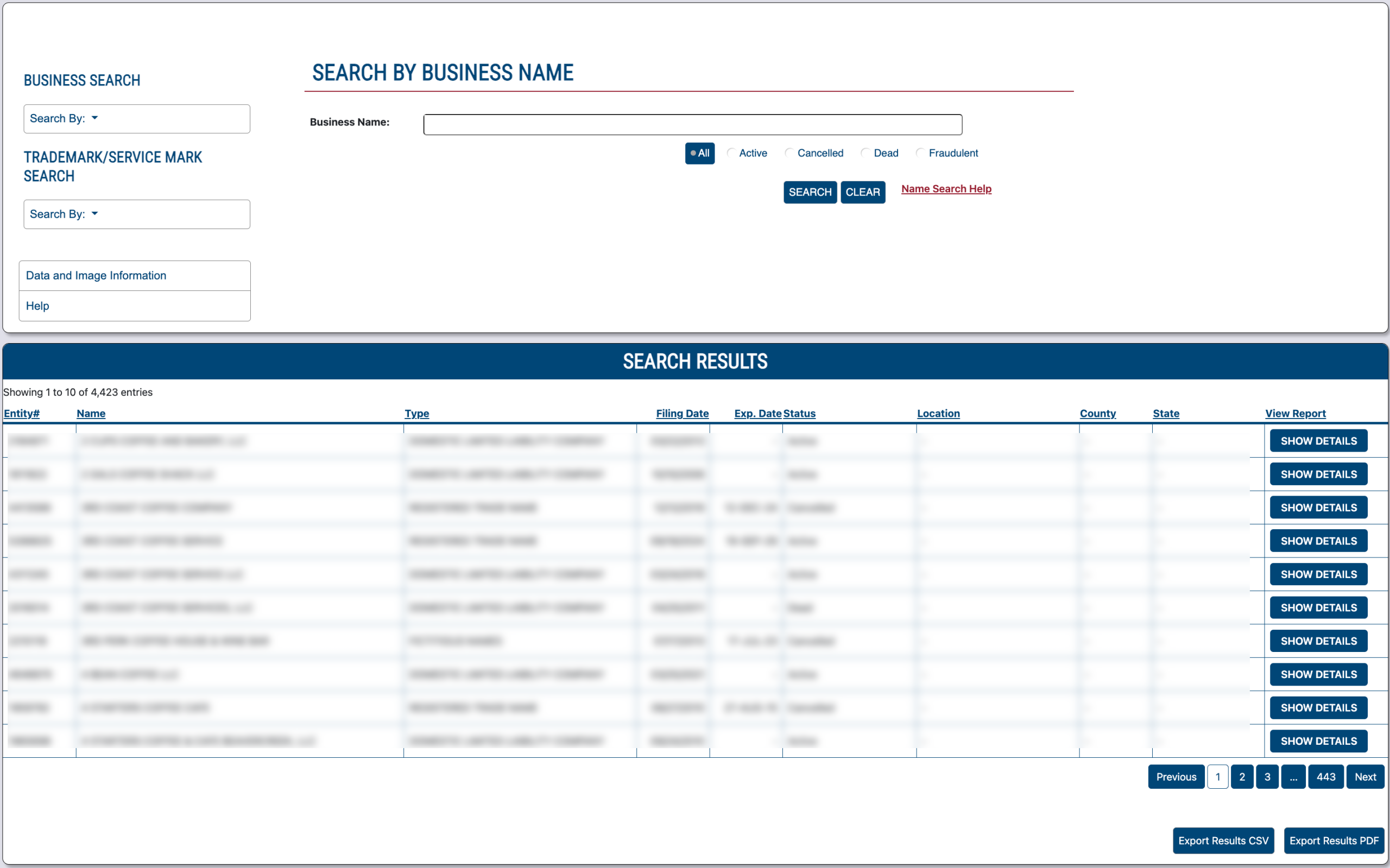
Step 8. Choose an Entity to Examine
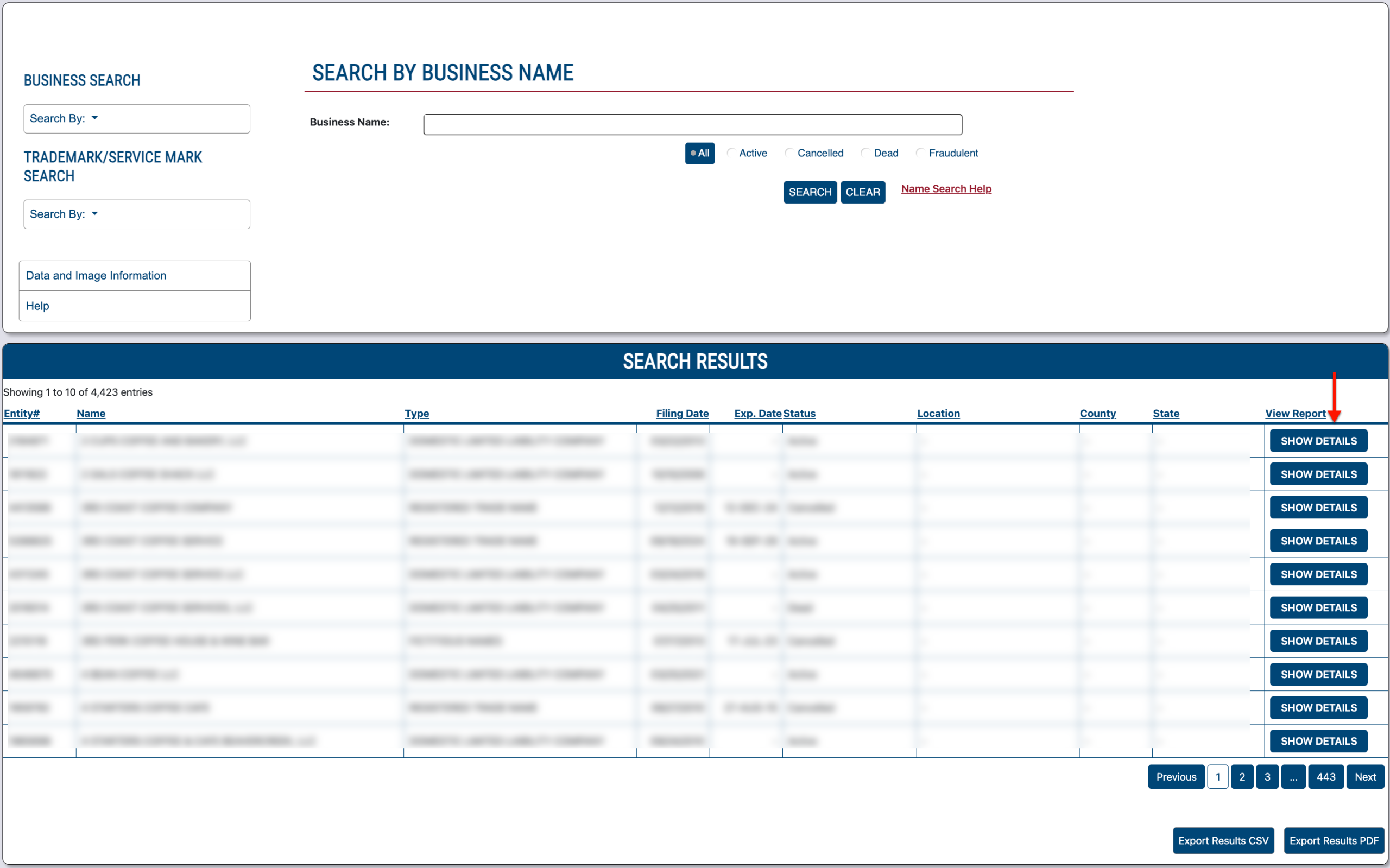
Step 9. Read Through Business Details and Filings
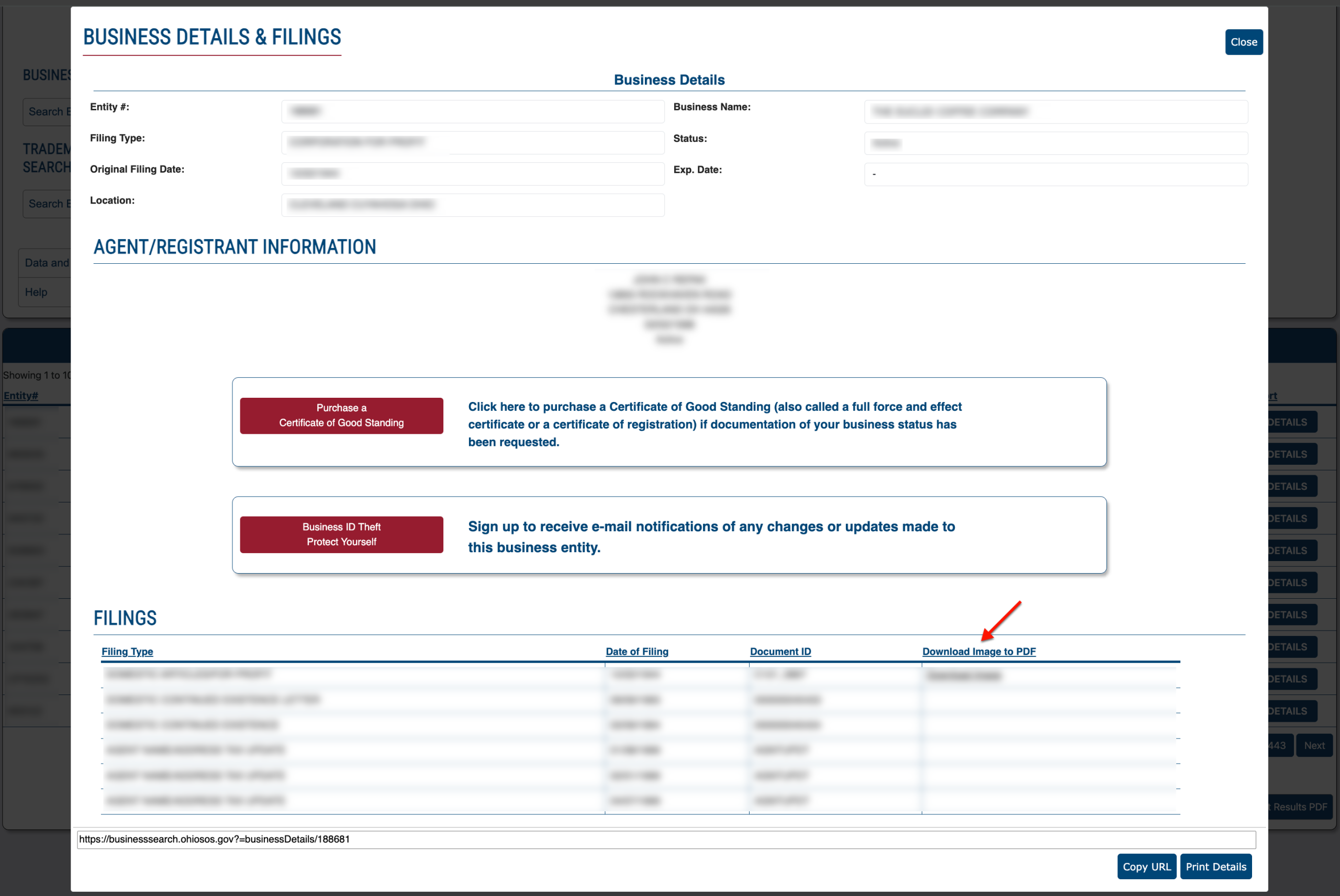
Notice that the entity’s information page is divided into sections. While each one presents a wealth of information, additional material is available.
- Business Details
- Entity #
- Filing Type
- Location
- Business Name
- Status
- Exp Date
- Agent/Registrant Information
- Purchase Certificate of Good Standing
- Business ID Theft
- Filings
- Filing Type
- Date of Filing
- Document ID
- Document Image to PDF
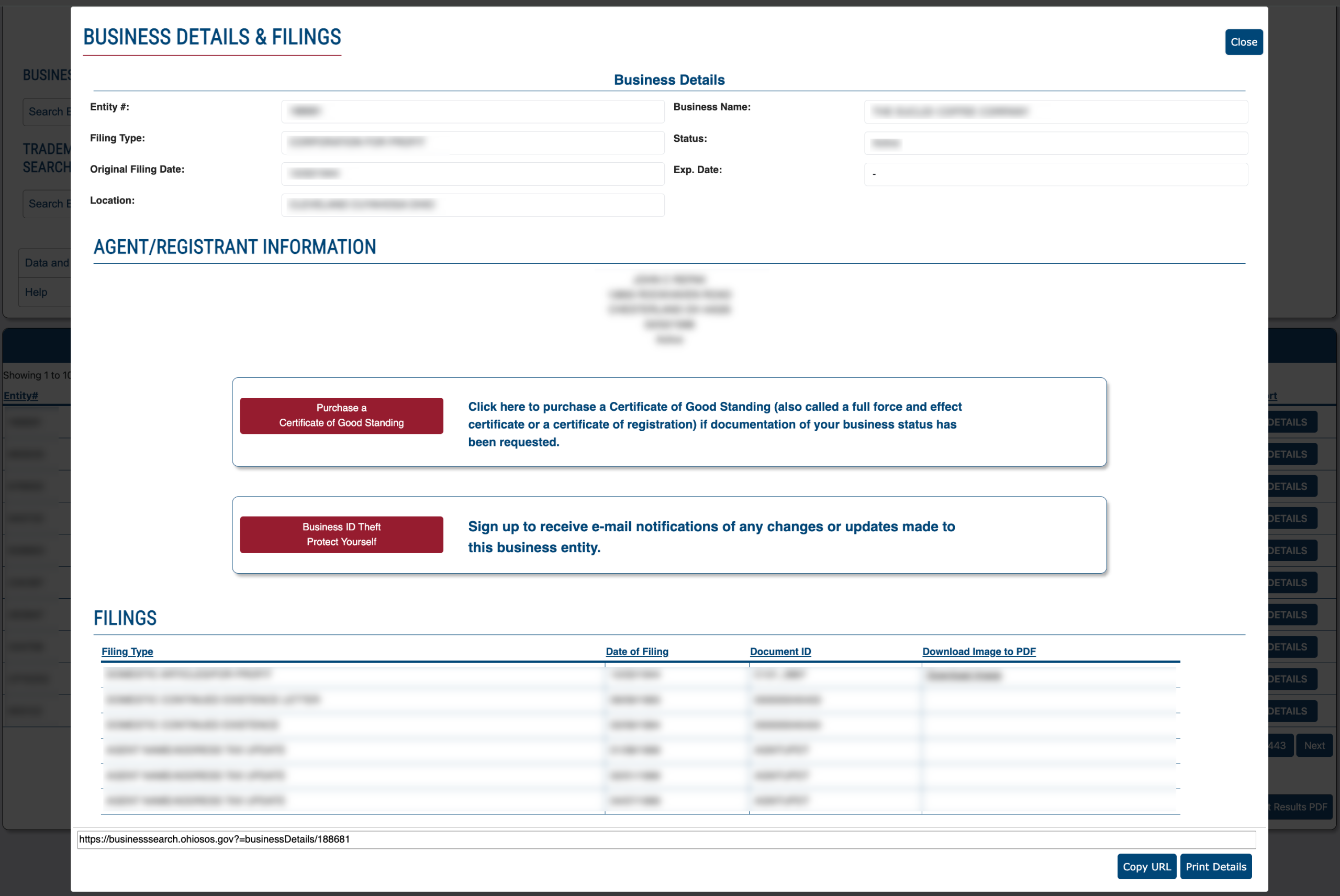
Step 10. Obtain Downloadable Entity Documents on File
Take a closer look at “Filings,” where several columns of information describe past entity filings with the state. In some cases, the last column allows a PDF of the filing on that row for download .