The North Carolina Secretary of State business entity search lets visitors filter through the state entity database for specific information. The Secretary of State provides this free service, which enables users to complete their research efficiently. It should be noted that this tool is strictly for public use; however, no limit is placed on the number of searches a user can complete.
Business Name Availability Check
State of North Carolina

Business Entity Search
Step 1. Access The North Carolina Business Entity Search Page
Open the North Carolina business entity search page in order to begin. Make sure to prepare accurate information to use before proceeding.
Step 2. Set the Search Type
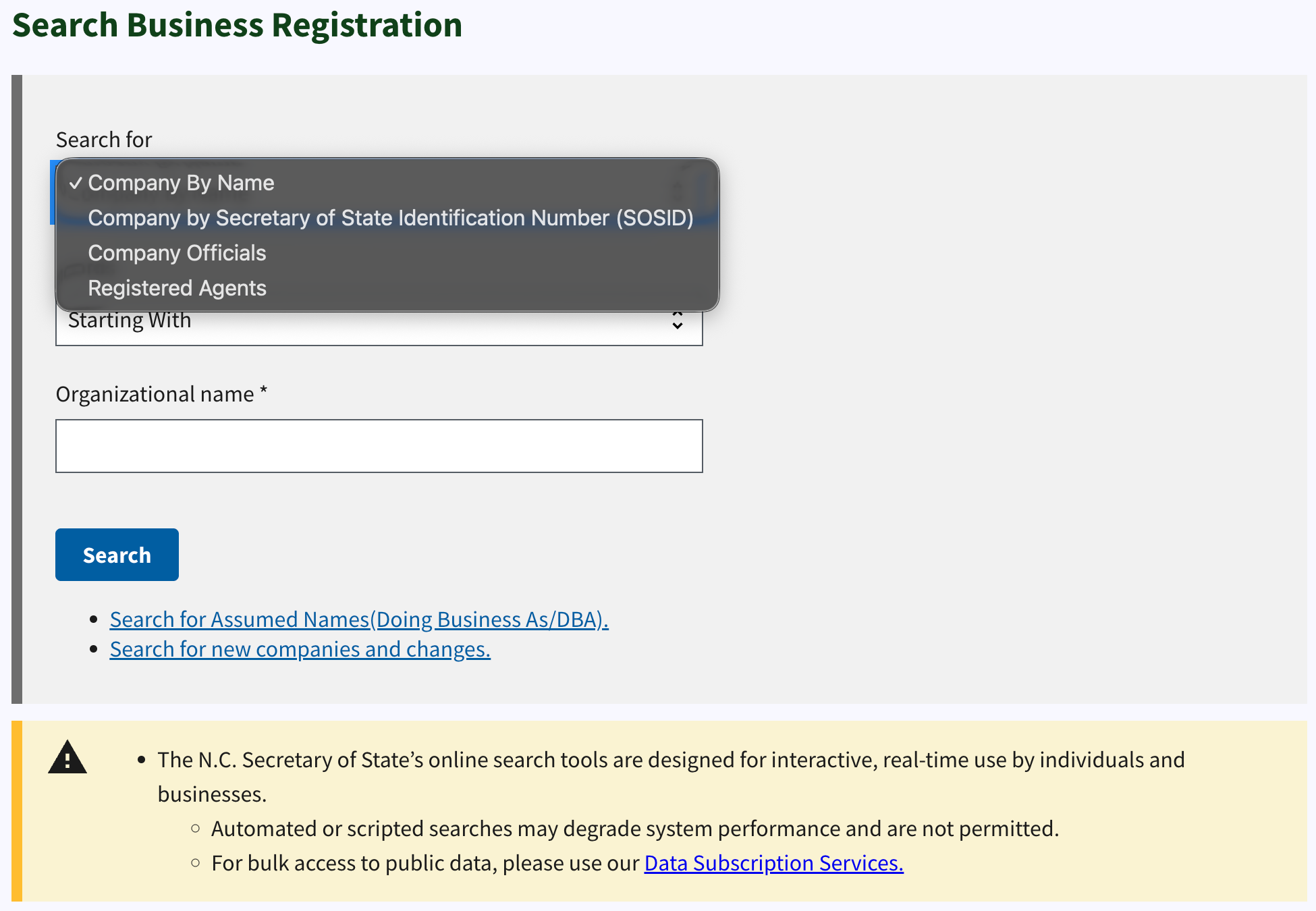
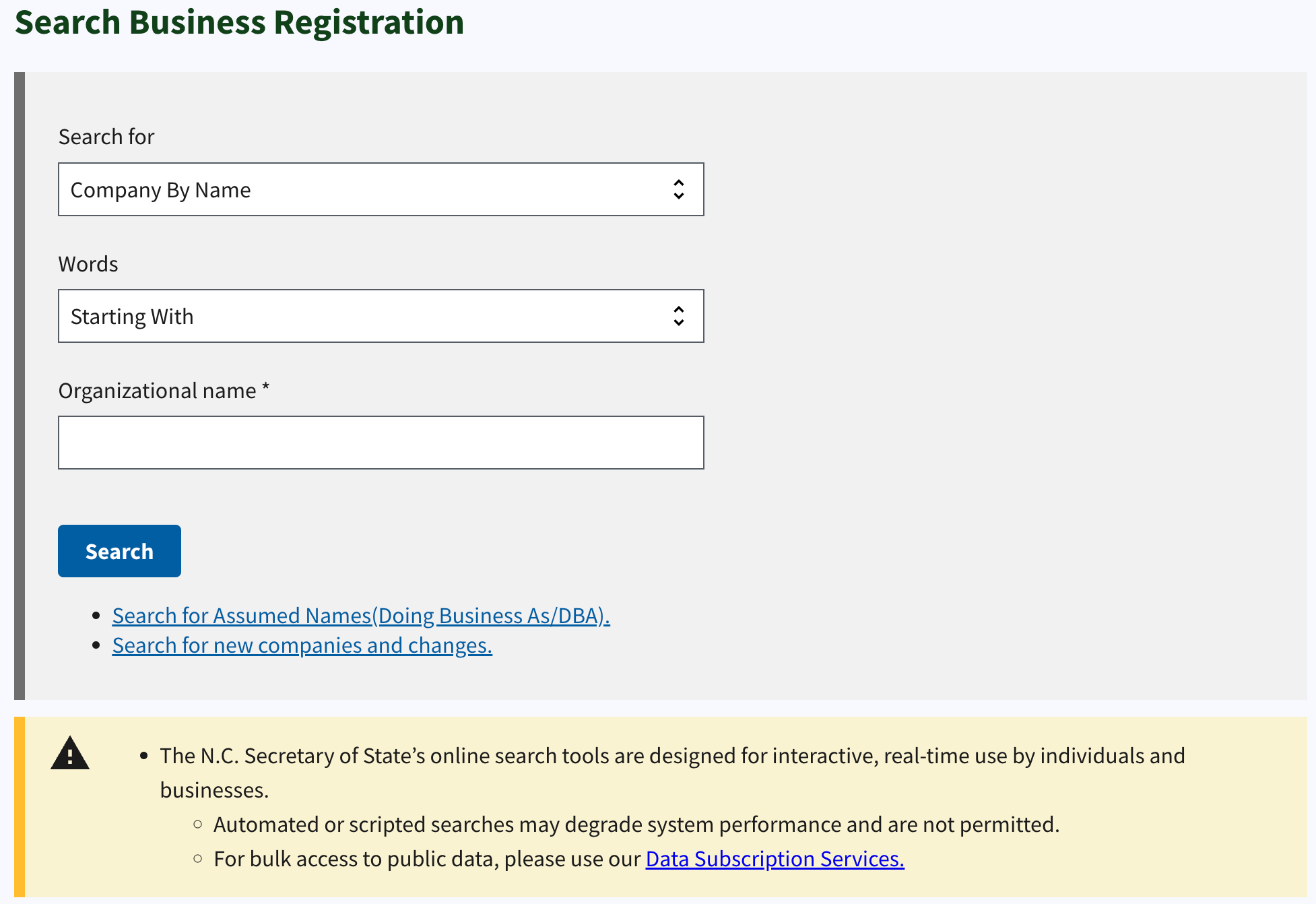
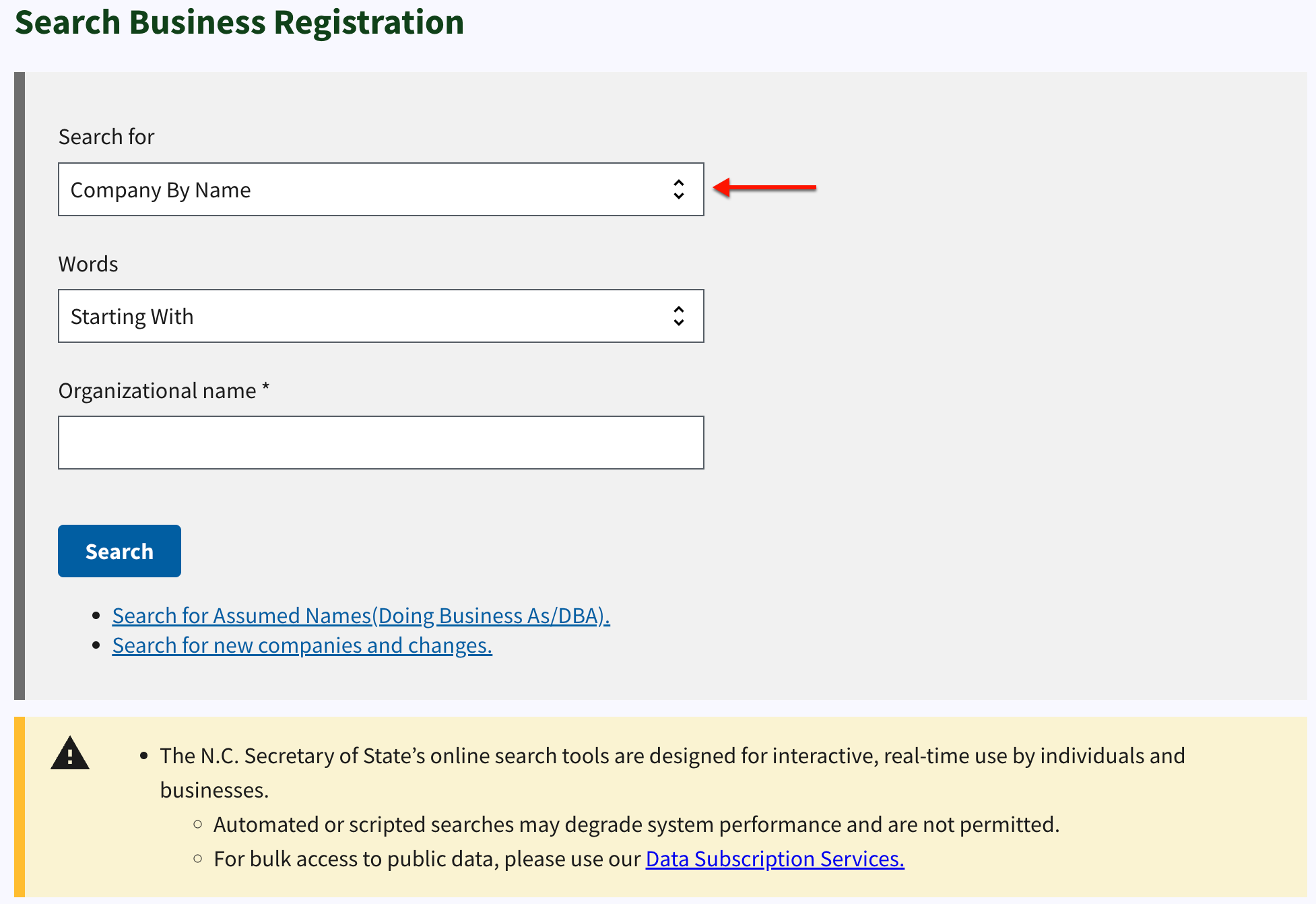
Review this tool’s options. When ready, locate the first drop-down menu, “Search For” (see image), then indicate what you are searching the database for.
- Search For
- Words
- Organizational Name
- Search
- Search for Assumed Names (Doing Business As/DBA)
- Search for New Companies and Changes
Step 3. Establish the Query Method
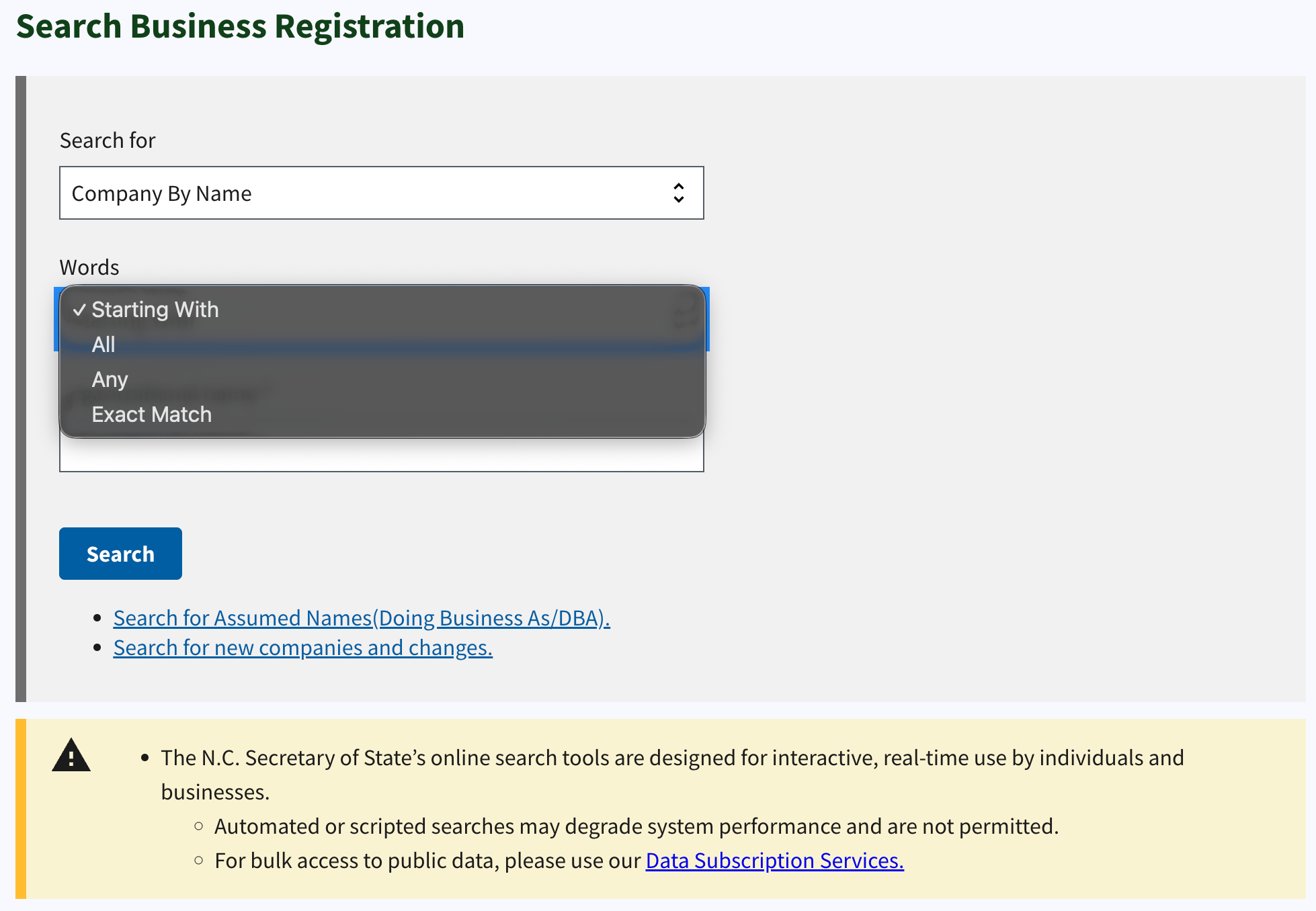
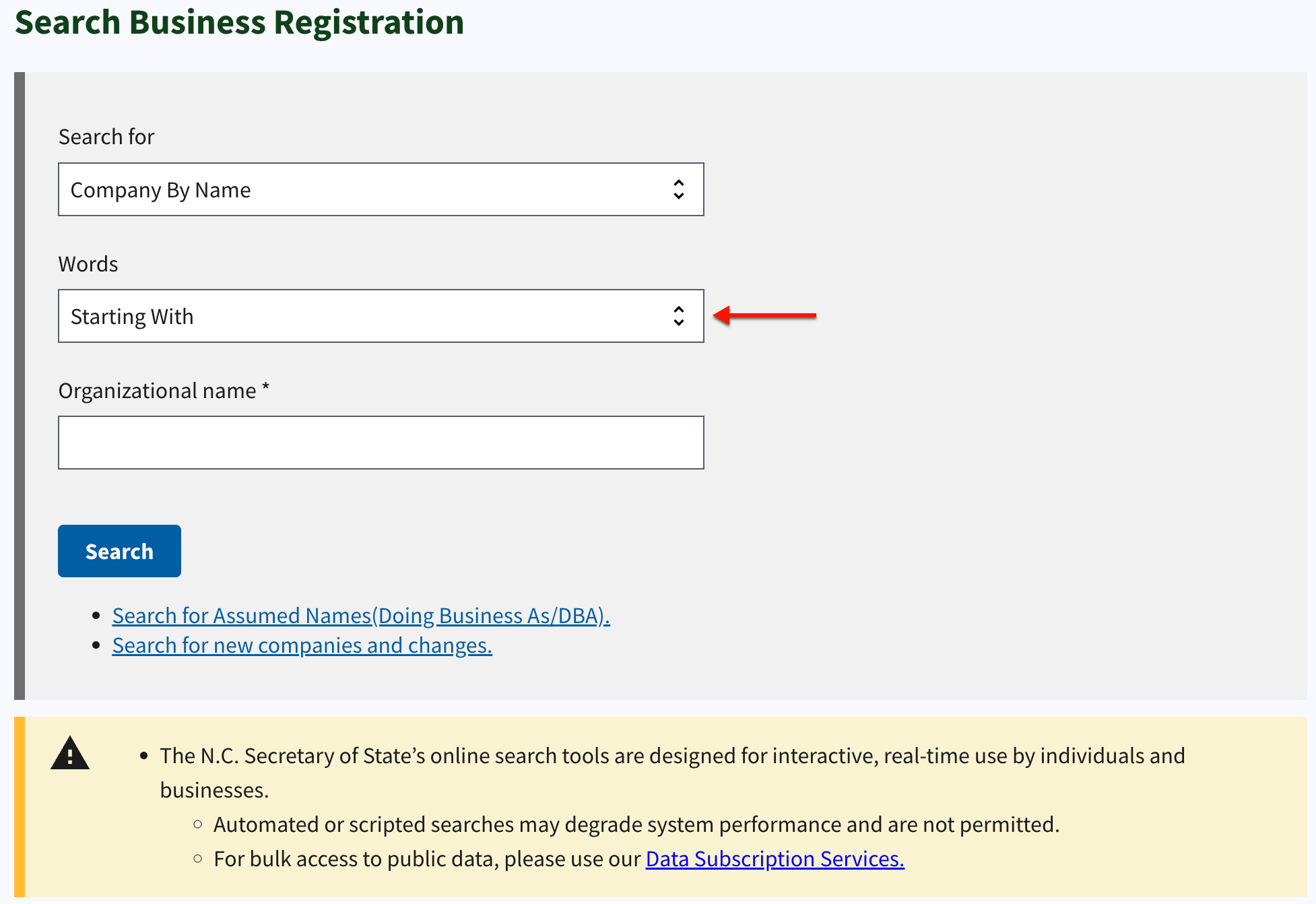
Set the query to look for the search item in a specific area of the record, such as “Starting With”. Use the drop-down menu available for this (see image).
Step 4. Target the Entity
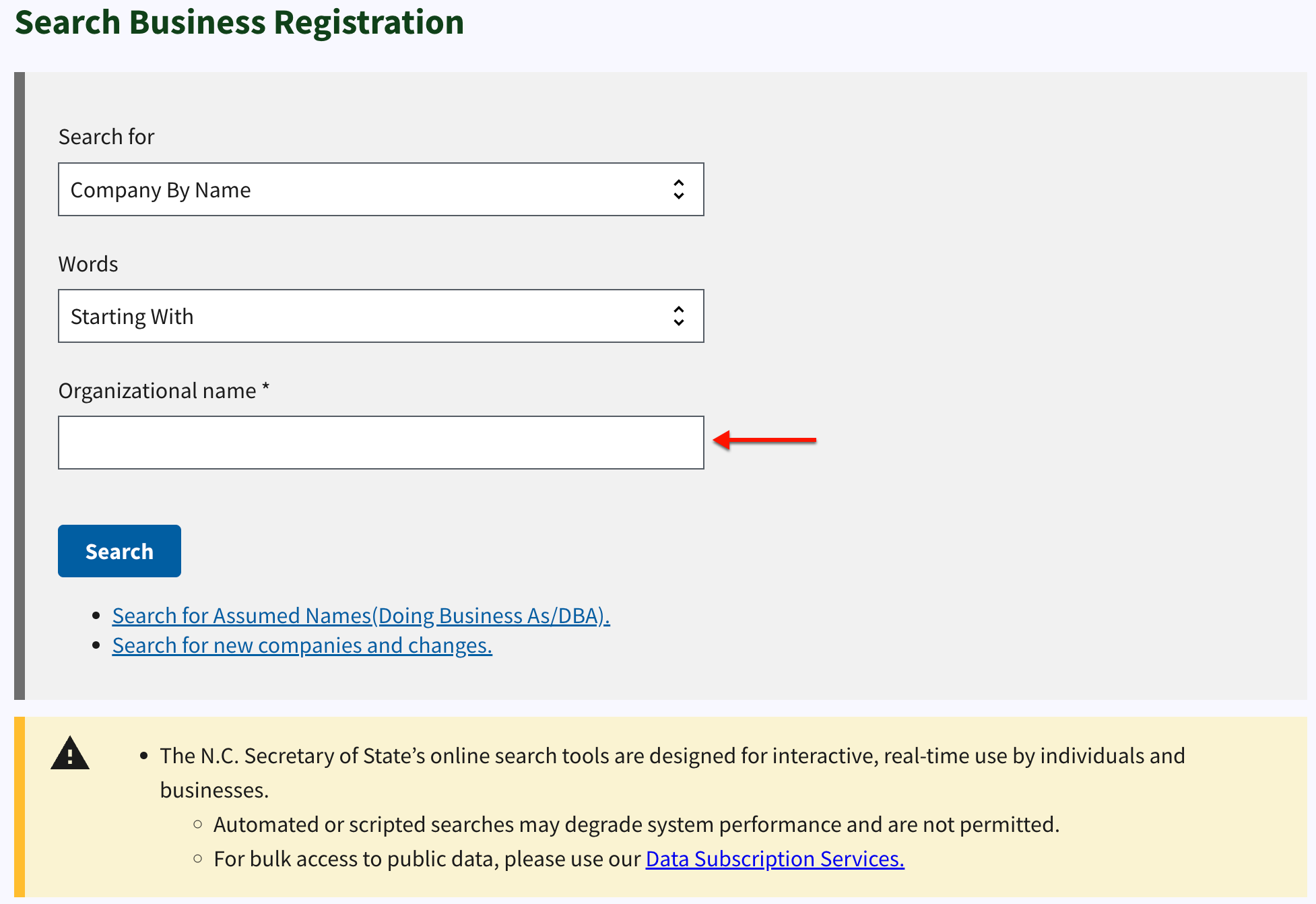
Provide a phrase, name, or number for the query to locate in the database. Use the “Search Text” box to complete this task.
Step 5. Prompt the North Carolina Search Tool
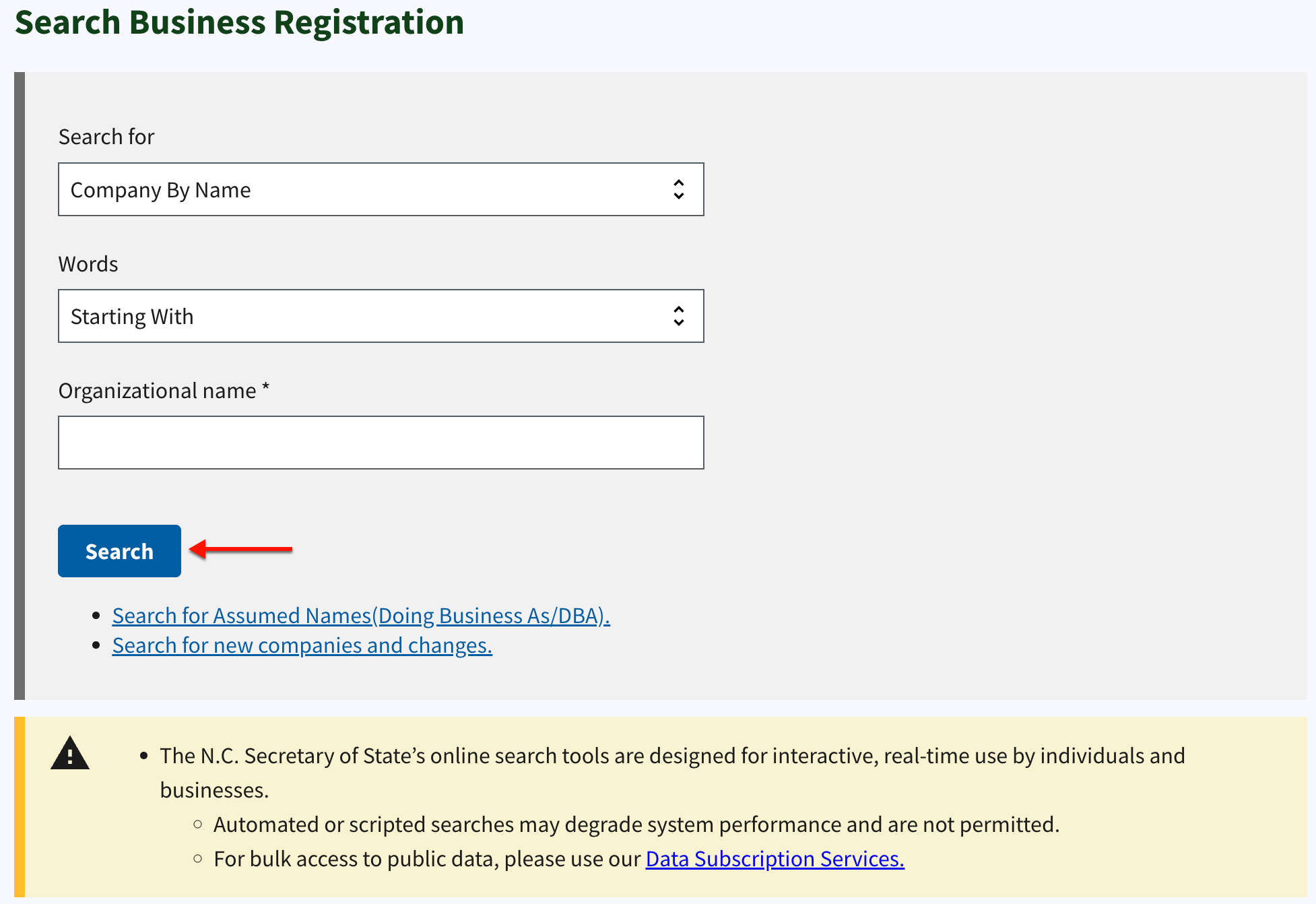
Upon completing the above settings and providing a search item, take a moment to confirm accuracy. To initiate the query, click “Search.”
Step 6. Search Through Matching Results
Review the search summary, since it may contain helpful suggestions. Records with content matching your query are displayed below by name and ID Number.
- Name
- File Number
- Status
- Type
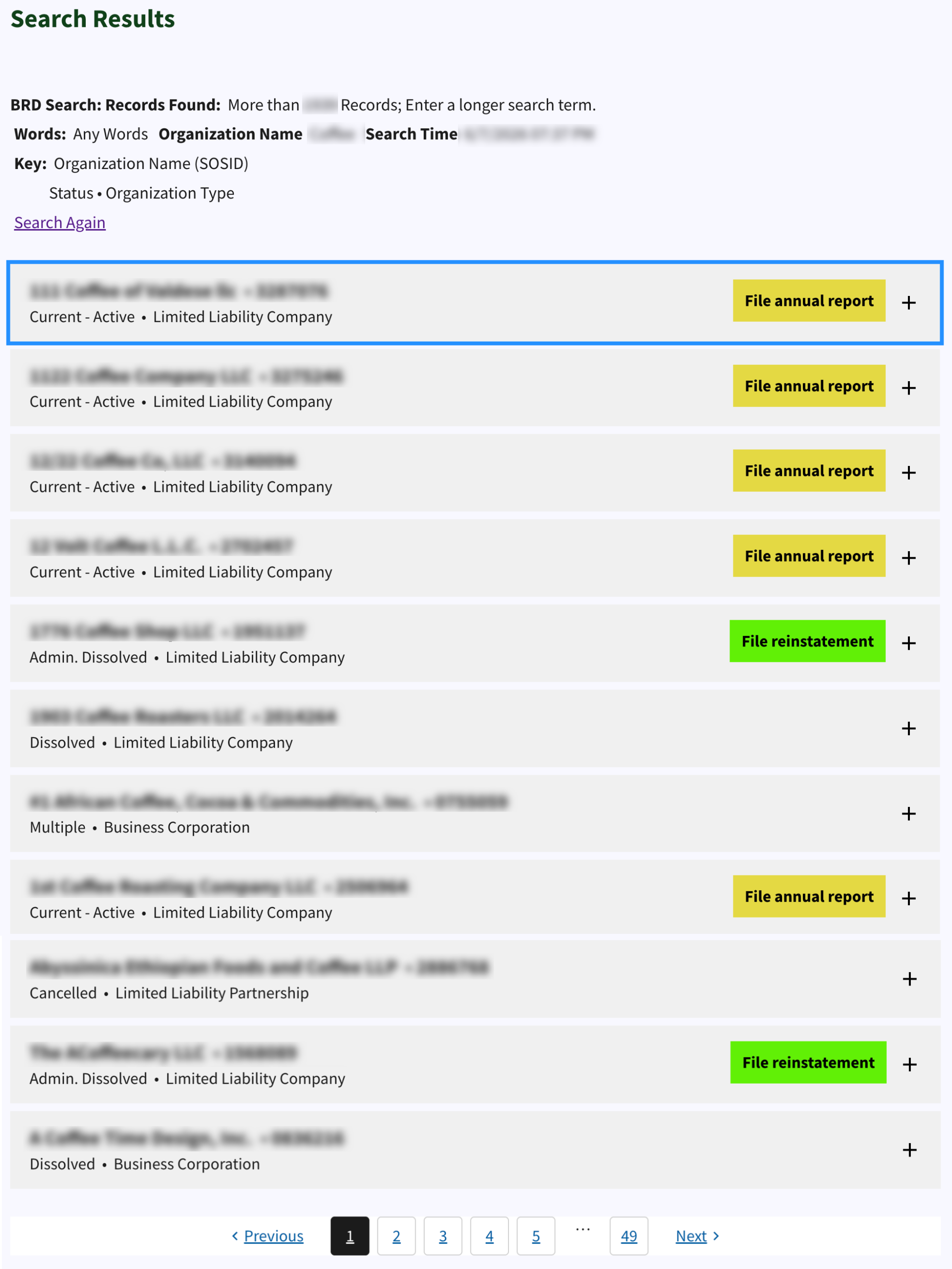
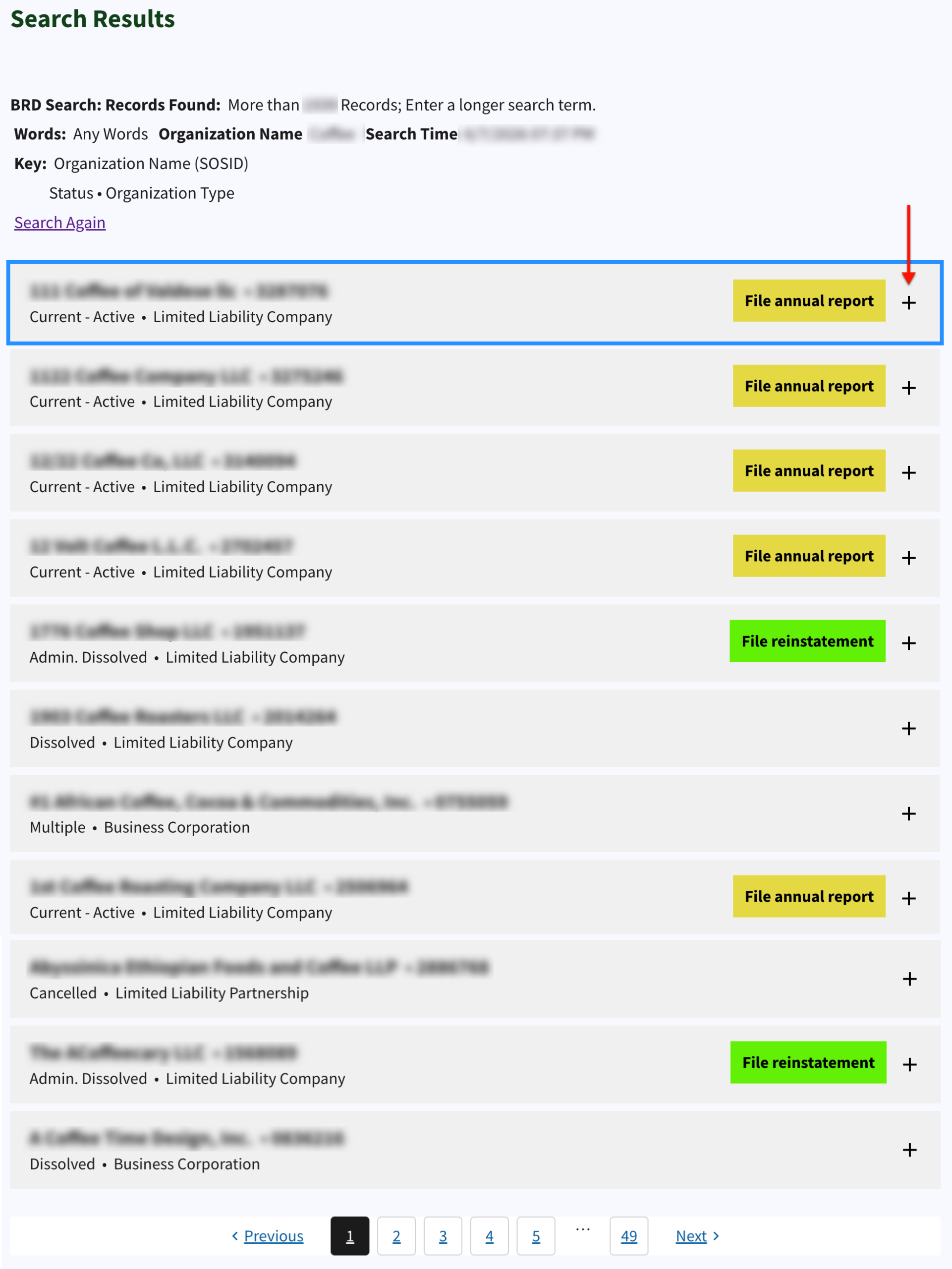
Step 7. Select Entity Information to Review
Once you locate an entity to explore, direct your attention to the end of that row. Select the “+” sign to access its information.
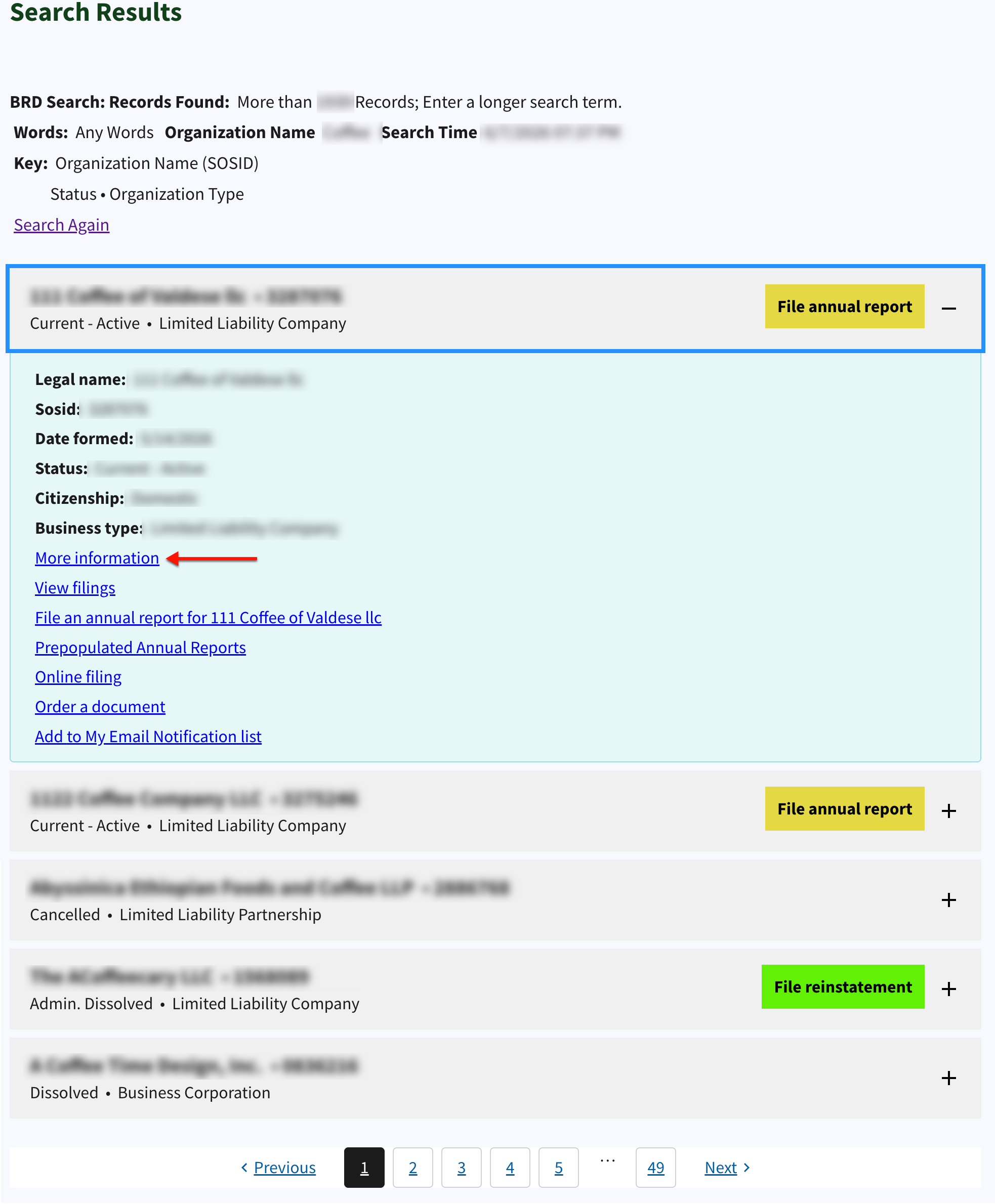
Step 8. Access Additional Information
Read through the entity’s information. If this entity bears a closer look, then select “More Information.”
- Legal Name
- Sosid
- Date Formed
- Status
- Citizenship
- Business Type
- More Information
- View Filings
- File An Annual Report For
- Prepopulated Annual Reports
- Online Filing
- Order a Document
- Add My Email Notification List
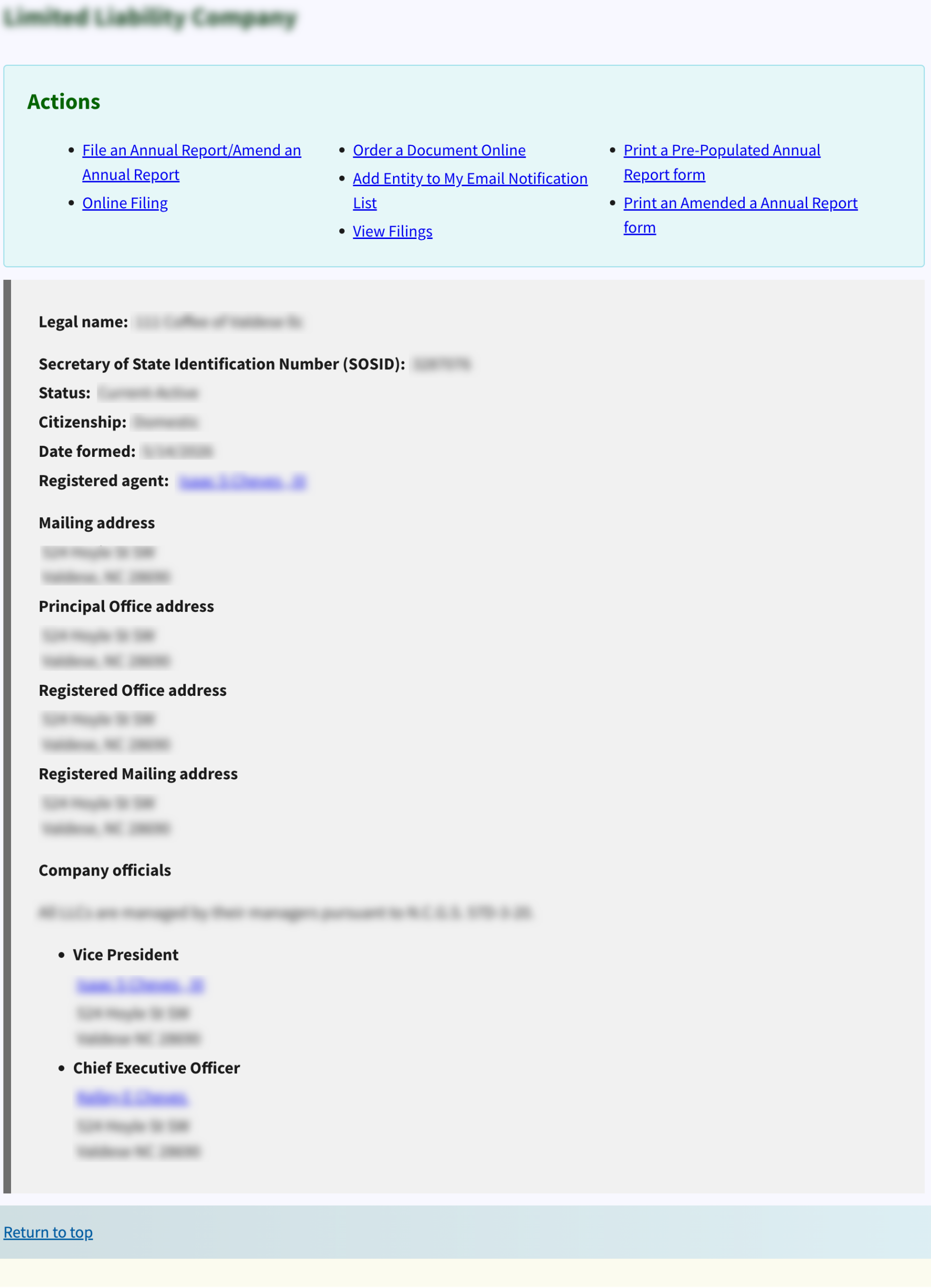
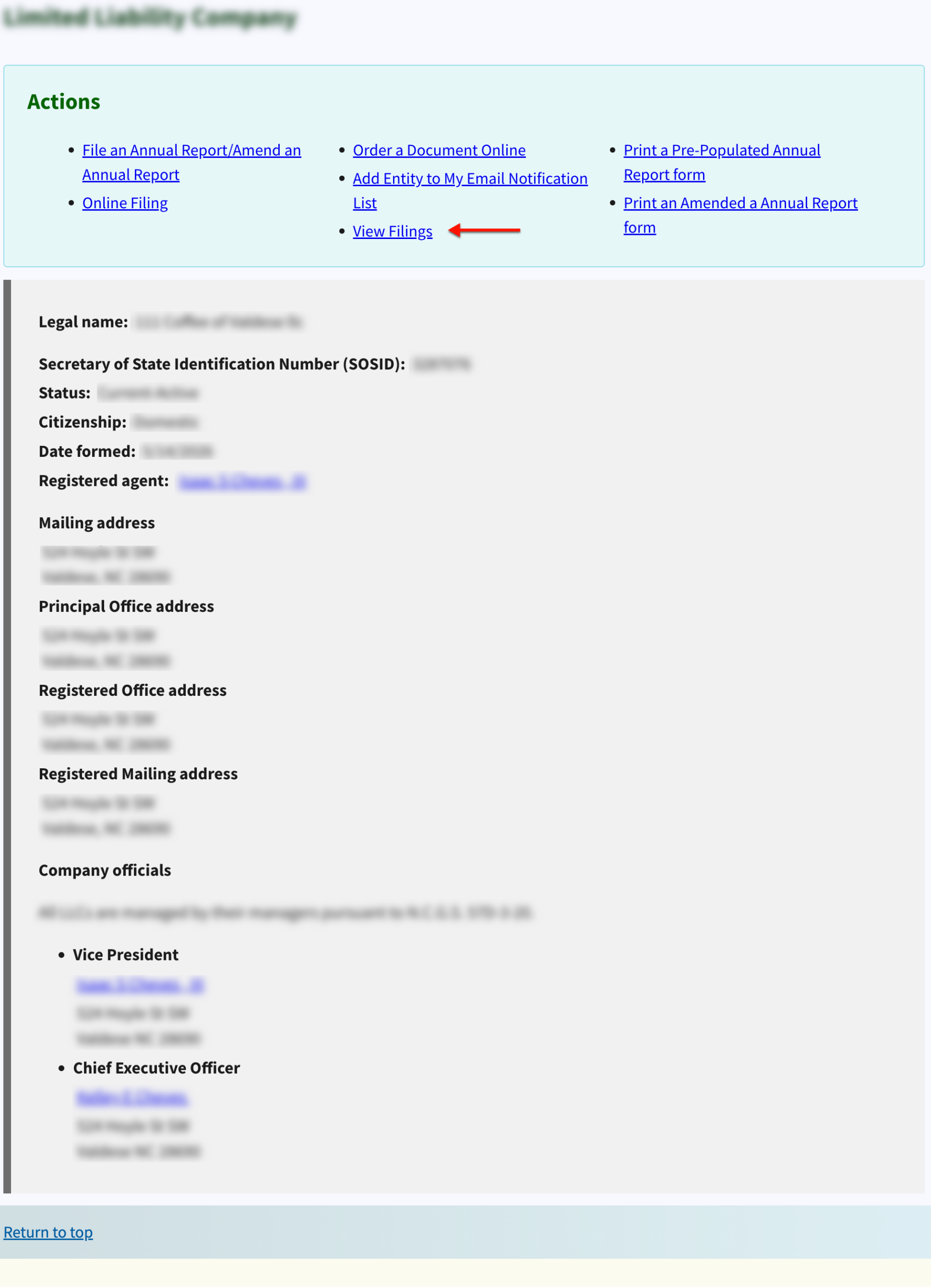
Step 9. Examine Entity Details
Notice the entity details page retains the same options as the record results. Review the information on this page to learn more about the entity.
- Actions
- File an Annual Report/Amend In
- Online Filing
- Order a Document Online
- Add Entity to My Email Notification List
- View Filings
- Print a Pre-Populated Annual Report Form
- Print an Amended a Annual Report Form
- Legal Name
- Secretary of State Identification Number (SOSID)
- Status
- Citizenship
- Registered Agent
- Mailing Address
- Principal Office Address
- Registered Mailing Address
- Company Officials
Step 10. See Documents On-File
Return your attention to the link options at the start of this page. Locate and select “View Filings” in order to view the entity’s past filings.
Step 11. Download Filings as PDF
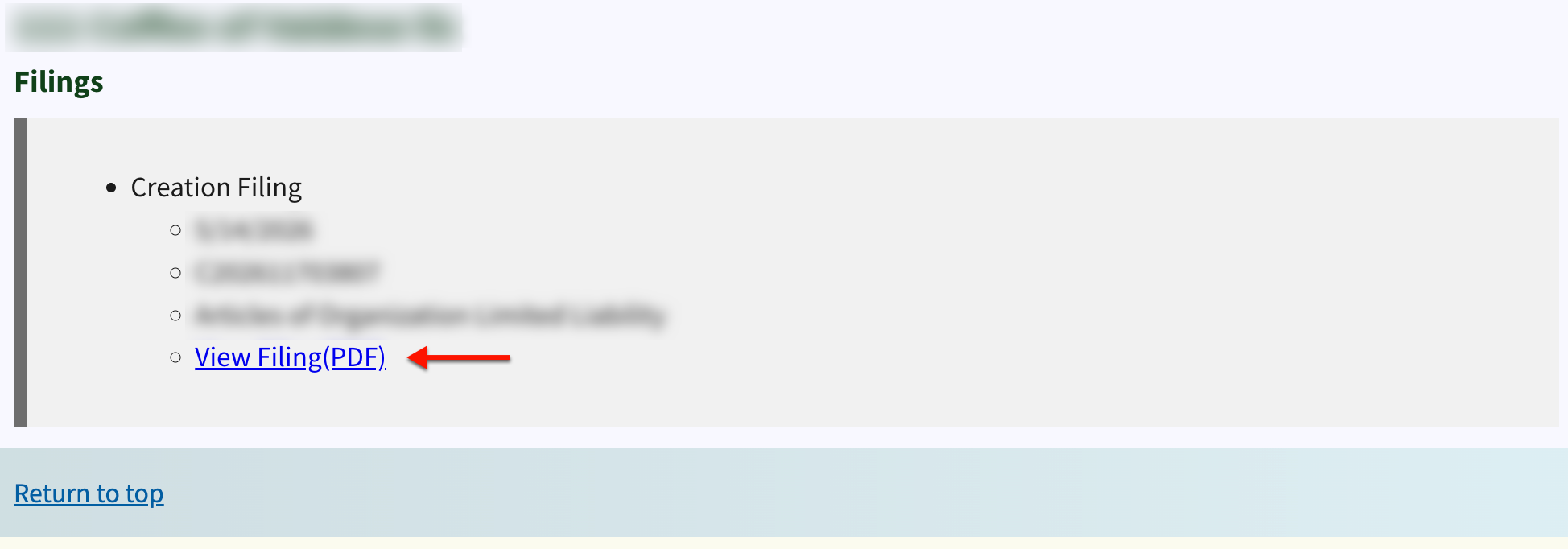
Review the filing history on display, where the type, date, ID number, and document title are displayed. Select the “View Filing (PDF)” link to access the document onscreen.