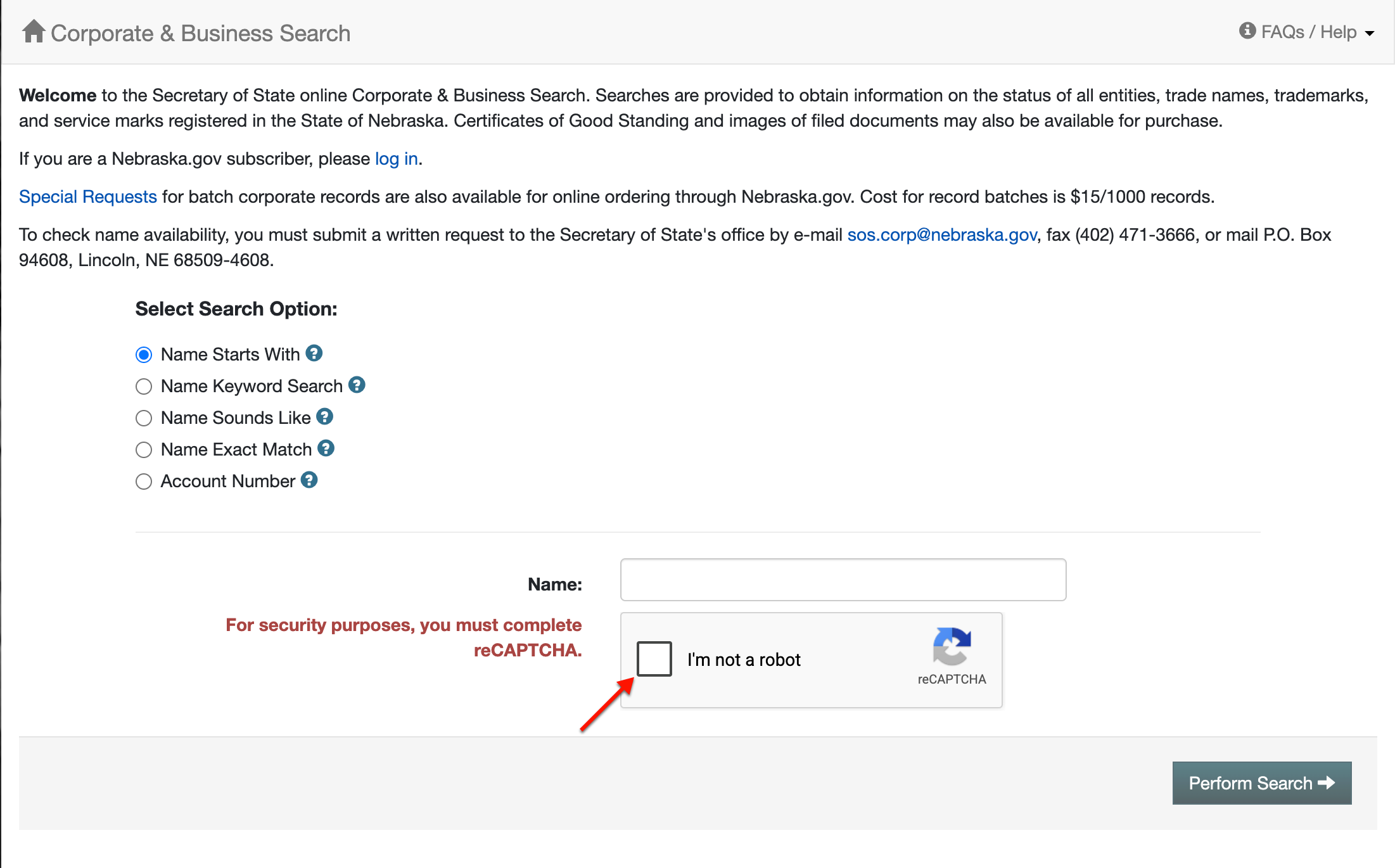
The Nebraska Secretary of State business entity search tool lets visitors quickly locate an entity on file with the state. Generally, this is one of the first steps for first-time business owners: naming their entity a unique name. While this search does not guarantee name availability, many would say it is a strong indicator of whether a name is currently in use or otherwise reserved.
Business Name Availability Check
State of Nebraska

Business Entity Search
Step 1. Go to Nebraska’s Business Name Search Tool
Access the Nebraska Secretary of State business search page. Here, a query tool allows users to seek out entity information.
Step 2. Select A Search Option
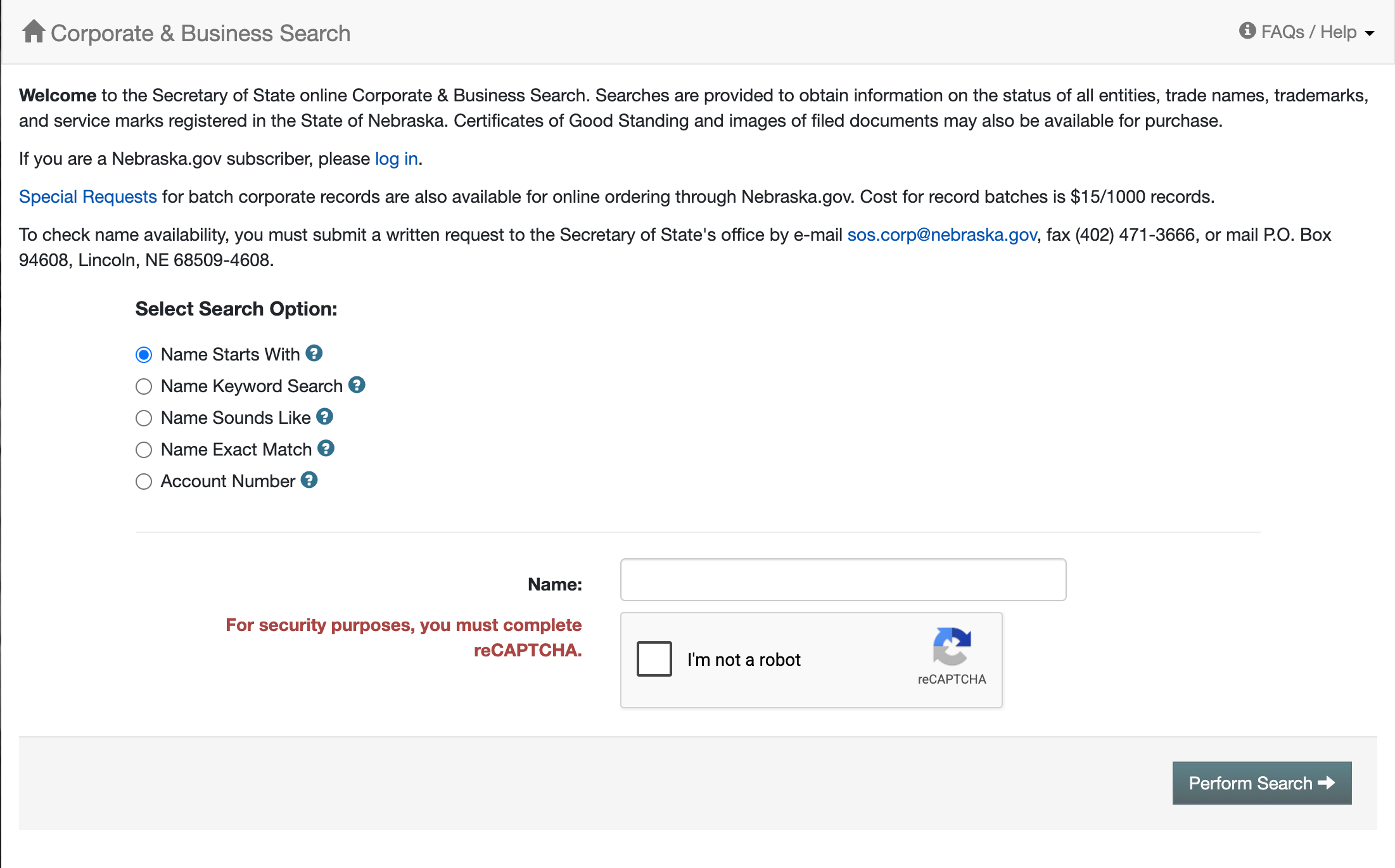
Review the options available through the radio buttons. Select the button that best describes the target. In our example, we will select “Name Keyword Search.”
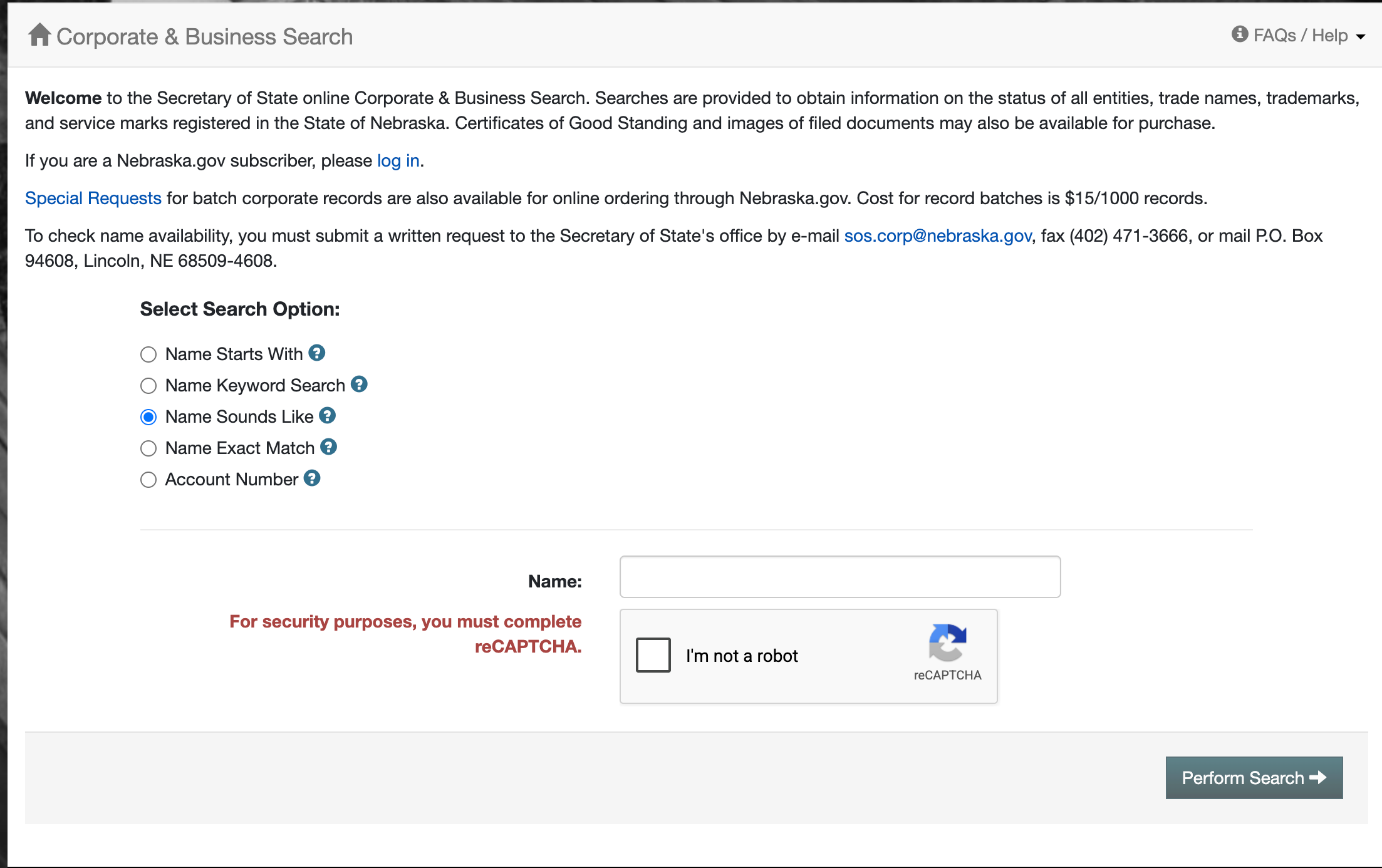
- Name Starts With (see image)
- Name Keyword Search (see below)
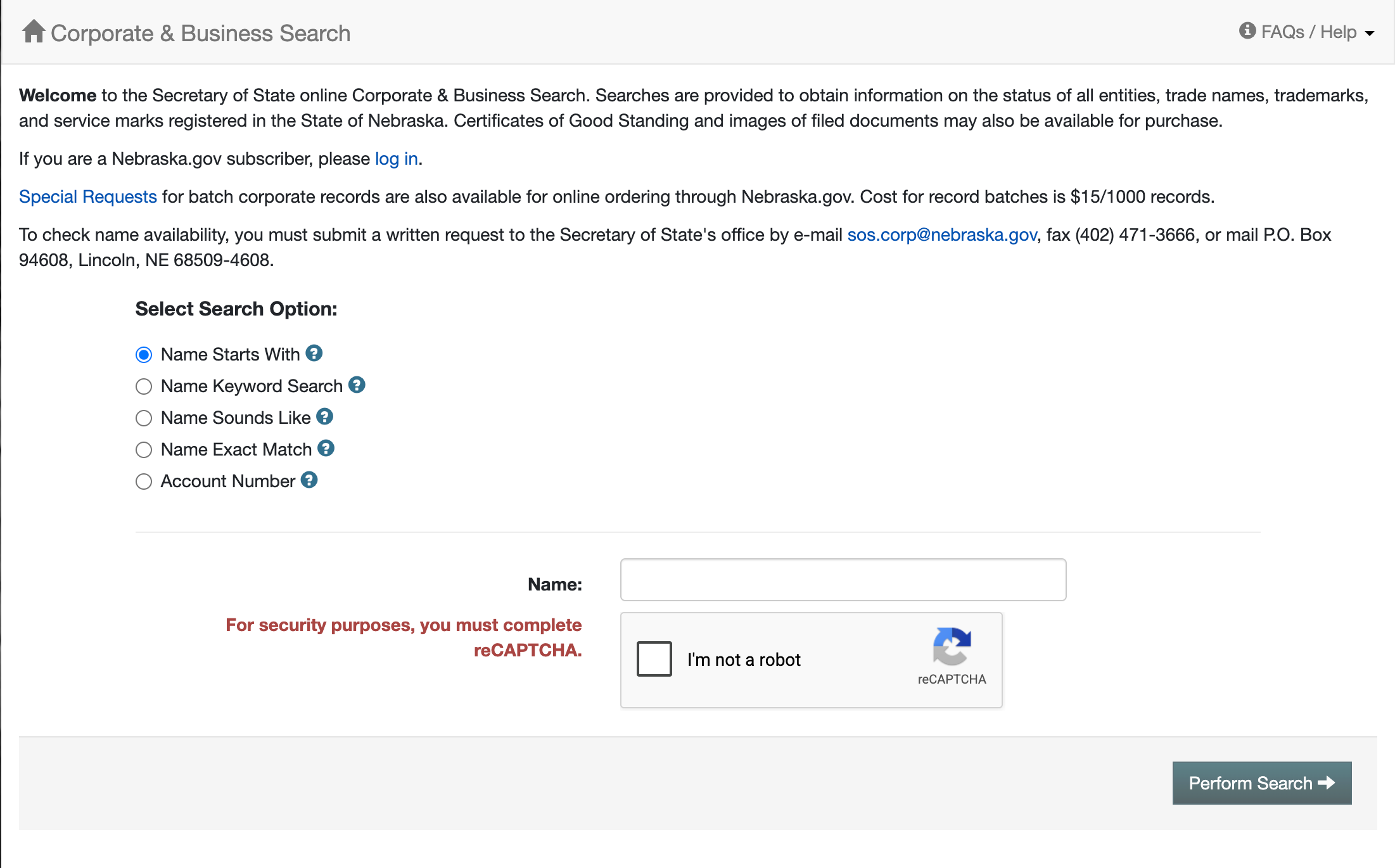
- Name Sounds Like (see image)
- Name Exact Match (see image)
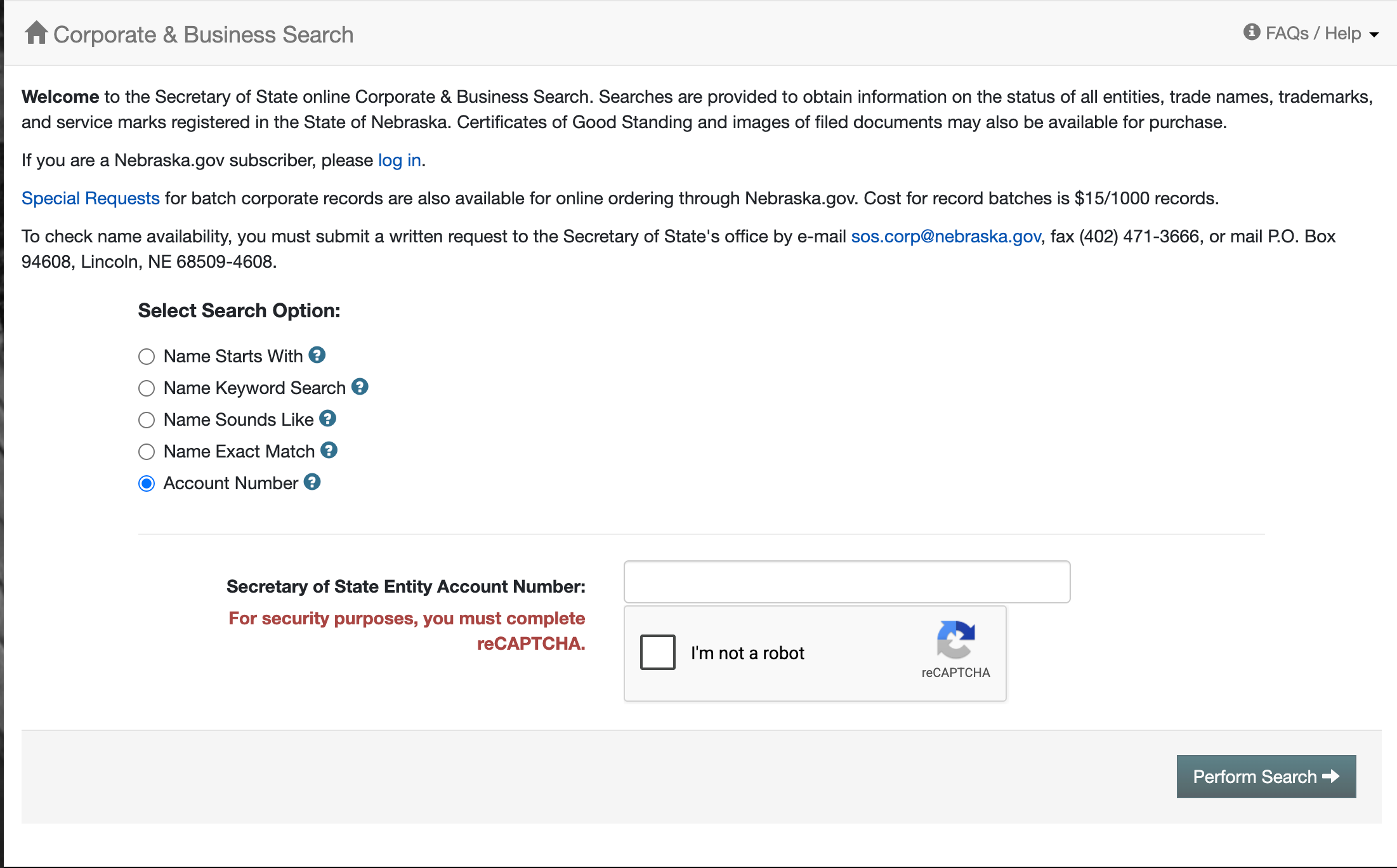
- Account Number (see image)
Step 3. Assign The Search Method
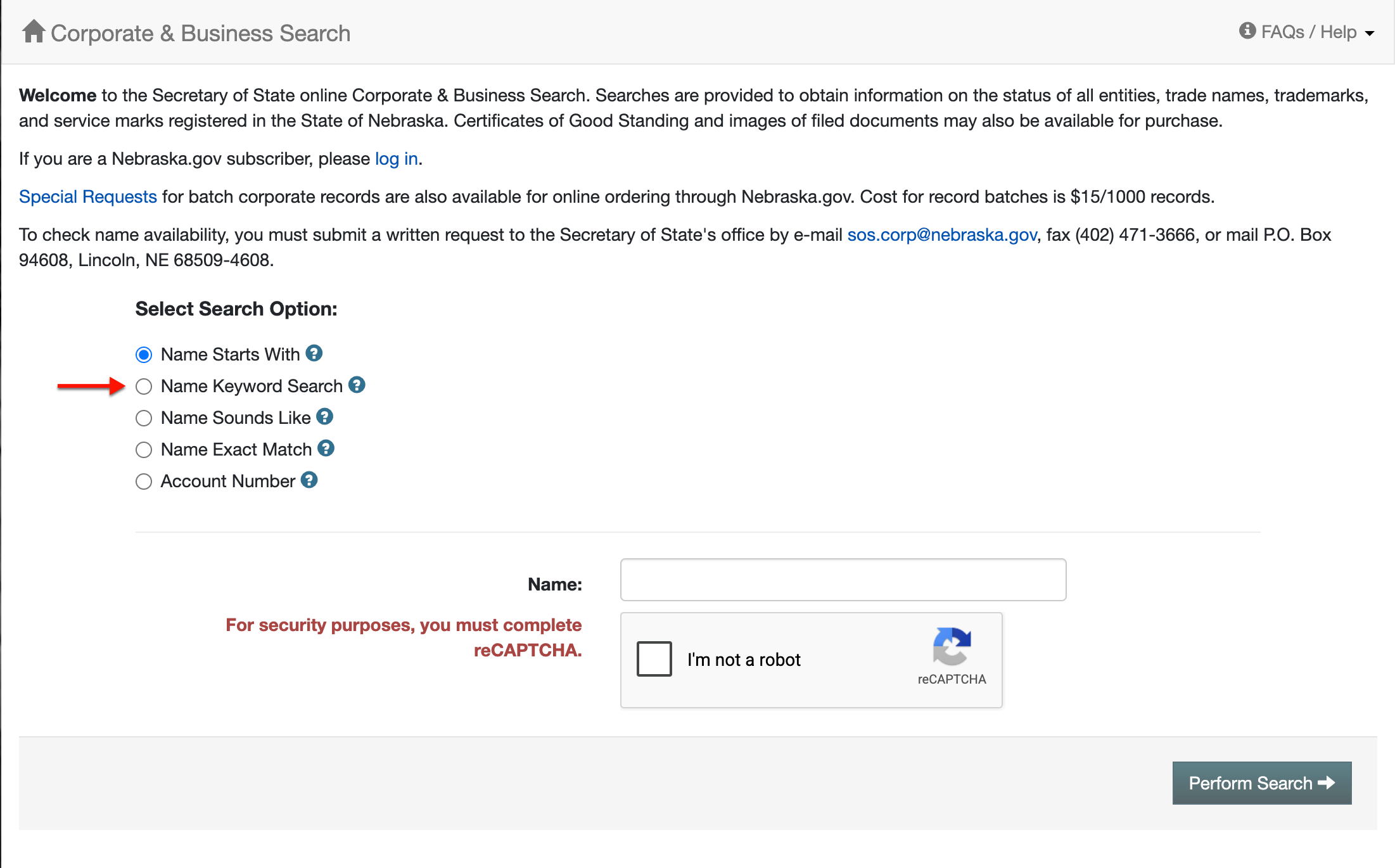
Since we are looking for a keyword, an additional option is available. Select one of the radio buttons to indicate how the target and the search item relate to one another.
- Name Keyword Search
- Match All Words
- Match Any Word
Step 4. Present Search Criteria
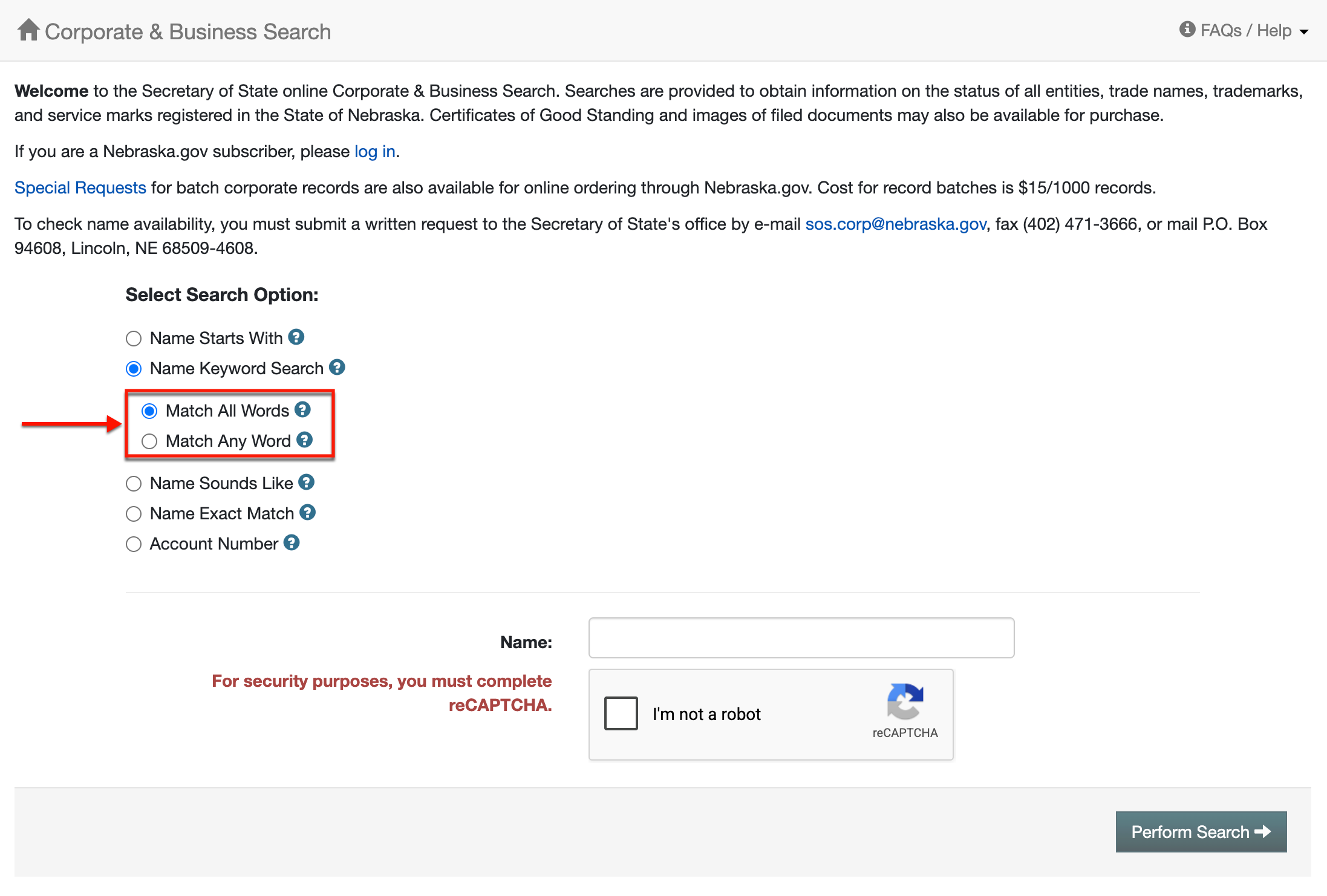
Determine the keyword to find, then report this in the text box. A general phrase (e.g., industry type) often yields the most results while specific names target a narrower range.
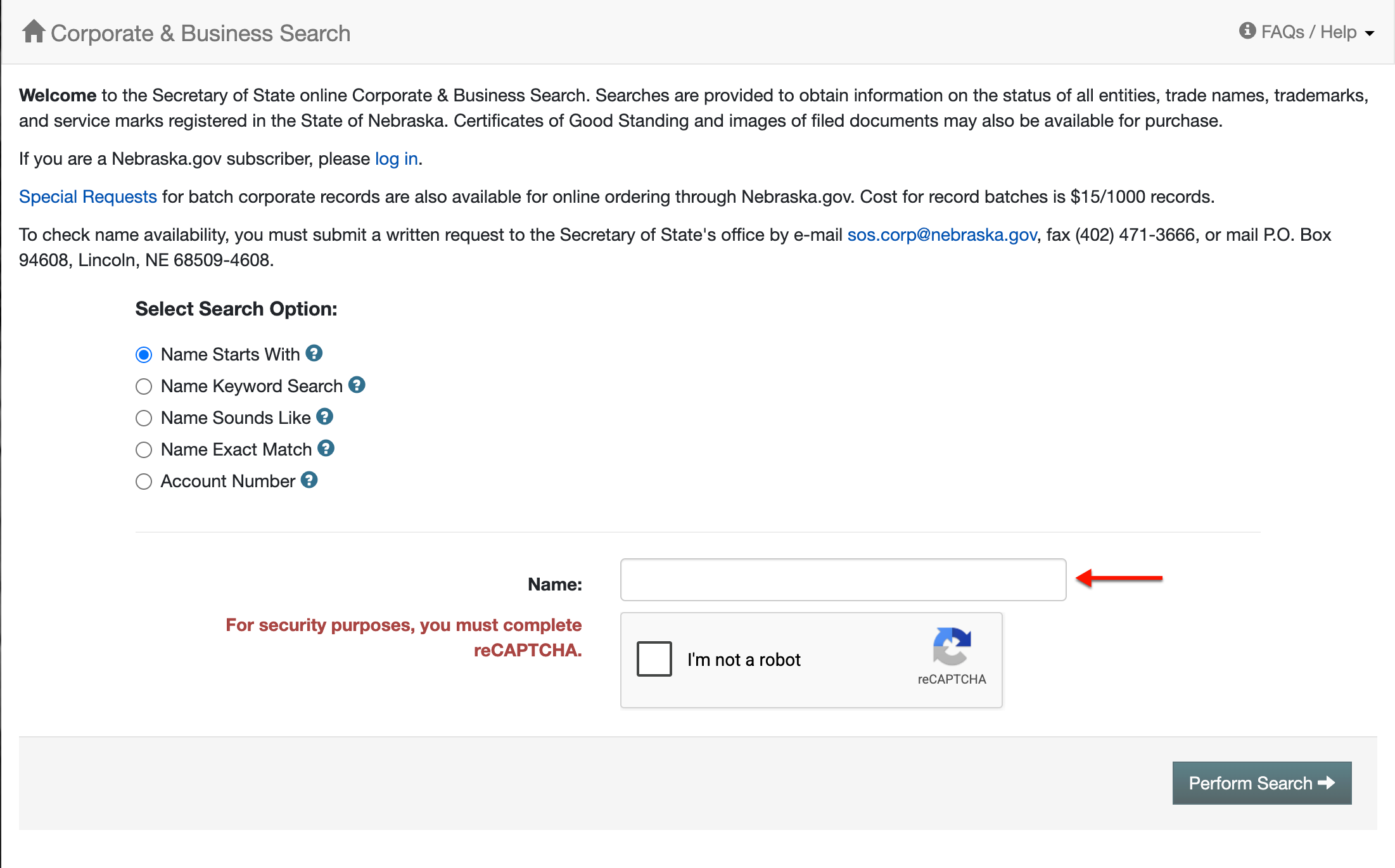
Step 5. Initiate a Query on the Keyword
Locate the green “Perform Search” button. Keep in mind that before selecting this button to initiate the search, you must check the “reCAPTCHA” checkbox (see image).
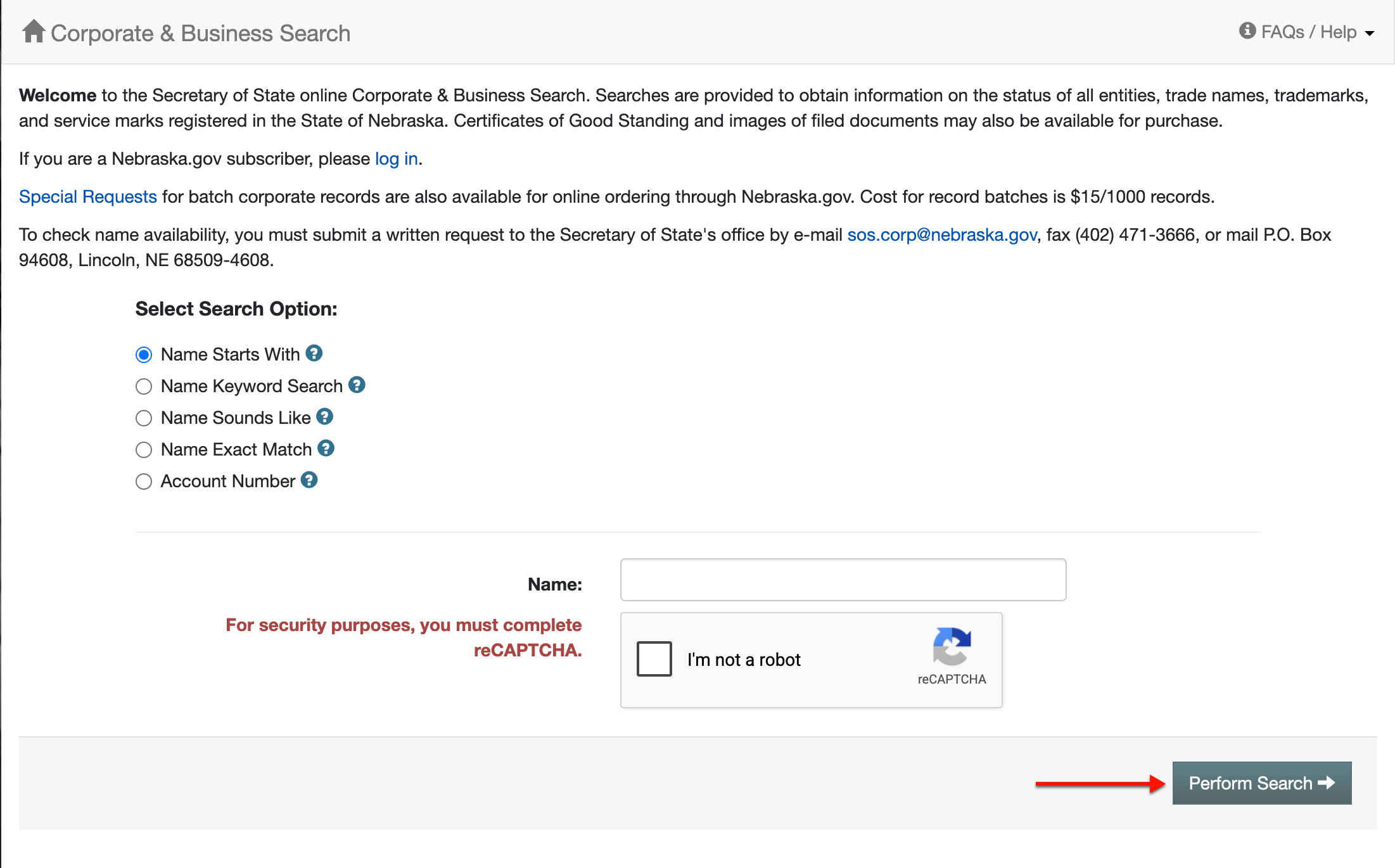
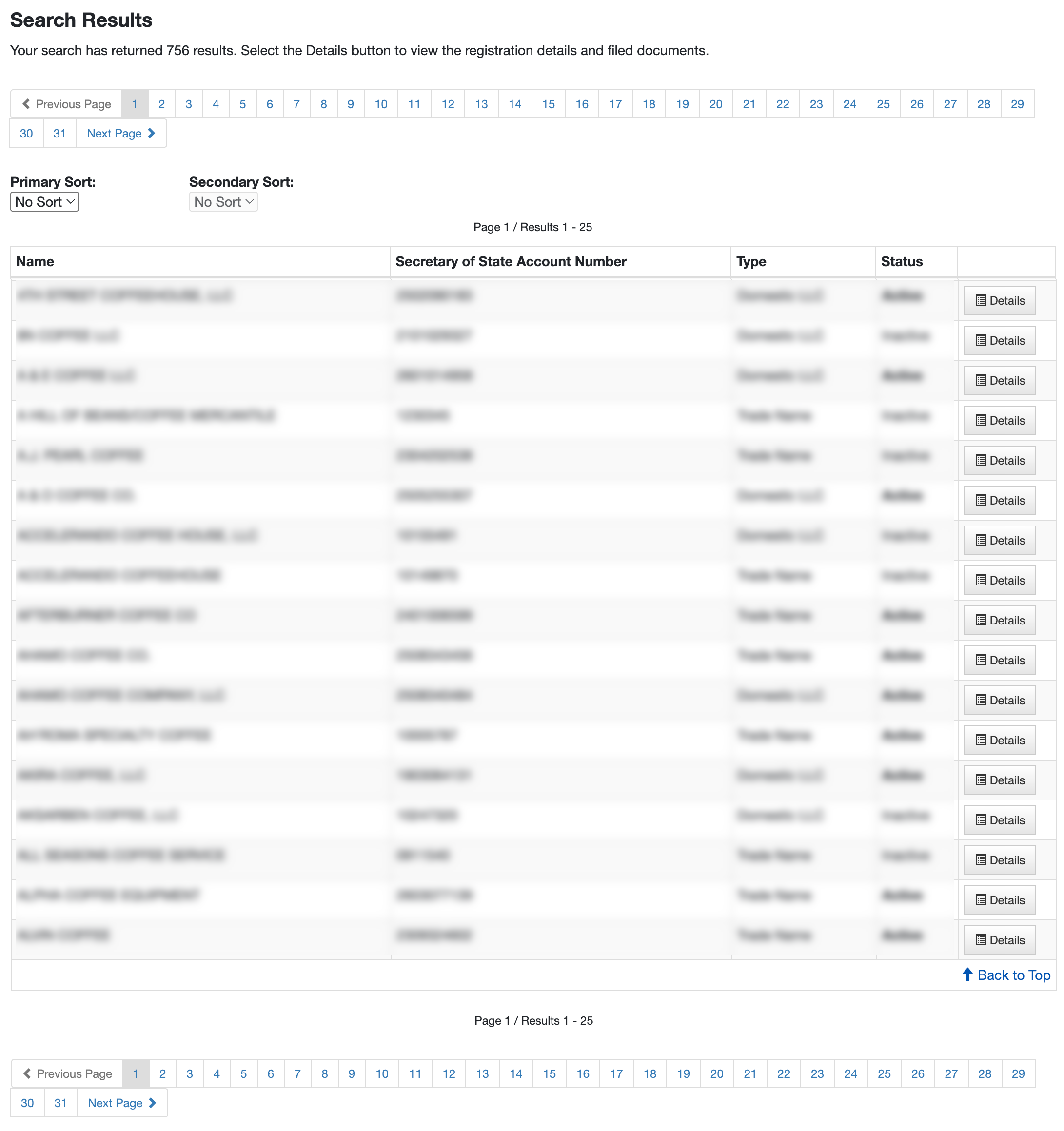
Step 6. Scan the Results Table
Matching entity names appear in a table as a matter of convenience. Each row contains a single record. Review these records until you find the target.
- Primary Sort
- Secondary Sort
- Name
- Secretary of State Account Number
- Type
- Details
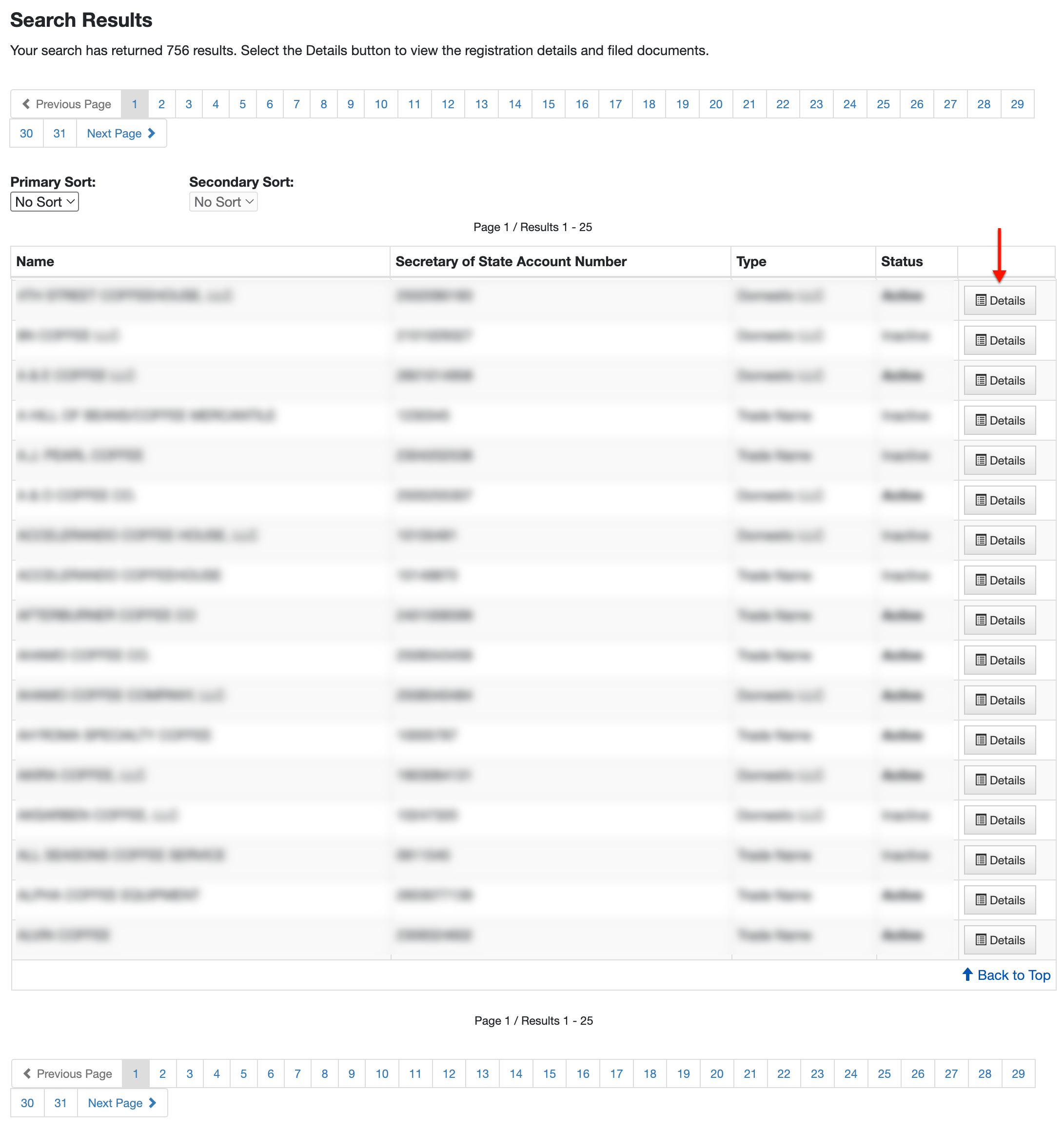
Step 7. Choose An Entity
Upon finding the target entity, locate the “Details” button for that row. Select this button when you are ready to navigate to the entity information page.
Step 8. Review the Business Information
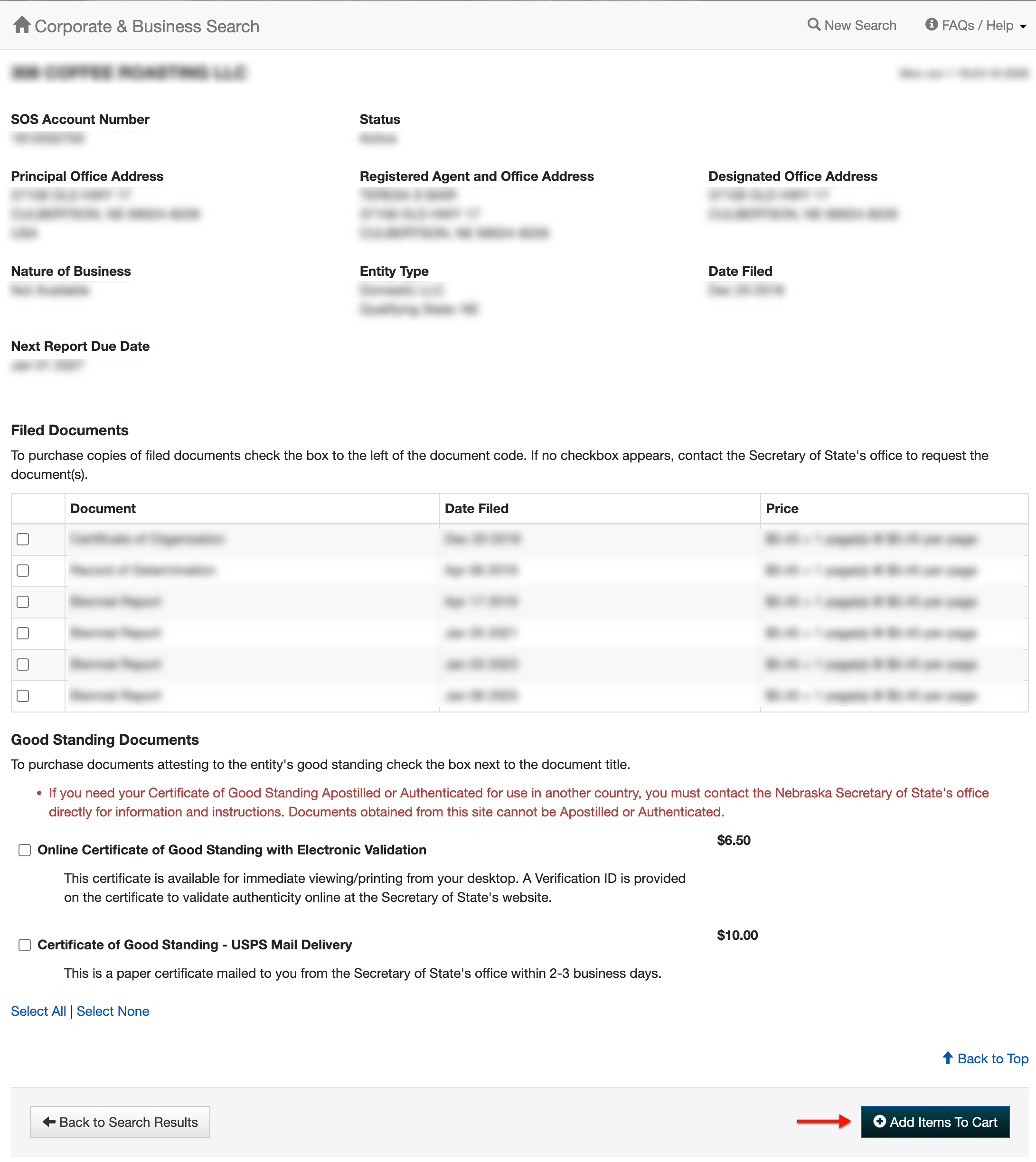
Review the entity’s information page for basic public information. Notice that additional information is also available by purchase.
- SOS Account
- Status
- Principal Office Address
- Registered Agent and Office Address
- Designated Office Address
- Nature of Business
- Entity Type
- Date Filed
- Next Report Due Date
- Filed Documents
- Document
- Date Filed
- Price
- Good Standing Documents
- Online Certificate of Good Standing with Electronic Validation
- Certificate of Good Standing – USPS Mail Delivery
- Add Items to Cart
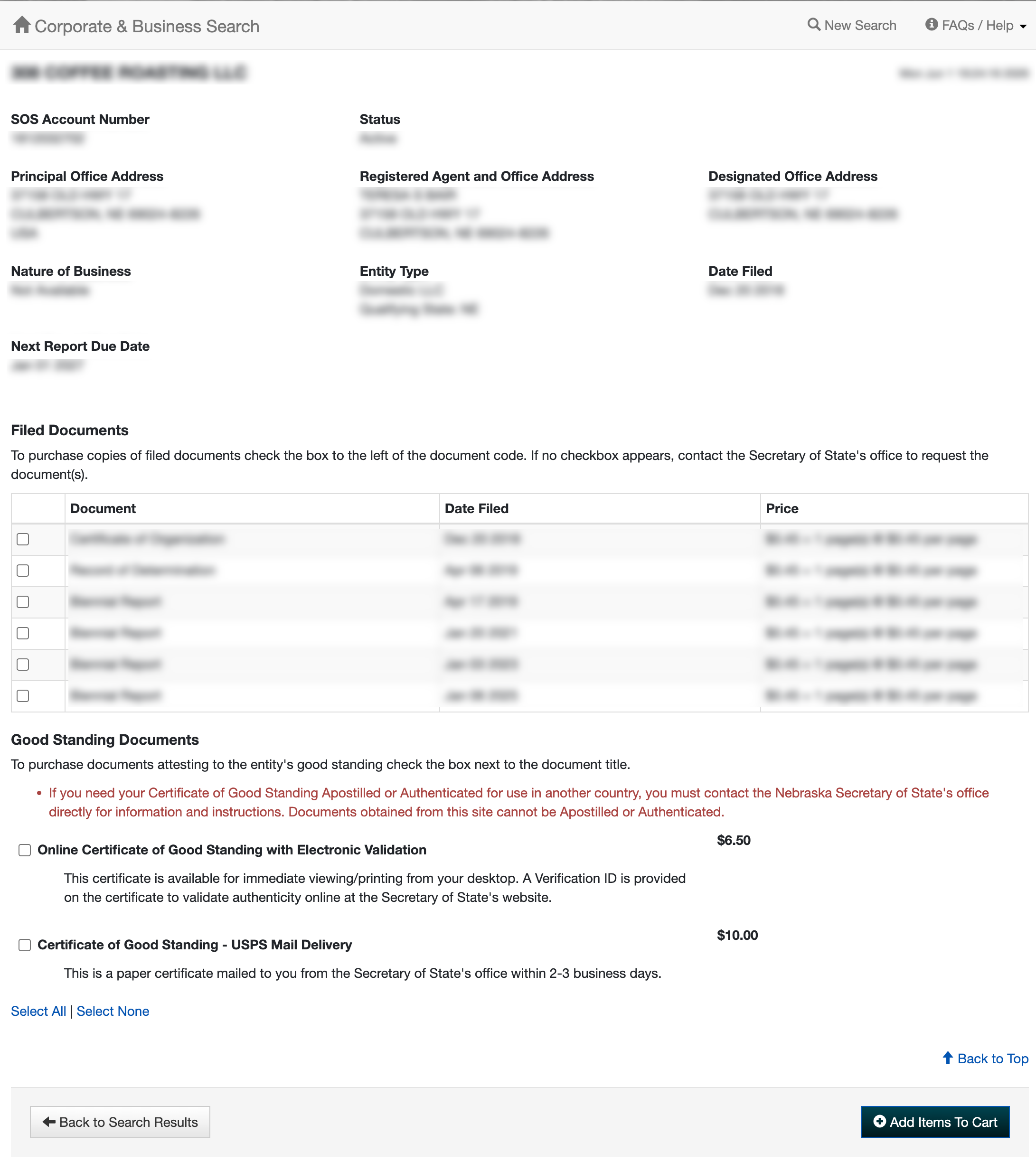
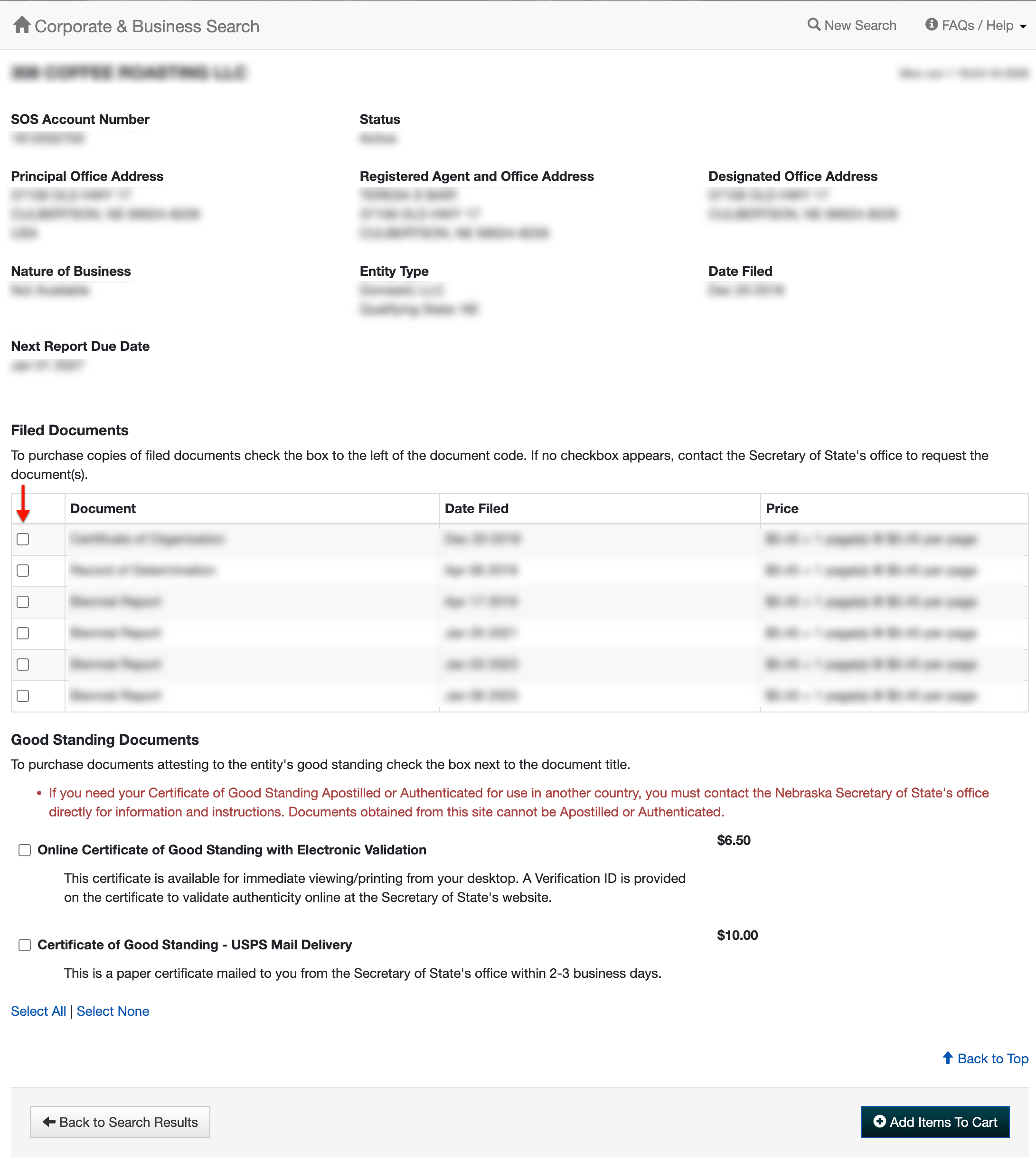
Step 9. Select Documents For Purchase (Optional)
Look through the “Filed Documents” table. To purchase a copy, place a check in the box starting on that record’s row. Verify this using the column descriptions on that document’s row.
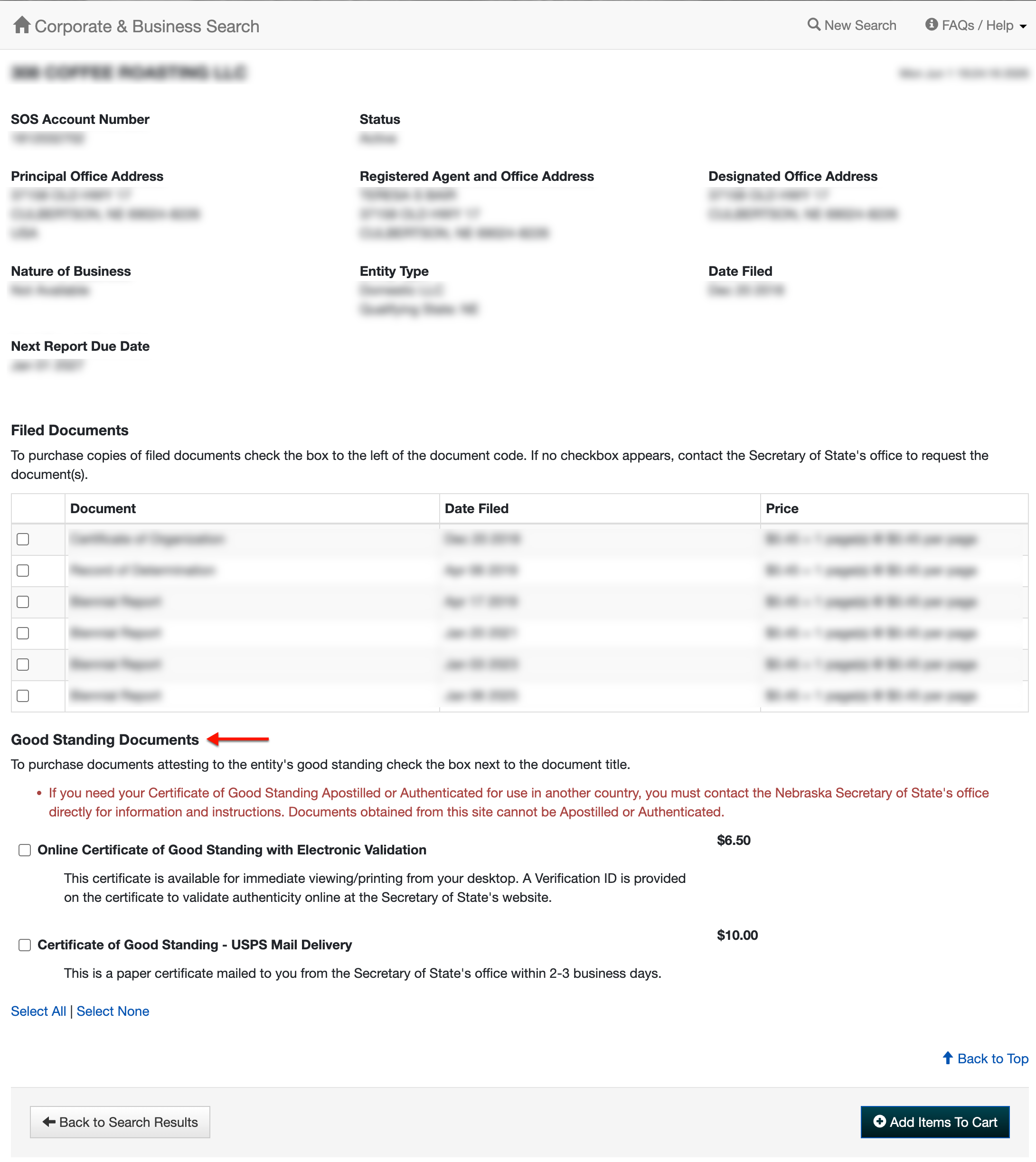
Step 10. Obtain Certificates of Good Standing
To purchase a certificate of good standing, use the checkboxes to indicate delivery. You may choose online/electronic delivery, USPS Mail delivery, or both.
Step 11. Finalize Payments
Use the “Add Items to Cart” button to proceed to the payment stage of your orders. You may run as many searches as you like by returning to step 1.