The Montana Secretary of State business entity search page supplies users with a query tool to access the state’s entities database. The query quickly locates specific entities when provided with the appropriate search items by the user. In addition to basic facts, users may view the entity’s state paperwork on file.
Business Name Availability Check
State of Montana

Business Entity Search
Step 1. Go to the Montana Secretary of State Business Entity Search Tool
Open the business search page that the Secretary of State provides for its visitors. Both basic and advanced searches are possible here.
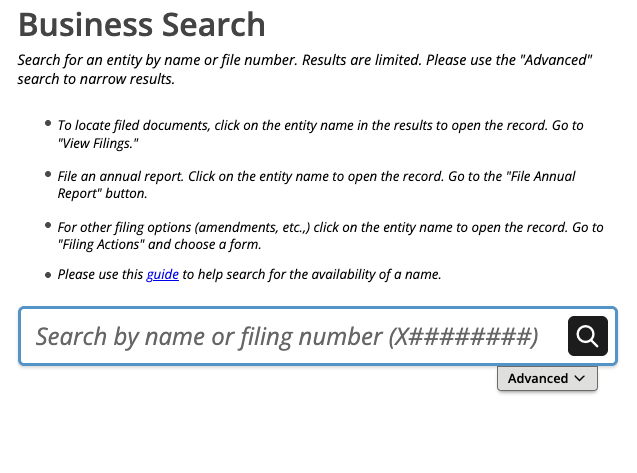
Step 2. Assign A Search Item to the Query
Focus your attention on the text box available. To perform a search, supply your search item in this text box.
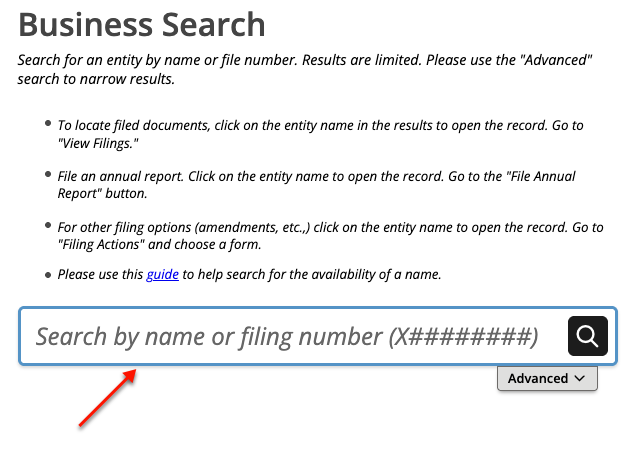
Step 3. Decide Upon an Advanced or Basic Search
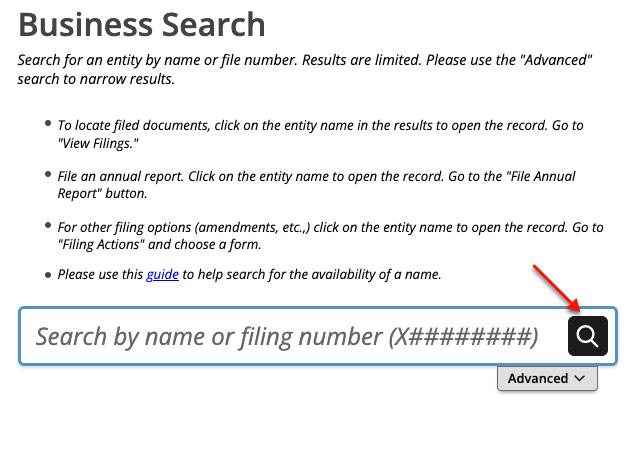
Step 4. Choose the Search Method
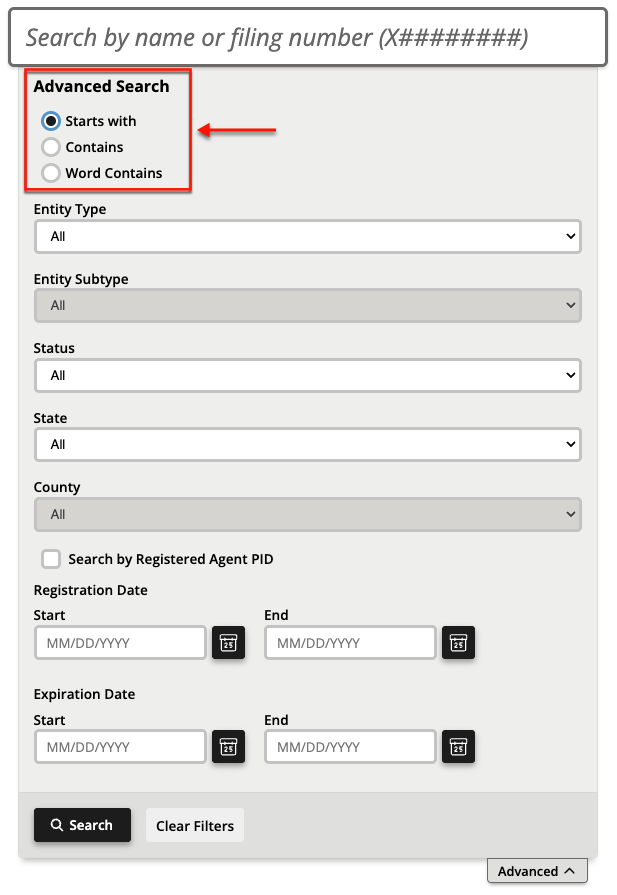
Read through the available options to tighten your criteria. Begin by selecting the appropriate radio button defining how the query should treat the search item.
- Advanced Search
- Starts With
- Contains
- Word Contains
- Entity Type
- Entity Subtype
- Status
- State
- County
- Search by Registered Agent PID
- Registration Date
- Start
- End
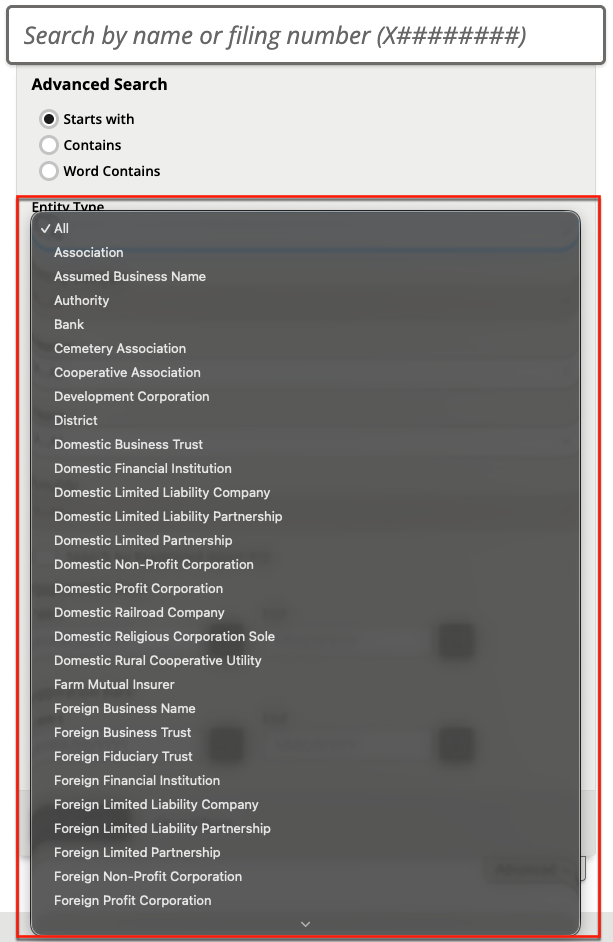
Step 5. Report the Entity Type
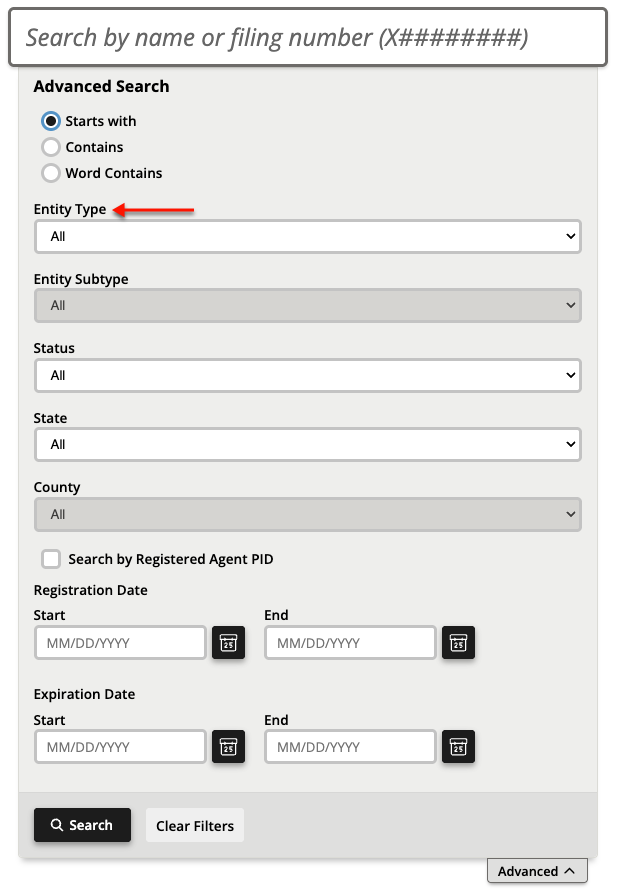
Classify the type of entity you’re investigating using the drop-down menu (see image). While optional, this will aid the query’s action.
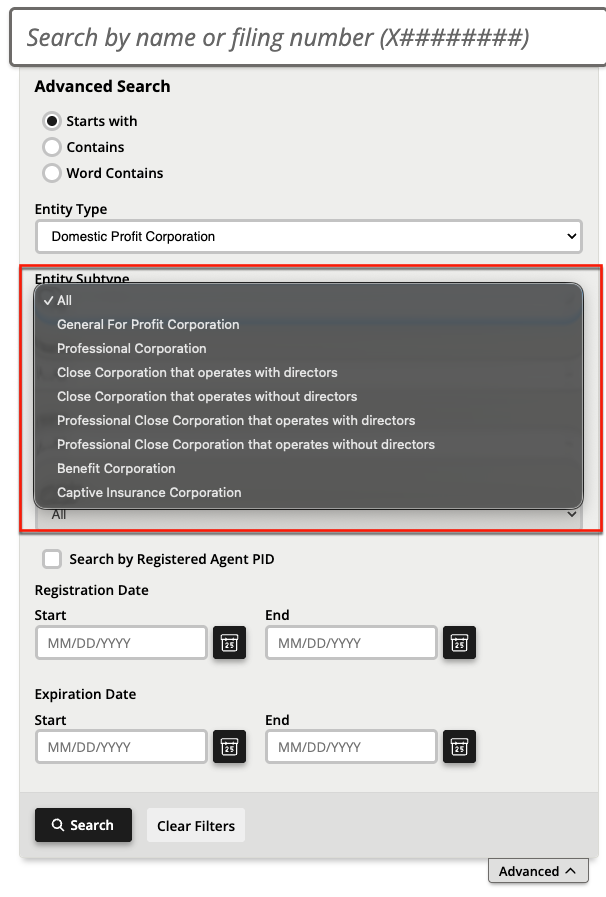
Step 6. Record the Entity Subtype
Attaching a specific entity subtype to your search significantly focuses the query. If known, then further define the entity type by selecting a subtype (see image).

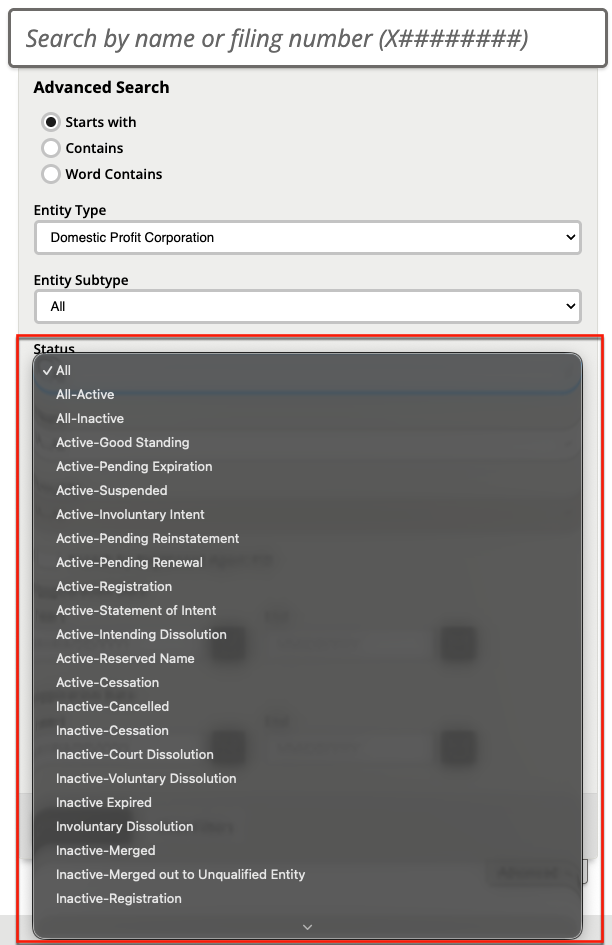
Step 7. Attach the Suspected Entity Status
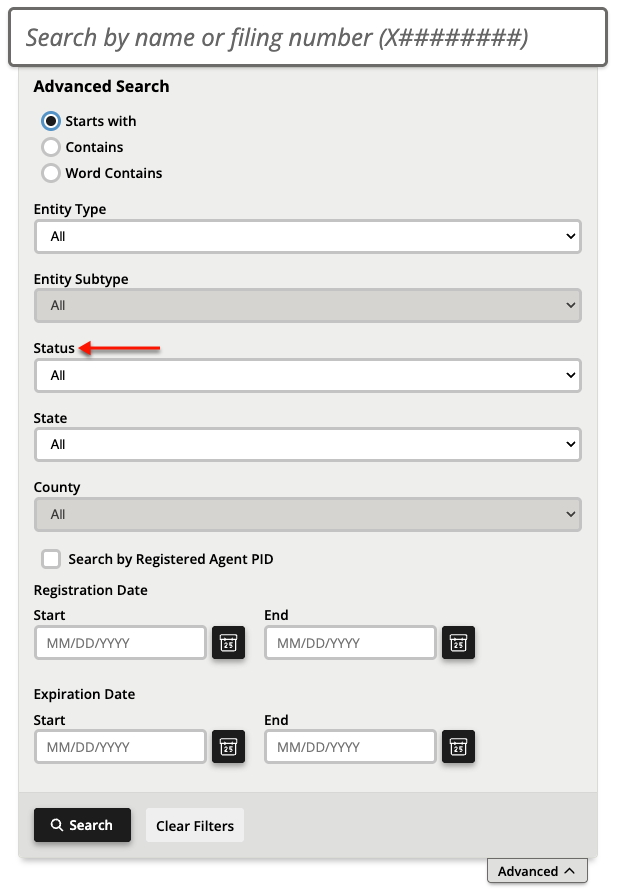
Continue to the next advanced search feature. Here, a drop-down menu targets entities with a specific status. Select an entity status (see image) that the resulting matches must have.
Step 8. Target A Specific State
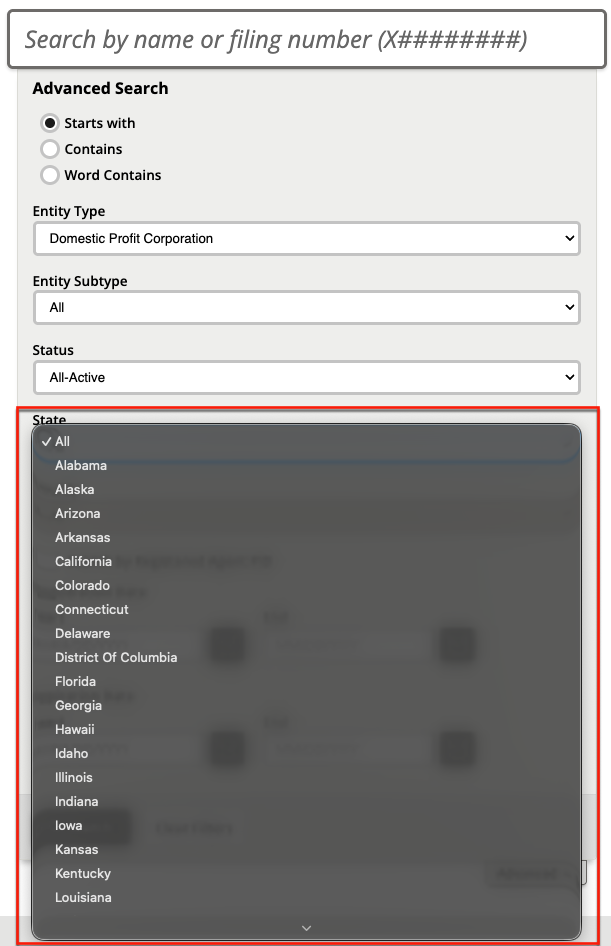
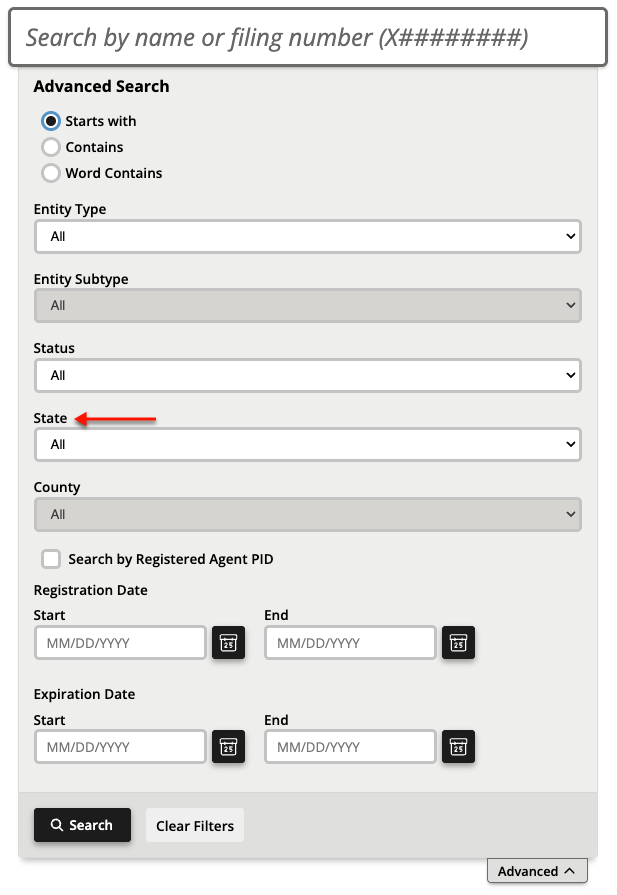
Use the advanced option to display matching results originating from a single state. In order to filter the results this way, choose the state from the dropdown menu (see image).
Step 9. Filter Results To A County
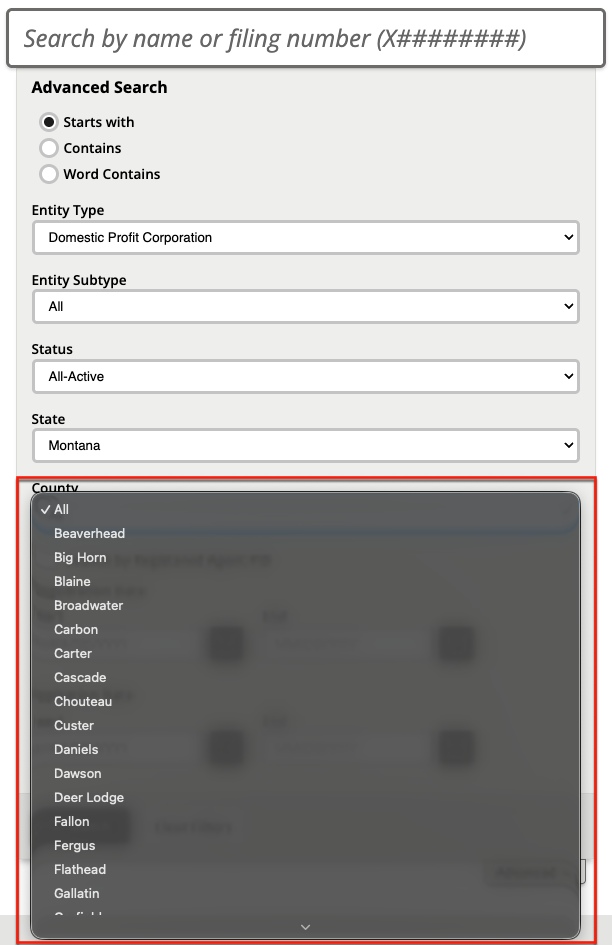
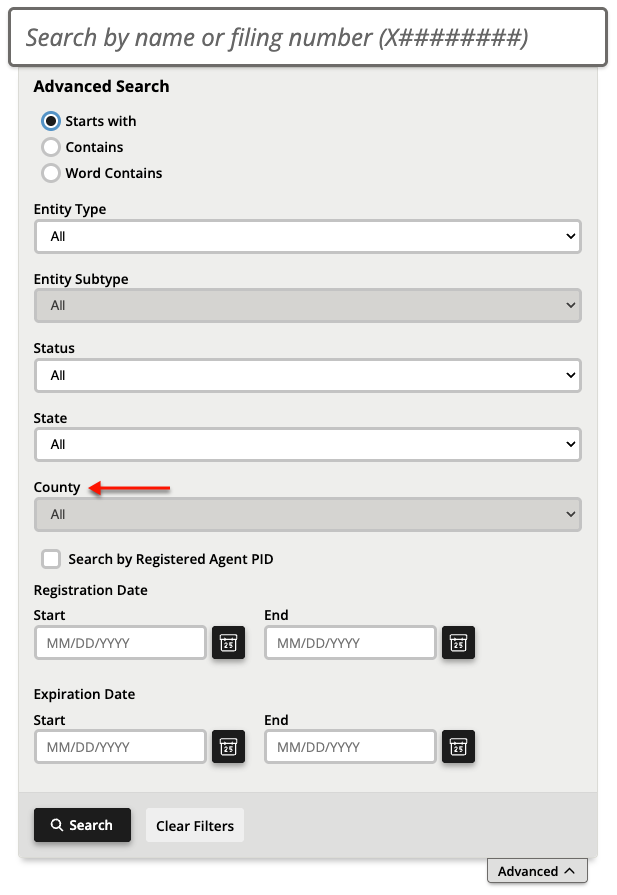
Further specify the location of the entity’s main operation or principal office by including the county. Pick a county from the final dropdown list (see image) to limit results to a single county.
Step 10. Classify the Search Item Appropriately
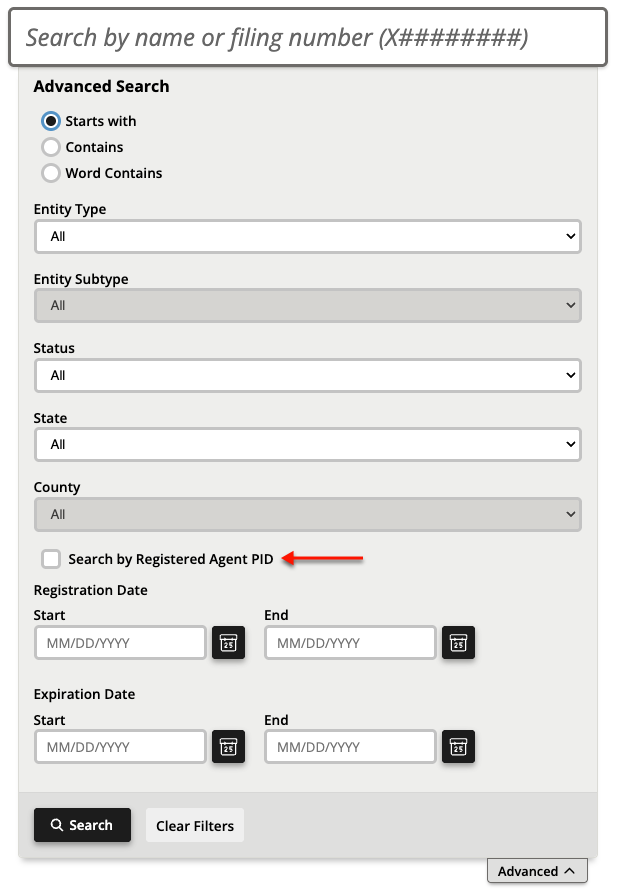
While this is a business name search, it can also be set to a Registered Agent’s PID (personal ID number). To indicate this is the search item, mark the checkbox.
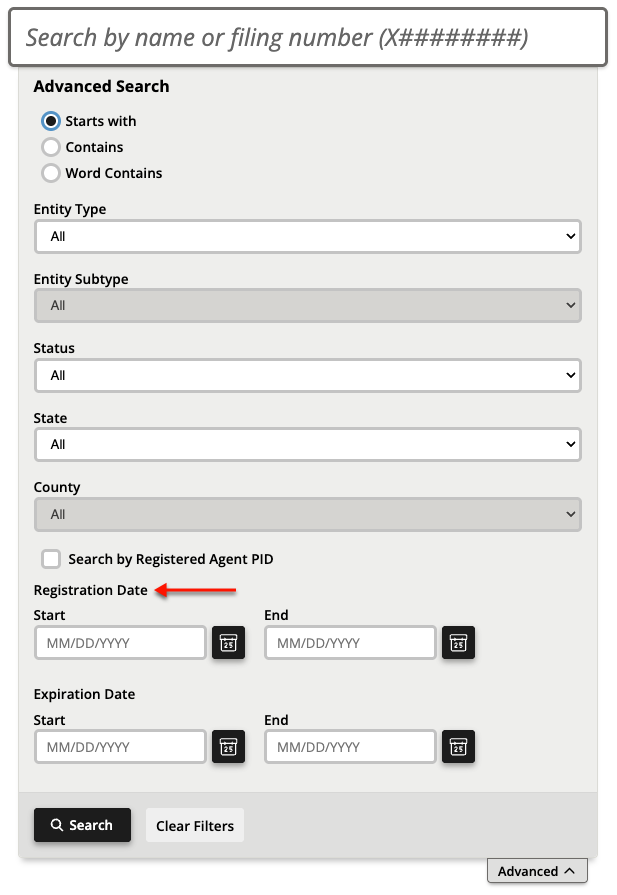
Step 11. Narrow Results according to Registration Dates
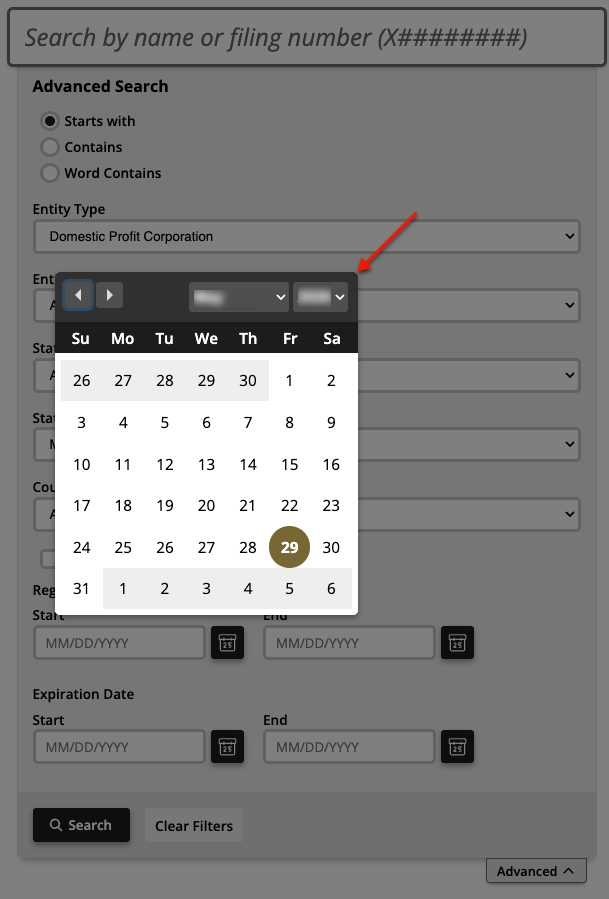
Set the search to find results matching your criteria, so long as the entity has a specific registration date. Use the set of calendar tools (see image) to set this date or range.
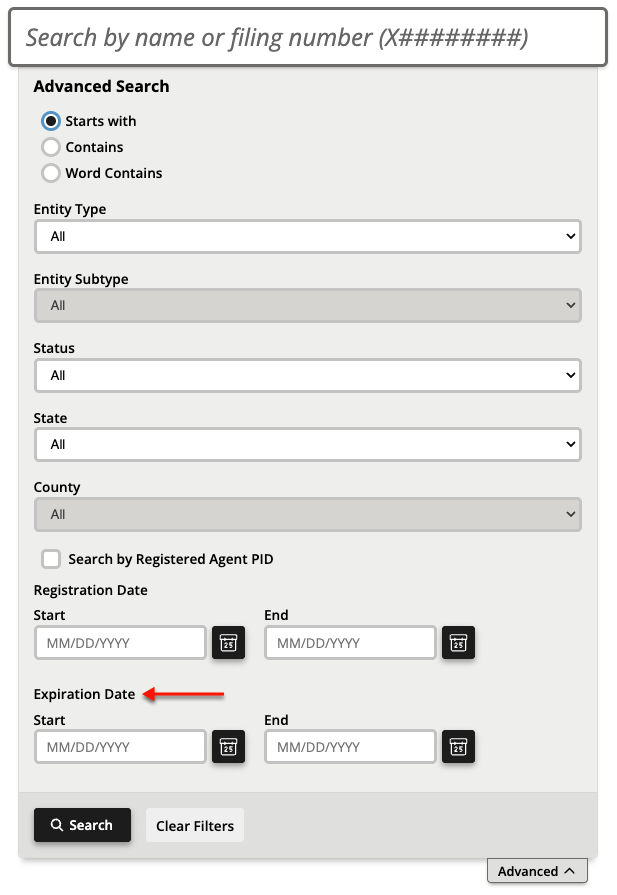
Step 12. Target Specific Expiration Dates
To see entities that have or had a specific expiration date, set the range using the second set of calendar boxes. Note, for a specific date, set only a one or two-date range.
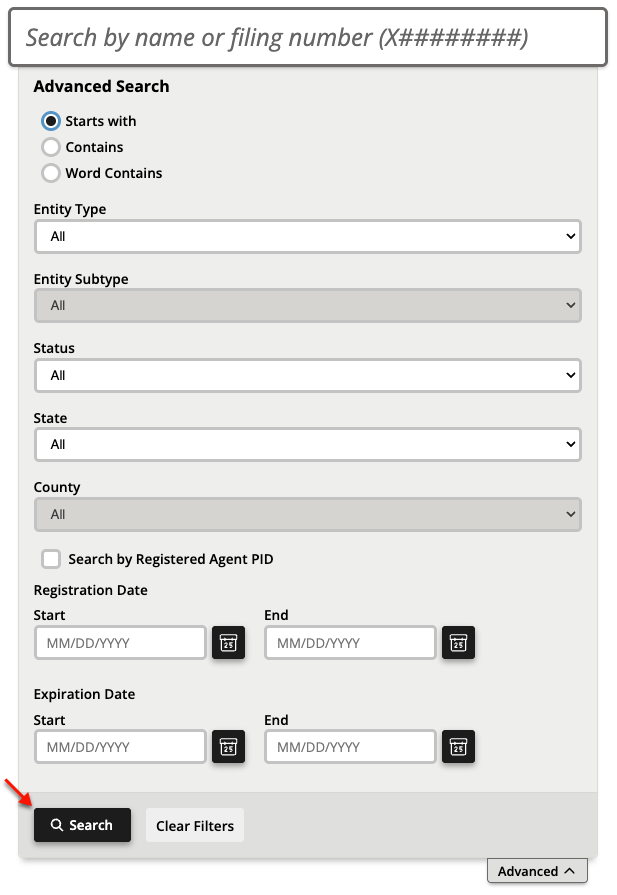
Step 13. Prompt An Advanced Search
To initiate an advanced search, locate the “Search” button and click it. Prepare to view the results below the current area.
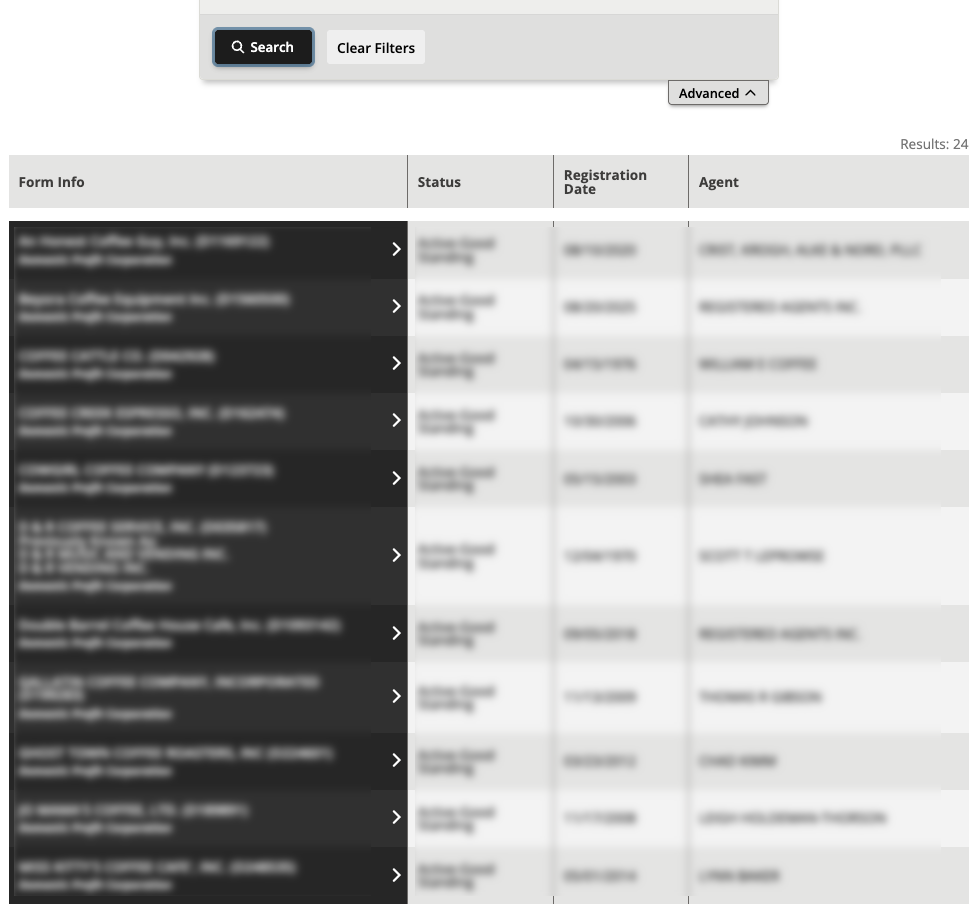
Step 14. View Table Results
Prompting the query generates the results (if any) directly below the search area as a matter of convenience. Scan the table for information until you find the target.
- Form Info
- Status
- Registration Date
- Agent
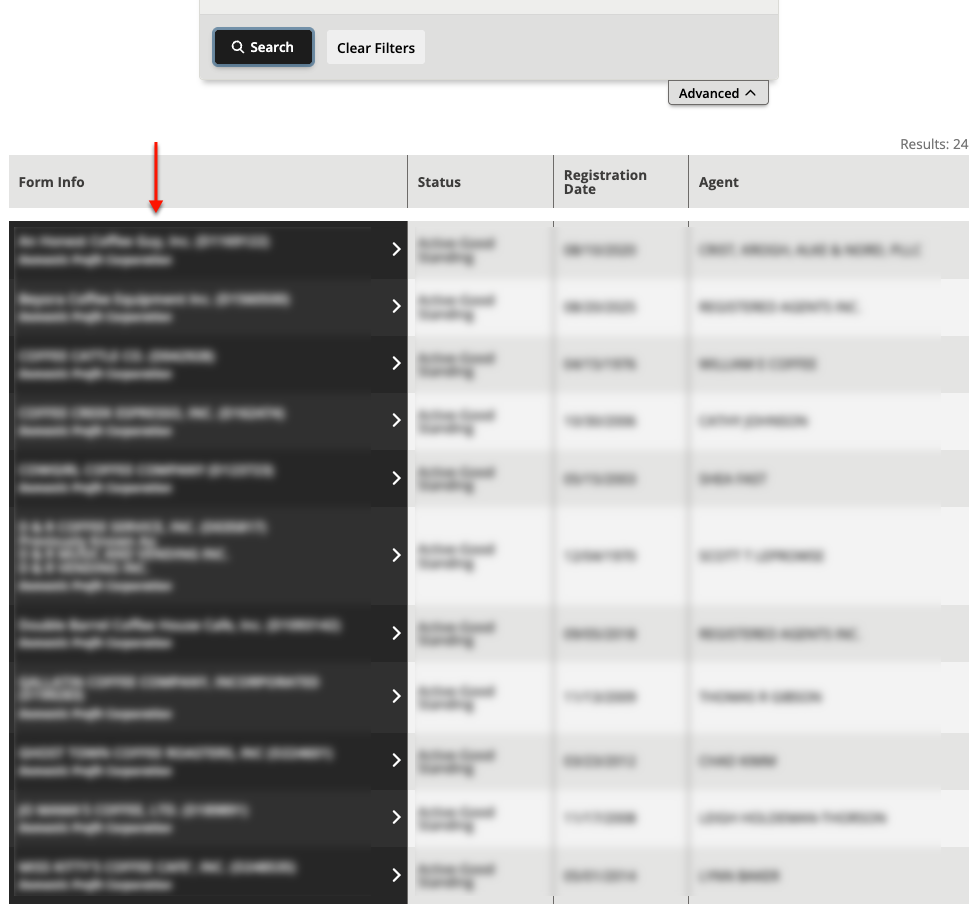
Step 15. Investigate Montana Records on an Entity
Once the target entity is located, select its name from the “Form Info” column. This generates entity details on the same page.
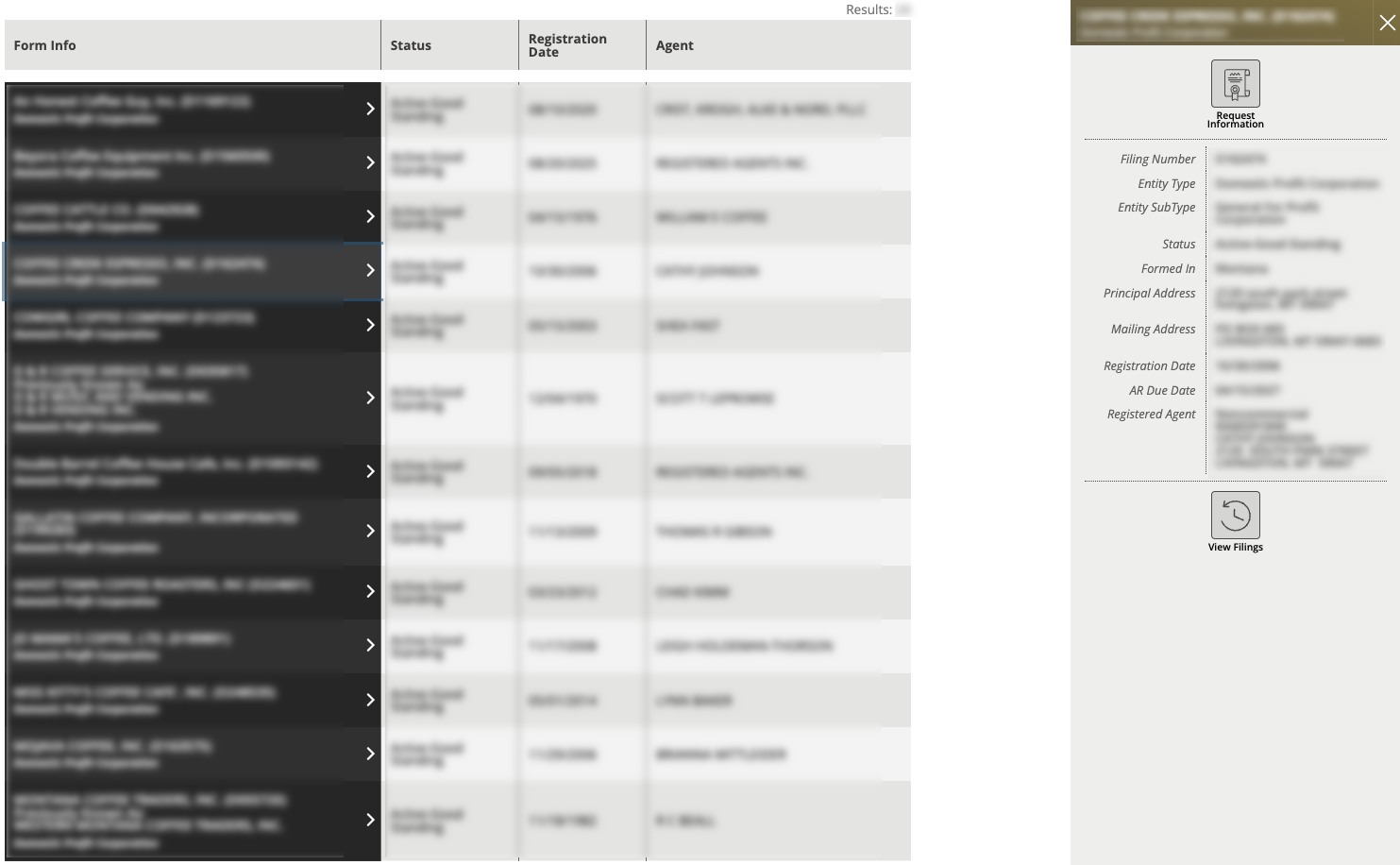
Step 16. Gather Entity Information
Review the side panel containing the entity’s details. This section delivers information regarding the entity’s status, contacts, and registered agent.
- Request Information
- Filing Number
- Entity Type
- Entity Subtype
- Status
- Formed In
- Principal Address
- Mailing Address
- Registration Date
- AR Due Date
- Registered Agent
- View Filings
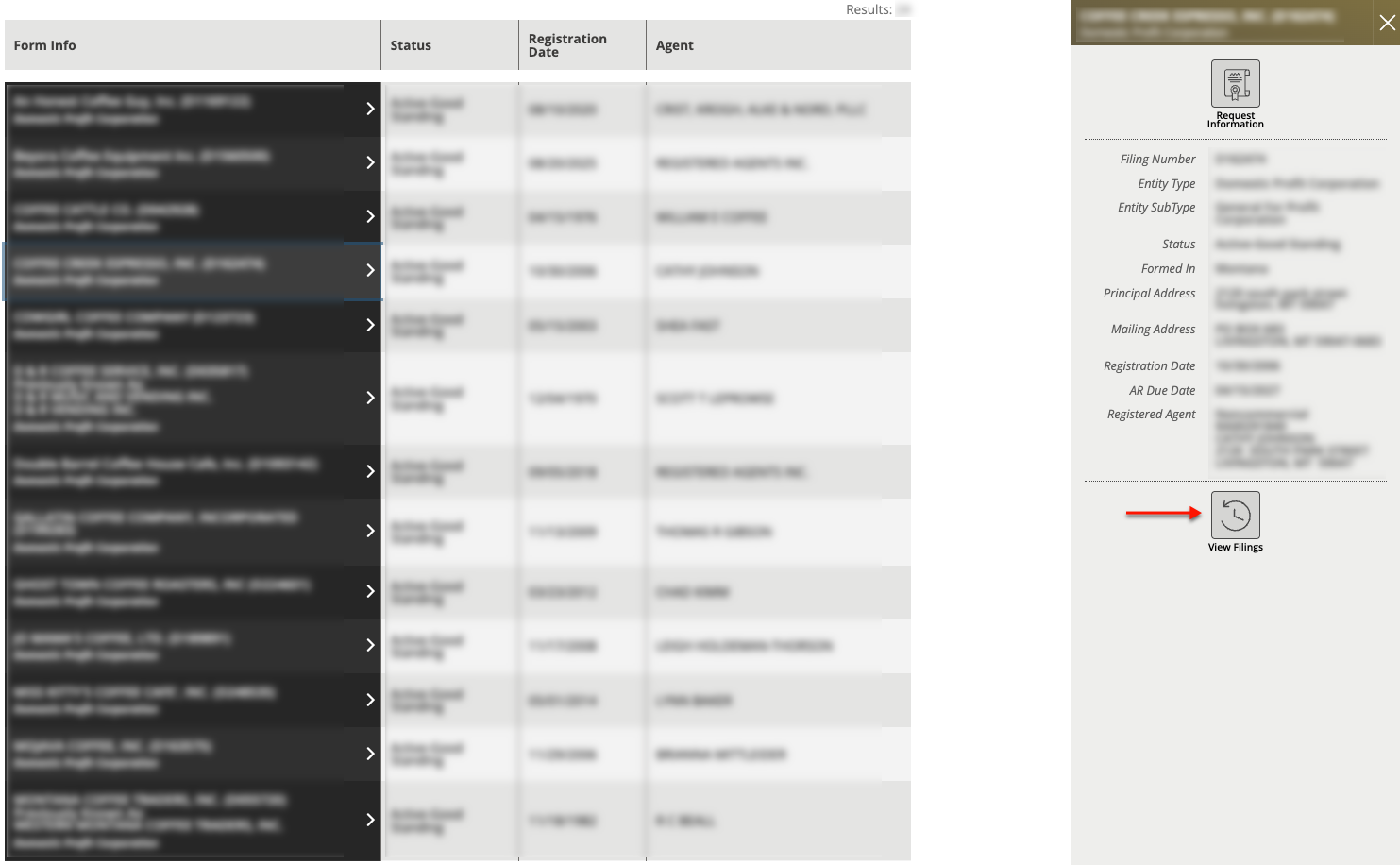
Step 17. Find A Document Filing
Notice that the state makes the entity’s past public filings available. To view the documents the entity currently has on file with the state, select “View Filings.”
Step 18. Review Entity Files with the State
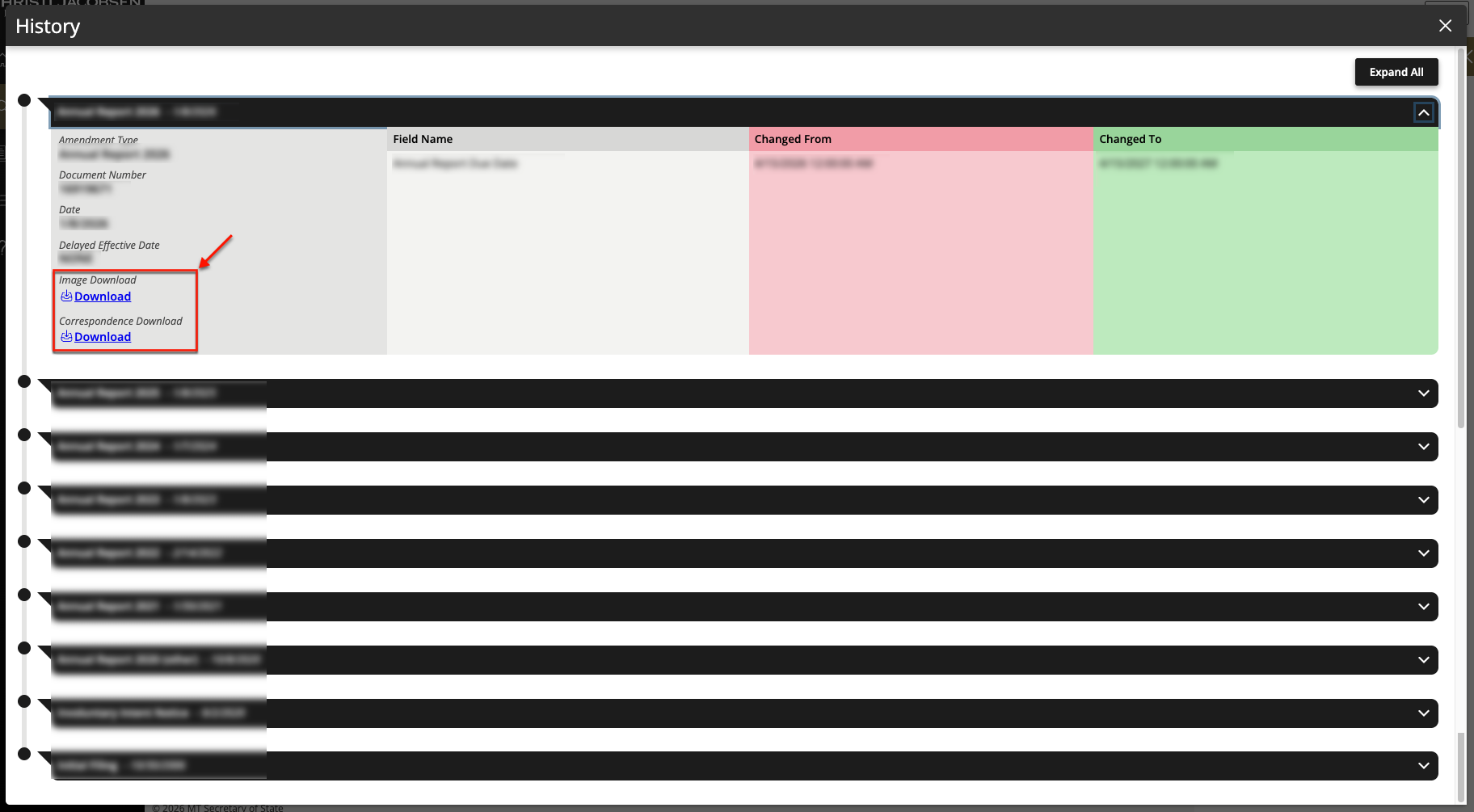
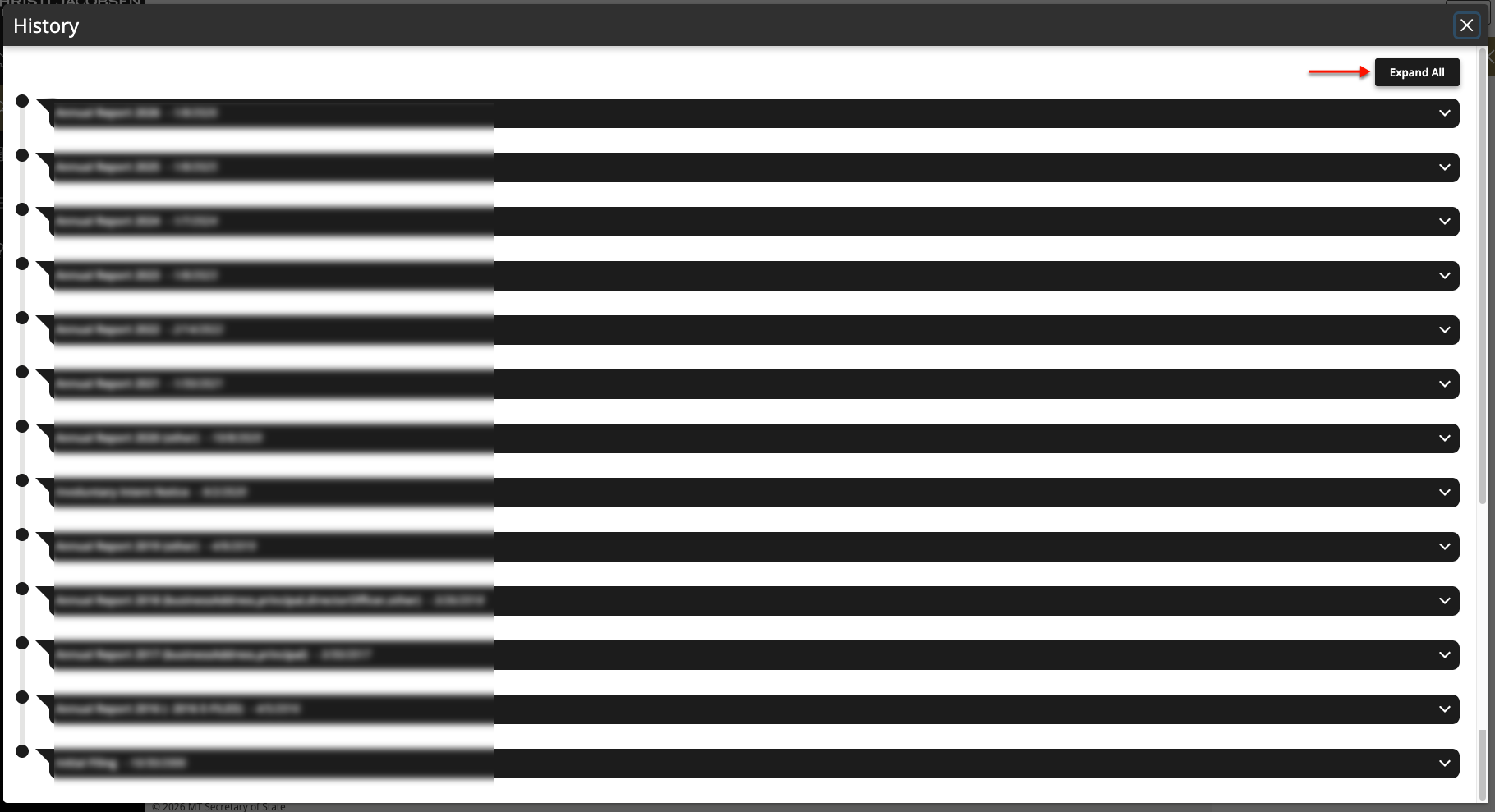
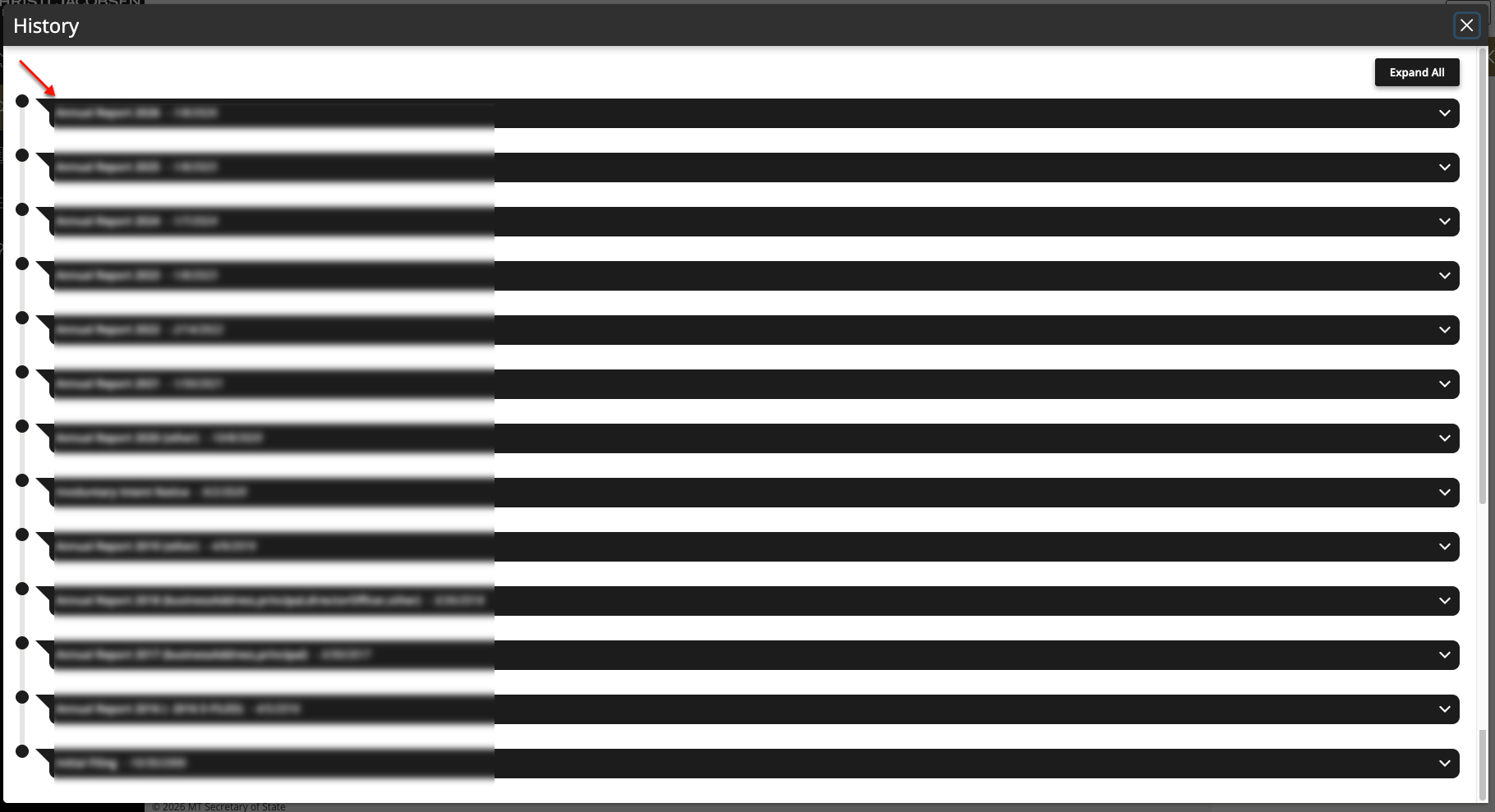
Once the filing history screen opens, each document is stored on a distinct row. Select one by name or date by clicking on that row (to open all at once, select “Expand All” (see image).
Step 19. View the Appropriate Document
You may access a filing scan to view on screen. To do so, locate the record of interest, then select “Download.”