The Missouri Secretary of State business entity search page helps visitors efficiently locate and investigate a specific business entity in the state. Missouri stores entity filings in a state database while granting visitors access to the public information it contains. As a public information tool, visitors may conduct additional searches as needed.
Business Name Availability Check
State of Missouri

Business Entity Search
Step 1. Go to the Missouri Business Entity Search Tool
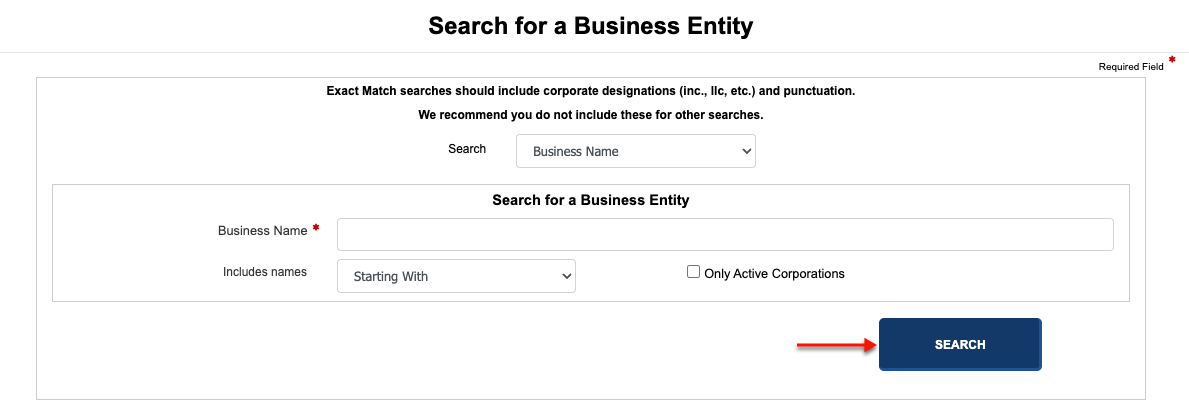
Visit the Missouri Secretary of State’s business entity search page. This is the first step to finding a specific entity’s public information.
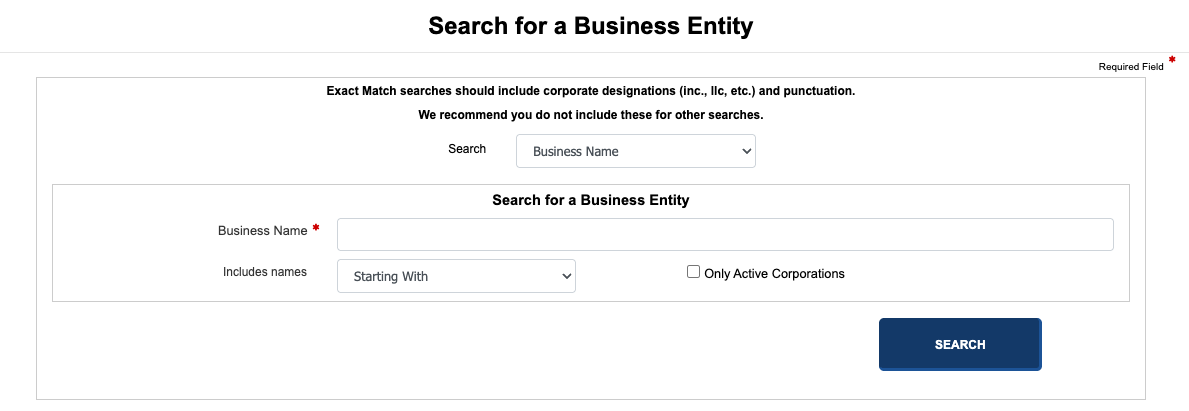
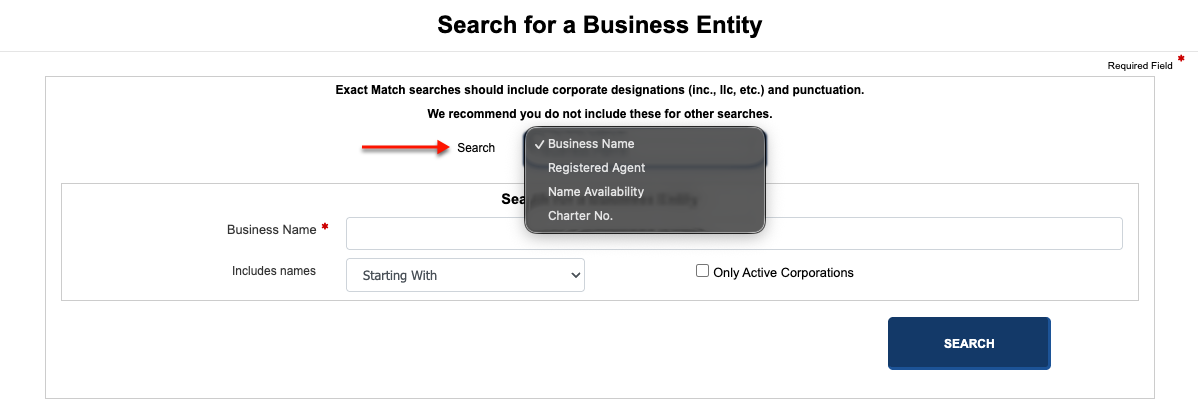
Step 2. Determine the Search Method to Implement
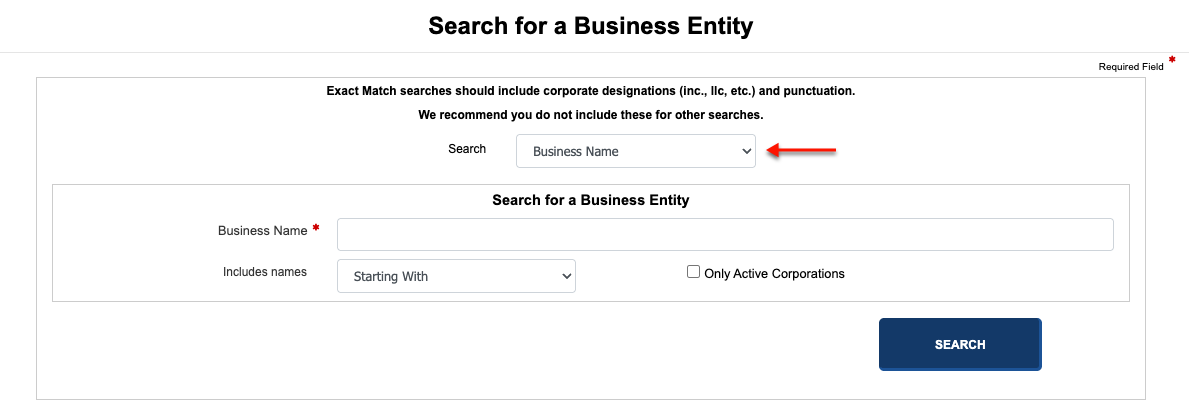
Step 3. Produce the Item to Search For
Present a keyword, name, or phrase for the query to find. To return a large number of results, use a general phrase (such as an industry).
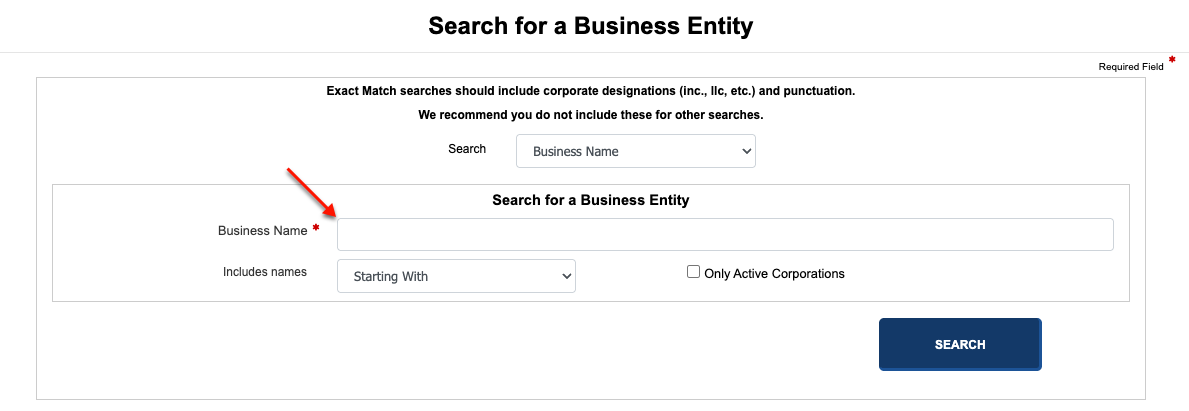
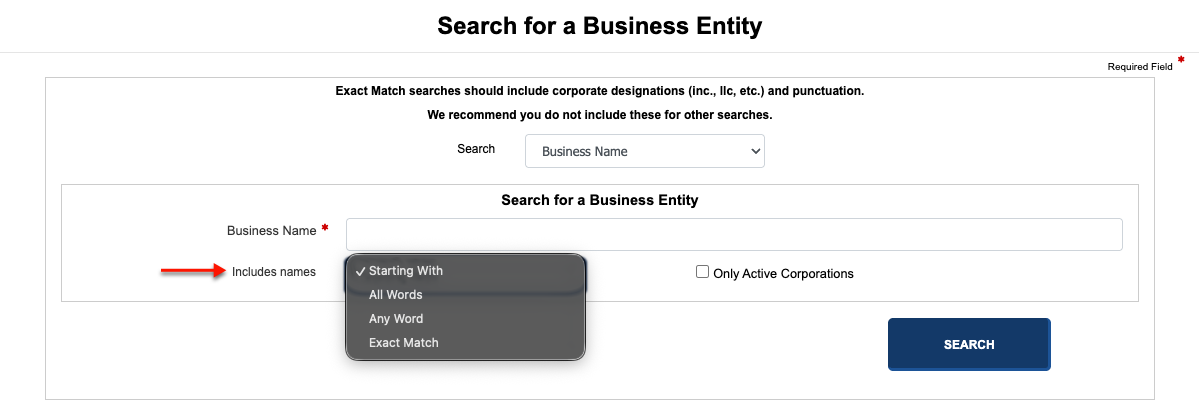
Step 4. Set the Relationship to the Search Phrase
Report how the search phrase relates to the target using the next drop-down menu. For example, select “exact match” if the target and search phrase are identical.
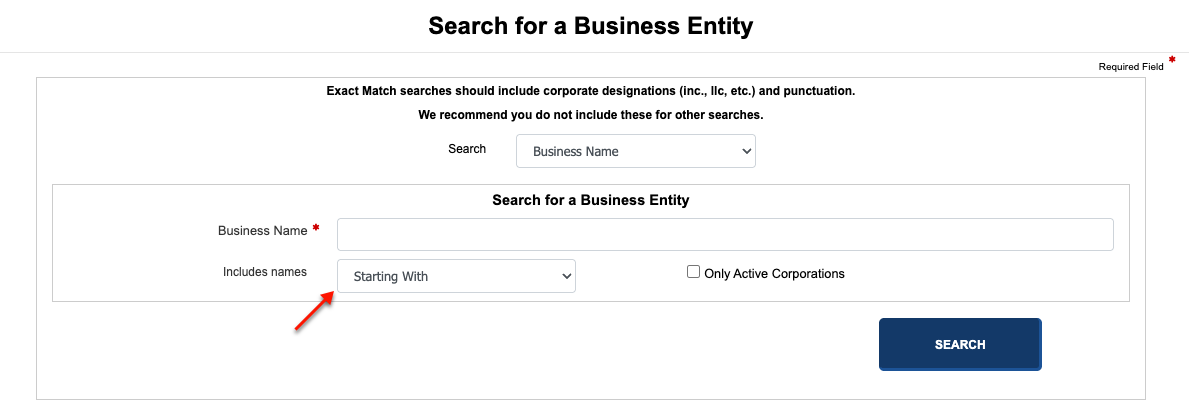
Step 5. Initiate the Query
Run the query using the “Search” button. You may return to this tool anytime; however, take a moment to verify the information you are seeking is correct.
Step 6. Examine the Missouri Entities in the Results Table
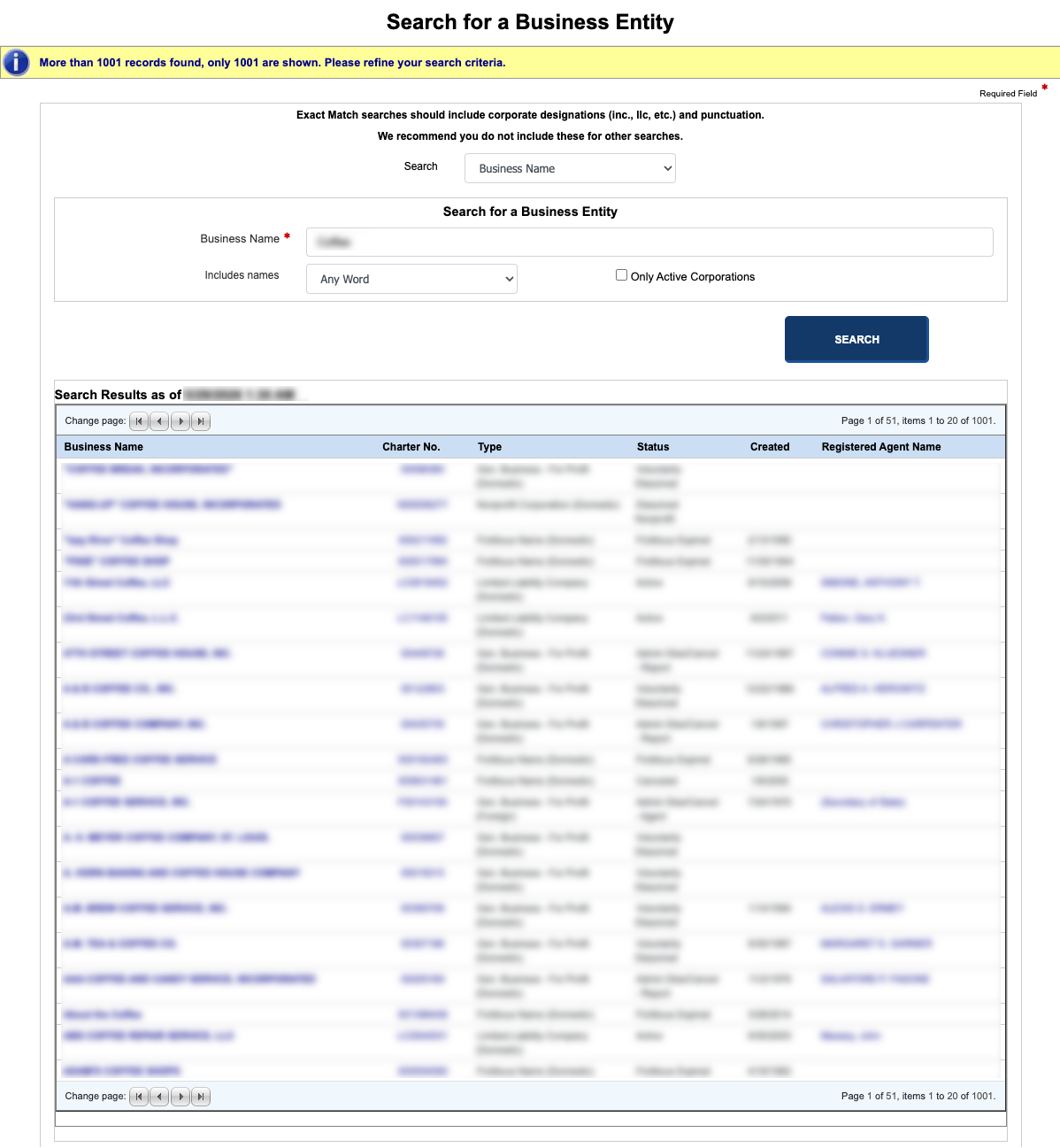
Look over the results that match your search phrase in the query results. You may use a business name or the information in the columns that follow to locate the entity.
- Business Name
- Charter No.
- Type
- Status
- Created
- Registered Agent Name
Step 7. Use the Table to Access Entity Information
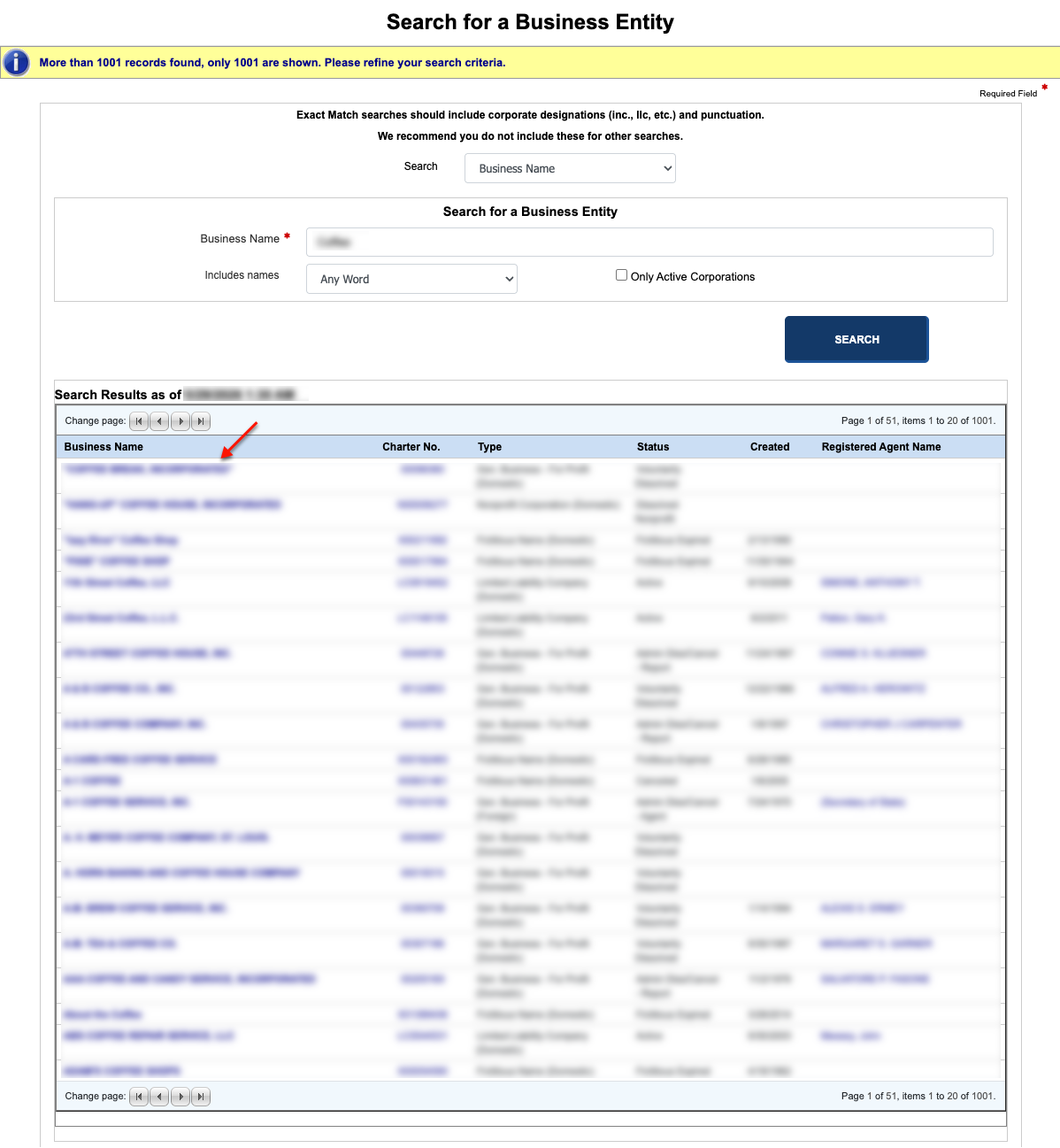
When you find the name of the entity that you wish to review, select it with your mouse from the first column. This directs the browser to a new page with the entity’s information.
Step 8. Learn about the Entity of Interest
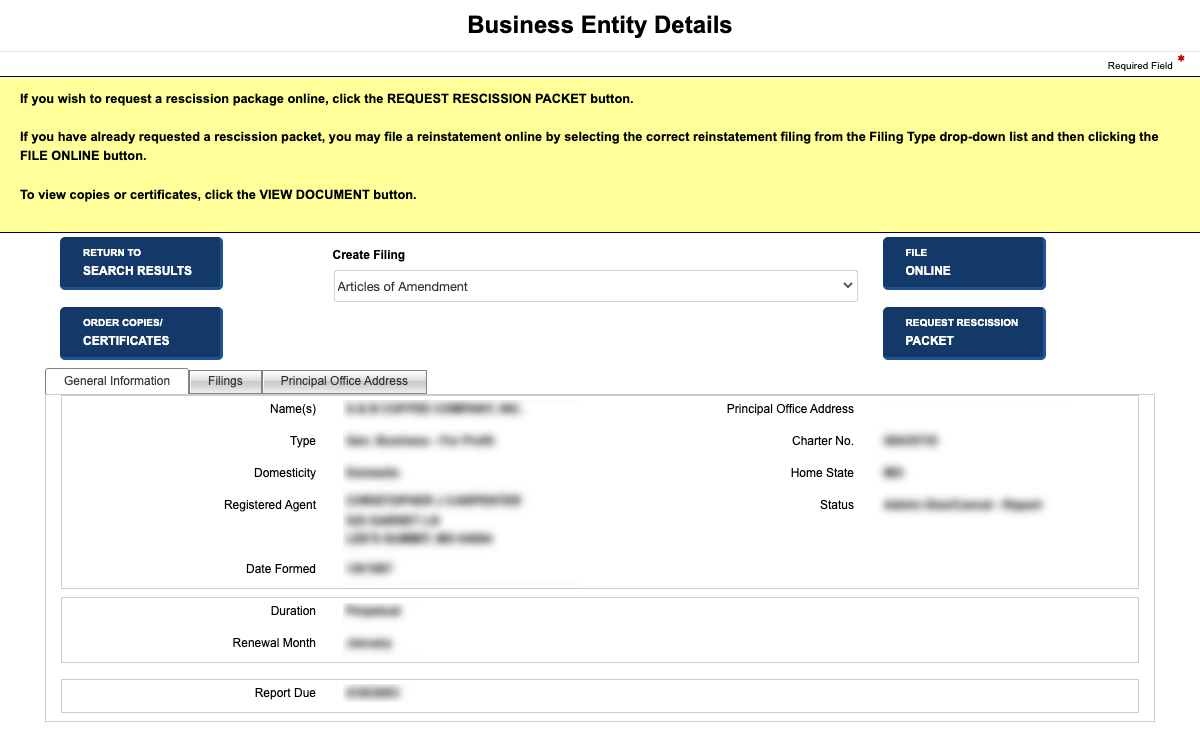
Look over the general information tab, which is (by default) on display when the page opens. Read through the information, then continue to the next step for more details.
- Name(s)
- Type
- Domesticity
- Date Formed
- Charter No.
- Home State
- Status
- Duration
- Renewal Month
- Report Due
Step 9. Further Investigate the Entity’s Past
Notice the tabs running across the top of the display area. Select the next available tab to view the Missouri entity’s “Filings.”
- Action
- Type
- Create Filing
- Date Filed
- Effective Date
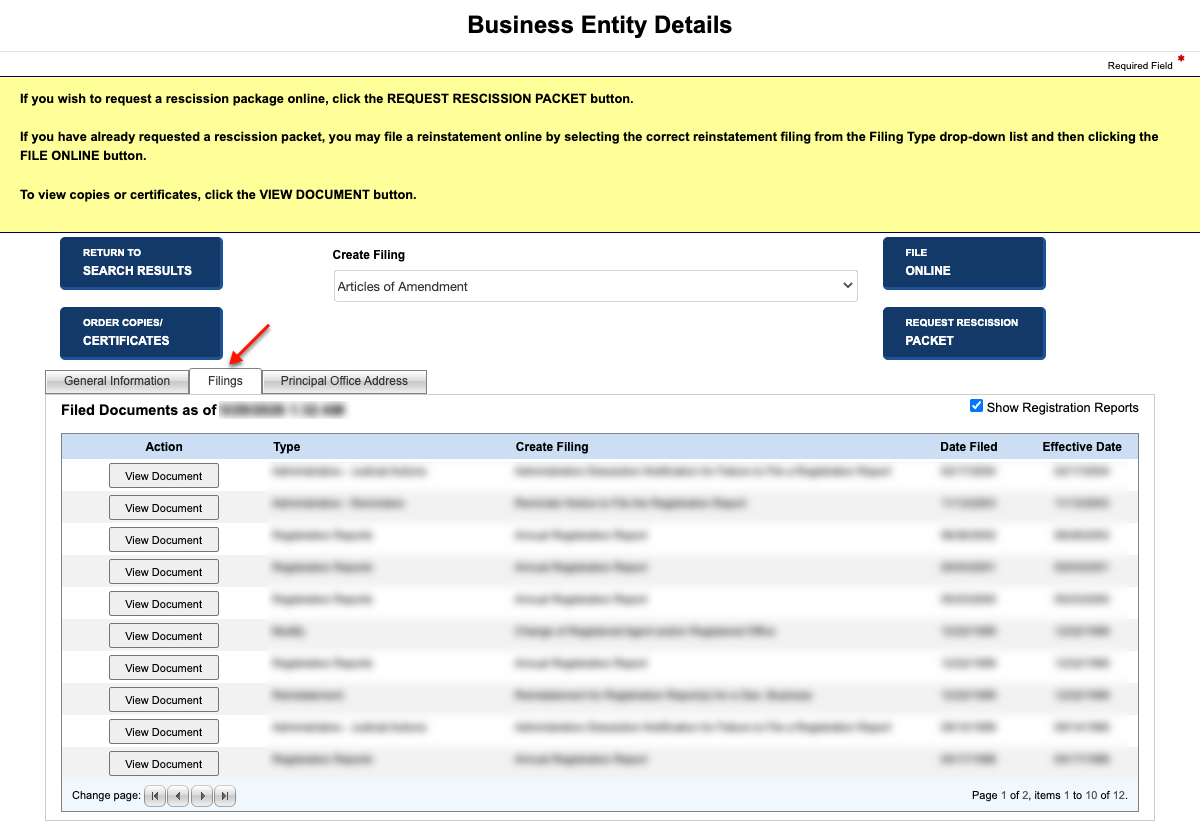
Step 10. Review Missouri Entity Filings with the State
Scan the filings table for documents of interest. Once you settle on a record to view find the “View Document” button for that record (on its row) then select it. When done, continue to the next tab.
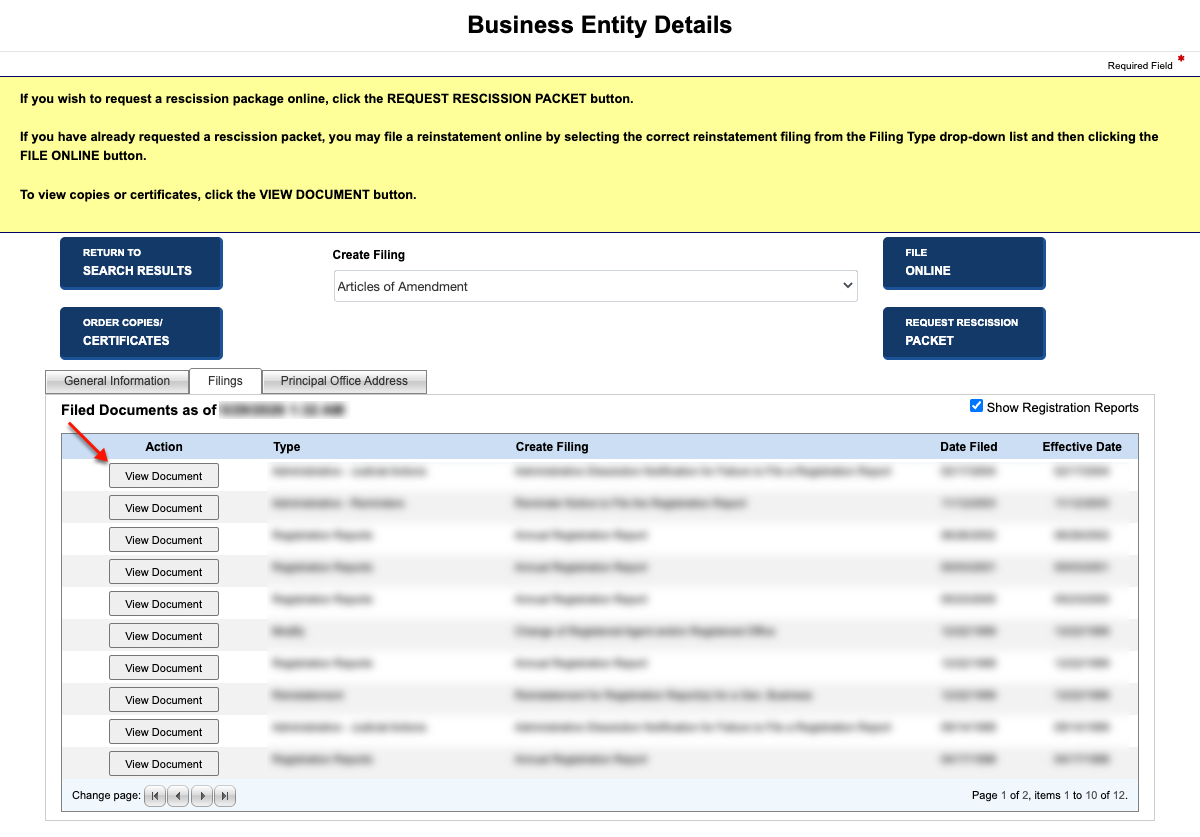
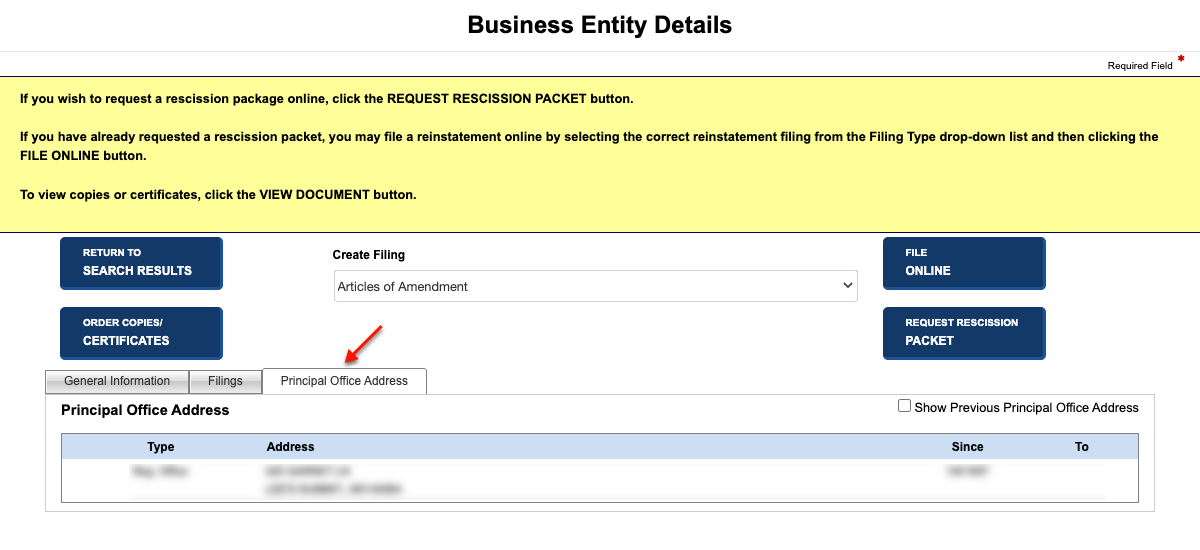
Step 11. Obtain the Entity’s Formal Principal Address
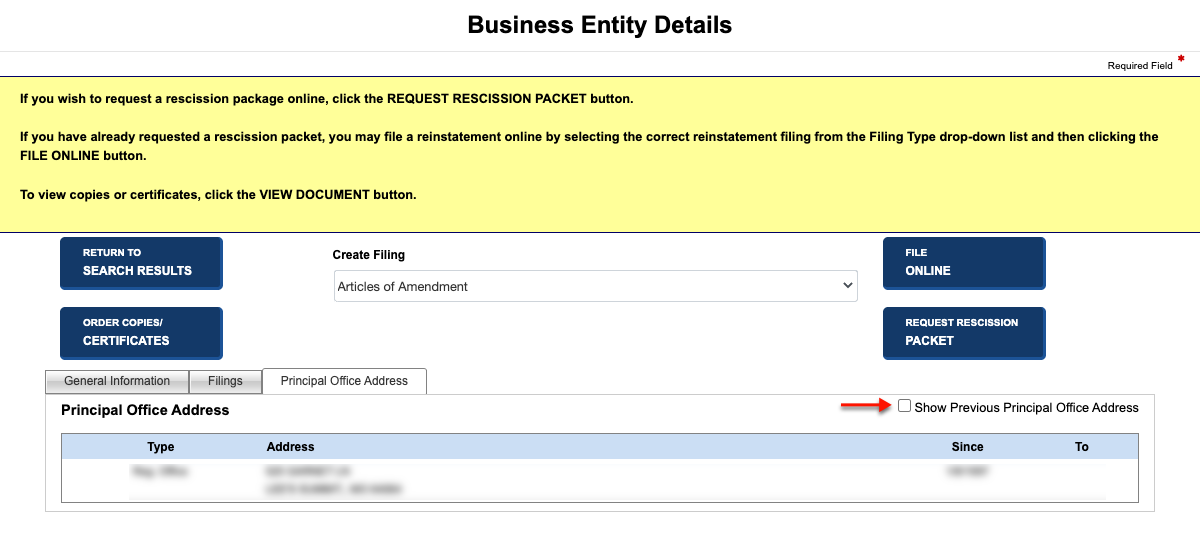
Review the Principal Office Address tab. Here, the formal address of the entity’s principal office is on display. If preferred, select the checkbox to view previous addresses (see image).