The Mississippi Secretary of State business entity search tool delivers an efficient process to find and view an entity’s public information (regardless of whether it is for-profit or nonprofit). Entities legally operating in this state must file and register their existence and actions with the state. To help visitors find this public information, Mississippi provides this query tool for public use.
Business Name Availability Check
State of Mississippi

Business Entity Search
Step 1. Visit Mississippi’s Business Search Page
Open the Mississippi Secretary of State business search page. Prepare your search information so that you may proceed accordingly.
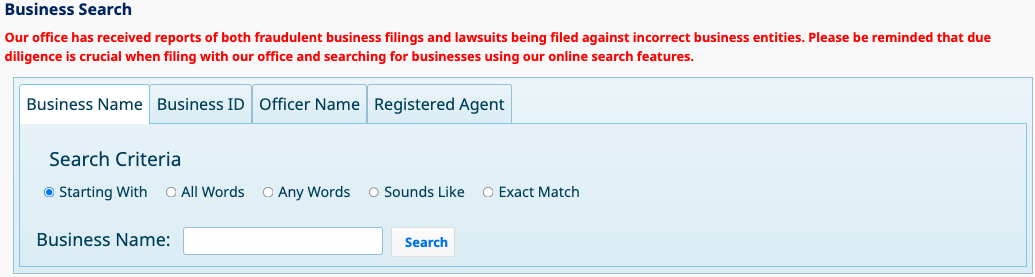
Step 2. Choose the Appropriate Search Type
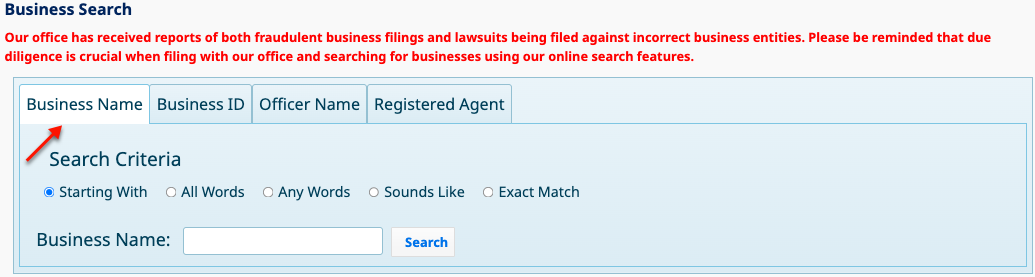
Step 3. Clearly Define The Search Criteria
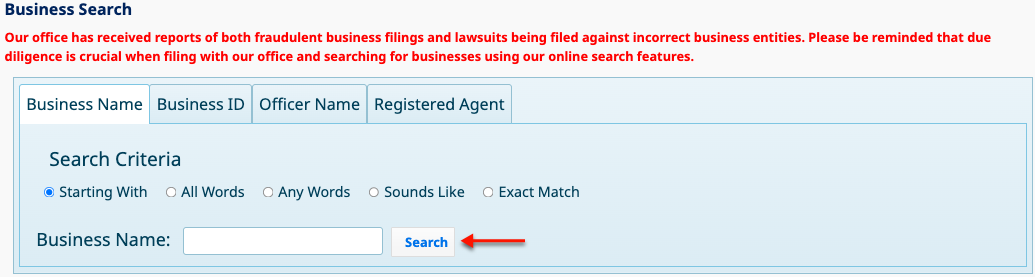
Set the relationship between your search item and the business name results. Choose one of the radio buttons. For instance, if your spelling is unsure, select “Sounds Like.”
- Starting With
- All Words
- Any Words
- Sounds Like
- Exact Match
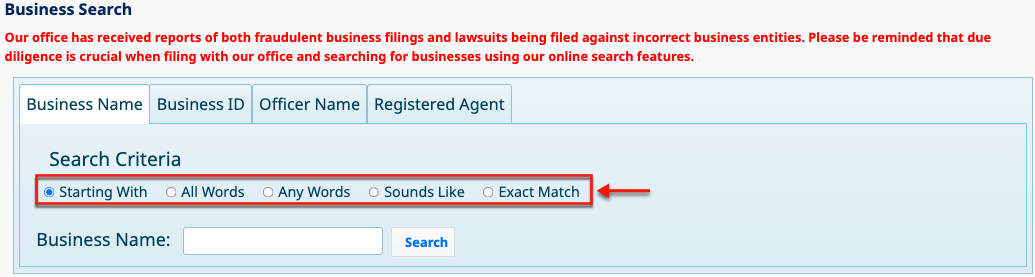
Step 4. Present an Item For the Query to Target
Report the keyword you wish the query to find in the textbox. Keep in mind that full names or unique phrases narrow results.
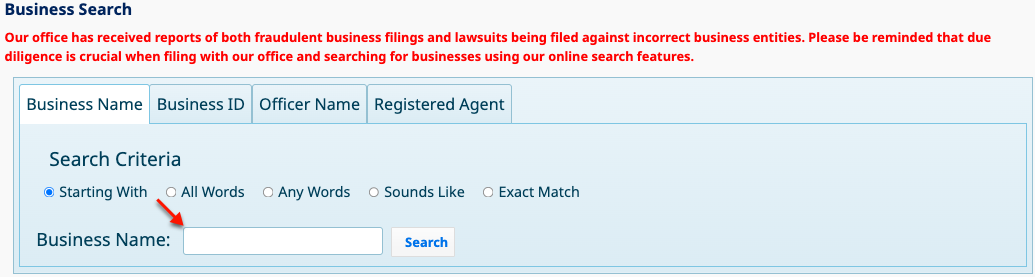
Step 5. Submit the Query Request
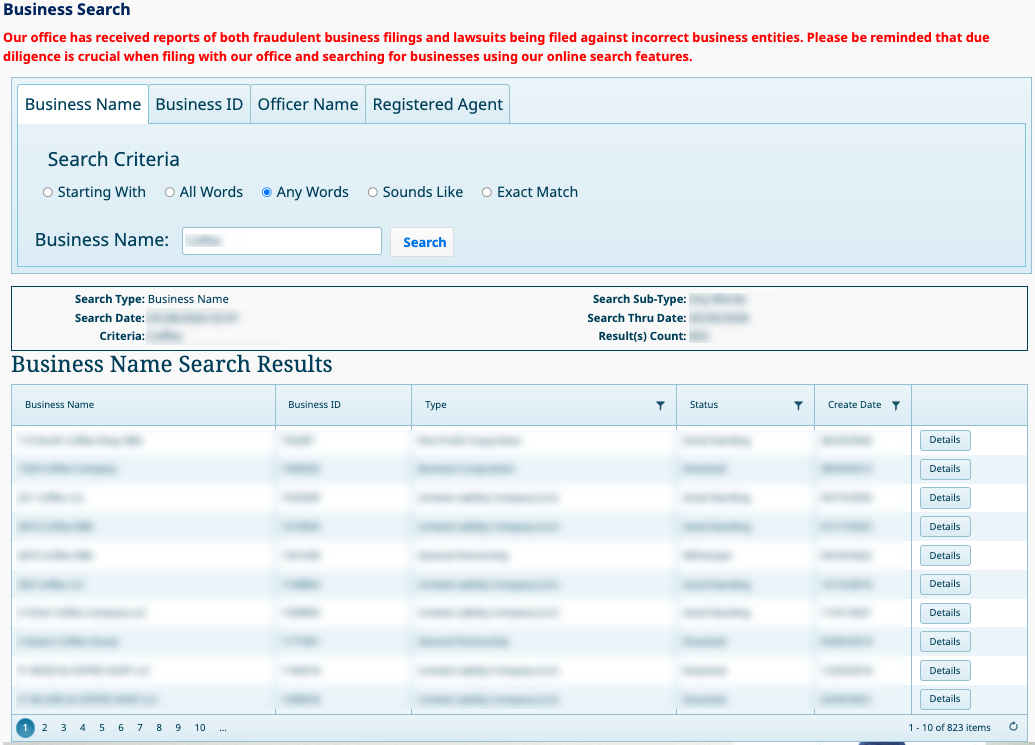
Begin the query with the “Search” button. Once you click on it, the query results appear directly below this area.
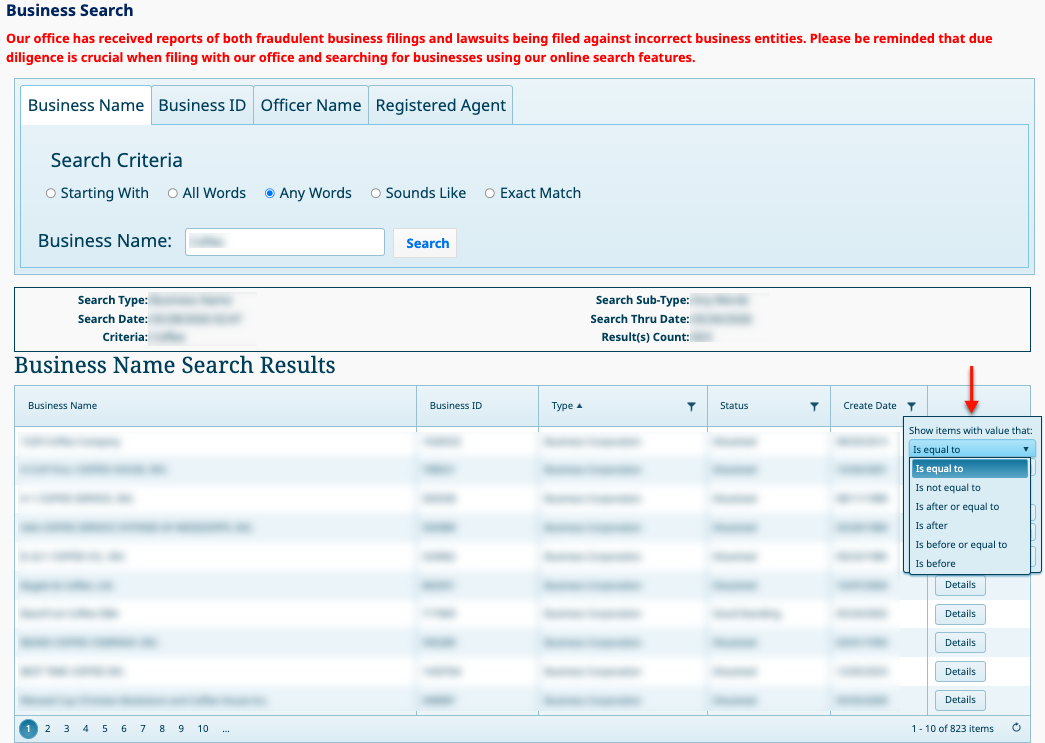
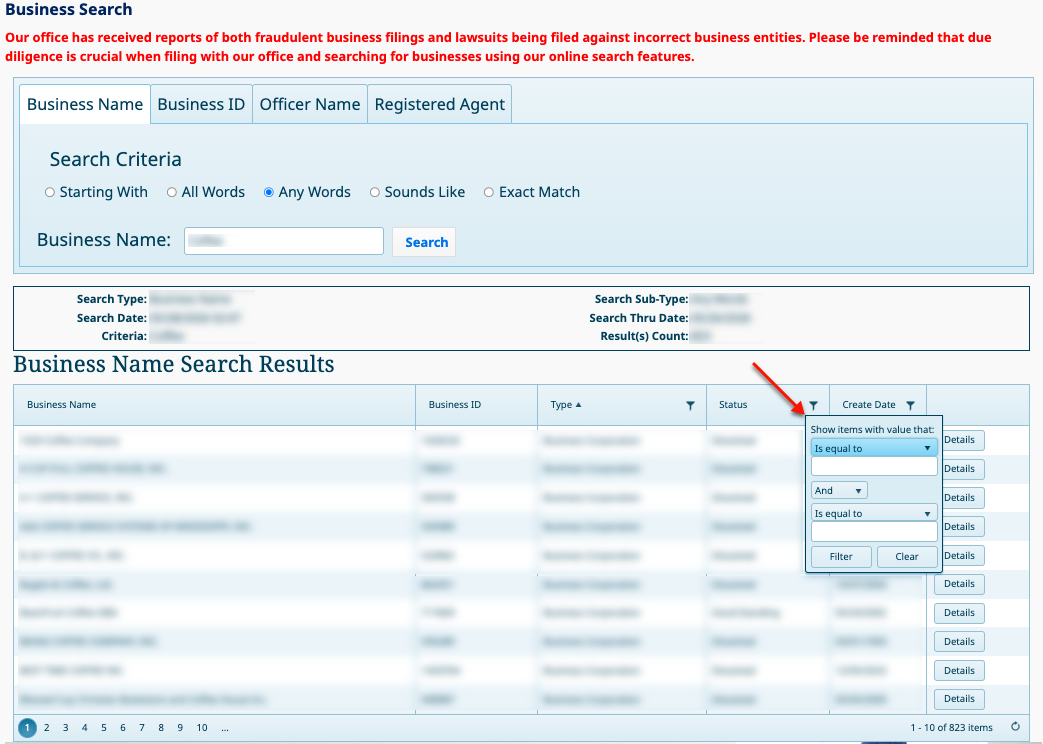
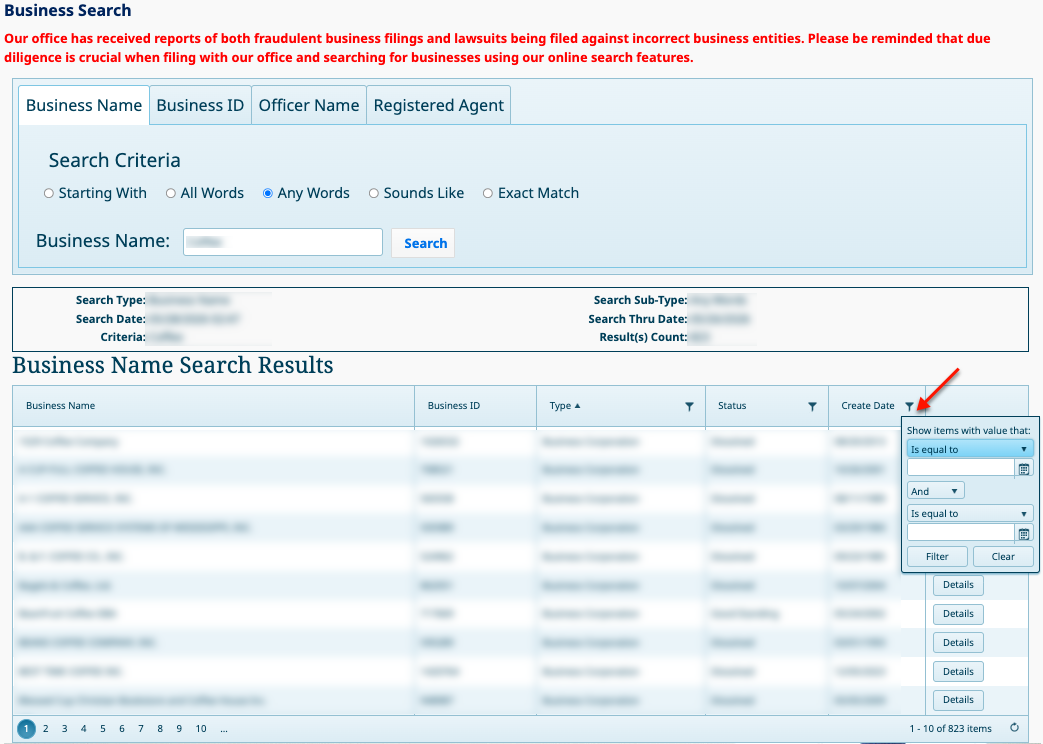
Step 6. Look Through Business Name Search Results
Step 7. Gain Access to an Entity’s Details
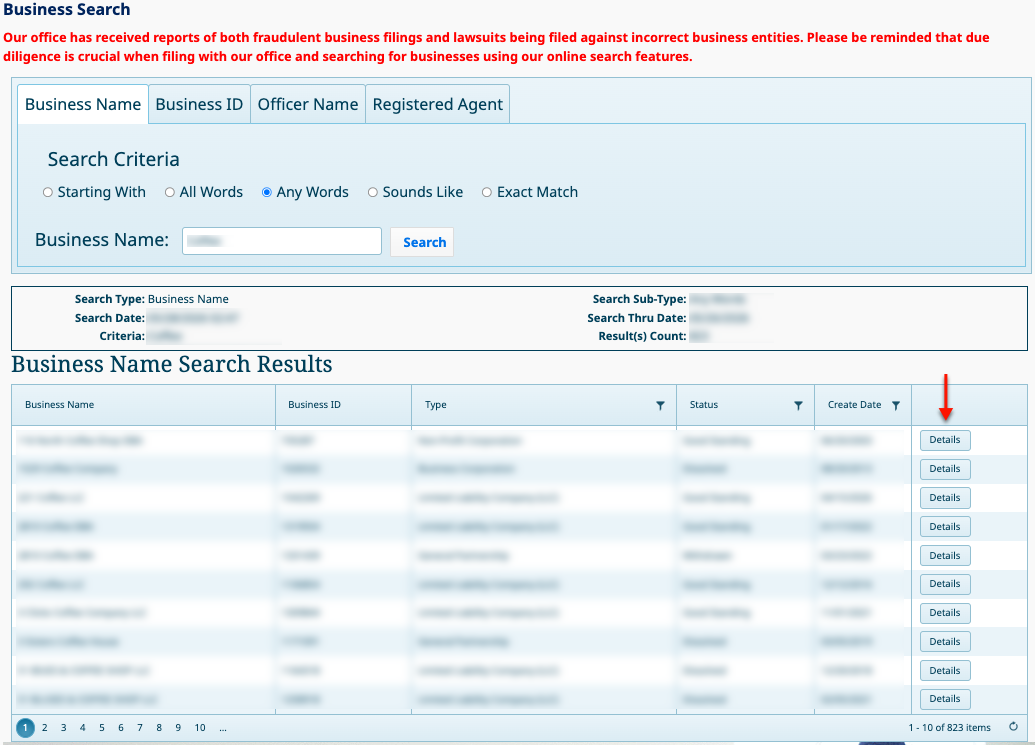
Locate the entity’s name in the first column. To view more information, select the corresponding “Details” button on that row.
Step 8. Read the Entity’s Information on File
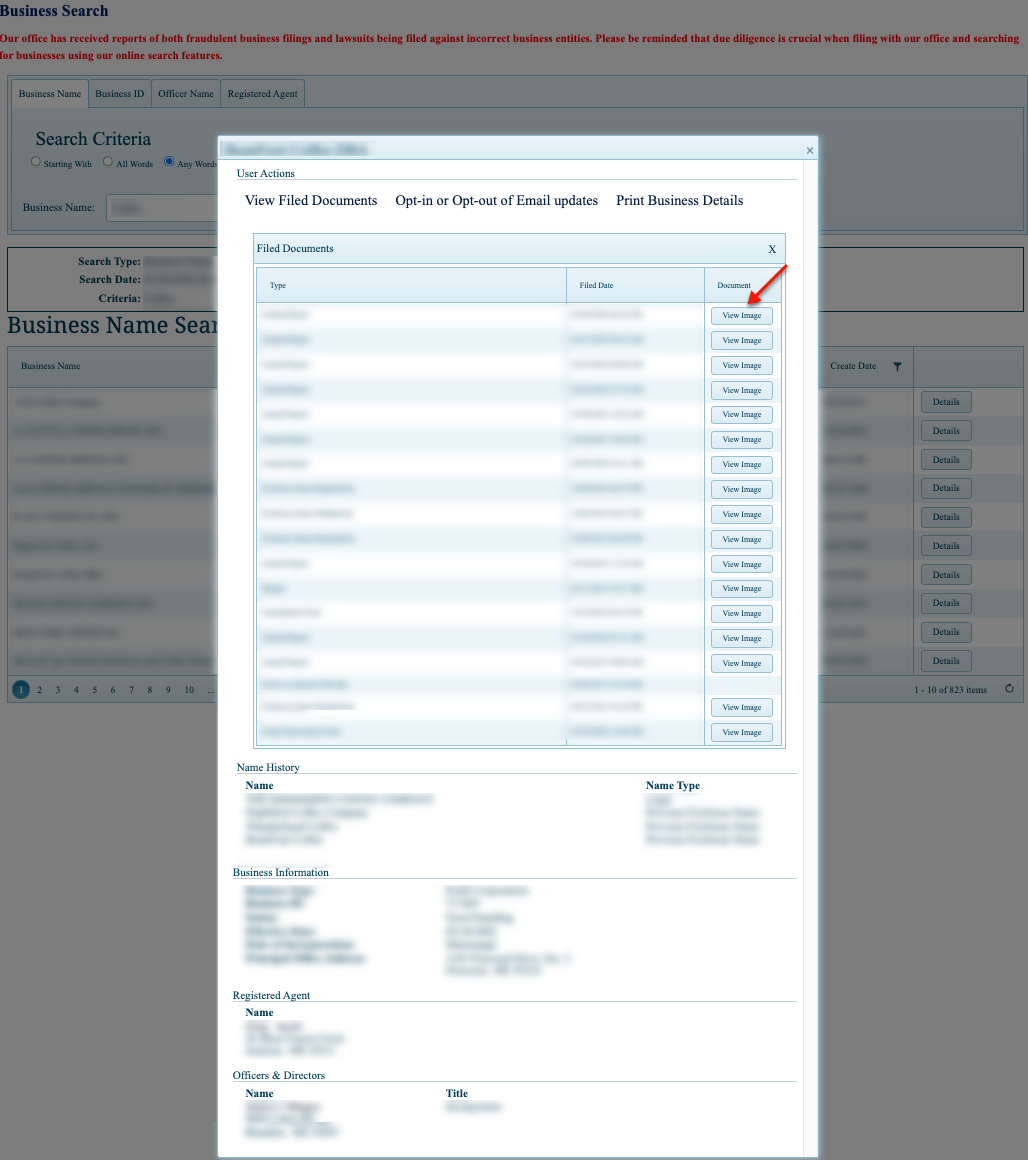
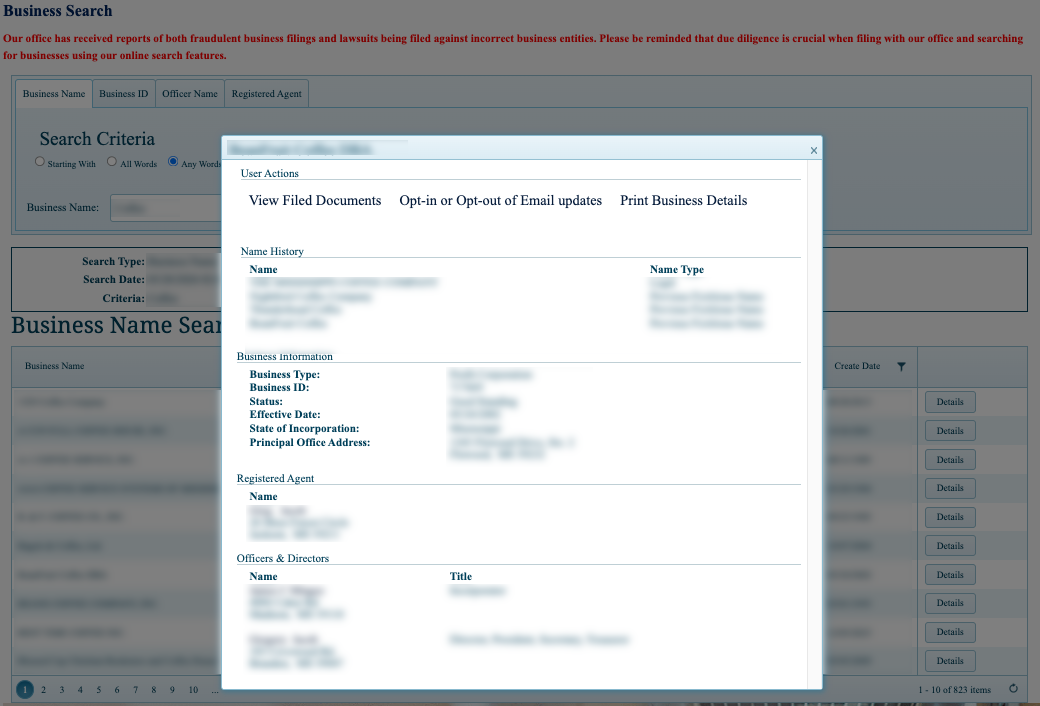
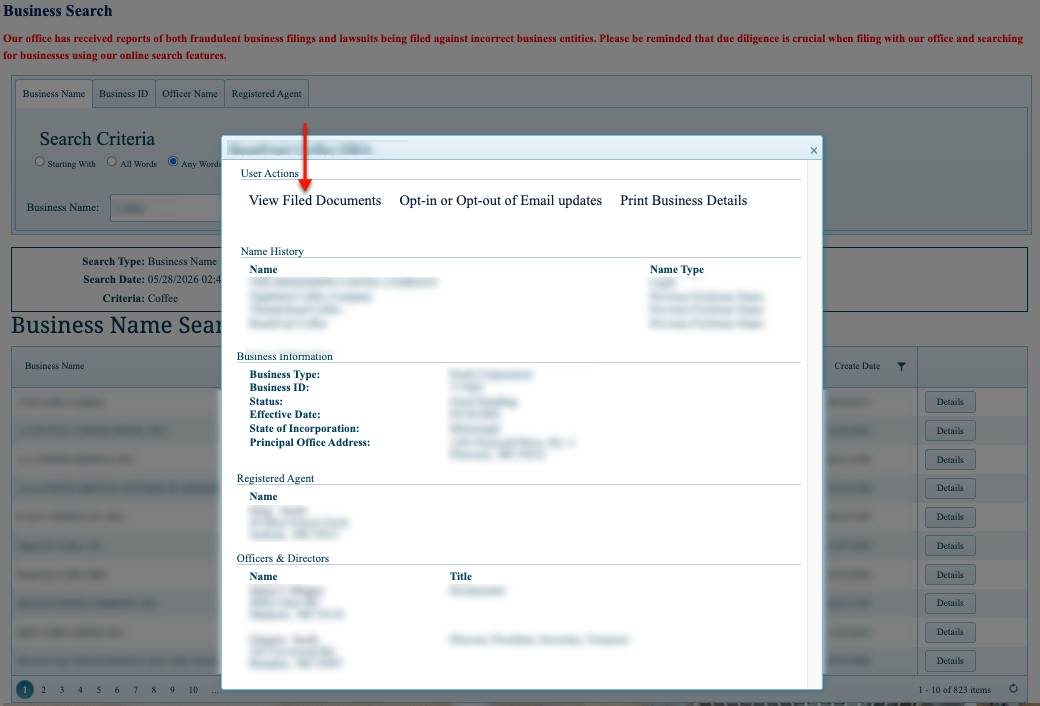
Notice the pop-up window that the table generates upon your selection. Public information from entity filings is on display in this window.
- View Filed Documents
- Opt-in or Opt-out of Email Updates
- Print Business Details
- Name History
- Name
- Name Type
- Business Information
- Business Type
- Business ID
- Status
- Effective Date
- State of Incorporation
- Principal Office Address
- Registered Agent
- Name
- Officers and Directors
- Name
- Title
Step 9. Investigate Entity Filing History
After reviewing the entity’s details, focus on the pop-up window’s menu. Select “View Filed Documents” to see the document records on file with the state for this entity.
Step 10. View Records Scans of Filings
Examine the new contents of the pop-up. Each table row defines a document (e.g., annual report) while allowing a download once you select “View Image” under “Document.”
- Filed Documents
- Type
- Filed Date
- Document