The Minnesota Secretary of State business entity search directly taps into the state’s database to find for-profit and non-profit entities. Users can use this query tool to find a specific record and examine that entity’s information on file. Minnesota allows access to public information (e.g., filing records) of such entities, as well as providing an option to purchase certified copies.
Business Name Availability Check
State of Minnesota

Business Entity Search
Step 1. Access the Business Filings Search Tool
Visit Minnesota’s search tool page. This directly queries the business database of entities and their filings with the state.
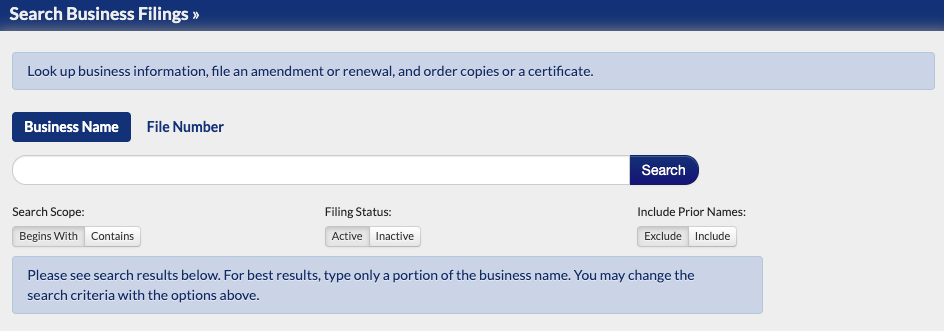
Step 2. Establish the Query Method
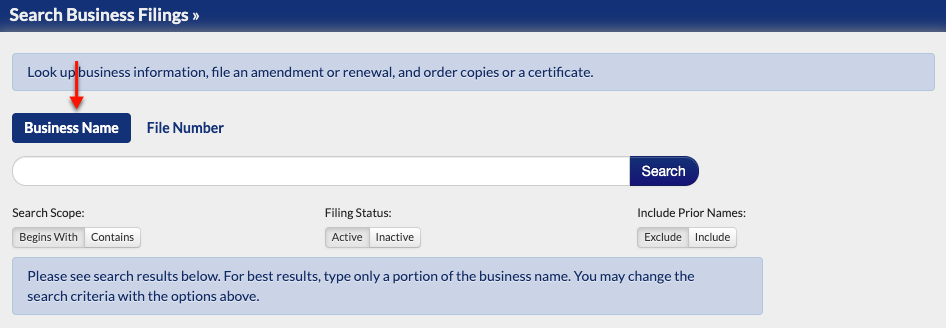
Set the tool to search by business name or a filing number by selecting one of these options. In this example, we shall select “Business Name” by clicking on it.
- Business Name
- File Number
Step 3. Submit the Target Item
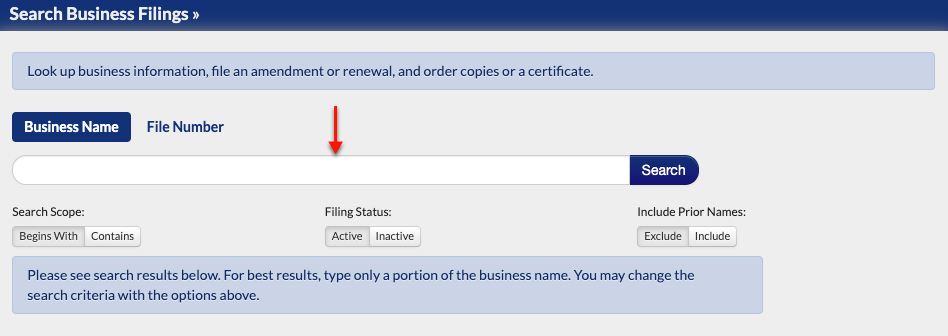
Produce an item for the query to find. Make it a partial name, full name, or relevant keyword (such as an industry like accounting) in the text box. Also, review the options to support the search.
- Search Scope
- Begins With
- Contains
- Filing Status
- Active
- Inactive
- Include Prior Name
- Exclude
- Include
Step 4. Set the Scope
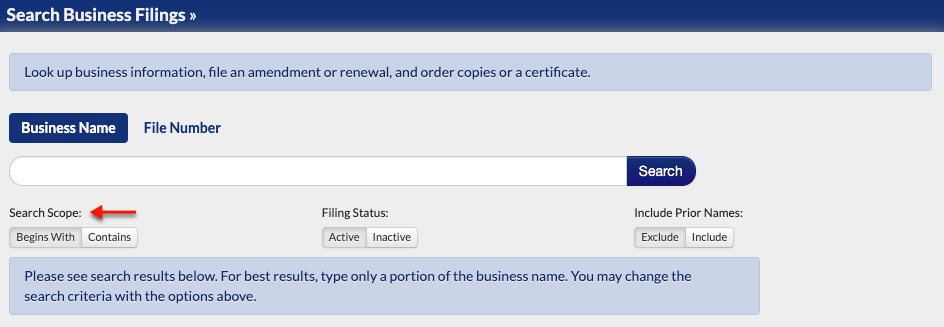
Select one of the buttons under search scope. By doing so, the query will look for the item at the beginning of a name or if the name “contains” it.
- Search Scope
- Begins With
- Contains
Step 5. Indicate the Entity’s Filing Status
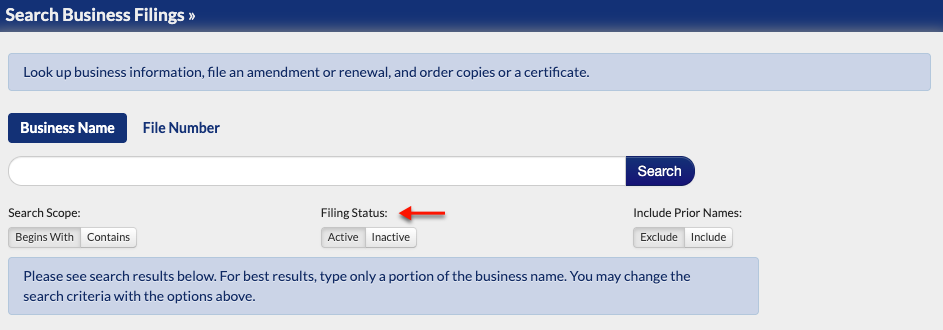
Filter the matching results to show only those with a filing status that is either active or inactive. By default, “active” is already selected.
- Filing Status
- Active
- Inactive
Step 6. Filter Names
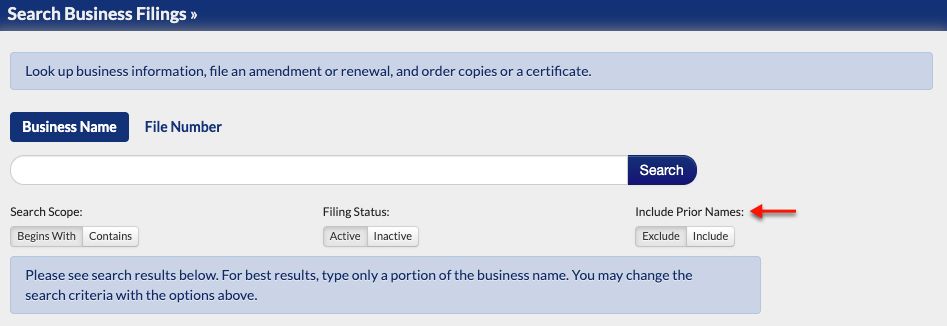
When useful, the query results can either exclude the target’s prior names or include them. Indicate which is preferable by selecting the appropriate choice from “Include Prior Names.”
- Include Prior Names
- Exclude
- Include
Step 7. Initiate the Database Query
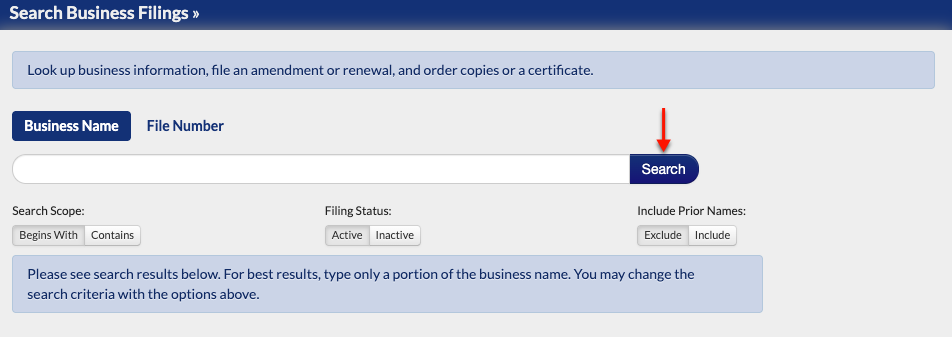
Return to the text box above. When ready, begin the query by selecting the attached “Search” button.
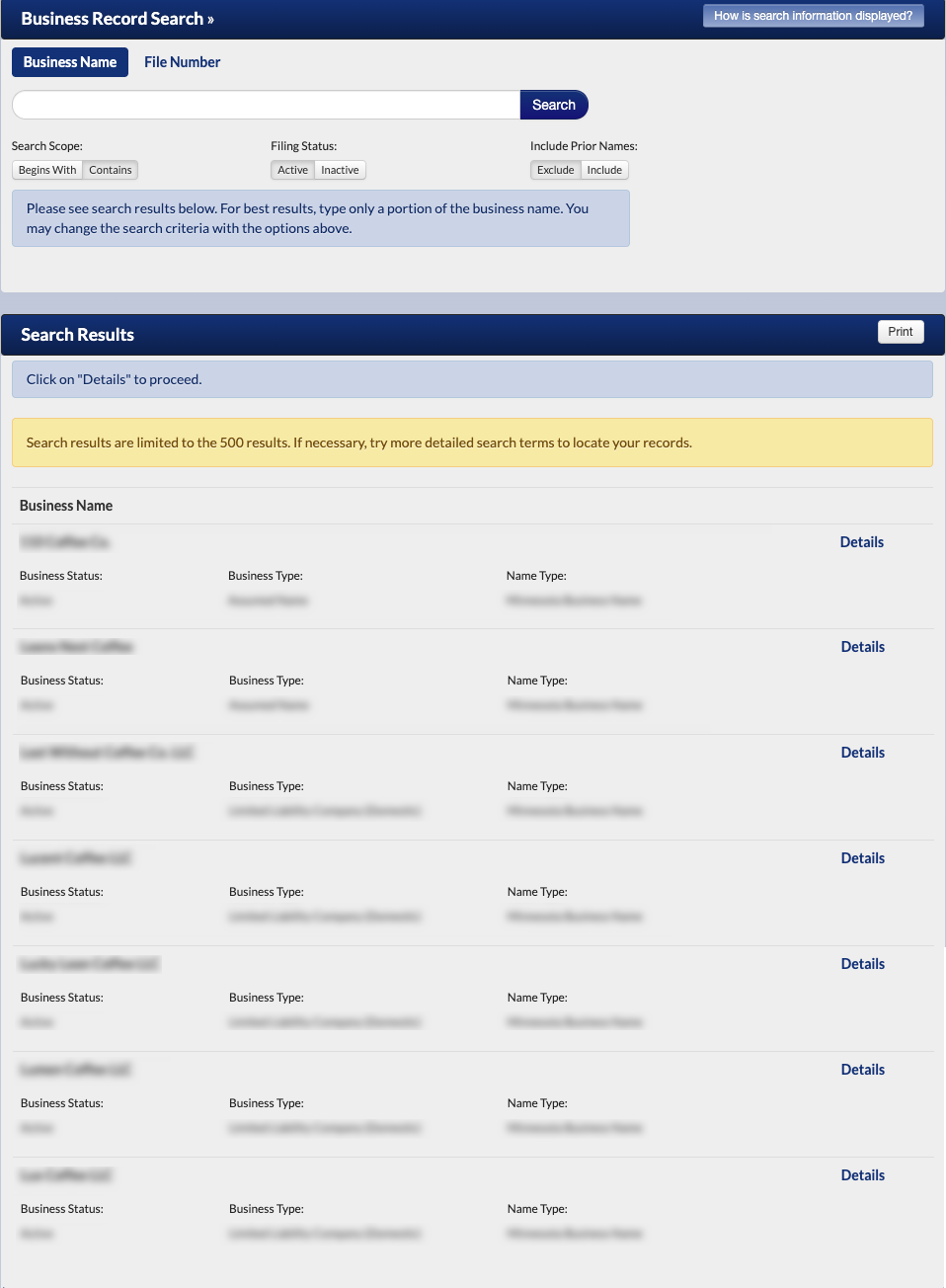
Step 8. Review Matching Business Names
Examine the table the query returns. Note that there is a limit of 500 results. Look for the entity in the table. If it is not present, then return to Step 2; otherwise, continue to the next step.
- Business Name
- Business Status
- Business Type
- Name Type
- Details
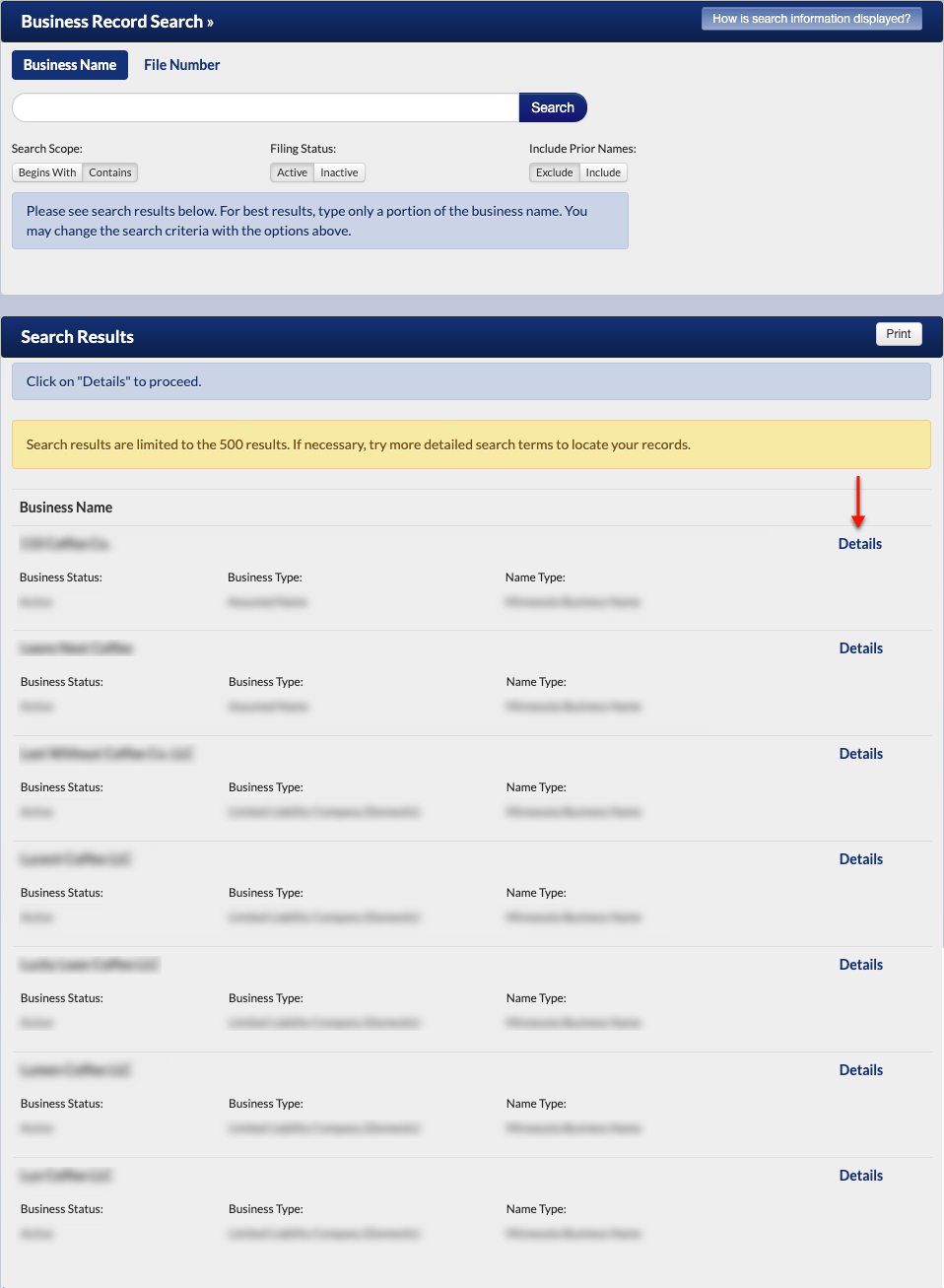
Step 9. Pick an Entity to Examine
Locate the “Details” button at the end of the entity record’s row. Select this button to view the information on file for that entity.
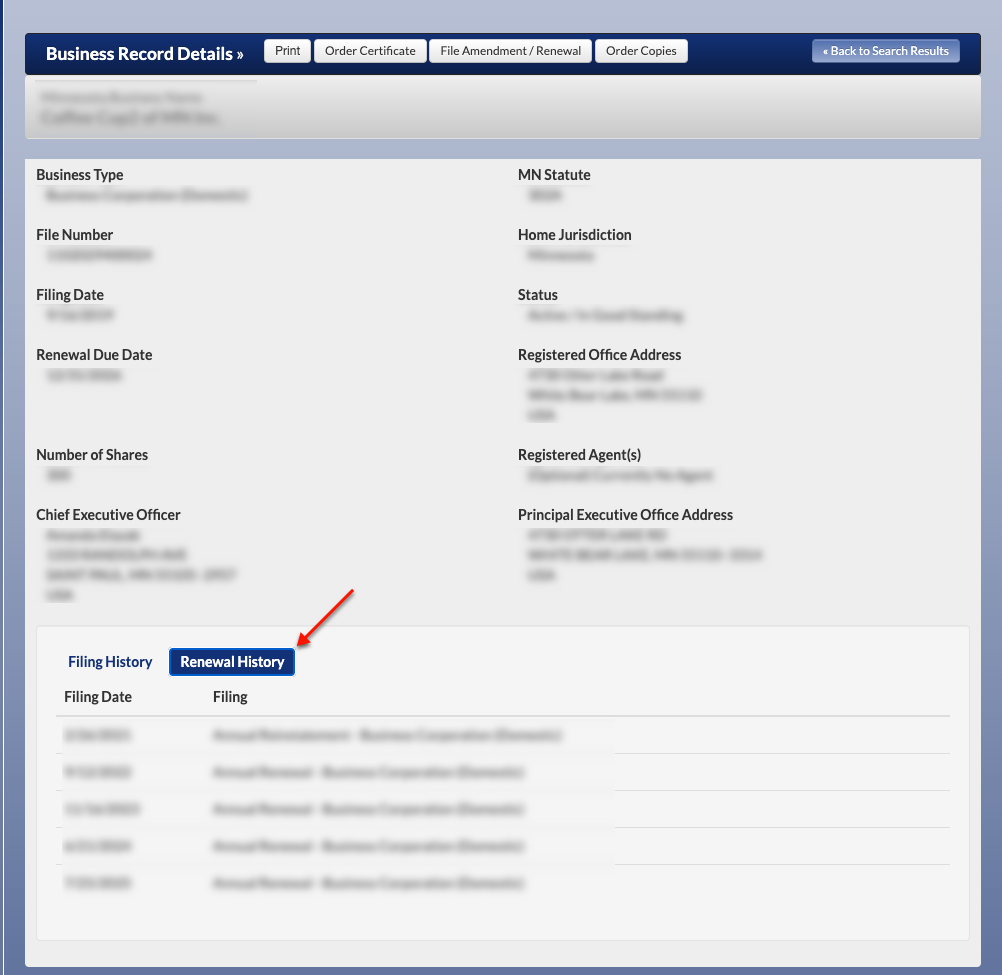
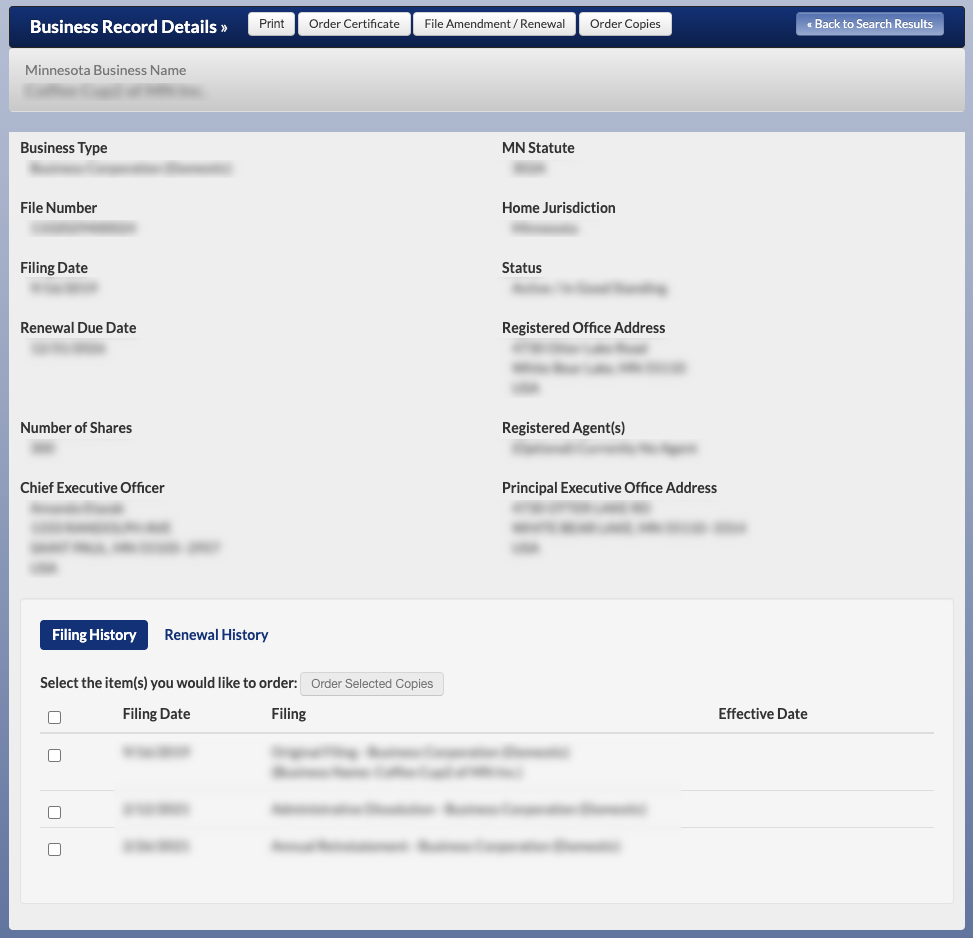
Step 10. Read Through The Business Record Details
Review the information that the “Business Record Details” page displays. When ready, direct your attention to the lower area.
- Minnesota Business Name
- Business Type
- MN Statute
- File Number
- Home Jurisdiction
- Filing Date
- Status
- Renewal Due Date
- Registered Office Address
- Number of Shares
- Registered Agent(s)
- Chief Executive Officer
- Principal Executive Office Address
- FIling History
- Renewal History
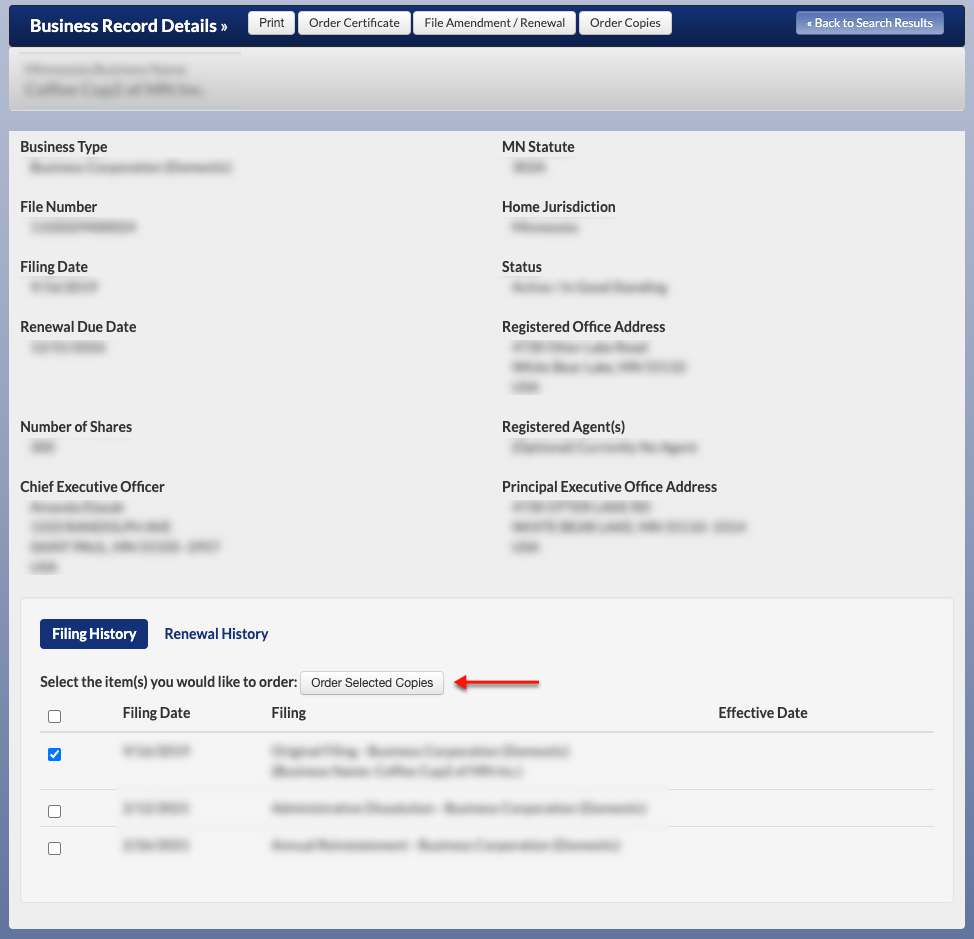
Step 11. View Filing History
By default, the “Filing History” tab opens to the details page. To order a certified copy, select that filing’s checkbox, then “Order Selected Copies.” Note: Site membership is a requirement.
- Filing History
- Filing Date
- Filing
- Effective Date
Step 12. Investigate the Entity’s Renewal History
To review the entity’s “Renewal History,” select the appropriately labeled tab. This information is specifically relevant for an entity with an assumed name.
- Renewal History
- Filing Date
- Filing