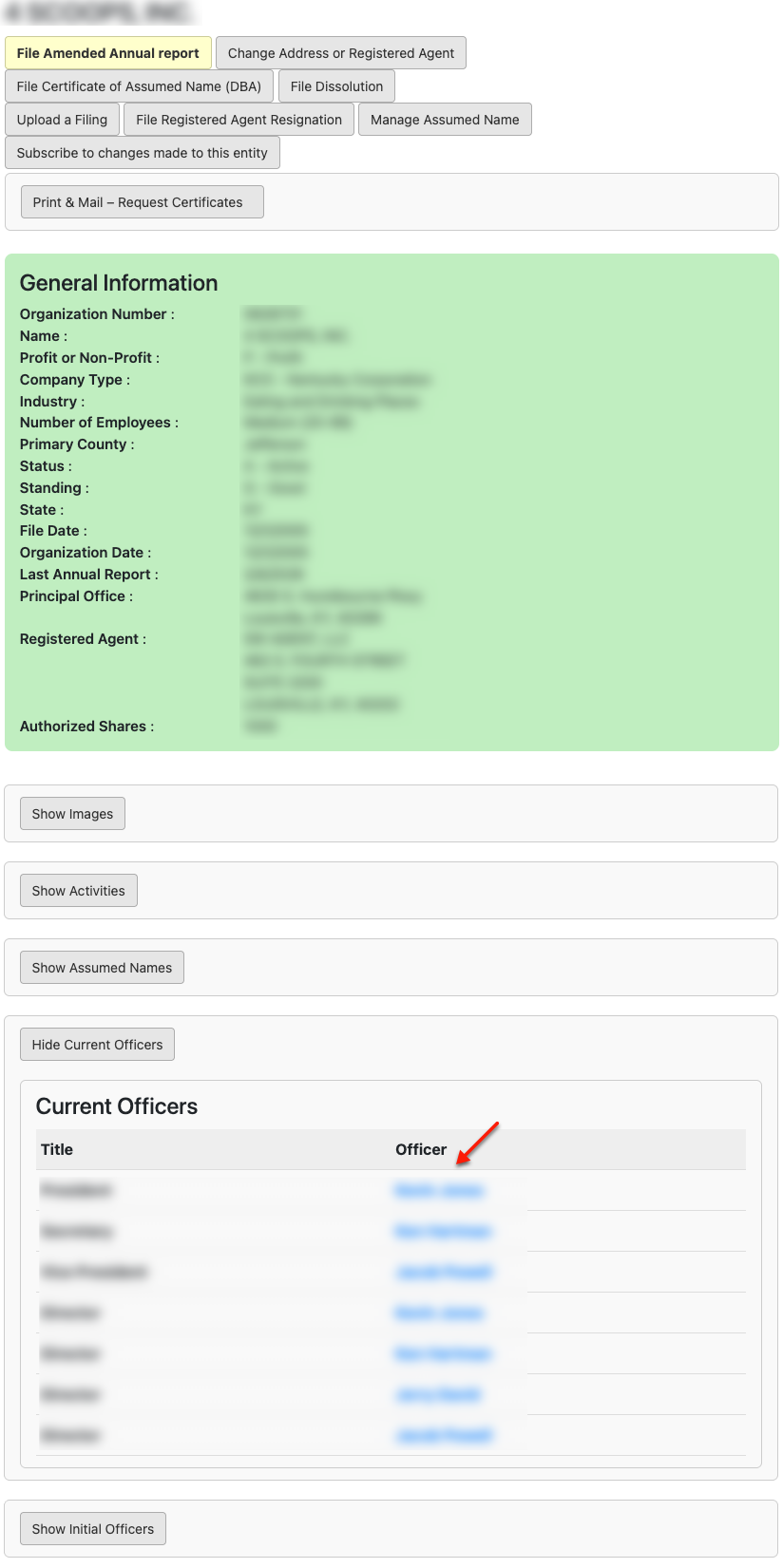
The Kentucky Secretary of State maintains a database of all entities operating in the state legitimately. Additionally, they provide access to this database to visitors seeking information regarding a specific entity. The query uses a visitor’s search item to filter through the database and display matching records.
Business Name Availability Check
State of Kentucky

Business Entity Search
Step 1. Visit The Kentucky Business Search Page
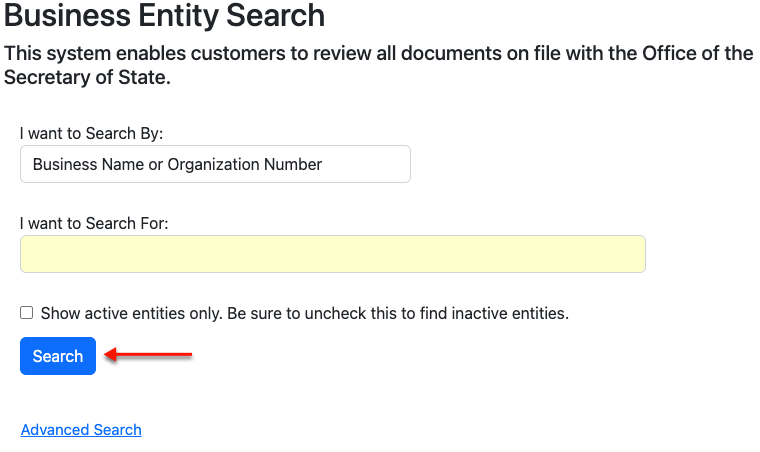
Access the Kentucky Secretary of State’s tool to query their business database by visiting their search page.
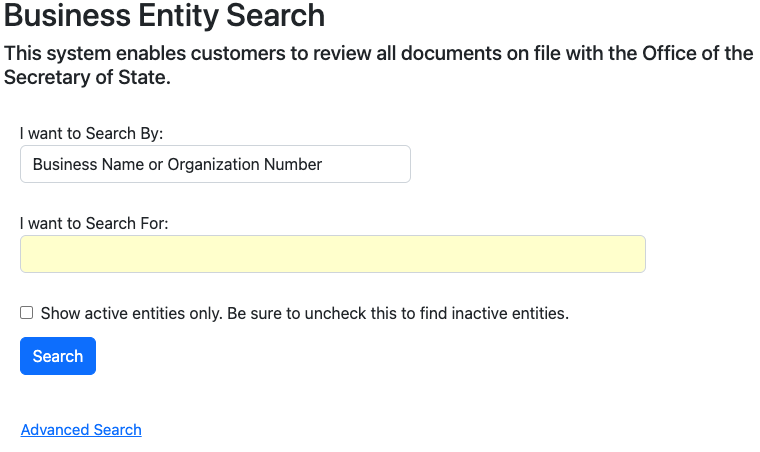
Step 2. Set the Query Method
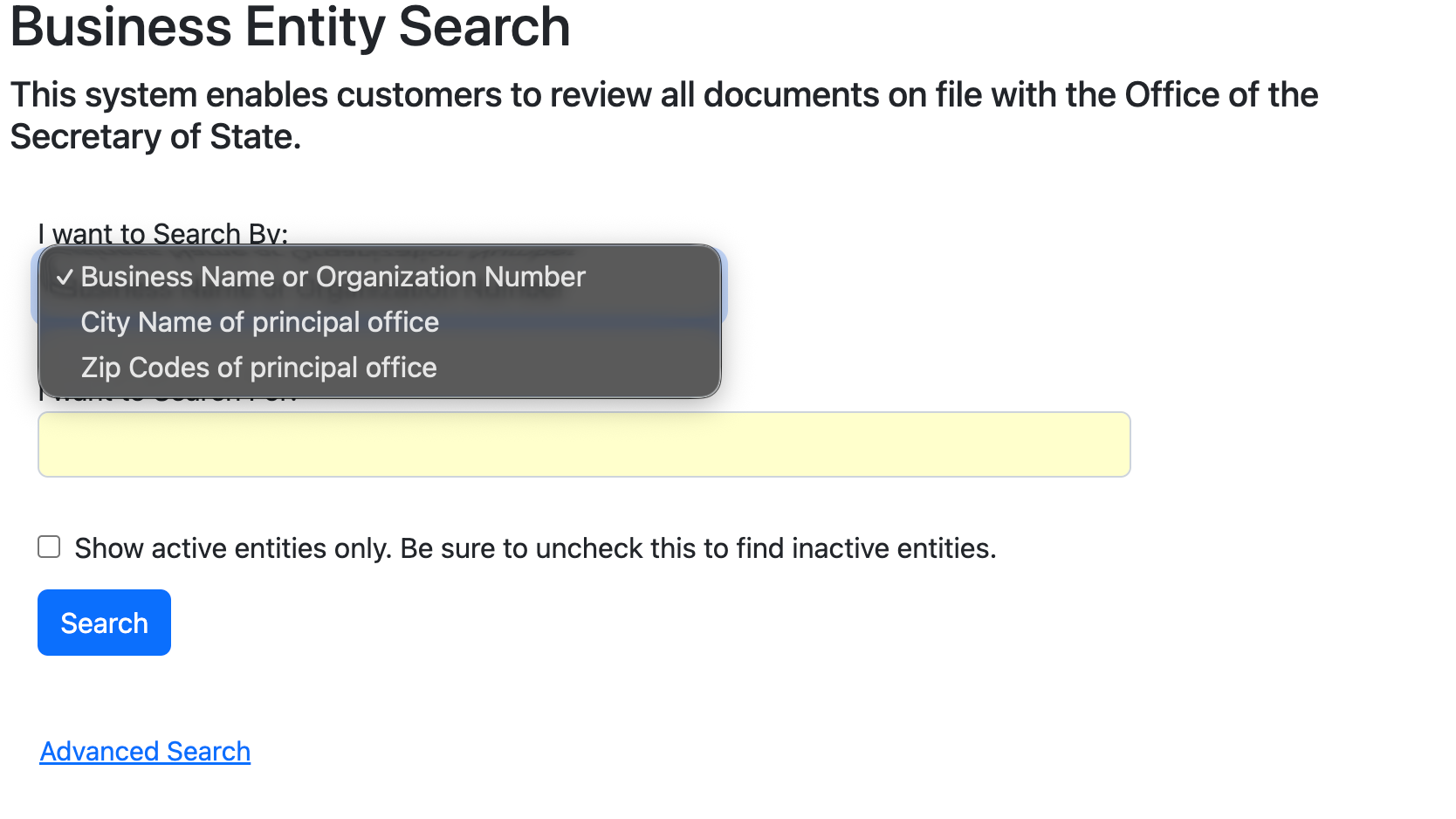
Choose how the query should behave using the drop-down menu (see image). This sets the search to operate based on your selection.
- Business Name
- Organization Number
- Show Active Entities Only
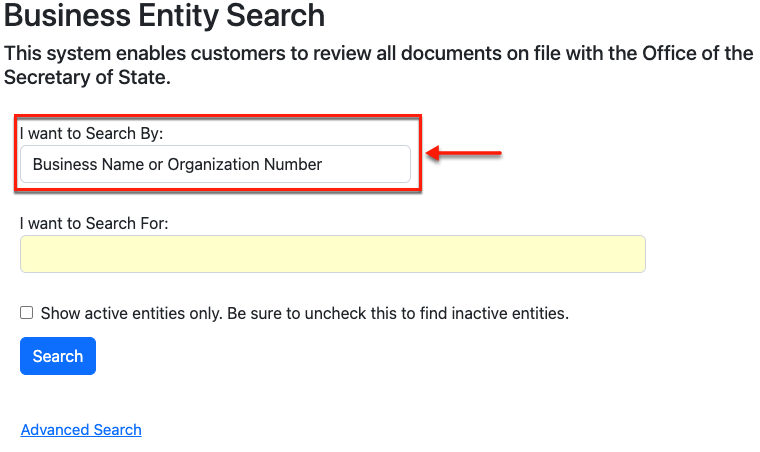
Step 3. Supply An Item For the Query To Find
Refer to your sources and type the item the query will seek in the text box. It is generally recommended to look for a specific name but general keywords are also acceptable.
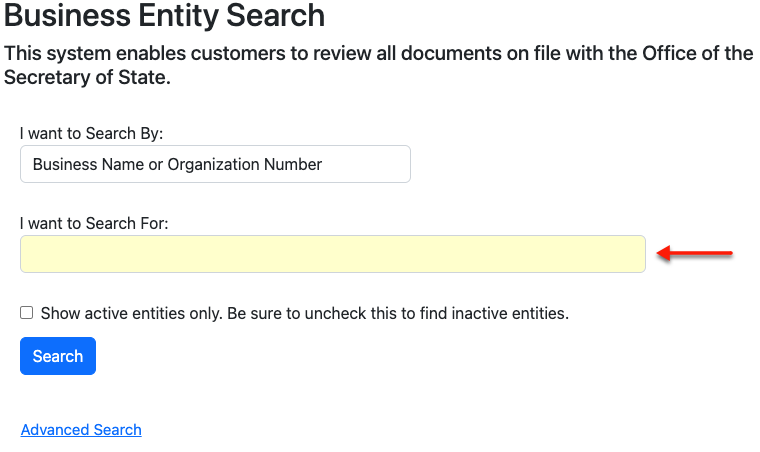
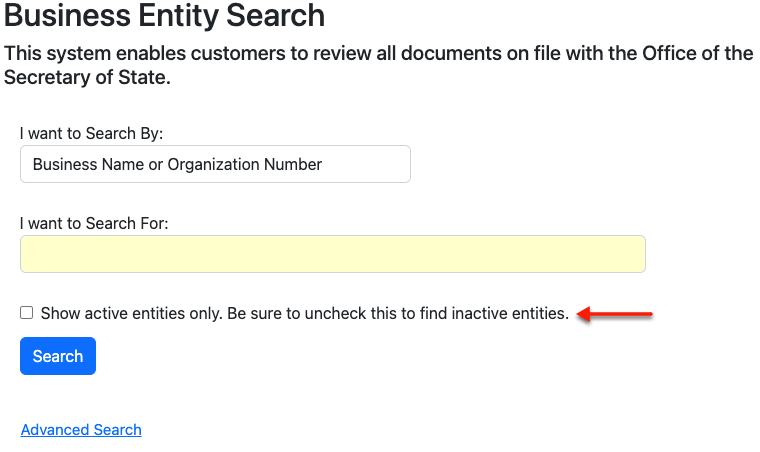
Step 4. Focus on Active Entities
If appropriate, narrow the results to show only the active entities in the results. To do so, mark the checkbox. Then proceed to 11 to run a basic search or the next step to explore advanced options.
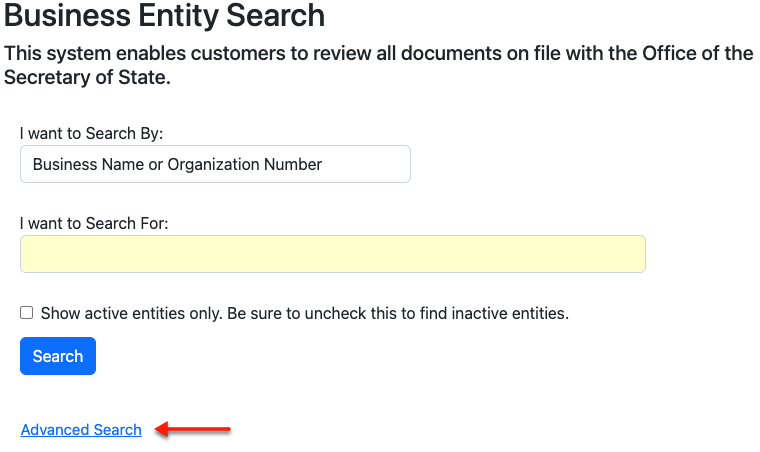
Step 5. Optional: Use the Advanced Search Feature
If you wish to constrain the search to stricter criteria, select “Advanced Search.” Notice the area that opens presents additional options for the search.
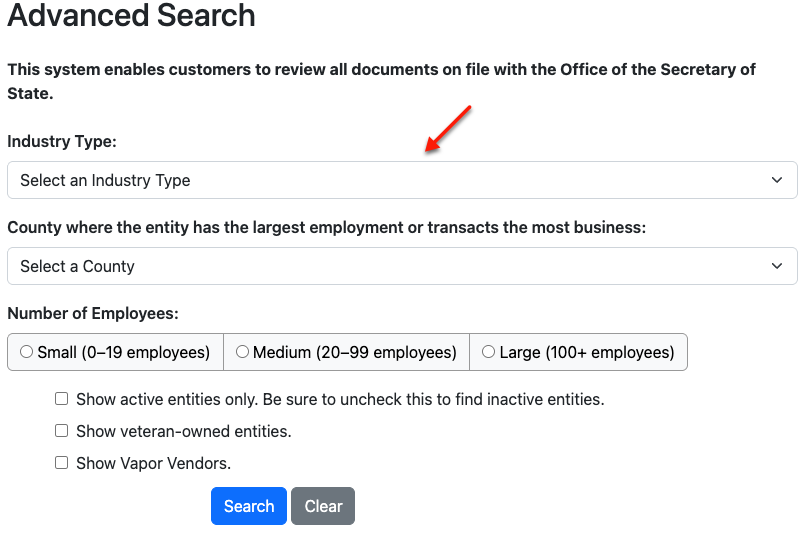
Step 6. Report The Industry Type
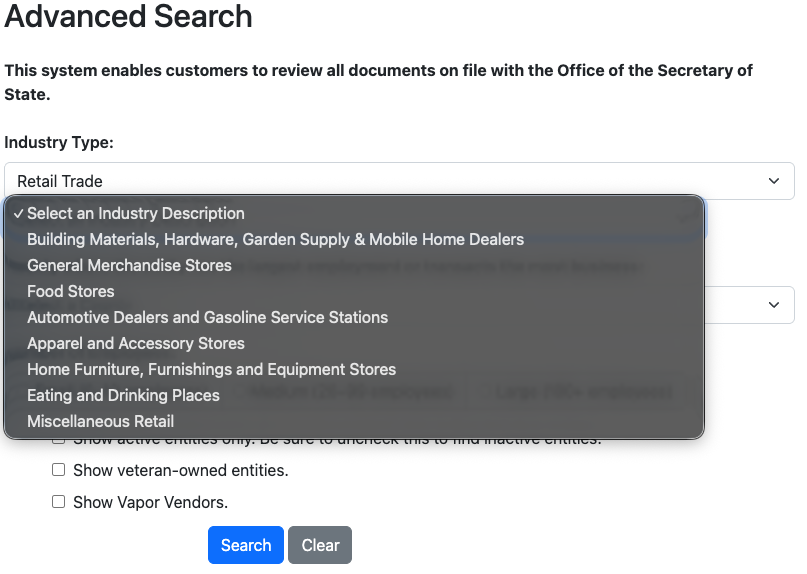
Using your references, select the industry type for the targeted business from the first drop-down menu. This automatically opens a second drop-down.
- Industry Type (see image)
- County Where the Entity Has the Largest Employment or Transacts the Most Business
- Number of Employees
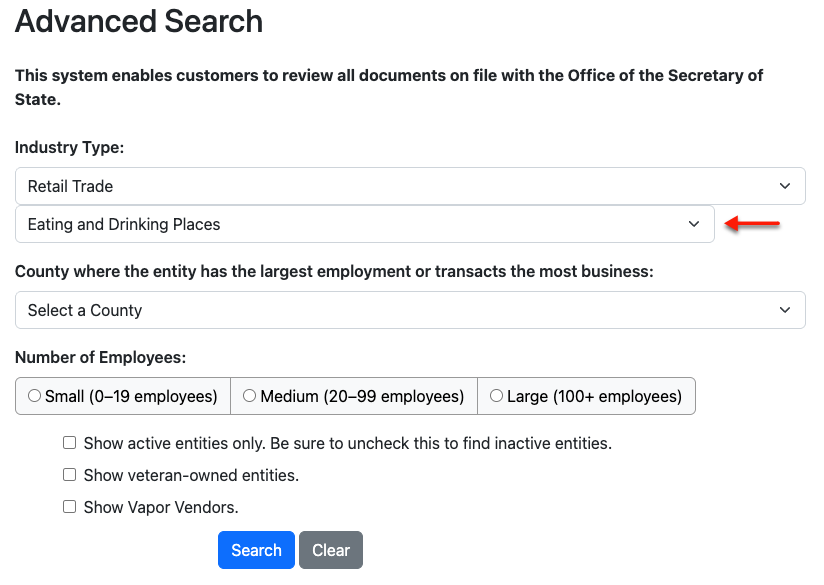
Step 7. Describe the Type of Business
Pick a business description from the second drop-down (see image). This is also optional; however, this aids in narrowing results.
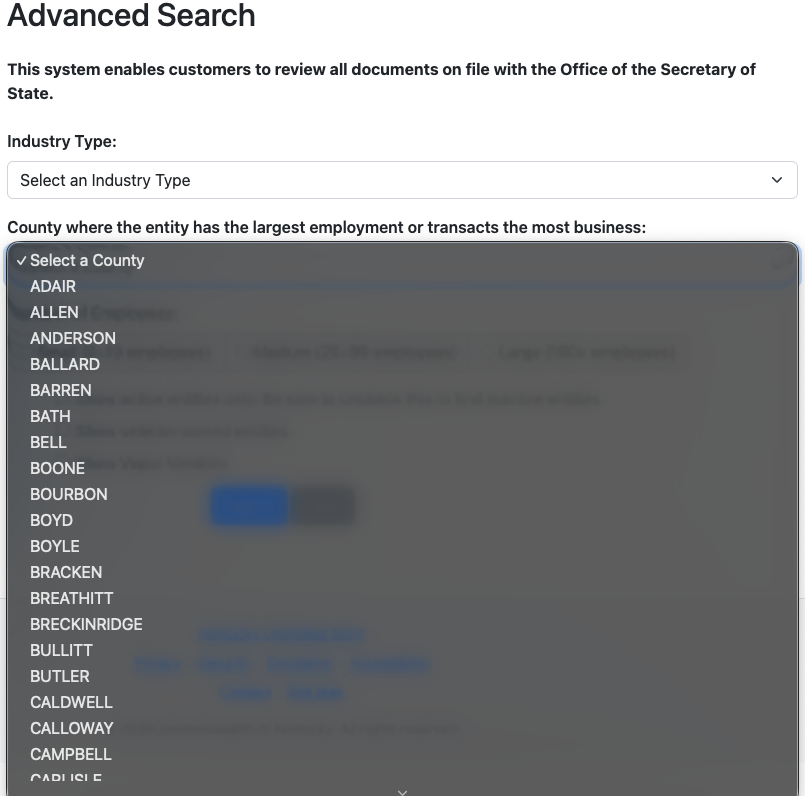
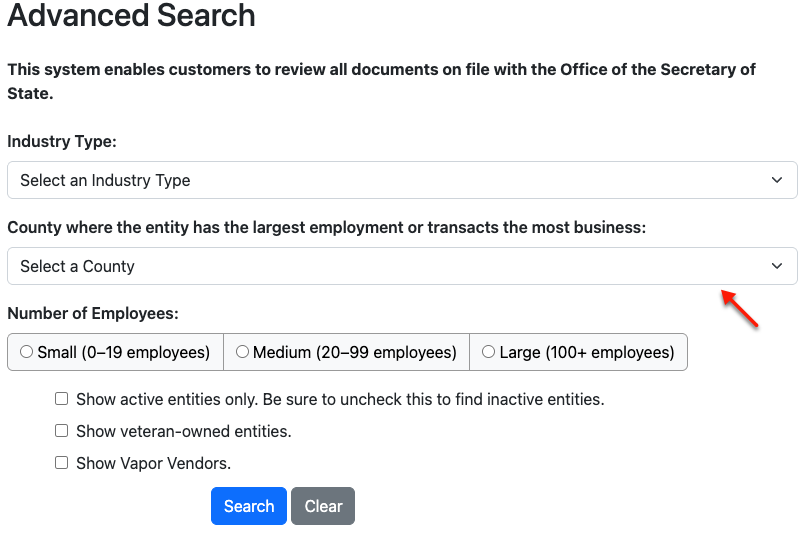
Step 8. Report the Kentucky County
Select the country where the entity either conducts most of its business or its largest site of employment from the next drop-down menu (see image). If this is unknown, it may remain blank.
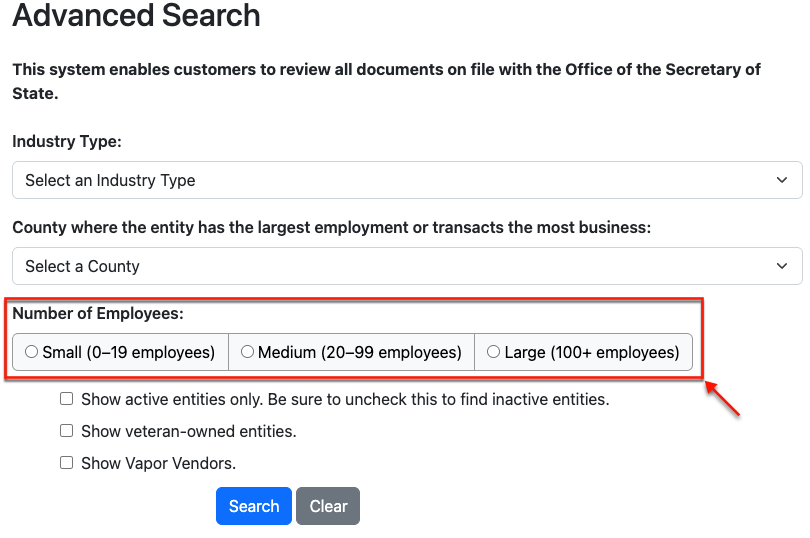
Step 9. Document the Number of Employees
Indicate the number of employees of the business by selecting the appropriate radio button. This may also be left blank if unknown.
- Small (0-19 Employees)
- Medium (20-99 Employees)
- Large (100+ Employees)
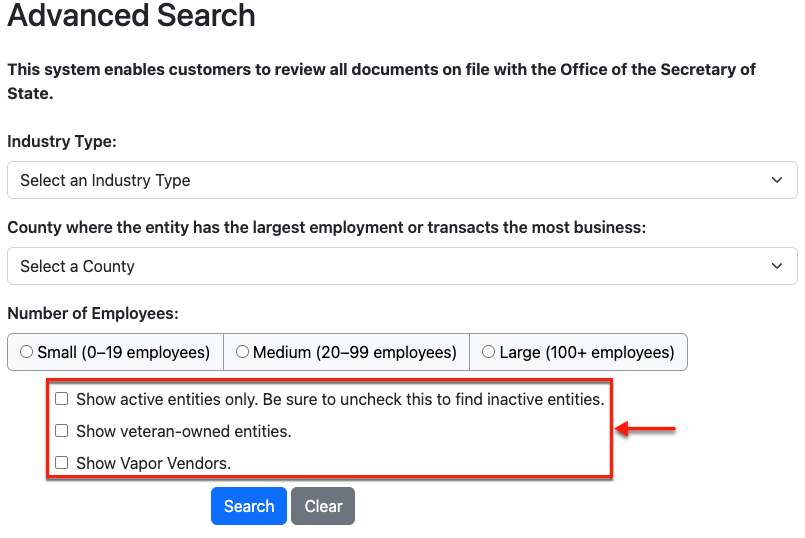
Step 10. Filter the Type of Entity The Query Must Target
Mark any of the checkbox statements to narrow the search. If none apply, then proceed to submit the search.
- Show Active Entities Only
- Show Veteran-Owned Entities
- Show Vapor Vendors
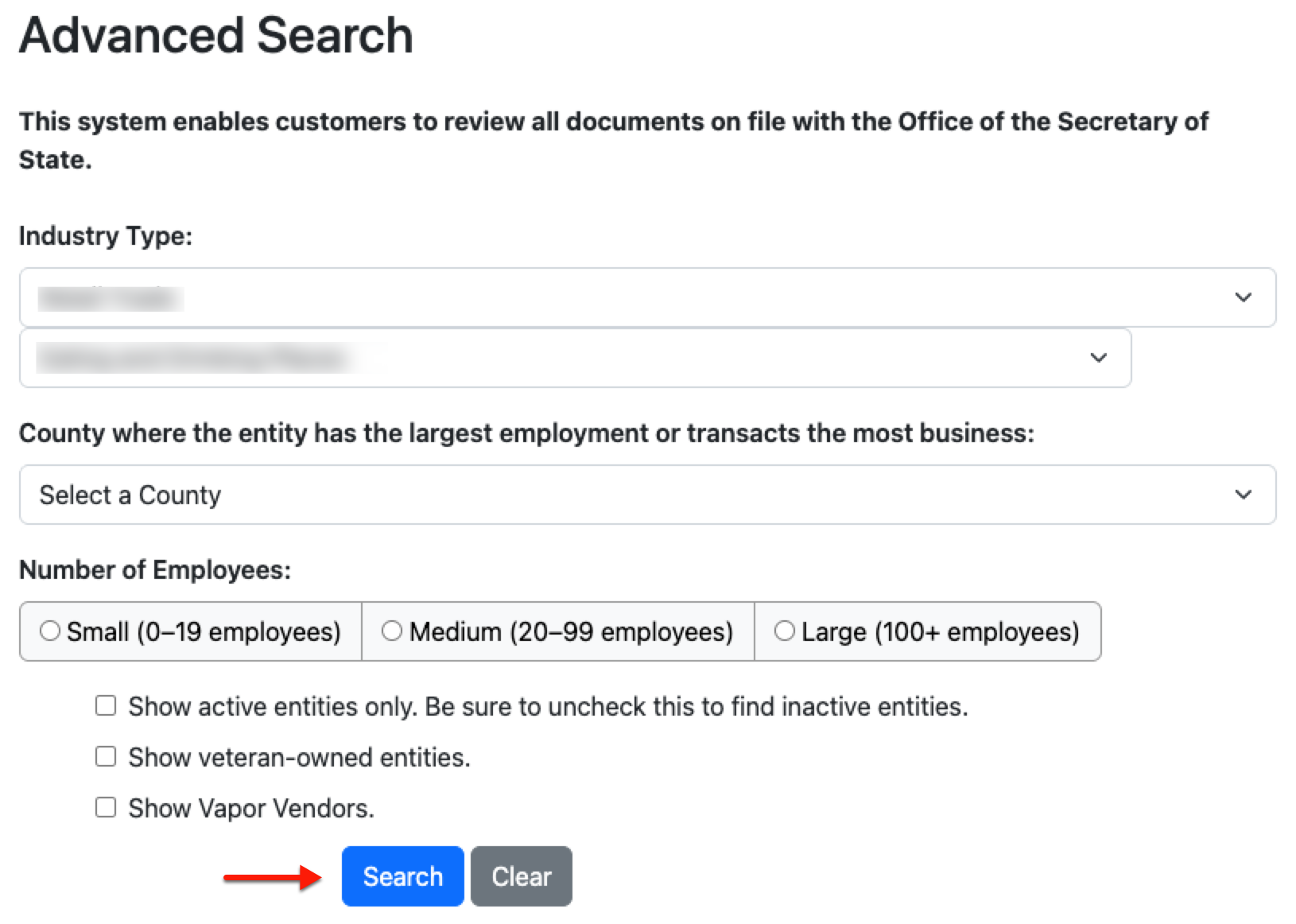
Step 11. Initiate the Kentucky Entity Query
Select the blue button directly under the tool area regardless of whether this is an advanced query or a basic search (see image). This immediately produces a table of entities with matching records.
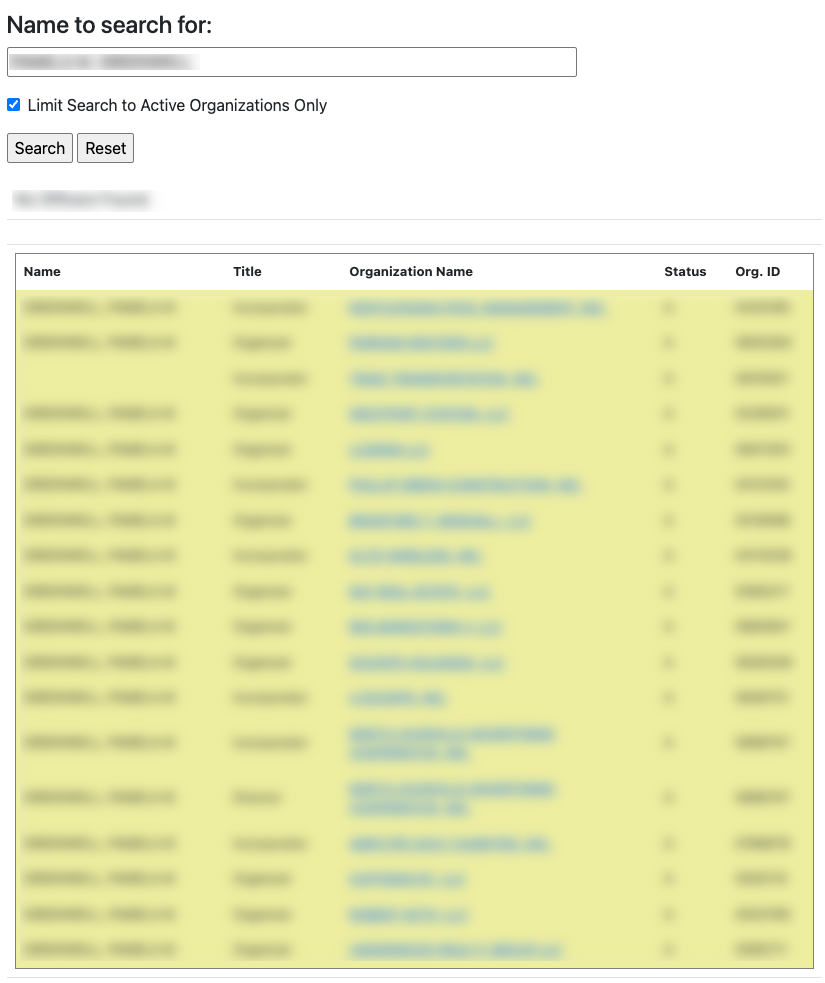
Step 12. View the Entities in the Results Table
Look over the company names in the first column. Use this to find the entity, and if necessary, review the remaining columns to confirm your choice.
- Name
- Title
- Organization Name
- Status
- Org. ID
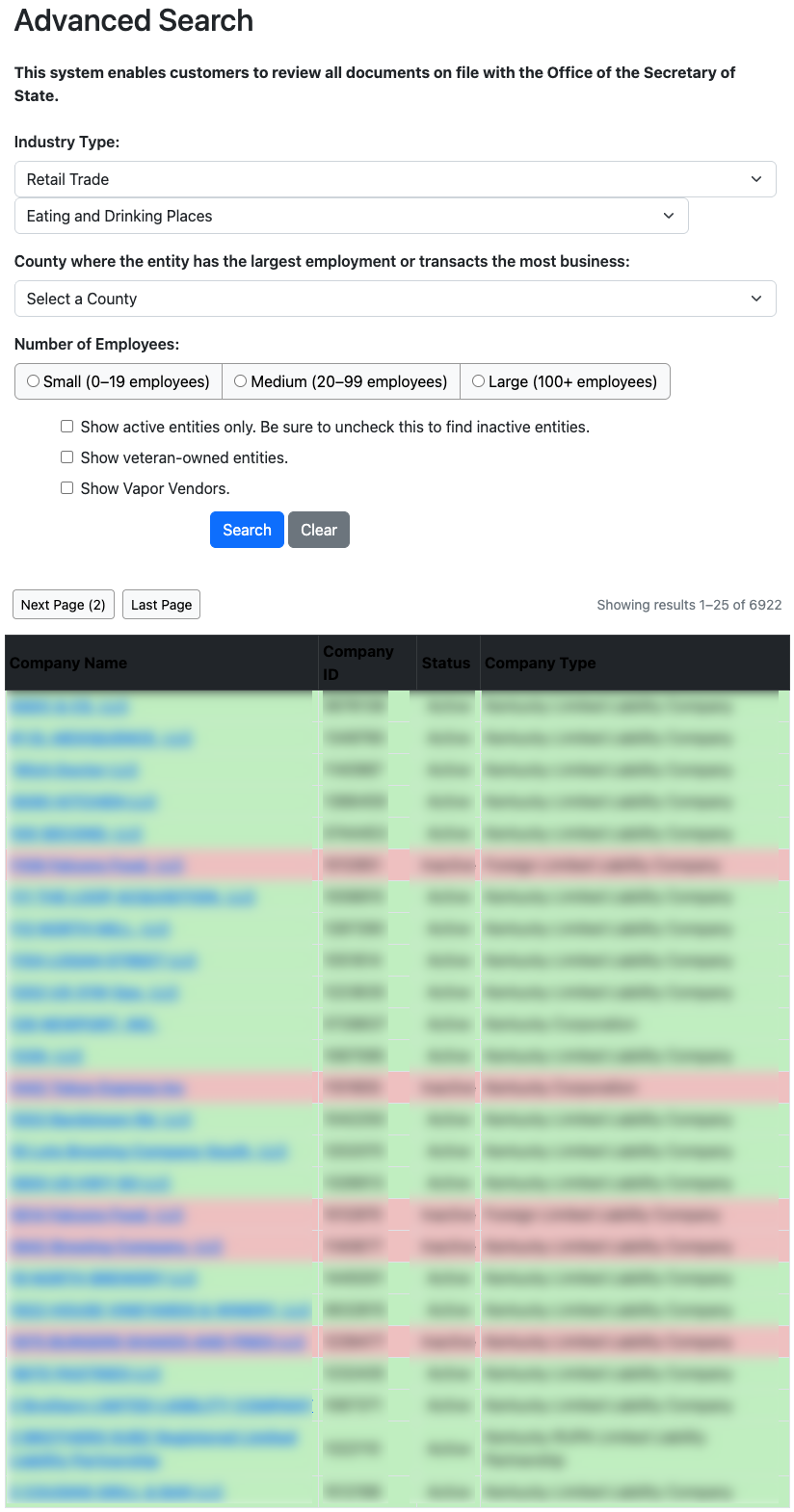
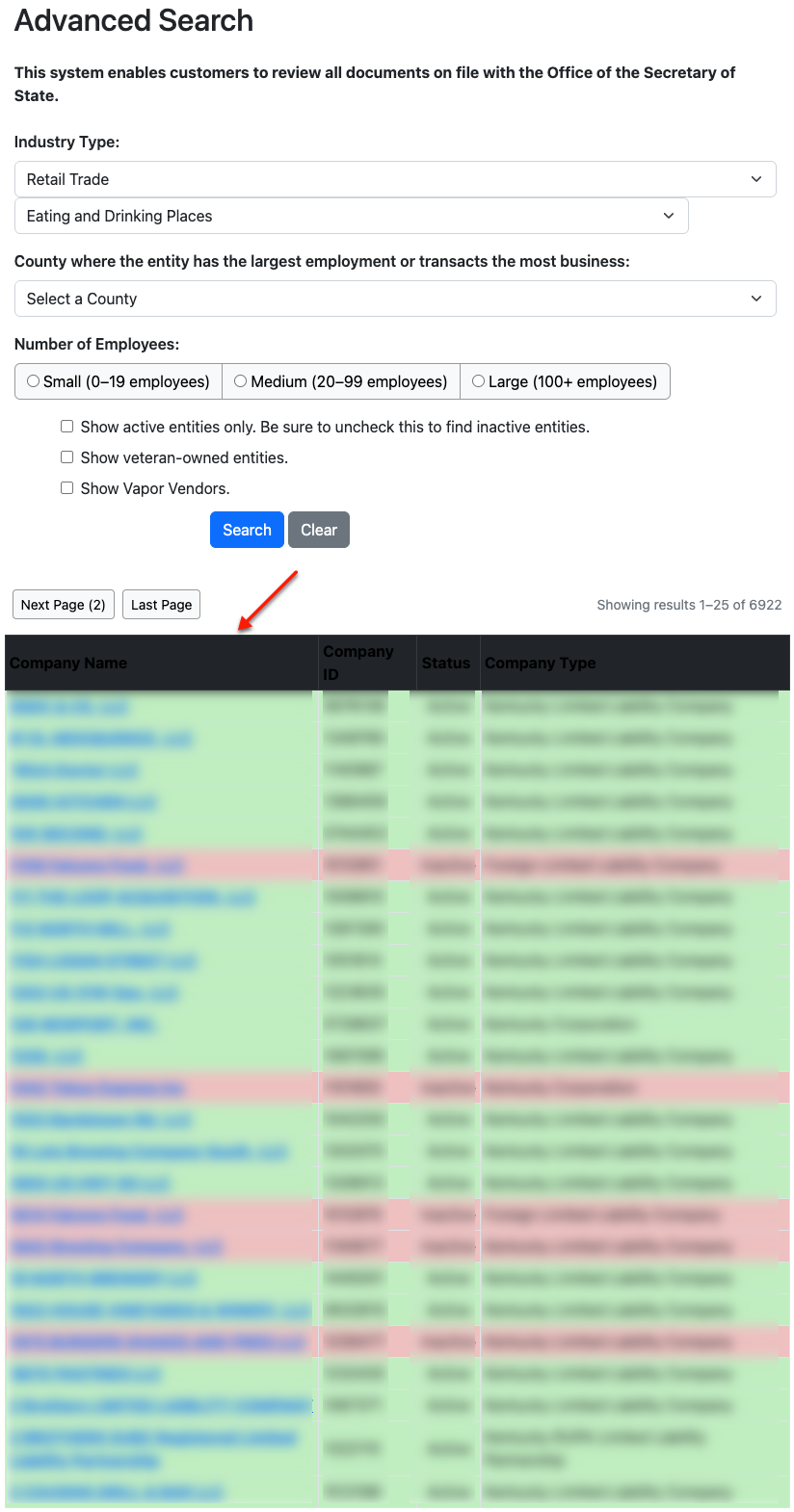
Step 13. Select the Kentucky Entity
When ready, click on the name of the Kentucky entity that you wish to review. Upon selection, that entity’s general information page will appear.
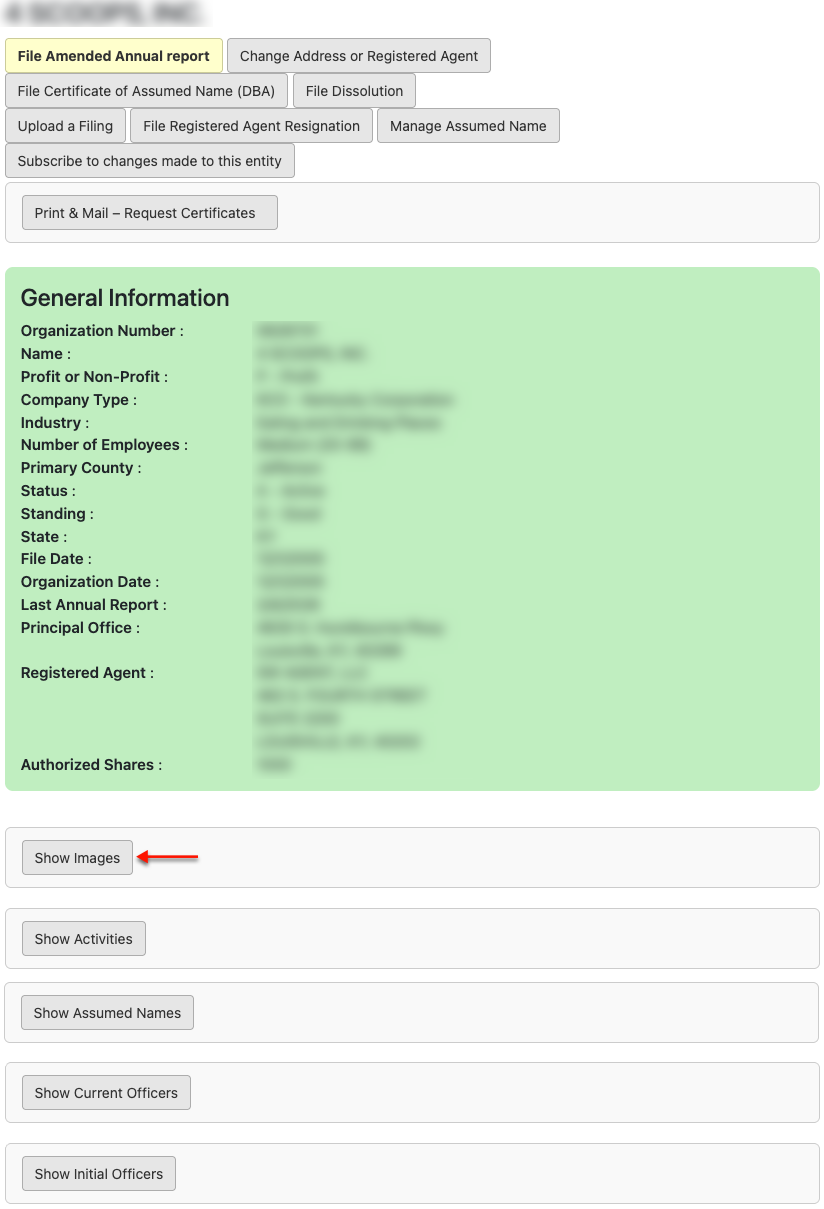
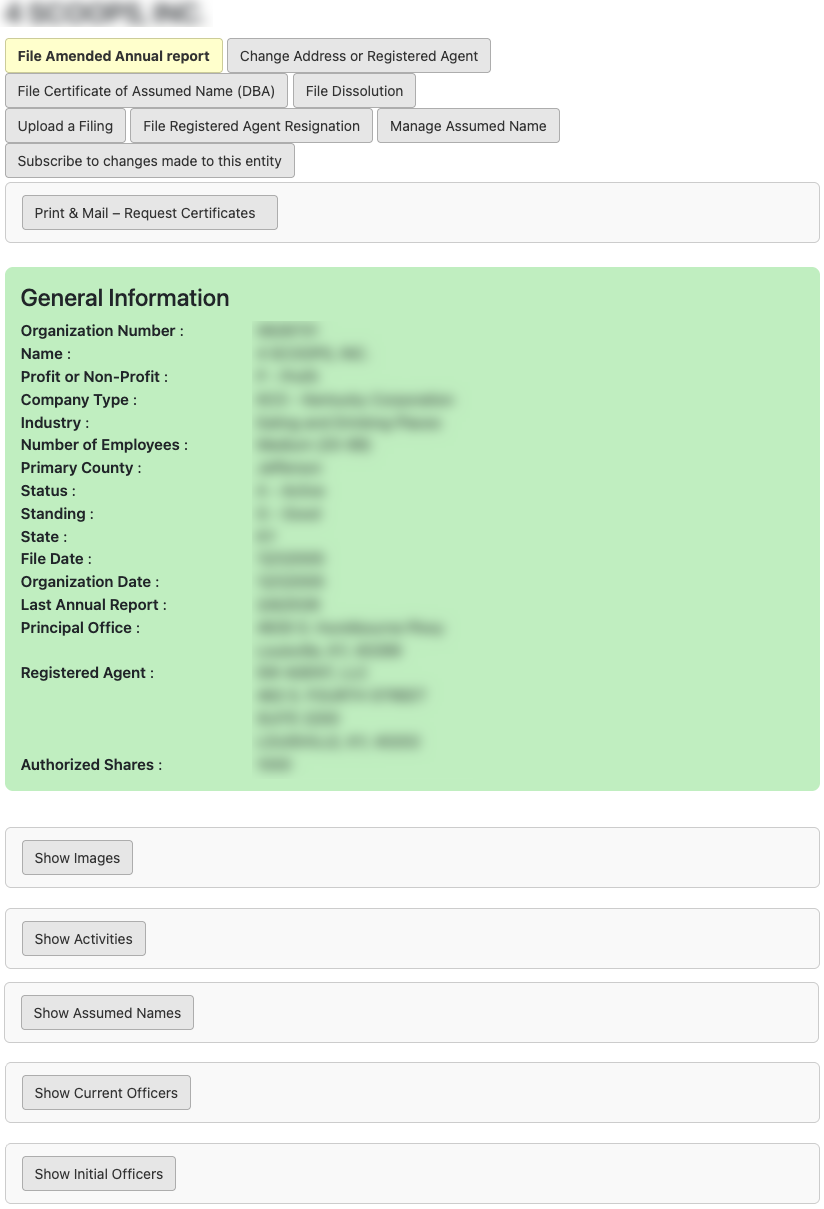
Step 14. Examine General Information
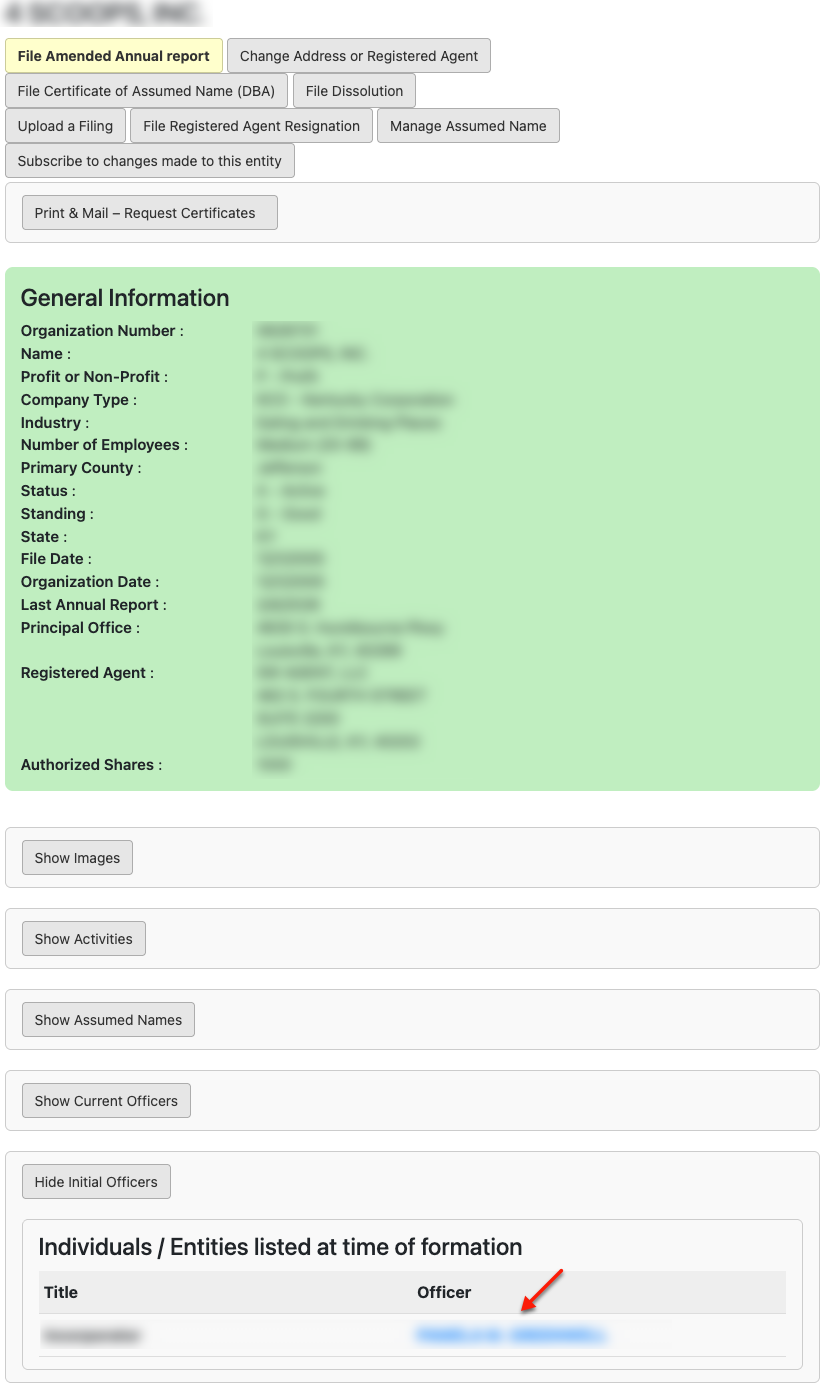
Scan the first half of the page for the entity information. Direct your attention to the lower half of the page for more information and select the “Show Images” tab.
- General Information
- Organization Number
- Name
- Profit or Non-Profit
- Company Type
- Industry Type
- Number of Employees
- Primary County
- Status
- Standing
- State
- File Date
- Organization Date
- Last Annual Report
- Principal Office
- Registered Agent
- Show Images (see image)
- Show Activities
- Show Assumed Names
- Show Current Officers
- Show Initial Officers
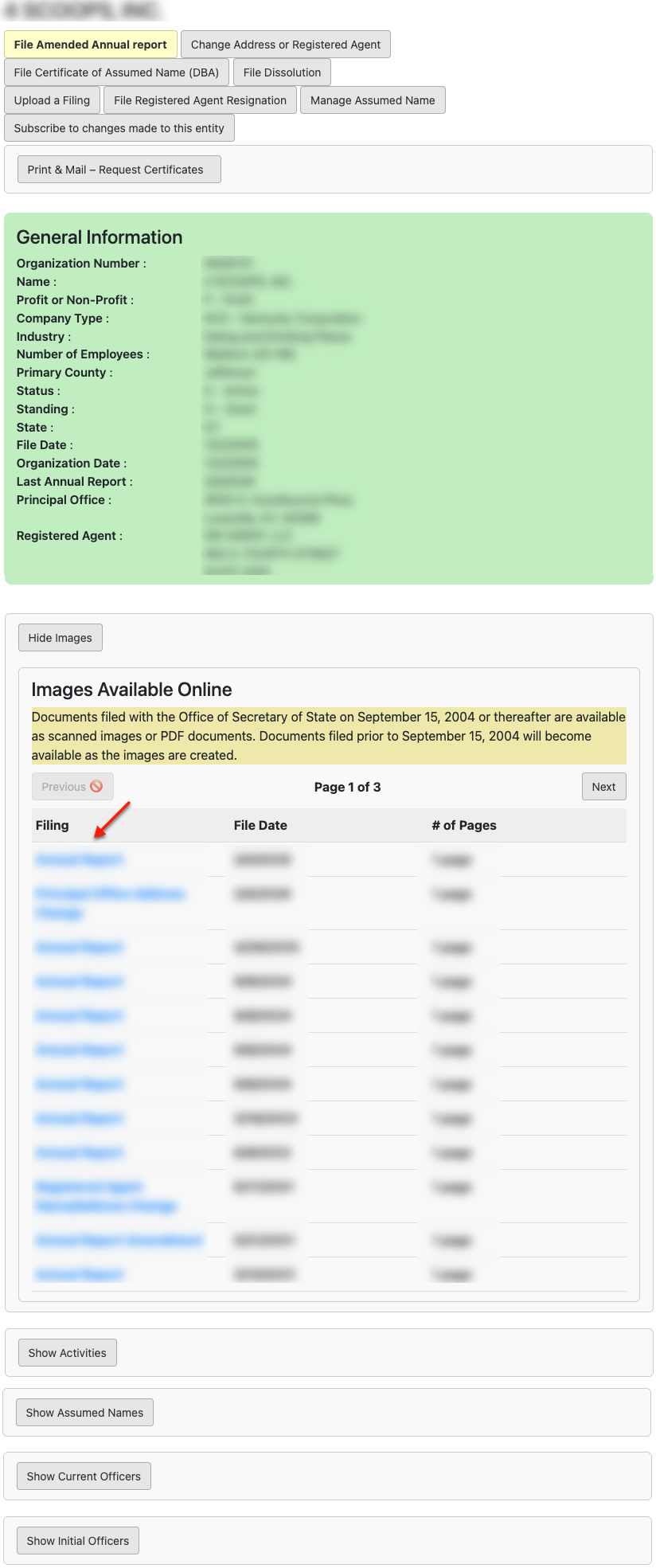
Step 15. View Available Images
Look for the document you wish to view in the open tab. Each link in the first column allows you to access a scan of that document. When ready, continue to the next tab for entity activities.
- Filing (see image)
- File Date
- # of Pages
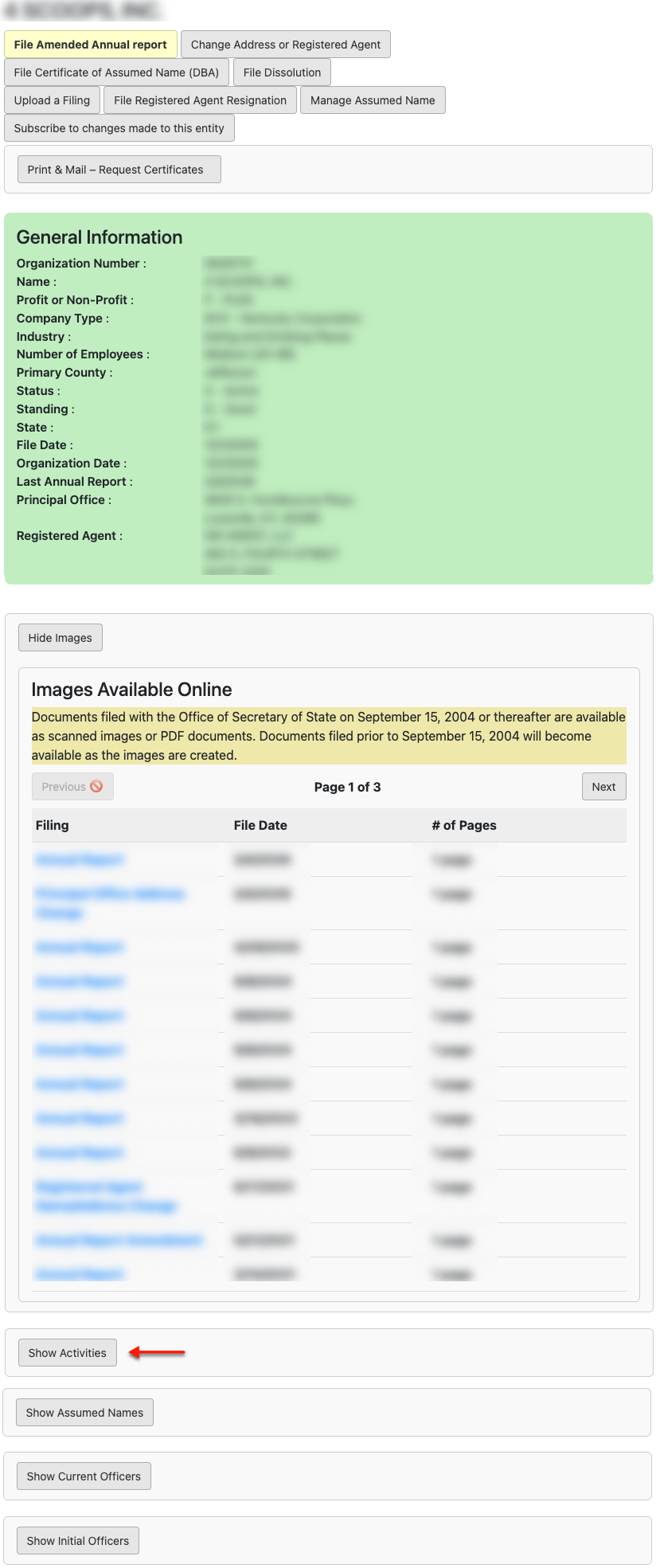
Step 16. Look Through Activities
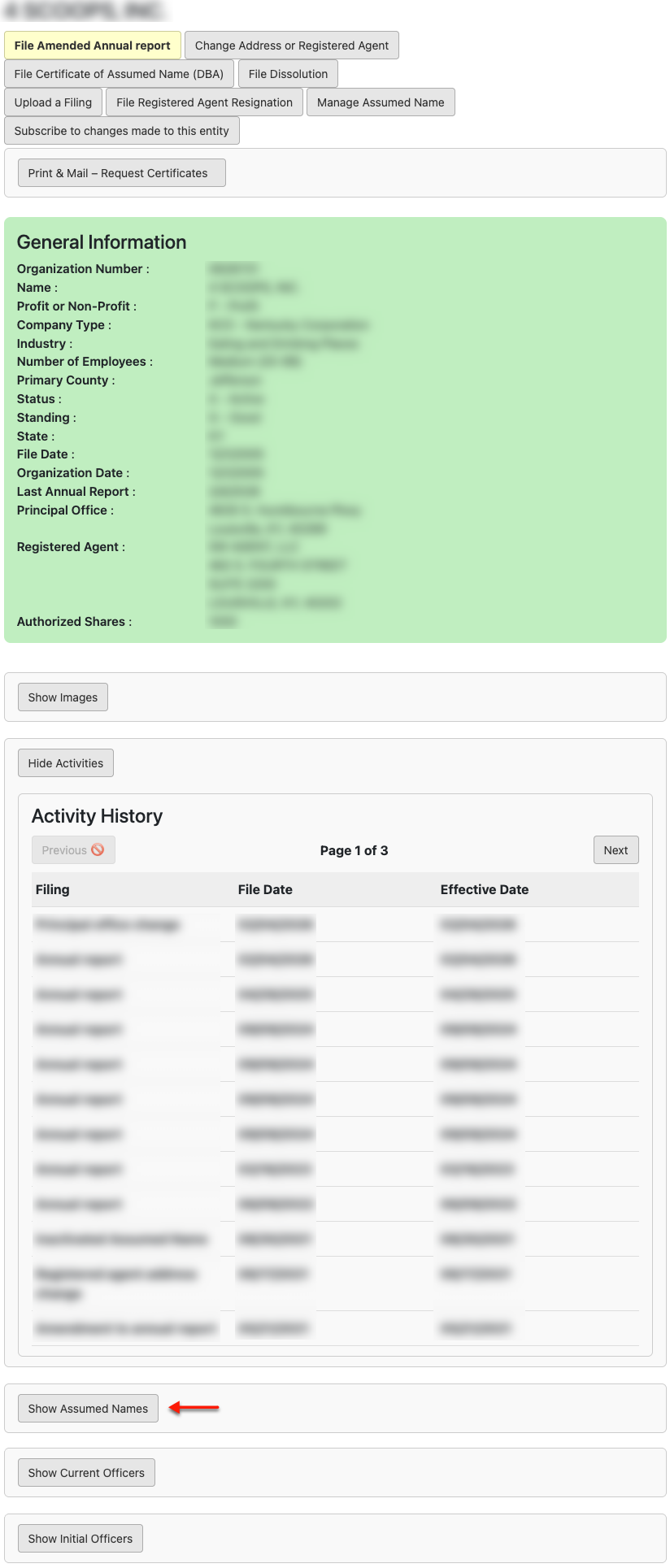
The activity history lists every instance of entity activity with the state, regardless of whether a scan is available. Review this list, then continue to “Show Assumed Names.”
- Filing
- File Date
- Effective Date
Step 17. Investigate Assumed Name
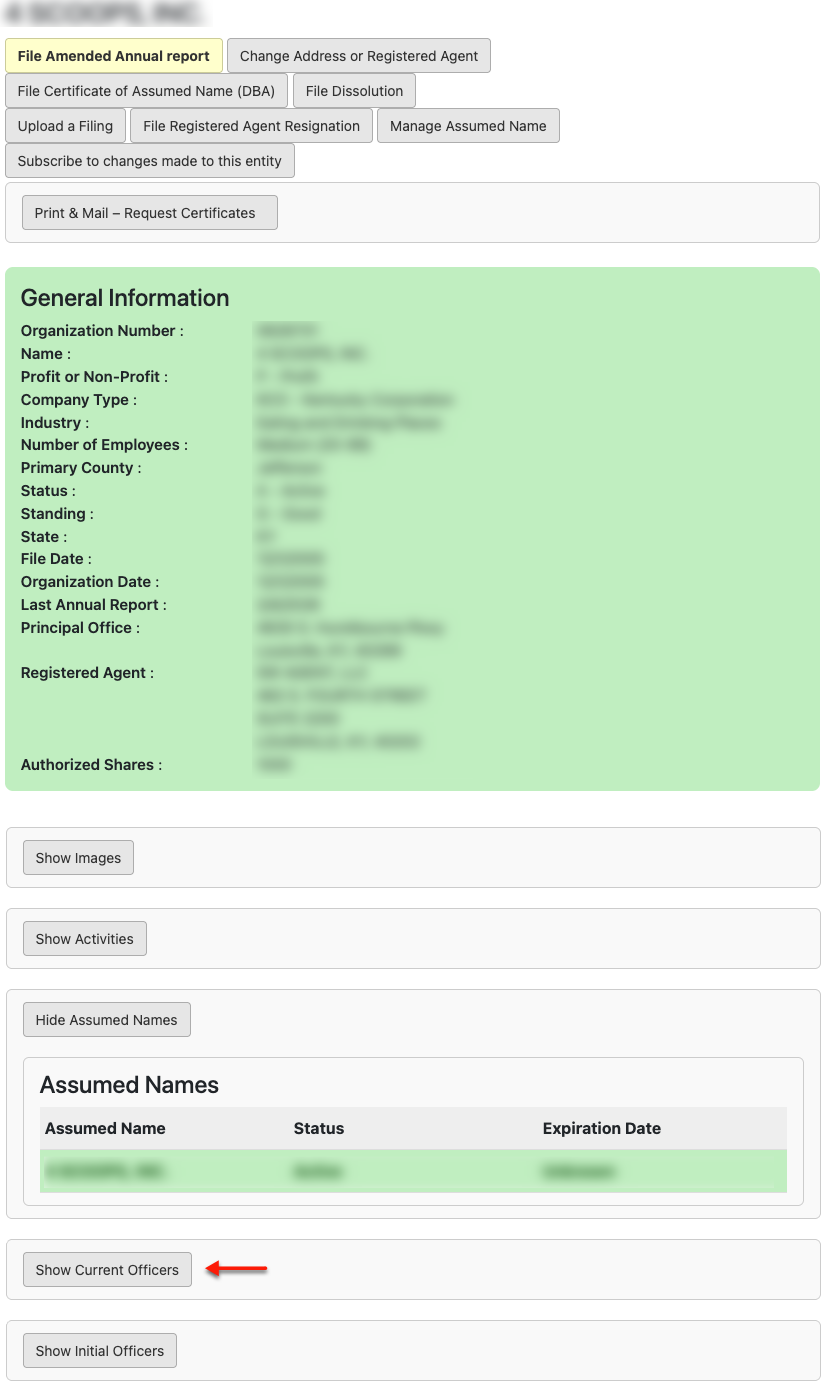
Look over the entity’s assumed names and that name’s standing. Note that this table can only report assumed names on file with the state. Continue to “Show Current Officers.”
- Assumed Name
- Status
- Expiration Date
Step 19. Discover Initial Officers
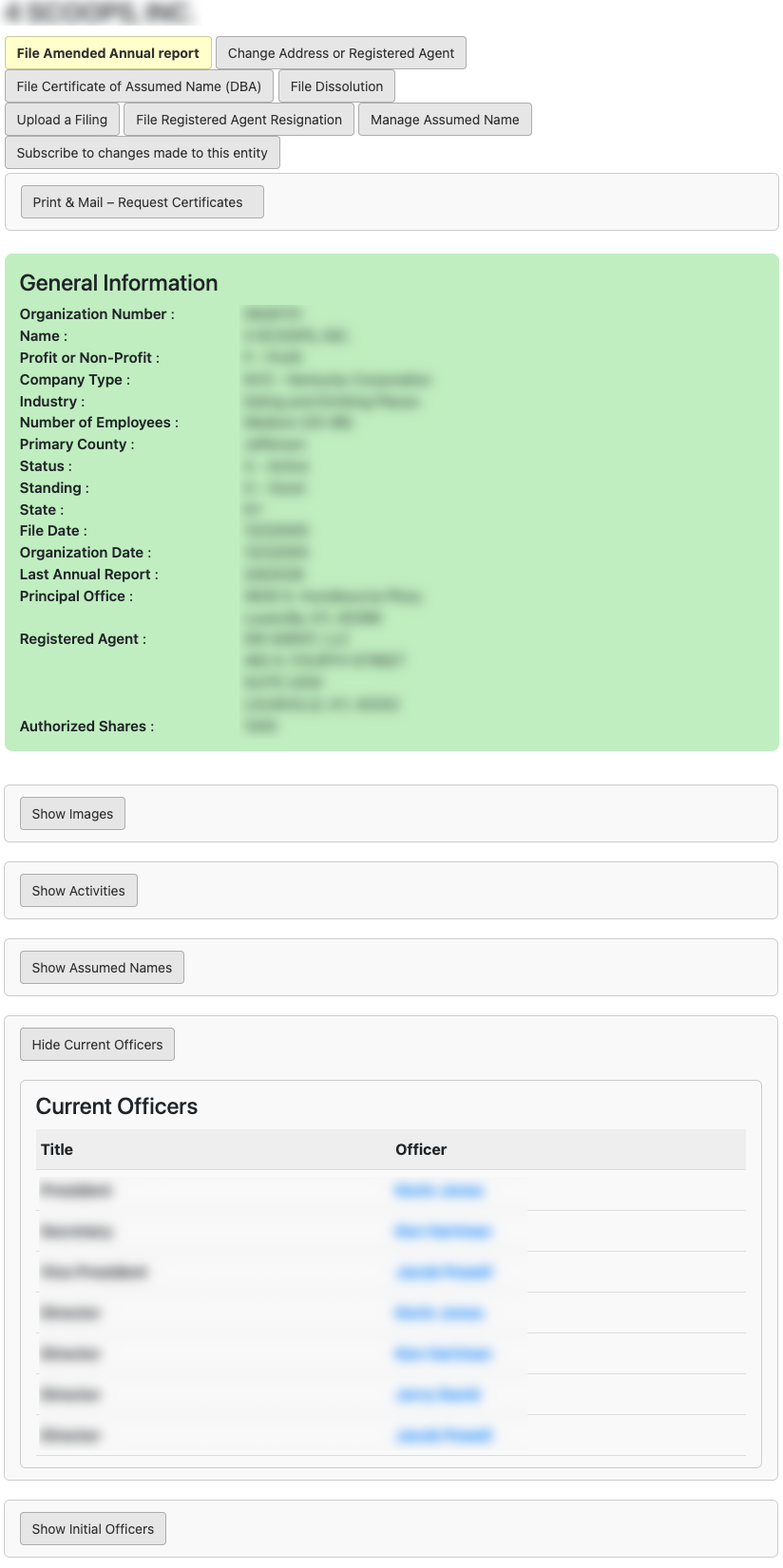
Officers, members, owners, and the governing bodies of an entity at the time of its formation are listed in the next table. Selecting their name also initiates a separate search.
- Title
- Officer