The Iowa Secretary of State business entity search gives users an opportunity to investigate a specific entity. Here, the business entity’s public information is available onscreen after the query finds it. In many cases, additional information is also viewable. Users may print directly from the page and can run as many queries as they like since this is a free service that yields public information.
Business Name Availability Check
State of Iowa

Business Entity Search
Step 1. Access The Iowa Business Entities Search Query
Visit Iowa’s business entities search tool in order to query the database. Make sure to have the information handy since the page opens set to accept it immediately.
Step 2. Choose Search Type
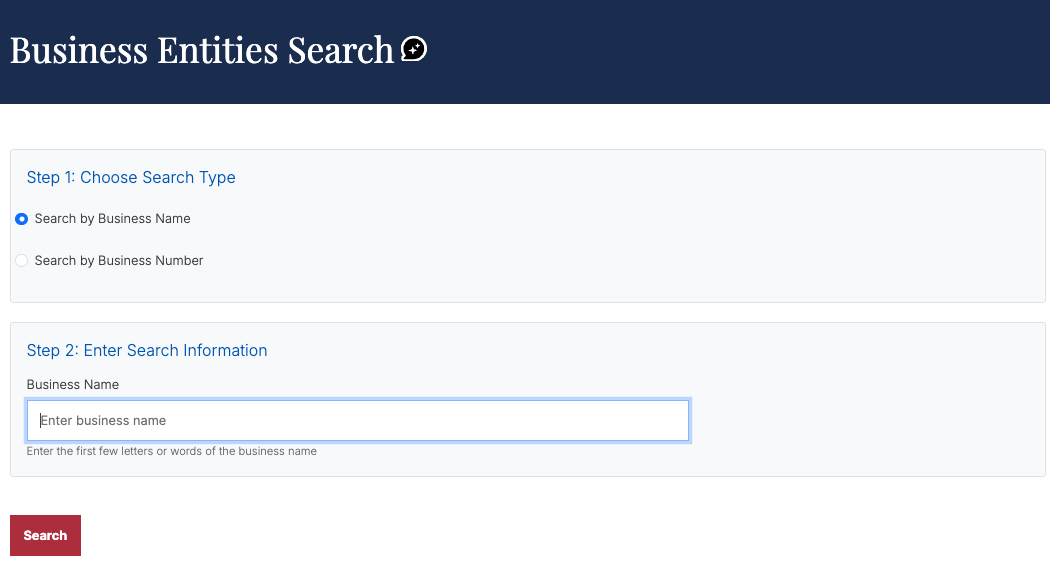
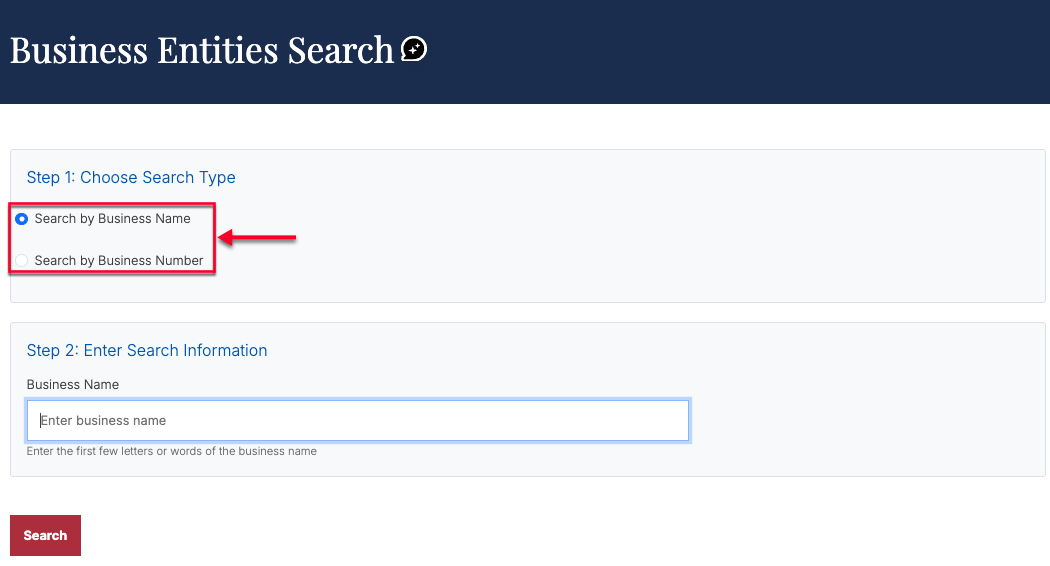
Indicate whether the search is for an Iowa business name or its ID number before beginning. Choose one of the two radio buttons at the top of the page.
- Business Name
- Business Number
Step 3. Enter Search Information
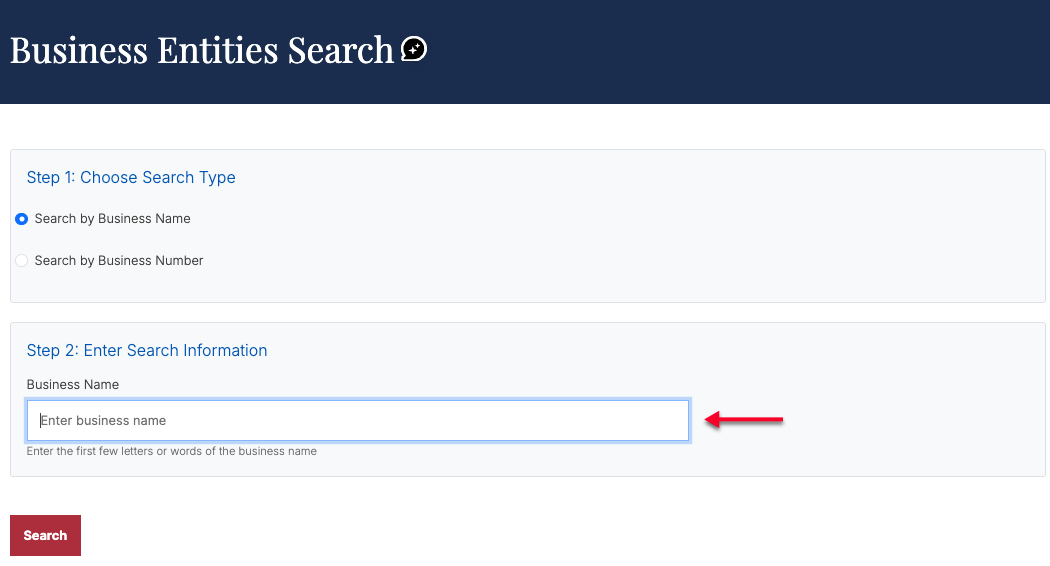
Supply the name, ID, or filing number being sought in the text box. This can also be the “first few letters or words” in a business name.
Step 4. Prompt The Search
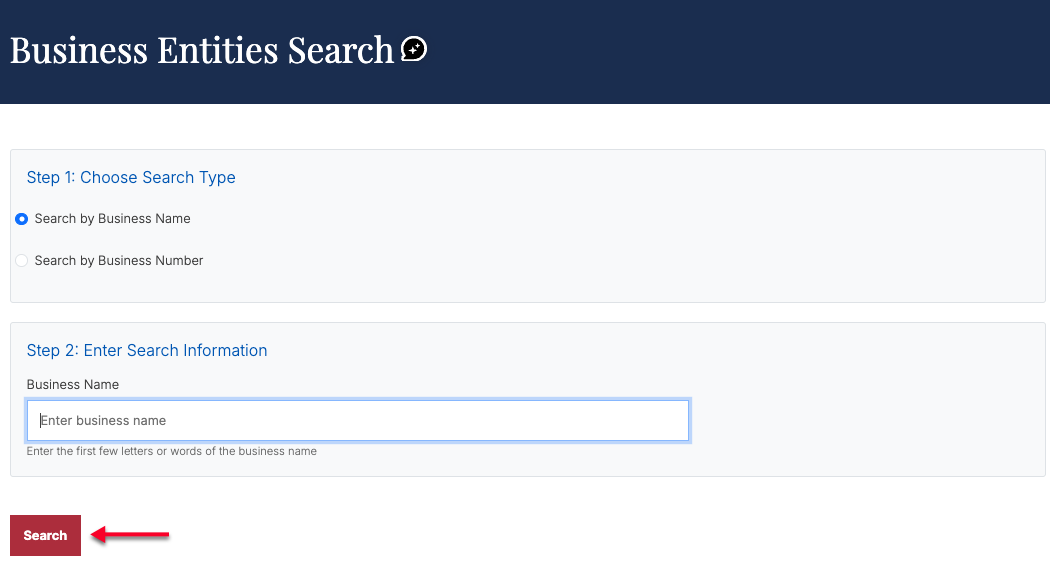
Select the red “Search” button to submit the criteria to the query. Note, if necessary, you may return to this page to run additional searches.
Step 5. Review the Iowa Business Entity Search Results
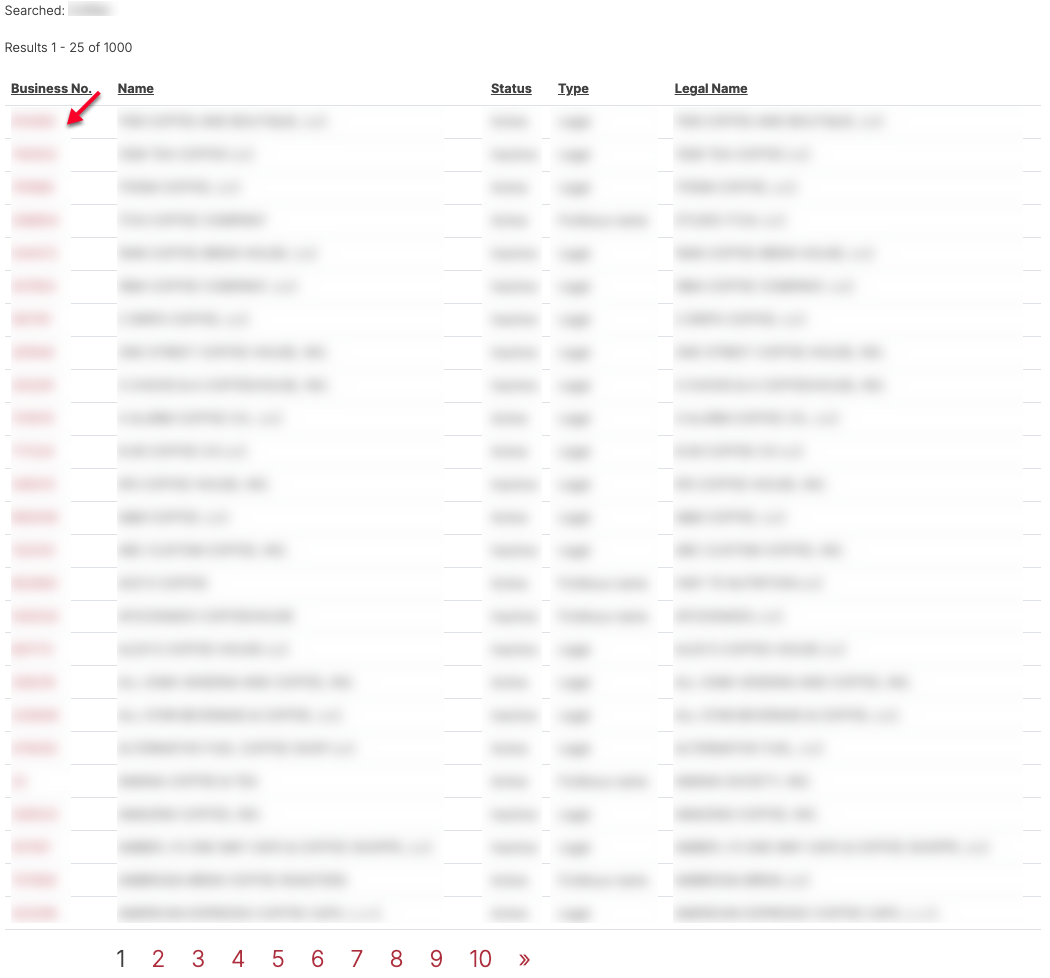
Look through the results table, which presents its information across several columns. Select a business number to access the entity record.
- Business Number
- Name
- Status
- Type
- Legal Name
Step 6. Examine the Iowa Business Entity Summary Page
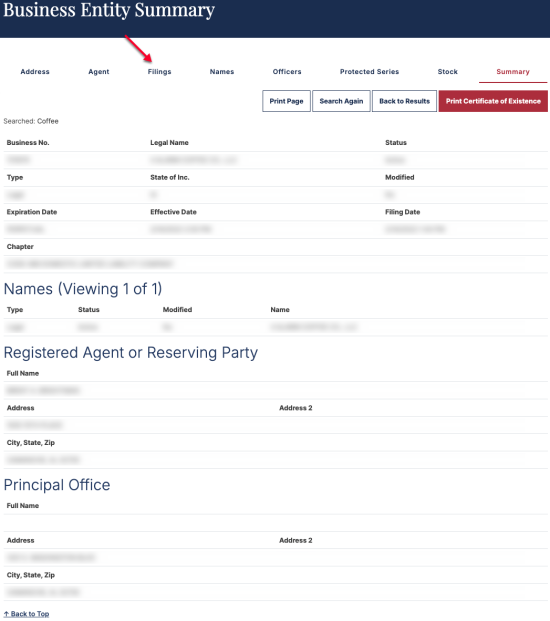
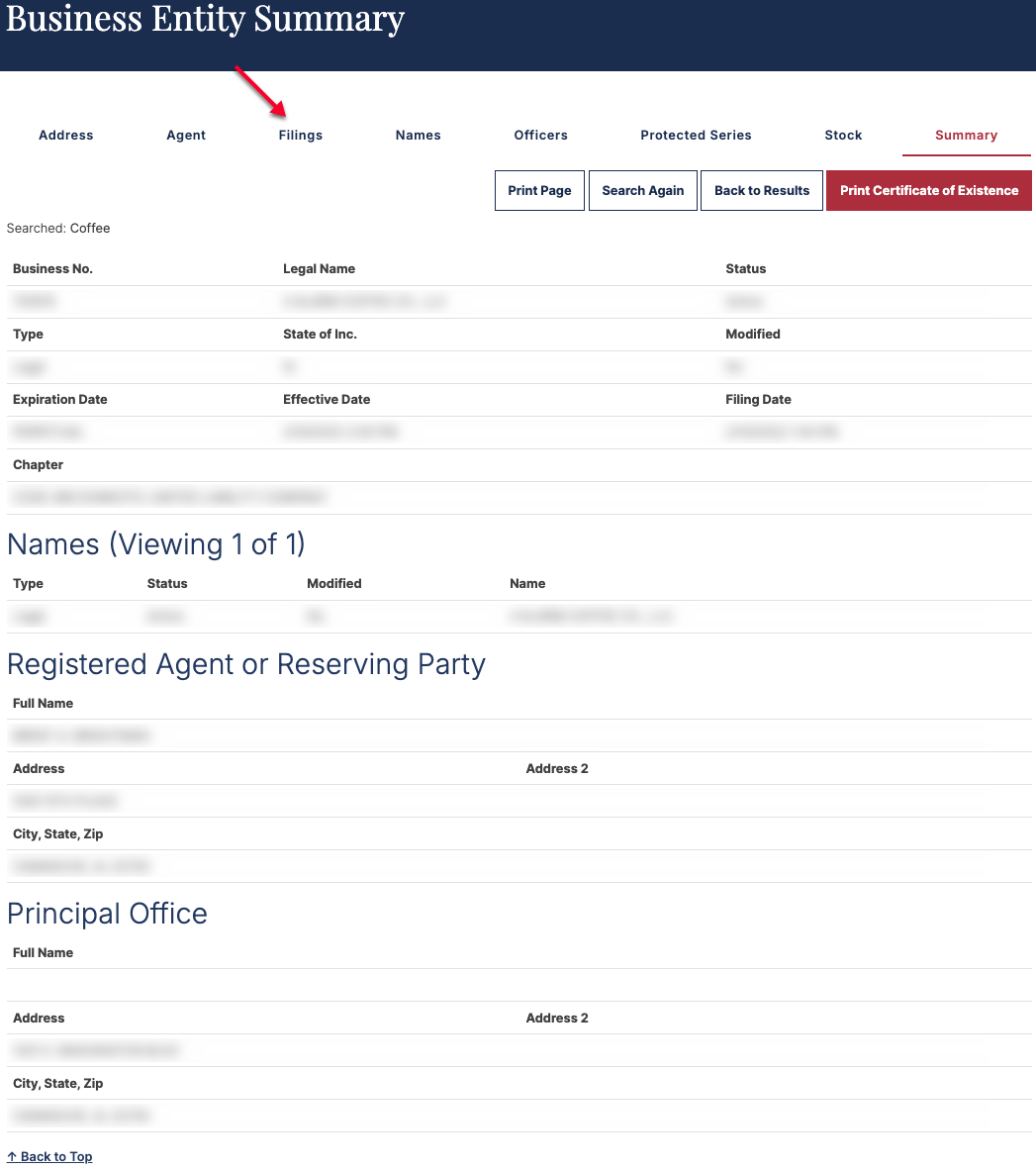
Notice the business entity summary page presents its information across several tabs. Review the “Summary” tab, which is open by default. Select “Filings” to continue.
- Address
- Agent
- Filings
- Names
- Officers
- Protected Series
- Stock
- Summary
- Business No.
- Legal Name
- Status
- Type
- State of Inc.
- Modified
- Expiration Date
- Effective Date
- Filing Date
- Chapter
- Names
- Type
- Status
- Modified
- Name
- Registered Agent or Reserving Party
- Full Name
- Address
- Address 2
- City, State, Zip
- Principal Office
- Full Name
- Address
- Address 2
- City, State, Zip
Step 7. View Entity Filings
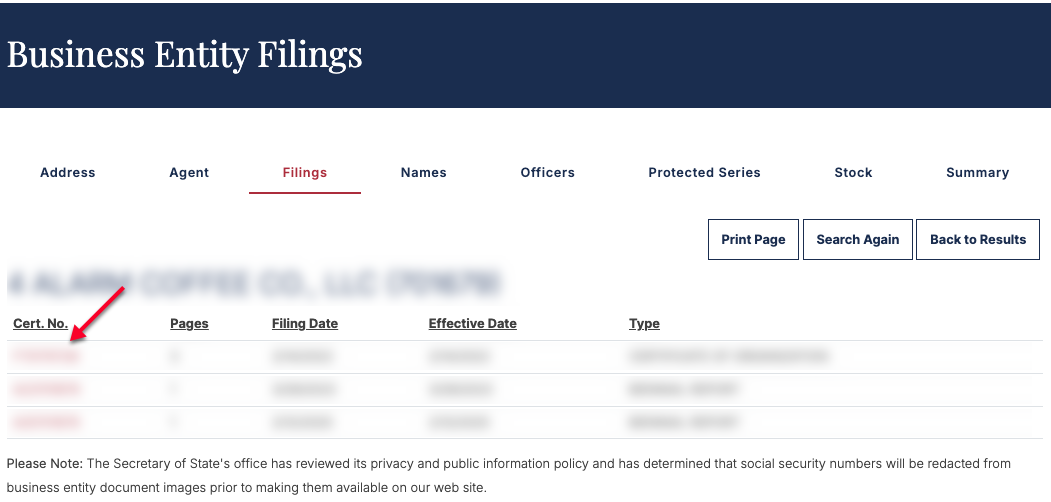
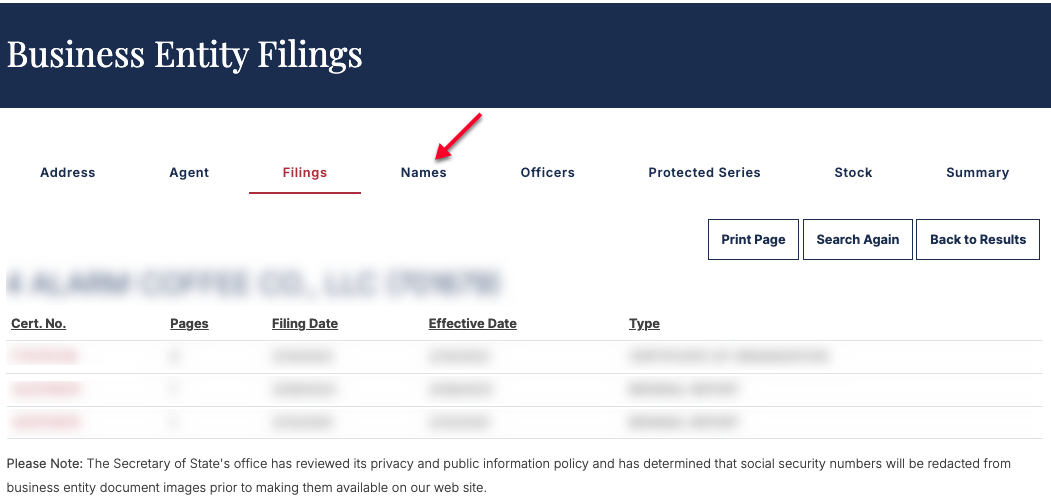
Direct your attention to the final column to find a specific filing type. Once you wish to view one, select its “Certificate No.” from the first column. Select the “Names” section next.
- Cert. No. (see image)
- Pages
- Filing Date
- Effective Date
- Type
Step 8. Accessing Name Certificates
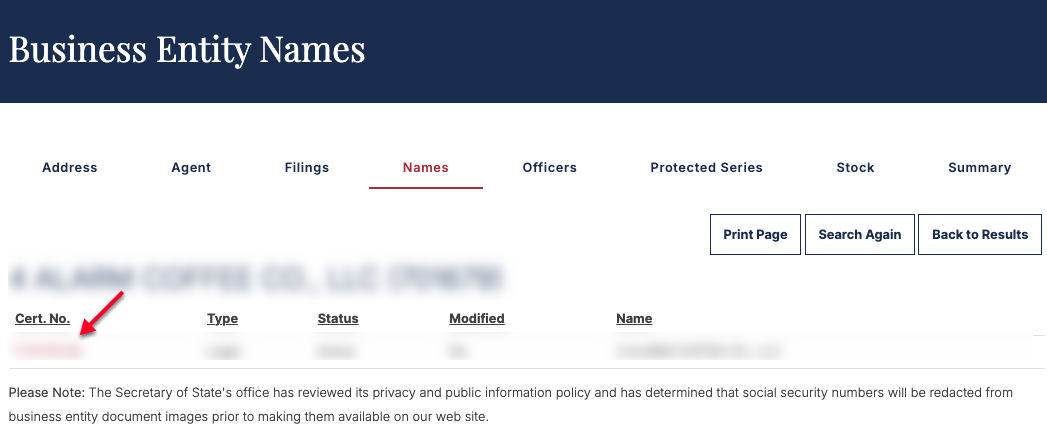
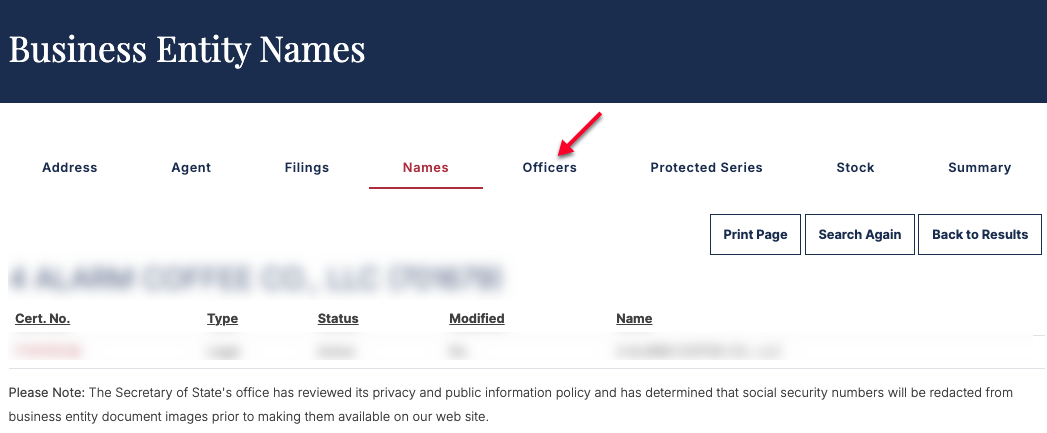
Scan through the entity’s previous business names as well as the filing information (accessible by clicking on a “Cert No.”). Select the next tab to continue to “Officers.”
- Cert No (see image)
- Type
- Status
- Modified
- Name
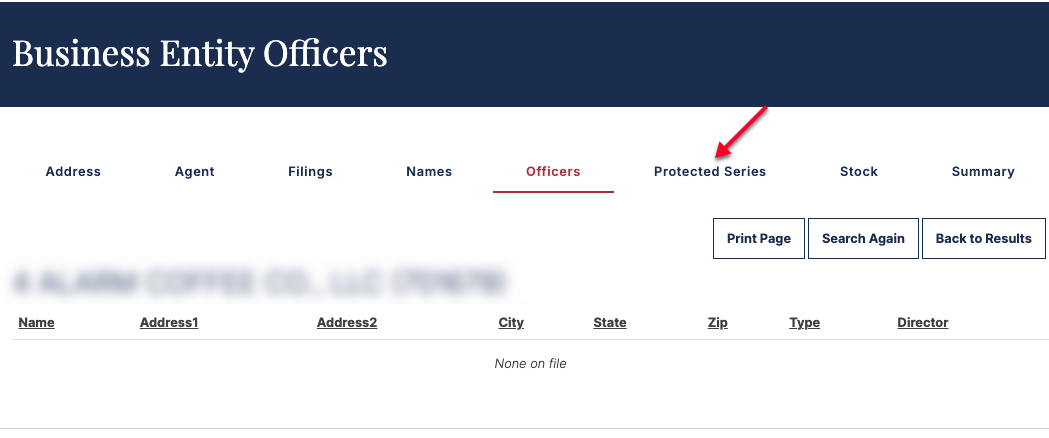
Step 9. Viewing Officers
Identify the officers of a business using this page. Each record consists of a name and contact information. When ready, continue by selecting “Protected Series.”
- Name
- Address1
- Address2
- City
- State
- Zip
- Type
- Director
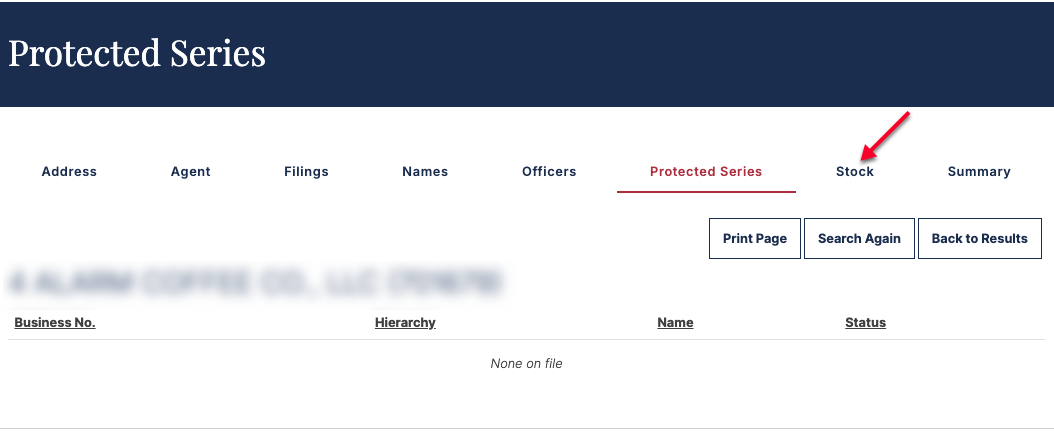
Step 10. Investigate Protected Series
Look through the protected assets and activities. This is especially useful for LLCs. Next, continue to the “Stock” tab.
- Business No.
- Hierarchy
- Name
- Status
Step 11. View Stock Information
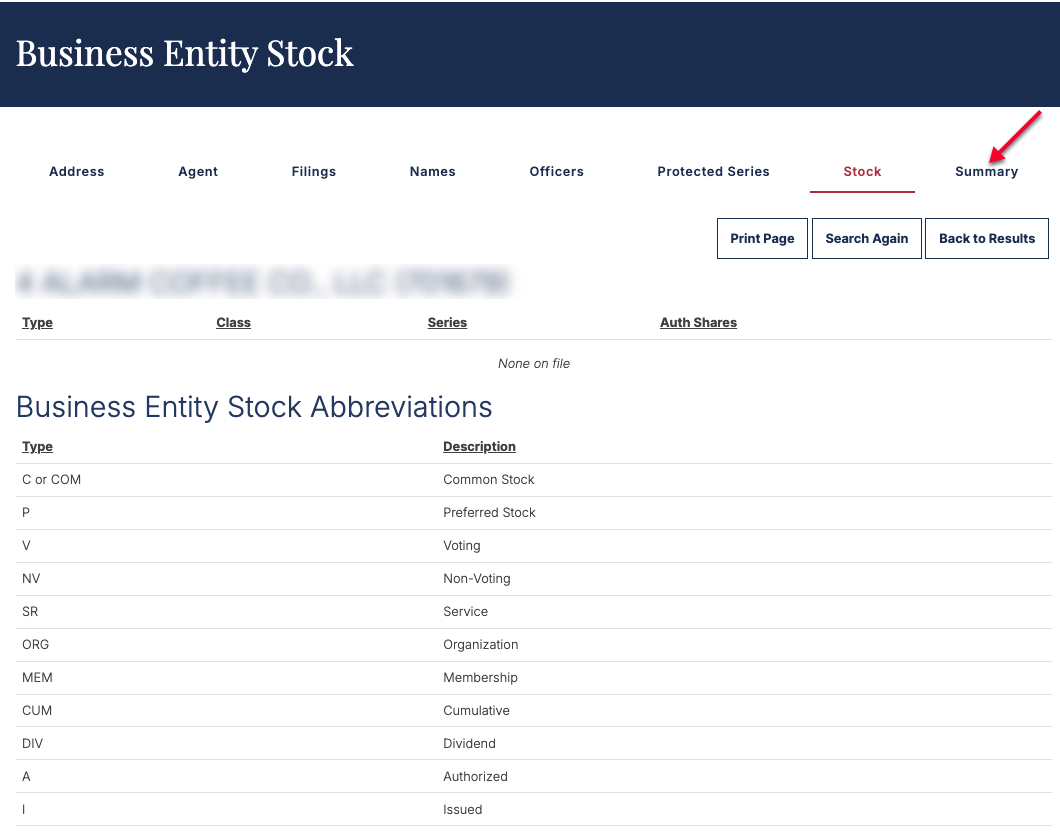
After accessing the entity’s stock information, you can review each type of stock with its attributes. You may return to the business entity summary page by selecting the final tab.
- Type
- Class
- Series
- Auth Shares