The Florida Secretary of State’s SunBiz business entity search tool provides access to the entity database for public use. Visitors utilize this tool to find a specific business in this database. Once found, they can gather the entity’s public details as they appear on the books. This is a versatile tool allowing for a wide variety of searches (depending on the user’s needs).
Business Name Availability Check
State of Florida

Business Entity Search
Step 1. Visit the Florida Sunbiz Business Entity Search Page
Open the business entity search tool that is operated by the Delaware Secretary of State. Examine the available search options.
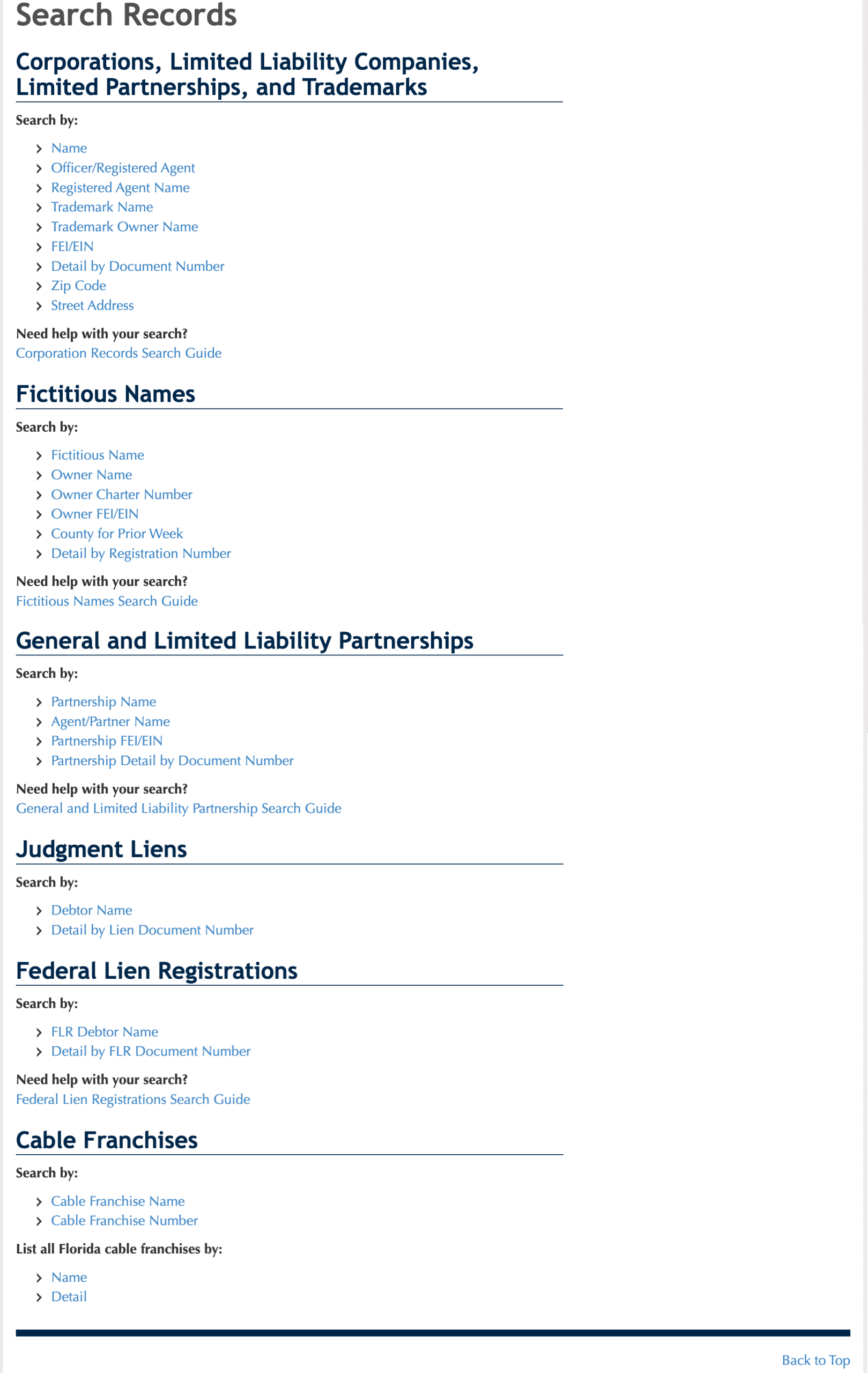
Step 2. Determine the Query Type
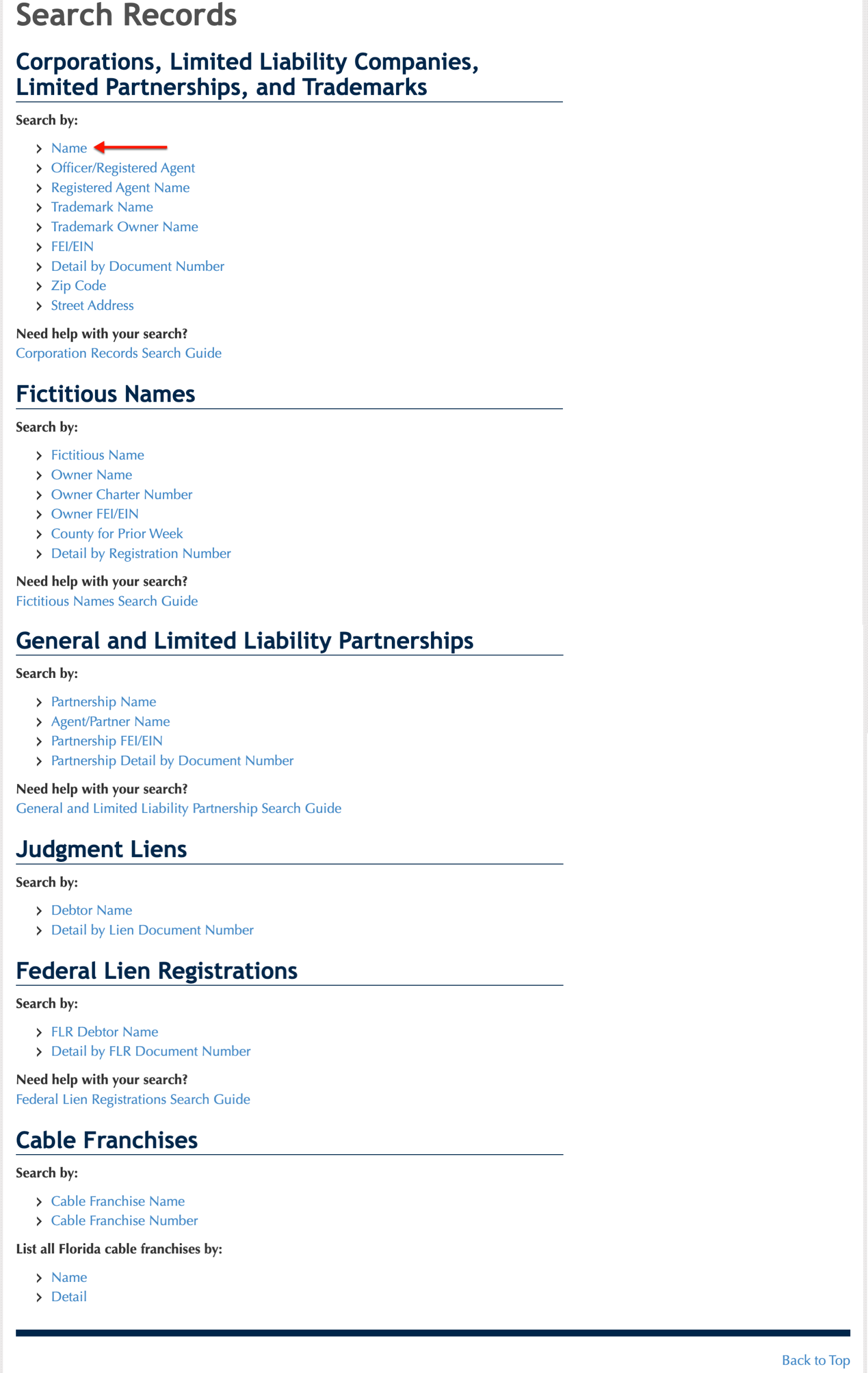
Look through the list of query types; you must select one to continue. In our case, we shall focus on finding a name, thus click the “Name” option.
- Name
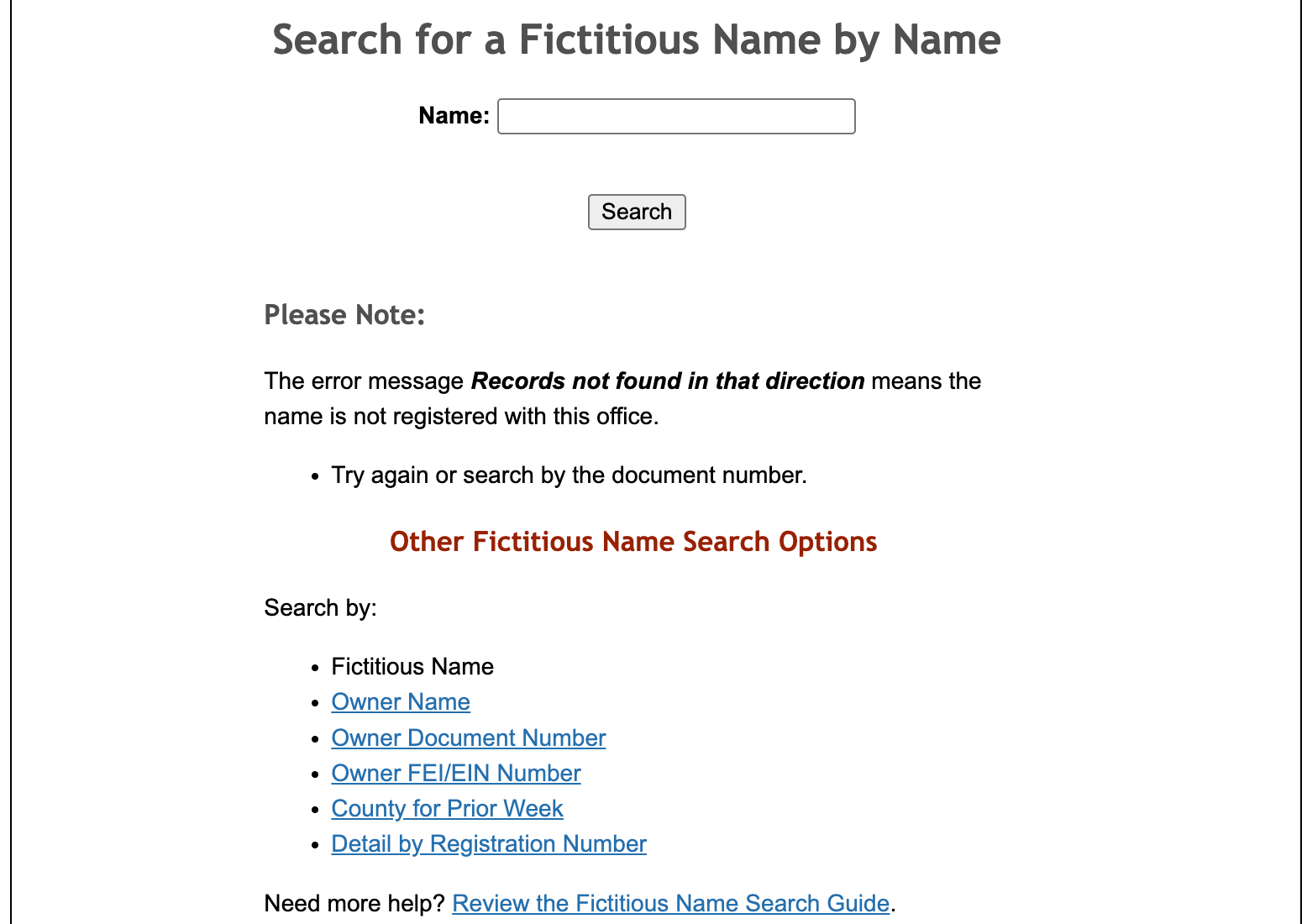
- Fictitious Names (see image)
- General and Limited Liability Partnerships
Step 3. Produce Criteria For the Query
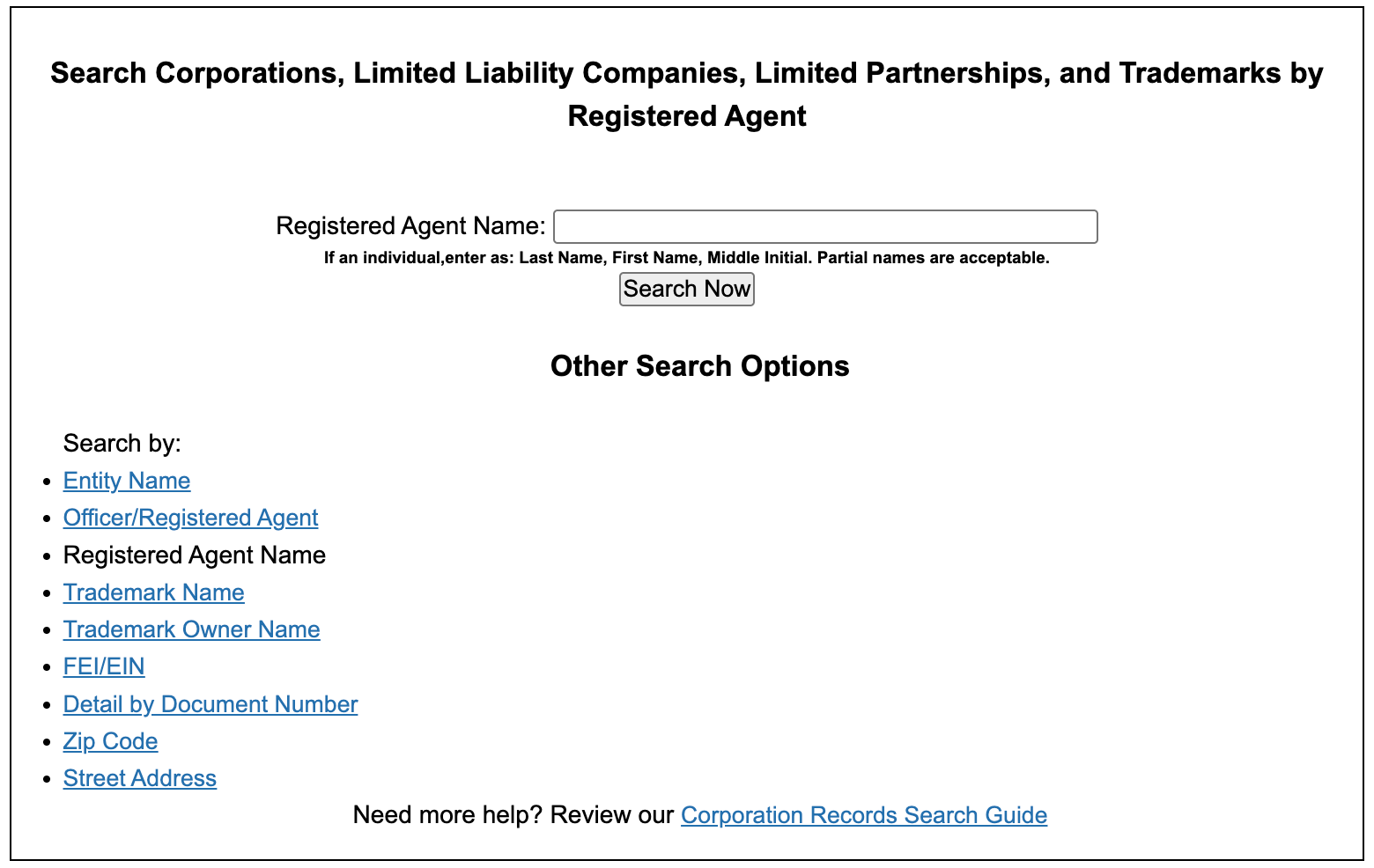
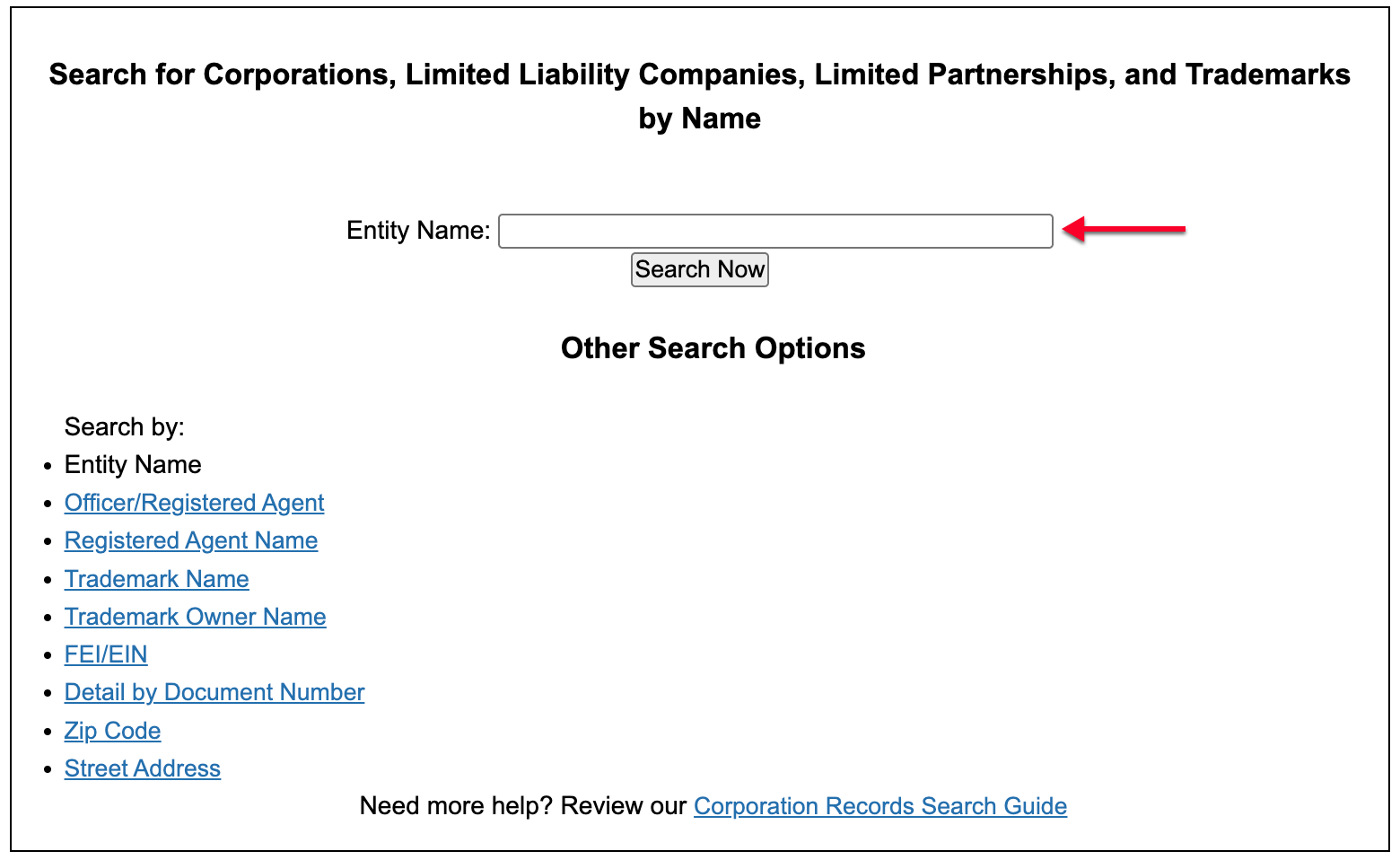
Input the phrase or the entity name into the search text box. Generally, a large number of results often return when providing only a general phrase or a common word.
Step 4. Submit the Criteria to the Query
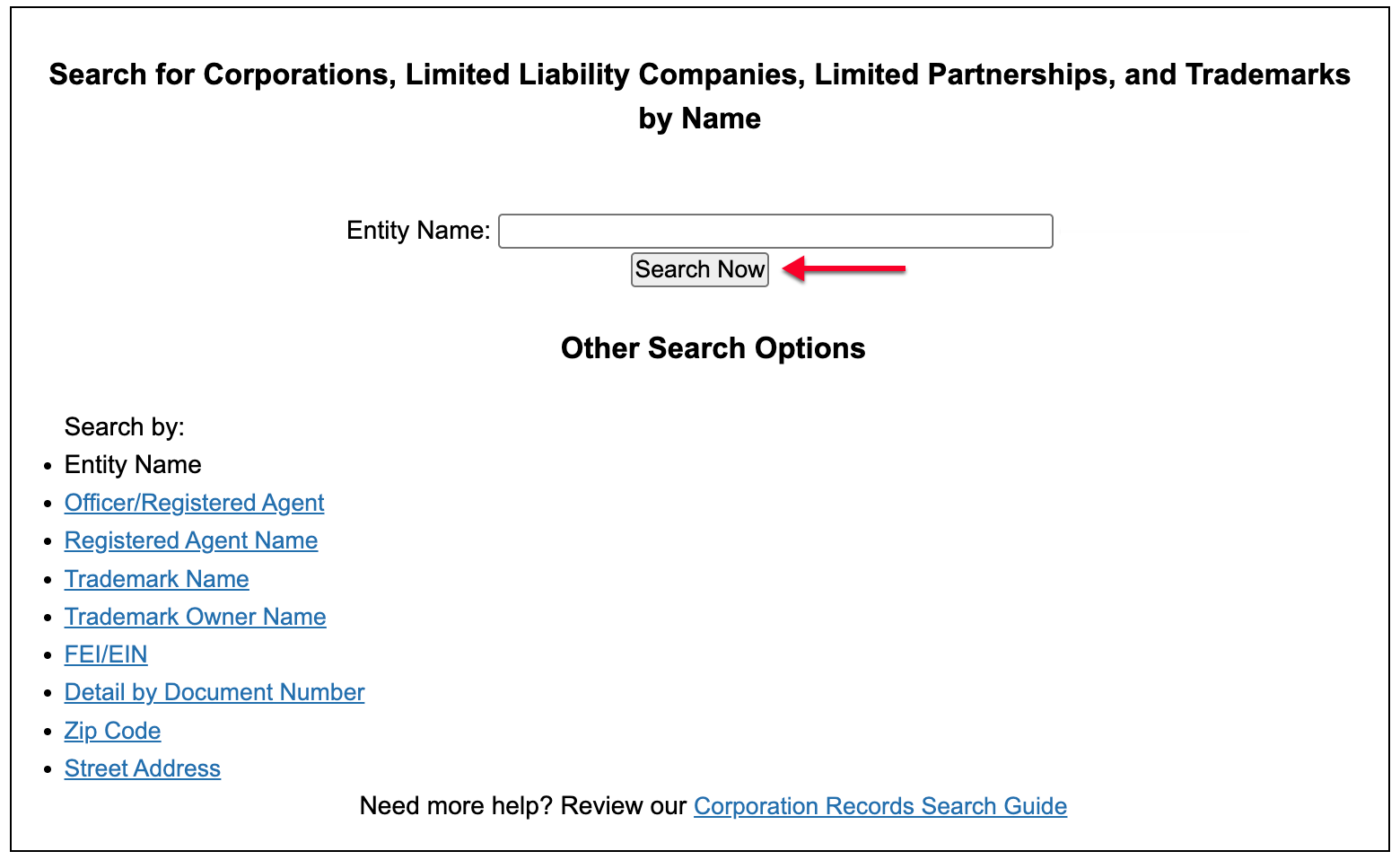
Initiate the query action by selecting the “Search Now” button. This directs the query to seek any records that match the text in the search box.
Step 5. Locate the Entity
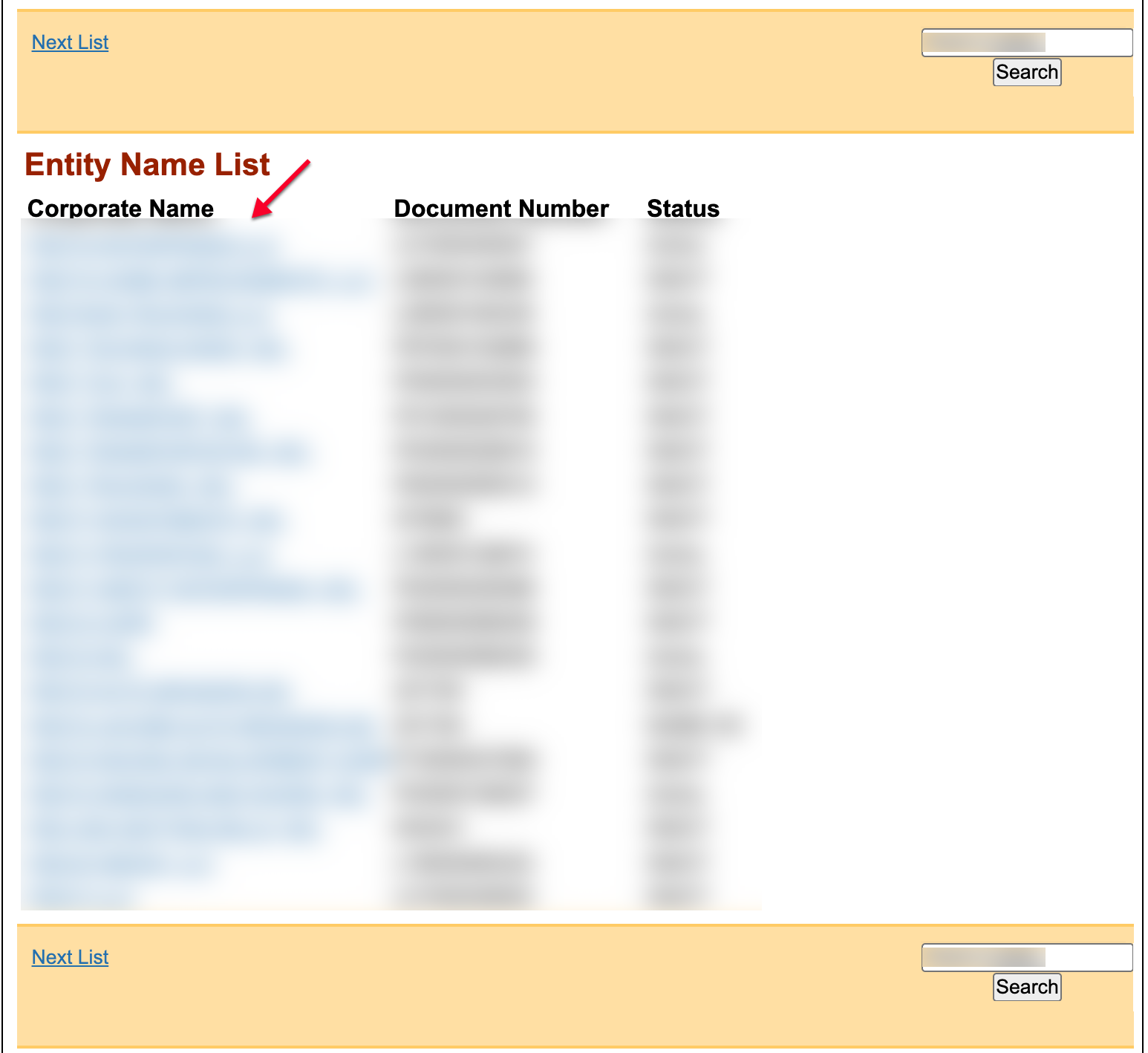
Scroll through the table presenting results. You may move to the table’s next page, initiate a new search, or select an entity name from the first column to see details. Select the desired entity.
- Corporate Name
- Document Number
- Status
Step 6. Read through the Entity’s Detail Page
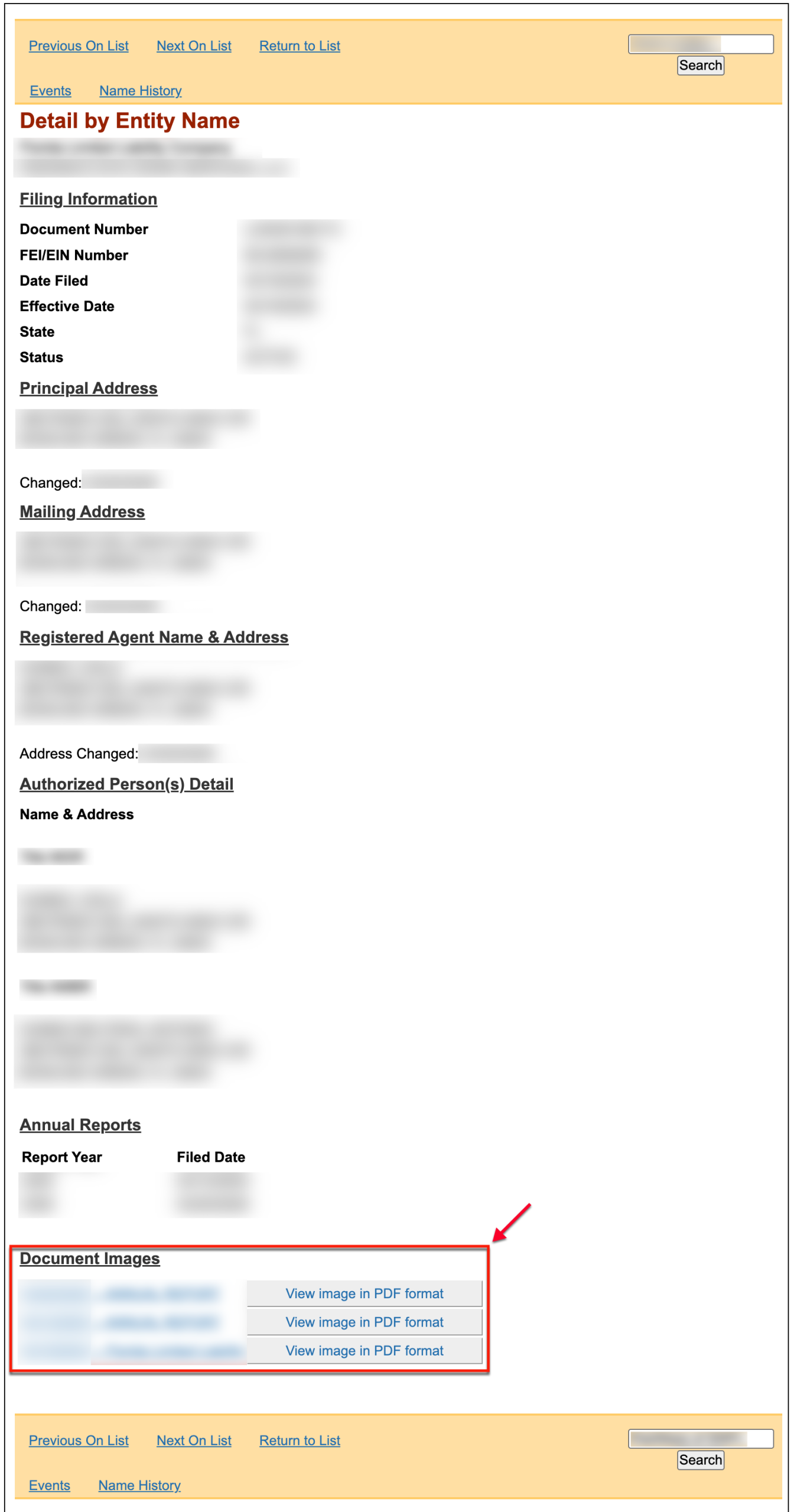
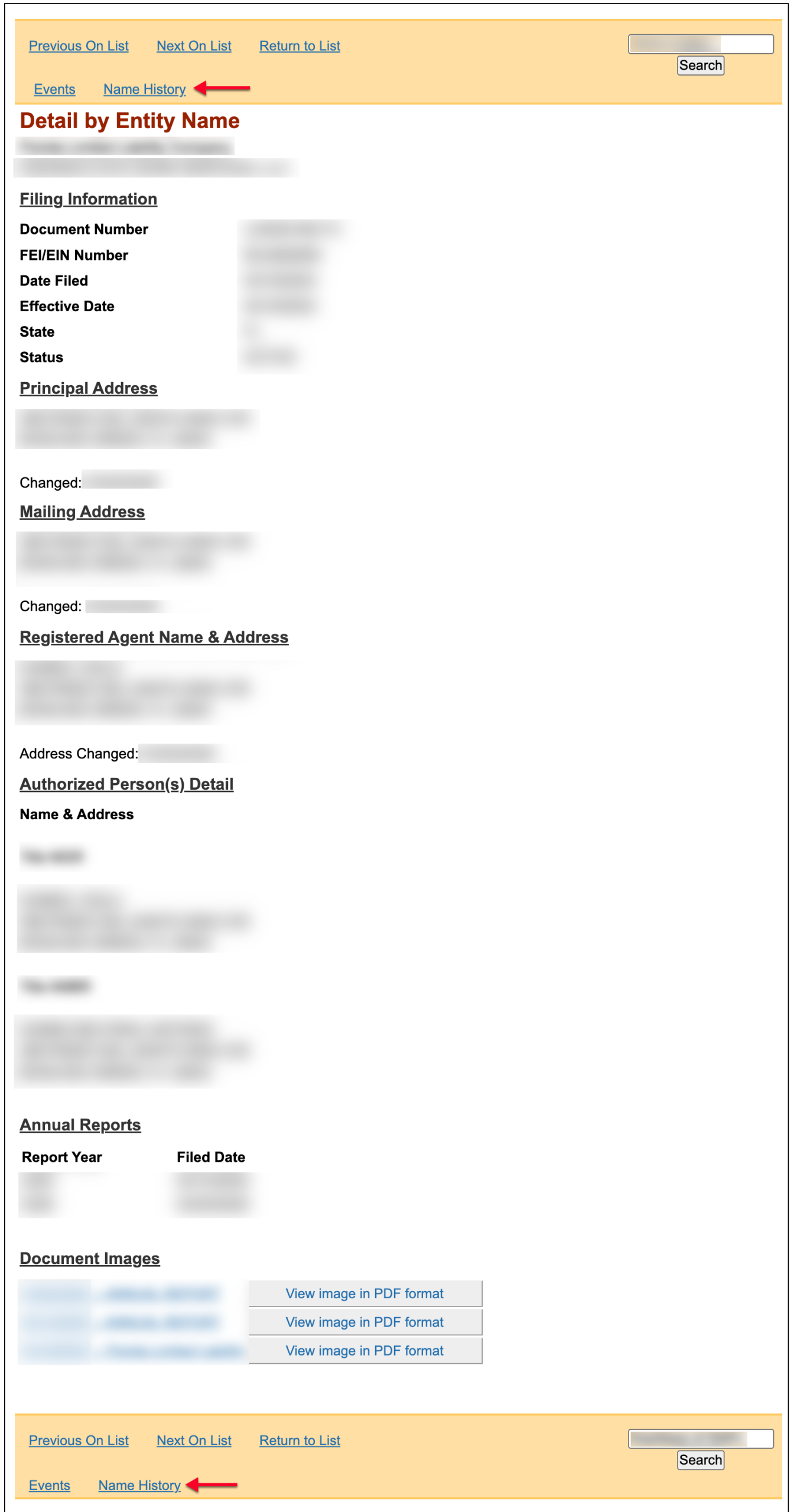
The entity’s page displays items such as its address and registered agent. Some documents are available as PDFs by selection.
- Filing Information
- Document Number
- FEI/EIN Number
- Date Filed
- Effective Date
- State
- Status
- Principal Address
- Changed
- Mailing Address
- Changed
- Registered Agent Name & Address
- Address Changed
- Authorized Person(s) Detail
- Name and Address
- Annual Reports
- Report Year
- Filed Date
- Document Images
Step 7. Investigate Past Events
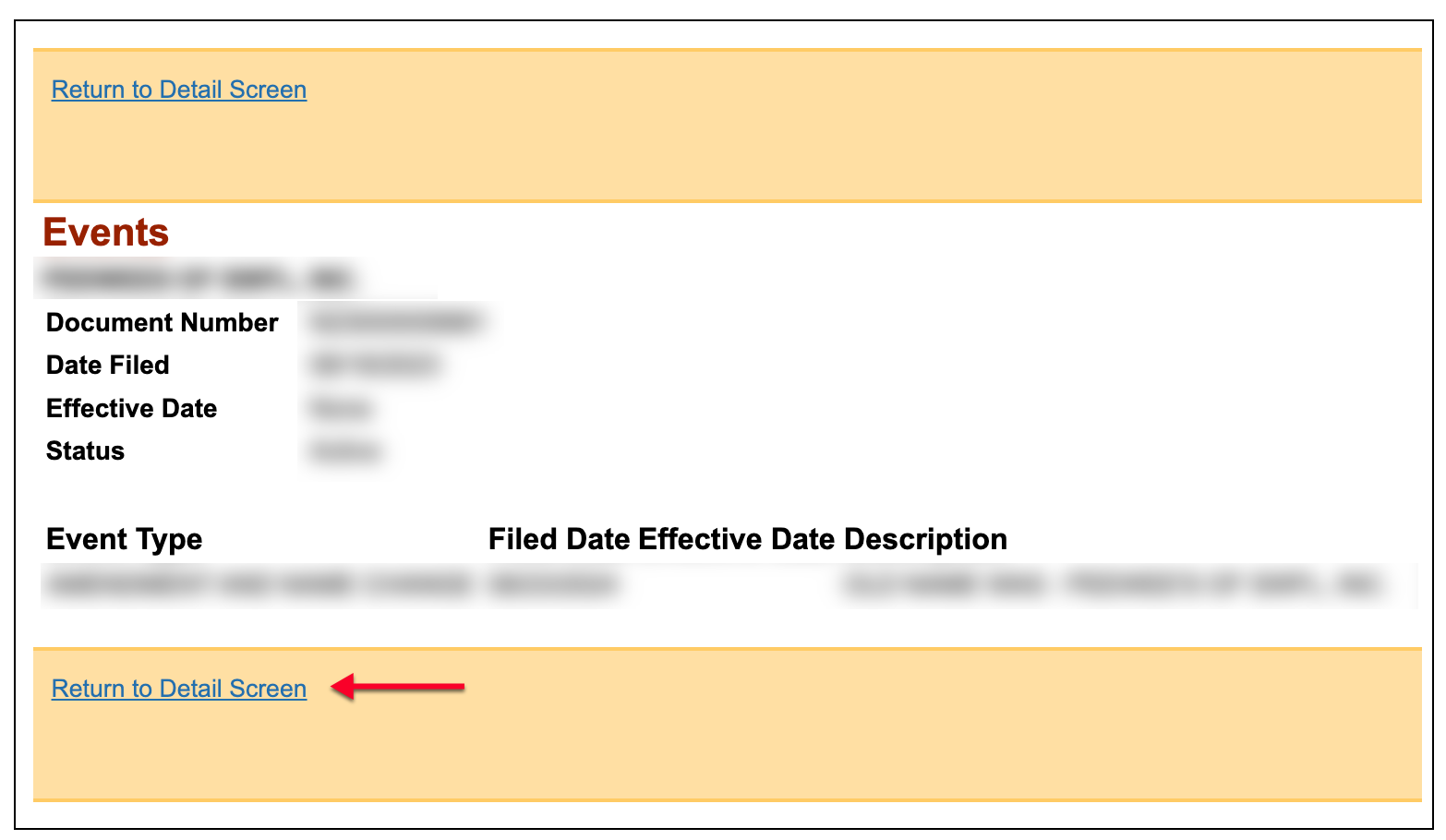
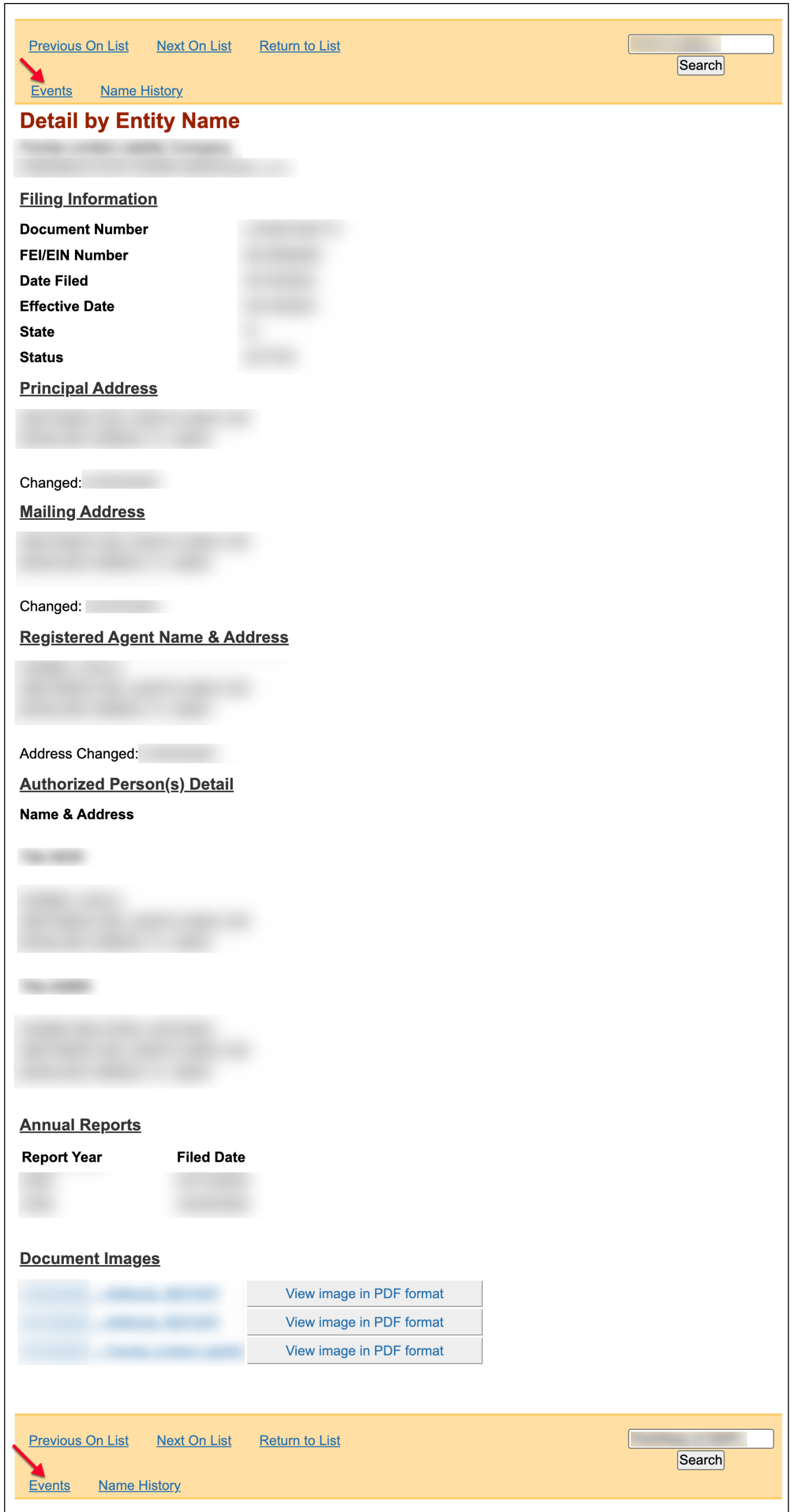
Direct your attention to the top or bottom menu. Click “Events” in order to view an entity’s past behavior in the state.
Step 8. Review the Available Events Information
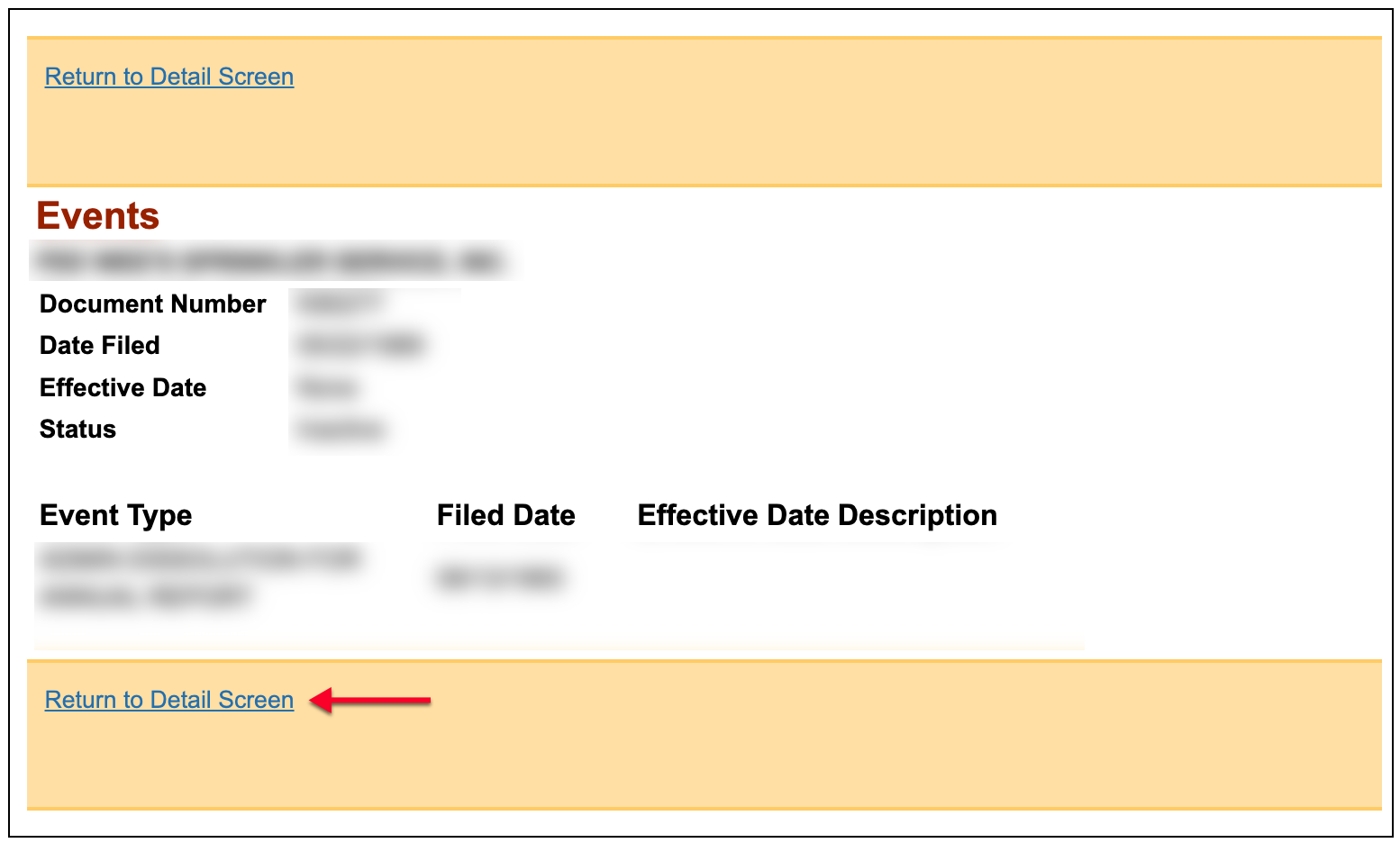
Review the contents of the events window in order to view its actions and the relevant dates. When you are ready, select the “Return to Detail Screen.”
Step 9. Visit the Names History Area
Investigate actions that specifically relate to the business entity’s name by selecting the “Name History” link available. This returns a listing of events specifically related to the entity’s name.
Step 10. Examine Names History
Look over the events on this page. Here, you can view all events affecting an entity’s name. Click on the “Return to Detail Screen” once done.