The Arizona Corporation Commission’s business center provides a business search tool that helps users determine whether a business name is available and offers information on entities operating in the state. Running this query, as well as reviewing the results, is free for the public courtesy of the state.
Business Name Availability Check
State of Arizona

Business Entity Search
Step 1. Open the Business Search Tool Page
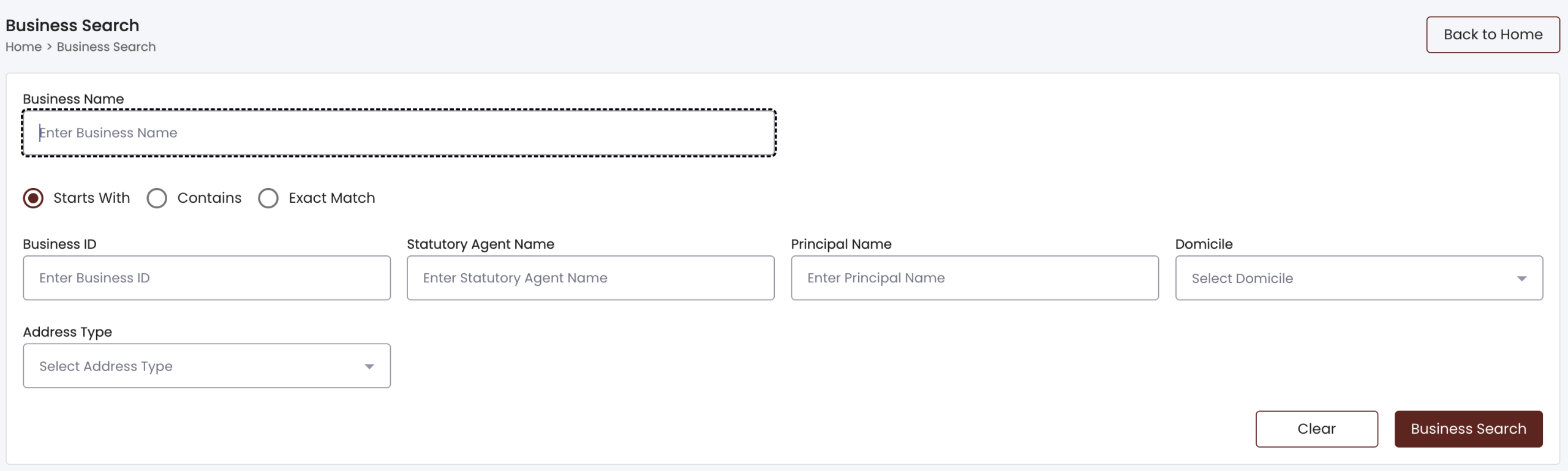
Step 2. Producing Search Information
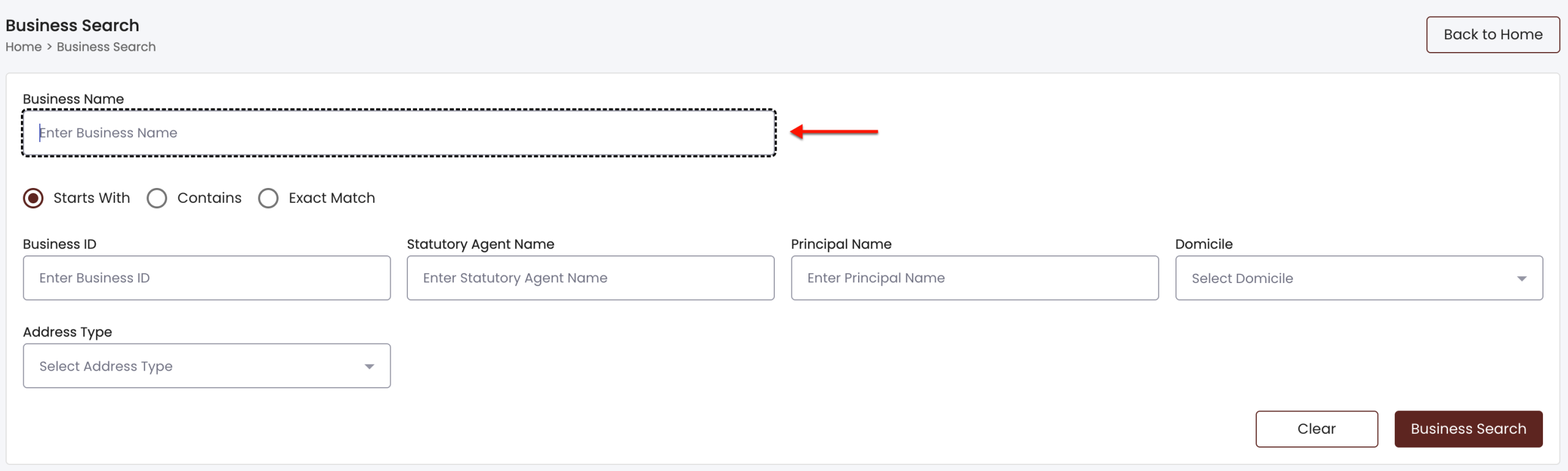
Step 3. Identify the Search Method
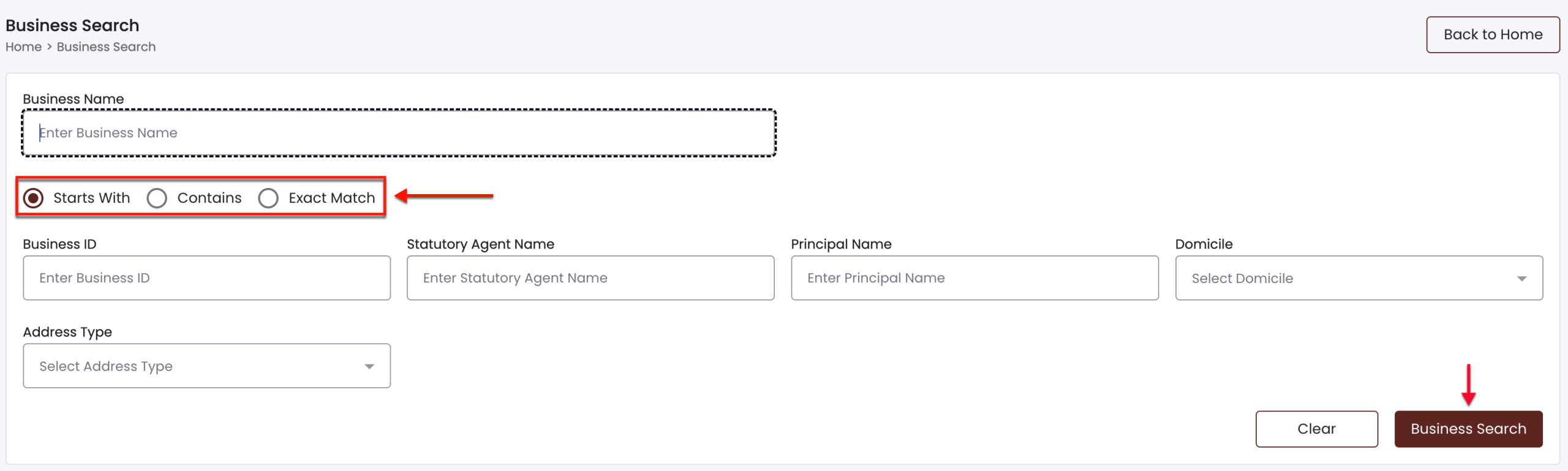
Adjust the query to seek the search phrase or name at the beginning of an entity’s name or anywhere in it. Select one of the radio buttons on display for this task.
Step 4. Tighten the Search
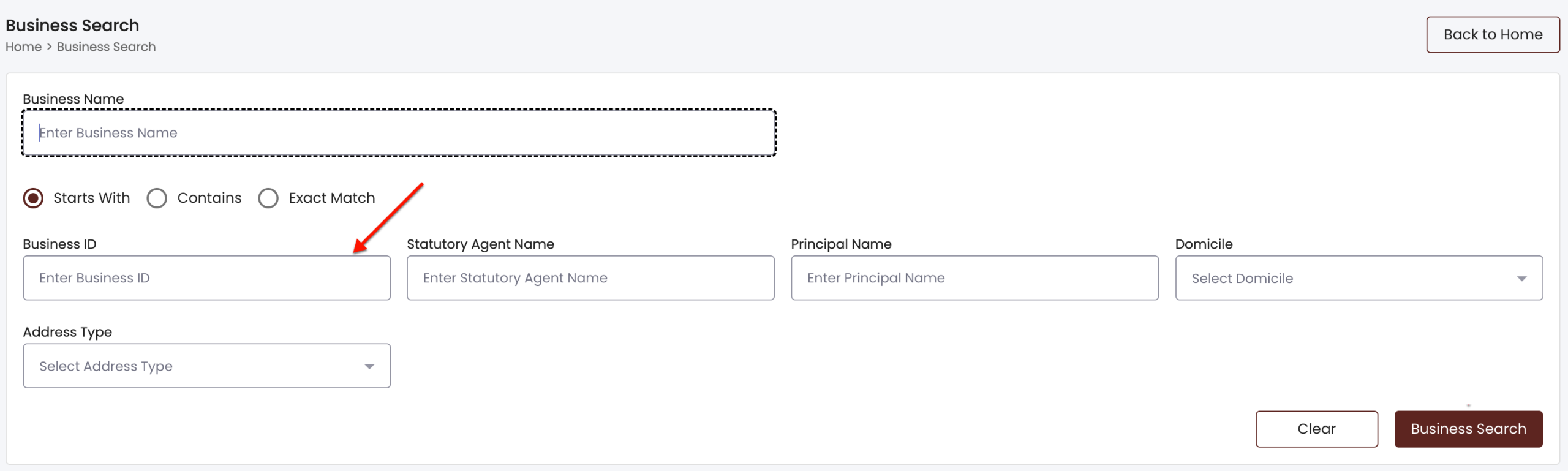
In order to control the number of results, locate the “Business ID” box. If the state ID for the target entity is known, supply this number to this text box.
Step 5. Use the Statutory Agent
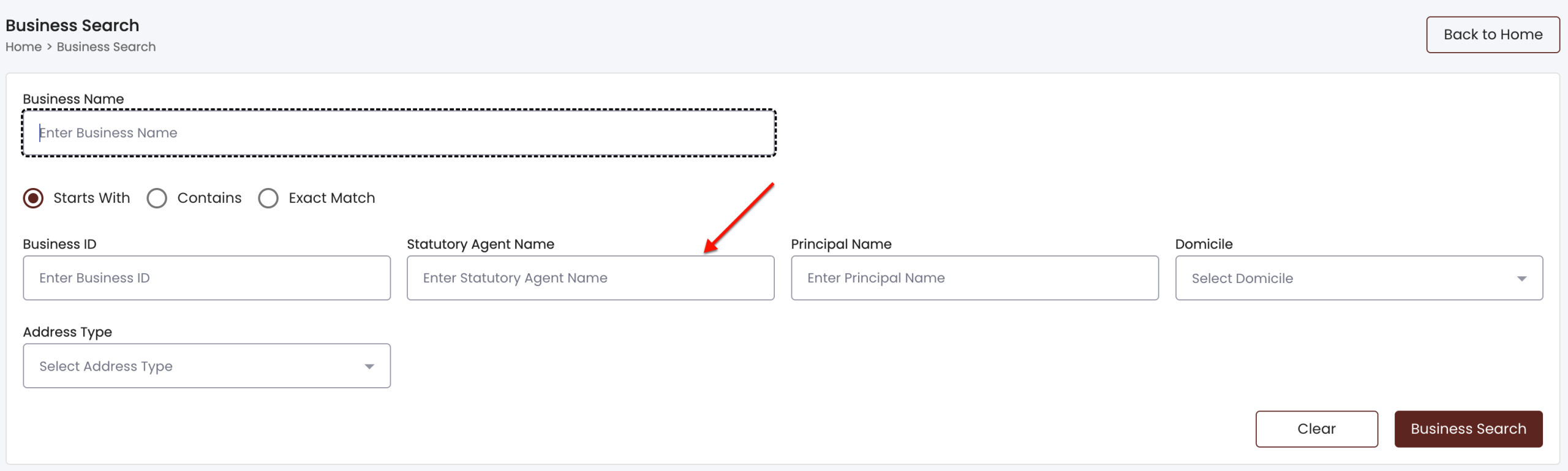
If the name of the target entity’s statutory agent is known, it can be used to focus the query. Produce this name in the “Statutory Agent Name” text box.
Step 6. Narrow Results By Principal Name
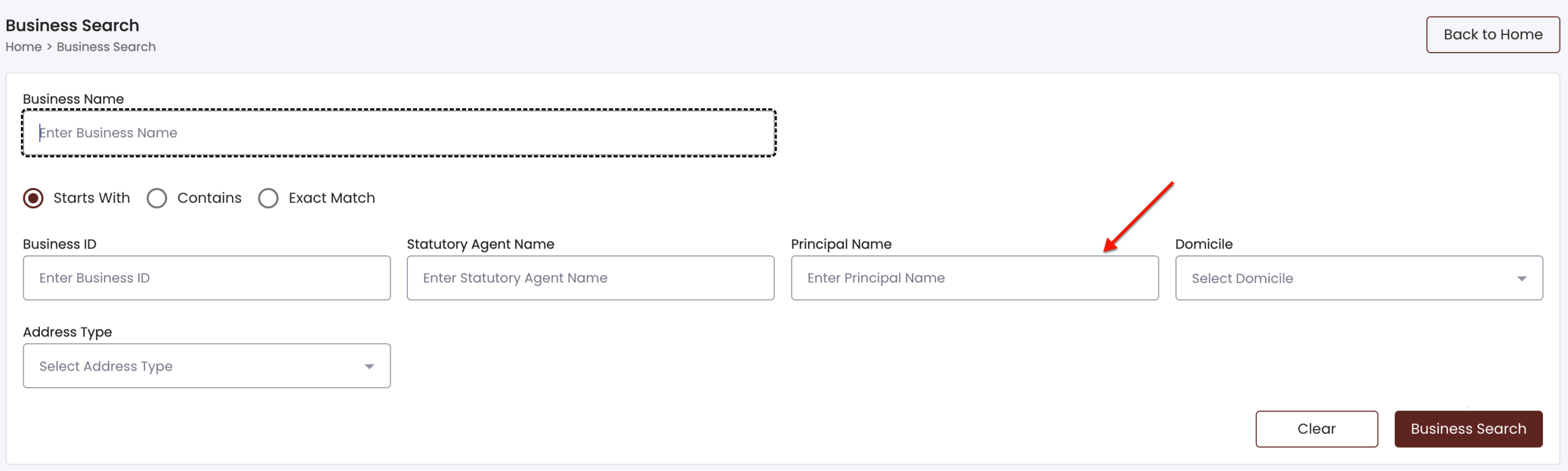
Naturally, if the name of a business owner, president, directing, or managing member is known, it will significantly tighten the query. Report this name in “Principal Name.”
Step 7. Looking for Entities By Domicile
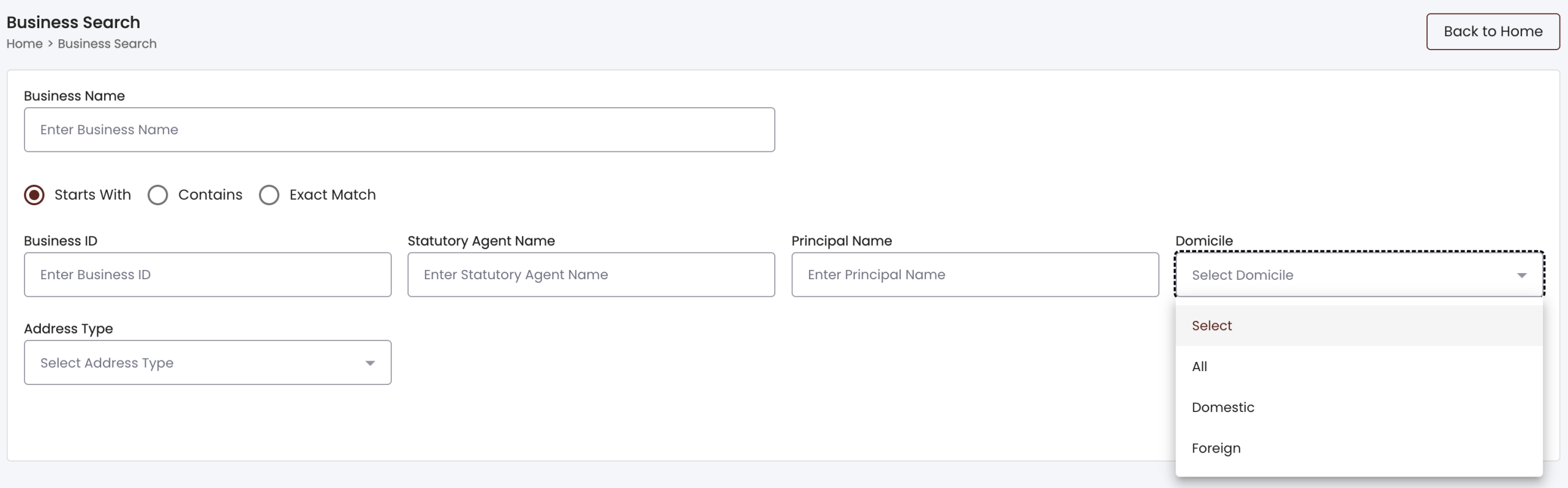
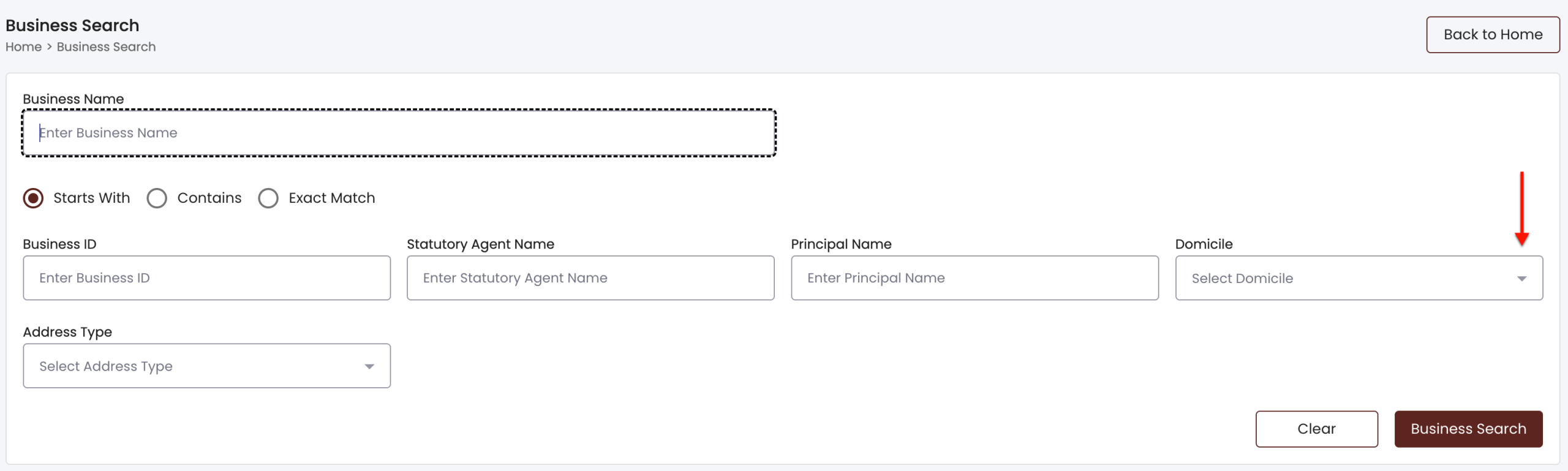
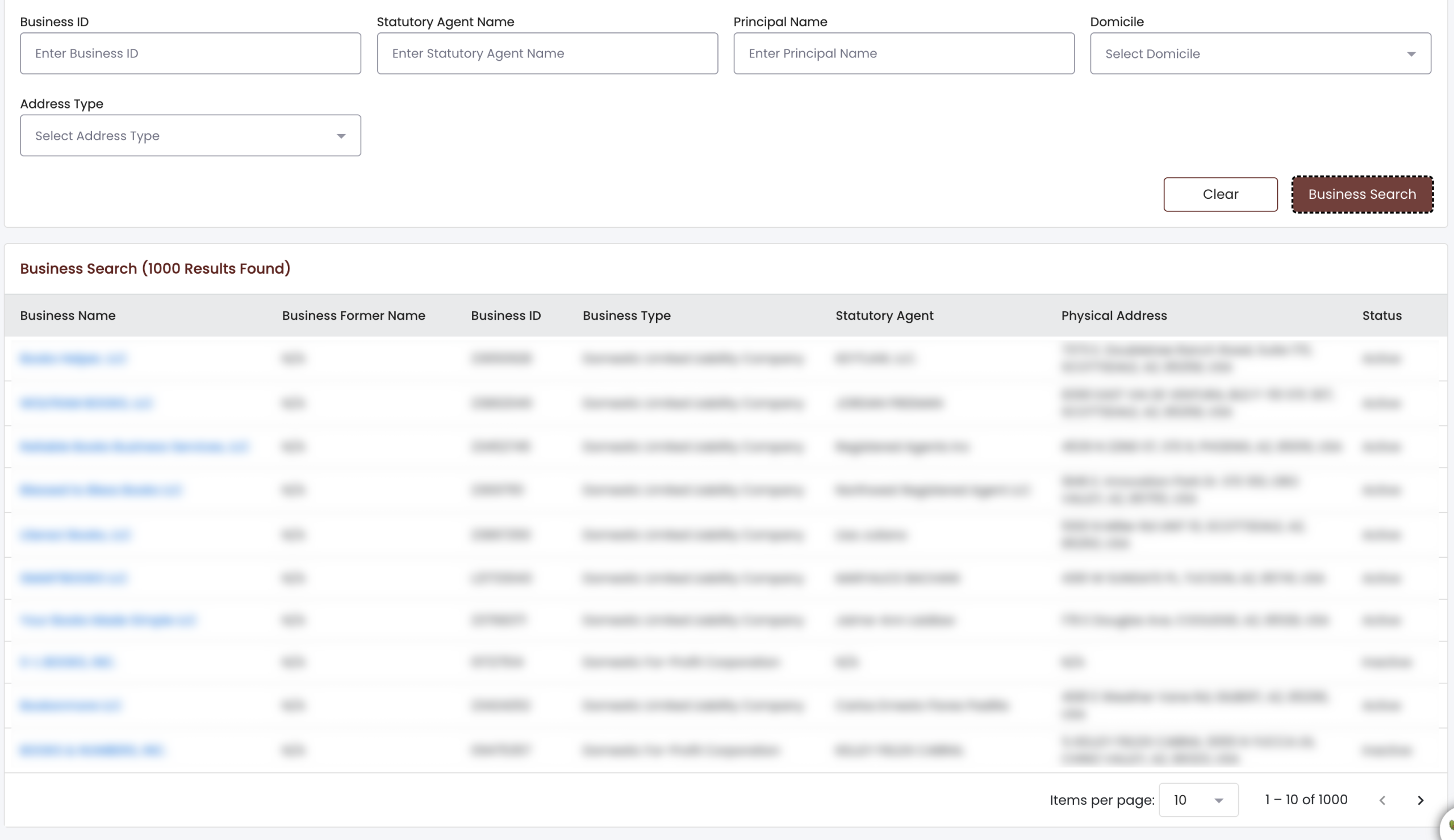
Locate the “Domicile” drop-down menu (see image). Indicate if the entity’s headquarters and principal office is foreign or in-state. This is an optional filter but useful.
Step 8. Filtering By Address Type
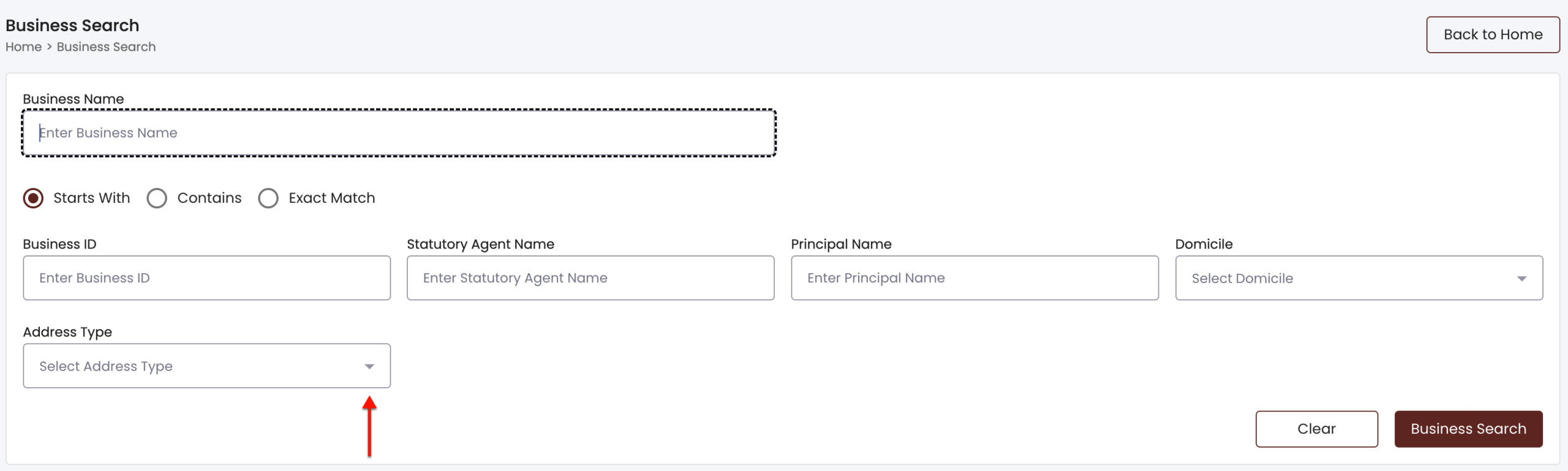
Indicate what type of search the query may focus on from the next drop-down menu (see image). For instance, if the most accurate information available is the agent’s name, then select “Statutory Agent Address.”
Step 9. Run the Query
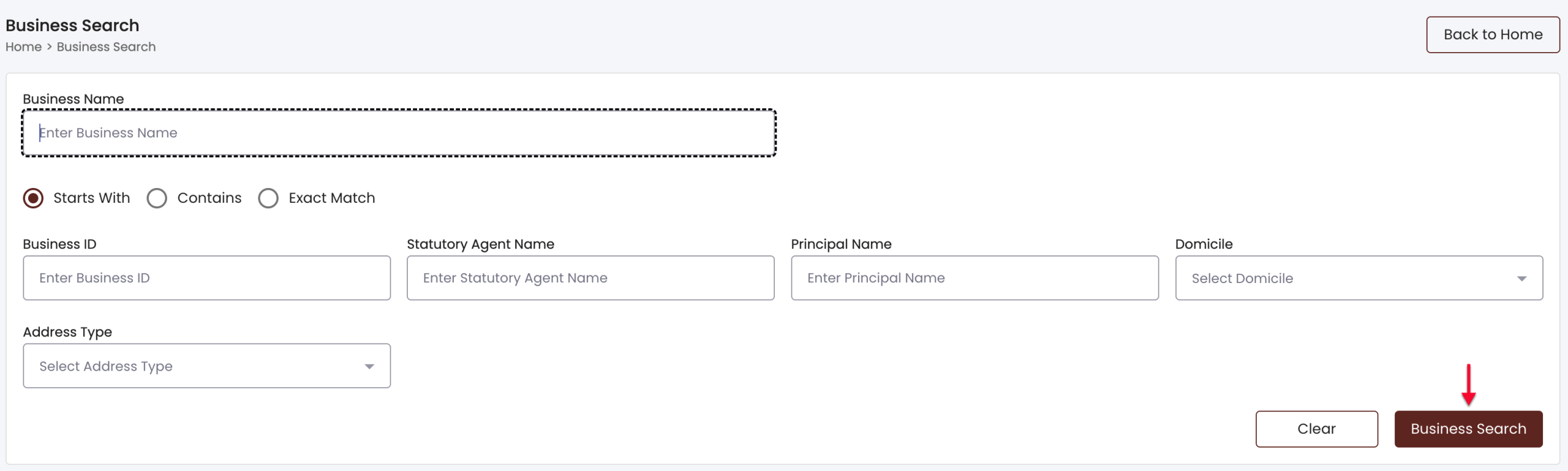
Provide at least one of these fields with information that the tool will search for, then select “Business Search.”
Step 10. Satisfying Security Protocol
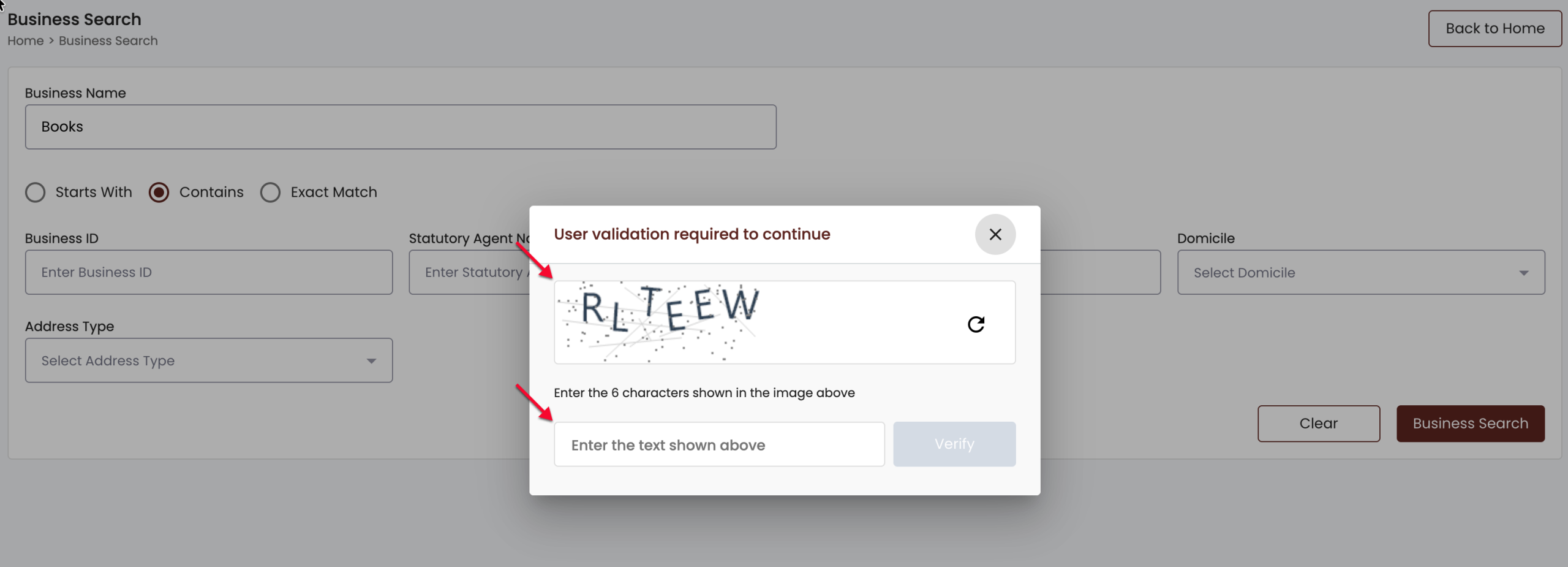
Before proceeding to the search results, complete the security check to access the table results for your query.
Step 11. Finding the Entity in the Results
Records matching the criteria appear in a table that is sortable by clicking the column heading. Additionally, the site provides a navigation menu in the lower right.
- Business Name (see image)
- Business Former Name (see image)
- Business ID (see image)
- Business Type (see image)
- Statutory Agent (see image)
- Physical Address
- Status (see image)
Step 12. Reviewing Entity Details
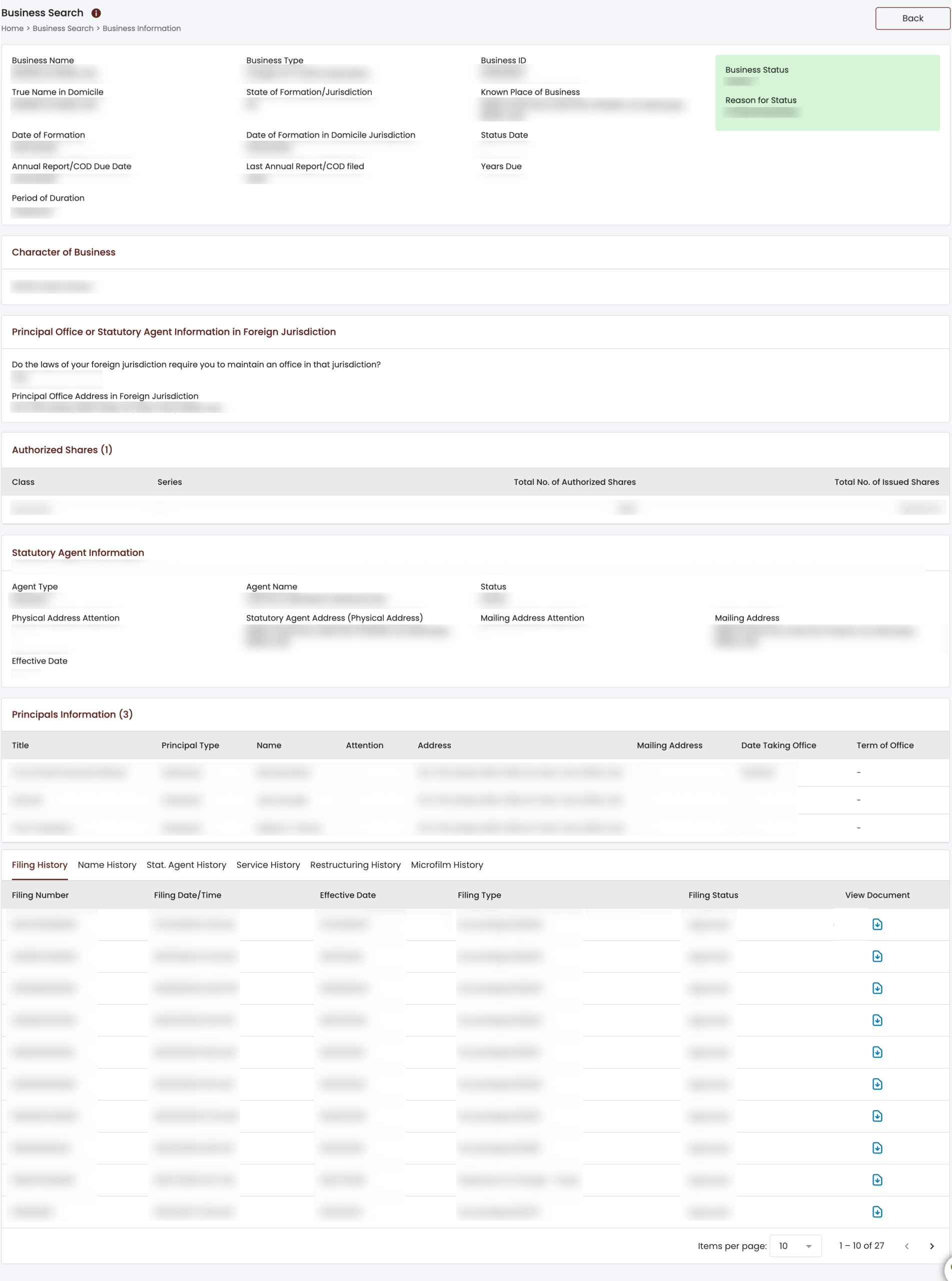
Notice the business information page displays a wealth of information. Take a moment to review each area before continuing to the bottom.
- Business Name
- Business Type
- Business ID
- True Name in Domicile
- State of Formation
- Date of Formation in Domicile Jurisdiction
- Status Date
- Annual Report/COD Due Date
- Last Annual Report/COD Filed
- Years Due
- Period of Duration
- Character of Business
- Principal Office or Statutory Agent Information in Foreign Jurisdiction
- Authorized Shares
- Statutory Agent Information
- Principals Information
Step 13. Access Additional Details
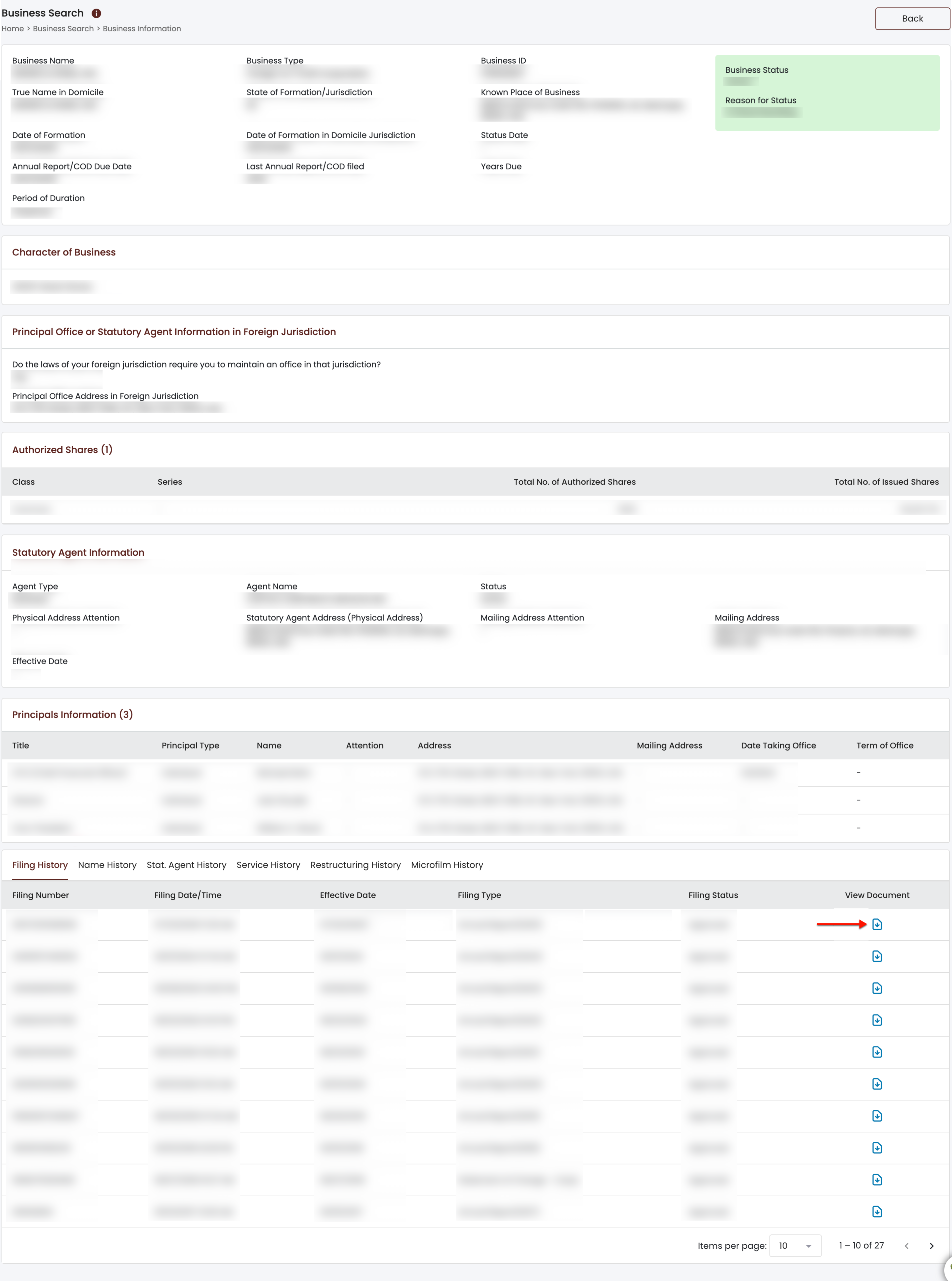
Uncover more information regarding the business using the final area. Notice that the default tab open enables a review of the entity’s filing history.
- Filing History
- Filing Number
- Filing Date/Time
- Effective Date
- Filing Type
- View Document (see image)
Step 14. Further Investigate the Entity’s Identity
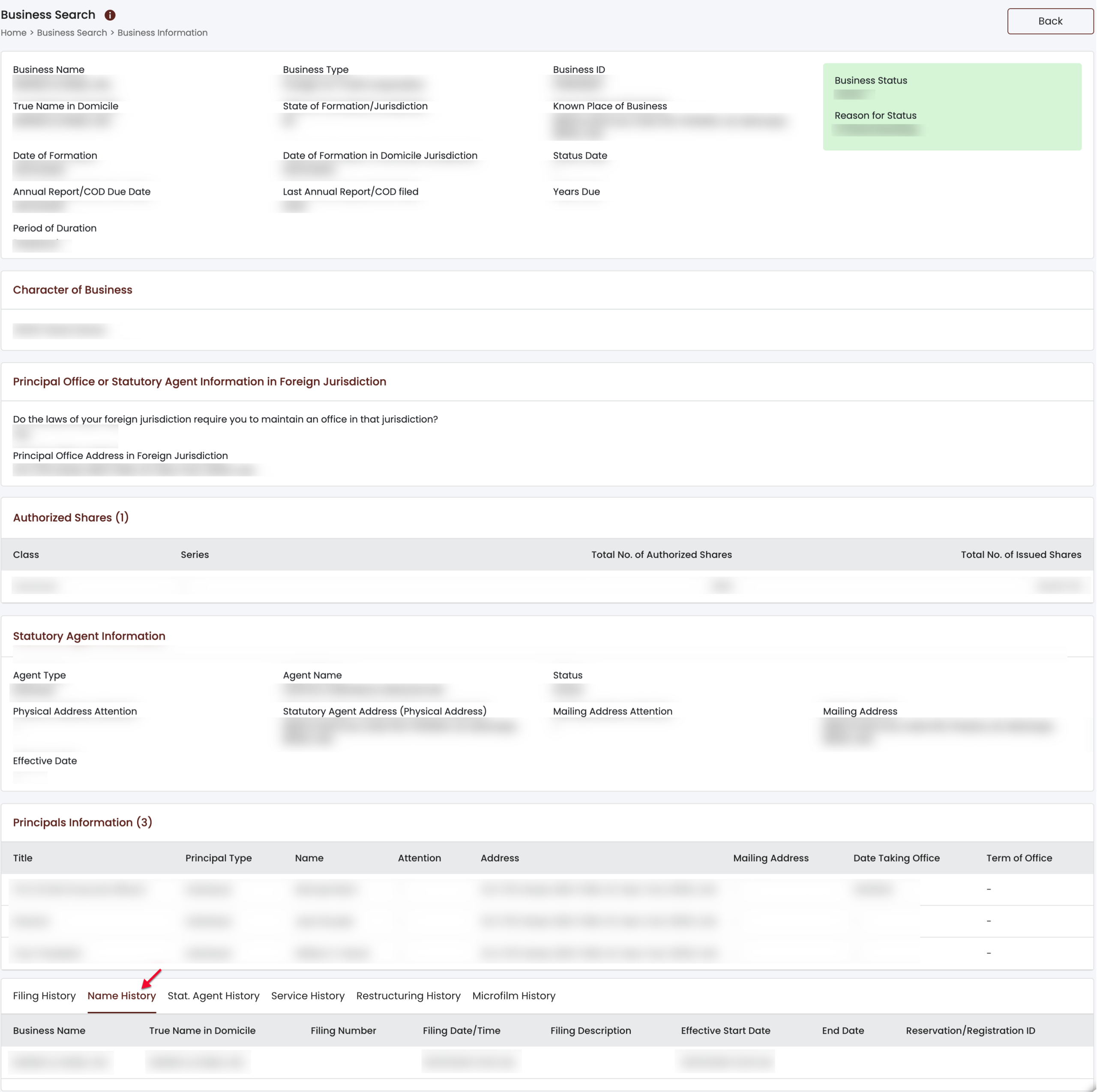
Select the second tab to review the business’s true name in the state of its formation as well as the information in each column:
- Name History
- Business Name
- True Name in Domicile
- Filing Number
- Filing Date/Time
- Filing Description
- Effective Start Date
- End Date
- Reservation/Registration ID
Step 15. Obtain Agent Information
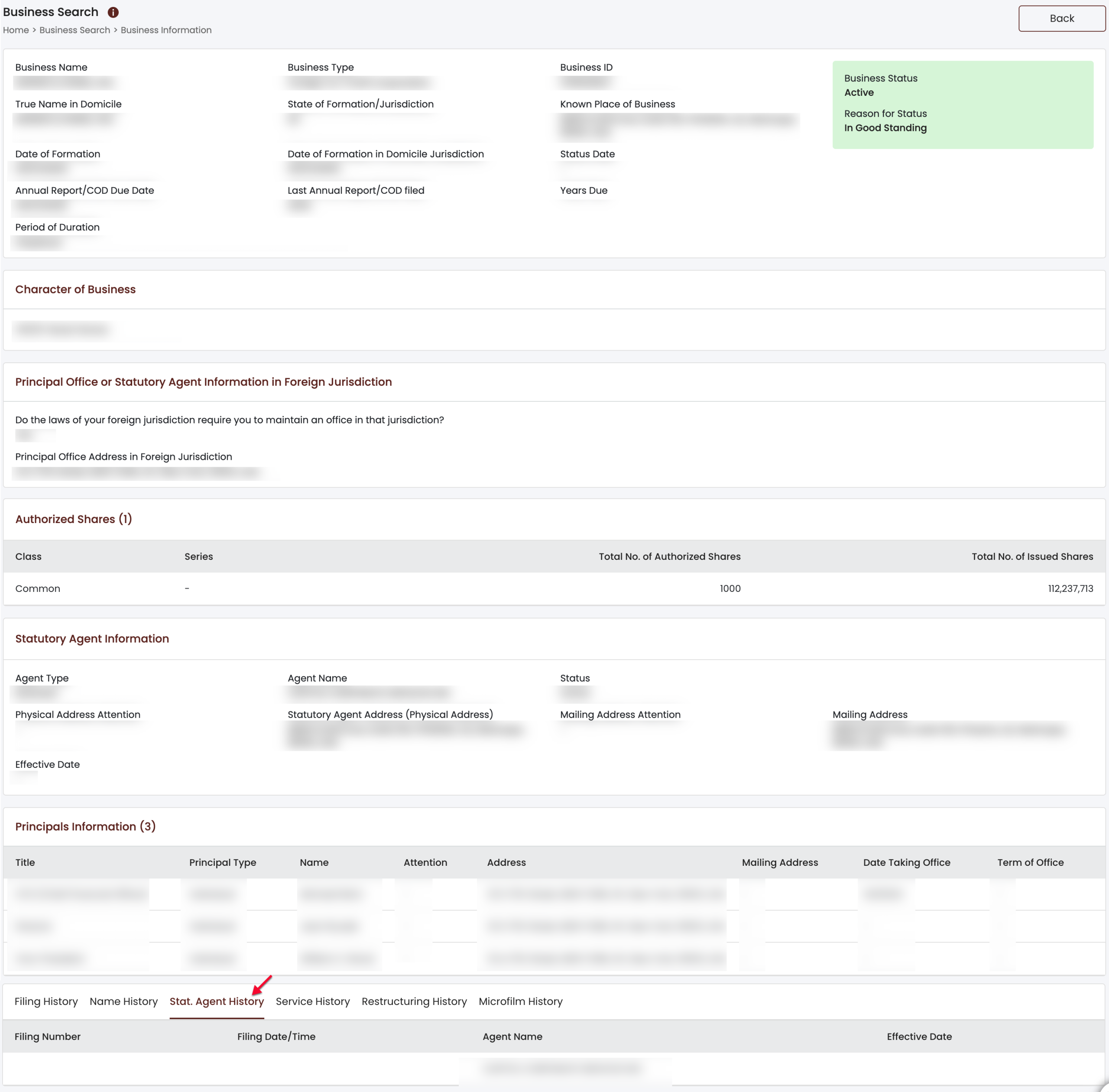
Continue to the third tab in order to look up the entity’s statutory agents. Here, each agent’s name is available, as well as some relevant information.
- Stat. Agent History
- Filing Number
- Filing Date/Time
- Agent Name
- Effective Date
Step 16. Examine the Entity’s Past Actions
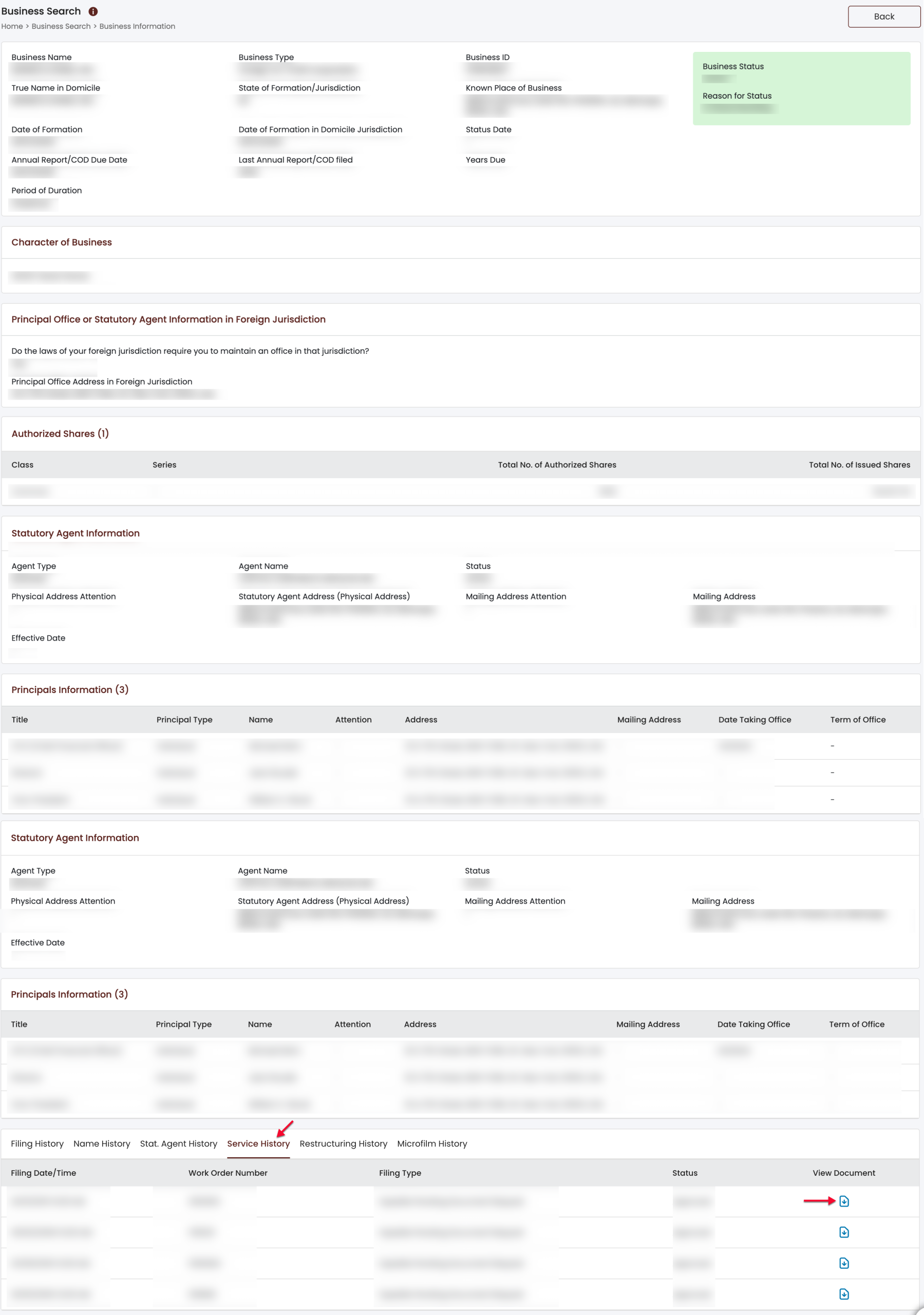
To investigate the business’s history, click on the fourth tab. Note that when available, PDF scans are obtainable by selection in the final column.
- Service History
- Filing Date/Time
- Work Order Number
- Filing Type
- Status
- View Document (see image)
Step 17. View the Entity’s Evolution
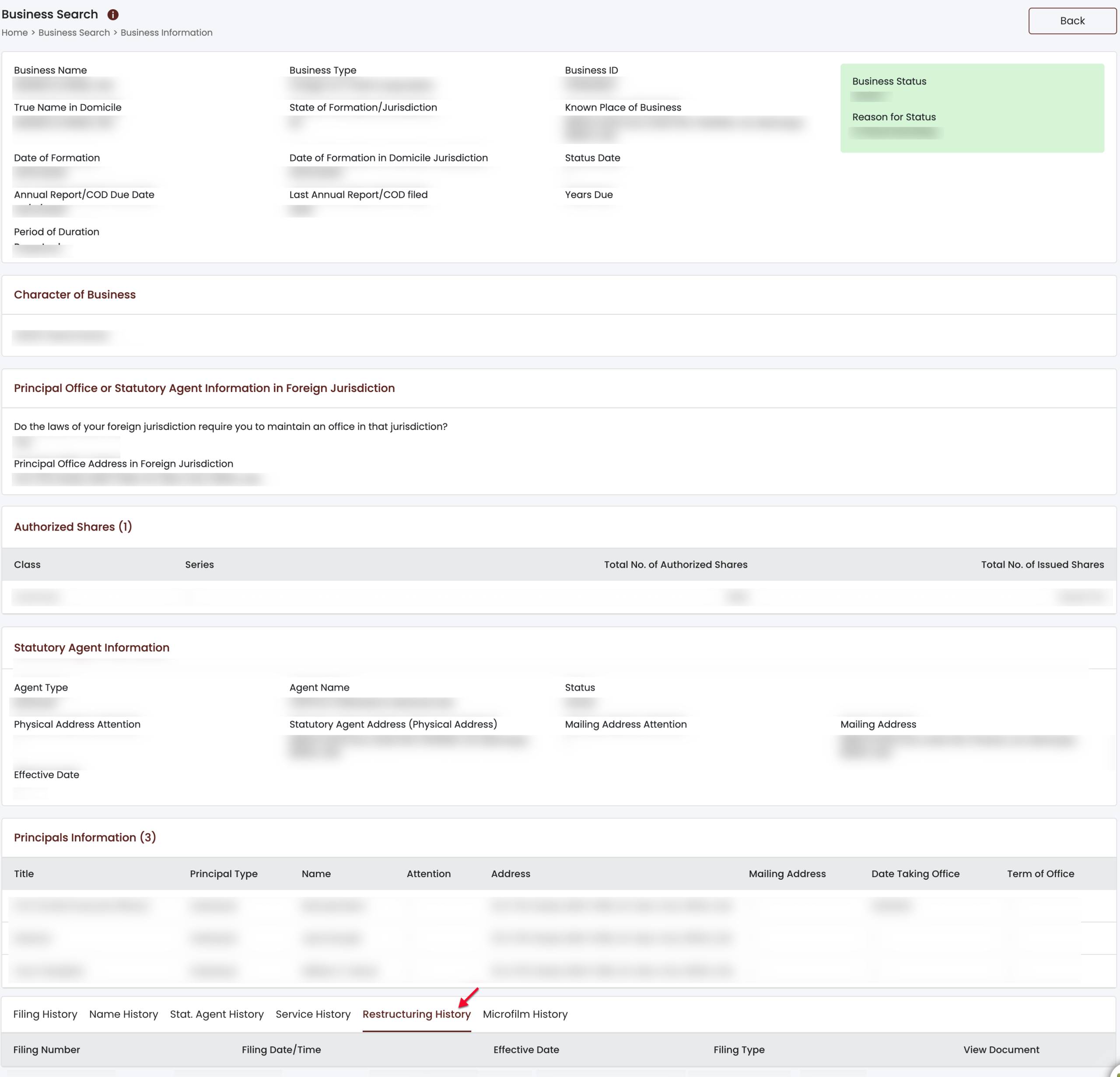
Click on the fifth tab to examine previous strategic changes to the business. This area may also have PDF downloads available to view listed in the last column.
- Restructuring History
- Filing Number
- Filing Date/Time
- Effective Date
- Filing Type
- View Document
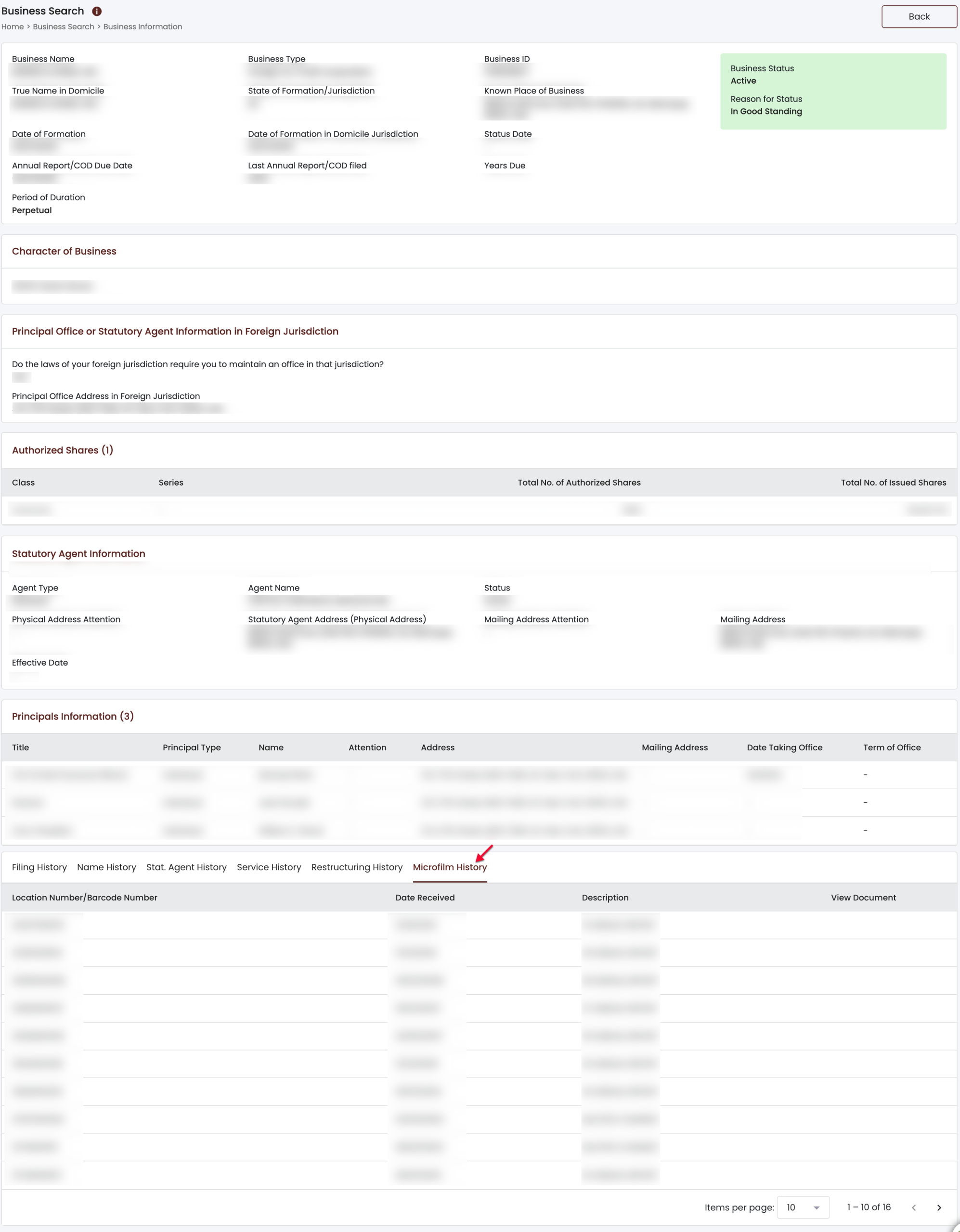
Step 18. Locate or View Available Microfilm Records
Any microfilm records of the business with the state are viewable using the final column of the last tab. However, whether available or not, the information required to request a microfilm record is available in this table.
- Microfilm History
- Location Number/Barcode Number
- Date Received
- Description
- View Document